How to Rip and Transfer DVD to iPad/iPhone: Free and Paid Options in 2026

Summary: iPads and iPhones don't have DVD drives, and most commercial discs include copy protection that free tools can't bypass. This guide covers three DVD rippers for converting your collection to iPad-compatible formats, and four ways to transfer the file to your device. For protected commercial DVDs, DVDFab handles what HandBrake and VLC cannot. For wireless transfers on a Mac, AirDrop is the fastest option.
Table of Contents
iPads and iPhones don't have optical drives, and iOS doesn't support USB DVD players. I ran into this on a long trip when I wanted to rewatch a film I only had on disc. Converting DVDs and Blu-rays into iPad-friendly files fixed the problem for good. This guide covers three reliable DVD rippers for converting discs to iPad-compatible formats, four transfer methods for getting the file onto your device, and a section on Blu-ray for those with HD collections.
Can You Play DVDs on an iPad or iPhone?
You cannot play a disc directly on an iPad or iPhone. These devices have no optical drive, and iOS/iPadOS does not support external DVD players connected through the Lightning or USB-C port.
The practical workaround is to rip the DVD to a compatible digital file. MP4 using H.264 gives the widest app compatibility across the native Apple TV app and third-party players. HEVC (H.265) in MP4 reduces file size by roughly 40% at comparable quality, which is worth considering if your iPad's storage is tight.
After conversion, you can get the file onto your iPad four ways: USB cable with Finder (Mac) or iTunes (Windows), AirDrop, iCloud Drive, or DVDFab File Transfer. All four are covered in the transfer section below.
One important distinction: most commercial DVDs include copy protection. HandBrake and VLC cannot remove it. DVDFab DVD Ripper can. If your collection is mostly store-bought titles, that difference decides the tool. Rip only discs you own, and check local copyright rules before proceeding.
How to Rip DVDs to iPad/iPhone with Free and Paid Tools
The right tool depends on whether your DVDs have copy protection. Most commercial releases do, which eliminates two of the three options below for everyday use. Here is how each fits:
Best DVD to iPad Converter - DVDFab DVD Ripper
Available on: Windows 11/10/8.1/8/7 & macOS 10.13 - 15.x
DVDFab DVD Ripper handles copy-protected discs where HandBrake and VLC fall short. Device presets for iPad and iPhone are built in, so there is no guesswork about which encoding settings will play back correctly. I have ripped copy-protected titles across several disc types using it, and none required manual format adjustments after conversion. If your collection includes commercial DVDs, which most collections do, this is the tool that covers the full range without workarounds.
Key features:
- Handles copy-protected DVDs with RC, RCE, ARccOS, and UOP protections
- iPad and iPhone device presets built in; select your exact model from the Device menu
- Built-in video editor for trimming, cropping, adding subtitles, and adjusting brightness or contrast
- GPU hardware acceleration via NVIDIA, AMD, and Intel Quick Sync cuts conversion time significantly
- Free version (DVDFab HD Decrypter) handles most protected DVDs but limits output to MP4 or MKV only
Worth noting:
- A paid license is required for more output formats, and for batch processing multiple discs
How to Rip DVD to iPad with DVDFab DVD Ripper?
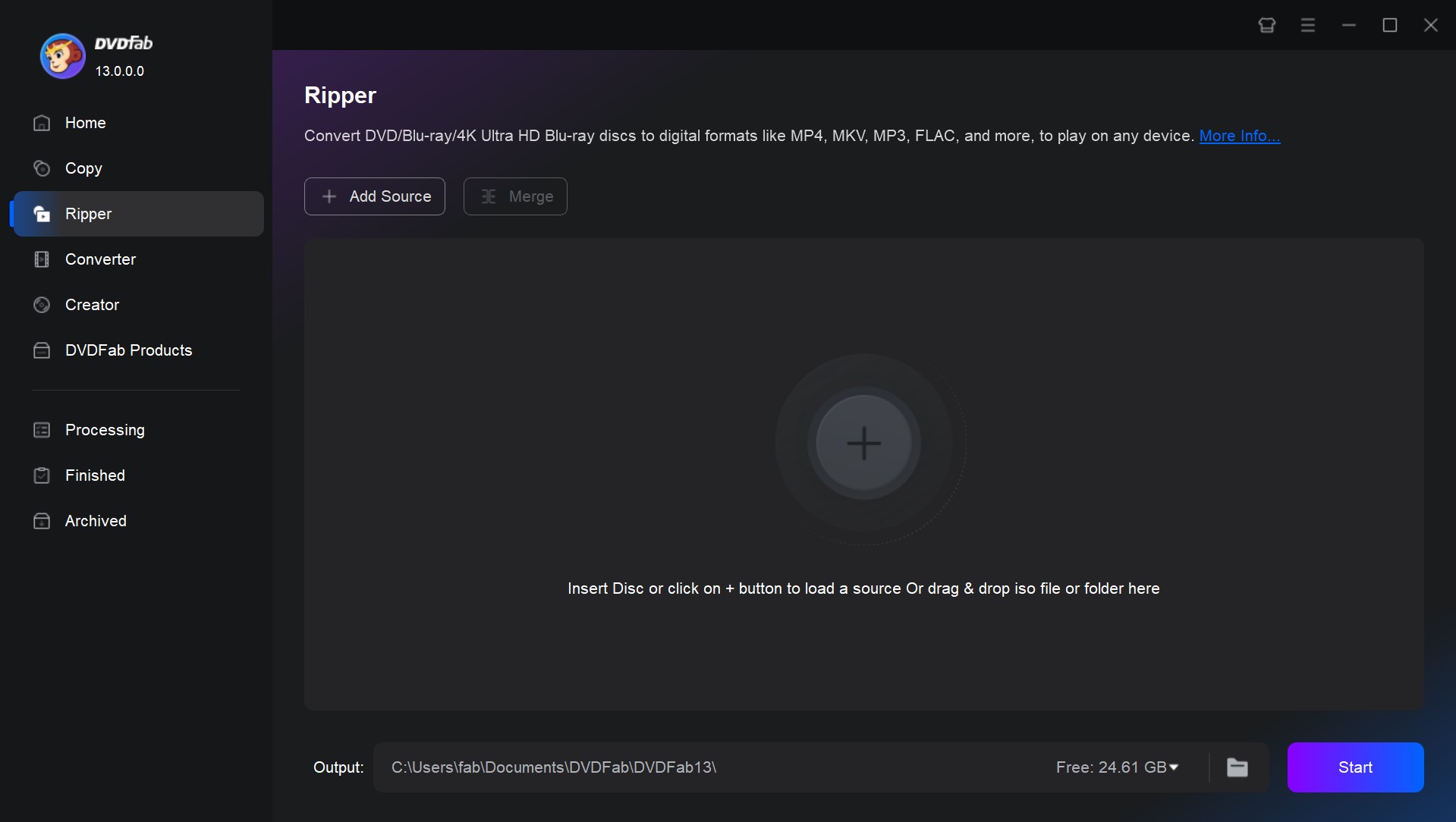
Step 1: Launch DVDFab and load the DVD
Install DVDFab 13 and choose the Ripper module. Insert the DVD into your optical drive and DVDFab will read it automatically. For ISO files or DVD folders, click the + Add button or drag the source directly into the main window.
Step 2: Choose an iPad profile or a compatible format
After loading the source, click "Choose Other Titles" if you want to rip a specific chapter or portion instead of the full film. You can also select audio tracks and subtitles here, or add external subtitle files.
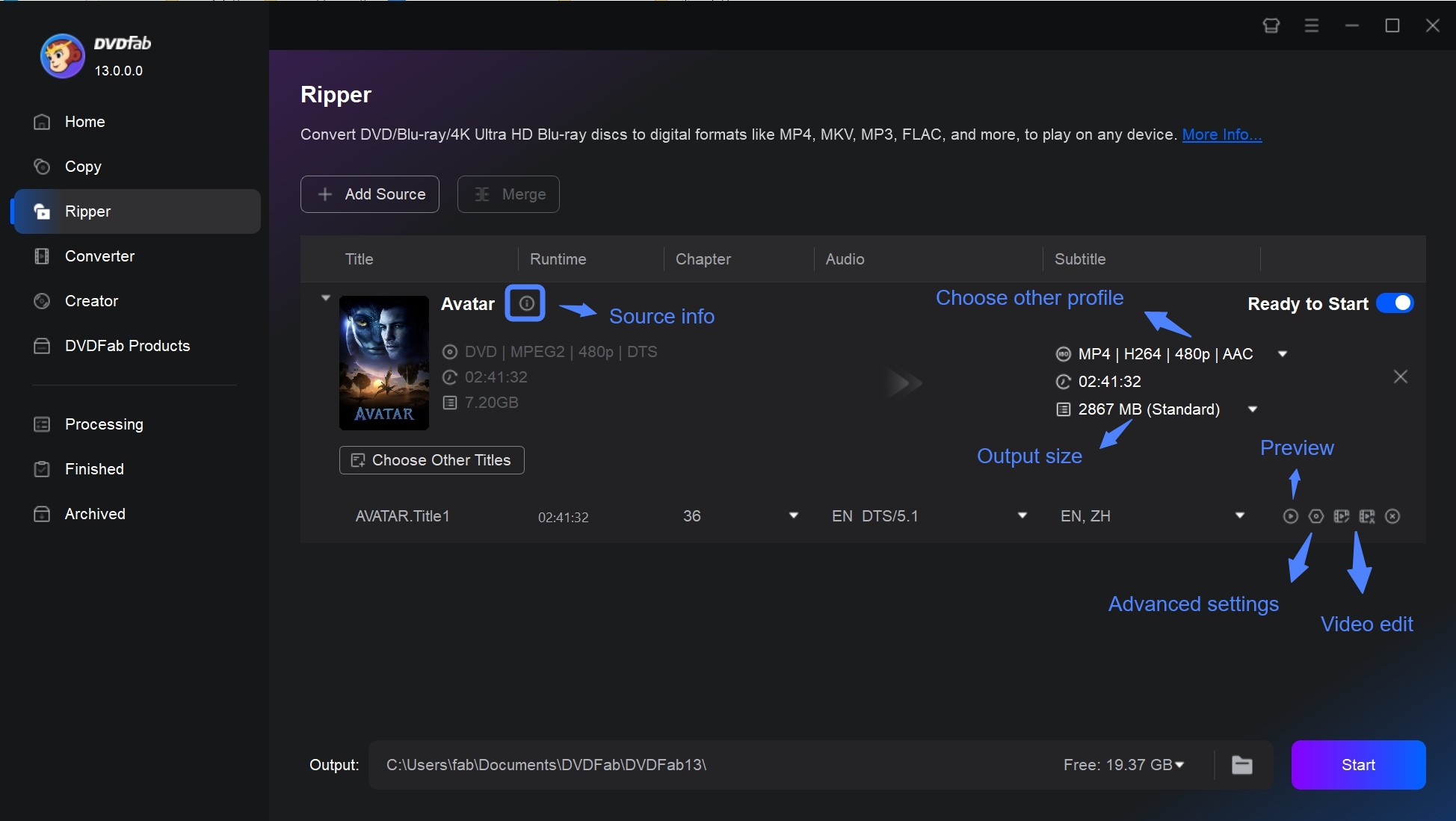
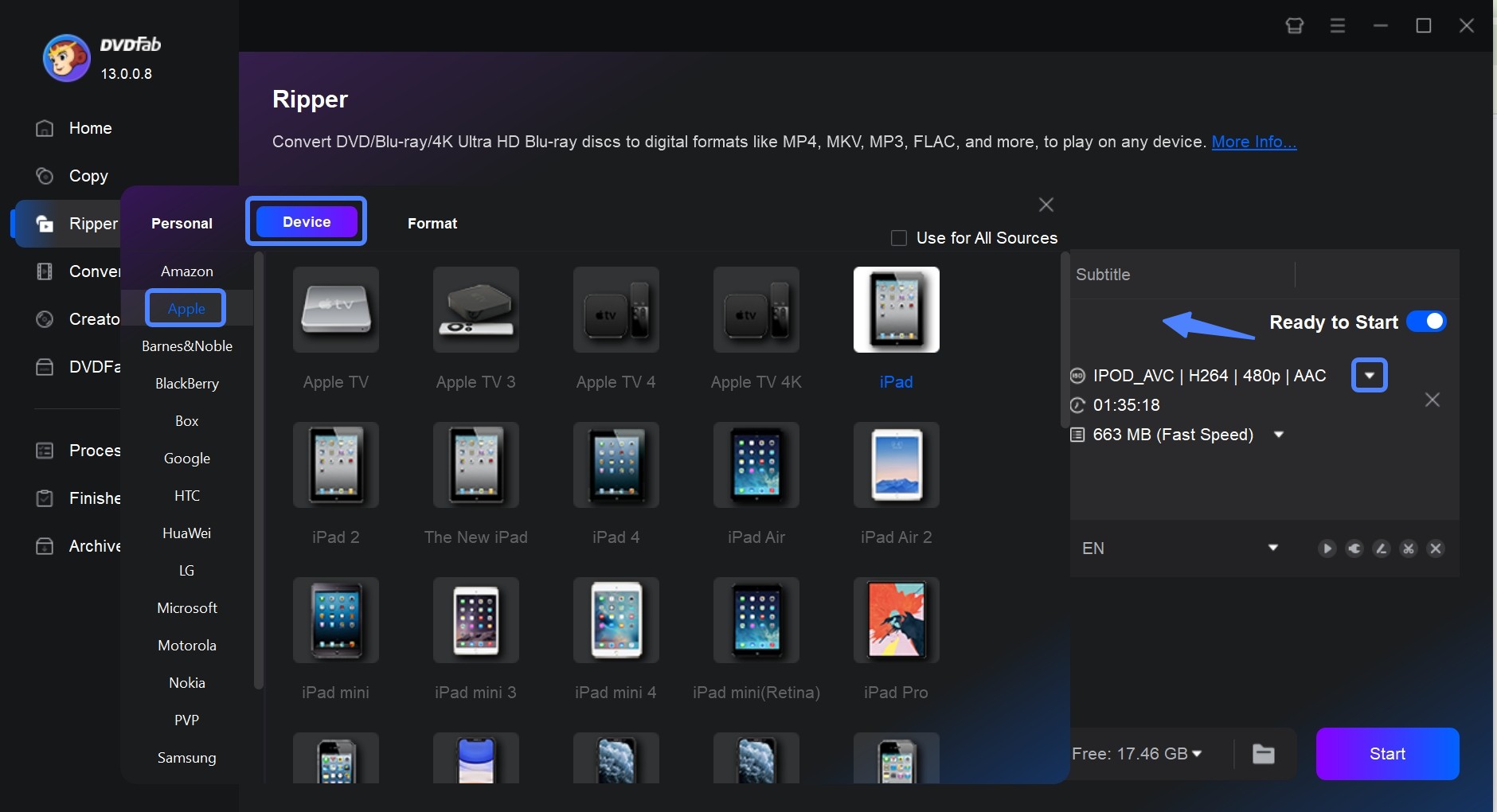
Click "Choose Other Profile" to open the profile library. Navigate to Device > Apple to find presets for specific iPad and iPhone models. If you prefer a universal format, select MP4 from the Video tab instead. H.264 gives the widest compatibility across iOS apps; HEVC (H.265) reduces file size by roughly 40% at comparable quality, which helps when iPad storage is limited.
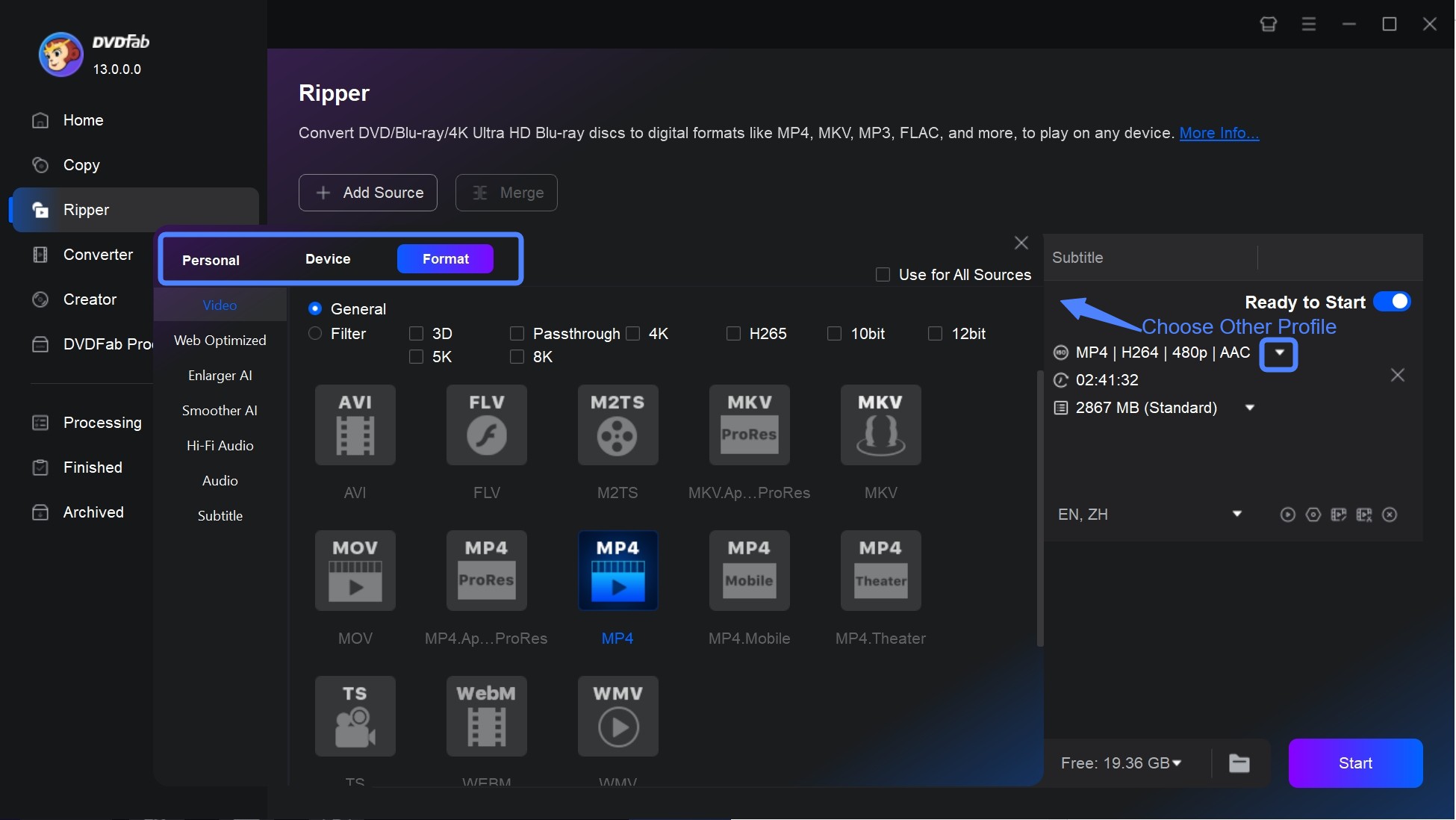
You can also select a format directly from the Format or Video tabs to rip your DVD to MP4 or another format your iPad supports.
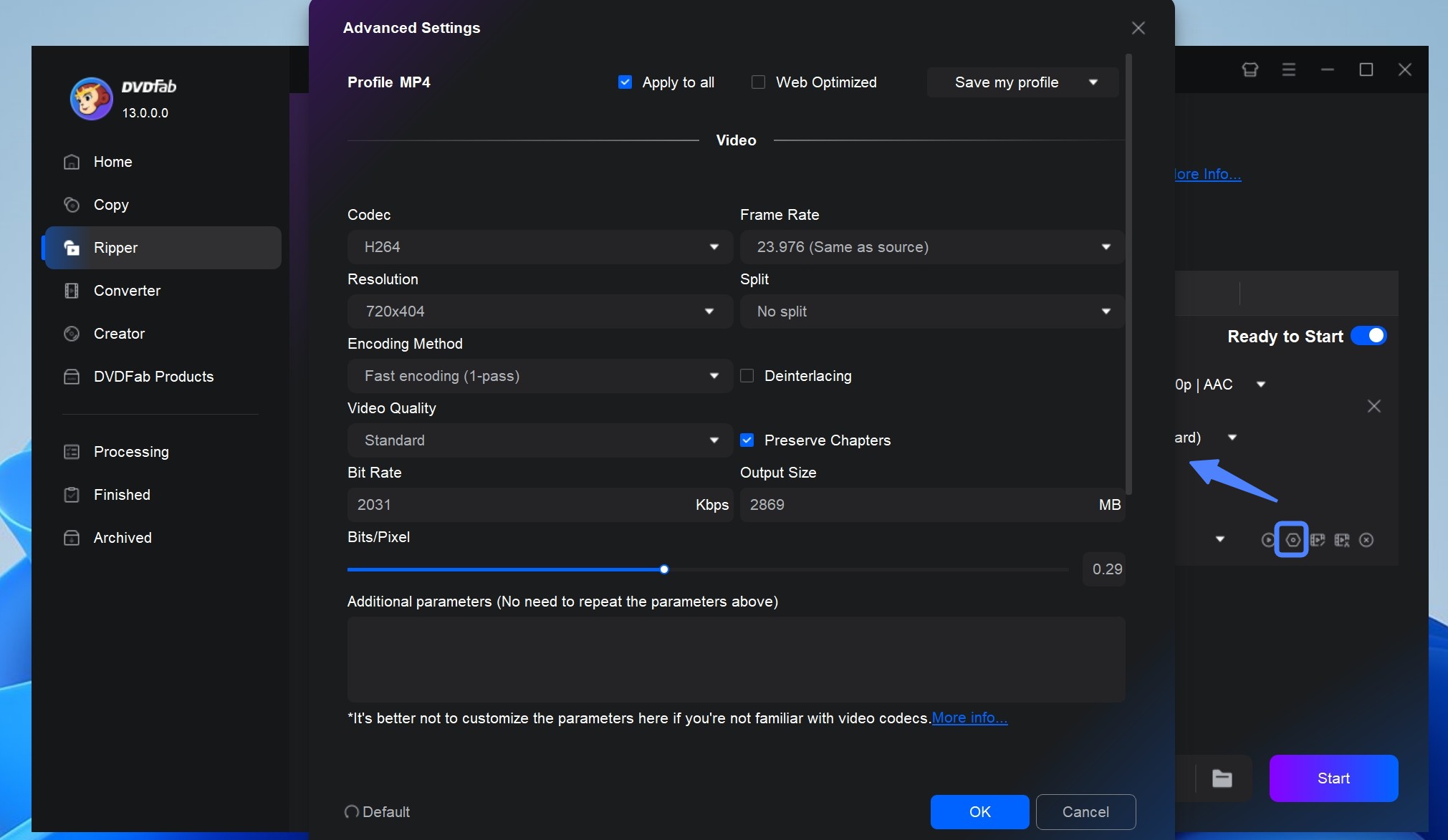
Open Advanced Settings to adjust video and audio parameters such as resolution, bitrate, and frame rate. For most standard DVDs, the defaults produce good results without adjustment.
To edit the output video, open the built-in Video Editor. From there you can trim or merge clips, add watermarks or subtitles, and adjust brightness, contrast, and saturation.
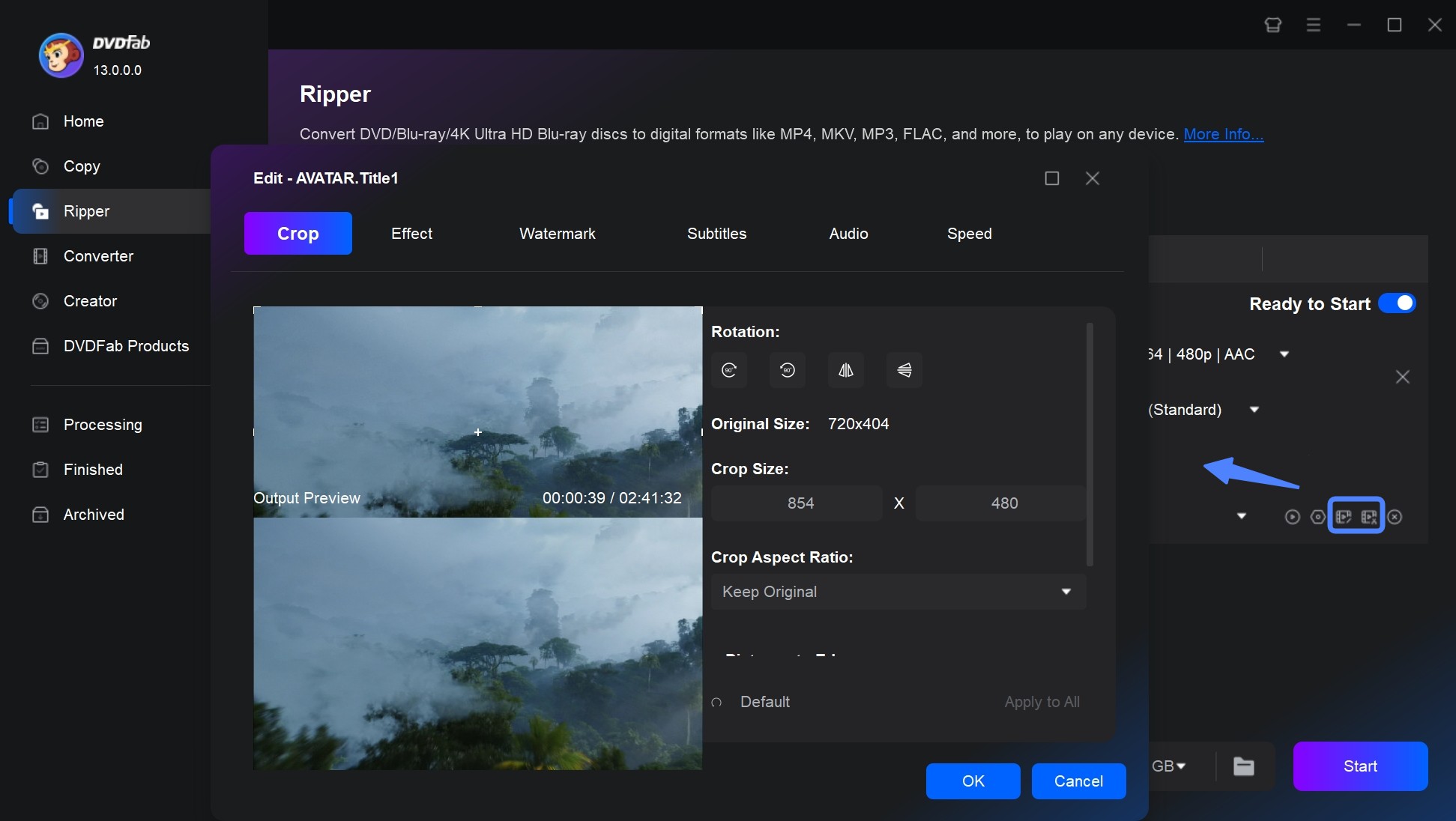
Step 3: Start conversion
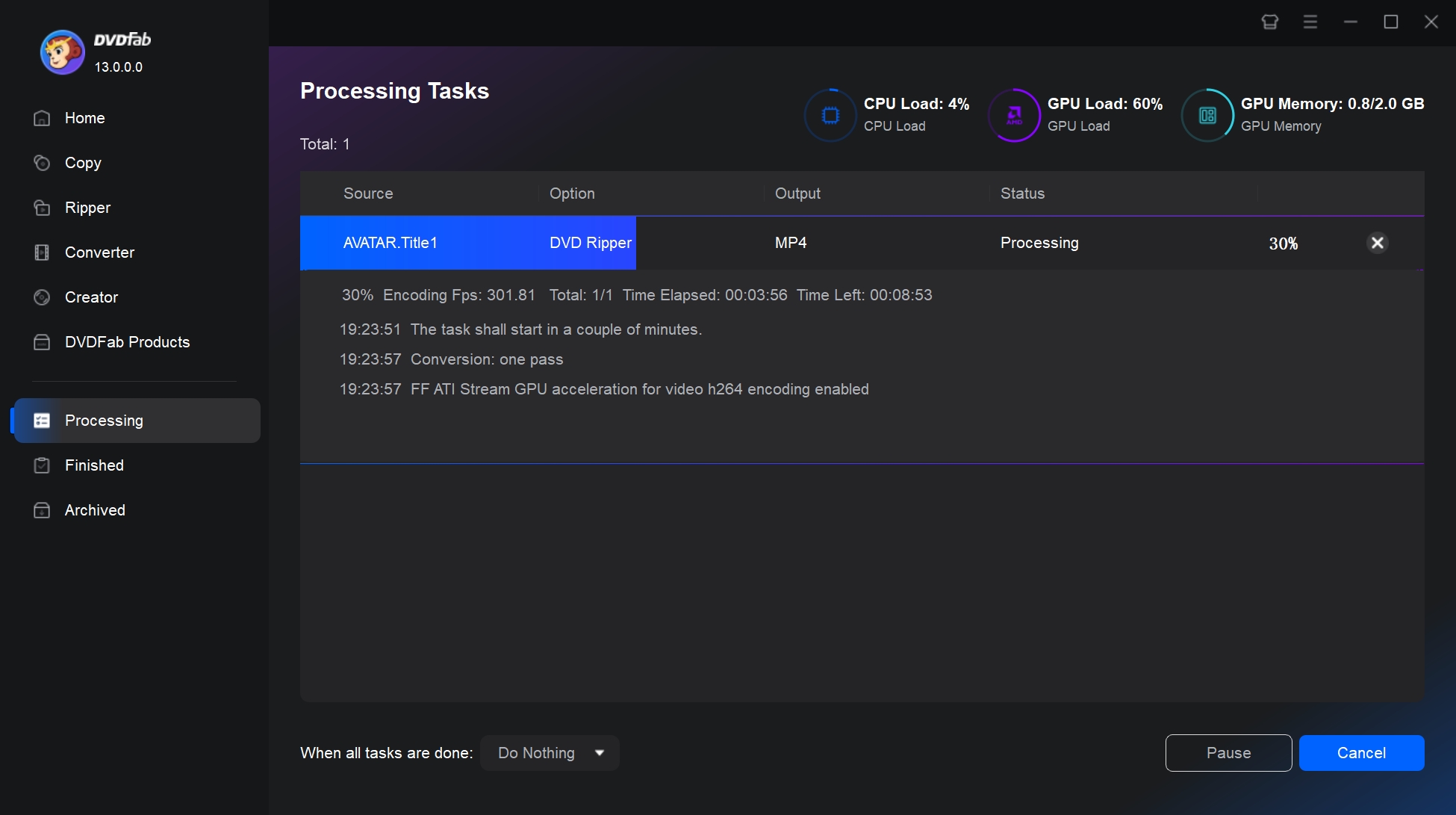
Set the output directory. You can save to your computer's hard drive or directly to a connected mobile device. Click Start to begin. DVDFab processes the conversion using GPU hardware acceleration and multi-core CPU support, and a 90-minute DVD typically finishes in under 15 minutes on a modern computer. Progress appears on the status bar.
Open-source DVD to iPad/iPhone Converter - HandBrake
HandBrake is a free transcoder that works well for DVDs with no copy protection. This covers home recordings, DRM-free discs, and any physical media you have in a clean, unprotected form. It includes Apple device presets, which makes setting up the output for a specific iPad model straightforward.
However, most commercially released DVDs do include copy protection, and HandBrake cannot remove it. Attempting to rip a protected disc usually results in a scrambled or incomplete output. If your collection is primarily store-bought titles, DVDFab DVD Ripper is the more practical choice for those discs.
Key features:
- Open-source with no trial limits, watermarks, or ads
- Available on Windows, macOS, and Linux
- Apple device presets included (1080p30, 1080p60, 720p30) optimized for iOS playback
- Supports H.264 and H.265 encoding with adjustable quality settings
Worth noting:
- Commercial discs from studios always include encryption that HandBrake cannot bypass
- No built-in wireless transfer tool; you will need a separate method to move converted files to your iPad
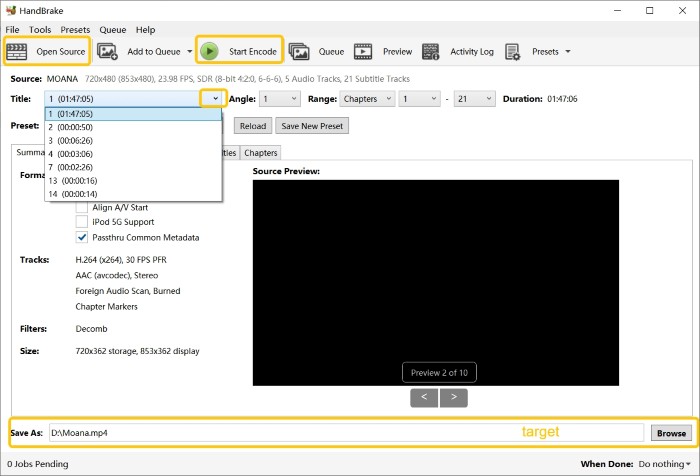
How to transfer non-encrypted DVDs to an iPad using HandBrake?
Free DVD to iPad/iPhone Converter - VLC Media Player
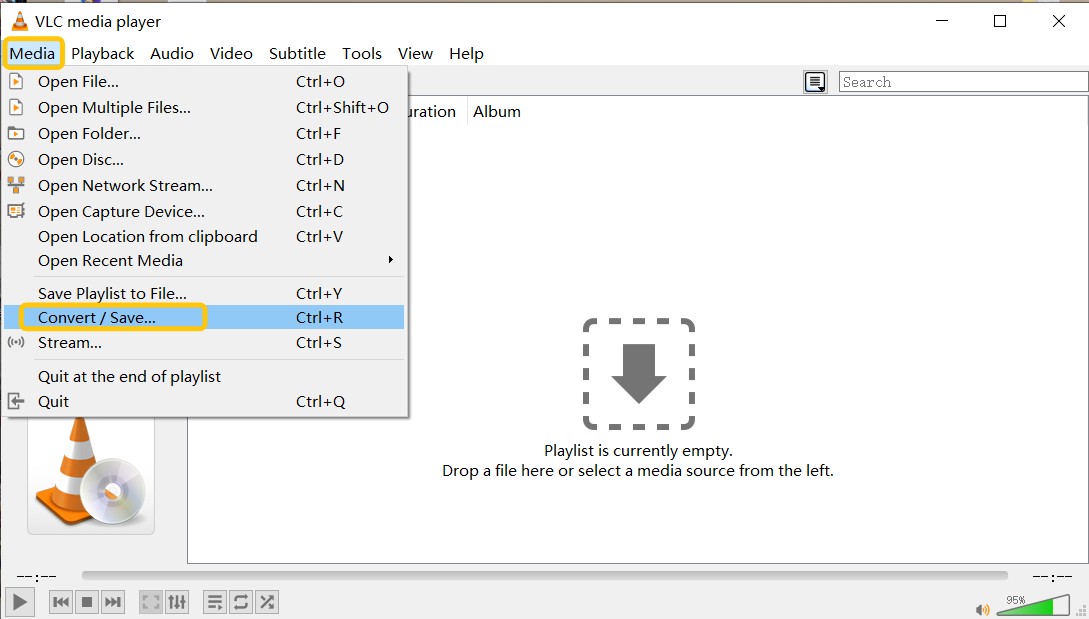
VLC is primarily a media player, but it includes a Convert/Save function that can rip an unencrypted DVD to AVI or MP4. The output is iPad-compatible, and the process requires no additional software. In practice, conversion is slower than dedicated ripping tools, and format options are limited to a few presets. For a one-off rip of a home recording or a DRM-free disc, it covers the job.
Key features:
- Free with no account required and no usage limits
- Available on Windows, macOS, and Linux
- Converts directly to MP4 (H.264), a format iPad plays natively
- Supports basic subtitle and audio track selection during setup
Worth noting:
- Copy-protected commercial DVDs will not convert correctly without installing a separate library (such as libdvdcss on macOS or Linux)
- Output format options are narrow: effectively MP4 with a limited choice of codecs, unlike the 1,000+ formats available in DVDFab
How to Rip DVDs to iPad using VLC Media Player
How to Transfer Ripped DVD Files to Your iPad
After ripping a DVD to a compatible format, you need to move the file to your iPad. There are four practical options below, ranging from wired to fully wireless. AirDrop and iCloud Drive work without cables or special software; USB with Finder or iTunes is reliable for larger libraries.
Solution 1: USB Cable with Finder (Mac) or iTunes (Windows)
On macOS (Catalina and later): Use Finder
Since macOS 10.15 Catalina, iTunes on Mac was replaced by separate apps. To transfer video files to your iPad from a Mac, connect the iPad using a USB cable and open Finder. Select your iPad from the left sidebar under Locations. Click the Files tab, then drag the converted video file into a compatible app folder such as VLC for iOS or Infuse. The file will be available for offline playback immediately.
On Windows: Use iTunes
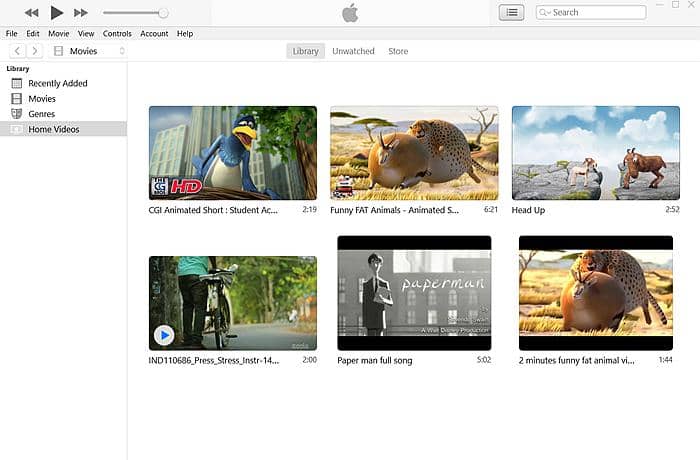
Open iTunes and go to File > Add File to Library. Locate the converted video on your hard drive and add it. After importing, the video will appear under Movies > Home Videos in iTunes.
Connect your iPad to the computer with a USB cable. In iTunes, select your device, go to Movies, and sync the file to your iPad.
Solution 2: AirDrop (Wireless, No Account or Cable Required)
AirDrop is the fastest wireless option for sending a converted DVD file from a Mac to a nearby iPad. No account, no cables, no third-party software needed.
On Mac: Right-click the video file in Finder and select Share > AirDrop. Your iPad will appear as a device in the AirDrop window. Click it to send.
On iPad: A prompt will appear asking whether to accept the file. Accept it, then open the Files app to find the received video. Open it in VLC for iOS, Infuse, or the native Files app to play.
Requirements: Both devices must have Wi-Fi and Bluetooth turned on. Set the iPad to receive from "Contacts Only" or "Everyone" under Settings > General > AirDrop.
AirDrop is not available natively on Windows PCs. Windows users should use iCloud Drive (Solution 3) or DVDFab File Transfer (Solution 4) for wireless transfers.
Solution 3: iCloud Drive
Upload the converted video to iCloud Drive from your PC or Mac. On a Mac, drag the file into iCloud Drive in Finder. On Windows, use the iCloud for Windows app to access your iCloud Drive folder and copy the file there.
On your iPad, open the Files app and navigate to iCloud Drive. Tap the video file to download it. Once downloaded, open it in a compatible player such as VLC for iOS or Infuse for offline viewing.
iCloud Drive makes the file accessible from all your Apple devices without repeating the transfer process. The main consideration is iCloud storage space: a 90-minute DVD ripped to MP4 at H.264 runs roughly 1.5GB, or about 0.9GB with HEVC encoding.
Solution 4: DVDFab File Transfer
Note that DVDFab File Transfer is a free tool that works alongside DVDFab DVD Ripper, Blu-ray Ripper, and Video Converter to send converted video files from your computer to your iPad wirelessly over the same Wi-Fi network.
Step 1: In DVDFab DVD Ripper, set the output destination to Mobile Device before starting the conversion. When conversion finishes, DVDFab File Transfer launches automatically.
Step 2: Install the DVDFab Remote app on your iPad and connect it to the same Wi-Fi network as your computer. Follow the connection prompt in DVDFab File Transfer to pair the devices. The converted file transfers wirelessly to your iPad.
If you want to transfer files you have already saved to your hard drive, go to Utilities > File Transfer in DVDFab, click the Add button to load the video, then connect via DVDFab Remote and transfer.
How to Rip Blu-ray to iPad/iPhone (For HD Collections)
While this guide focuses on converting DVDs to iPad, many people also keep Blu-ray collections and may wonder whether the steps are similar. Blu-ray discs store movies at a much higher quality than DVDs, but they cannot be played directly on an iPad. With DVDFab Blu-ray Ripper, you can follow a similar process to convert Blu-ray movies into formats that work on an iPad.
Step 1. Launch DVDFab and load your Blu-ray
Download and install the latest version of DVDFab 13. Open the program and click the Ripper section.
- Insert the Blu-ray disc into your drive and DVDFab will read it automatically.
- If the movie is saved as a Blu-ray folder or ISO file, drop it into the window or add it through the + Add option.
Step 2. Select an iPad profile or a compatible format
Once the Blu-ray loads, choose the output format.
- Go to Choose Other Profile, then Device, then Apple, and select your iPad model.
- For a format that plays across most Apple devices without adjustments, MP4 with H.264 or HEVC is a practical choice.
Step 3. Adjust settings if needed
You can choose specific titles, chapters, audio tracks, and subtitles. DVDFab also lets you change resolution, bitrate, and frame rate. For most iPads, 1080p resolution with AAC 2-channel audio is more than enough and keeps the file size manageable.
For users who want more control, the integrated video editor lets you trim unwanted parts, crop the video frame, or apply watermarks.
Step 4. Convert and transfer the file to your iPad
Click Start to let DVDFab create an iPad-compatible video file. Once finished, use any of the transfer methods in the section above to move the file to your iPad.
Frequently Asked Questions
Is it legal to rip a DVD to iPad or iPhone?
The legality depends on copyright laws in your region. In the US, UK, and EU, bypassing copy protection on a DVD may technically conflict with copyright rules even if you own the disc. That said, ripping for personal, private viewing without distributing the file is rarely pursued legally in practice. If you want to stay on the safe side, limit ripping to DRM-free discs such as home recordings, or discs you created yourself. Always check local copyright law before proceeding.
Can I use QuickTime Player to convert DVDs to iPad?
No. QuickTime Player on macOS can record your screen while a DVD plays in the background, but it cannot decrypt or convert copy-protected commercial DVDs. The output quality is lower than a proper rip, the process is slow, and it is not practical for converting more than a single film. For accurate subtitle and audio track handling, a dedicated DVD ripping tool such as DVDFab DVD Ripper produces better results.
What is the best video format for iPad playback?
MP4 using H.264 video with AAC audio is the most compatible format for iPad. It plays in the native Apple TV app, the Photos app, and virtually every third-party player without additional setup. If iPad storage is a concern, HEVC (H.265) in an MP4 container reduces file size by roughly 40% at comparable visual quality. All current iPad models support HEVC playback natively, so there is no compatibility risk in choosing it over H.264.
How do I send a large ripped DVD file to my iPad wirelessly?
AirDrop is the most direct option if you are on a Mac. Right-click the video file in Finder, select Share > AirDrop, and choose your iPad. The transfer uses a direct peer-to-peer Wi-Fi connection and does not route through the internet, so speed depends on your local Wi-Fi hardware rather than your internet plan. A 1.5GB MP4 file typically transfers in under two minutes on a standard home network. On Windows, iCloud Drive or DVDFab File Transfer are the practical wireless alternatives.
What are the best settings for ripping Blu-ray to iPad?
For most iPads, MP4 with H.264 or HEVC at 1080p resolution is a reliable target. AAC 2-channel audio works on all iPad models and keeps the file size lower than surround-sound tracks. If storage is a priority, HEVC at a medium bitrate (around 4-6 Mbps for 1080p) produces a file that looks sharp on an iPad display while staying under 3GB for a two-hour film. H.264 at 8 Mbps is the safer choice if you plan to transfer the file across multiple devices or players.
Can I watch ripped DVD files on my iPad without converting them first?
If the ripped file is already in MP4, MKV, or MOV format, you can play it on an iPad without further conversion. The VLC for iOS app handles MKV files and most other container formats natively, so there is no need to re-encode. Upload the file to iCloud Drive and open it in VLC for iOS to play directly. The Apple TV app and Files app support MP4 and MOV but not MKV, so VLC for iOS is the more flexible player for files ripped from DVDs.
Final Thoughts
If your DVD collection is mostly commercial titles with copy protection, DVDFab DVD Ripper is the practical starting point. It handles encrypted discs and outputs directly to iPad-compatible formats with device presets already built in. If you are working with unprotected discs or home recordings and want to avoid paid software, HandBrake covers that scenario well.
Once the conversion is done, AirDrop is the fastest wireless transfer option from a Mac. Finder (macOS) or iTunes (Windows) with a USB cable is reliable for larger batch transfers. iCloud Drive and DVDFab File Transfer round out the wireless options for Windows users.
For further reading, see the best DVD Ripper for Mac guide if you are working primarily from a Mac setup.

![How to Rip Copy-Protected DVDs: 6 Tested Methods [2026]](https://r3.dvdfab.cn/upload/resource/copy-protected-dvd-cnQ8.jpeg) How to Rip Copy-Protected DVDs: 6 Tested Methods [2026]By Wenny Yan - Jul 22, 2026
How to Rip Copy-Protected DVDs: 6 Tested Methods [2026]By Wenny Yan - Jul 22, 2026 Top 6 ISO to MP4 Converters in 2026: Tested & GuideBy Diana Smith - Jun 18, 2026
 Best DVD to USB Converter in 2026: Tested WaysBy Diana Smith - Jun 18, 2026
 Best Free DVD Decoders for Windows XP/8/10/11: Fix DVD Playback ErrorsBy Diana Smith - Jun 17, 2026