DVDFab Blu-ray Creator Review: Why it is the High-Quality Solution

Summary: Since Adobe discontinued Encore, options for authoring a proper Blu-ray with a working menu have narrowed. This review tests DVDFab Blu-ray Creator's format compatibility, GPU-accelerated burn speed, and covers its newer Detail Refiner AI feature and Mac support. For creators archiving a body of work or families building a yearly record, the core workflow holds up, though it isn't a substitute for a full video editor.
Table of Contents
In an age where streaming services compress 4K movies down to meager bitrates and "ownership" merely means renting a license, physical media remains the last bastion of true quality. For videographers and content collectors, the hard drive is temporary; the optical disc is permanent.
However, moving from a folder of MKV files to a playable Blu-ray disc requires more than a simple burn function. Since Adobe discontinued Encore, authoring software options have narrowed, and discussions on r/4kbluray show users actively hunting for a replacement that still handles menus and chapters properly. After testing the DVDFab 13 engine extensively, this review breaks down where Blu-ray Creator delivers for quality-conscious users, and where its limitations show.
The Evolution of High-Definition Authoring and DVDFab Blu-ray Creator
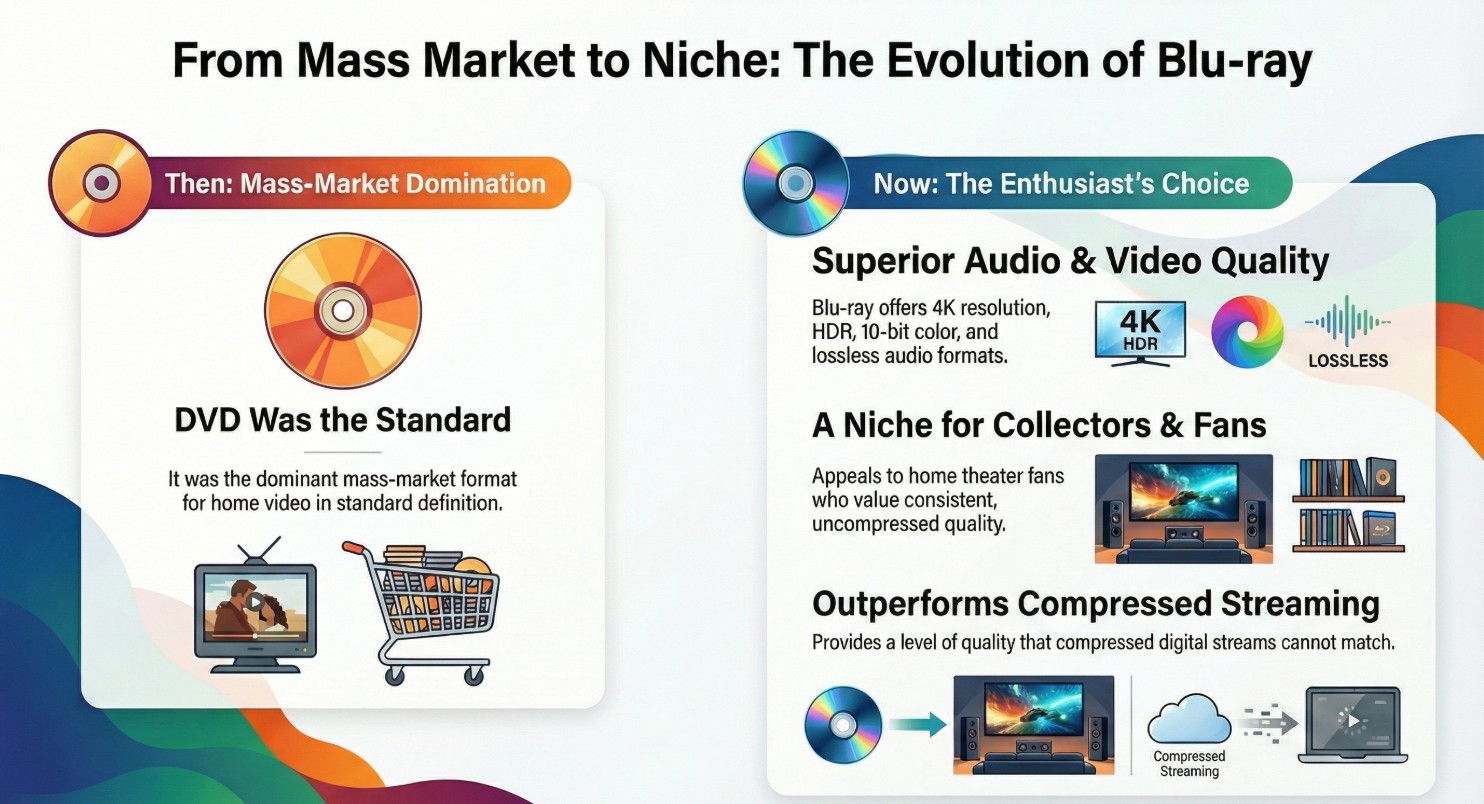
Over the past decade, the Blu-ray industry has quietly shifted from a mass-market DVD successor into a more high-end, enthusiast-focused format. DVD once dominated home video in standard definition, but as 1080p and later 4K became mainstream, Blu-ray and Ultra HD Blu-ray stepped in with far higher resolution, greater storage capacity, and support for advanced audio formats. While overall disc sales have declined sharply in the streaming era, physical media hasn't disappeared; instead, it has evolved into a niche where collectors and home theater fans care about lossless audio, 10-bit color, HDR, and consistent quality that compressed streams can't match.
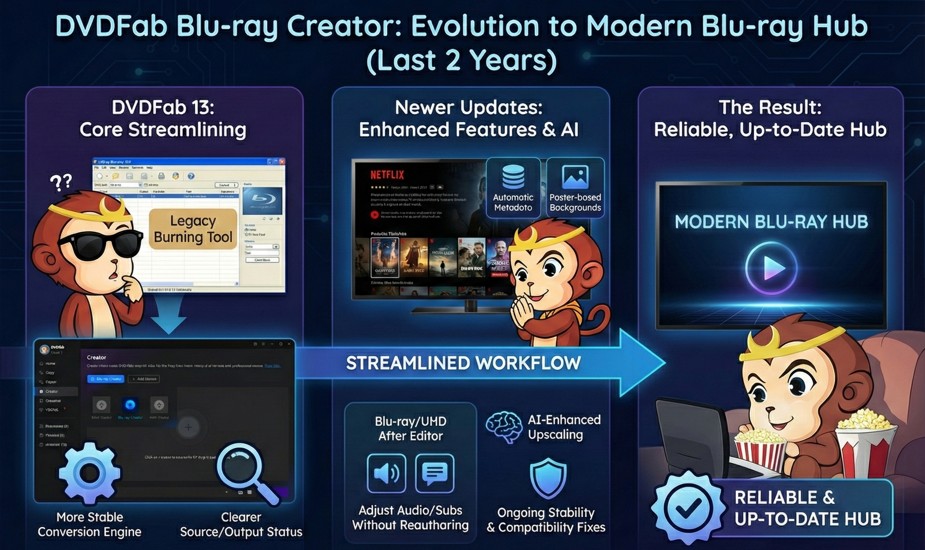
In the last two years, DVDFab Blu-ray Creator has been streamlined to better fit modern Blu-ray workflows. DVDFab 13 brought a cleaner interface, a more stable conversion engine, and clearer source/output status, making complex projects easier to control. Newer updates added streaming-style menu templates with automatic metadata, poster-based backgrounds, and quick scene/setup pages, plus tools like Blu-ray/UHD After Editor for adjusting audio and subtitles without reauthoring from scratch. Together with AI-enhanced upscaling and ongoing stability and compatibility fixes, Blu-ray Creator now acts as a reliable, up-to-date hub rather than a legacy burning tool.
DVDFab Blu-ray Creator: Core Features & Tests
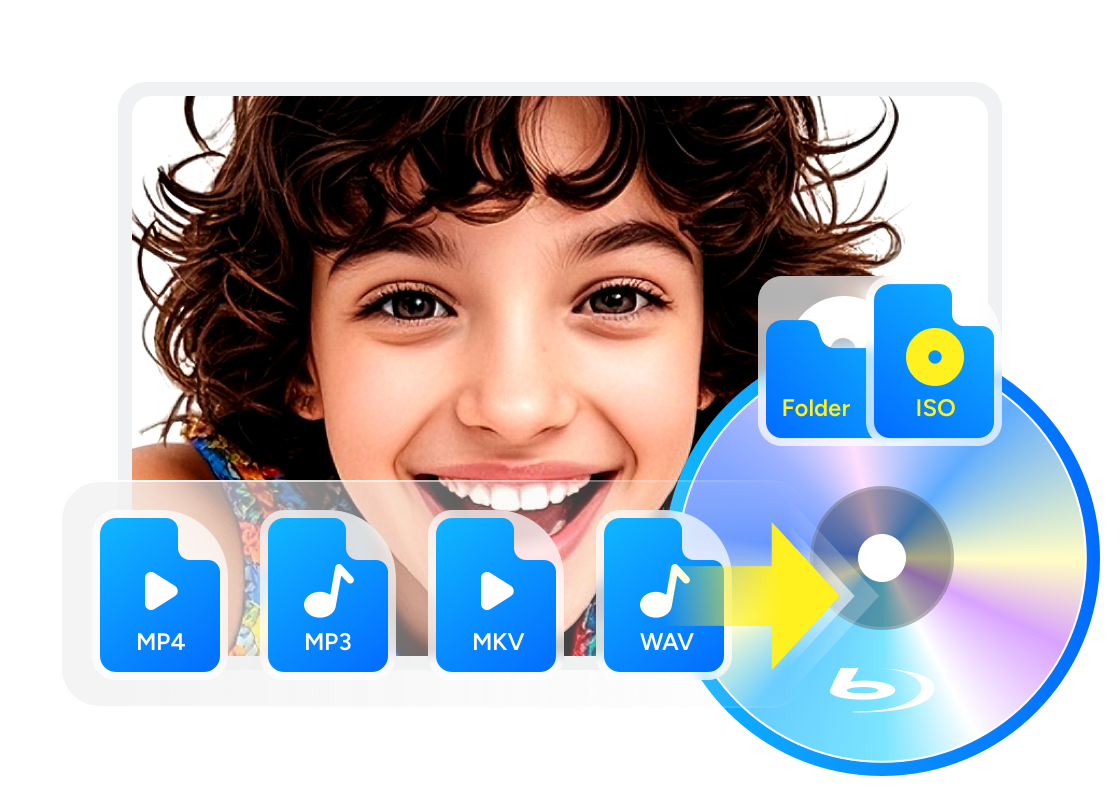
DVDFab Blu-ray Creator is a tool for turning your video files into Blu-ray discs, ISO files, or Blu-ray folders. It supports many formats like MP4, MKV, AVI and more, so you can bring almost any footage onto a Blu-ray that works in standard players. You can choose a menu template, set your own background and text, and quickly build a simple, clean Blu-ray menu. The interface is straightforward, and the program uses hardware acceleration to speed up encoding, so even large HD projects can be finished in less time.
To find out whether DVDFab Blu-ray Creator actually delivers beyond the spec sheet, I set up a series of real-world lab tests across five key areas: authoring speed, output quality, menu design flexibility, AI-assisted processing, and overall stability. All results below are based on the following test bench.
🖥️ My Test Bench Specs:
- OS: Windows 11 Pro (64-bit)
- CPU: Intel Core i7-13700K (16 Cores)
- GPU: NVIDIA GeForce RTX 4070 (12GB VRAM)
- RAM: 32GB DDR5
- Drive: Pioneer BDR-212UBK Blu-ray Burner
Unmatched Format Compatibility
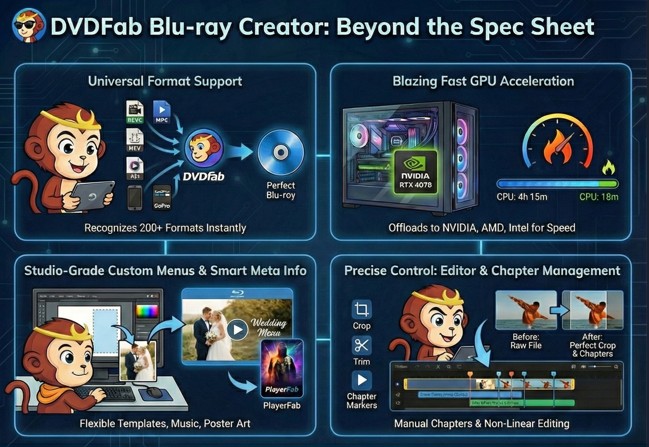
Most free authoring tools are stuck in 2010. They choke on modern codecs like HEVC (H.265) or high-bitrate containers. DVDFab Blu-ray Creator supports over 200+ input formats, including MKV, MP4, AVI, M2TS, and crucially, 4K videos from iPhones and GoPros. It automatically handles the complex downscaling (from 4K to 1080p Blu-ray standard) while preserving High-Definition color depth.
My Test: I threw a deliberate "nightmare" playlist at the software to see if it would crash, consisting of one 4K iPhone clip (HEVC, 60fps), one old AVI file (DivX), and a heavy 50GB 10-bit MKV movie file. Remarkably, DVDFab recognized all three instantly without asking me to install any external codecs. During conversion, it even normalized the audio levels across the different clips so I didn't have to adjust the volume on my TV. It successfully passed the test where my previous tool (ImgBurn) failed with an "unsupported format" error.
Blazing Fast Speed with GPU Acceleration
Blu-ray authoring involves processing massive amounts of data, often 25GB to 50GB per project. Without hardware support, rendering a standard movie relies purely on the CPU and can take 5 to 10 hours. DVDFab uses GPU-based hardware acceleration, including NVIDIA CUDA and Intel Quick Sync, to offload this work to your graphics card.
My Test: To benchmark the speed, I burned a 2-hour, 10GB MKV file (H.264 High Profile) to a BD-25 disc. When running purely on the CPU, usage spiked to 100%, and the estimated completion time was a sluggish 4 hours and 15 minutes. However, enabling DVDFab's GPU Acceleration changed everything: the software utilized about 45% of my RTX 4070, and the entire process finished in just 18 minutes. This massive speed difference transforms the workflow from an "overnight task" to a "coffee break task," and my system remained responsive enough to edit photos in Lightroom while the burn happened in the background.
Studio-Grade Custom Menus & Smart Meta Info
A folder of files feels like data; a disc with a menu feels like a product. DVDFab offers flexible menu templates where you can fully customize widgets and background music. Furthermore, it supports Meta Info Generation, creating .nfo files so your burned ISOs show correct poster art when played on media servers like PlayerFab or Plex.
My Test: I wanted to create a professional gift, so I selected the "Wedding" template but found the default music a bit generic. I decided to customize it by replacing the background with a slow-motion video clip of the couple and importing their specific wedding song. After creating an ISO, I loaded it into PlayerFab for a final check. The software instantly recognized the title and displayed the cover art I assigned, making my digital library look incredibly organized. The final menu navigation was smooth, with no "dead links" or freezing buttons when tested on my Sony player.
Precise Control: Built-in Editor & Chapter Management
The Feature: Sometimes the raw file isn't perfect. DVDFab includes a built-in Non-Linear Editor that lets you crop black bars, trim unwanted intros, and add watermarks. More importantly, it offers professional Chapter Management. You aren't stuck with automatic 5-minute chapters; you can manually place markers to define exactly where the "Next" button on your remote will jump.
My Test: I worked with a single 2-hour continuous file of a live concert recording, with the goal of creating a disc where the "Next" button skips exactly to the start of each song. Using the built-in editor, I manually set chapter markers at the start of every track and cropped the video slightly to remove a distraction at the edge of the frame. The burned disc respected my manual markers perfectly. Pressing "Next" on the remote jumped exactly to the timestamps I set, providing a commercial-grade navigation experience that automatic chapters simply cannot match.
AI Detail Refiner for Soft or Upscaled Footage
DVDFab's product page also lists Detail Refiner AI, a cloud-based enhancement tool that removes mosaic artifacts and sharpens fine detail on source footage without requiring a high-end local GPU to run the processing. This sits alongside the AI-upscaling tools mentioned earlier and targets users working with older, compressed, or lower-resolution clips that would otherwise look soft once blown up to Blu-ray resolution. As of mid-2026, this feature runs through DVDFab's cloud infrastructure rather than local hardware, which means it needs an active internet connection and is subject to DVDFab's cloud processing terms rather than being a one-time local render.
Worth noting: each DVDFab license comes with a quota of 100 disc burns per week. This is unlikely to affect personal archiving or small-creator use, but it is worth checking if you plan to produce discs at a higher volume.
How to Make a Blu-ray with DVDFab Blu-ray Creator
Step 1: Download and launch DVDFab Blu-ray Creator
Open DVDFab 13, click the "Creator" module, then use the mode switcher to choose "Blu-ray Creator". This puts you in the correct workspace for Blu-ray discs, ISO files, and folders.
💡Tip: If you are combining multiple episodes, drag them in the order you want them to play.
Step 2: Import and arrange your videos

Drag and drop your source videos into the main window, or click "+Add" to load them. Arrange the titles in the list to set the playback order for movies, clips, or episodes.
Step 3: Customize the video and the chapter
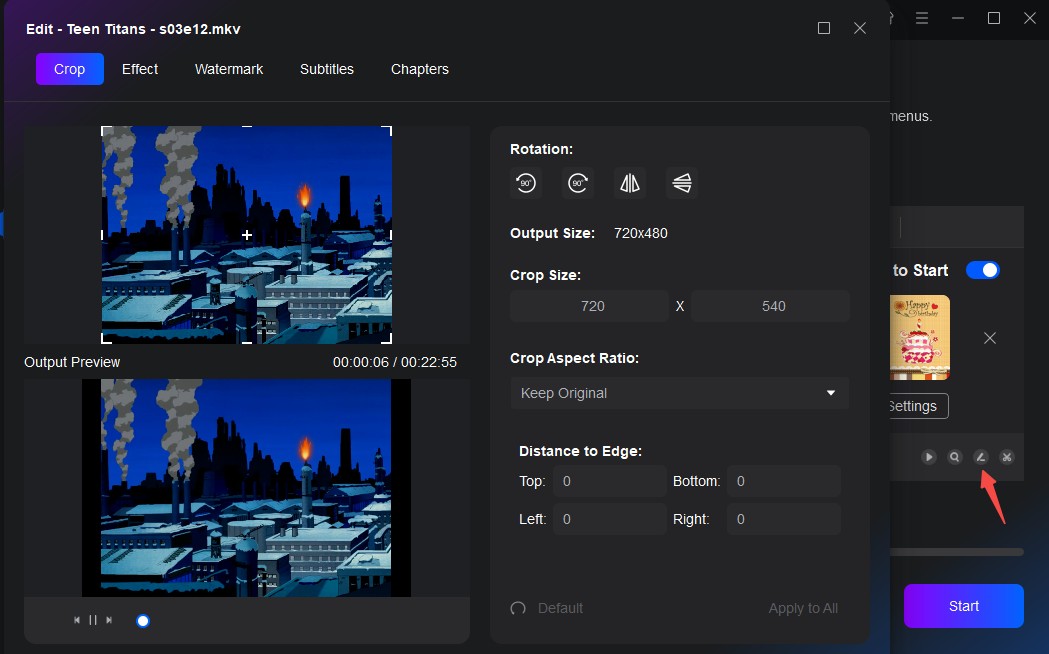
Select a title and click the "Edit" icon. Use the built-in editor to crop or trim the video, add watermarks, attach external subtitles (SRT/ASS), and adjust brightness, contrast, and saturation before burning.
Open "Chapters" to add, delete, or move chapter points so viewers can jump to key scenes.
Step 4: Make a menu for your Blu-ray
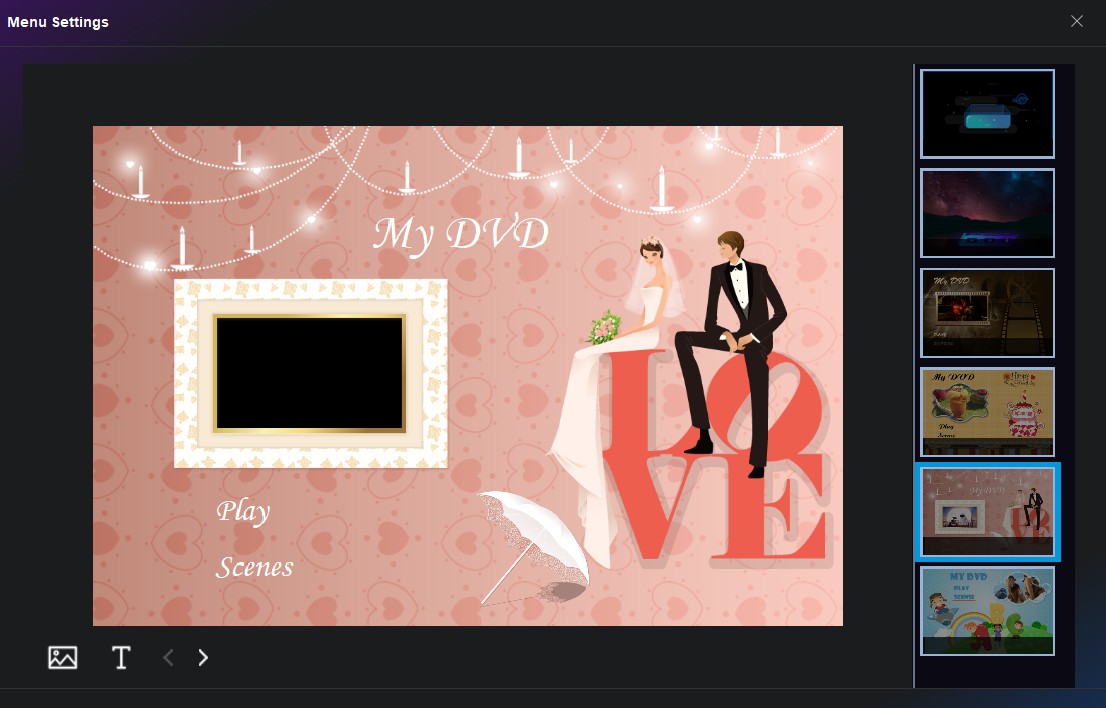
Click "Menu Settings" to pick a template and customize background images, thumbnails, and text (such as title and episode names).
Step 5: Choose output and start burning
Click Advanced Settings to set the disc name, output size (BD-50, BD-25, BD-9, BD-5), and video quality. In Save to, choose a Blu-ray drive, ISO file, or Blu-ray folder, then click Start to create your Blu-ray and monitor the progress.
Real-World Success: Using Experiences of DVDFab Blu-ray Creator
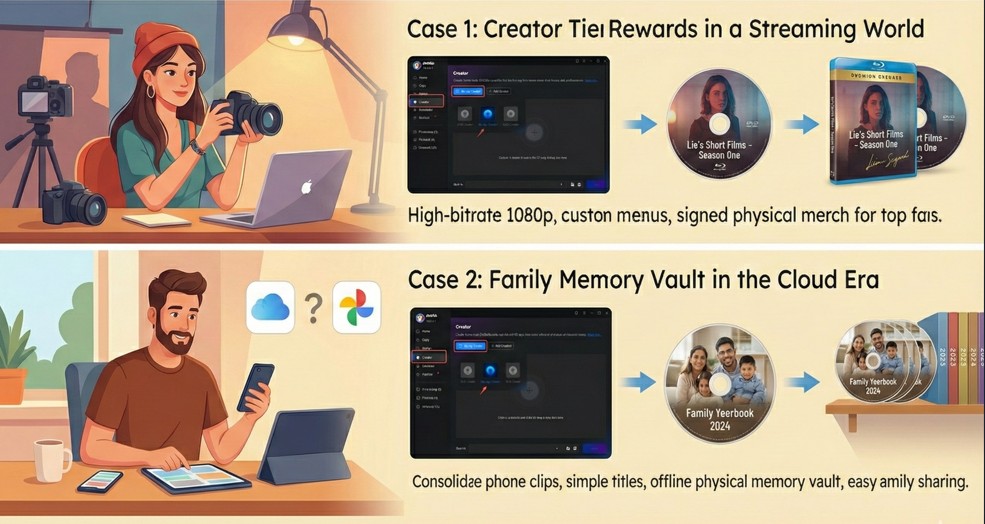
Case 1: Creator Tier Rewards in a Streaming World
User: Lia, a YouTube + Patreon creator.
Lia makes short films and video essays and posts them online. Her main problem isn't "how to upload"; it's how to stand out when algorithms decide who gets seen. Some fans also say YouTube's compression flattens the look of her carefully graded footage.
For her top Patreon tier, Lia wanted something different and more permanent. She used DVDFab Blu-ray Creator to take her 4K camera masters, downscale them to high-bitrate 1080p, and author a BD-25 disc with a simple menu: "Main Films," "Commentary Cuts," and "Bonus Clips." She added chapters for each video essay and used the editor to trim out long intros and outros, so the disc feels tight and premium.
The Outcome: Instead of another link in an inbox, her fans receive a signed Blu-ray in the mail. They can watch it offline, on a big TV, with better quality than a typical stream. For Lia, the disc becomes both a piece of merch and a curated "season one" of her work that will still exist even if one platform changes its rules or takes down a video.
Case 2: Family Memory Vault in the Cloud Era
User: Daniel, a young parent.
Daniel and his partner shoot everything on their phones: birthdays, first steps, trips, school events. Most of it ends up scattered across iCloud, Google Photos, and old phones in a drawer. They worry that one day a cloud account might get closed, a phone might die, or a service might change its storage policy.
Once a year, Daniel downloads the best clips and short home movies and brings them into DVDFab Blu-ray Creator. He groups them into themes like "Holidays," "School," and "Trips," adds simple titles, and lets the software create chapters every few minutes. He then authors a BD-50 disc called "Family Yearbook 2024," with a basic menu his parents can navigate easily on their Blu-ray player.
The Outcome: On the living-room shelf, they now have a small row of "Family Yearbook" discs: physical copies that don't depend on apps or logins. When relatives visit, they just put in a disc and press play. For Daniel, Blu-ray Creator turns messy digital files into a physical memory vault that stays organized and easy to share, even as apps and phones keep changing.
FAQs
I only have a regular DVD player, can I use DVDFab DVD Creator instead?
Yes. If you don't have a Blu-ray drive, you can use DVDFab DVD Creator to turn your video files (MP4, MKV, AVI and 200+ other formats) into standard DVD discs, ISO files or DVD folders that play on almost any standalone DVD player. For more details, you can refer to DVDFab DVD Creator review.
Is DVDFab Blu-ray Creator worth it for beginners?
It works for both. New users can follow a simple flow: import videos, pick a menu, click Start, and get a working Blu-ray without touching advanced settings. Power users, on the other hand, can dig into bitrate, chapters, audio tracks, and menu customization. The UI is modern enough that you don't feel overwhelmed, but there's plenty of depth if you care about fine control.
Does GPU acceleration make a big difference in real use?
Yes. On a modern RTX or similar GPU, enabling hardware acceleration can turn a multi-hour encode into a sub-hour job, especially for long movies or large compilations. In practice, this means you can author a full BD-25 during a working session rather than leaving the PC on overnight, and your system stays responsive enough to multitask.
Can I still burn Blu-rays on a Mac after Apple's recent changes?
Yes, but not through macOS's own tools. Users on r/4kbluray have reported that a recent macOS update removed native Blu-ray burning, which is part of why the hashtag #BringBackDVDStudioPro has been circulating in that community. DVDFab Blu-ray Creator runs as a standalone Mac application, so it handles authoring and burning independent of whatever macOS does or doesn't support natively. The Mac and Windows versions cover the same core workflow: import, edit, menu, and burn.
What if I'm switching from a discontinued tool like Adobe Encore?
Since Adobe stopped maintaining Encore, users on r/4kbluray have been vocal about how hard it became to find a replacement that still handles menus properly rather than just burning a plain video-only disc. DVDFab Blu-ray Creator covers the same core steps that an Encore workflow relied on: importing varied source formats, building a navigable menu, setting chapters, and outputting to disc, ISO, or a Blu-ray folder in one application.
Conclusion
Blu-ray authoring software matters because physical discs solve a problem streaming can't: long-term, offline storage that doesn't depend on a subscription staying active. Even a standard BD-25 or BD-50 burned today should play back the same way a decade from now. For creators archiving a body of work, DVDFab Blu-ray Creator covers the core workflow: importing varied source formats, building a working menu, managing chapters, and burning without needing a second tool for editing.

 11 Best Blu-ray Burning Software for Windows & Mac in 2026: Tested PicksBy Wenny Yan - Oct 8, 2026
 6 Best Blu-ray Authoring Software for Windows & Mac (2026 Review)By Diana Smith - Sep 11, 2026
![How to Burn a Blu-ray Disc on Windows and Mac [2026]](https://r3.dvdfab.cn/upload/resource/how-to-burn-a-blu-ray-xgMv.jpeg) How to Burn a Blu-ray Disc on Windows and Mac [2026]By Diana Smith - Aug 25, 2026
How to Burn a Blu-ray Disc on Windows and Mac [2026]By Diana Smith - Aug 25, 2026![Top Tested Tools to Burn MKV to Blu-ray on Mac and Windows [2026]](https://test-c.dvdfab.cn/how_to_burn_MKV_to_Blu_ray_07afc70766.png) Top Tested Tools to Burn MKV to Blu-ray on Mac and Windows [2026]By Diana Smith - Jul 1, 2026
Top Tested Tools to Burn MKV to Blu-ray on Mac and Windows [2026]By Diana Smith - Jul 1, 2026