DVDFab DVD Creator Review: Features, Real Test Results, and Is It Worth It

Summary: Modern video piles up in cloud folders and rarely gets watched twice, which is why some footage still ends up on a physical DVD. This review tests DVDFab DVD Creator's format support, GPU-accelerated burning speed, and menu tools, and answers the pricing, trial-limit, and Blu-ray-versus-DVD questions raised in user communities. For anyone who burns discs regularly, the format compatibility and stability tend to outweigh the cost of a paid tool.
Table of Contents

We live in an era of "digital obesity." Hard drives are bloated with terabytes of 4K footage from phones, drones and mirrorless cameras, yet these memories are strangely hard to access. They sit in folders named "DCIM_101," unorganized, and depend on specific codecs to play. Plug a USB drive full of HEVC (H.265) clips into an older smart TV, and the result is often the same: "File Format Not Supported."
This is where the optical disc, specifically the DVD, still holds a place. It works everywhere: a DVD burned in 2026 will play on a machine from 2005 and, in theory, one from 2030. But bridging modern, complex video formats and the strict MPEG-2 standard of a DVD takes more than a simple copy and paste. It requires a proper authoring tool.
The Development and Highlights of DVDFab DVD Creator
Development of DVDFab DVD Creator
DVDFab DVD Creator is the disc-authoring module in the DVDFab suite that turns common video files into standard DVD-Video discs, complete with menus, chapters, multiple audio tracks and subtitles for playback on any standalone DVD player.
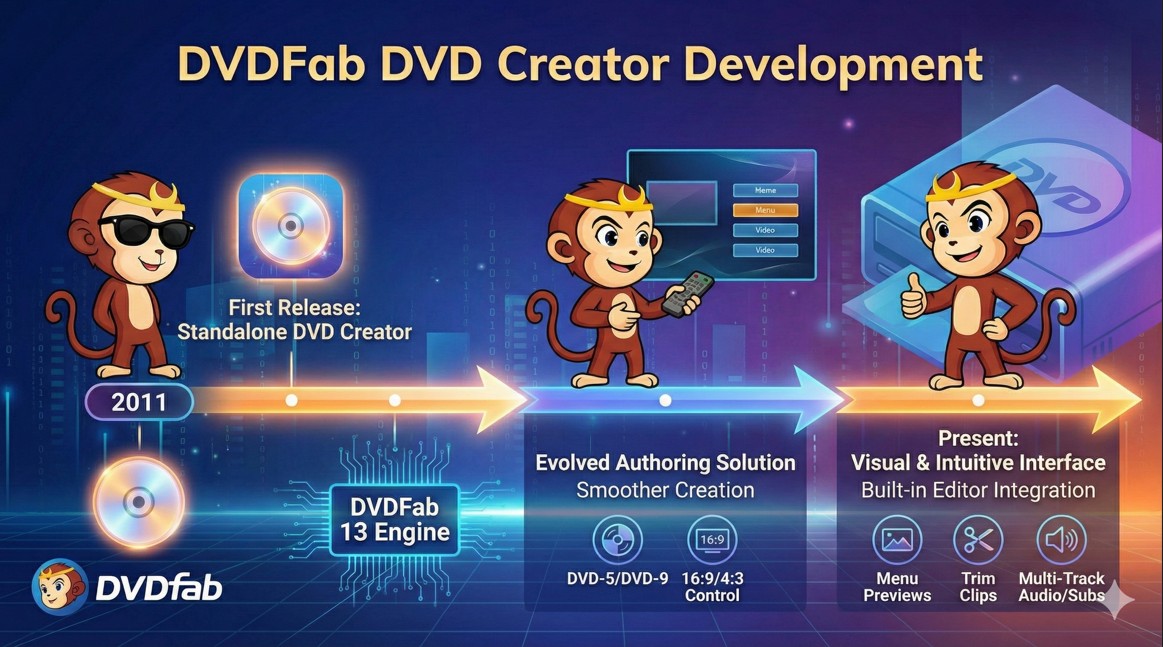
DVDFab DVD Creator first appeared as a standalone module in January 2011, when the DVDFab team split its original all-in-one toolkit into dedicated creators for DVD and Blu-ray authoring.
Over the past two years, DVD Creator has evolved from a basic burning component into a more polished authoring tool built on the DVDFab 13 engine, currently at version 13.0.6.0. It offers smoother disc creation with more accurate control over 16:9 and 4:3 aspect ratios, better DVD-5/DVD-9 size management, and faster, more stable writing. The interface has also become more visual, with clearer menu previews and tighter integration of the built-in editor, so trimming clips, adjusting image quality and juggling multiple audio and subtitle tracks feels more predictable than in earlier versions.
Highlights of DVDFab DVD Creator
The primary failing of most free DVD authoring software is its inability to digest modern video codecs. Feed a 10-bit HDR video from a modern smartphone into older software like DVD Flick, and it will likely crash.
Broad Compatibility
DVDFab DVD Creator's main advantage is what amounts to an eat-anything engine for input files. It accepts more than 200 formats, including the ubiquitous MP4, MKV and AVI, and the modern HEVC/H.265 codec used by Apple and GoPro devices. That means there is no need to manually convert footage before loading it: the software handles downscaling (from 4K or 1080p to DVD's 480p) and transcoding internally, acting as a single funnel for mixed media.
Hardware Acceleration
Converting video frame by frame into the DVD-compliant MPEG-2 format is computationally heavy work. DVDFab offsets this by tapping into hardware acceleration through NVIDIA CUDA, AMD's GPU encoding path and Intel Quick Sync.
💡The Result: On a mid-range PC (e.g., RTX 3060), DVDFab can transcode a 2-hour movie in roughly 10 to 15 minutes, reaching speeds up to 50 times faster than real-time playback. CPU-only tools, by comparison, can take the full 2 hours to process the same project.
Customizable Menu
DVDFab follows a template-driven workflow here, offering a library of static and dynamic menu themes that range from "Wedding" and "Birthday" to generic "Modern" styles.
- Customization: scripting complex navigation logic, as in Adobe Encore, is not possible, but there is ample control over aesthetics. You can swap the background for a custom image or video, change the background music, and adjust fonts and button positions.
- Smart meta info: a standout feature for movie collectors is integration with DVDFab's server database. Drag in a file named something like "The_Matrix_1999.mkv" and the software can fetch the official poster art and summary, populating the menu with real metadata instead of a bare filename.
Reddit threads in r/dvd and r/software echo this from the user side: people comparing free tools like DVDStyler and ImgBurn against DVDFab DVD Creator specifically point to menu-building as the deciding factor, since the free options need more manual work to reach a similar result.
For anyone who prefers simplicity, DVDFab also offers a "skip menu" option that makes the disc auto-play on insertion, useful for continuous loops in waiting rooms or basic backup archives.
Smart Compression
DVDFab's "Fit to Disc" feature addresses a familiar sizing problem: 5GB of source video does not fit on a 4.7GB disc without some adjustment. The feature automatically adjusts video bitrate so a project fits onto a DVD-5 or DVD-9 without requiring manual bitrate math. Extreme compression will naturally soften the image, but the engine prioritizes bitrate for high-motion scenes to preserve as much quality as the physical media allows.
If the video is the content, the menu is the packaging. A folder of MP4 files feels like data; a disc with a menu feels like a finished product.
How to Make a DVD with DVDFab DVD Creator
In this section, we'll show you the straightforward process of converting digital files to DVDs using DVDFab DVD Creator, showing just how easy it is to turn your videos into keepsakes.
📌You can follow the video or the detailed steps (MP4 file as an example).
Step 1: Launch DVDFab and Select DVD Creator
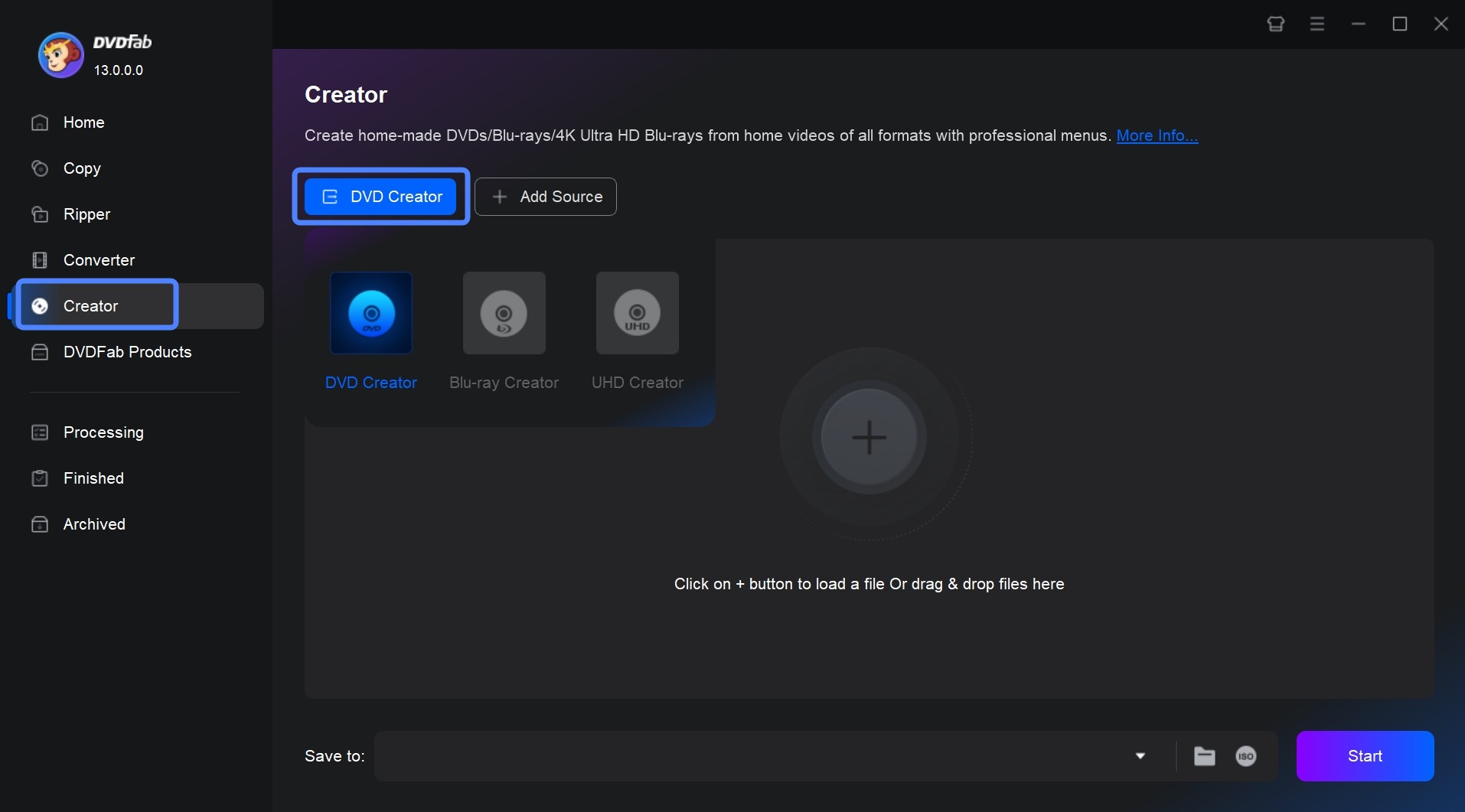
Open DVDFab and choose DVD Creator from the mode selector.
Step 2: Add Digital Files
Click the "Add" button to import your digital files.
💡Note: If you have multiple videos, you can load them all at once. Dragging multiple files lets you set their playback order on the DVD.
Step 3: Adjust Output Settings
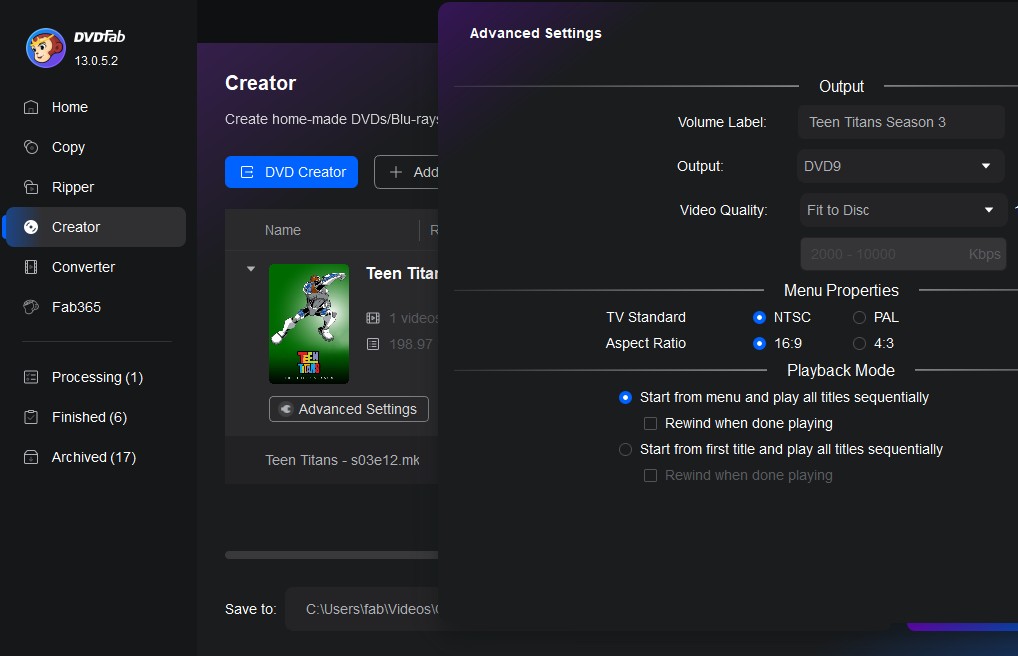
Before burning, open the "Advanced Settings" (or the equivalent settings panel). There you can:
- Choose output type: DVD-5 or DVD-9, or export to an ISO file, DVD folder, or blank disc.
- Set the video standard and aspect ratio appropriate for your region or TV (e.g. 4:3 or 16:9).
- If your video contains multiple audio tracks or subtitles, or you want to add external subtitles, choose which ones to include.
Step 4: Customize Menu and Chapters

Choose a menu template, add chapter markers, and personalize the background if desired.
- Go to the "Menu Settings" screen to pick a template and customize the background image, buttons, titles, and background music.
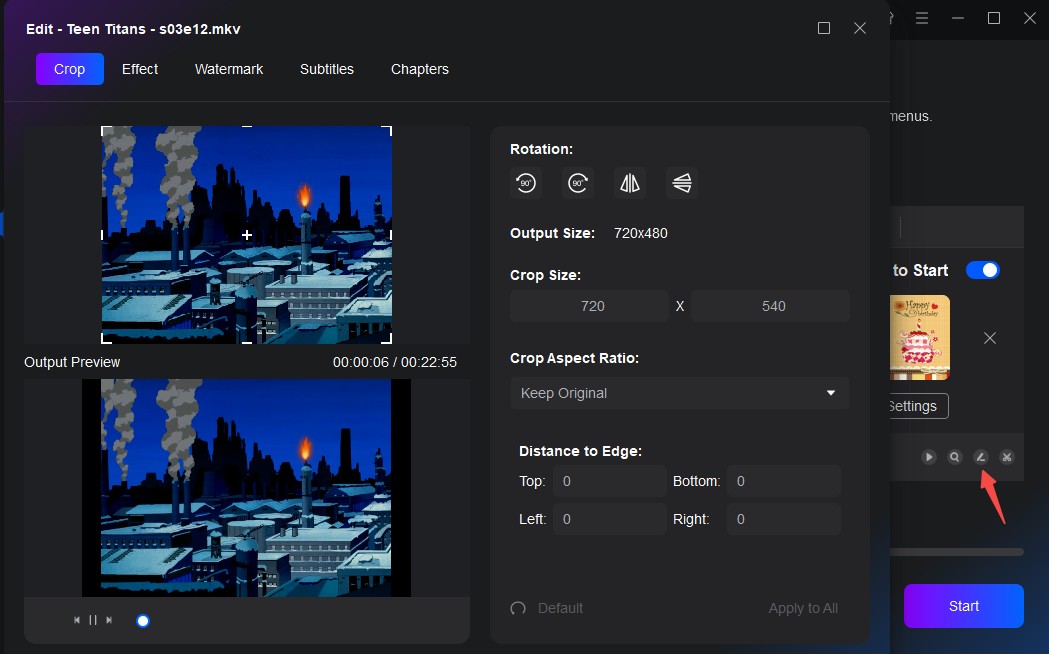
- Use the built-in editor (if available) to trim clips, crop the frame, adjust brightness/contrast, or add watermarks and subtitles. This step is optional but helps refine the final DVD.
Step 5: Start the Conversion
Click "Start" to begin encoding and burning the DVD. Choose your output destination (DVD disc, ISO, or folder).
Real Test of DVDFab DVD Creator

To see how DVDFab DVD Creator behaves in real-world use, I focused on three pain points most people care about: speed and stability on long projects, menu and chapter authoring, and playback compatibility when mixing formats.
Test 1: Mixed Formats and Device Compatibility Check
I tested how well DVDFab handles mixed formats and older players by combining 4 different sources: one 720p MTS file from an older camcorder, a 1080p MP4 phone video, a 30fps MOV clip, and a low-resolution FLV screen recording. I targeted DVD-5 this time, let DVD Creator automatically downscale and transcode everything, and chose "Standard Quality" to stay within the size limit. The program estimated 4.5 GB and actually produced a 4.3 GB VIDEO_TS folder, which I then burned to a regular DVD-R.
Playback testing was done on different devices: a basic living-room DVD player and a no-brand in-dash car DVD player. Both players recognized the disc immediately. There were no audio sync issues, and the aspect ratio stayed correct (16:9 with no pillarboxing on the TV, letterboxed properly on the older 4:3 car screen). Fast-forward and chapter skip worked normally across all titles. The only trade-off was that the heavily compressed FLV clip looked softer than the others after conversion, but that's expected given the poor source quality.
Test 2: Long Movie, Speed and Stability With GPU Acceleration
I installed DVDFab 13 on a Windows 11 laptop (Intel Core i7, 16 GB RAM, internal DVD±R drive) and loaded a 1 hour 58 minute 1080p MP4 movie (bitrate about 12 Mbps, stereo AAC). In the main interface, I went to Creator > DVD Creator, dragged the file into the window, set the target to DVD-9, video quality to "High Quality," and enabled hardware acceleration. I then picked a simple animated menu template, left the default chapter markers, and started burning to a blank DVD+R DL.
From hitting "Start," the full authoring and burning process took 22 minutes 11 seconds. CPU usage hovered around 35-45% while the GPU stayed between 40-55%, and DVDFab stayed responsive enough that I could browse the web during encoding. There were no crashes or failed writes; the final disc size came out at 7.4 GB, exactly within DVD-9 capacity.
Test 3: Menu Customization and Chapter Control on a Multi-Title Disc
Next, I created a compilation DVD from 8 clips (MP4 and MOV, 3-12 minutes each) shot on different cameras. After adding all files into DVD Creator, I opened the built-in editor to trim the heads/tails of a few clips, added a small text watermark to one, and inserted manual chapter markers every 10 minutes on the longest clip. Then I switched to Menu Settings, chose a gallery-style template, set a custom background image, renamed each title with clear episode-style labels, and changed the font size so the text would still be readable on a 32-inch TV.
I output this project as an ISO file rather than burning directly. Authoring the ISO took 14 minutes 03 seconds and produced a 4.2 GB image. After mounting the ISO on my PC and then burning it to a DVD-R, the menu behaved exactly as expected: each of the 8 titles had its own thumbnail, chapter jumps were instant, and the "Back to menu" button actually returned to the top menu instead of kicking me to the next title, a common annoyance with cheaper authoring tools.
Overall, across these three scenarios, DVDFab DVD Creator delivered predictable encode times, stable behavior on long runs, and clean playback on picky hardware players, while still giving enough control over menus and chapters to build a disc that feels professional rather than "home made."
Real-World Application of DVDFab DVD Creator
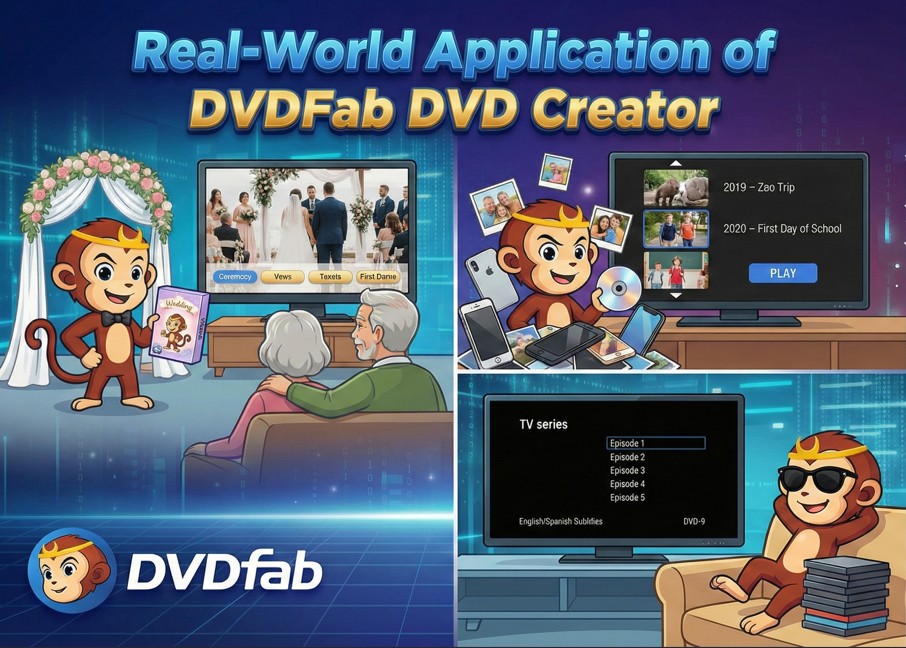
To see how DVDFab DVD Creator fits into everyday life, it helps to look at real people and real projects instead of just specs. The stories below are based on typical user scenarios and feedback.
Scenario A: The Wedding Videographer, Turning a Film Into a Keepsake
Emma is a wedding videographer who delivers most projects on USB, but her couples still ask for "something to put on the shelf." For one summer wedding, the bride wanted a small DVD box set for her parents and grandparents who don't use streaming at all.
Emma edits the film in her NLE as usual, then exports a full-length 1080p MP4 plus three short highlight clips. In DVDFab, she opens DVD Creator, switches to a DVD-9 project and drops in the main film plus the highlight clips as separate titles. She chooses a soft pastel "Wedding" style menu, replaces the default background image with a still of the couple at the altar, and sets their first-dance track as the menu background music.
For navigation, she creates chapters called "Ceremony," "Vows," "Toasts" and "First Dance," then customizes each thumbnail so the couple can see exactly where they are on the disc. Two hours later, she has three identical DVDs: one for the couple, two for the parents. When she delivers, the groom jokes that his dad "trusts a disc more than a link," and the bride messages Emma a week later saying that her grandparents watched the DVD twice and "loved being able to click straight to the vows."
What matters to Emma is that the authoring step is predictable. The menus look the same on the TV as they do in the preview, there are no strange jumps between chapters, and the discs play without drama on older living-room players, which helps her justify a premium "DVD box set" add-on in her package.
Scenario B: The Family Archivist, Taming Years of iPhone Footage
Jason is the unofficial family archivist. His wife films everything on her iPhone, from birthdays to school plays to vacations, and after five years they have hundreds of short clips stuck in the cloud. His parents keep asking for "real discs" they can put into a cheap DVD player in the kitchen.
Jason exports a batch of iPhone HEVC clips to his PC and drags about 60 of them into DVDFab DVD Creator. The files are all over the place: some are vertical, some horizontal, some in variable frame rate, some in 60 fps. In other tools he tried, this mix caused audio sync drift, with mouths talking out of time with the sound, which made the DVDs unwatchable.
In DVDFab, he lets the program do the heavy lifting. Creator converts everything to the proper DVD standard and automatically pillar-boxes the vertical videos, so faces aren't stretched to fill the screen. He groups the clips by year and adds simple text labels like "2019: Zoo Trip" and "2020: First Day of School" on the menu. For grandparents, he keeps the interface as simple as possible: one big Play button, plus a basic chapter list.
The resulting DVD-5 disc plays cleanly on his parents' old player. There's no noticeable audio delay, even on longer iPhone clips, and the vertical videos sit neatly in the center of the TV instead of being chopped off. Jason's feedback is straightforward: the process still takes time, but he no longer has to fight with sync issues or stretched footage every time he makes a family disc.
Scenario C: The Series Binger, Packing a Season Onto a Disc
Laura is a TV drama fan who likes to keep physical copies of her favorite shows. She has one season stored as 10 MKV files, each with multiple audio and subtitle tracks. Streaming is fine for her, but she wants a single disc she can put into an old bedroom DVD player with no logins or updates.
In DVDFab DVD Creator, she starts a DVD-9 project for extra space and imports all 10 episodes at once. On the audio and subtitle screen, she keeps English and Spanish subtitles and removes the rest to save room. She also sticks to one main audio track, which helps the size estimate drop comfortably under dual-layer capacity.
Instead of authoring one episode at a time, she uses Creator's ability to queue all titles in one go. The software generates a simple episode list menu with "Episode 1" through "Episode 10," and she renames each entry with the actual episode titles. She turns off fancy animations and picks a plain black background so the menu loads quickly on older hardware.
The final disc boots up on her bedroom DVD player with a clean text menu, instant chapter skips and working subtitle selection for every episode. Her comment after a weekend of testing is that it "feels like a store-bought season box, just without the plastic." For users like Laura, the key win is control: choosing which subtitles stay, how many episodes fit, and how simple or complex the menu should be, without needing professional authoring software.
The "Black Arts" of Burning: Troubleshooting and Best Practices
Disc burning is a delicate interplay of software, laser hardware, and the chemical dye on the disc. Even reliable software can fail. Here is how to navigate common pitfalls with DVDFab DVD Creator.
The "stuck at 99%" myth is a frequent user complaint: the progress bar freezes at 99% or 100% for several minutes.
- The reality: this is usually the drive performing the "lead-out," writing the final table of contents that tells a player the disc has ended. It is a slow, mechanical process.
- The fix: patience. Do not force close the program. Wait at least 10-15 minutes. If it truly hangs, it may be a conflict with the drive's firmware.
The golden workflow: output to ISO. To avoid making "coasters" (ruined discs), experienced users rarely burn directly to the plastic disc.
- Recommendation: in the "Output" settings, select the ISO Image icon instead of your DVD drive.
- Why: this lets DVDFab focus entirely on the heavy lifting of transcoding and menu building, creating a virtual disc file on your hard drive. You can then test this ISO in a media player (like VLC or PlayerFab) to confirm the menu works and audio is in sync. Once verified, use a dedicated lightweight tool (like ImgBurn) or DVDFab's own burning engine to write the ISO to the physical disc. This separation of concerns drastically reduces failure rates.
Frequently Asked Questions
Can DVDFab DVD Creator make Blu-ray or 4K UHD discs?
No. DVDFab DVD Creator only outputs standard DVD formats (DVD-5, DVD-9, DVD+R/RW, DVD-R/RW and their dual-layer variants), plus ISO files or DVD folders. Users on Reddit's r/4kbluray have run into this exact mix-up when trying to author 4K discs with the wrong tool. For Blu-ray or 4K UHD output, DVDFab offers separate Blu-ray Creator and UHD Creator modules built for those disc types.
What are the system requirements for DVDFab DVD Creator?
On Windows, DVDFab DVD Creator requires Windows 10 or 11 (64-bit), an Intel i3 processor or higher, at least 4GB of RAM, 20GB of free disk space, a DVD-R(W) or DVD+R(W) drive, and an active internet connection for activation. A Mac version is also available through DVDFab's download page, though detailed Mac-specific requirements are not published separately from the Windows specs.
Is there a limit on how many discs I can burn?
Licensed accounts are subject to a fair-use cap of 100 disc copies per week, according to DVDFab's official product page. That ceiling resets weekly and is unlikely to affect typical home users, but it's worth knowing if you're batch-producing discs for an event or a small business.
Conclusion
Streaming makes most video disposable, which is exactly why some footage doesn't belong only on a server you don't control. DVDFab DVD Creator's case rests on how it handles the gap between modern video files and the decades-old DVD-Video standard: broad format support, hardware-accelerated transcoding, and menu tools that don't require a steep learning curve. Free alternatives such as DVDStyler exist, but they tend to demand more manual format conversion and offer thinner menu customization.

 How to Convert MKV to DVD: 4 Tested Tools for Playable Discs (2026)By Wenny Yan - Oct 12, 2026
 How to Transfer and Burn iPhone Videos to DVD on Windows & MacBy Diana Smith - Oct 10, 2026
 How to Burn a DVD on Mac in 2026: Video, Data, Photos & ISOBy Diana Smith - Sep 28, 2026
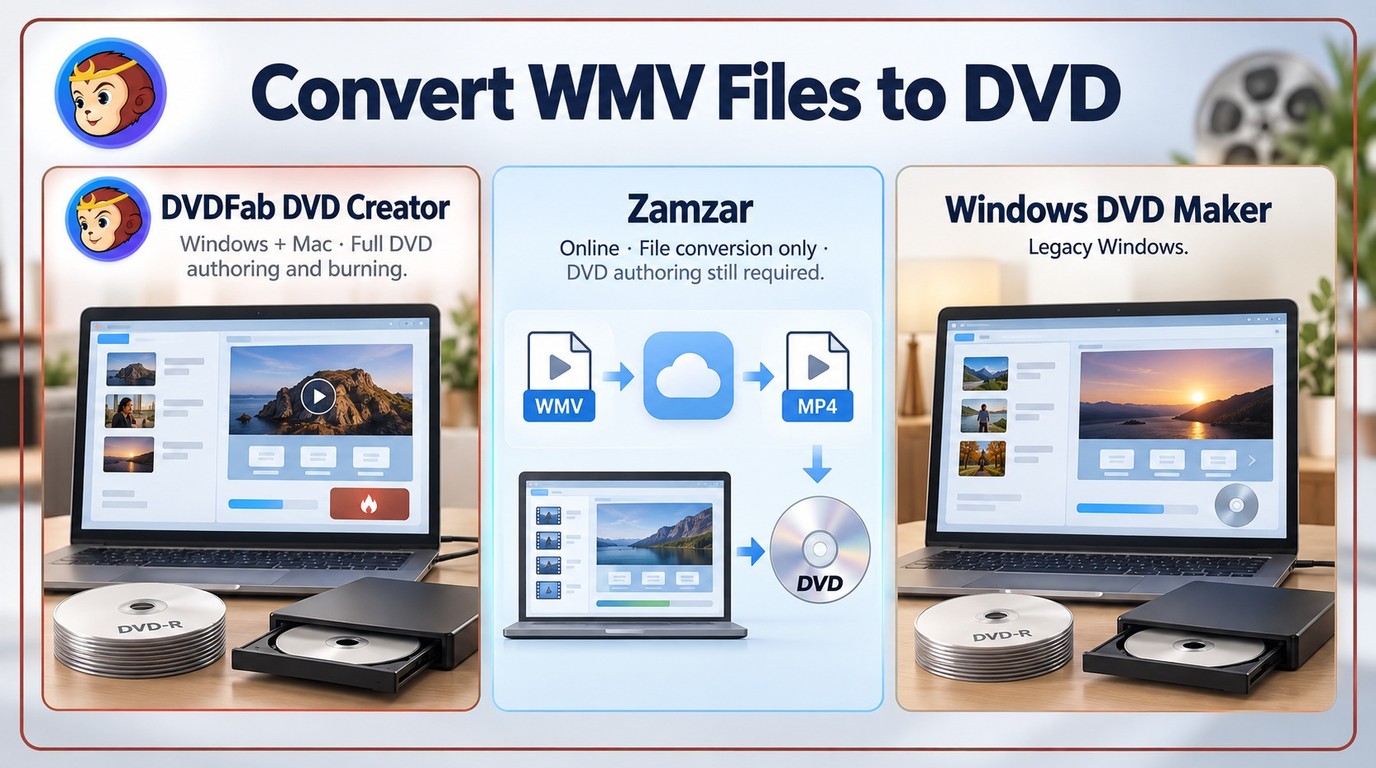 How to Convert WMV to DVD: 3 Methods for Windows and MacBy Wenny Yan - Sep 16, 2026