Top 12 DVD to MP4 Converter Software for Win & Mac [2026 Tested]

Summary: To convert a DVD to MP4, you'll need "ripping" software to read the physical disc's data and re-encode it into a digital file. While free tools like HandBrake or VLC Media Player are excellent for homemade discs, professional software like DVDFab DVD Ripper is often required for complex movie file structures. To begin, simply insert the DVD, open your selected software, choose the MP4 (H.264/AAC) output profile, and click "Start".
Table of Contents
Although DVDs may seem outdated in the streaming era, recent reports show renewed interest in physical media. A December 2025 Washington Post report points to stronger demand among collectors and younger consumers seeking stable ownership beyond shifting digital libraries. A February 2026 Los Angeles Times feature also notes that Gen Z is buying physical media to keep permanent access and avoid streaming fatigue.
DVDs still have collection value, but they are fragile and easy to damage. Many collectors, including me, digitize DVD collections into MP4 for long-term preservation and multi-device playback. One Reddit user recently described the difficulty of digitizing nearly 200 DVDs, with common problems such as oversized files, missing subtitles, and long encode times. In this article, I benchmarked 12 DVD to MP4 converter software options and provided practical settings to help you create sharp, device-ready MP4 files.

Quick Answer: What is the Best DVD to MP4 Converter Software in 2026
To rip DVD to MP4 successfully, you need two things: compatible optical hardware to read the disc and efficient software to extract the video. I selected the top two tools, DVDFab DVD Ripper and HandBrake, to evaluate performance using the standard DVD source 8 Mile. I used each program's default H.264 MP4 profile to measure speed and efficiency under two standard configurations.
📀 Test Environments
- Operating System: Windows 10 x64
- CPU: Intel Core i7 6700 at 3.40GHz RAM 16GB
- GPU: NVIDIA GeForce RTX 4060 Ti 8GB VRAM
- DVD drive: LG WH16NS60 External
- Test Media: 8 Mile (Runtime 1h 50m 14s Original Size 6.13GB)
📋 Test Reports
| Top DVD to MP4 Converters Tested | ||||||
| Tool | Performance Preset | Ripping Time | Output Quality | Output Size | Supported Protection | Trustpilot Ratings |
| DVDFab DVD Ripper 13.0.6.6 (Aug 28, 2026) | High Quality | 7m24s | 720x480 AAC 5.1 | 3.17GB | All. CSS, RC, RCE, 99-Title, UOPs, APs NEW. | 4.5/5 |
| Fast Speed | 5m18s | 720x404 AAC 5.1 | 890MB | |||
| HandBrake 1.11.2 (Mar 22, 2026) | HQ 480p30 Surround | 23m | 720x404 AAC 2.0 | 2GB | Basic CSS (Require libdvdcss) | 3.7/5 |
| Fast 480p30 | 13m | 720x362 AAC 2.0 | 984MB | |||
Best DVD to MP4 Converter for Speed and Quality: DVDFab DVD Ripper
DVDFab DVD Ripper is a reliable DVD to MP4 converter software that better balances ripping speed and image clarity for large collections. My tests confirm that this software beats HandBrake in speed while giving you more control over the final image. I recommend DVDFab for users who have many discs and need automatic decryption without manually installing libdvdcss.
Best DVD to MP4 Transcoder for Small File Size: HandBrake
HandBrake works as a good second choice for users who want to save space and do not mind longer encode times. It creates small files for movies, though the trade off is slower ripping speed and lower default resolution. However, HandBrake has limited decryption capability and may require libdvdcss to read CSS-protected DVDs, which makes the setup more complex and still may not work for every protected disc.
💡For a few already-extracted files, an online converter can be more convenient because it requires no installation.
Best for Quick Online DVD to MP4 Conversion: Restream
Restream stands out as a browser-based online tool, meaning you can turn VOB files into MP4 without installing software. While it's not as capable as DVDFab or HandBrake, it's convenient for light, occasional use and works well on most modern browsers.
Convert Protected DVD to MP4 with DVDFab DVD Ripper
- User rating: 4.5/5 from Trustpilot
- Supported OS: Windows 11/10/8.1/8/7 (64 bit) & macOS 12 or newer
DVDFab DVD Ripper is a dedicated DVD to MP4 converter with a user friendly interface that rips copy protected DVDs, ISO files, and folders to video and audio formats. It efficiently eliminates copy protections such as RC, RCE, APS, and 99 titles from discs and converts DVDs to MP4 and other widely used 2D or 3D video and audio formats with selected titles, audio tracks, and subtitles. DVDFab also receives frequent updates to handle new Java based DVD encryptions which ensures compatibility with the latest releases.
The software opens in a modern workspace that detects discs automatically. Key controls, including audio tracks, chapter selection, and the video editor, stay visible on the main screen for quick access. For those digitizing large DVDs to MP4 files, the one-step "select all titles" feature and batch loading capabilities reduce manual work.
In my tests using version 13.0.6.6 on Windows 10, DVDFab ripped a 150 minute movie in roughly 5 minutes. It offers a wide range of MP4 options. I could pick different profiles like H.264, H.265, Passthrough, or even 3D depending on where I planned to play the file. That flexibility made it easier to match the output with my iPhone 17 without digging through advanced settings.
Features:
- Receive 40+ annual updates for the newest DVD protection schemes
- Rip DVDs to various default MP4 profiles, such as 3D, Passthrough, 4K/5K/8K, H.265, 10/12 bit
- Cover 1000+ video & audio output formats and 260+ preset devices
- Select the titles, chapters, audio tracks and subtitles you want to rip
- Multi-core CPUs and Intel Quick Sync accelerate batch ripping
- Offer a built-in video editor that can crop, trim, and brighten video, add watermarks and external subtitles, speed up/down, zoom in/out a video, etc.
- Free access to trial Blu-ray/UHD ripping and other add-on features
Cons:
- Only MP4 and MKV output formats are available in its free version
How to Convert DVD to MP4 with DVDFab DVD Ripper:
Step 1: Download DVDFab and Import the DVD Source
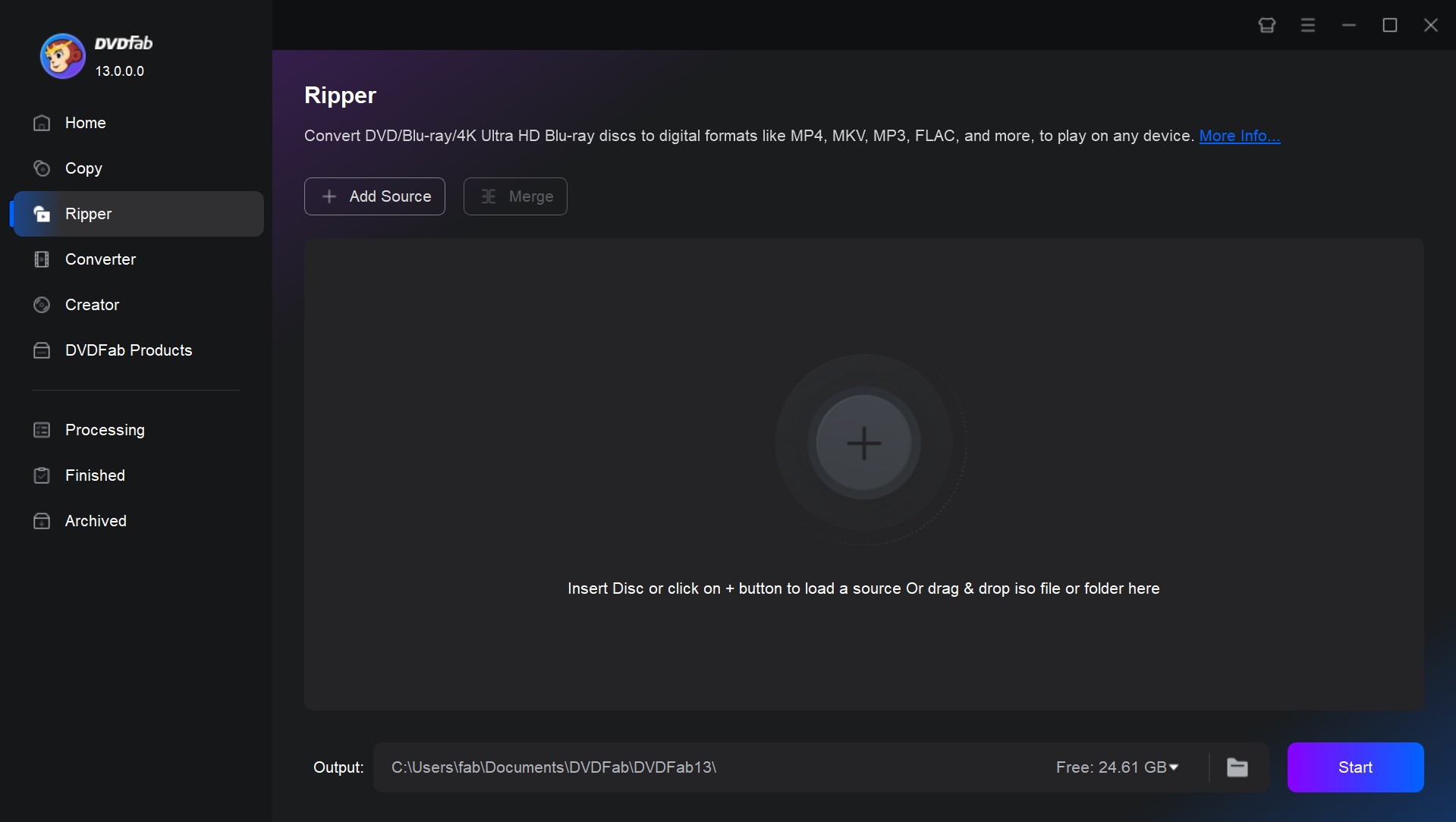
Download DVDFab DVD Ripper for free on Windows or Mac. Launch DVDFab DVD Ripper and select the "Ripper" module. Insert your DVD into your computer's drive, and the software will automatically load the content, decrypting any embedded copy protection. If you have an ISO file or a folder, drag and drop it into the application.
Free Download Windows 11/10/8.1/8/7
Free Download macOS 12 or newer
Step 2: Select MP4 as the Output Format
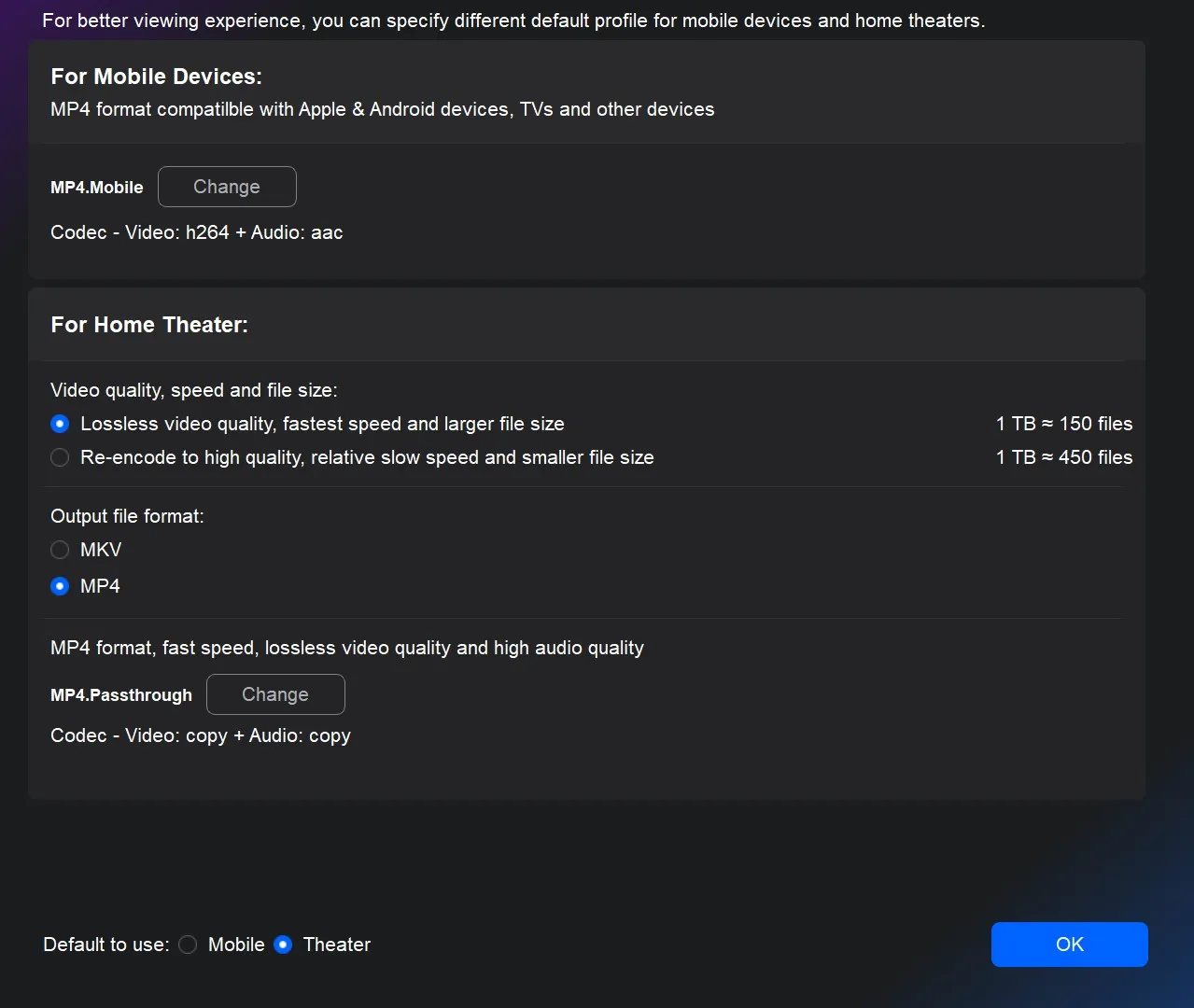
After loading the source, DVDFab will provide you with different profile options:
- For mobile devices, choose "MP4.Mobile" profile (video codec H.264 and audio codec AAC).
- For home theaters, choose "MKV.Passthrough" to retain lossless quality (despite larger files), or a re-encoded profile that balances higher visual quality with reduced file size.
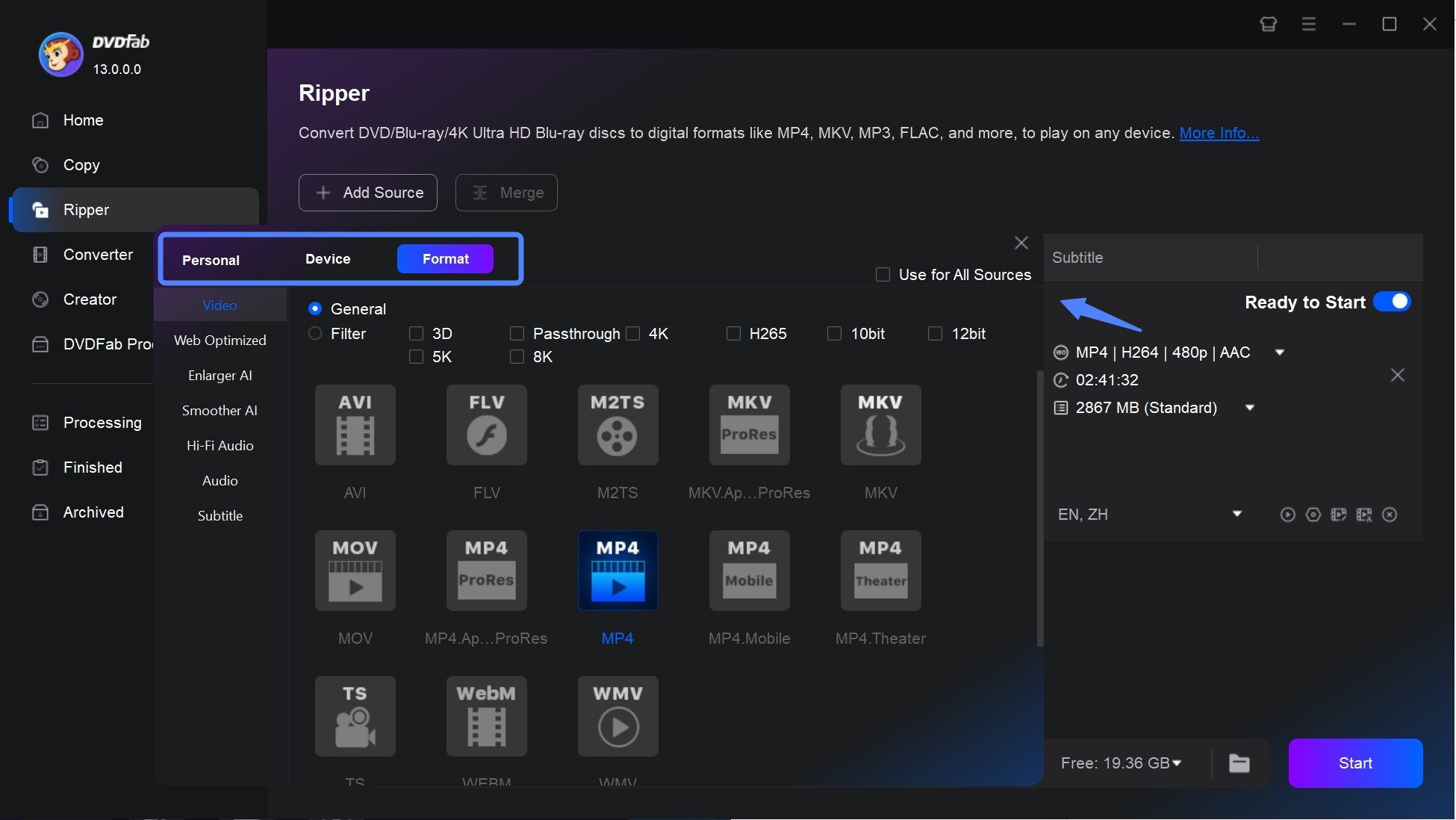
DVDFab then applies the standard MP4 profile automatically, while more format options remain available under "Choose Other Profile". For playback on a specific phone or tablet, use "Device" to build an output profile for your iPad, iPhone, or Android.
Step 3: Customize Output Parameters and Edit DVDs
Back on the main interface, choose the full DVD or specific titles, select preferred audio tracks and languages, or extract DVD subtitles to SRT format. To identify the copy protection embedded in your DVD, open the "Info" panel to view the details.
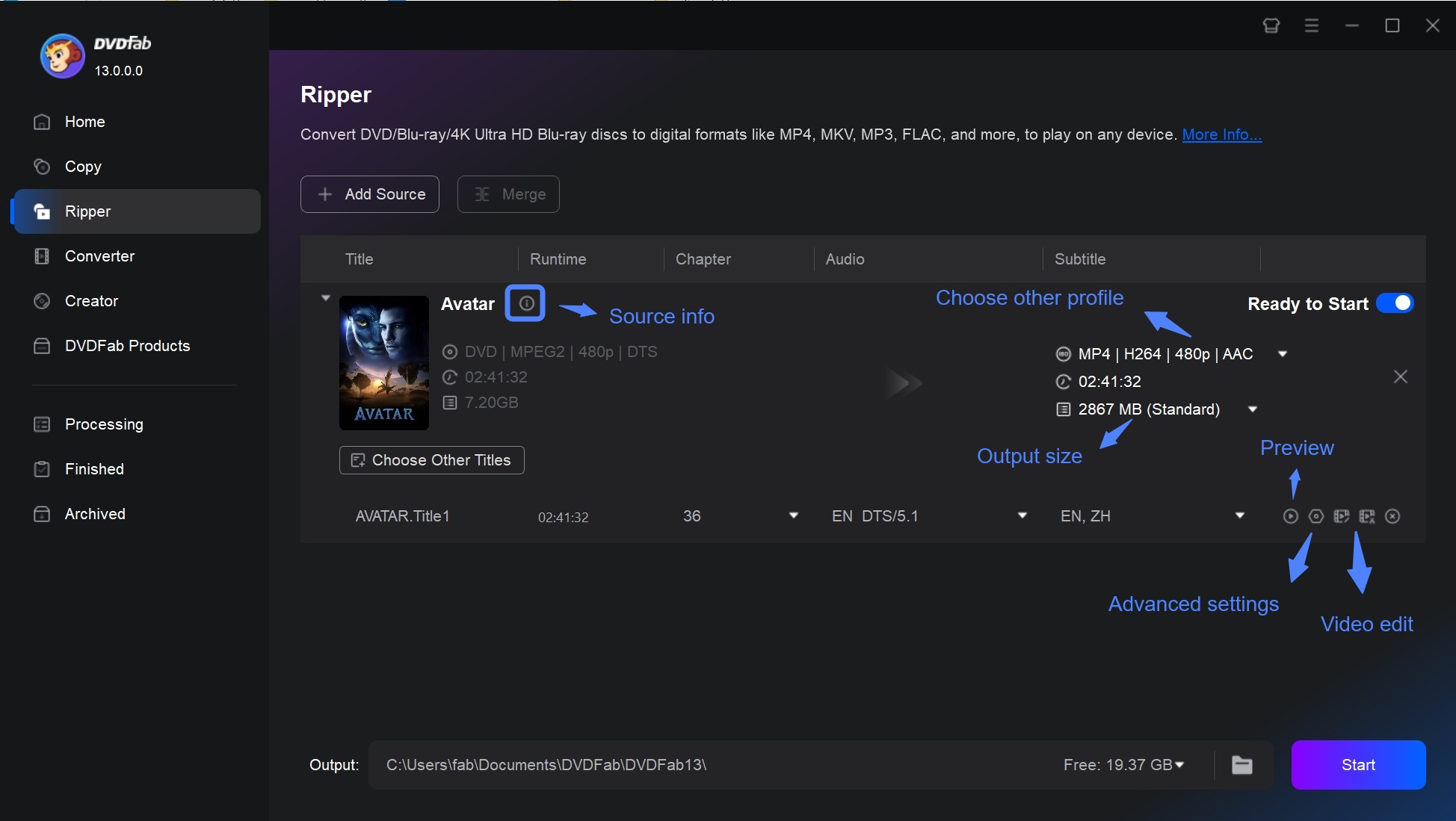
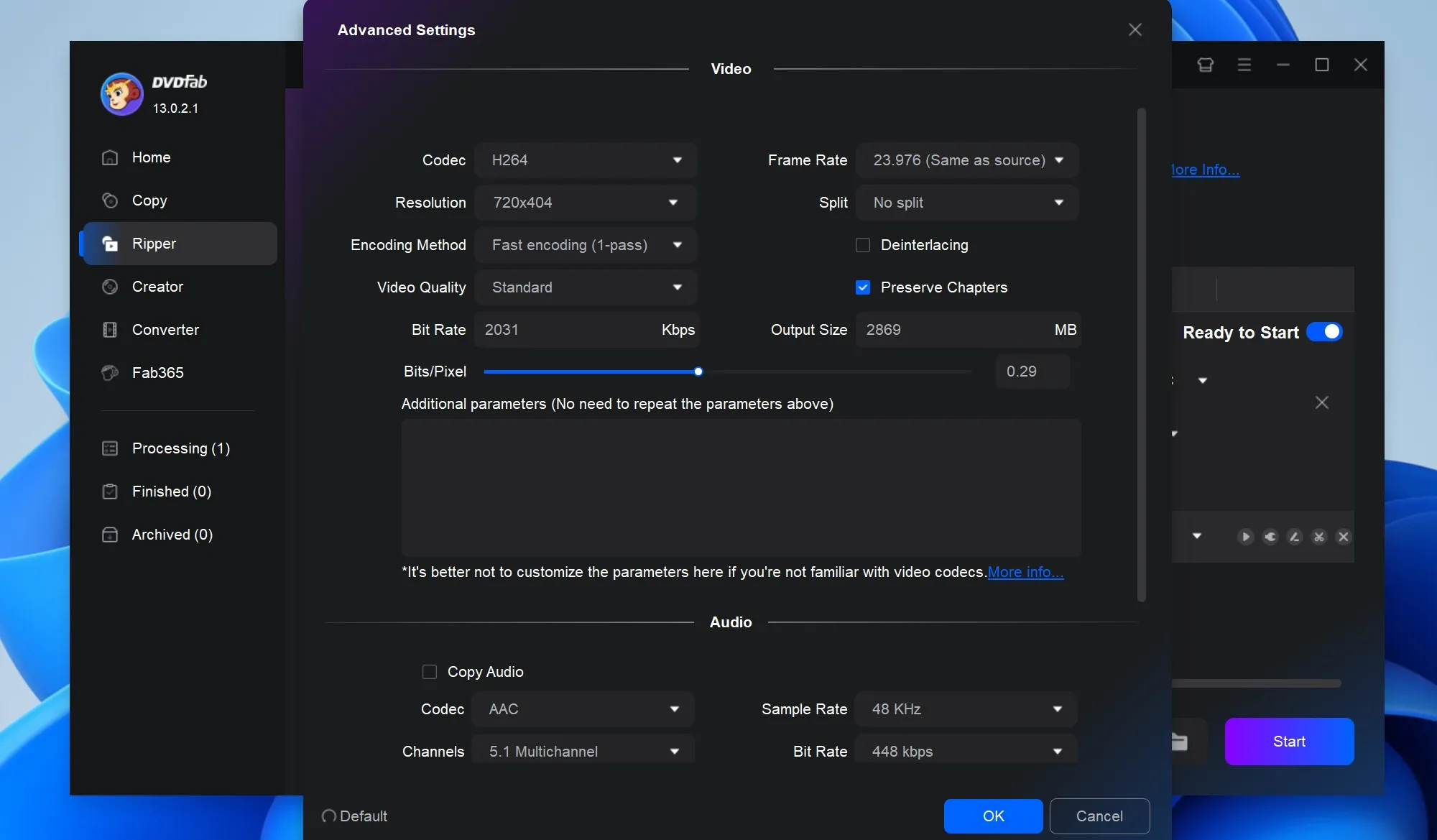
Then, open "Advanced Settings" to adjust video and audio parameters for your playback needs.
- Under Encoding Method, prioritize speed or fidelity. For automated balance, CRF Mode dynamically adjusts compression to maintain consistent visual fidelity, though it may create larger files.
- In the Video Quality section, Fast Speed and Standard modes suit everyday devices with efficient compression, whereas High Quality sharpens details for premium playback systems.
- The Codecs govern compression. Compare to H.264, H.265 (HEVC) provides better compression, but requires newer hardware decoding support.
- The Frame Rate controls smoothness. Standard DVD typically uses a frame rate of 29.97 frames/second for NTSC video. For smaller files, reduce the bitrate appropriately without noticeably hurting DVDFab's output clarity.
You can further refine your DVD video through "Video Edit" or "Trim" to crop unwanted parts, add effects or watermarks, adjust subtitles, or change playback speed.

Step 4: Set Output and Start to Convert DVD to MP4
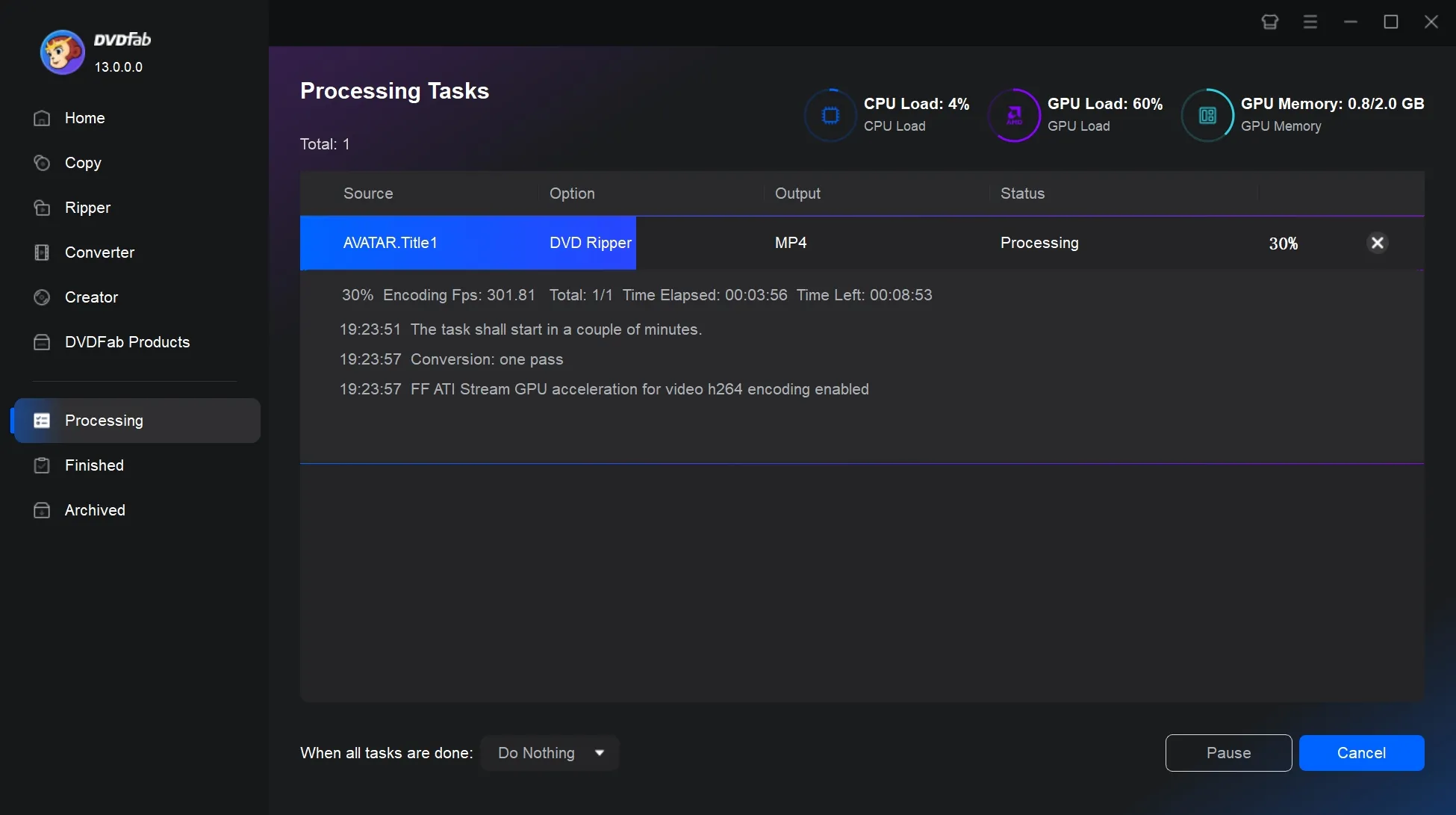
At the bottom of the interface, use the "Folder" icon to set your output path. Finally, click "Start" to launch the DVD to MP4 conversion.
Video Tutorial on How to Convert DVD to MP4 with DVDFab DVD Ripper
Convert DVD to MP4 Free with HandBrake
- User rating: 3.7/5 from Trustpilot
- Supported OS: Windows 11; Windows 10 1909+ is deprecated; macOS 14 Sonoma, 15 Sequoia, and 26 Tahoe; Linux via supported distributions or Flatpak
HandBrake is a widely used free and open-source DVD to MP4 converter software for Windows, Mac, and Linux. If you have libdvdcss installed, HandBrake can rip CSS-protected DVD to MP4, MKV and WebM. There are sophisticated options available for exact encoding settings, effects, parameter tweaking, etc., but they require some practice.
I liked the level of control it gave me, and ripped three discs in a row without any errors. The new 1.11.2 build ran a bit more stable compared to older versions I've used, especially in how it handled DVD metadata and subtitle tracks.
Features:
- Export unprotected DVDs to popular formats like MP4, MKV, and WebM
- Include customization options such as bit rate, subtitles, and video filters
- Enable batch conversion for multiple files at once
- Preview the result before finalizing the encode
Cons:
- Cannot handle DVD/Blu-ray sources with copyright protection code
- No tool for combining multiple clips into one video
- Limited selection of output formats compared to other converters
How to Convert DVD to MP4 with HandBrake:
Step 1: Download and Launch HandBrake
Download the latest version of HandBrake 1.11.2 and install it on your Windows, macOS, or Linux device.

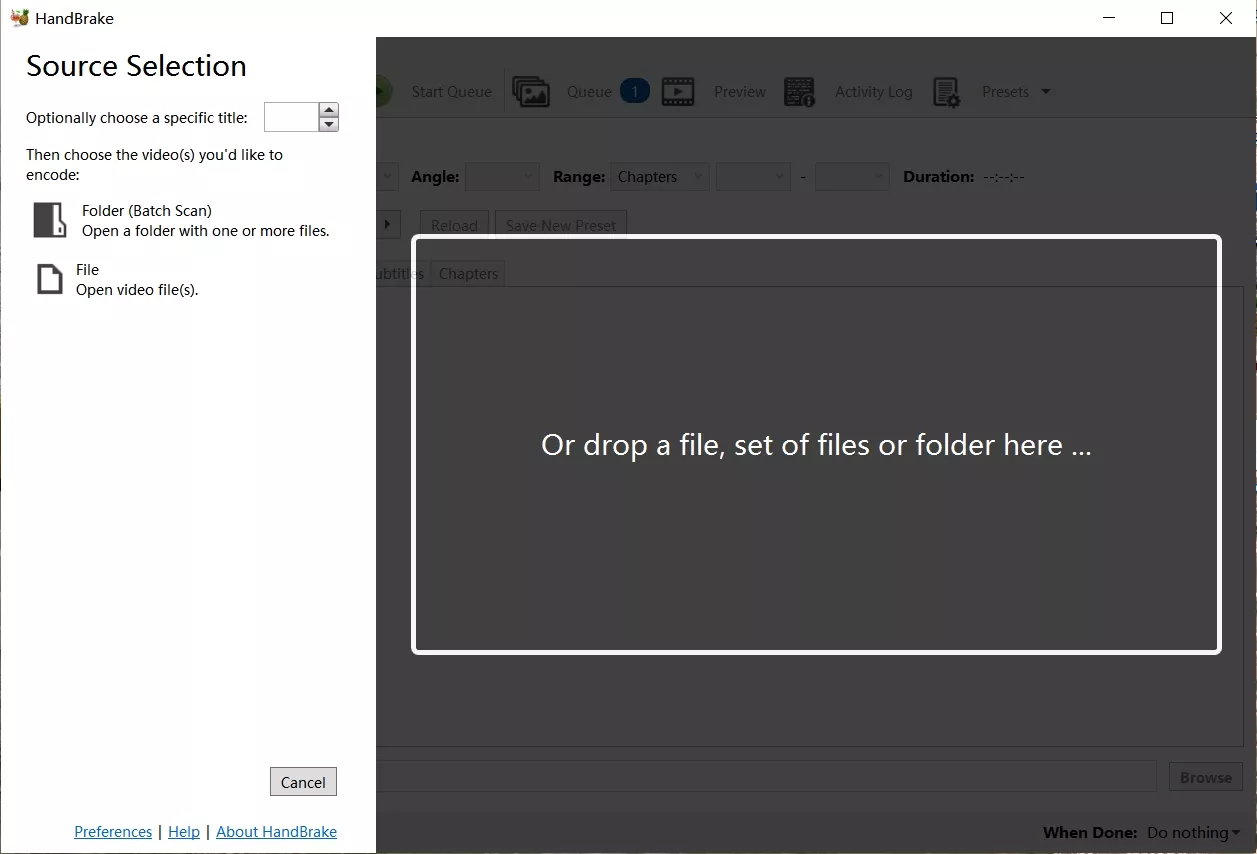
Step 2: Load the DVD Source
To load the DVD video, choose Open Source. Please download libdvdcss if the DVD, ISO image, or DVD folder is encoded with CSS or region code. Otherwise, you'll get an error notice that says "no valid source or titles detected."
💡Here is a tutorial for you to install Libdvdcss on Windows and Mac. You can refer to: how to download Libdvdcss to HandBrake to know more details.
Step 3: Choose MP4 Preset and Adjust Settings
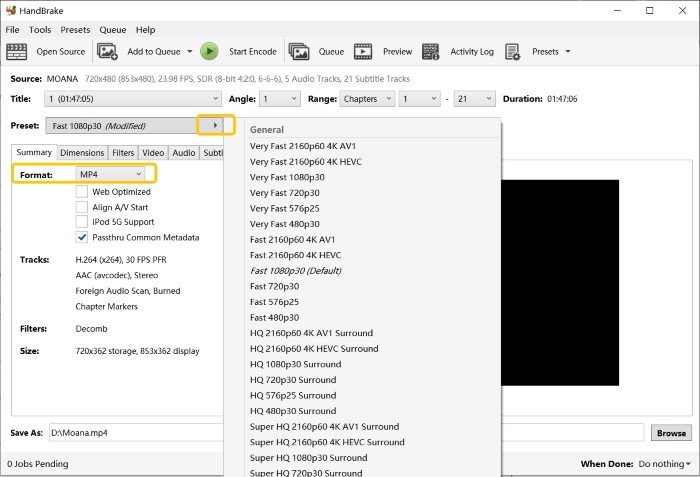
Select General, Web, Matroska, Hardware, and other options from the "Presets" dropdown menu. You can further fine-tune the output bitrate, frame rate, subtitles, etc.
| HandBrake Presets (H.264/x264, High Profile) | |||
| Preset Name | Framerate | Constant Quality | Description |
| Very Fast 480p30 | 30 VFR | RF 23-25 | Ultra-fast encoding, larger file size with acceptable clarity. |
| Fast 480p30 | 30 VFR | RF 21-23 | Fast encoding that balances speed with visual detail. |
| HQ 480p30 Surround | 30 VFR | RF 18-20 | Detail-focused encoding; allows higher RF than Fast Preset. |
| Super HQ 480p30 Surround | 30 VFR | RF 16 | Maximum fidelity with slower encoding speed. |
| Term: RF (CRF) is a parameter used by the x264 encoder for quality control. | |||
Step 4: Start Encoding DVD to MP4
Select MP4 from the "Format" dropdown list in the "Summary". Then choose a target folder for the resulting MP4 file with Browse. Finally, hit "Start Encode" on the top toolbar to begin encoding. If you have multiple DVDs or titles to rip, open the "Add to Queue" dropdown and select "Add All" before starting the batch.
Convert DVD VOB Files to MP4 Online
Restream
- User rating: 4.5/5 from Trustpilot
- Official website: https://restream.io/tools/video-converter
Restream's online video converter is a lightweight and browser-based tool that accepts a variety of formats, including MOV, MKV, AVI, GIF, WMV, and MP3. In my hands-on test, I dragged a 1.5GB VOB file into the browser, and the upload began right away without installation or account creation.
Although this online converter can export various digital files as MP4, it cannot handle physical discs such as DVD/CD or ISO images. I had to use a dedicated DVD ripping tool such as DVDFab to extract the VOB files before uploading them to Restream for MP4 export.
Features:
- No installation or account required; just upload, export, and download
- Works with MOV, MKV, AVI, GIF, WMV, MP3, and more
- Runs free in the browser, making it convenient
- Handle files up to 2GB, accommodating various media sizes
- Files are deleted a few hours after processing for security
Cons:
- Importing and converting files can take longer than other tools
- Only converts to MP4 or WEBM, lacking advanced format options
- No control over bitrate, resolution, or advanced settings
- Since it's cloud-based, slow internet can impact performance
- Processes only one file at a time, which may be inconvenient for bulk tasks
How to Convert DVD to MP4 Online via Restream
Step 1: Before starting, make sure the DVD has been decrypted and the VOB files are extracted to your computer. Large files may take time to upload, so using a stable, high-speed internet connection is recommended. Once ready, open the Restream Video Converter in your browser.
Step 2: Use "Choose File" to load the VOB files you need to handle in order.
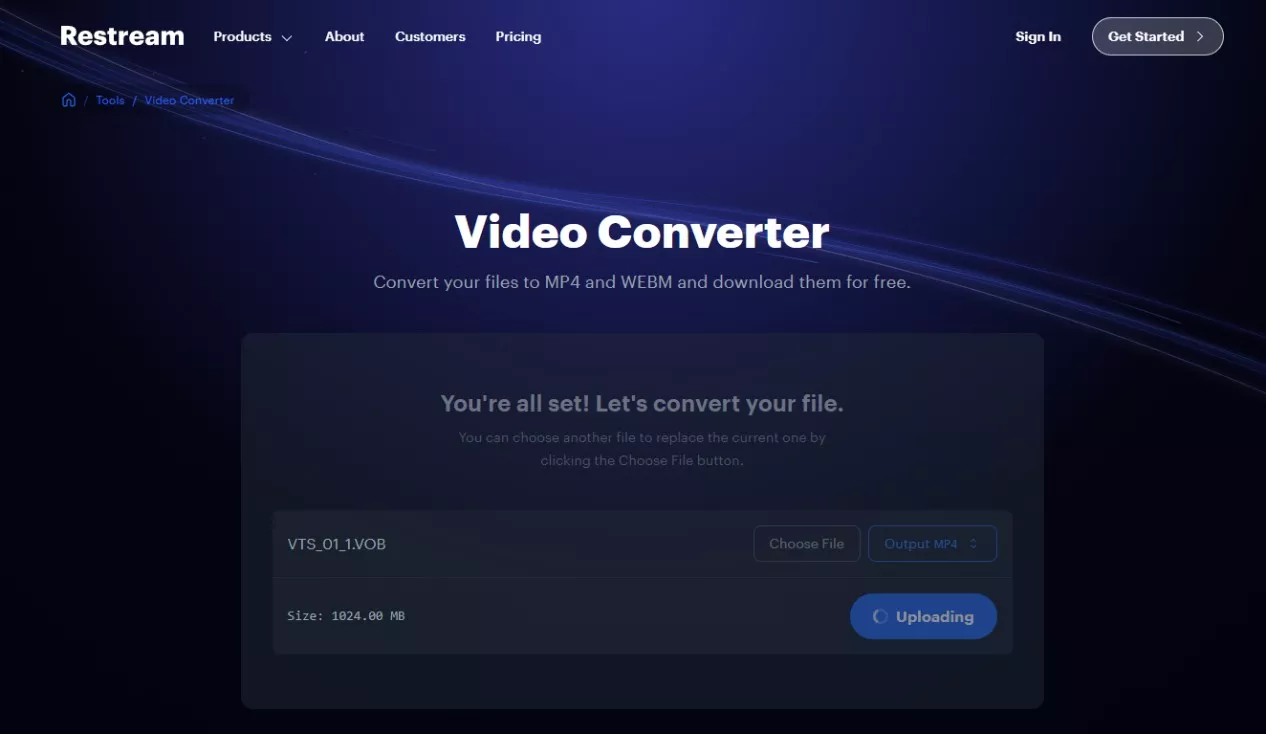
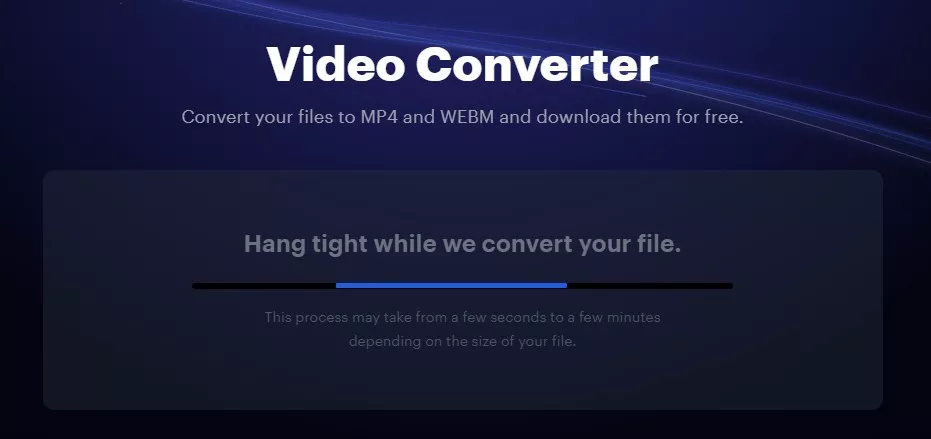
Step 3: If the file is large, it will take some time to load. Restream outputs MP4 format by default, so you only need to press "Convert".
CloudConvert
CloudConvert is an online video tool best suited for changing one digital format into another. When I tested it, I uploaded a VOB file extracted from a DVD and exported it to MP4 directly in the browser. The upload was smooth, and the progress bar clearly showed each stage of the upload and encode workflow. Since most DVD movie files are over 1GB, I did notice the task took quite a while, especially on a slower internet connection.
What impressed me most was the advanced Options panel, which allowed me to adjust Video Codec, CRF, Bitrate, Sample Rate, and even trim the video.
Features:
- Works entirely in the browser, no installation needed
- Supports multiple file types, including Archive, Ebook and Document formats
- Integrates with Google Drive, Dropbox, and other cloud services
- Provides clear progress feedback during conversion
Cons:
- Free accounts include 10 conversion credits per day, a 1GB maximum file size, and a 5-minute maximum processing time
- Large VOB files can take a long time to finish
- Cannot read physical DVDs or ISO image files
How to Convert DVD to MP4 Online with CloudConvert
Step 1: Go to the CloudConvert website. You'll need to manually select VOB (input) and MP4 (output) in the format bar at the top of the page.
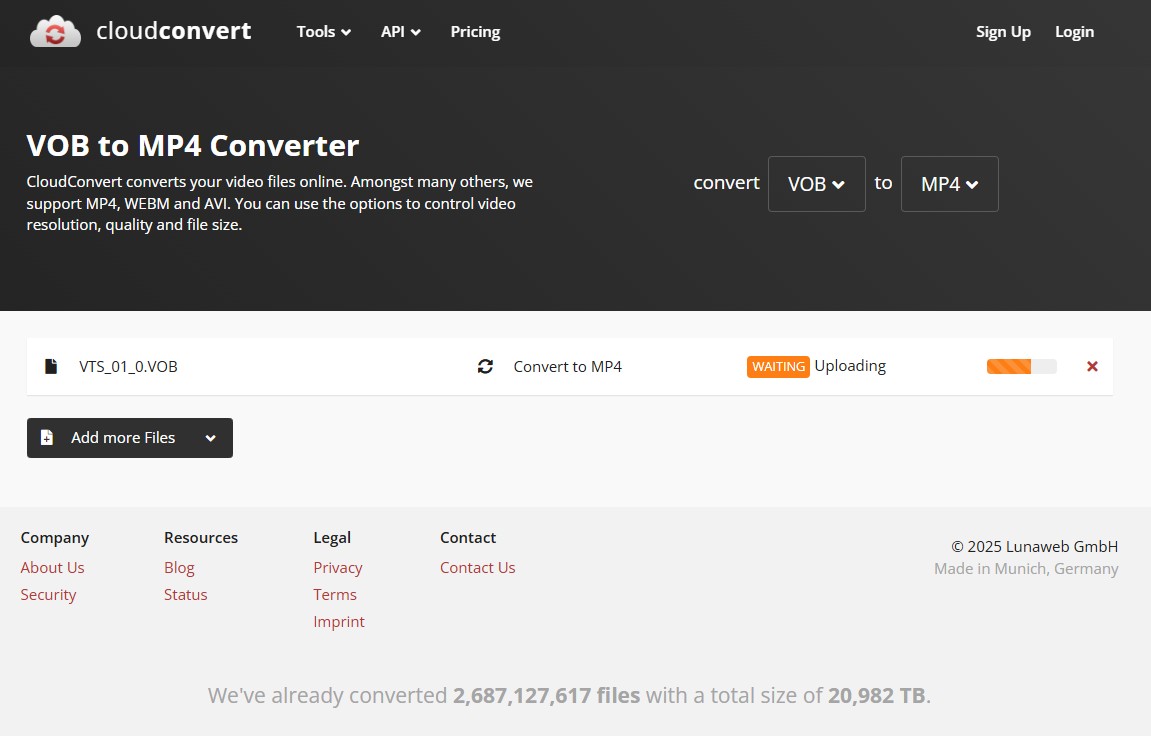
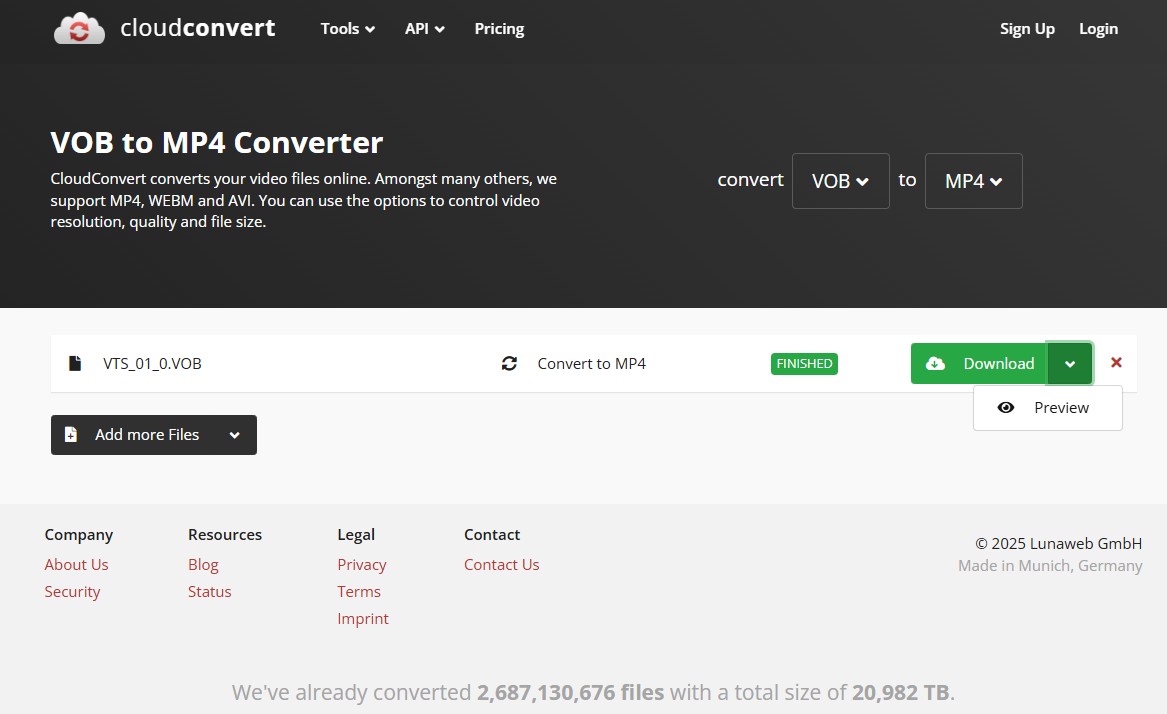
Step 2: Select "Select File", or drag and drop your VOB file into the upload area. You'll see the file name (e.g., VTS_01.VOB) in the conversion queue with an Uploading status.
Step 3: Open the wrench icon next to the output format to access advanced settings. Here, you can adjust video, audio and subtitle options.
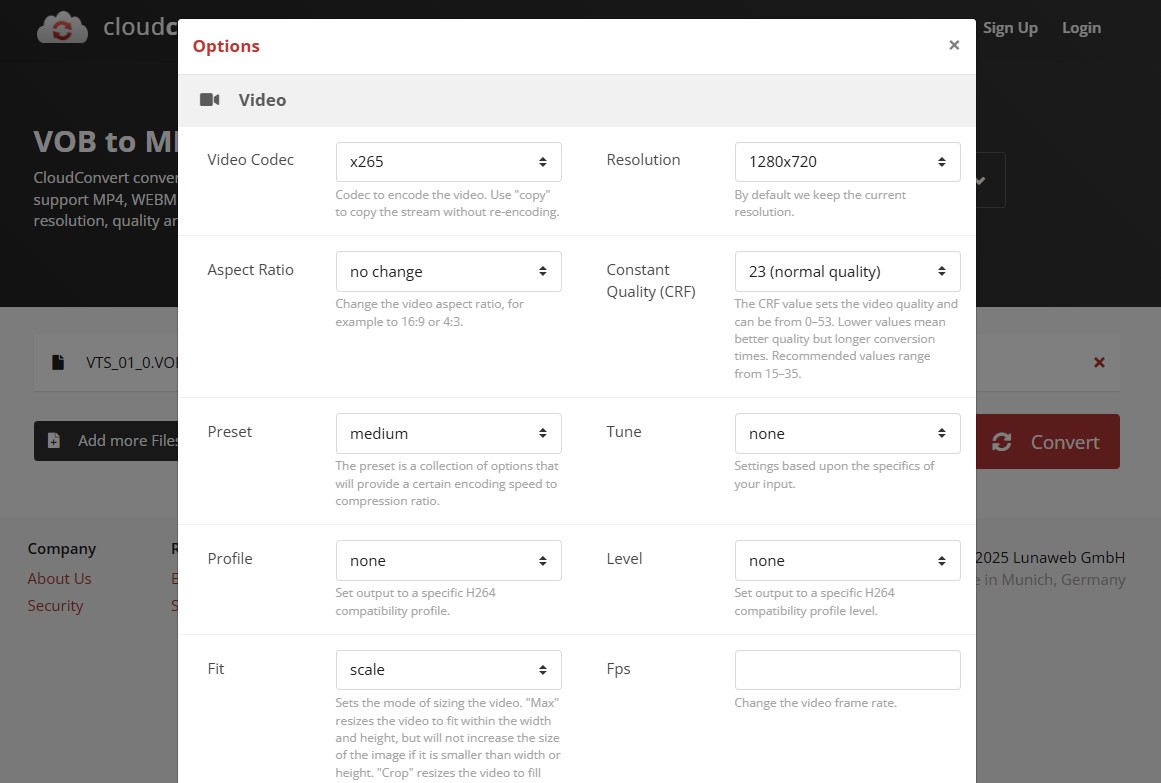
Step 4: Start the conversion. Once the status changes to FINISHED, select "Download" to save your MP4 file or "Preview" to check the result online.
More DVD to MP4 Converter Software Tested
VLC Media Player
- User rating: 4.5/5 from TechRadar
- Supported OS: Windows, Mac, GNU/Linux, Android, etc
VLC Media Player is free and open source software that supports a wide range of codecs. It can also transcode DVDs to MP4, H.264, H.265, WMV, WebM, and other formats. However, there are certain drawbacks. This program offers only limited customization. I can't manually adjust settings like aspect ratio, bitrate, or audio enhancements in detail.
Features:
- Works with multiple video and audio codecs
- Available across Windows, Mac, and Linux
- Plays a wide range of media file types
Cons:
- DVD encoding and ripping can be slower
- Limited video editing options, offering only basic tools
- Cannot rip copy-protected DVDs, which restricts its usefulness
- The audio and video don't stay in sync sometimes
- No batch mode and limited control over output clarity
How to Rip DVD to MP4 Free using VLC
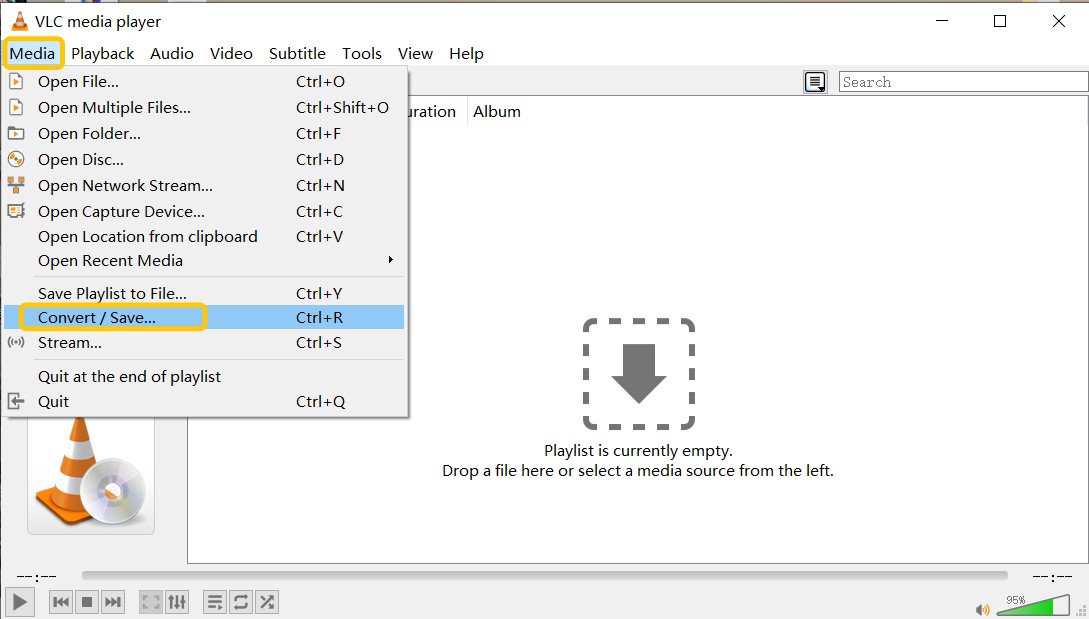
Step 1: Get the VLC media player Version 3.0.23, install it, and open it. Go to the Media menu and select "Convert/Save".
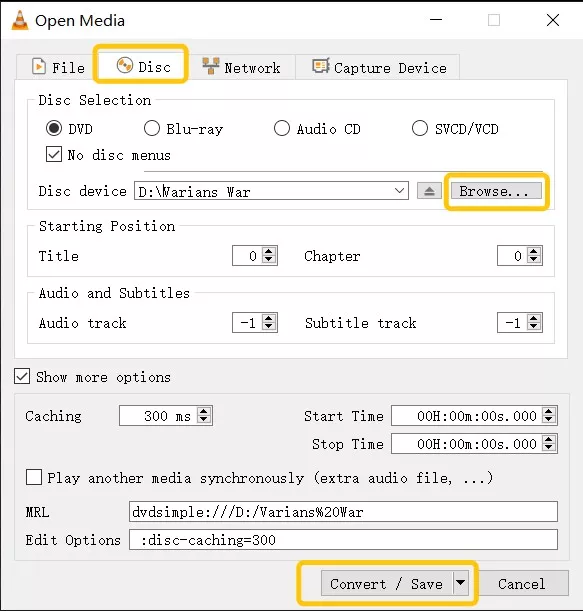
Step 2: Switch to the "Disc" tab and ensure your DVD source is selected under "Disc Selection". Check the box "No disc menus". If you skip this, VLC may get stuck ripping the repeating menu loop instead of the movie. Then, verify that your optical drive is correctly selected under "Disc Device" and press the "Convert / Save" button at the bottom.
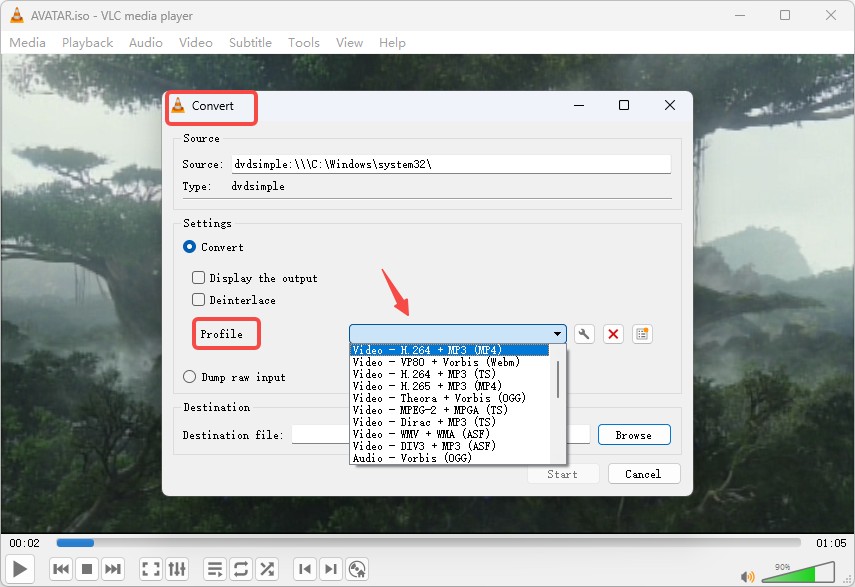
Step 3: In the "Profile" dropdown menu, select Video - H.264 + MP3 (MP4), which is the most compatible format for standard players. Next, choose "Browse" to select a destination folder and name your output file. Finally, press "Start" to launch the task.
MakeMKV Plus HandBrake
- Supported OS: Windows, Mac, and Linux
MakeMKV and HandBrake offer a reliable two-step workflow to convert DVD to MP4. MakeMKV acts as a specialized remuxer that bypasses CSS encryption to extract lossless MKV files. HandBrake then functions as a transcoder to compress these massive files into widely compatible MP4 formats using modern codecs like H.265 or AV1. In my evaluation, this combination reliably handles some protected discs that cause HandBrake to fail. However, this method requires more manual effort and substantial CPU resources. Users also need enough storage for large intermediate files.
Features:
- Rip CSS protected and region locked DVDs to MP4.
- Achieve high compression to produce smaller MP4 files.
- Pair MakeMKV's DVD extraction capability with HandBrake's open-source transcoding workflow.
Cons:
- Need complex manual interaction and extra time compared to all in one tools.
- Requires substantial CPU resources for fast encoding.
How to Convert DVD to MP4 with MakeMKV and HandBrake
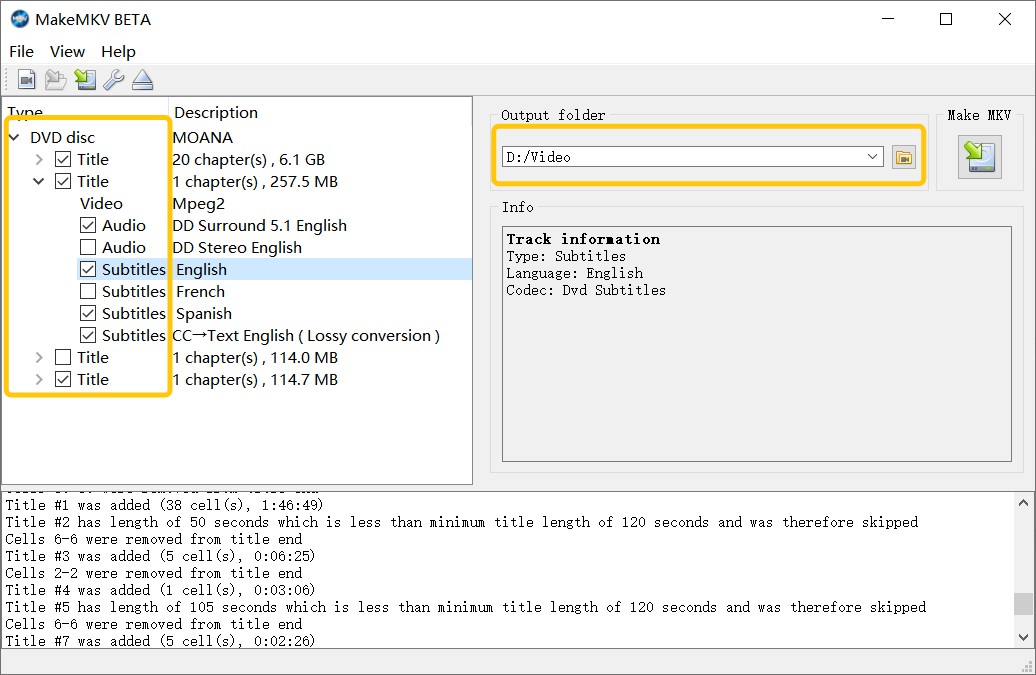
Step 1: Extract lossless MKV from DVD with MakeMKV
Insert the disc and launch MakeMKV to scan all available titles. Select the primary movie file and choose Make MKV to extract the raw data.
Step 2: Configure HandBrake settings
Load the MKV into HandBrake and select MP4 as the output format. Choose the H265 encoder and set the quality slider to approximately 20.
Step 3: Transcode to MP4 with HandBrake
Choose a save location and press Start Encode to begin transcoding. Verify the finished MP4 file for visual clarity and audio sync.
DVD Ripper Pro
- User rating: 3.1/5 from Microsoft Store
- Supported OS: Windows 10 version 14393.0 or higher
DVD Ripper Pro is a software from x2Core Tech, available on the Microsoft Store and designed to extract video from discs and folders for digital storage. It provides fast, clean exports of DVD folders and VOB data into MP4 formats for modern Windows systems and mobile devices. While the application includes a video grabber and supports one-pass batch processing for those who upgrade to the professional tier, it cannot handle ISO images or protected DVDs. However, the free version is limited to converting only one VOB file at a time, and custom settings require a Pro version upgrade.
Features:
- Handle physical DVDs, VOB files, and folders as MP4 sources.
- Fast source detection and loading speeds.
- Secure installation via the Microsoft Store.
Cons:
- Free version limits rips to one VOB.
- Cannot read ISO image files.
- Advanced customization requires a paid upgrade.
- Vague ripping "methods" lack technical clarity.
How to Convert DVD to MP4 with DVD Ripper Pro
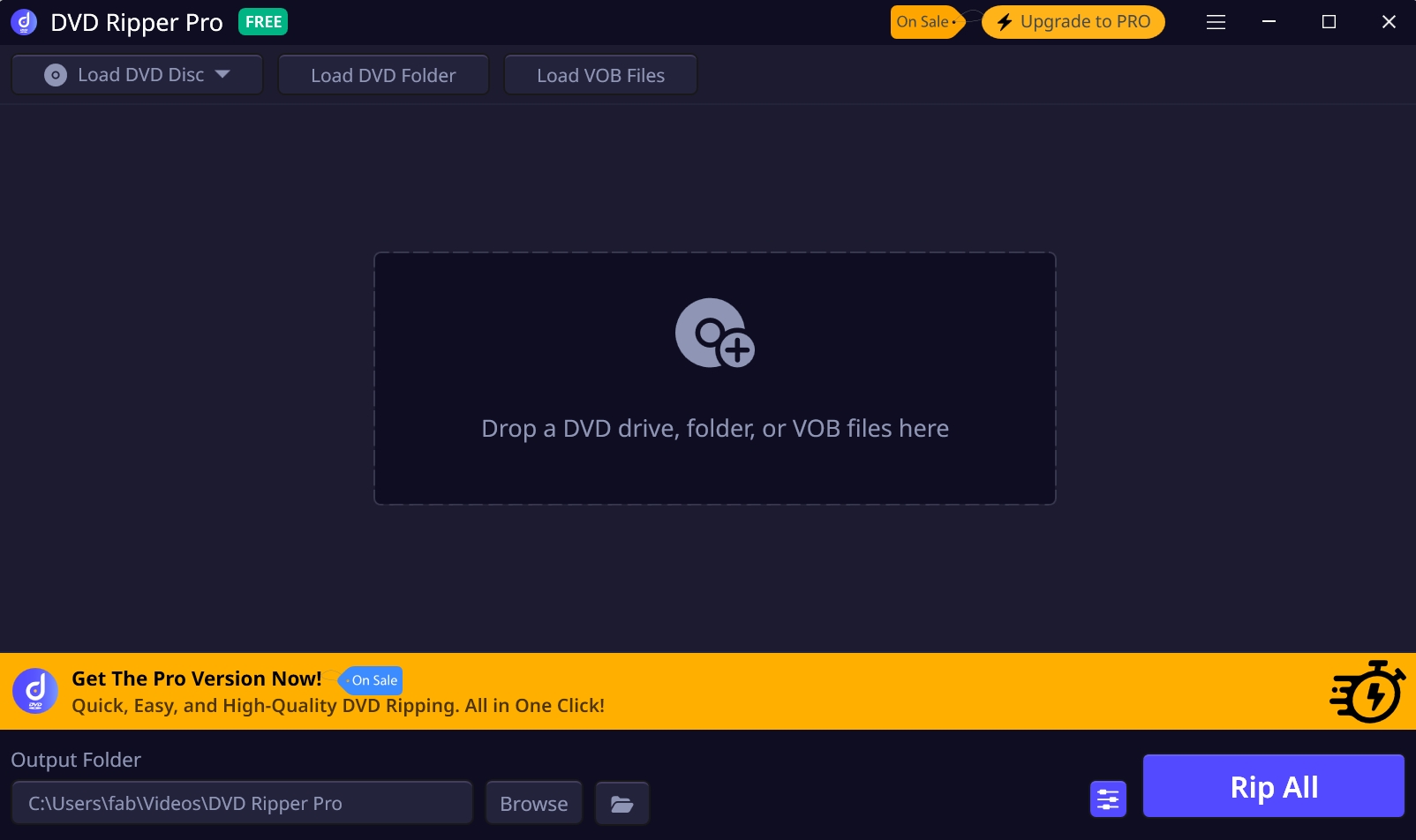
Step 1: Open DVD Ripper Pro and navigate past the yellow upgrade prompt at the bottom of the screen.
Step 2: Use the scan button to import a DVD disc, a local folder, or a VOB file. Wait a few seconds for the software to detect and list the video content from your source.
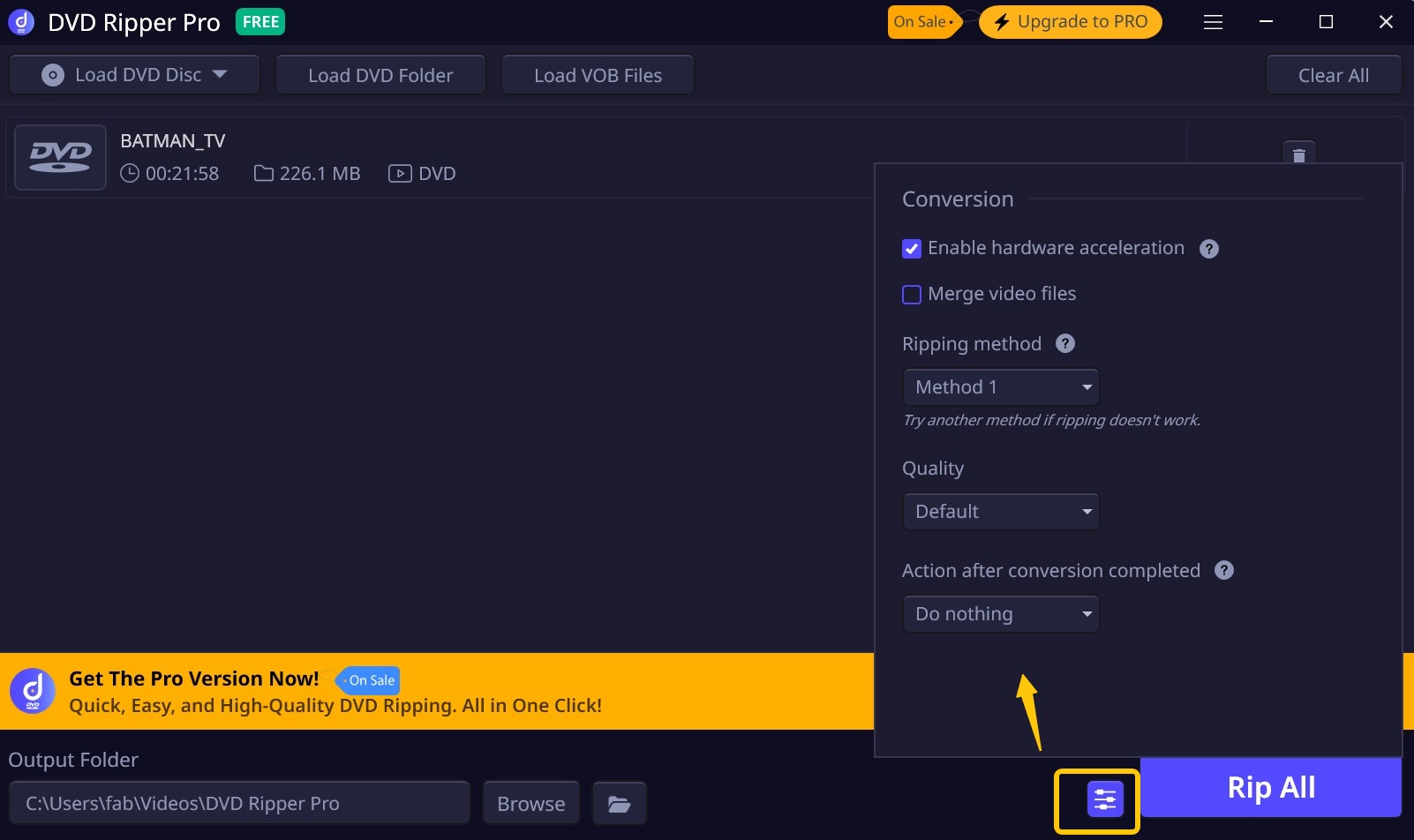
Step 3: Press the purple button in the bottom right corner to choose between Ripping Method 1, Method 2, or Method 3.
Step 4: Select "Rip All" to export a single VOB file to digital MP4 format.
Freemake Video Converter
- User rating: 4.1/5 from Trustpilot
- Supported OS: Windows 11, 10, 8, 8.1, 7, Vista
Freemake is a free but limited DVD to MP4 converter that rips DVDs to MP4, AVI, and MKV for playback on phones, tablets, game consoles, or direct upload to social media sites. This DVD ripper for Windows 10 also lets you embed free online subtitles (SRT, ASS, and SSA formats) before ripping a DVD. It's worth noting that Freemake can also burn long movies to DVD folders or ISO files.
Features:
- Rip DVDs and folders to MP4 plus 20+ other video formats
- Include a library of 50+ preprogrammed profiles
- Bypass some DVD copy protections such as Region Code
- Include video editing functions such as cut, crop, and subtitle insertion
Cons:
- Not compatible with most encryption types of DVDs
- ISO files are not supported as input format
- Can't convert Blu-ray to MP4 format
- Add a watermark in the middle of the video in the free version
- The installer history raised concerns in older versions, so users should still review each setup screen carefully
How to Use Freemake to Convert DVD to MP4
Step 1: Please download Freemake using a Windows computer, and the latest listed version is 6.0.1, released on October 17, 2025. The export options are at the bottom of the main screen, whereas the import format is at the top.
Step 2: Select a VIDEO_TS folder on the DVD by clicking the "+DVD" button at the top. Import the desired VOB files in order from the list.
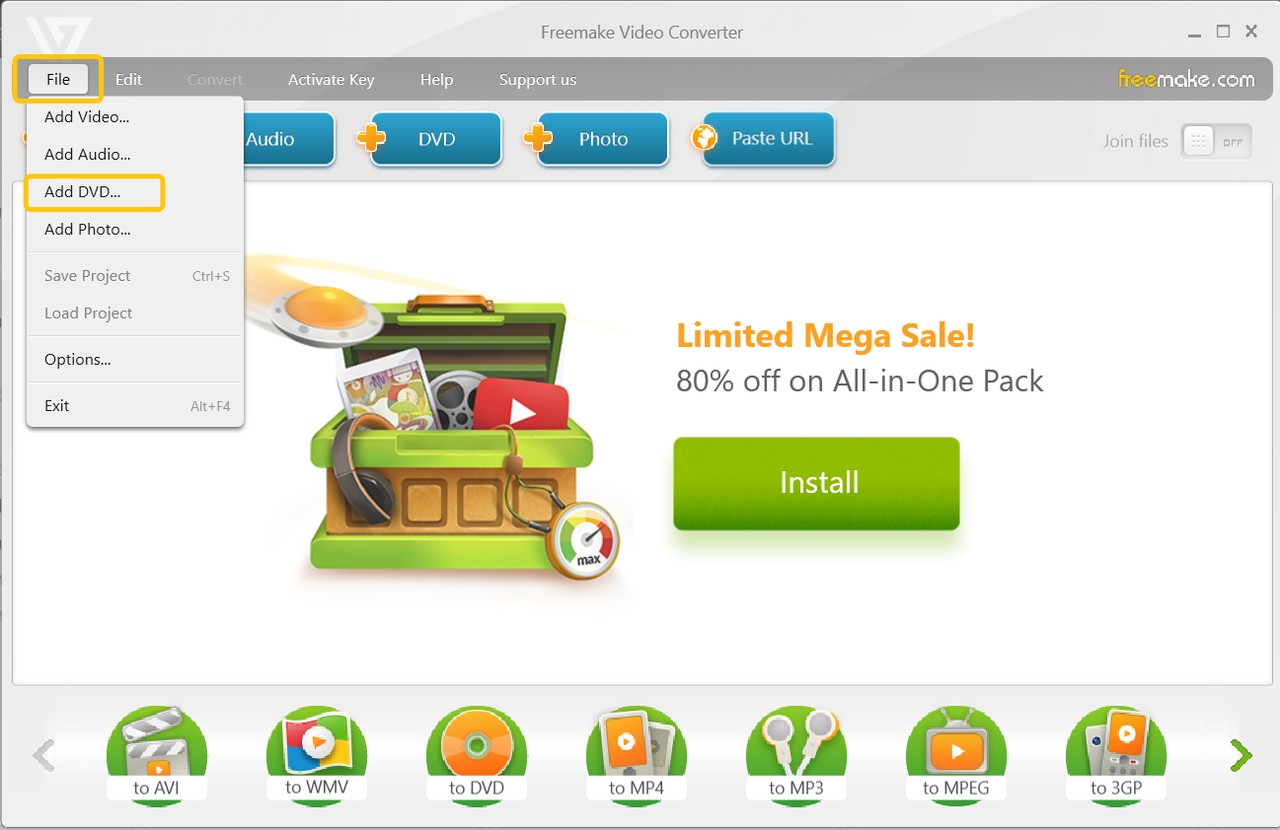
Step 3: Select MP4 from the list of profiles at the bottom. Then open the "Scissors" icon to access the basic editor. Be aware that functionality here is strictly limited to cutting and rotating clips. Advanced features, such as adding external subtitles, are locked behind a paid subscription.
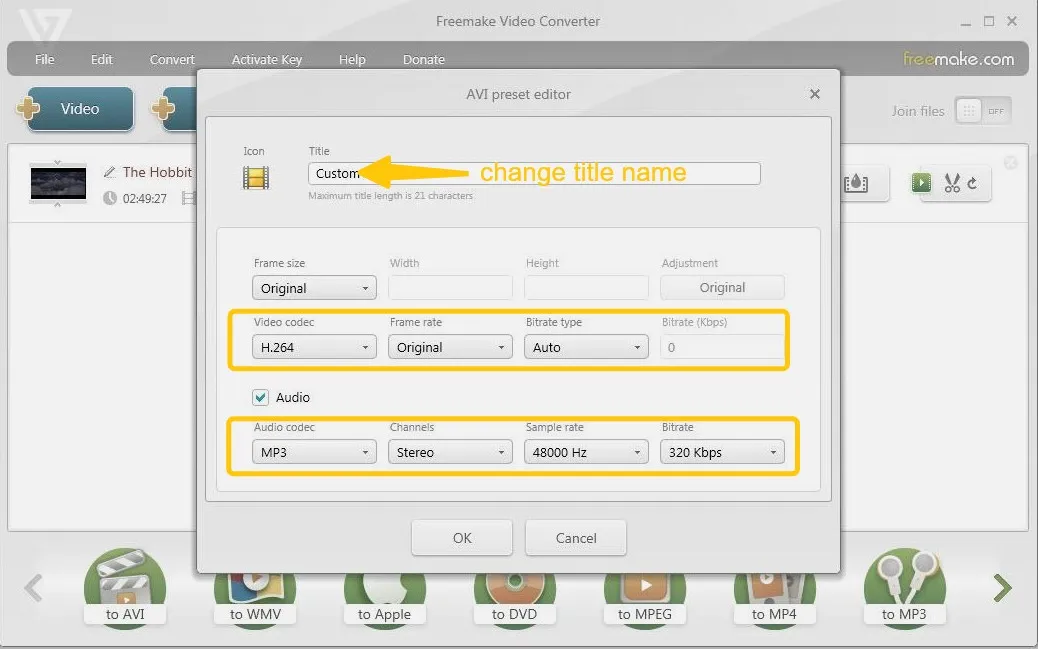
Step 4: Select the destination folder and click "Convert" to export DVD to MKV or MP4. The software will remind you again that the big Freemake logo will be added to the center of the ripped video.
Leawo DVD Ripper
- User rating: 4.0/5 from Trustpilot
- Supported OS: Windows 7/8/8.1/10/11 and macOS 10.13 through macOS 26 Tahoe
Leawo DVD Ripper is a good choice for creating MP4 backups with creative 3D effects. The software handles over 180 formats including MKV, AAC, and FLAC to ensure your ripped files work across iOS, Android, and Windows devices. It includes helpful video editing features like cropping, trimming, and adding watermarks alongside specialized 3D depth options. You can also customize video and audio parameters to optimize the final output for specific hardware profiles.
The latest version, v13.0.0.8, was released on June 9, 2026. In my tests, I noticed Leawo handles CSS encryption and region codes effectively, though it lacks coverage for modern protections. Its editing functions feel less fluid, and I encountered pixelation issues when applying specific video filters during the transcoding stage. The free version limits each job to five minutes, so I only obtained a five-minute MP4 sample. I recommend this tool for users who like a clean interface and creative 3D effects.
Features:
- Handle protected DVDs from various regions and movie studios
- Rip DVD disc, ISO file and folder to MP4 and other 180+ video/audio formats
- Include advanced profiles for HD and 4K videos
- Keep original subtitles or add external subtitles
- Video editing features and 2D to 3D DVD ripping
Cons:
- Unable to read DVDs with advanced DRM protections
- Sometimes leads to missing titles without clarified reasons
- Limited DVD to MP4 functionality on Mac systems
- The trial version only exports up to five minutes of the disc
How to Convert DVD to MP4 with Leawo DVD Ripper
Step 1: The Copy, Ripper and Creator modules of Leawo are integrated into the Leawo Prof. Media 13 package. So just download and install this all-inclusive media converter toolkit through the official website.
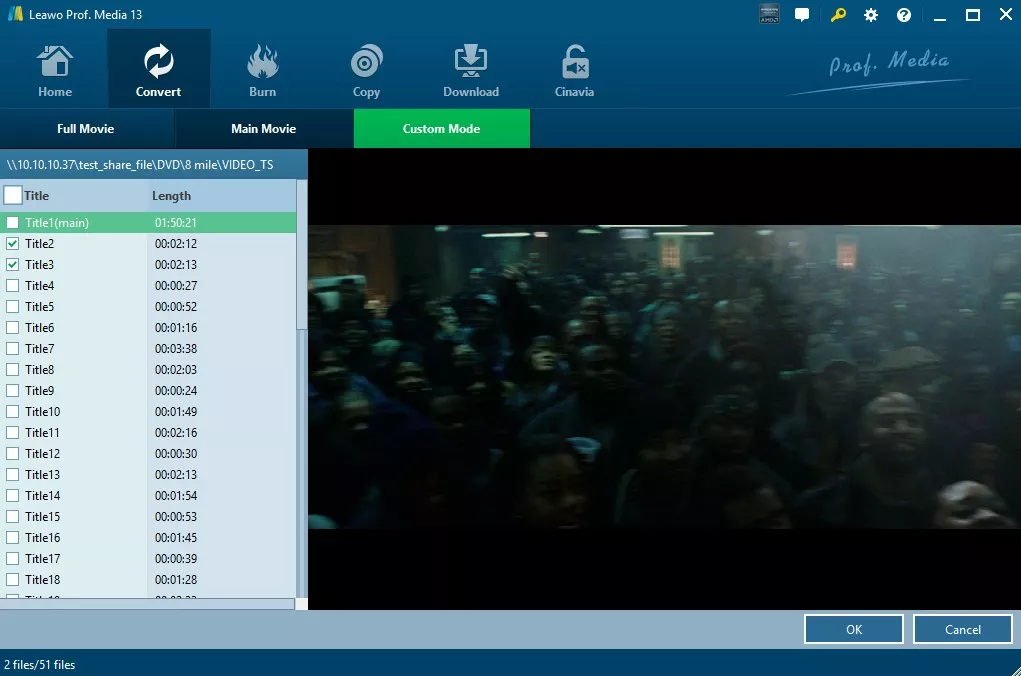
Step 2: Launch the program and select the "DVD Ripper" mode. Navigate to the "Convert" interface and choose "Add UHD/Blu-ray/DVD" to load the source from your optical drive, folder, or ISO file. You can then choose the "Main Movie" (default) to rip the feature film only, select "Full Disc" to preserve everything, or "Custom Mode" to manually pick specific titles.
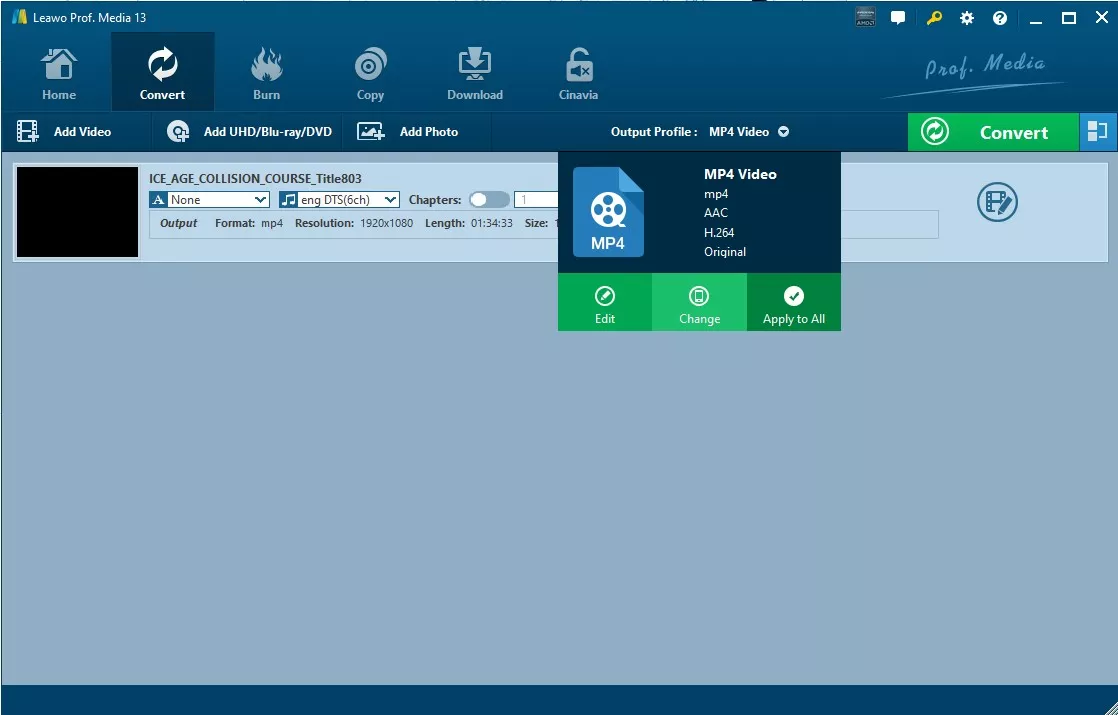
Step 3: The standard output setting is MP4. You can also select other formats from the drop-down menu.
To customize output parameters, select "Edit" and adjust Video Codec, Bit Rate, Resolution, Frame Rate, Aspect Ratio, Audio Codec, and more.
Step 4: Once back on the main interface, you can refine the movie itself by cropping clips, adding text as a watermark, applying 3D modes, and more.
Step 5: Hit the green "Convert" button and the DVD will start ripping. Monitor progress and remaining time on-screen. If necessary, you can pause or cancel the job.
WinX DVD Ripper Platinum
- User rating: 4.1/5 from Trustpilot
- Supported OS: Windows 11/10/8.1/8/7/Vista/XP/2003/2000; macOS 10.13 or later, including macOS Tahoe 26
WinX DVD Ripper is a popular tool capable of ripping copyright-protected or damaged DVD discs, folders, and ISOs. Apart from MP4, it can also output a DVD to formats such as AVI, WMV, MOV, and more, helping you watch disc content on different devices. While it offers a free trial, the trial is limited to 5 minutes of ripping. You can upgrade to the paid version to unlock faster speeds and advanced customization controls.
The software recently received an update to version 8.22.4 on Nov 13, 2025. This latest build adds iPhone 17 profiles, updates the DVD analysis kernel, and improves A/V sync auto correction. In my tests, WinX identifies the correct main title on 99 title protected discs quickly, but the user interface requires significant manual interaction. I had to manually browse for sources and bypass repetitive warning popups when selecting secondary titles, which disrupted my workflow. In the end, the trial let me rip about 10 minutes of the original DVD video.
Features:
- Ability to decrypt many types of DVD copy protections
- Built with 320+ video/audio codecs and 350+ preset profiles
- Includes H.264 MP4 encoding with de-interlacing
- Includes Level 3 hardware acceleration
- Preserve a 1:1 ratio for lossless output
- Flexible controls for codec, resolution, frame rate, and simple editing
Cons:
- May fail to decrypt and rip some Disney DVDs
- Free trial version can only rip up to 5 minutes of video
- Blu-ray ripping function is not supported
- Resolution adjustments may cause audio-video sync issues
How to Rip DVD to MP4 Format with WinX DVD Ripper
Step 1: Install and launch WinX DVD Ripper on your computer. Then load the files into the program by selecting Disc, Image, or Folder at the top of the interface. The interface lacks drag-and-drop, but discs load in 10-15 seconds.
Step 2: After the loading is done, you will automatically enter the "Output Profile" interface, which contains DVD backup profile, device profile, music profile and so on. Select MP4 Video as the output format. The video encoding is H.264+AAC and the resolution is the same as the original video.
💡WinX DVD Ripper detects the encryption technology of the disc, and the main movie title automatically.
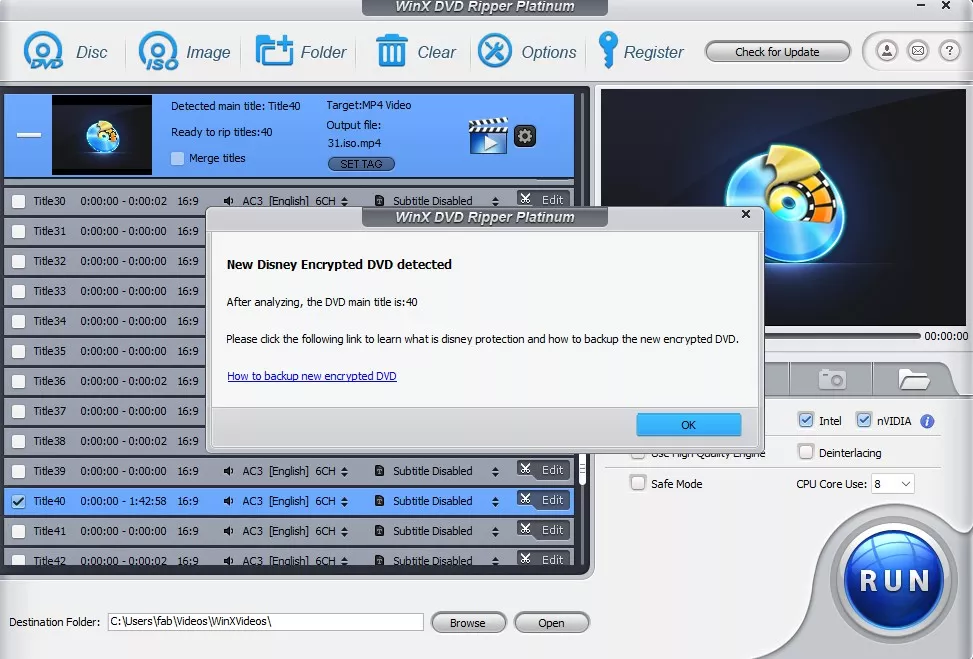
Step 3: The next step is to customize parameters for the converted MP4 video file.
- You can freely choose subtitle tracks in different languages, force subtitles or add external SRT files.
- Use the Scissors icon for quick edits: adjust volume, reselect subtitles, crop the film, and more.
- Open the Gear button to fine-tune video and audio parameters. If you are unfamiliar with these options, it is recommended to choose the default mode.
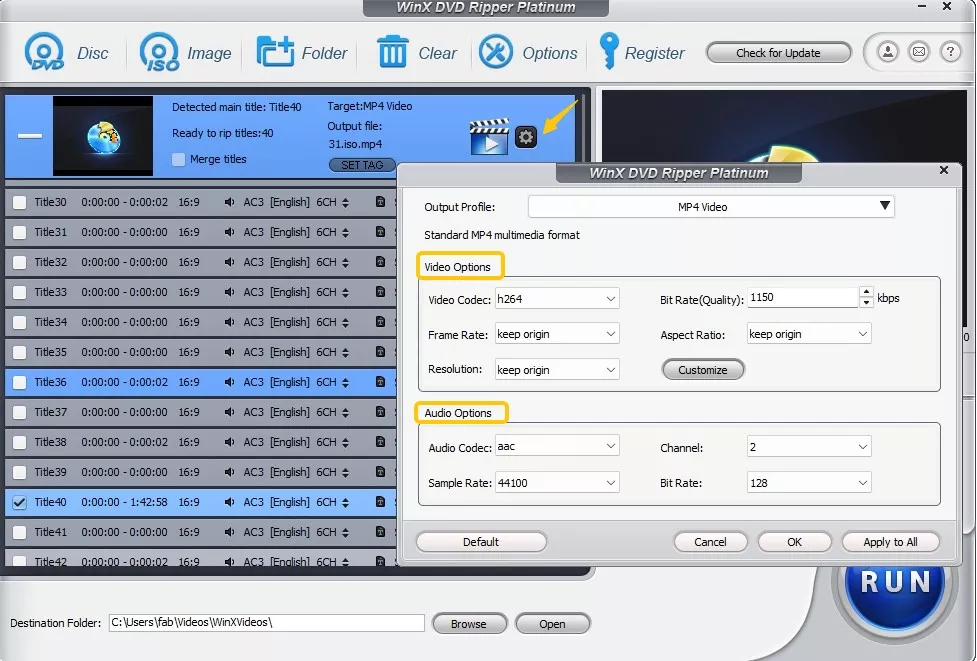
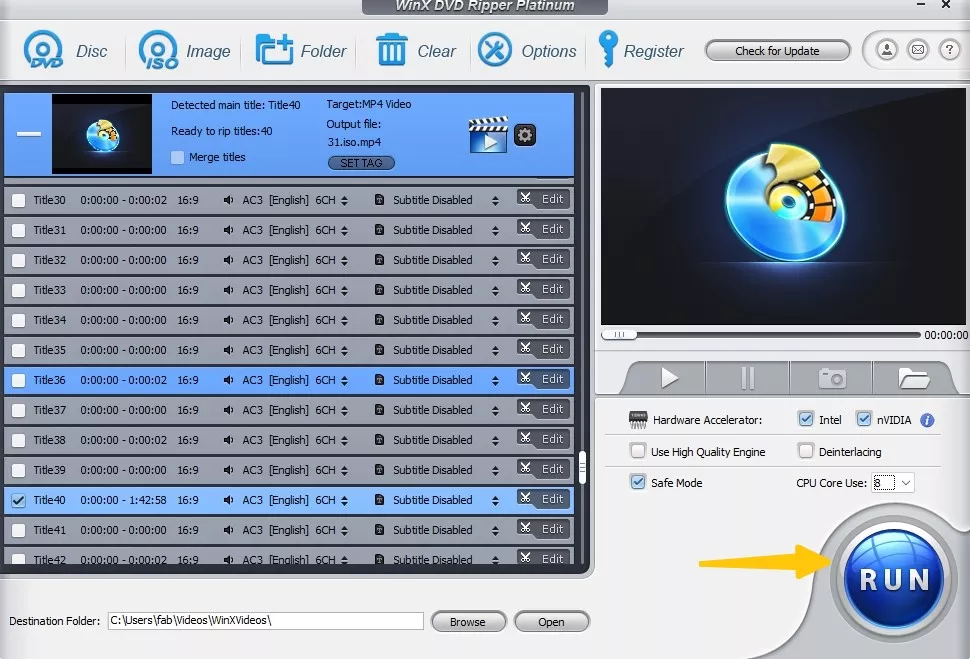
Step 4: Enable the Intel and Nvidia Hardware Accelerators on the right to enjoy a 5x faster conversion. Finally, choose a destination folder and click "Run" to start the ripping workflow.
Wondershare UniConverter
- User rating: 4.0/5 from TechRadar
- Supported OS: Windows 11/10/8/7/Vista; macOS 10.13 or later, including macOS 26 Tahoe
Wondershare UniConverter is a full-featured DVD to MP4 converter that also combines video editing, compression, and downloading in one program. It supports a wide range of formats and devices, allowing users to output DVDs as HEVC MP4, MKV, M4V, and more. Although it includes multiple lightweight tools for video management, real-world performance depends heavily on your hardware.
In my tests, Wondershare handled home-recorded DVDs. However, when I tried several commercially encrypted DVDs, the software either failed to recognize the disc or couldn't finish the encode.
Features:
- Includes multiple device profiles for TVs, mobile devices, and game consoles
- Compresses videos with adjustable resolution and clarity settings
- GPU acceleration for faster processing on supported hardware
- Includes a built-in DVD burner for creating playable discs
Cons:
- Cannot rip most copy-protected DVDs
- Real conversion speed is slower than advertised
- Resource usage can be high on lower-end machines
How to Convert DVD to MP4 via Wondershare UniConverter
Step 1: Download and install UniConverter, then open the "Converter" tab. Open the inverted triangle next to the "+Add File/Folder" icon and import your disc or folder from the computer.
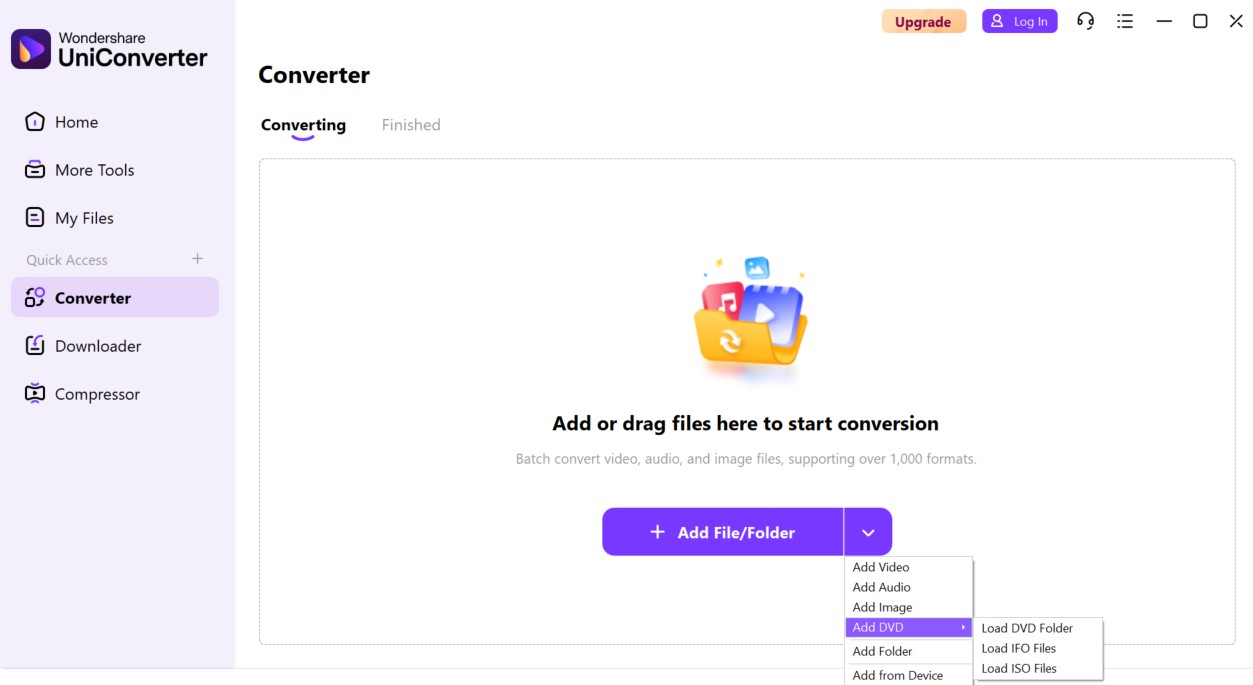
Step 2: At the bottom left, open the "Output Format" dropdown menu. By default, UniConverter selects MP4 (Same as source). You can also use the format bar to choose other MP4 configurations such as HEVC, 4K, or 3D.
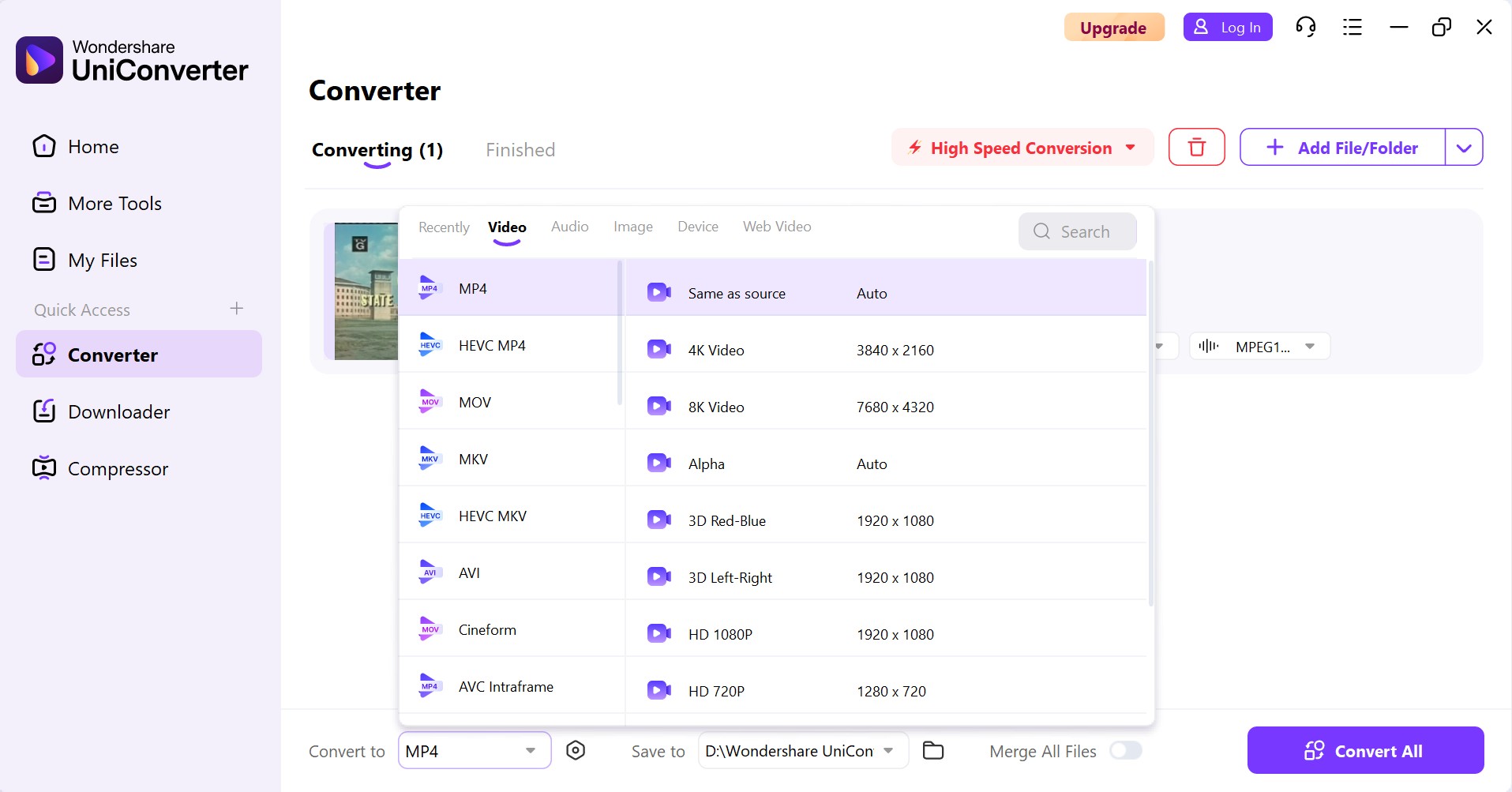
Step 3: Next to the video thumbnail, open the "Scissors" icon to trim unwanted parts of the video. Then, use the settings icon to adjust audio and video parameters. You'll see the estimated file size update automatically.
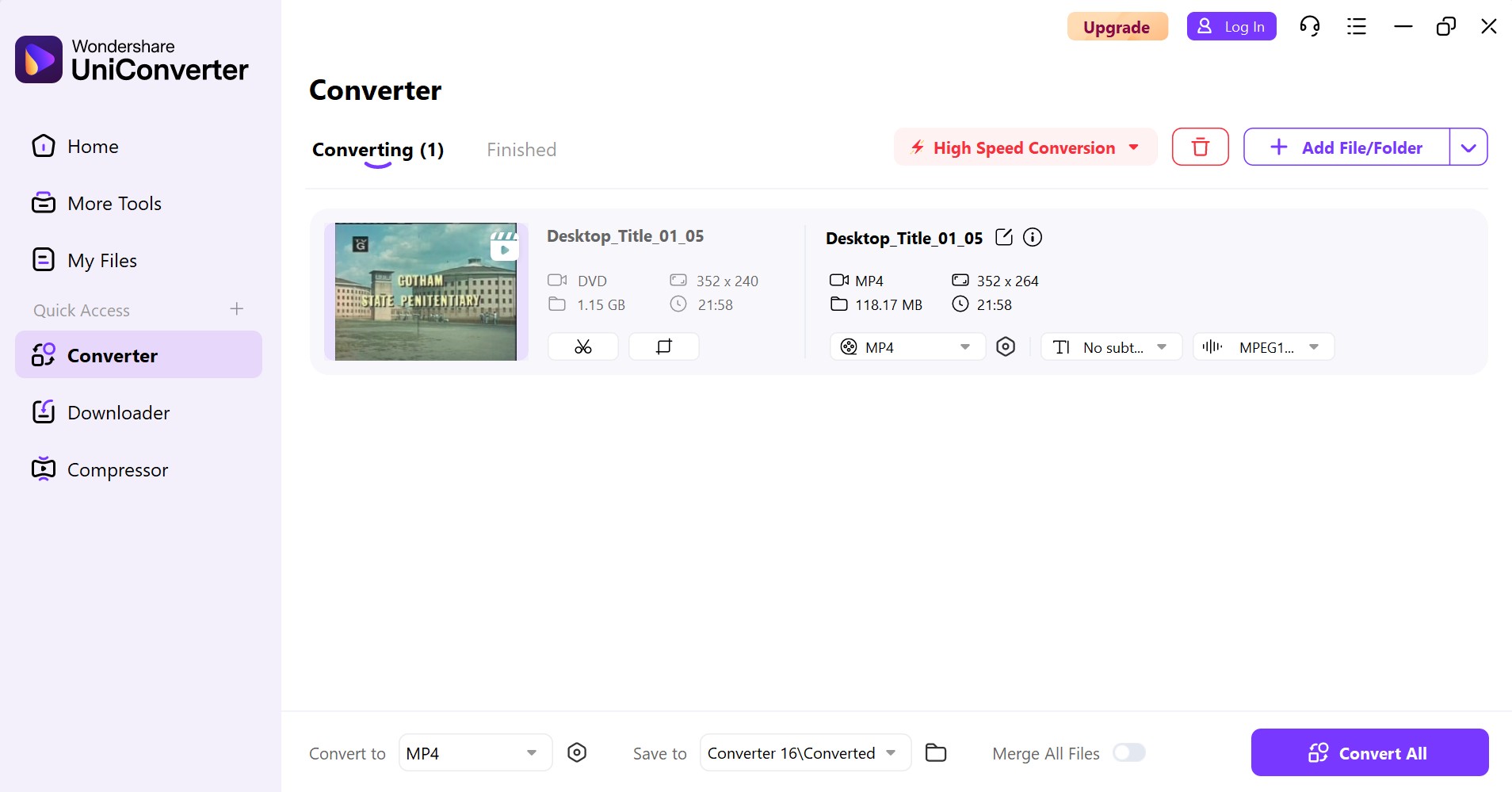
Step 4: Once everything is set, click the purple "Convert All" button to export your DVD to MP4. If you have multiple files and want to merge them into a single output, turn on the Merge All Files switch.
MediaCoder
- User rating: 6.1/10 from VideoHelp
- Supported OS: 64-bit Windows (x64); 32-bit builds have been discontinued
MediaCoder is a free transcoding tool that outputs DVDs to formats like H.264, H.265, and VP8/VP9, using QuickSync, NVENC, and CUDA for faster exports. It offers customizable output controls but can feel complex for beginners.
The latest version, v0.8.68, was released on July 6, 2026. It updates FFmpeg to 8.1.2 and retains Device Mode with preconfigured profiles for gaming consoles and mobile devices. The current release also no longer asks users for donations. I put it below HandBrake because the interface is less intuitive.
Features:
- Handles ripping from Blu-ray, DVD, VCD, SVCD, and CD
- Allows adjustment of multiple transcoding parameters
- Works with a wide range of video and audio formats
Cons:
- Lack of video editing functions
- Outdated interface design
- The download page redirects to a third-party software site
How to Use MediaCoder DVD to MP4 Encoder
Step 1: Visit the official MediaCoder website to download the latest version. Follow the installation prompts to set up the software on your computer.
💡The download button is very hidden and difficult to find, and the downloading page will jump to the third-party software station - Source Forge.
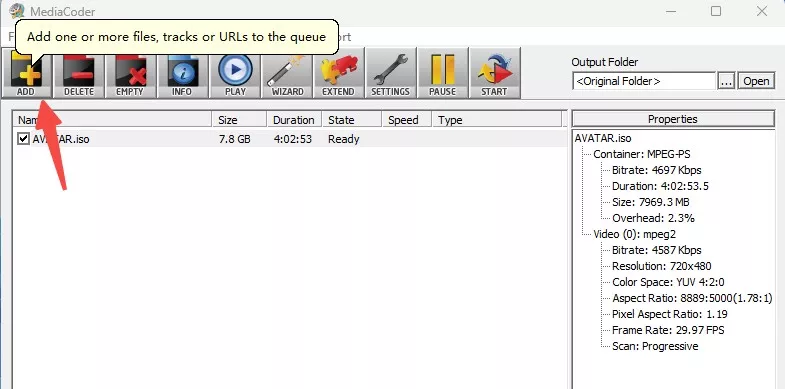
Step 2: Use the "Add" button or drag and drop the media files you want to transcode into the main window.
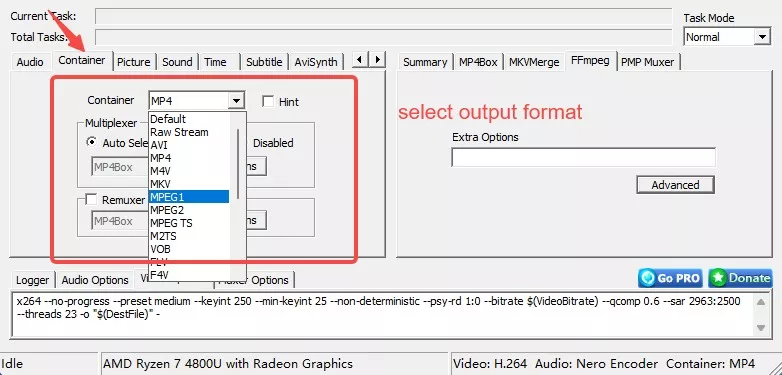
In the "Container" panel, choose your desired output format (e.g., MP4, AVI, MP3) from the available options.
Step 3: Configure Settings
Adjust video and audio settings as needed, such as subtitles, sound, and other preferences.
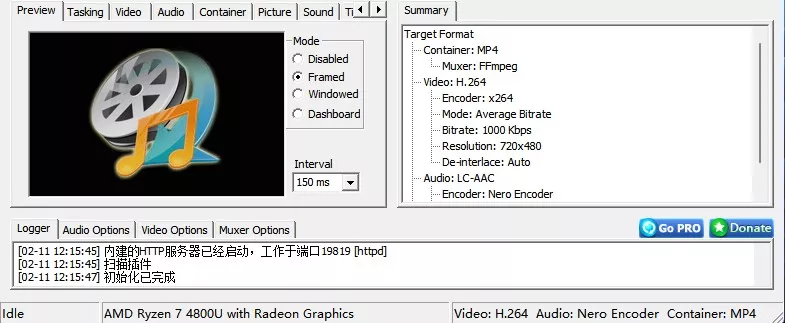
💡To achieve the best settings when converting DVDs to MP4 with MediaCoder, begin with H.264 as your video codec. Set the resolution to 720p and pair it with a bitrate of 1500–2000 kbps to preserve visual clarity without excessive storage demands. Additionally, enable "Yadif Double Frames" in the deinterlacing settings to address interlacing artifacts commonly found in DVD sources.
Step 4: Specify the destination folder where the converted files will be saved. Then press "Start" to launch the encode.
Important Tips for Converting DVD to MP4
Decrypt Protected Media
Commercial discs often contain region locks or encryption that prevent standard encoders from reading the data. To convert a protected retail DVD to MP4, use specialized tools like DVDFab DVD Ripper that can read CSS, region codes, and other supported DVD protections before encoding the video.
Balance Quality and Storage
A good DVD to MP4 backup requires balancing high bitrates with available disk space. Higher resolutions improve visual clarity but result in much larger files, so you should ensure your hard drive has enough storage for intermediate raw data during the extraction stage.
Enable Hardware Acceleration
Encoding video remains a resource intensive task that can take hours on older systems. You should enable hardware acceleration settings within your software to offload the workload to your NVIDIA, AMD, or Intel GPU and significantly speed up the DVD to MP4 rip.
Maintain Transfer Stability
Physical stability is crucial for a successful data transfer from the optical medium. Keep the disc in the drive until the software completes the entire DVD to MP4 encoding phase to avoid file corruption or read errors.
FAQs
Is it legal to convert DVD to MP4?
Creating digital MP4 backups of a DVD for personal use is generally legal, while ripping DVDs for commercial purposes or public is not. Because legal standards vary by country, please verify your local regulations before digitizing any disc.
My laptop has no disc drive. Should I use a mail-in DVD to MP4 service?
No, mail-in services are not cost-effective. As of September 2026, EverPresent lists DVD-to-digital transfers at $22 per disc for 10 transfers, $17 per disc for 11–49 transfers, and $12 per disc for 50 or more, plus a $50 service fee. AV Workshop currently lists DVD-to-MP4 conversion at $39 per disc, with volume discounts starting at $37.05 each for 10–24 discs. These prices can change, so check the provider's current rates before ordering.
You should purchase an external USB DVD drive for approximately $25 instead. This hardware investment allows you to rip unlimited discs at home for a fraction of the price without the risk of shipping loss or privacy leaks.
Which is best for DVD to MP4 conversion: desktop software, online tools, or mail-in services?
Desktop software like DVDFab or HandBrake is the superior choice. Online converters cannot read physical DVDs directly and usually impose file-size or processing-time limits. Mail-in services remain inefficient because of high prices and multi-week turnaround times. In contrast, desktop solutions offer the best balance of cost and performance; free tools work for homemade discs, while paid software handles complex commercial encryption and utilizes GPU acceleration.
Why does DVD to MP4 conversion fail with free tools?
Free tools often fail because they lack compatibility with advanced copy protection. During my evaluation, software like VLC entered endless loops when attempting to read three different encrypted DVDs. These failures occur due to limited error handling and an inability to bypass modern digital locks. Use specialized ripping programs like DVDFab and clean your discs before trying again.
What are the common encoding methods of converting DVD to MP4?
- H.264 (AVC) is one of the most widely supported video codecs, working on almost all devices, including smartphones, PCs, smart TVs, and streaming platforms. It offers good video quality at a lower file size.
- As the successor to H.264, H.265 (HEVC) further reduces the file size by about 50% of the same video quality. It is suitable for 4K video and higher resolution applications.
- MPEG-4: It's the older video encoding method with better compatibility, but the compression efficiency is lower than H.264.
- VP9 is particularly suitable for web video streaming, such as YouTube. It performs well in compression efficiency, but supports relatively few devices and software.
How do I keep multiple subtitle languages in the ripped MP4?
Use the Remux into file mode to preserve selectable subtitle tracks. In a versatile tool like DVDFab DVD Ripper, you can navigate to the subtitle menu and check the boxes for all preferred languages. Selecting the remux option ensures these tracks remain "soft" and toggleable within the MP4 container rather than being permanently burned into the video image.
Can I convert DVD to MP4 with Windows Media Player?
No, Windows Media Player cannot convert DVD to MP4. This software only supports ripping Audio CDs to MP3 or WMA formats. You must utilize professional ripping software like those mentioned in the first part of this review to digitize your video discs successfully.
Conclusion
DVD to MP4 backup keeps your movies accessible across devices. While DVDs are becoming outdated, MP4 remains the universal format for smooth playback. The right tool depends entirely on your specific needs. If you have a library of commercial films, DVDFab DVD Ripper is your most reliable choice because it performs well in ripping efficiency, format variety, and decryption. For unencrypted homemade DVDs, HandBrake remains a strong free alternative. Whichever software you pick, keep in mind that you usually don't need to overspend on expensive mail-in services.

 4 Free DVD Rippers for Windows 10/11: Best Tools & Step-by-Step GuideBy Diana Smith - Oct 13, 2026
![How to Convert DVD to AVI Free: 3 Current Options [2026]](https://images.dvdfab.cn/artifact/2026/09/17/2HqH4KgGwIXxwkHdUUZtp0D98DCpL4gS/feature_cover.jpg) How to Convert DVD to AVI Free: 3 Current Options [2026]By Diana Smith - Oct 12, 2026
How to Convert DVD to AVI Free: 3 Current Options [2026]By Diana Smith - Oct 12, 2026 How to Copy DVD to Computer on Windows & Mac: Rip and Direct CopyBy Wenny Yan - Oct 12, 2026
 Free DVD Decoder for Windows XP and Windows 11: 3 Ways to Play DVDsBy Diana Smith - Sep 23, 2026