HandBrake VOB to MP4: 5 Steps, Settings, and Fixes.

Summary: HandBrake can convert unprotected VOB files to MP4, but the right source choice matters. For one loose VOB file, open the file directly. For a DVD backup with several VOB files, open the full VIDEO_TS folder instead of selecting each VOB one by one. HandBrake can queue multiple files, but it is not the right tool for merging several separate VOB clips into one MP4.
Table of Contents
If you've got old home DVDs, such as wedding footage, family clips, or even movie discs, you may want to copy them to your laptop for easy, anytime access. DVD video is stored as .VOB files inside the VIDEO_TS folder, which aren't as portable as .MP4. For unprotected content, the free HandBrake converter is a popular way to turn VOBs into MP4s without fuss.
In this guide, I'll show you how to convert single and multiple unencrypted VOB files with HandBrake step by step. I'll also show an alternative for copy-protected discs that can handle decryption while preserving quality
💡(Only convert discs you own and have the rights to back up.)
Can HandBrake Convert VOB to MP4?
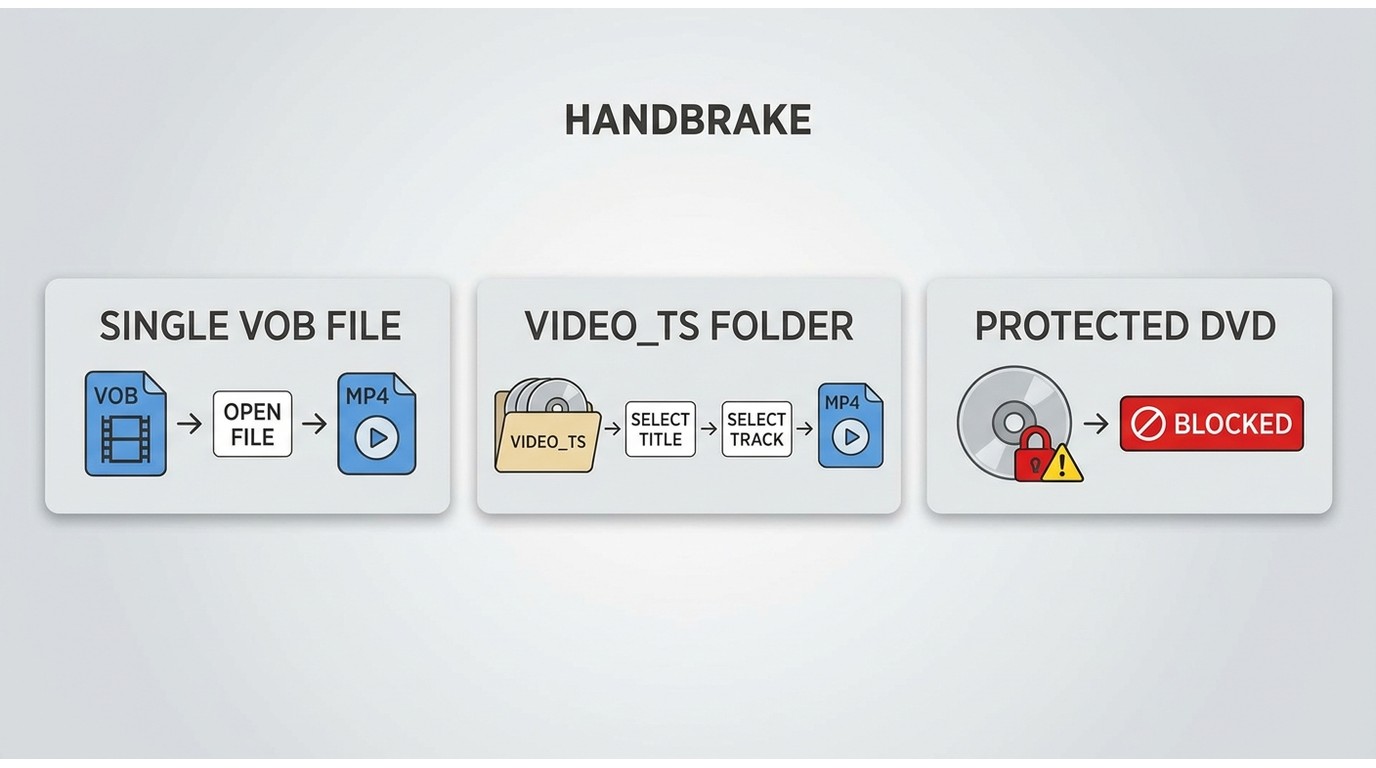
Yes. HandBrake can convert VOB to MP4 from supported, unprotected files and readable VIDEO_TS folders. Open File for a single VOB file, open Folder for one DVD structure, and queue unrelated multiple VOB files as separate jobs.
A protected DVD VOB source is outside HandBrake's source-reading scope because HandBrake does not defeat copy protection. When several VOB segments came from one disc, I would open the folder first; that gives HandBrake the title and track information that a lone segment may not contain.
| Source | Open in HandBrake | Recommended use |
| Single .VOB file | Open Source > File | One unprotected clip |
| Full VIDEO_TS folder | Open Source > Folder | Complete DVD title and tracks |
| Unrelated VOB clips | Add separate queue jobs | Separate MP4 outputs |
| Protected DVD source | Not readable through HandBrake alone | Authorized DVD software |
HandBrake is a transcoder. It re-encodes the video when making an MP4, so a lossless VOB to MP4 conversion requires a remux-capable tool instead.
How to Convert a Single VOB File to MP4 with HandBrake
Use this five-step method for one unprotected clip. It keeps source selection simple and gives you a chance to check the picture, sound, and subtitles before archiving or discarding the VOB.
Step 1: Open HandBrake
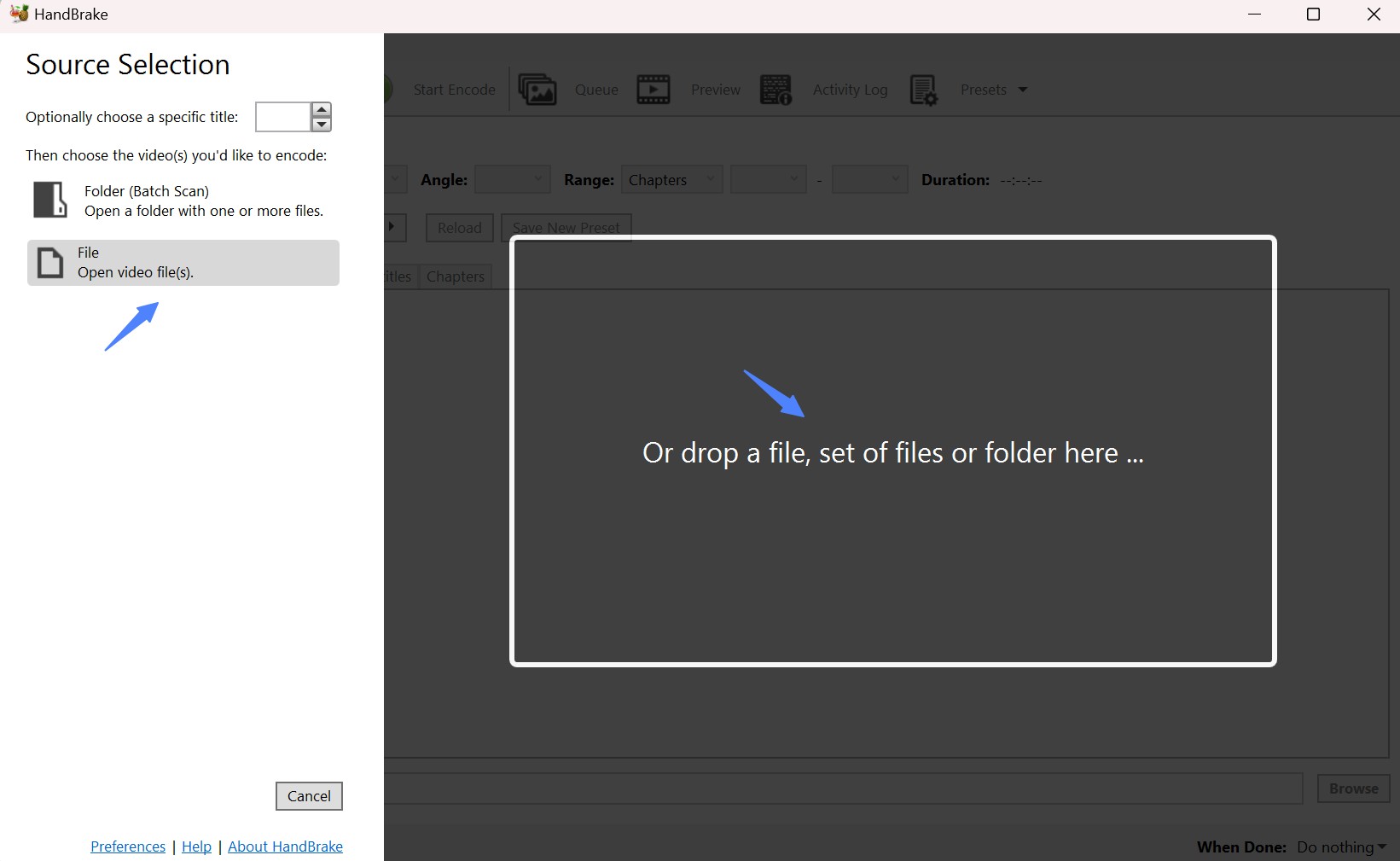
Install HandBrake from its official download page, launch it, and select Open Source from the source chooser or toolbar.
Step 2: Load the VOB File
Select File, choose the single VOB file, and wait for the scan to finish. Confirm that the displayed duration matches the clip you intended to convert.
Step 3: Choose MP4 and a Preset
On the Summary tab, set Format to MP4. Fast 480p30 is a reasonable starting preset for many NTSC DVD clips, but it is not a universal setting; PAL material, interlaced video, and a specific playback device may need a different choice.
Step 4: Choose the Save Location
Select Browse, choose an output folder, and enter a distinct file name. Keep the new MP4 separate from the source until you have checked the result.
Step 5: Encode and Check the MP4
Select Start Encode. When encoding finishes, play the MP4 from beginning to end or inspect several points across the timeline, then confirm picture shape, sound, and required subtitles before archiving or deleting the source.
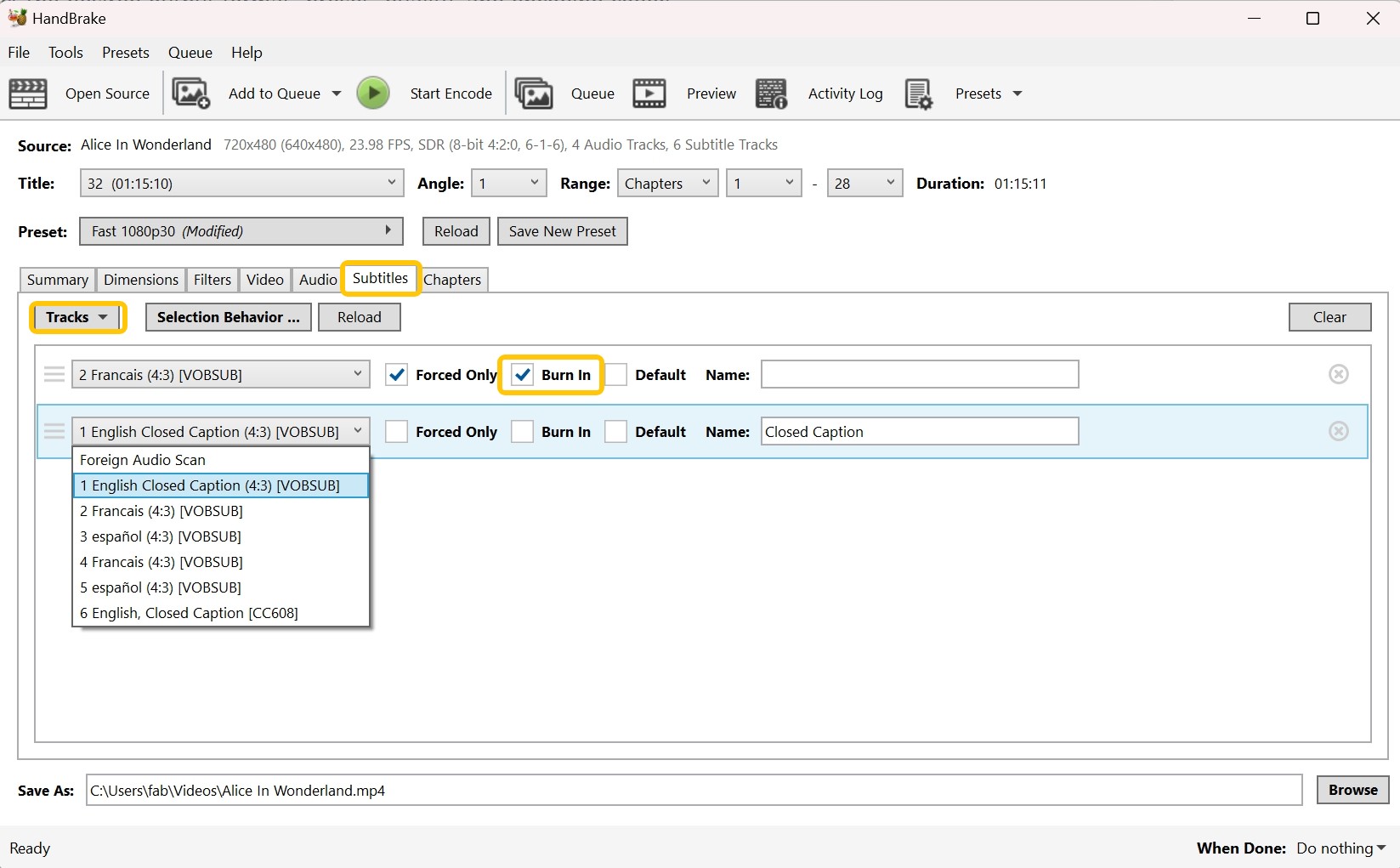
How to Convert Multiple VOB Files or VIDEO_TS to MP4
Open the complete VIDEO_TS folder before trying loose segments from the same DVD. This lets HandBrake scan titles, chapters, audio, and subtitles, while unrelated VOB files remain separate queue jobs.
One DVD Structure: Open the VIDEO_TS Folder
A complete HandBrake DVD ripping procedure begins by loading the folder and selecting the correct title, not by opening the first numbered VOB. This is also the safer default when a HandBrake DVD to MP4 encode ends after only a few minutes.
- Select Open Source.
- Choose Folder and open the VIDEO_TS folder.
- Compare title durations and select the complete program.
- Set the container to MP4 and choose a source-appropriate preset.
- Select the audio and subtitle tracks you need.
- Choose the output name and folder.
- Start the encode and inspect the finished MP4.
If the output is short or incomplete, return to the title list before changing quality settings. In my editing work, duration is the quickest clue that the wrong title or a single VOB segment was selected.
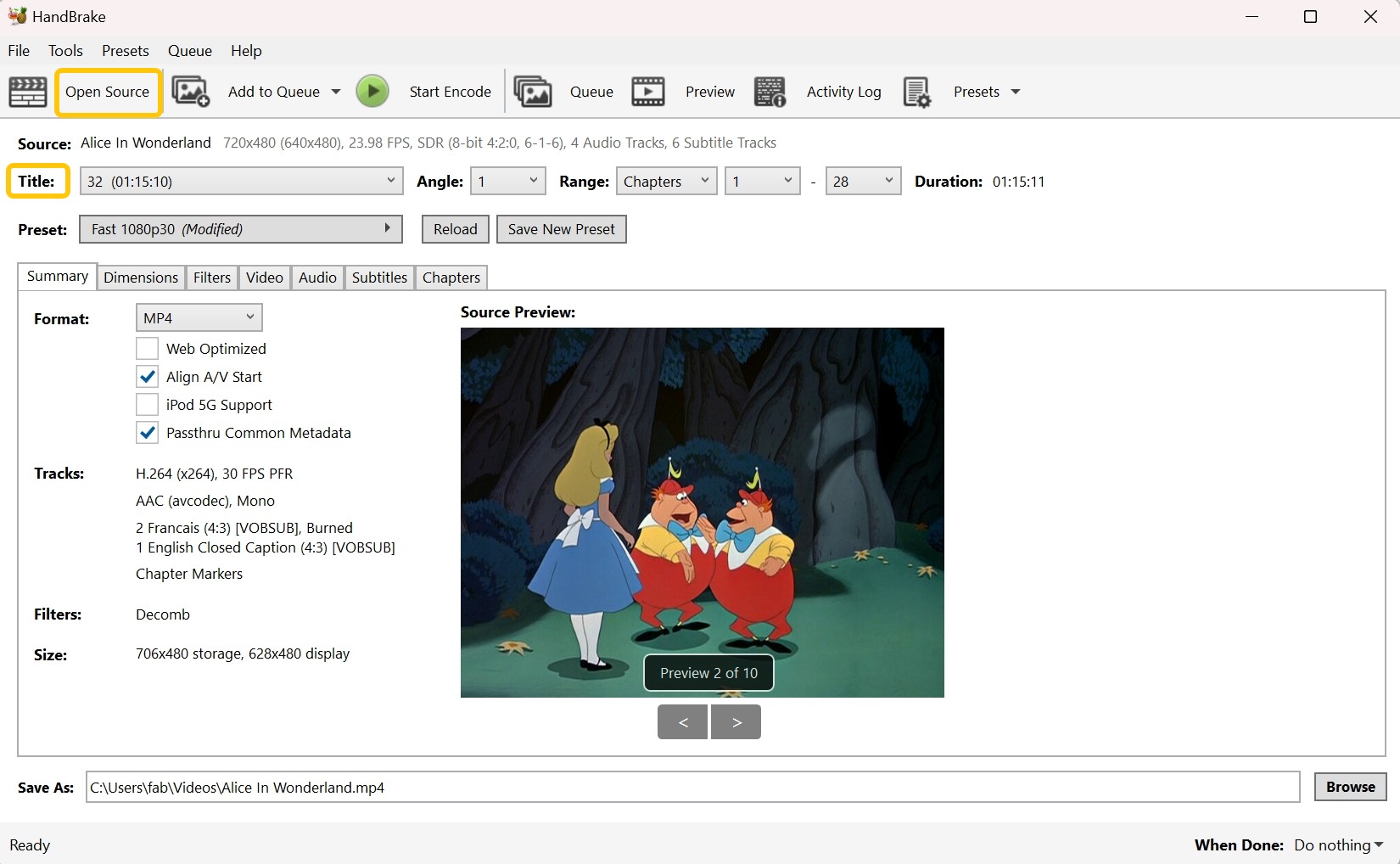
Unrelated VOB Clips: Queue or Join Separately
Without IFO or BUP metadata, HandBrake treats multiple VOB files as individual videos. Add them to the queue for separate MP4 files, or join the clips in the intended order before encoding when continuous playback matters more than keeping separate segments.
Joining first is worth the extra step when a scene crosses file boundaries or one timeline is required. In the narrower case of simple playback or conversion, the HandBrake vs VLC comparison helps distinguish HandBrake's encoding controls from VLC's media-player role without treating either app as a DVD-navigation repair tool.
Best HandBrake Settings for DVD-Source MP4
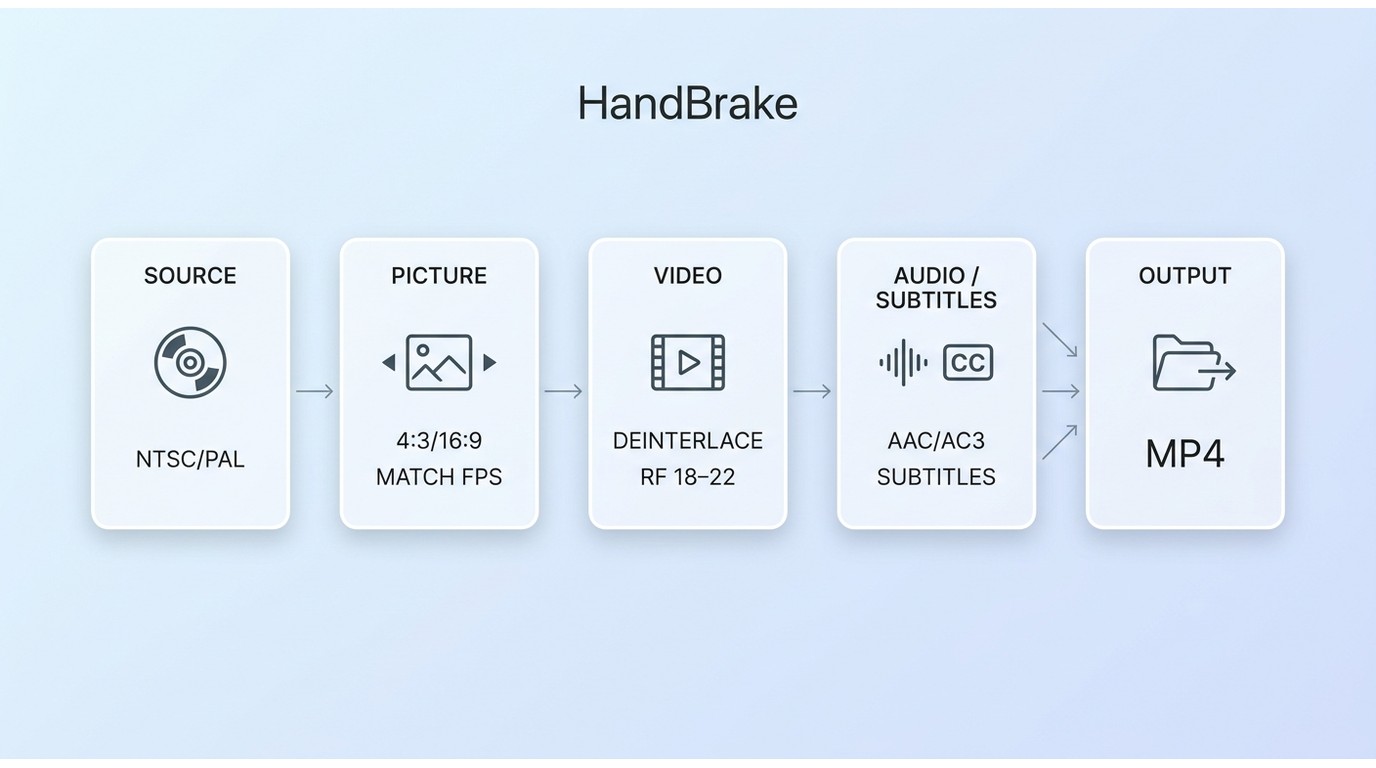
Good HandBrake MP4 settings preserve the DVD's shape and motion while balancing compatibility and file size. Match the source, make a short preview, and adjust from what you see instead of copying one preset or RF value blindly.
| Setting | Starting point | Check before full encode |
| Format and codec | MP4 with H.264 | Playback device support |
| Preset | Fast 480p30 or source-appropriate | NTSC or PAL source |
| Quality | RF 18-22 as a test range | Detail versus file size |
| Frame Rate | Same as source | Motion and VOB audio sync |
| Interlacing | Decomb when visible | Combing in motion |
| Audio and subtitles | Select required tracks | Language and subtitle timing |
A stretched or squashed picture is usually a VOB aspect ratio or dimension problem, not a reason to increase quality. Preview a motion-heavy section, keep the source frame rate unless you have a playback requirement, and compare the displayed shape before committing to the full encode.
If preserving the original MPEG-2 streams matters more than MP4 compatibility, the MakeMKV vs HandBrake distinction matters: remuxing changes the container without a video re-encode, while HandBrake creates a new encoded stream.
Fix Common HandBrake VOB-to-MP4 Problems
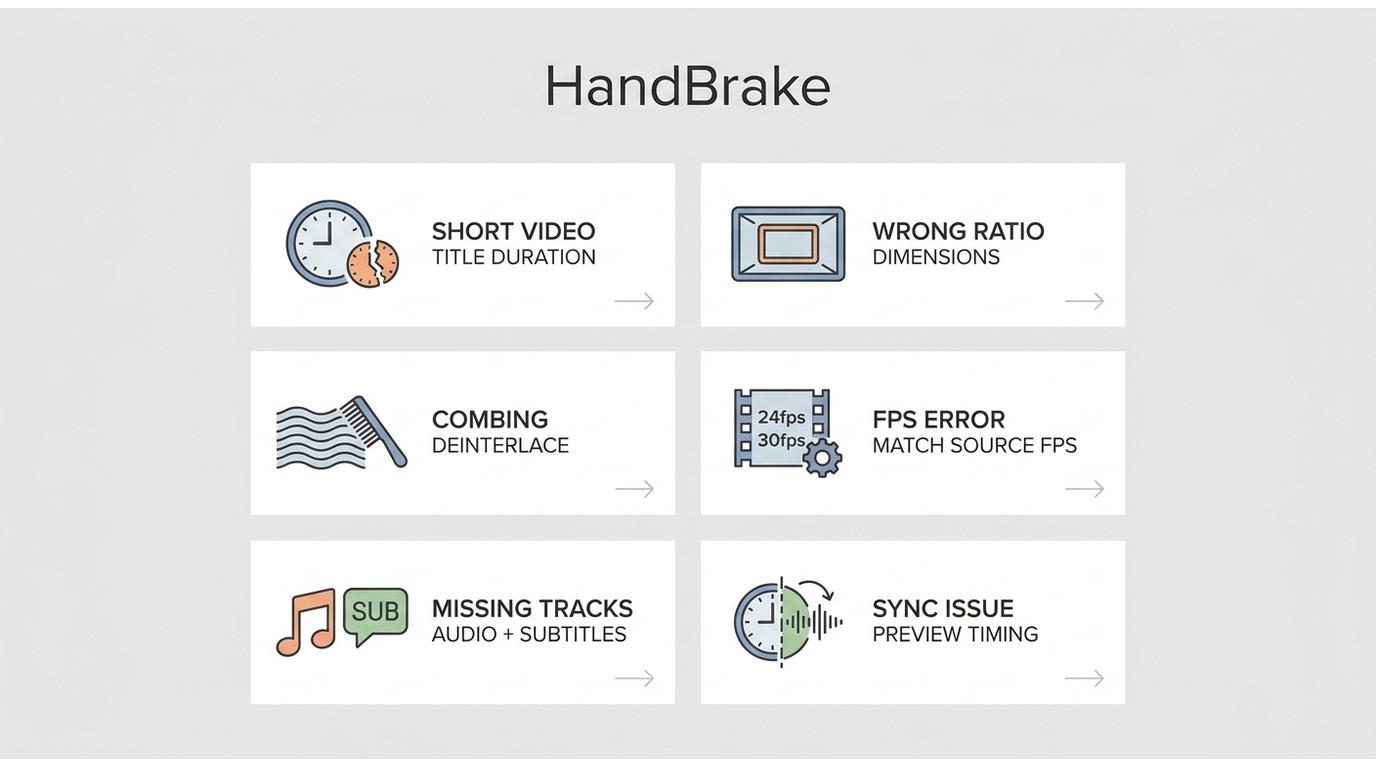
Most failures can be narrowed down by checking the source and title before the encoder. Partial duration, wrong VOB aspect ratio, combing, frame-rate errors, missing tracks, and VOB audio sync each point to a different check.
| Symptom | Likely cause | What to check |
| Short or partial video | Segment or wrong title opened | Load VIDEO_TS; compare durations |
| Stretched or squashed picture | Wrong dimensions or aspect handling | Preview the displayed shape |
| Combing during motion | Interlaced DVD source | Enable Decomb and preview |
| Jerky PAL or NTSC motion | Frame rate changed incorrectly | Match the source frame rate |
| Missing or drifting audio/subtitles | Wrong title, track, or timing | Reselect tracks; test a clip |
| Unexpectedly large MP4 | Quality target or audio choice | Raise RF slightly; review tracks |
Use this diagnostic order:
- Confirm whether the source is one file or a complete DVD folder.
- Compare the chosen title's duration with the expected program.
- Check dimensions and displayed aspect ratio.
- Match the source frame rate and inspect interlacing.
- Select the intended audio and subtitle tracks.
- Encode a short preview before starting the full title.
Alternative: Convert Protected DVD VOB to MP4 with DVDFab DVD Ripper
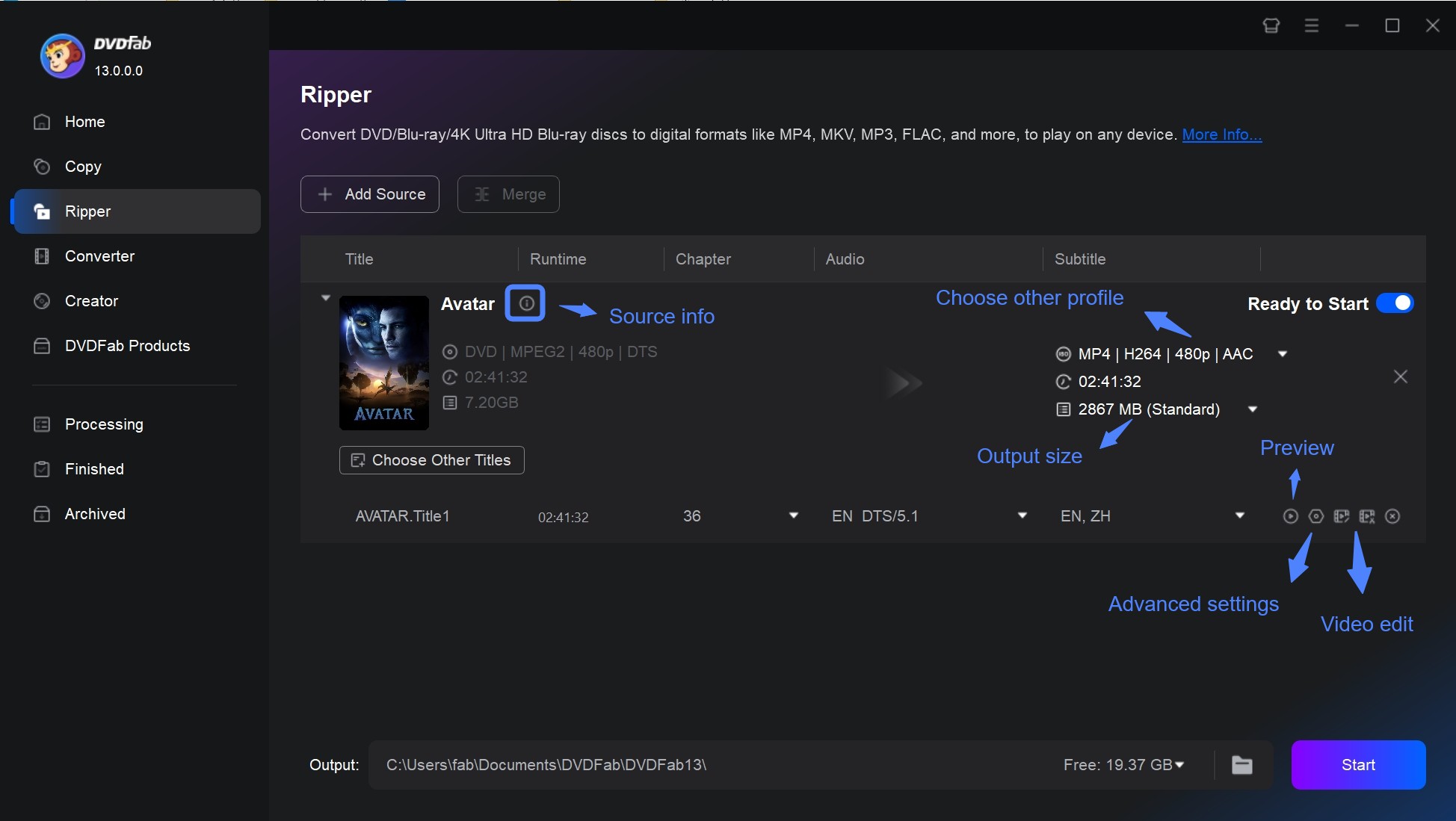
HandBrake is a good free choice for unprotected VOB files, but it is not built for copy-protected commercial DVDs. When the source is a DVD disc, ISO file, or VIDEO_TS folder that HandBrake cannot read correctly, DVDFab DVD Ripper is an alterative option for converting the disc to MP4, MKV, or other local video formats.
DVDFab DVD Ripper is also more convenient when you need to choose titles, keep specific audio tracks, manage subtitles, or use device presets without adjusting several HandBrake panels manually.
💻Supported OS:
Free Download Windows 11/10/8.1/8/7
Free Download macOS 12 or newer
👍Features of DVDFab DVD Ripper:
- Decrypts protected discs/ISOs/VIDEO_TS (CSS, APS, region codes, Sony DADC) via cloud.
- High-quality outputs, incl. MKV Passthrough + 5.1 AC-3 or lighter encodes for mobile/web.
- Broad compatibility: 1000+ formats, 260+ device presets (Apple, Google, Samsung, etc.).
- Faster workflow: Multi-task queue for batch ripping.
- Built-in editor: trim/crop, watermarks/subtitles, brightness/contrast.
How to Convert DVD VOB to MP4 with DVDFab DVD Ripper
Step 1: Load the DVD source
Open DVDFab DVD Ripper and load the DVD disc, ISO file, or VIDEO_TS folder. After the source is scanned, choose the main title or the titles you want to convert.
Step 2: Choose MP4 and adjust output settings
Select MP4 or a device profile as the output format. Then choose the audio tracks and subtitles you want to keep. If needed, open Advanced Settings to adjust resolution, codec, frame rate, or quality.
Step 3: Start the conversion
Choose the output folder and click Start. DVDFab DVD Ripper will convert the DVD source into a local MP4 file for playback on compatible devices.
Comparison of DVDFab and HandBrake VOB to MP4 Conversion
Let us examine the detailed comparison of DVDFab DVD Ripper and HandBrake to see the key features, such as compatible platforms, conversion or ripping speed, video quality, decryption and editing capabilities, input/output formats, and much more. This comprehensive table highlights the differences to help you select and settle on the best tool for your needs.
| Different Factors | DVDFab DVD Ripper | HandBrake |
| Supported OS | Windows PC and Mac | Windows, Linux, and Mac |
| User Interface | Polished and modern interface with ease of use | Simple and functional, but may feel less intuitive |
| DVD Decryption | Yes (includes latest-released and encrypted DVDs) | No, it requires third-party software or plugins for copy protection |
| Input Formats | Newest Commercial, Rental, or Recorded DVD, ISO file, or Video_ts folder | Unprotected or home-recorded DVDs and Blu-ray discs |
| Output Formats | 1000+ video and audio formats | Only 3 media formats such as MP4, MKV, and WebM |
| Conversion Speed | Fast conversion up to 50x faster with GPU acceleration | Moderate speed (depends on settings and hardware) |
| Video Editor | Built-in advanced video editor | Basic editing |
| 3D Ripping | Yes, it supports 3D DVD/Blu-ray ripping | No, no support for 3D conversion |
| Preserves Metadata | Yes, it automatically retrieves movie metadata | No, it does not fetch metadata |
FAQs
Can HandBrake Make a Truly Lossless MP4?
No. HandBrake re-encodes video for MP4. If retaining the original MPEG-2 video stream is the priority, use a remux-capable format and application instead.
Can HandBrake Read a Protected DVD?
No. HandBrake does not defeat copy protection. Process only discs you own or are authorized to access, using software appropriate to the source and applicable law.
What If My VOB Files Lack IFO or BUP Files?
Treat them as loose clips. Inspect their order, queue separate encodes, or join them before conversion when you need one continuous timeline; HandBrake cannot reconstruct missing DVD navigation from the clips alone.
Is an Online VOB Converter a Good Choice?
It can suit a small, non-sensitive clip, but local conversion avoids a large DVD upload and gives you direct control over audio, subtitles, and output checks.
Why Are My Subtitles Out of Sync?
The wrong title, frame-rate handling, or subtitle track can shift timing. Select the source frame rate, confirm the track, and encode a short segment before processing the complete title.
Conclusion
HandBrake works well when the source is simple: an unprotected VOB file or a complete VIDEO_TS folder that can be scanned correctly. The key is to choose the right source before encoding, rather than treating every VOB file as an isolated video clip.
If your problem is copy protection, missing titles, subtitle control, or turning a DVD source into a more manageable local file, a DVD-focused tool such as DVDFab DVD Ripper may be the better fit. Choose HandBrake for straightforward VOB-to-MP4 conversion, and choose a dedicated DVD ripper when the DVD structure or protection becomes the main obstacle.

 Free DVD Decoder for Windows XP and Windows 11: 3 Ways to Play DVDsBy Diana Smith - Sep 23, 2026
 How to Compress ISO Files: 4 Methods for Storage, Playback, and ArchivesBy Diana Smith - Sep 16, 2026
 How to Rip DVD to Facebook and Upload the Video in 2026By Diana Smith - Sep 15, 2026
![How to Rip DVDs for Plex: Guide to Formats, Tools, and Library Setup [2026]](https://images.dvdfab.cn/media/Screenshot_2026-09-08_at_18.53.34_j36v3l.png/public) How to Rip DVDs for Plex: Guide to Formats, Tools, and Library Setup [2026]By Diana Smith - Sep 8, 2026
How to Rip DVDs for Plex: Guide to Formats, Tools, and Library Setup [2026]By Diana Smith - Sep 8, 2026