MakeMKV vs HandBrake: Which to Use for DVD and Blu-ray Ripping? [2026]

Summary: MakeMKV and HandBrake solve different parts of the DVD and Blu-ray backup process. MakeMKV is better for creating MKV files from supported DVD and Blu-ray sources while keeping the original video, audio, subtitles, and chapters. HandBrake is better for compressing and converting existing videos to MP4, MKV, or WebM. Many users use both: MakeMKV first, then HandBrake.
When I compare DVD ripping tools, I usually start with one question: do you need to keep the original disc structure first, or do you need a smaller file that plays well on more devices? This is where many users get confused with MakeMKV vs HandBrake.
In this guide, I'll compare HandBrake vs MakeMKV by output formats, quality, file size, speed, and extra features. I'll also explain when it makes sense to use both tools together and when DVDFab DVD ripping software may be a better fit for MP4 output, device presets, batch tasks, or a more guided ripping process.
MakeMKV vs HandBrake: Quick Answer
Use MakeMKV when you want to rip a DVD or Blu-ray to MKV and keep the original streams. Use HandBrake when you already have a video file or supported source and want to compress it, convert it to MP4, or adjust playback settings.
| Need | Better choice |
| Rip DVD or Blu-ray to MKV while keeping original streams | MakeMKV |
| Compress a large video file | HandBrake |
| Convert MKV to MP4, MKV, or WebM | HandBrake |
| Create an archive copy first, then make a smaller playback copy | MakeMKV + HandBrake |
| Convert DVDs with more output profiles and guided settings | DVDFab DVD Ripper |
MakeMKV vs HandBrake: Introduction
Before comparing HandBrake vs MakeMKV feature by feature, let's understand what each program is designed to do.
MakeMKV
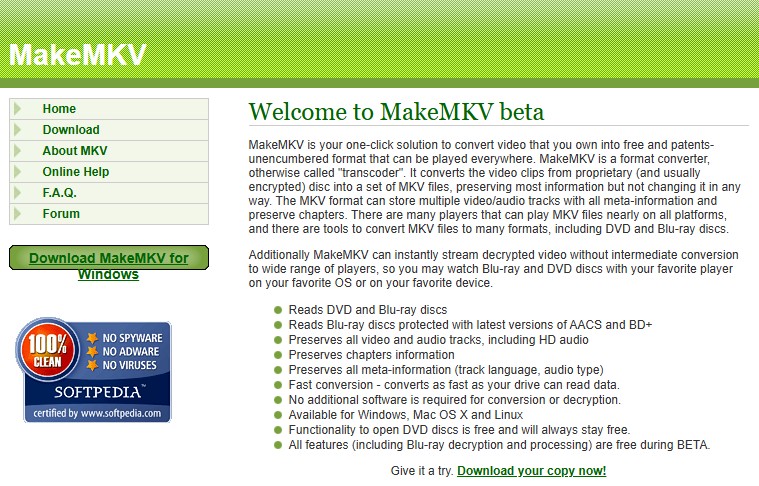
For users who care most about video quality, MakeMKV beta is a free program that can rip DVDs to high-quality MKV files on Windows, Linux, and Mac computers. This free software is also easy to use because it can remove copy protection and decrypt DVD AACS and BD+. Beginners and non-experts can work with its straightforward interface without special technical knowledge. It can also automatically detect the main movie title, making it easier to choose the right track. Its fast ripping speed saves time when converting different input formats while still keeping high video quality.
MakeMKV has a clear limit: it only exports MKV. It does not directly create MP4, WebM, AVI, or device profiles, and it does not reduce file size during the rip. A DVD or Blu-ray output file can be large because MakeMKV keeps the source streams instead of re-encoding them.
👍 Pros of MakeMKV
- Keeps original video, audio, subtitles, and chapters.
- Creates MKV files without video re-encoding.
- Works well for archive copies and media server libraries.
- Supports DVD and Blu-ray sources when the disc, optical drive, and software version are compatible.
- Usually finishes faster than a full video transcode because it is not encoding the video.
👎 Cons of MakeMKV
- Exports MKV only.
- Does not compress video.
- Output files can be large.
- Needs the right optical drive for DVD, Blu-ray, or UHD Blu-ray sources.
- Beta key and purchase-page status may require checking before use.
HandBrake
HandBrake is widely known as a free, open-source transcoder that can to rip DVDs into different video formats. Its broad codec support helps videos play across many platforms and modern devices. HandBrake also lets users customize output quality and file size, making it easier to compress videos and save storage space. This flexibility helps users balance quality settings with the available storage on their devices.
However, HandBrake always converts the video; it does not pass through the original video stream unchanged. HandBrake also does not bypass copy protection or DRM. If the source is protected, HandBrake may not open it directly. In that case, users often create a readable MKV first and then use HandBrake to compress or convert that file.
👍 Pros of HandBrake
- Free and open-source.
- Converts supported sources to MP4, MKV, or WebM.
- Can reduce file size through encoding settings.
- Provides presets for many playback devices.
- Includes queue, filters, subtitle options, audio controls, and codec settings.
👎 Cons of HandBrake
- Does not bypass copy protection or DRM.
- Always re-encodes video.
- Encoding can take time, especially with high-quality or high-compression settings.
- Quality depends on codec, preset, bitrate, filters, and source condition.
- It is not a direct replacement for MakeMKV when the task is to create an MKV from a protected DVD or Blu-ray source.
HandBrake vs MakeMKV: Comparison
To make the differences between HandBrake vs MakeMKV easier to see, I compared them feature by feature across five aspects: input/output formats, output quality, output file size, ripping speed, and additional features. Choose the tool according to the point you care about most.
MakeMKV vs HandBrake: Supported Formats
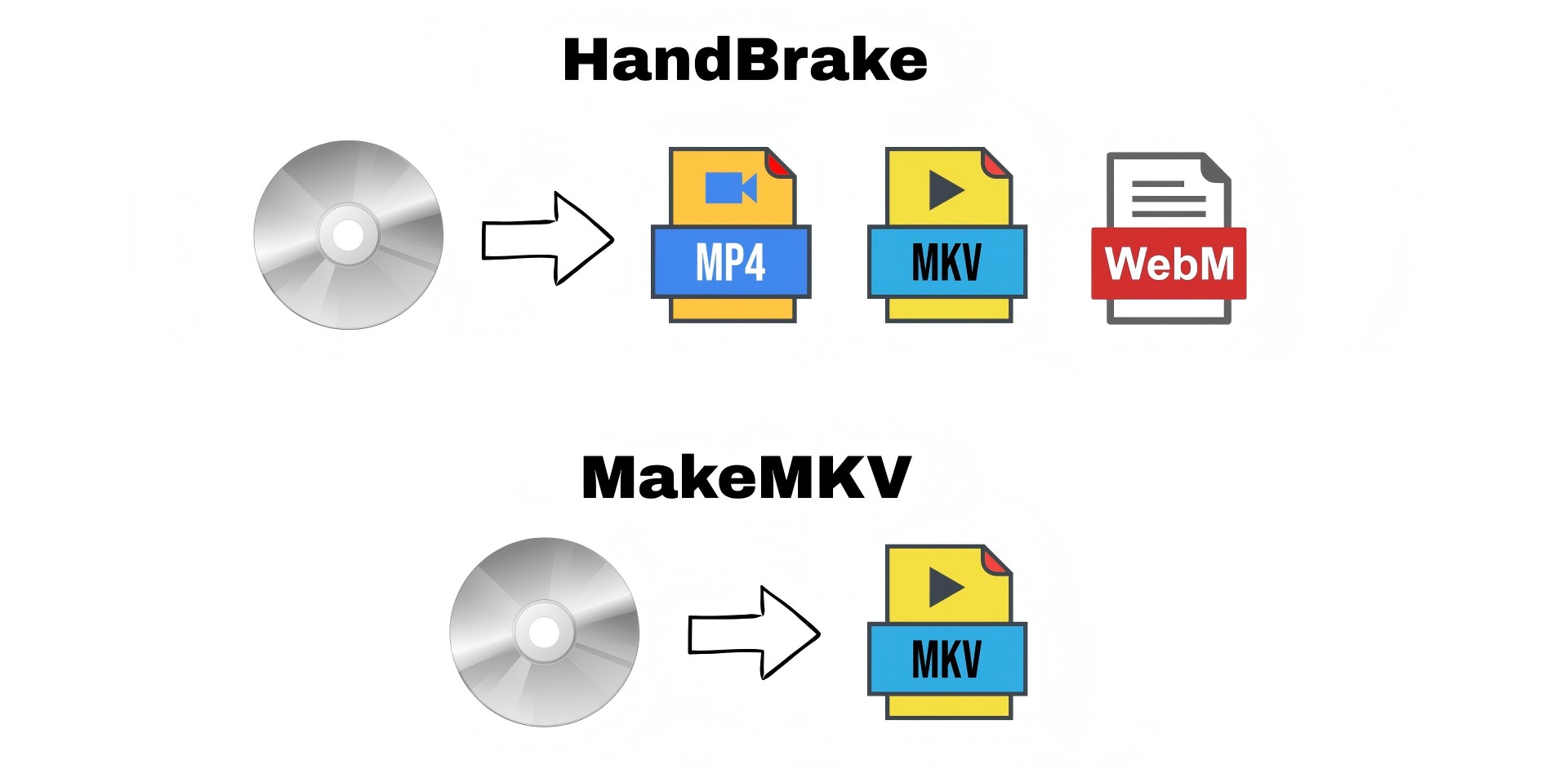
HandBrake: DVD/BD/ISO/Folder → MP4/MKV/WebM
HandBrake can rip DVDs to MP4 and MKV and also supports WebM. In practice, that means you can target widely compatible codecs like H.264 or H.265, or choose newer, higher-efficiency options such as AV1. For audio, it supports common formats including AAC, AC3/E-AC3, TrueHD, Opus, FLAC, and ALAC. Subtitles can be included as soft subs or burned in, depending on container support. This makes HandBrake a great choice when you need outputs that play nicely across devices and platforms.
For inputs, HandBrake can open a wide range of video files as well as DVD/Blu-ray discs or their VIDEO_TS/BDMV backups. However, it does not remove copy protection by itself, so discs must be unencrypted or already decrypted/copied to storage using another tool. As a result, HandBrake shines as a post-rip encoder when you want device-friendly deliverables.
MakeMKV: DVD/BD/UHD/ISO/Folder → MKV
MakeMKV is a ripping tool that outputs MKV only. It copies the original video, audio, chapters, subtitles, and metadata from DVD, Blu-ray, and UHD Blu-ray into Matroska without re-encoding. MKV is a flexible format that can store multiple video and audio tracks along with chapter data and different subtitle types, and MakeMKV keeps that structure unchanged.
For input, MakeMKV fully supports DVD, offering Blu-ray support in paid version or with MakeMKV beta key. Compared with HandBrake, its range of input formats is narrower, but because MakeMKV can handle AACS and BD+ protected discs, it has an advantage on the input side in the HandBrake vs MakeMKV comparison.
MakeMKV vs HandBrake: Output Quality
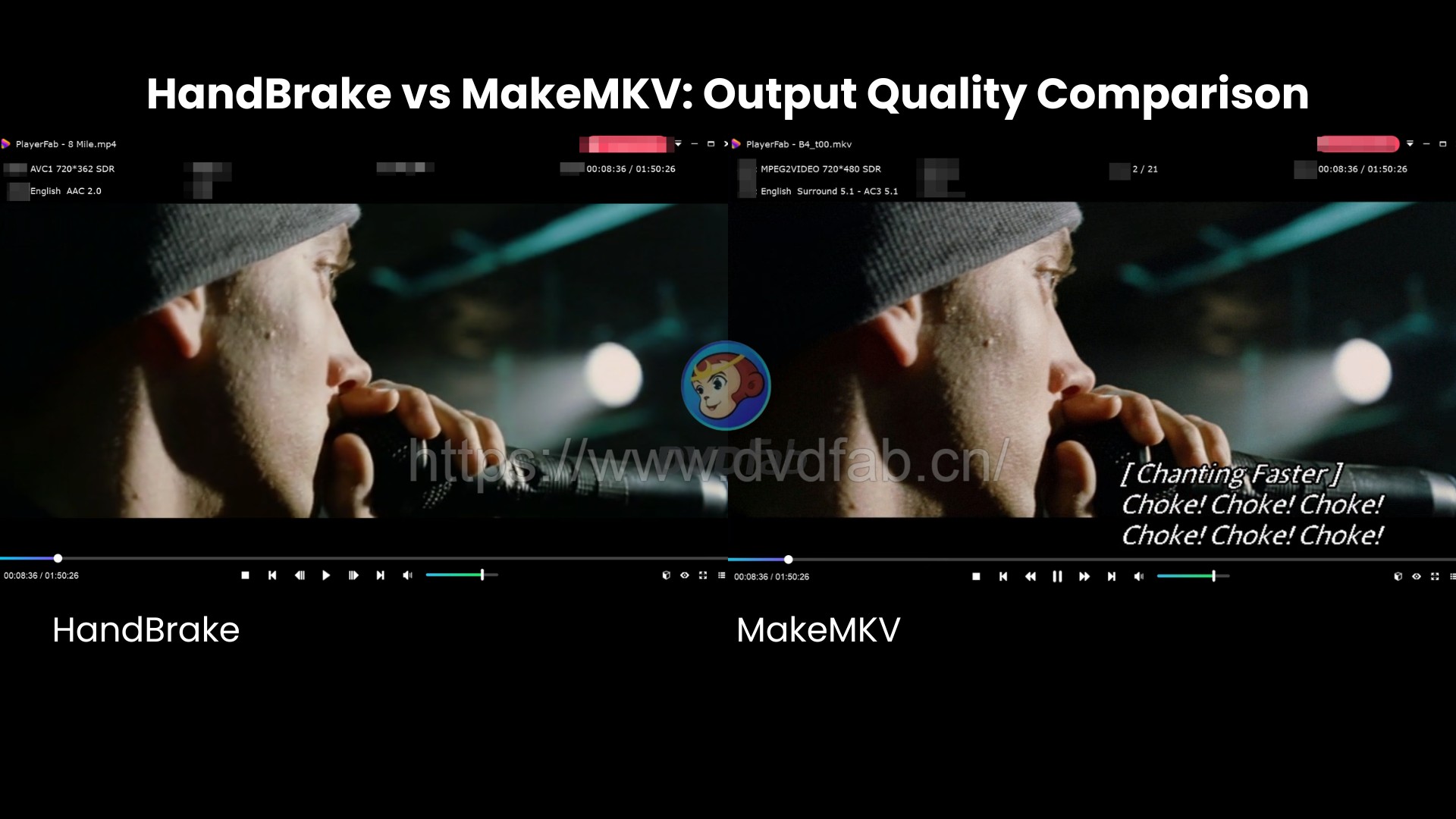
HandBrake always re-encodes video, so image quality depends on the encoder and settings. It supports H.264, H.265, and AV1, and you can adjust quality by targeting "Constant Quality" or an average bitrate. For audio, HandBrake offers clear choices: re-encode to common formats like AAC or Opus, or pass through the original track. Pass-through preserves quality and supports common disc formats such as AC3/E-AC3, TrueHD, AAC, and MP3. You can also keep the surround layout or downmix to stereo.
MakeMKV does not re-encode video; it remuxes the original disc streams into MKV, so the resulting image quality is the disc's native quality. For audio as well, MakeMKV preserves the disc's contents by default. HD tracks like Dolby TrueHD and DTS-HD MA are copied straight into the MKV. If you later need compression or a format change, you can transcode from this lossless rip in a separate step.
HandBrake vs MakeMKV: File Size
With HandBrake, you can freely choose the balance between size and quality. Because HandBrake re-encodes, it can shrink file size substantially. The actual size depends on the codec, resolution, filters, and whether you use a hardware encoder. Hardware encoders tend to produce larger files at the same quality.
MakeMKV does not compress video, so the resulting MKV is nearly the same size as the original stream on the disc. For Blu-ray or UHD, a single title can be tens of gigabytes.
Our Test: With a 6 GB source video, HandBrake produced a 675 MB .mp4 video, while MakeMKV created a MKV almost the same size as the original at about 6 GB. The difference is dramatic, with HandBrake coming out to roughly one ninth the size.
MakeMKV vs HandBrake: Speed
Ripping speed is determined mainly by the optical drive's read speed and the condition of the disc. Since MakeMKV copies streams without re-encoding, if the disc is clean and the drive is fast, the process is limited mostly by the drive's data read rate.
Encoding takes longer than copying streams. Total time varies with the codec, quality settings, filters, and whether hardware acceleration is used. In practice, because HandBrake must decode and re-encode the video, it tends to be slower than MakeMKV for the same disc.
Our Test: In our test with a ~6 GB source, HandBrake took about 12 minutes to create an MP4, while MakeMKV took about 1 minute 30 seconds to create an MKV that was nearly the same size as the source.
HandBrake vs MakeMKV: Additional Features

HandBrake excels at processing and delivery. In addition to batch queuing and official presets, it offers a rich set of filtering tools such as detelecine, deinterlace, denoise, sharpening, and colorspace adjustments. Subtitle handling is flexible, too. HandBrake also provides presets, and you can customize them to meet your size or quality targets.
MakeMKV focuses on lossless conversion. It decrypts discs for playback and streams them to players, while preserving chapters, multiple audio tracks, and subtitles. These capabilities make it a go-to tool for archiving common copy-protected DVDs.
Which is Better: MakeMKV vs HandBrake
Take a look at the quick differences to learn about HandBrake vs MakeMKV and settle on the tool that best meets your needs.
| Key Parameters | MakeMKV | HandBrake |
|---|---|---|
| Ease of Use | Very simple | A bit complex |
| Input Formats | DVDs, Blu-ray discs, DVD-vide/HD-DVD/Blu-ray files, ISO, MKV | most common video files, Blu-ray or DVD discs, ISO files, and VIDEO_TS folders |
| Output Formats | MKV | MKV, MP4, and WebM |
| Output Quality | Preserves original quality | Lossy and degraded quality |
| Process Decryption | Yes (supports DRM) | No (doesn’t support DRM) Requires installing libdvdcss |
| Compression | No | Yes (with various codes) |
| Custom Presets | No | Yes (various built-in presets) |
| Conversion/Ripping Speed | Fast (depends on the DVD drive) | Slow (depends on encoding settings and CPU power) |
| File Size | Gigantic file size | Smaller than the source file |
MakeMKV is a great choice for users who value speed and want to preserve original video quality without compression. In contrast, HandBrake focuses on output flexibility, allowing users to convert videos to MKV, MP4, and WebM while compressing the files to smaller sizes. Both free programs have clear advantages, but their features may not meet every user’s needs.
For example, MakeMKV often creates large files and only outputs in MKV format. This works well for users who want to preserve the original content and do not mind using more storage, but it limits format choices. HandBrake usually requires more time and processing power, and its many customization options can make everyday tasks harder to manage.
For users who want a balance between quality, speed, and flexibility, DVDFab DVD Ripper stands out as a great alternative. It combines fast ripping with versatile format support, allowing users to convert and compress videos without losing significant quality. This solution works for a wider range of media needs. Let’s explore the ripping software in more detail.
Best Alternative to MakeMKV and HandBrake: DVDFab DVD Ripper
DVDFab DVD Ripper can detect and remove any typical DVD copy protection like CSS, APS, RC, Sony DADC , and more, making DVD to digital conversion possible. Moreover, newly purchased encrypted DVDs can also be recognized and decrypted thanks to DVDFab's exclusive Cloud Decryption Service. This superb DVD ripper lets you open any old or new disc in 5 to 10 seconds.
- Simple, intuitive, and clean interface
- Preserve original quality for lossless audio and video.
- Help copy DVDs and Blu-rays and convert and edit videos.
- Analyze and remove old or latest copy-protection, whether CSS, RC, Sony DADC, APS, or more.
- Rip DVDs to MKV.Passthrough video and 5.1 AC3 audio are lossless quality for playback.
- Uses the latest GPU acceleration technologies.
- Provide a built-in video editor enables cropping video in a preferred aspect ratio while trimming unwanted clips.
The free trial has a 30-day limit, and users must upgrade to a subscription plan to continue ripping and converting.
How to Use DVDFab DVD Ripper to Digitize DVDs
Step 1: Get DVDFab DVD Ripper
Download and open DVDFab 13 on Windows PC 11/10/8.1/8 and 7 or Mac OS 10.10 - 14x.
Free Download Windows 11/10/8.1/8/7
Free Download macOS 10.13 - 15.x
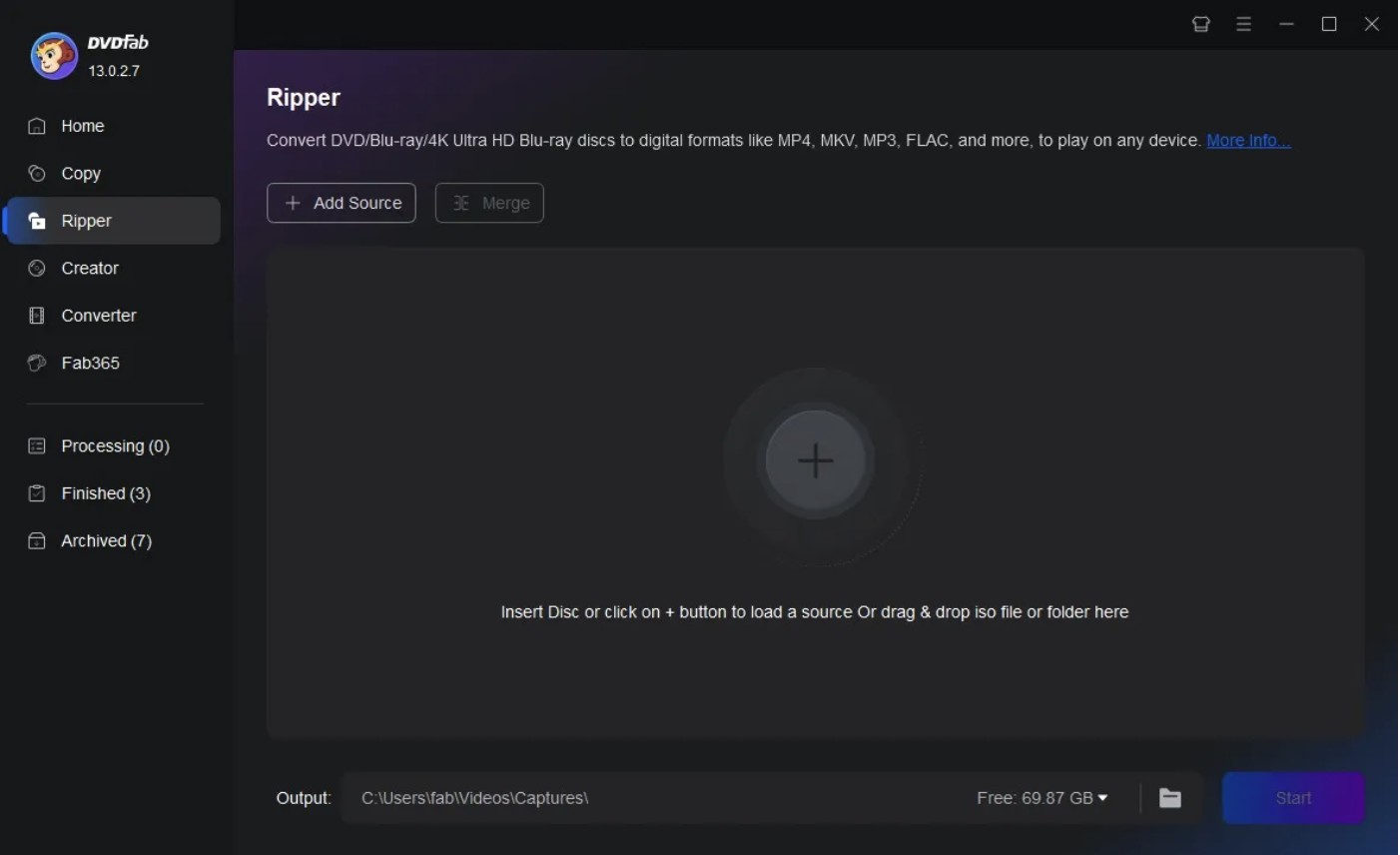
Step 2: Add the desired DVD
Pick the Ripper module from the left sidebar and drag the DVD you wish to rip into the main interface. You can add multiple DVDs to rip and convert them to videos.
Step 3: Select video customization parameters
Once your source DVD is loaded, you can choose to preserve the audio tracks and subtitles in the final video.
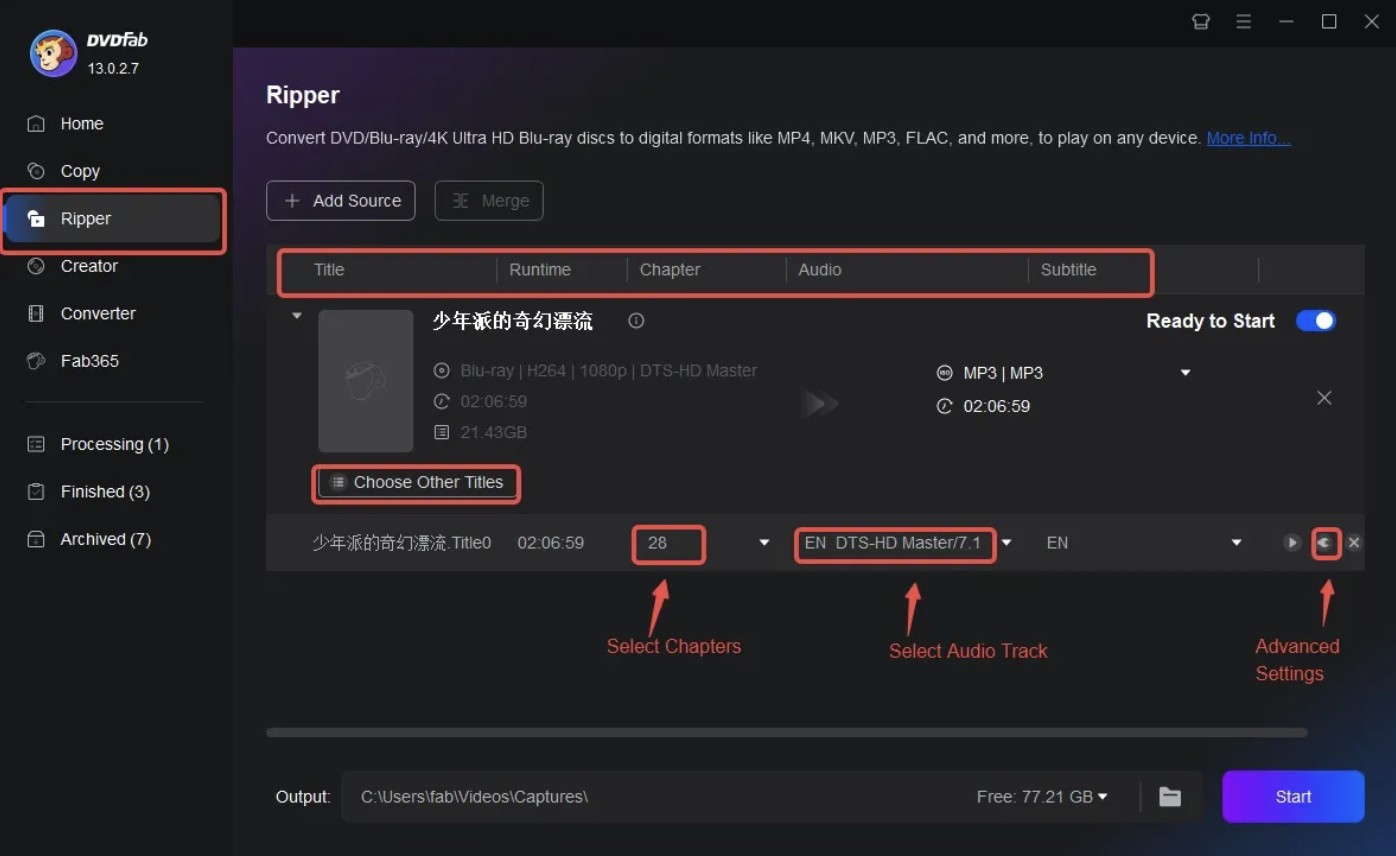
Set video and audio parameters to modify or tailor the final results. Advanced Settings option can help you with the customization process. The built-in Video Edit option further helps edit the output video to trim and crop for perfection.
Step 4: Process and save the video
Once you have set the video parameters, click the Save to button. Press the blue Start button to convert and digitize your DVD to the desired format. Compared to other competitors, the program boasts GPU acceleration with 50 times faster results, so you need not wait long to enjoy your converted files.
FAQs
Is MakeMKV better than HandBrake?
It depends on the task. MakeMKV is better for creating MKV files from supported DVD and Blu-ray sources while keeping original streams. HandBrake is better for compressing and converting existing video sources to MP4, MKV, or WebM.
Should I use MakeMKV before HandBrake?
Yes, this is a common process. Use MakeMKV first to create an MKV file from the disc source, then use HandBrake to compress the MKV or convert it to MP4, MKV, or WebM.
Can HandBrake remove DVD or Blu-ray copy protection?
No. HandBrake does not bypass copy protection or DRM. It can work with supported readable sources, but protected commercial DVDs or Blu-rays may require another legal source preparation step before HandBrake can encode them.
Is MakeMKV still free?
MakeMKV is still distributed as a beta version, and beta access can change over time. Check the current beta key on the MakeMKV forum if the program asks for registration. A temporary purchase-page issue does not always mean the beta version cannot be used.
Is HandBrake an open-source alternative to MakeMKV?
HandBrake is open-source, but it is not a direct replacement for MakeMKV. HandBrake is a video transcoder, while MakeMKV is used to create MKV files from DVD and Blu-ray sources. They often work better as a pair than as direct substitutes.
Conclusion
MakeMKV and HandBrake are not direct competitors in every use case. MakeMKV is better for creating MKV files from DVD and Blu-ray sources, while HandBrake is better for compression, MP4 output, and playback-focused conversion. For many users, the best process is to use MakeMKV first and HandBrake second. If you need more DVD output profiles, compression settings, task queue support, or a guided product path, DVDFab DVD Ripper is another option.
💡Please use any ripping or conversion tool only with content you own or have permission to copy, and follow local rules.

 4 Free DVD Rippers for Windows 10/11: Best Tools & Step-by-Step GuideBy Diana Smith - Oct 13, 2026
![How to Convert DVD to AVI Free: 3 Current Options [2026]](https://images.dvdfab.cn/artifact/2026/09/17/2HqH4KgGwIXxwkHdUUZtp0D98DCpL4gS/feature_cover.jpg) How to Convert DVD to AVI Free: 3 Current Options [2026]By Diana Smith - Oct 12, 2026
How to Convert DVD to AVI Free: 3 Current Options [2026]By Diana Smith - Oct 12, 2026 How to Copy DVD to Computer on Windows & Mac: Rip and Direct CopyBy Wenny Yan - Oct 12, 2026
 Free DVD Decoder for Windows XP and Windows 11: 3 Ways to Play DVDsBy Diana Smith - Sep 23, 2026