VideoByte DVD Creator Review 2026: Tests, Features and Limits

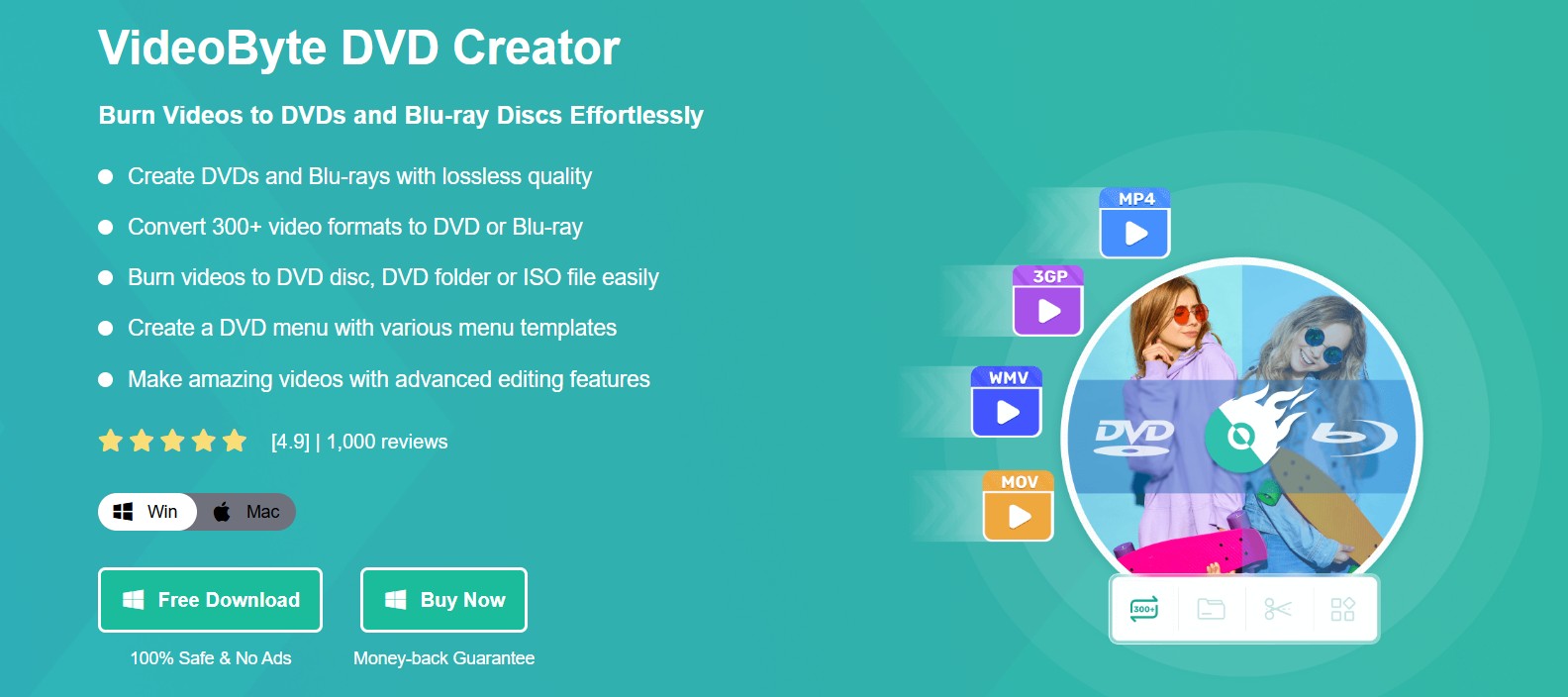
Summary: VideoByte DVD Creator supports 300+ video inputs and creates DVD-5, DVD-9, ISO files, or DVD folders with editing, subtitles, audio tracks, chapters, and custom menus. Windows plans cost $24.95 monthly or $49.95 lifetime; the Creator + DVD Copy bundle is $66.43. The trial adds a watermark, while Blu-ray authoring is available only on Windows.
Table of Contents
VideoByte DVD Creator is a paid authoring program for turning video files into playable DVDs instead of merely storing MP4 files on a data disc. It combines video import, basic editing, menu design, chapter control, subtitles, audio tracks, and disc or image output. The Windows edition can also create Blu-ray projects, but the Mac edition is limited to DVD authoring.
I tested version 1.2.92 with a 4.66 GB, 1080p MP4 and recorded the processing time, ISO size, interface behavior, watermark, and playback result. The result was mixed: VideoByte covers the core tools needed for a home-video DVD, but its inconsistent trial information and the playback issue in one test mean that a representative project should be completed before buying.
Is VideoByte DVD Creator Worth It? Price, Trial, and Safety
VideoByte DVD Creator is worth considering when a project needs a custom menu, chapter navigation, selectable audio or subtitles, and a DVD disc, folder, or ISO output. A paid authoring program is unnecessary for a simple data disc, and Mac users should choose another program if Blu-ray creation is required.
| Decision Point | Current Detail | What It Means |
| Monthly plan | $24.95 for one Windows PC; automatic renewal; tax excluded | Check the renewal setting if the project lasts only one month. |
| Lifetime license | $49.95 for one Windows PC; one-time purchase; tax excluded | This costs less than three monthly payments at the listed price. |
| Creator + DVD Copy bundle | $66.43 for one Windows PC; one-time purchase; tax excluded | Buy the bundle only if both video authoring and disc-copy functions are needed. |
| Trial limits | The dedicated FAQ lists 10 days, three DVD creations, and a watermark; the product page says 30 days. | Official pages conflict, so read the terms shown by the installed trial before planning a deadline. |
| Refund period | Five days for the monthly plan; 30 days for the lifetime license and listed bundle | Refund eligibility still depends on the published policy and purchase circumstances. |
VideoByte is not free. The trial adds a watermark, limits the number of completed projects, and may have a shorter usable period than the product overview suggests. Complete a small disc or ISO during the trial, then check its menu, first title, chapter jumps, audio, and subtitles in the intended player.
Is VideoByte Safe, and Where Should You Get a Registration Code?
Download the installer from VideoByte's official domain, check the publisher shown by Windows or macOS, and scan the file with the security software already installed on the computer. These checks reduce the risk of receiving a modified installer from an unofficial download site, but they do not justify an absolute safety guarantee.
A VideoByte DVD Creator registration code is supplied after an official purchase. Registration requires the licensed email address, the code, and an internet connection. Avoid "free registration code" pages because an invalid or shared code may fail activation and an unofficial download may contain unrelated software.
Key Features, Pros, Cons, and User Feedback
VideoByte accepts standard video files and authors them as DVD-Video structures for compatible players. The company lists more than 300 input formats, including MP4, MKV, MOV, AVI, MTS, M2TS, and VOB. That number comes from the vendor; this test used one MP4, so uncommon camera or editing formats should be checked in the trial.
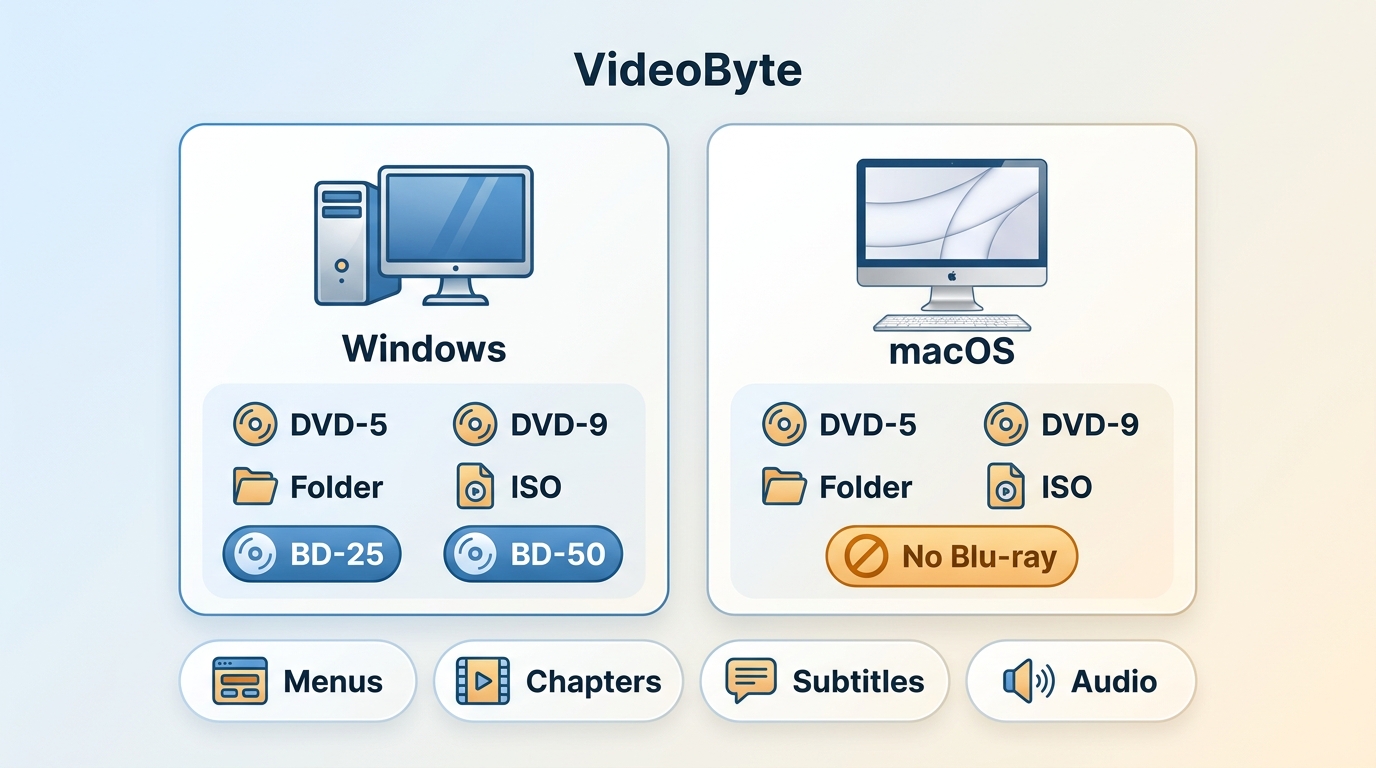
The program can write a DVD disc or save a DVD folder or ISO image. DVD-5 and DVD-9 choices control capacity, while NTSC and PAL settings affect player compatibility. A 4K input does not create a 4K DVD-Video disc: DVD output is converted to standard-definition video, as the 720 × 480 output in the test demonstrates. Windows users who need HD output can examine the Blu-ray options; the Mac version does not include Blu-ray authoring.
| Feature Area | VideoByte DVD Creator | Limit or Check |
| DVD output | DVD-5, DVD-9, writable disc, VIDEO_TS folder, and ISO image | Match the disc capacity and television standard to the target player. |
| Blu-ray output | BD-25, BD-50, disc, folder, and ISO options on Windows | Blu-ray authoring is unavailable in the Mac version. |
| Menu and chapters | Templates, title text, buttons, background image or music, opening film, chapters, and preview | Preview every button because a visual design does not prove that each link opens the correct title. |
| Audio and subtitles | External audio tracks and subtitles such as SRT, ASS, and SUB, with language and timing controls | Check subtitle timing, language labels, and audio order before starting the output. |
| Video preparation | Rotate, trim, crop, adjust the picture, apply effects, and add a watermark | These controls cover small corrections, not multi-track editing or detailed color work. |
| Acceleration and preview | Intel, NVIDIA, and AMD acceleration are listed; the project can be previewed before output. | Processing time still changes with the computer, source codec, menu, disc type, and quality setting. |
Menu controls are most valuable on discs with several episodes, family clips, or chapters. If menu navigation is the central requirement, compare the available templates and button controls with a broader list of DVD menu creator software.
💡 If you need to extract video from an existing disc instead, look at my VideoByte BD-DVD Ripper review.
Pros
- Creates DVD discs, folders, and ISO images from common video files.
- Provides menu, chapter, subtitle, audio, and preview controls in the same project.
- Supports DVD-5/DVD-9, NTSC/PAL, aspect-ratio, and quality choices.
- Adds Blu-ray authoring on Windows.
- Accepted drag-and-drop input and showed a clear preview in the supplied test.
Cons
- The trial adds a watermark and limits completed projects.
- Official pages disagree on whether the trial lasts 10 or 30 days.
- Mac users cannot create Blu-ray projects.
- ISO output appears late in the creation sequence, which can be missed on a first project.
- One of two trial runs produced a black screen in the recorded playback check.
User Feedback
Public reviews for the wider VideoByte brand often mention simple setup, media conversion tasks, and help with registration or license transfers. Critical comments include cases where a product did not perform the expected function and where support for a negative experience took longer. These reviews cover several VideoByte products, so they are company-level signals, not a DVD Creator-only performance score.
The comments reinforce two checks already supported by the product's terms: confirm the exact license and renewal conditions before paying, and finish a representative disc during the trial. A broader DVD authoring software comparison can help if the menu editor or platform limit does not match the project.
My VideoByte DVD Creator Performance Test
I tested VideoByte DVD Creator 1.2.92 trial in July, 2026, using a Windows PC with an AMD Ryzen 7 5700U processor, 16 GB RAM, and AMD Radeon graphics. The source was a 4.66 GB, 1080p MP4 with a running time of 1:51:58. The Windows edition was not recorded, so the result should not be treated as a comparison across all supported systems.
The project used DVD-9, a 16:9 aspect ratio, Fit to Disc quality, and ISO output. VideoByte completed the task in 21 minutes, or about 5.3 times faster than the source running time. The resulting ISO was 5,404,224 KB, approximately 5.16 GB, and the video inside was MPEG-2 at 720 × 480 and 29.97 fps. This is a standard-definition DVD result, not preservation of the source's 1080p resolution.
| Test Item | Recorded Result |
| Software | VideoByte DVD Creator 1.2.92 trial |
| Computer | AMD Ryzen 7 5700U, 16 GB RAM, AMD Radeon graphics, Windows PC |
| Source | 4.66 GB, 1080p MP4, 1:51:58 |
| Settings | DVD-9, 16:9, Fit to Disc, ISO |
| Processing time | 21 minutes |
| ISO size | 5,404,224 KB, approximately 5.16 GB |
| Output video | MPEG-2, 720 × 480, 29.97 fps |
| Interface and preview | Drag-and-drop worked; preview was clear and responsive; ISO appeared on the final output screen. |
| Trial and playback | Watermark visible; two trial runs; one playback check showed a black screen. |
The still frames did not show a large color shift, but screenshots alone cannot establish lossless output. DVD creation re-encoded this source, and the trial watermark remained visible. The preview result was encouraging, yet the black-screen record prevents a clean playback recommendation from this test alone.
The ISO was not checked across several players, mounted virtual drives, or a physical DVD written from the image. For a fair follow-up, mount the ISO in the operating system or open it with a player that supports DVD menus, inspect the VIDEO_TS structure, and burn one rewritable disc for a standalone-player test. No same-condition timing was supplied for another product, so the 21-minute result should not be used to claim that VideoByte is faster or slower than a competitor.
How to Use VideoByte DVD Creator
Prepare videos that you own or have permission to use, a writable DVD drive if a physical disc is required, compatible blank media, and enough free storage for temporary files. Choose ISO first when the project needs a menu check before using a blank disc.
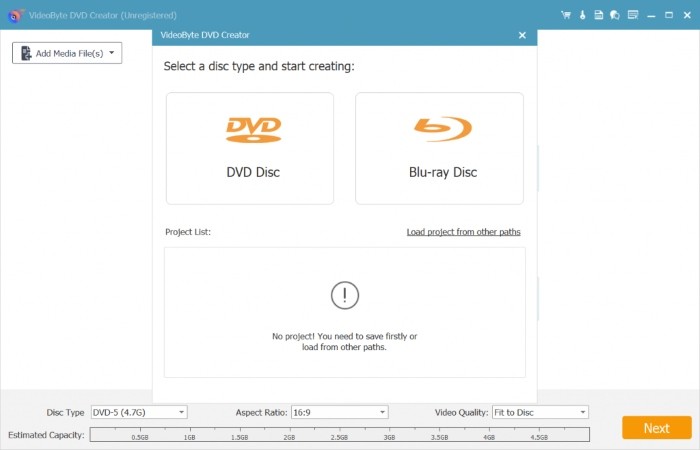
Step 1. Open VideoByte DVD Creator and select DVD Disc. Mac users should remain with DVD because the current Mac edition does not offer Blu-ray creation.
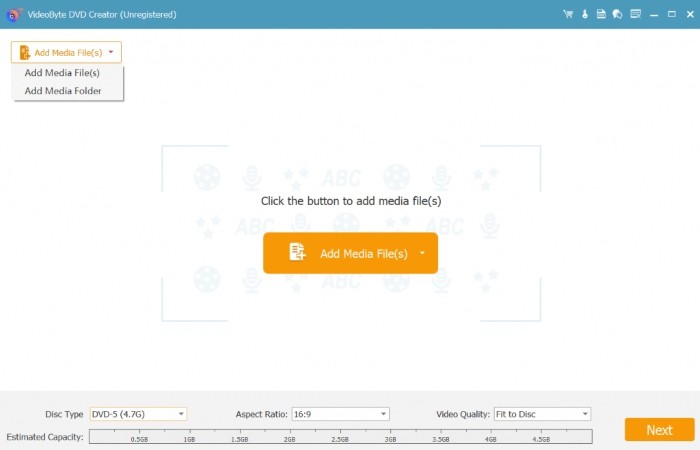
Step 2. Click Add Media File(s) or drag videos into the window. Arrange the titles in the order viewers should see them, then check the capacity indicator before continuing.
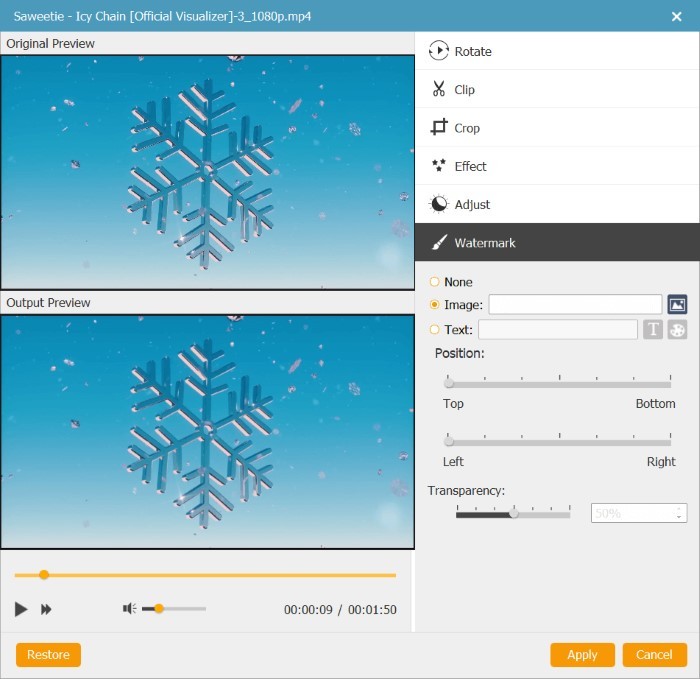
Step 3. Open the editing controls only for needed changes such as trimming, cropping, rotating, or adjusting the picture. Set chapters where viewers need direct access instead of placing every clip under one long title.
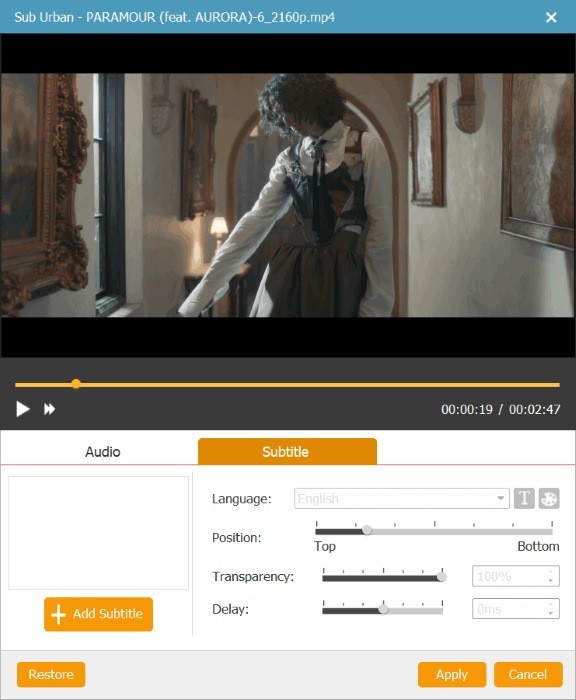
Step 4. Add or select the audio and subtitle tracks, label the languages, and correct any timing delay. Choose a menu template, edit its title and buttons, add a background if needed, and preview every selection.
Step 5. Click Burn, select disc, DVD folder, or ISO, and choose the local destination. Confirm DVD-5 or DVD-9, 4:3 or 16:9, and NTSC or PAL before starting. An ISO must be mounted or opened by DVD-aware playback software; double-clicking it does not prove whether its menu works.
Check a Disc That Will Not Play
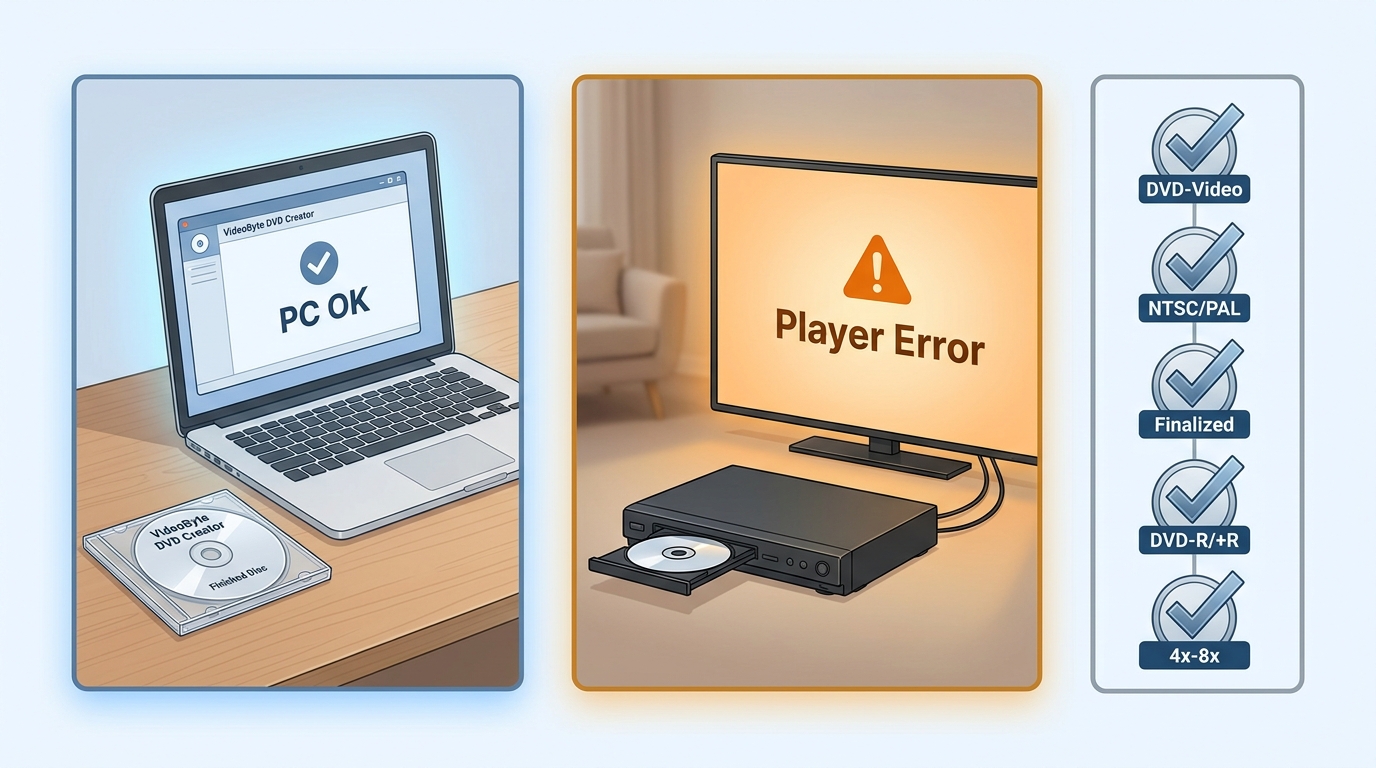
If the disc opens on a computer but not a living-room player, confirm that the project was authored as DVD-Video and not as a data disc containing MP4 files. Check NTSC or PAL, finalize the disc, use media supported by both the burner and player, and select a moderate write speed supported by the blank disc.
If VideoByte reports "no driver found," restart the program and update or reinstall the optical-drive driver. If it asks for a DVD after one is inserted, use a blank, clean, writable disc, try another brand, and restart the program after reinserting the media. A lack of temporary space requires a different local temporary folder with at least the free space requested by the program.
Three VideoByte DVD Creator Alternatives
VideoByte is not the only way to make a video DVD. DVDFab DVD Creator covers paid DVD authoring with task and menu controls, DVDStyler provides free DVD-Video authoring, and Wondershare DVD Creator combines DVD creation with slideshow and disc utilities. The right choice changes with the operating system, output type, menu needs, and trial restrictions.
DVDFab DVD Creator
DVDFab DVD Creator imports more than 200 video formats and authors them as DVD-5 or DVD-9 discs, ISO images, or VIDEO_TS folders. It solves the same central task as VideoByte: converting video files into a playable DVD structure with a menu, chapters, audio, and subtitles.
Its additional controls include menu background and button editing, preview, video trimming and cropping, chapter editing, external subtitles, multiple-source task ordering, and supported GPU hardware acceleration.
Pros
- DVD disc, ISO, and VIDEO_TS folder output.
- Menu, chapter, audio, subtitle, and video-preparation controls.
- Windows and macOS editions.
- Queue controls for projects with several source videos.
Cons
- Paid license required after the trial.
- DVD Creator does not author Blu-ray discs.
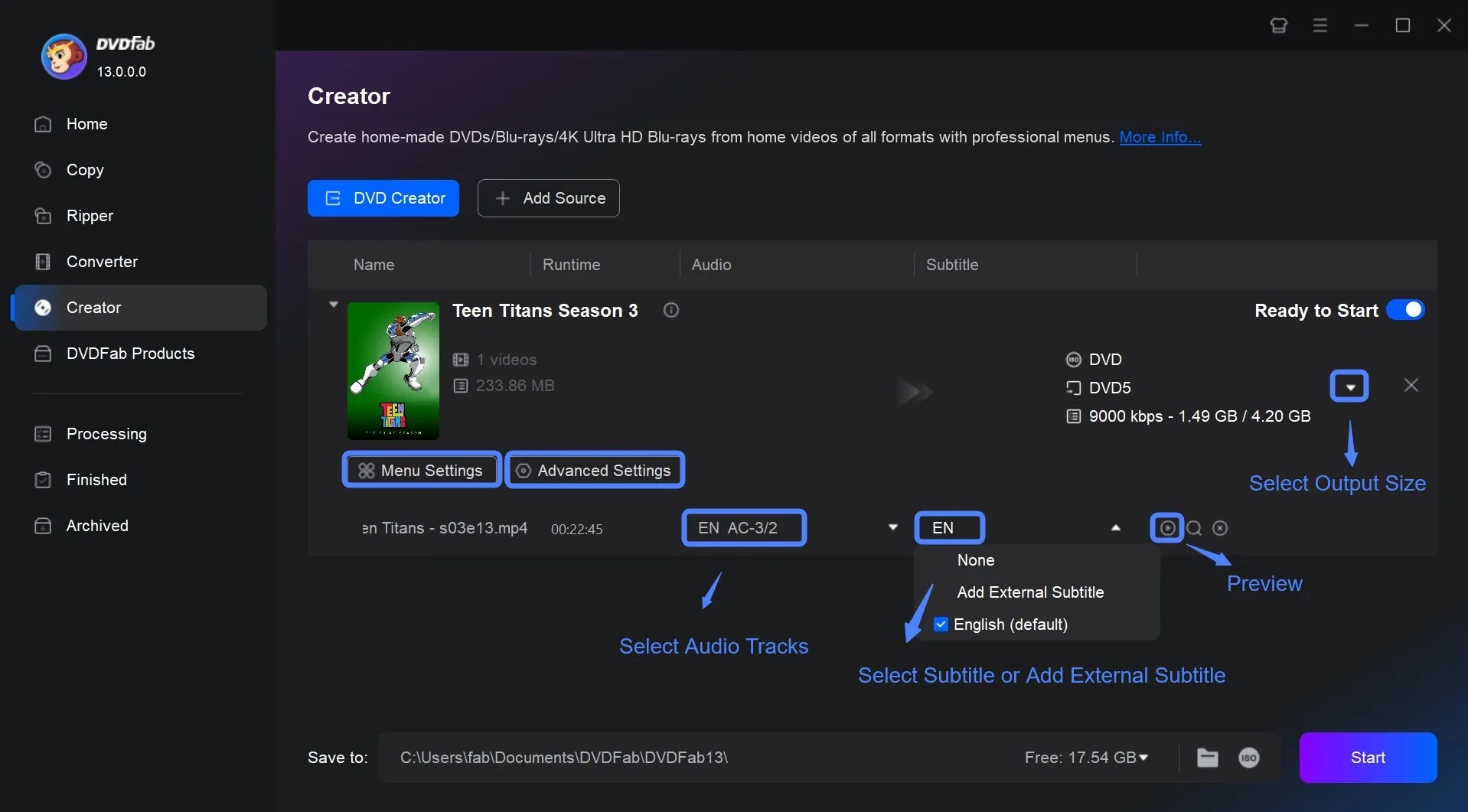
Step 1. Open DVDFab, select Creator > DVD Creator, and add the source videos.
Step 2. Open Advanced Settings to choose DVD-5 or DVD-9, quality, aspect ratio, audio, and subtitles; use Menu Settings to build and preview the navigation.
Step 3. Select a writable disc, ISO, or folder destination, review the title order, and start the task.
DVDStyler
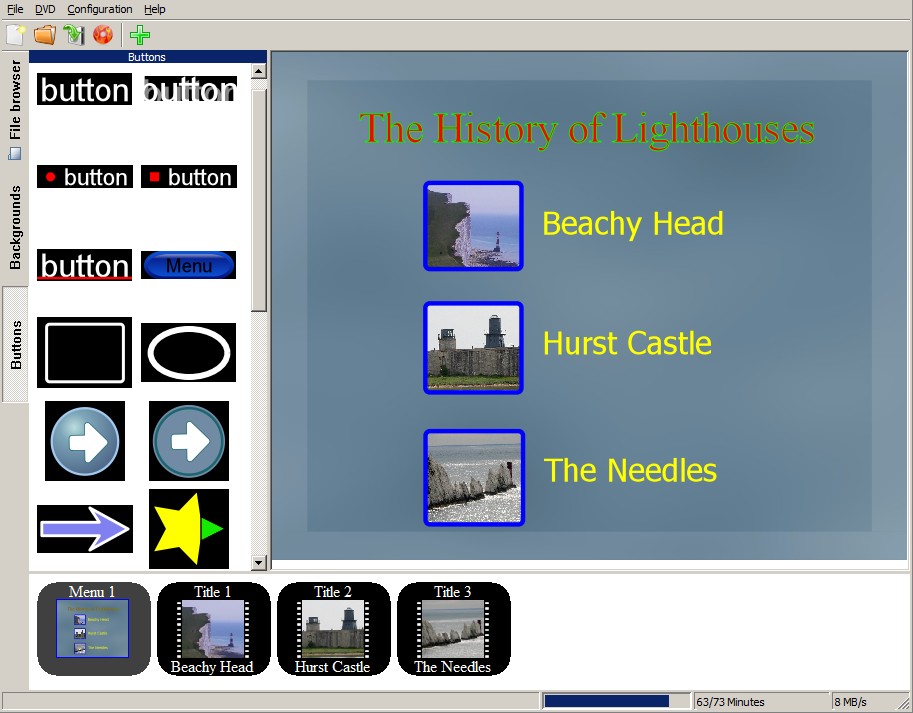
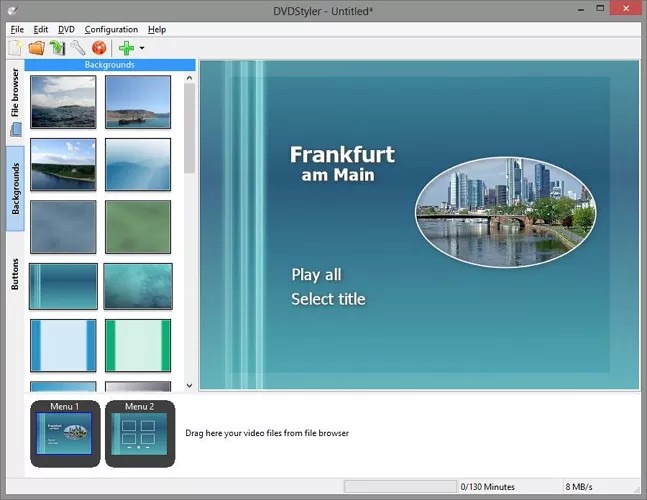
DVDStyler is free, open-source DVD authoring software for Windows and Linux. It creates DVD-Video discs with interactive menus and can import formats such as AVI, MOV, MP4, MPEG, OGG, and WMV. It addresses the core need without a subscription when DVD output is the goal; Blu-ray creation is not included.
The menu editor can place buttons, text, images, and backgrounds, add several audio or subtitle tracks, and customize navigation with DVD scripting. Version 3.2.1 remains the download presented on the official site, so test a short project on a current computer before committing time to a large menu. The official page currently promotes Windows and Linux downloads, so Mac users should choose another authoring program.
Pros
- Free and open source.
- Custom menus, buttons, backgrounds, and navigation.
- Multiple audio and subtitle tracks.
- DVD authoring and disc burning in the same program.
Cons
- No Blu-ray authoring.
- Current macOS support is unclear on the official download page.
- The menu editor and DVD scripting take time to learn.
Step 1. Create a project, name the disc, choose its capacity, and select NTSC or PAL for the target player.
Step 2. Add the videos, watch the capacity meter, arrange the titles, and set chapters, audio, and subtitles.
Step 3. Select a template or build a menu, connect its buttons to the correct titles, preview the navigation, and burn the DVD.
Wondershare DVD Creator
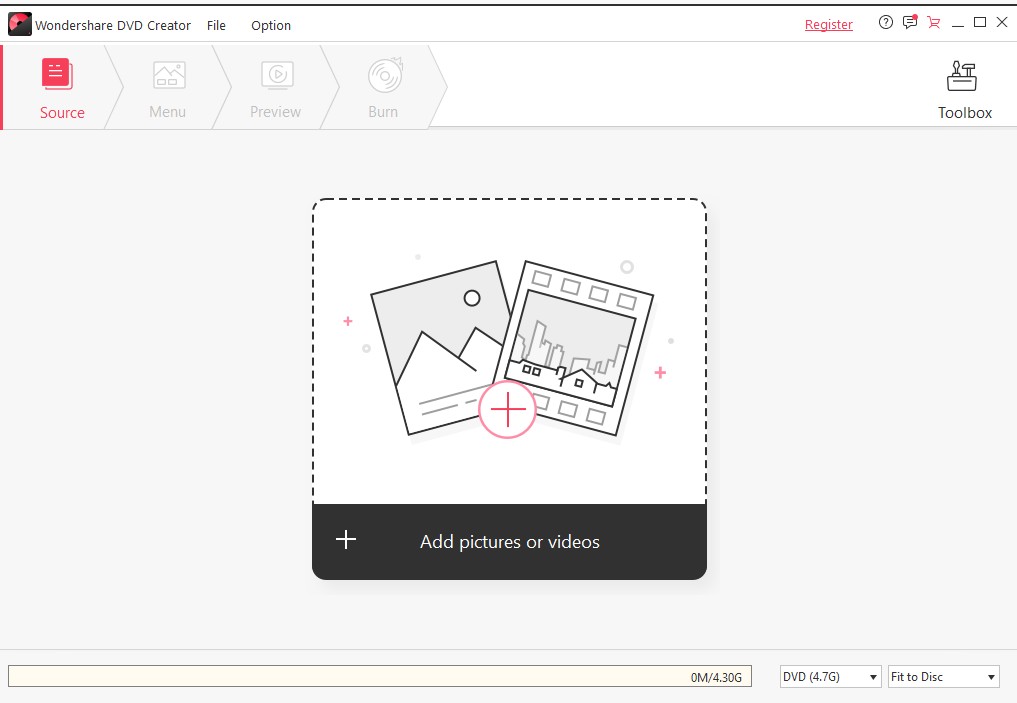
Wondershare DVD Creator imports common video and photo files and creates DVD discs, DVD folders, and ISO images on Windows and Mac. It provides menus, chapters, subtitles, and preview, so it can replace VideoByte for family-video, event, or slideshow discs that need standalone-player navigation.
The program also includes a photo slideshow maker, basic video editing, data-disc and CD tools, and more than 100 menu templates in the paid edition. Blu-ray creation is limited to Windows. The Windows store lists $39.95 per year or $55.95 for a perpetual license, while the trial restricts templates and adds watermarks to several output or editing functions.
Pros
- DVD disc, folder, and ISO output on Windows and Mac.
- Menu, chapter, subtitle, video-editing, and slideshow tools.
- Blu-ray authoring on Windows.
- Annual and perpetual license choices.
Cons
- Trial output and editing functions can contain a watermark.
- Only three menu templates are available in the trial.
- Blu-ray disc creation is unavailable on Mac.
Step 1. Start a DVD project and drag the videos or photos into the source list.
Step 2. Trim or crop where needed, add subtitles or chapters, and customize a menu that links to the correct titles.
Step 3. Preview the menu, select disc, folder, or ISO output, confirm the television standard and disc capacity, and start creation.
VideoByte vs. the Alternatives
| DVD Creator | Compatible OS | DVD Output | Blu-ray Creation | Menu and Editing | Trial or Price | Use Case and Main Limit |
| VideoByte DVD Creator | Windows and macOS | Disc, DVD folder, and ISO | Windows only | Templates, chapters, audio, subtitles, preview, and basic editing | Trial has a watermark and project limits; $24.95/month or $49.95 lifetime on Windows | Combined DVD/Blu-ray authoring on Windows; official trial-duration pages conflict |
| DVDFab DVD Creator | Windows and macOS | Disc, VIDEO_TS folder, and ISO | No; separate creator required | Custom menus, chapters, tracks, subtitles, preview, editing, and task order | Paid after the free trial; current checkout price should be checked before purchase | Repeated DVD projects with several sources; unnecessary for a basic data disc |
| DVDStyler | Windows and Linux | DVD-Video project and disc burning | No | Templates, custom objects, audio, subtitles, and DVD scripting | Free and open source | Free custom DVD menus; test compatibility with the current computer first |
| Wondershare DVD Creator | Windows and macOS | Disc, DVD folder, and ISO | Windows only | 100+ paid templates, chapters, subtitles, basic editing, and slideshow tools | Trial has template and watermark limits; $39.95/year or $55.95 perpetual on Windows | Video-and-photo discs with extra utilities; Mac lacks Blu-ray creation |
VideoByte remains a reasonable trial choice when Windows Blu-ray creation and DVD menu tools are both needed. DVDFab is the closer option for repeated DVD-only projects, DVDStyler removes the license cost, and Wondershare adds slideshow and disc utilities. The broader best DVD burning software comparison covers more programs when authoring is only one part of the decision.
VideoByte DVD Creator FAQs
Is VideoByte DVD Creator free?
No. It has a limited trial with a watermark and a three-project limit. Its dedicated FAQ says 10 days, while the product page says 30 days, so check the terms shown by the installed version.
Does VideoByte DVD Creator leave a watermark?
The trial adds a watermark to created DVDs. A registered full version removes this trial restriction.
Can VideoByte DVD Creator burn Blu-ray discs on Mac?
No. VideoByte's current product and user-guide pages limit Blu-ray creation to Windows; the Mac edition authors DVDs.
Where can I get a VideoByte DVD Creator registration code?
Purchase a license through VideoByte's official store. The code is sent with the order information and must be entered with the licensed email while the computer has an internet connection.
Why does VideoByte say "no driver found" or "please insert a DVD"?
Restart the program and update the optical-drive driver for a "no driver found" message. For an insert-disc message, use a blank, clean, writable DVD, try another disc or brand, and restart after reinserting it.
Can VideoByte turn 4K video into a 4K DVD?
It can accept 4K source video, but DVD-Video output is standard definition. Use Windows Blu-ray authoring or keep a separate digital 4K file when HD or 4K resolution must remain.
Conclusion
VideoByte DVD Creator covers the main authoring tasks for a navigable DVD and adds Blu-ray output on Windows. On the tested Ryzen 7 system, it processed the 1:51:58 MP4 in 21 minutes, but the watermark, late ISO choice, conflicting trial-duration pages, and one black-screen playback record keep the verdict conditional.
Use the trial to create an ISO or rewritable test disc with the same menu, audio, subtitles, and player planned for the final project. Pay only after that sample works. Choose DVDStyler when free DVD authoring comes first, DVDFab for repeated DVD-only projects with broader task controls, or Wondershare when photo slideshows and extra disc utilities matter.

![5 Top AVI to DVD Converters for Windows and Mac [2026]](https://images.dvdfab.cn/artifact/2026/10/19/HsCx2t8W3VyD6wHfogzkhte4XqgpBqdz/feature_cover.jpg) 5 Top AVI to DVD Converters for Windows and Mac [2026]By Diana Smith - Oct 20, 2026
5 Top AVI to DVD Converters for Windows and Mac [2026]By Diana Smith - Oct 20, 2026 How to Burn MP3 to DVD: Best Audio DVD Creators Compared (2026)By Wenny Yan - Oct 15, 2026
 How to Burn Video_TS to DVD on Windows and Mac: 4 Methods That WorkBy Diana Smith - Oct 15, 2026
![Convert Video to DVD: 5 Free & Paid Video to DVD Converters [2026]](https://images.dvdfab.cn/media/convert_vidoe_to_dvd_dza0f3.png/public) Convert Video to DVD: 5 Free & Paid Video to DVD Converters [2026]By Diana Smith - Oct 14, 2026
Convert Video to DVD: 5 Free & Paid Video to DVD Converters [2026]By Diana Smith - Oct 14, 2026