HandBrake Web Optimized or Not? What It Means & Anamorphic Settings [2026]

Summary: Enable HandBrake Web Optimized when an MP4 will be played progressively from a website, CDN, or browser link; leave it off for ordinary local playback. It changes MP4 file layout, not video quality or file size. For anamorphic DVD sources, start with Anamorphic set to Automatic so HandBrake preserves the intended display shape, and use Custom only when the source aspect information needs manual correction.
Table of Contents
When I export an MP4 for a browser link, I want it to start playing before the whole file downloads, but HandBrake Web Optimized is easy to mistake for a quality setting. DVD sources add another issue: anamorphic video can look stretched or squeezed when its display aspect ratio is handled incorrectly. The two options solve different problems, so the right choice depends on playback and source dimensions.
I checked HandBrake's current documentation together with the 1.11.2 release status for Web Optimized, presets, source limits, and anamorphic resizing. HandBrake Web Optimized mainly affects MP4 file layout for web playback, while Anamorphic controls pixel aspect and display shape. The sections below turn those differences into settings you can choose.
![HandBrake Web Optimized or Not? What It Means & Anamorphic Settings [2026]](https://images.dvdfab.cn/media/HandBrake_Web_Optimized_or_Not_88ynda.png/public)
HandBrake Web Optimized: What It Means and When to Enable It
HandBrake Web Optimized is an MP4 Fast Start setting. It places playback metadata near the beginning of the finished MP4 so a browser or HTTP-based player can begin progressive playback before the entire file has downloaded. It does not increase resolution, sharpen the picture, reduce bitrate, or compress the video further.
Enable it when the final MP4 will be served directly from a website, CDN, browser link, or another environment that benefits from progressive playback. If the video will only be played from a computer, USB drive, or other local storage, the setting usually provides no useful playback advantage.
| Scenario | Use Web Optimized? | Reason |
| MP4 hosted on a website or CDN | Yes | Playback can begin before the whole file downloads. |
| MP4 shared through a browser-based link | Yes | The player can access the MP4 playback metadata earlier. |
| Embedded MP4 on a course or landing page | Yes | Progressive playback can begin before the complete file is transferred. |
| File played from a computer or USB drive | Usually no | Local playback does not depend on progressive HTTP delivery. |
| MKV or WebM output | No | HandBrake Web Optimized is an MP4 Fast Start option. |
| Upload to a platform that re-encodes the video | Optional | The service may rebuild the uploaded file during processing. |
Web Optimized does not change image quality, but it adds a finishing step. HandBrake rewrites the MP4 after encoding so the playback metadata is placed at the beginning of the file. With a large output file or slower storage, that final rewrite can add noticeable processing time.
For a self-hosted MP4 or browser-served file, enable it. For ordinary local playback, you can usually leave it off.
How to Enable Web Optimized in HandBrake
Web Optimized is available when you create an MP4. Load the source and choose the preset first, then enable the option from the Summary tab before starting the encode.
Step 1: Open HandBrake and Load the Source
Launch HandBrake on your computer.
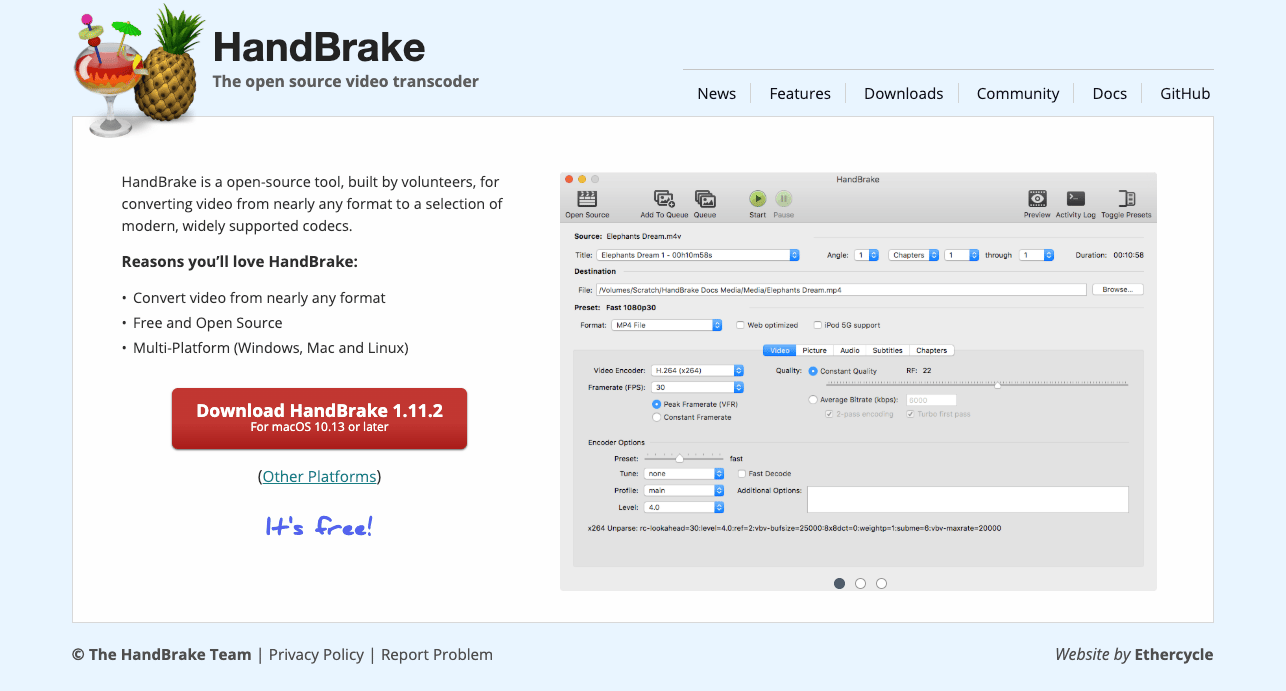
Click Open Source and select the video file, folder, or disc source you want to convert.
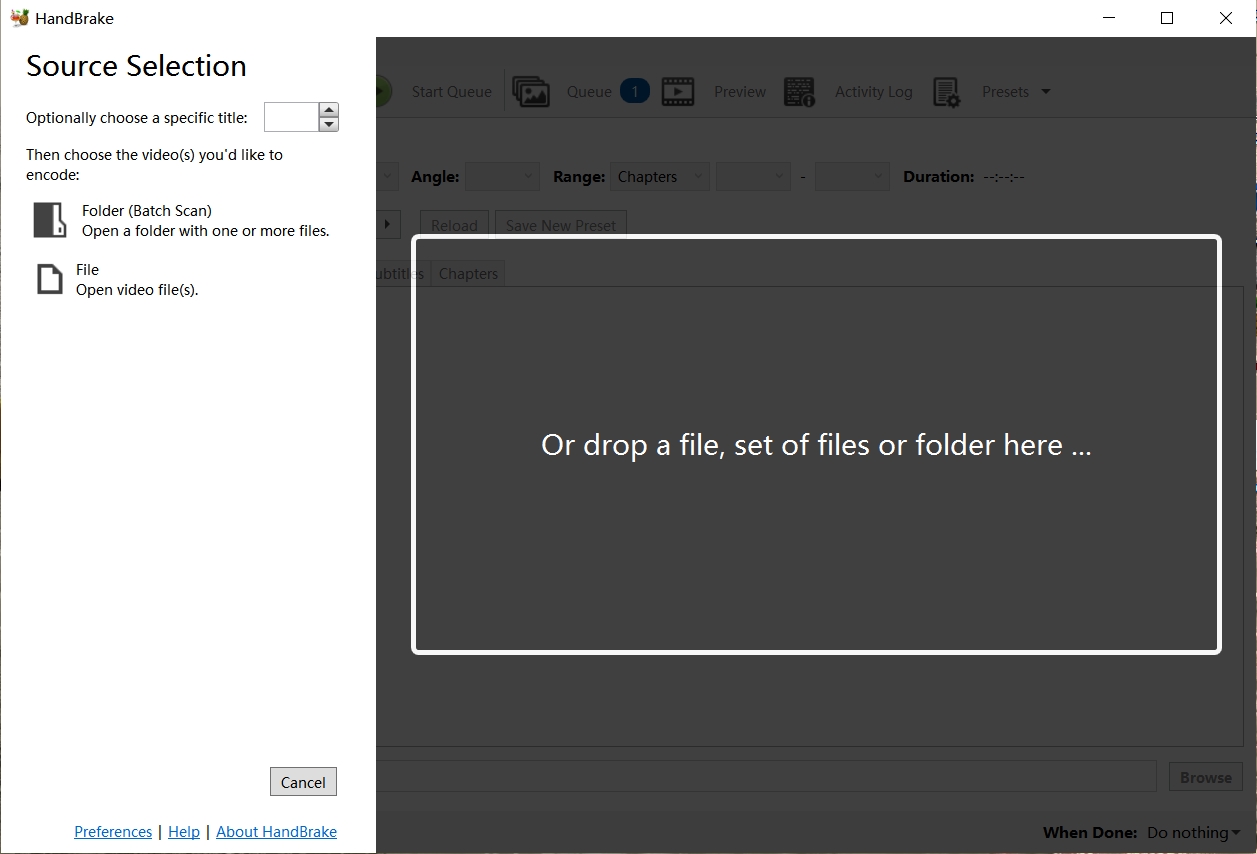
HandBrake can open unprotected DVD and Blu-ray sources, but it does not circumvent copy protection. If a commercial disc cannot be opened because of protection, changing Web Optimized or Anamorphic will not solve the source-reading problem.
Step 2: Choose a Preset and MP4 Output
Choose a preset that matches the source resolution and the software or device that will play the finished file. The default Fast 1080p30 preset is a broadly compatible starting point for many 1080p sources. For standard-definition DVD material, a 480p or 576p preset may be more appropriate when you do not need to upscale the video.
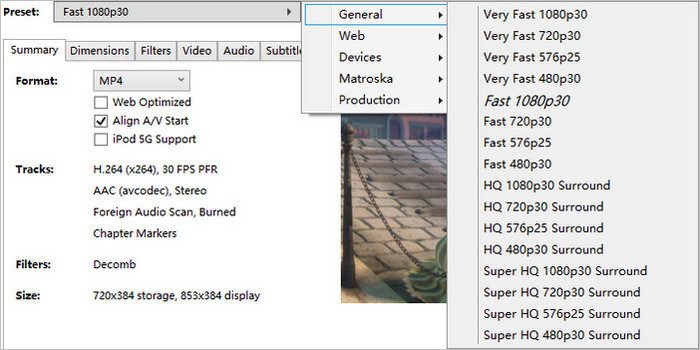
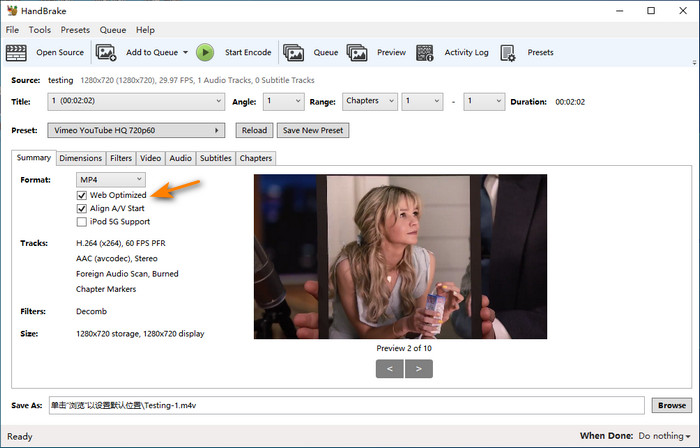
Open the Summary tab and select MP4 as the output container.
Step 3: Enable Web Optimized
In the Summary tab, check Web Optimized. This tells HandBrake to create the MP4 with its playback metadata arranged for progressive web playback.
Step 4: Choose the Destination
Click Browse beside the Save As field and choose the filename and output folder. Make sure the destination has enough free space for the encoded file and the final Web Optimized rewrite.
Step 5: Start the Encode
Click Start Encode. HandBrake will transcode the video with the selected preset and create the MP4 with Web Optimized enabled. When the encode finishes, open the file from its intended playback location and check that it starts as expected.
What Is HandBrake Anamorphic and Which Setting Should You Use?
HandBrake Anamorphic controls how the stored video dimensions are translated into the shape shown during playback. The important value is Pixel Aspect Ratio, or PAR. Unlike ordinary square-pixel video, an anamorphic source can store a frame at one width and height while telling the player to display it at a different shape.
DVD is a common example. NTSC DVD video can use a 720×480 stored frame and PAL DVD video can use 720×576, while display information tells the player how the picture should appear on screen. HandBrake can preserve that relationship instead of permanently stretching or squeezing the stored frame.
Which Anamorphic Setting Should You Use?
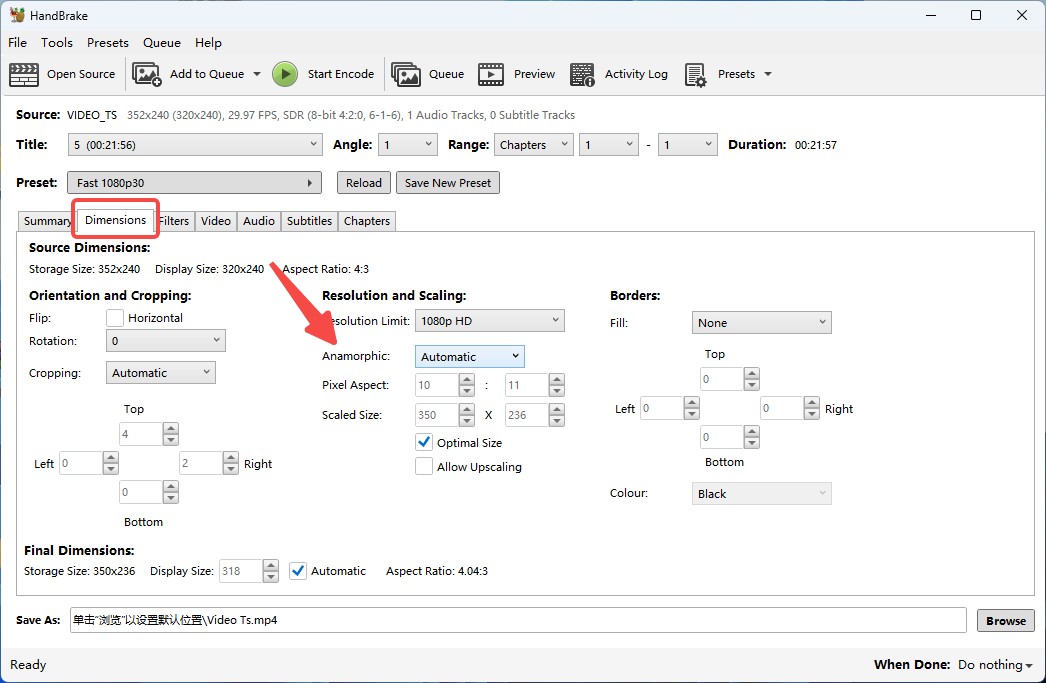
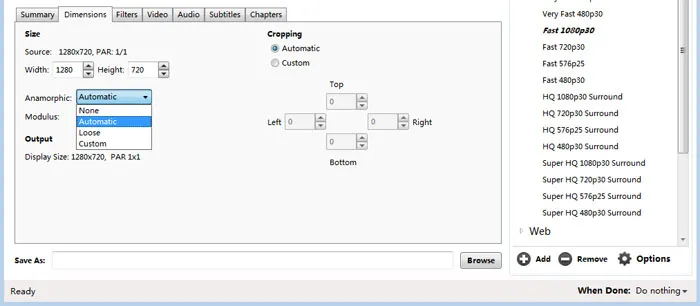
In the current HandBrake GUI documentation, the main Anamorphic choices are Automatic, Off, and Custom. For most sources, start with Automatic.
- Automatic: HandBrake determines output dimensions up to the source resolution or selected Resolution Limit while preserving the intended display relationship. This is the recommended starting point for most conversions.
- Off: Use this when you deliberately want non-anamorphic, square-pixel output and need to control the stored width and height. Preview the result carefully with DVD sources.
- Custom: Use this when you need manual control over output dimensions, display width, or pixel aspect ratio, such as when the source aspect information is incorrect.
Older HandBrake interfaces and the command-line interface may also use additional anamorphic terms such as Loose. For the current graphical interface, Automatic is the normal starting point.
If the Video Looks Stretched or Squeezed
Start by switching Anamorphic back to Automatic and preview the result. If the source contains correct display-aspect information, Automatic normally preserves the intended shape.
If the preview is still too wide, too narrow, or visibly squeezed, check the source aspect information before changing width and height values. Incorrect source metadata may require Custom dimensions or PAR settings. Make a short preview before encoding the full video while testing the correction.
Web Optimized vs. Anamorphic: What Is the Difference?
Web Optimized and Anamorphic affect different parts of the output. Web Optimized changes how an MP4 file is arranged for online playback; Anamorphic changes how stored pixels should be displayed. One setting cannot correct a problem caused by the other.
| Setting | Where to Find It | What It Changes | Use It For |
| Web Optimized | Summary | MP4 metadata layout | Website, CDN, browser, and progressive MP4 playback |
| Anamorphic | Dimensions | Pixel aspect ratio and display dimensions | DVD or other non-square-pixel sources and stretched or squeezed output |
If an MP4 takes too long to start from a web link, check Web Optimized. If a DVD conversion looks too wide, narrow, or squeezed, check Anamorphic and the Dimensions settings.
Bonus: Use DVDFab DVD Ripper to Change DVD Video Parameters
HandBrake's Web Optimized and Anamorphic settings are useful, but they can be difficult for many users to judge correctly, especially when the output involves web playback, DVD aspect ratio, subtitles, audio tracks, or device compatibility. If you prefer a more visual interface with ready-made format and device profiles, DVDFab DVD Ripper can be a simpler option for DVD conversion.
DVDFab DVD Ripper lets you choose preset formats and device profiles, so you can convert a DVD without manually adjusting every video parameter. If you need more control, you can still customize settings such as resolution, codec, frame rate, quality, audio tracks, and subtitles in Advanced Settings. DVDFab is a reliable DVD Ripper that can help you convert any protected DVDs with ease.
Step 1: Download and install DVDFab 13
Free Download Windows 11/10/8.1/8/7
Free Download macOS 12 or newer
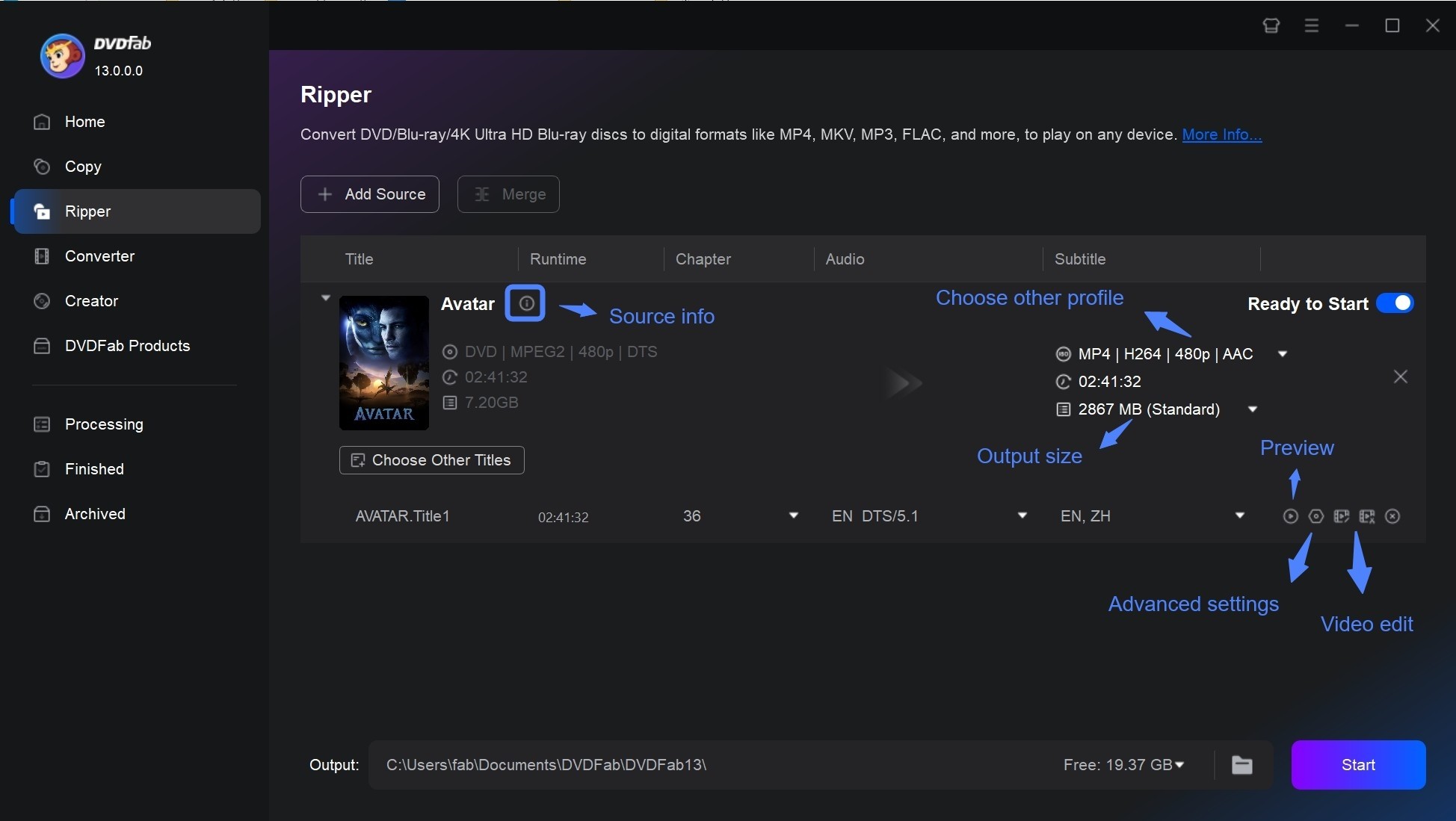
Open DVDFab and click the Ripper module on the main screen. Load a DVD disc, ISO file, or VIDEO_TS folder. You can click the + button, drag and drop the source, insert a DVD into the drive, or use the Add option.
Step 2: Choose an output profile
Click Choose Other Profile and select the output format or device profile you need. You can convert DVD to digital files such as AVI, MKV, MP4, and WMV.
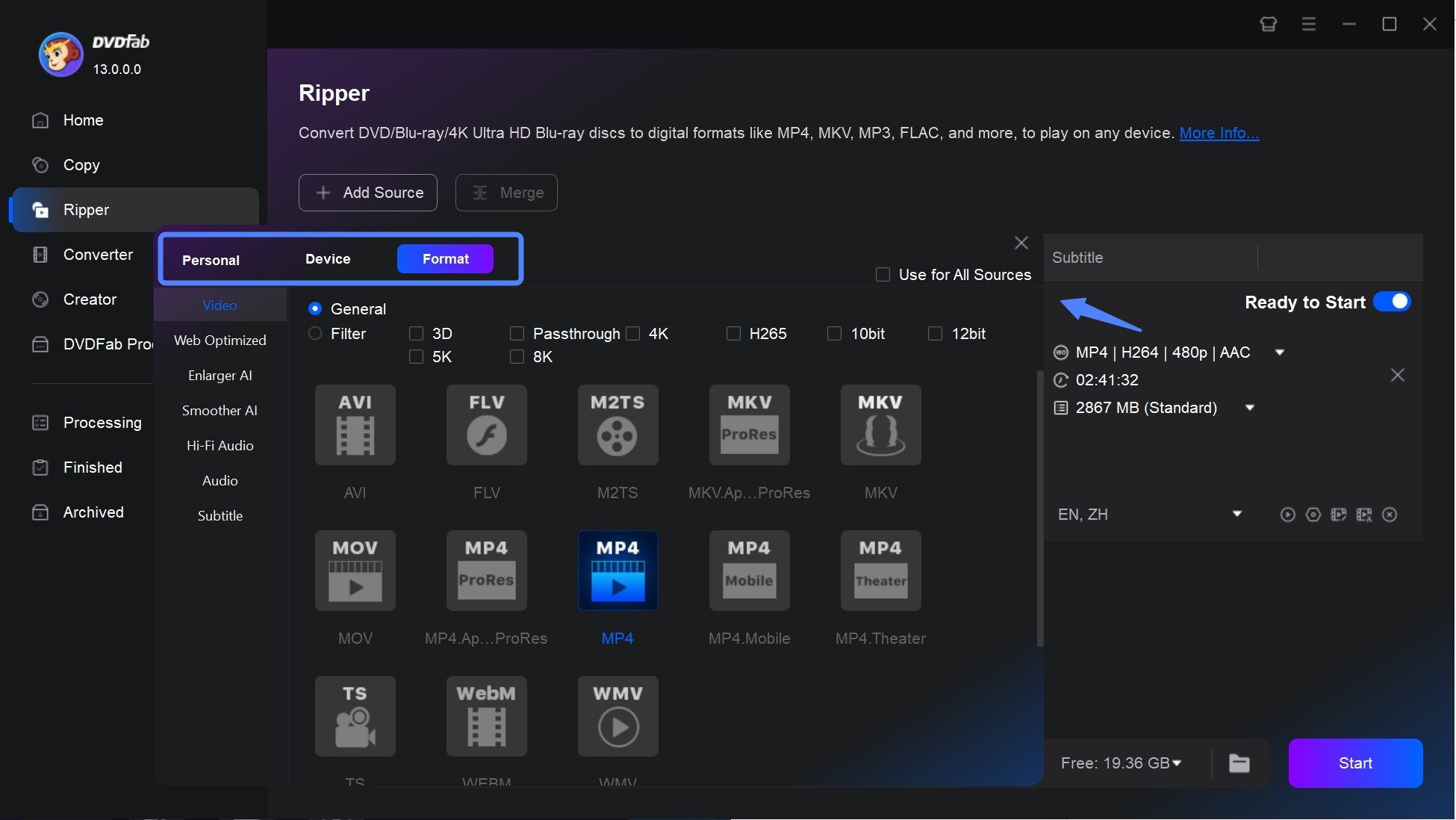
Step 3: Adjust video, audio, and subtitle settings
Open Advanced Settings if you need to adjust video parameters such as resolution, codec, frame rate, or quality. You can also select audio tracks, choose subtitles, extract subtitles to SRT, or add external subtitles when needed.
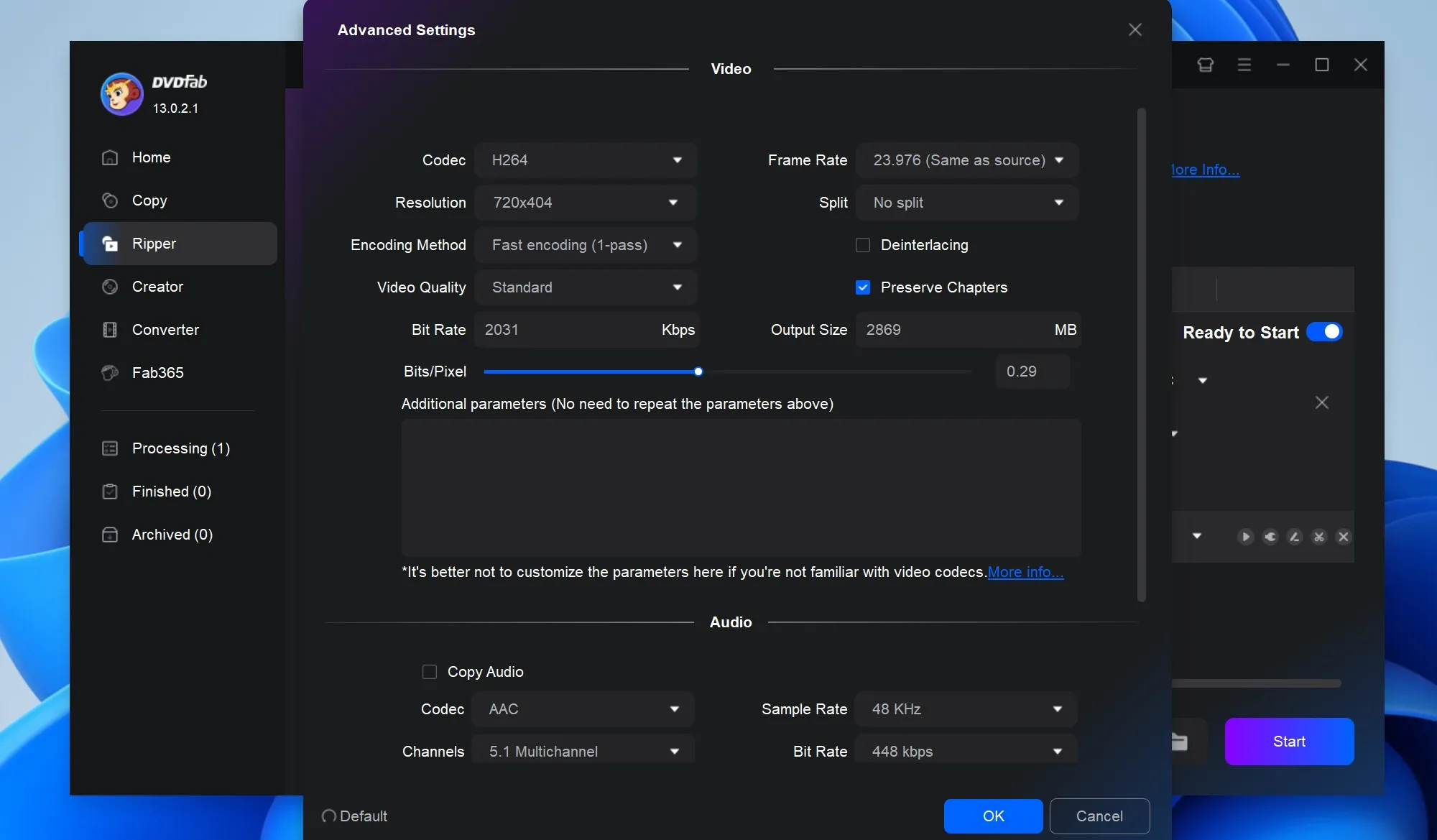
Step 4: Start the conversion
After adjusting the output settings, click Start to begin the ripping process.
FAQs
Does HandBrake Web Optimized reduce file size?
No. Web Optimized is not a compression setting. File size is mainly affected by the video encoder, quality or bitrate, resolution, frame rate, audio settings, and the source itself.
Does Web Optimized affect video quality?
No. It changes the layout of the MP4 container rather than the encoded picture. It can add finishing time because HandBrake rewrites the MP4 after encoding to move playback metadata to the beginning of the file.
Why is Web Optimized not available for MKV?
HandBrake Web Optimized is an MP4 Fast Start option. MKV and WebM use different container structures, so choose those formats for their playback, audio, or subtitle features rather than this MP4 setting.
What does PAR mean in HandBrake?
PAR means Pixel Aspect Ratio. A PAR of 1:1 uses square pixels, while an anamorphic source such as some DVDs can use non-square pixels so the stored frame displays at its intended shape.
Should I leave Anamorphic on Automatic in HandBrake?
Usually, yes. HandBrake recommends Automatic for typical use because it preserves the display relationship while respecting the source resolution or selected Resolution Limit. Use Custom when the source aspect information is wrong or you specifically need manual display dimensions.
Conclusion
Use HandBrake Web Optimized when an MP4 will be served directly from a website, CDN, or browser link and you want progressive playback to start sooner. Leave it off for ordinary local playback when you do not need that MP4 file layout. For anamorphic DVD or other non-square-pixel sources, start with Automatic and check the preview before changing dimensions manually. If you want fewer manual adjustments, a preset-based DVD converter such as DVDFab DVD Ripper can be a more direct option.

 Free DVD Decoder for Windows XP and Windows 11: 3 Ways to Play DVDsBy Diana Smith - Sep 23, 2026
 How to Compress ISO Files: 4 Methods for Storage, Playback, and ArchivesBy Diana Smith - Sep 16, 2026
 How to Rip DVD to Facebook and Upload the Video in 2026By Diana Smith - Sep 15, 2026
![How to Rip DVDs for Plex: Guide to Formats, Tools, and Library Setup [2026]](https://images.dvdfab.cn/media/Screenshot_2026-09-08_at_18.53.34_j36v3l.png/public) How to Rip DVDs for Plex: Guide to Formats, Tools, and Library Setup [2026]By Diana Smith - Sep 8, 2026
How to Rip DVDs for Plex: Guide to Formats, Tools, and Library Setup [2026]By Diana Smith - Sep 8, 2026