How to Convert MKV to DVD with Stylish Menu? [2026 Updated]

Summary: To convert MKV to DVD, you need specialized software to transcode video files into DVD-compatible formats like MPEG-2. Recent tests show DVDFab DVD Creator is the best overall choice, delivering the fastest burning speed and highest picture quality. For a free option without watermarks, DVDStyler is a good choice, though it is limited by a complex, outdated interface and occasional stability errors. The process generally involves importing MKV videos, customizing menus, and burning the output to a disc.
Table of Contents
You likely have a collection of MKV videos stored on your hard drive, but cannot enjoy them on a standard DVD player or home theater system. To watch them on your TV, you must first convert these MKV files into a compatible DVD-Video structure. Beyond simple playback, you probably also want to retain original subtitles and multiple audio tracks, or create a custom menu for smoother navigation.
I have spent a week testing 4 popular MKV to DVD converters to ensure they can handle these specific needs without crashing or compromising quality. In this guide, I will share my test results and show you how to use these tools step-by-step.
My Test Report of the TOP MKV to DVD Converters
I tested the best MKV to DVD converters on Windows 11 to measure their real-world performance using the same source MKV file. My goal was to determine which software could transcode this file to a DVD-5 disc efficiently.
Test Environment and Results
Environment:
- Computer: Windows 11 PC, AMD Ryzen 7 5700U (1.80 GHz), 16GB RAM.
- Source File: 1080p MKV (Duration: 01:51:58, Size: 2.1GB).
- Target Output: DVD-5 & ISO Image.
- Key Metrics: Encoding Speed, Bitrate (Picture Quality), and Menu Customization.
Results:
| Tools | DVDFab DVD Creator 13.0.6.2 | DVD Styler 3.2.1 | Freemake 6.0.1 | WinX DVD Author 6.3 |
| Burning Speed | 14m45s (Fastest) | 18m28s (Fast) | 28m48s (Moderate) | 1h02m (Slow) |
| Output Quality(Bitrate) | 8810 kbps (Highest) | 8528 kbps (High) | 1457 kbps (Low) | 2674 kbps (Low) |
| Visual Result | Sharp, closest to Source | Clear, slight grain | Blurry, pixelated | Blurry |
| Menu Creation | Multiple templates, customizable background art, thumbnails, text font, color, and size, and playback buttons | 28 Templates, customizable buttons, but complex UI | Only 2 basic text styles, static backgrounds | 4 simple templates; Customizable background music/image |
| Watermark | No Watermark | No Watermark | Big Brand Watermark | No Watermark |
| Subtitle Support | Excellent (SRT, SMI, ASS, SSA) | Good (SRT, ASS, SUB) | Basic (Paid upgrade for Adv. subs) | Basic (SRT only) |
| Video Edit | Crop, Trim, Rotate, Add Watermark and Subtitle, Adjust Brightness and Contrast | Adjust aspect ratio, Crop, Fade in/out | Supports Trim, Rotate, Adjust Volume | Simple Trim |
| Chapter Edit | ✅ Yes | ❌ No | ❌ No | ❌ No |
| ISO Output | ✅ Yes | ✅ Yes | ✅ Yes | ❌ No |
📑Note: The results recorded above reflect performance in my specific test environment; actual conversion speeds and quality may vary depending on your computer hardware and source file.
My Top Picks of MKV to DVD Converters
💡DVDFab DVD Creator is best for converting MKV to DVD with the fastest speed, highest quality, and flexible menu options. It clocked the fastest burning time (14 mins) and highest bitrate (8810 kbps) in my test, delivering sharp visuals closest to the source. Its free trial allows me to burn up to 3 discs without any duration limits or watermarks, making it easy to fully evaluate its premium features before deciding.
💡DVDStyler works well for burning MKV to DVD completely free with no watermarks. As open-source software, it provides granular control over menu designs without hidden costs, making it a good budget choice. However, the interface is outdated and complex to navigate, and the output video quality shows some visible loss compared to premium tools. I also encountered frequent errors during testing; the successful results recorded above were only achieved after multiple attempts.
Now that we have seen the performance data, let's dive into the practical details. Below, I will break down the specific features and provide step-by-step burning instructions for each MKV to DVD converter, starting with the best overall performer from my tests.
How to Convert MKV to DVD with DVDFab DVD Creator
- OS: Windows 11/10/8.1/8/7 & macOS 10.13 - 15.x.
- Input: MKV, MP4, AVI, M2TS, MOV, WMV, FLV, M4V, VOB, and more.
- Output: DVD-9, DVD-5, DVD±R/RW, DVD±R DL, ISO, Folder
- My experience using it: I like its stable performance, as it consistently delivers the fastest burning speeds and sharpest picture quality during my tests.
DVDFab DVD Creator is the reliable MKV to DVD converter that transforms your digital video library into professional-grade physical DVDs. It stands out by supporting over 200 video formats, including MKV, MP4, and AVI, and leverages GPU acceleration to handle high-definition transcoding efficiently without slow down your computer.
Beyond basic burning, I found its built-in video and chapter editor incredibly useful for cropping and trimming unwanted clips before conversion. It also offers fully customizable menu templates where you can modify backgrounds, thumbnails, and text to fit your style.
Here is a quick video tutorial on how to burn MKV to DVD with DVDFab DVD Creator:
Step 1: Download DVDFab DVD Creator and Load Your MKV File
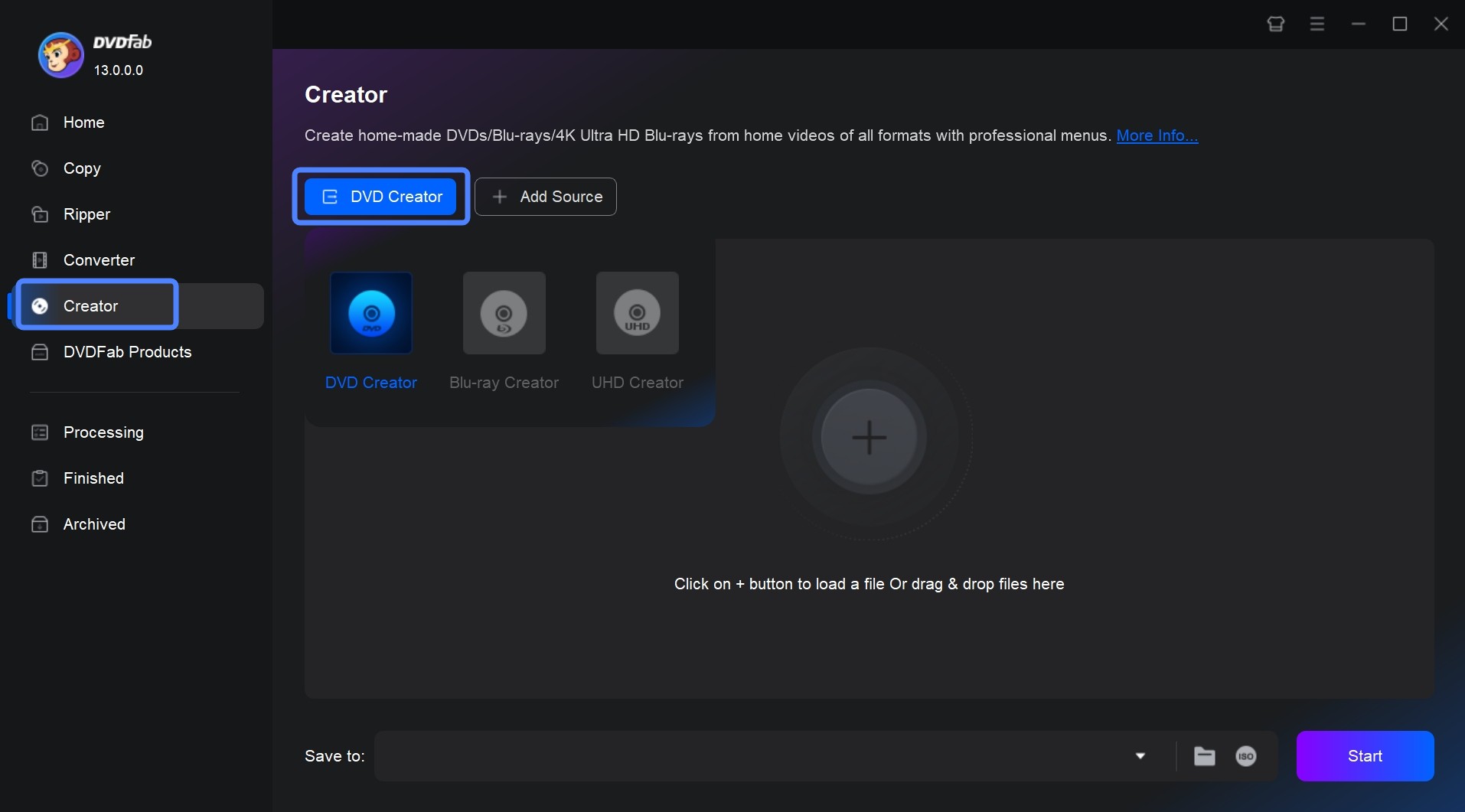
Launch DVDFab 13 and navigate to the "Creator" module at the top. Click the "Mode Switcher" on the left and choose "DVD Creator". Then, drag and drop your MKV file into the main interface or click the "+" button to load it.
Free Download Windows 11/10/8.1/8/7
Free Download macOS 10.13 - 15.x
Step 2: Configure Output Size (DVD-5/9) and TV Standard
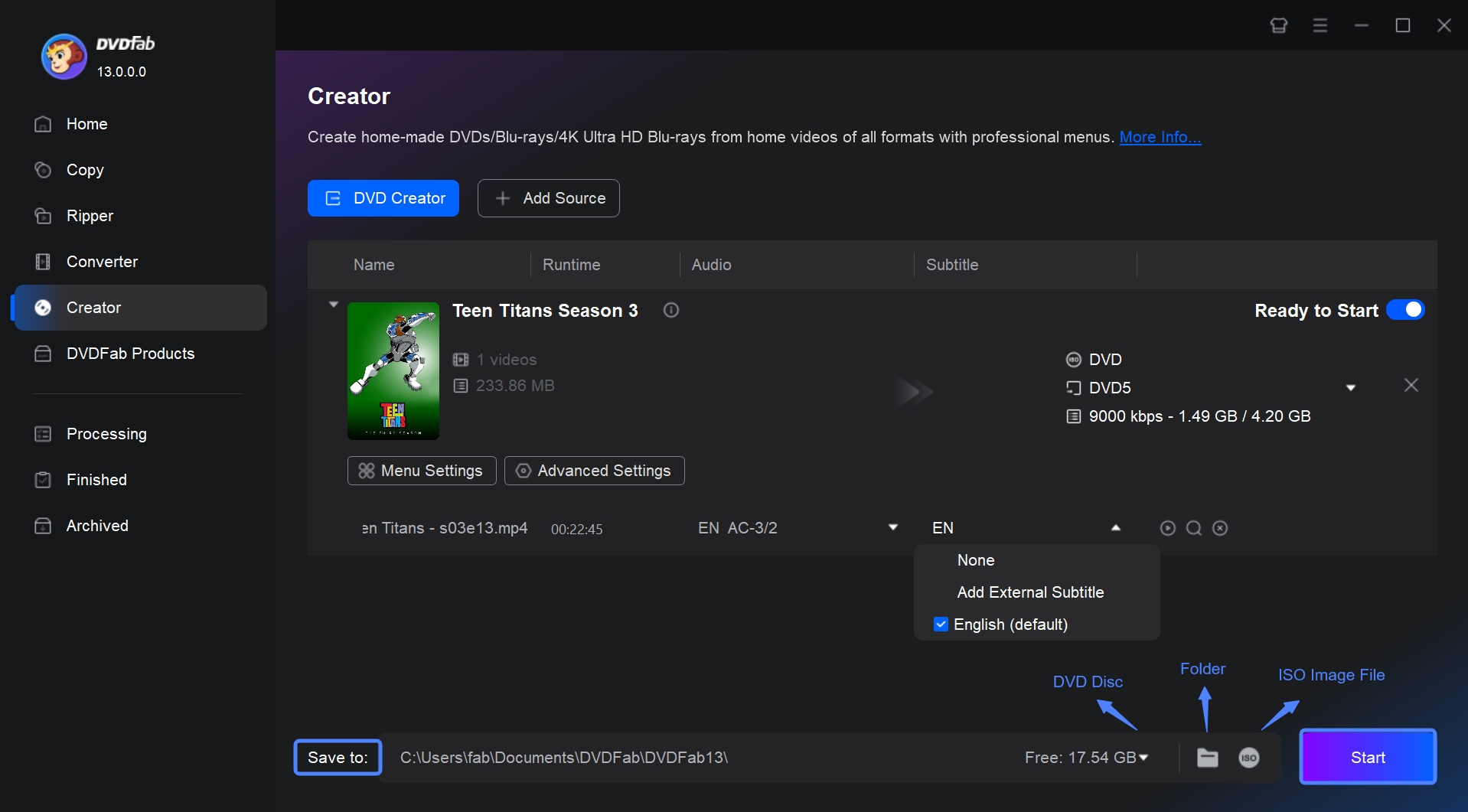
Once loaded, you will see a detailed input and output information of your file on the interface. Here, you can select audio tracks and subtitles, or add external subtitles.
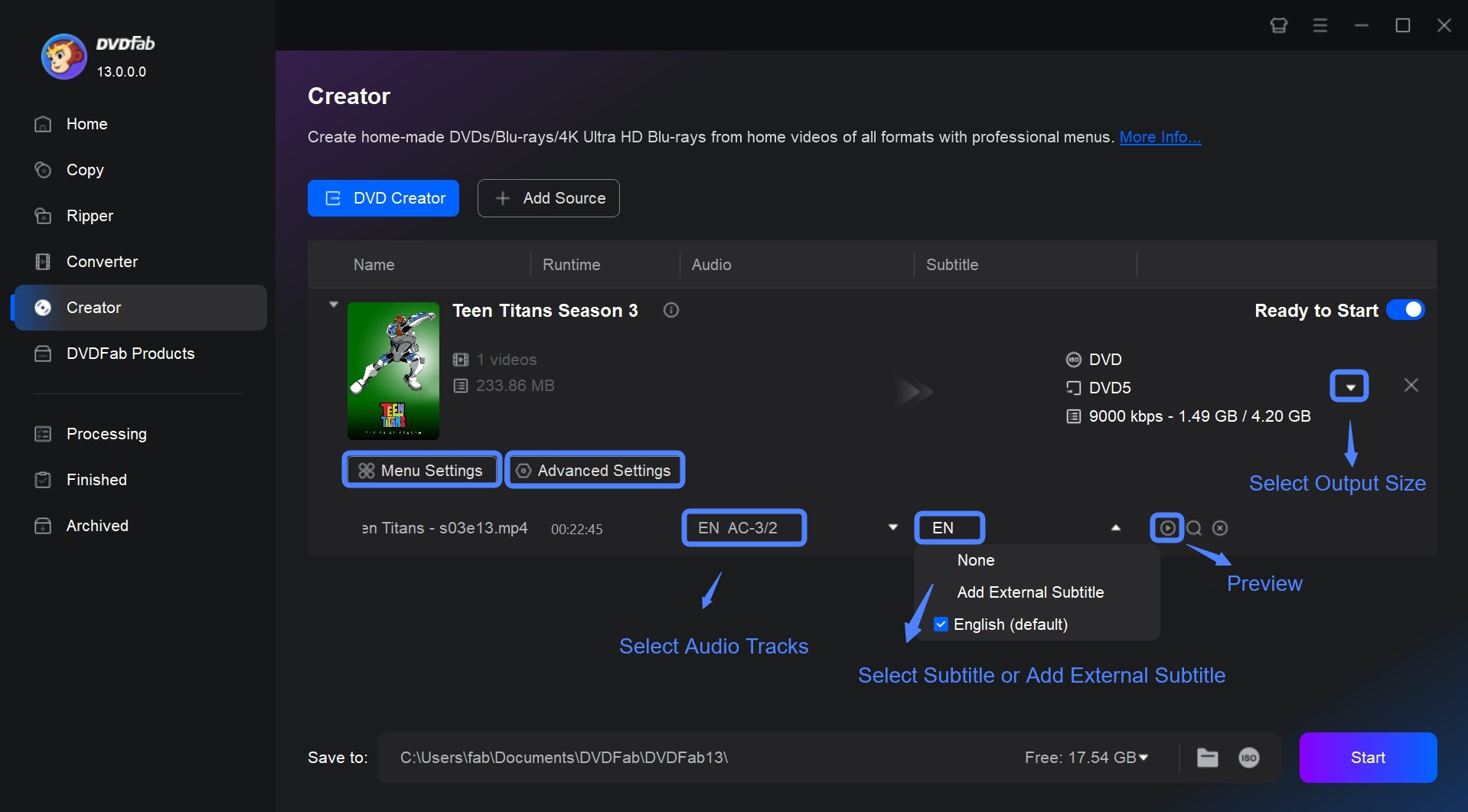
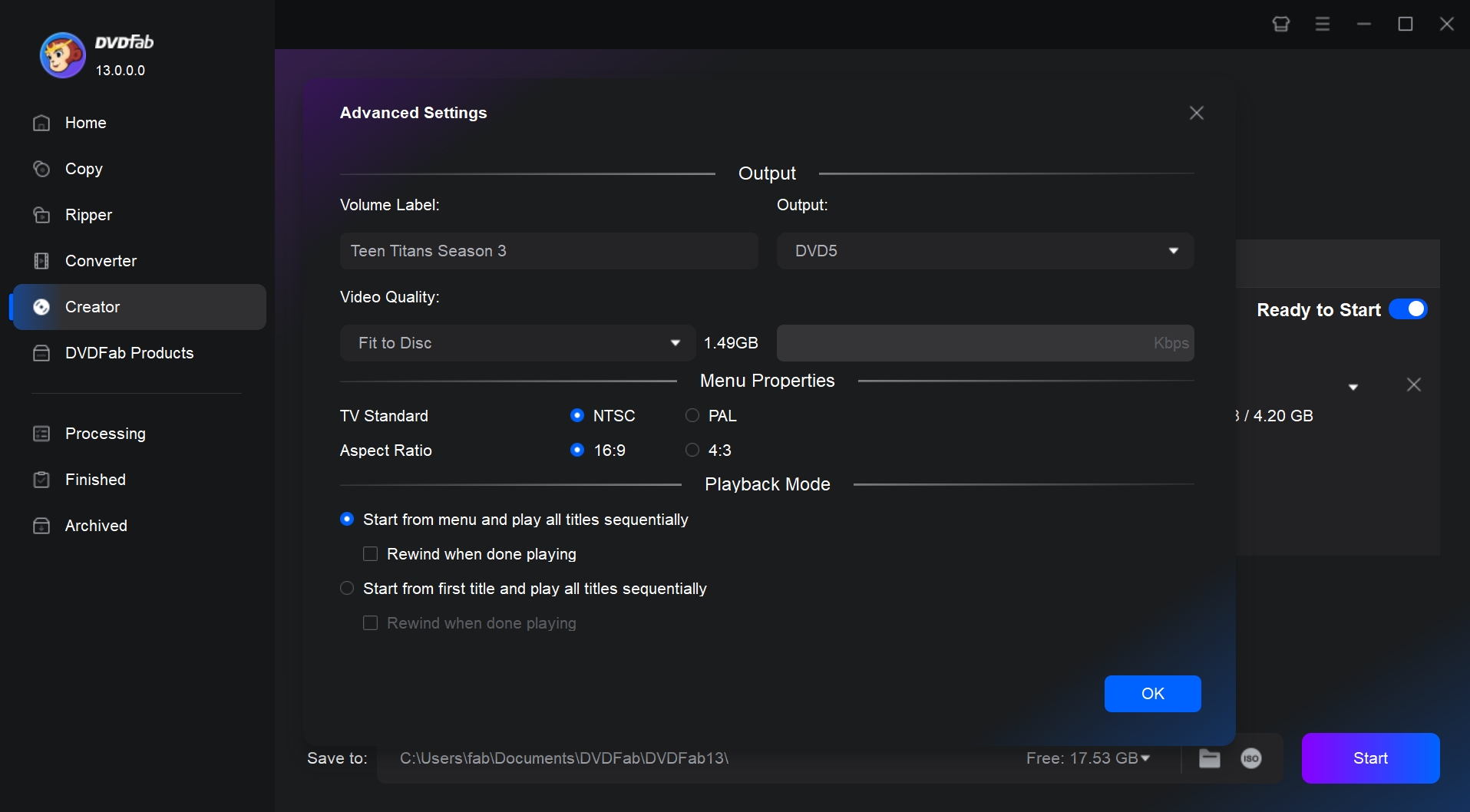
Then click "Advanced Settings" to set up output parameters. Select the "Output Size" as DVD-5 for standard 4.7GB discs or DVD-9 for dual-layer 8.5GB discs to maximize quality. Also, ensure the TV Standard is set to NTSC (for North America/Japan) or PAL (for Europe/China) to ensure the disc plays correctly on your TV.
Step 3: Customize Menu Templates & Edit Videos
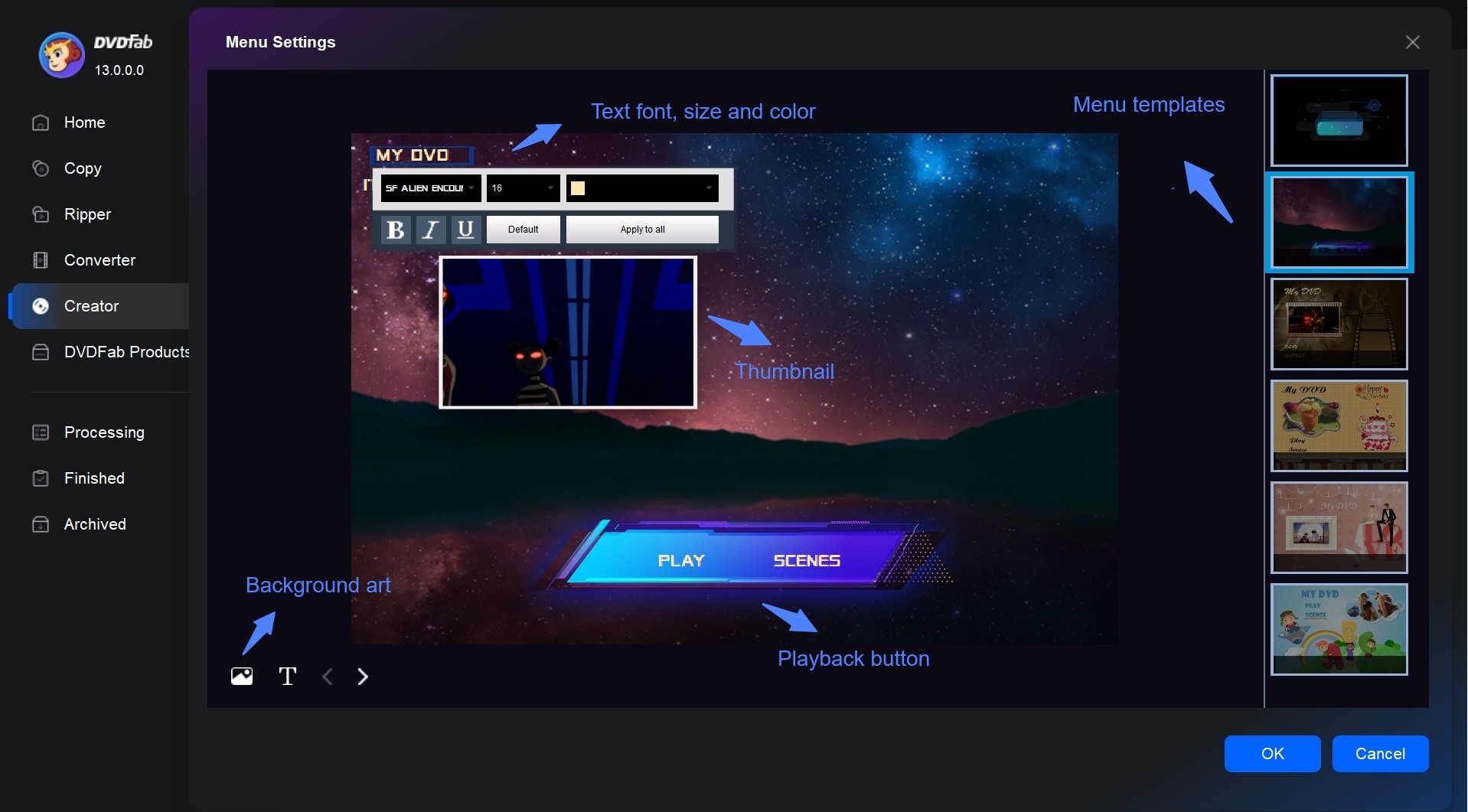
Next, proceed to "Menu Settings" to create your DVD menu. You can select from various templates for special events, such as birthdays and weddings in the new window. Then, change the playback buttons, titles, and thumbnails, and personalize the background.
Step 4: Start to Burn MKV to DVD
Select your optical drive in the "Save to" dropdown menu at the bottom. Click "Start" to begin burning. Thanks to GPU acceleration, you can monitor the progress in real-time, and the process should complete rapidly compared to other tools.
How to Convert MKV to DVD with DVDStyler
- OS: Windows, macOS, and Linux.
- Input: MKV, MP4, AVI, and more.
- Output: DVD-R/RW, DVD+R/RW, and Dual Layer (DL) discs.
- My experience using it: It is completely free and watermark-free, though I found the interface a bit clunky and had to retry the process a few times to get a successful burn without errors.
DVDStyler is a free tool to help you burn MKV files to playable DVD discs. It gets the job done for basic home projects if you want to avoid the trial limitations or forced watermarks often found in other free video to DVD converter.
The software allows you to manually place buttons and text anywhere on the menu screen, which gives you more freedom than standard templates. However, the interface hasn't changed much in years and can feel a bit technical for beginners.
Step 1: Launch DVDStyler and Create a New Project
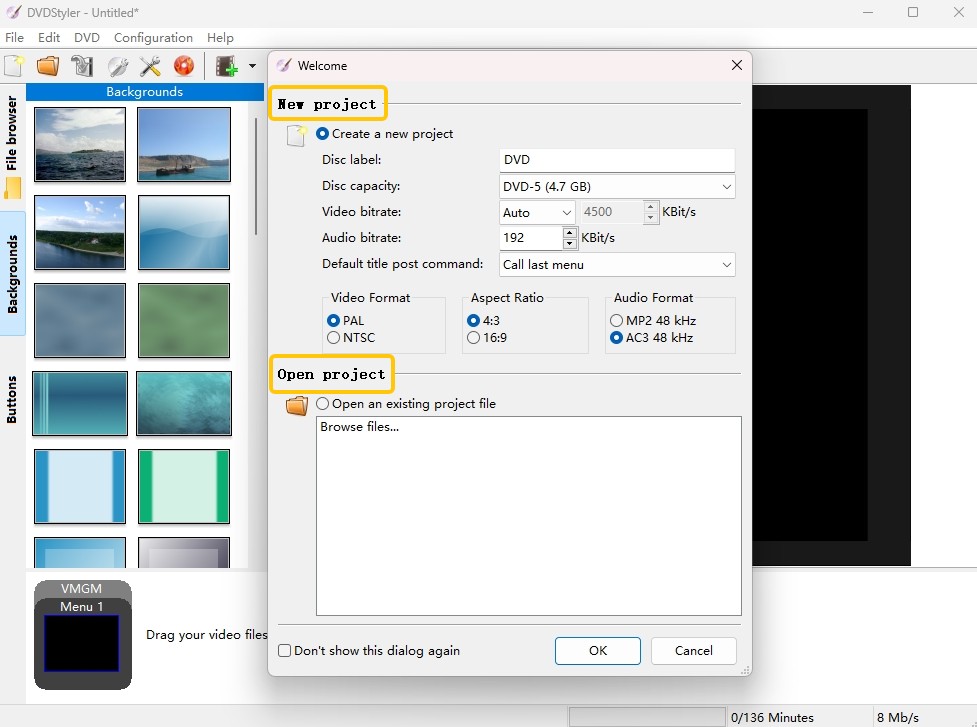
Launch DVDStyler and a "Welcome" dialog will appear. Select "Create a new project" and set disc label, capacity, video/audio bitrate as well as video and audio format and aspect ratio.
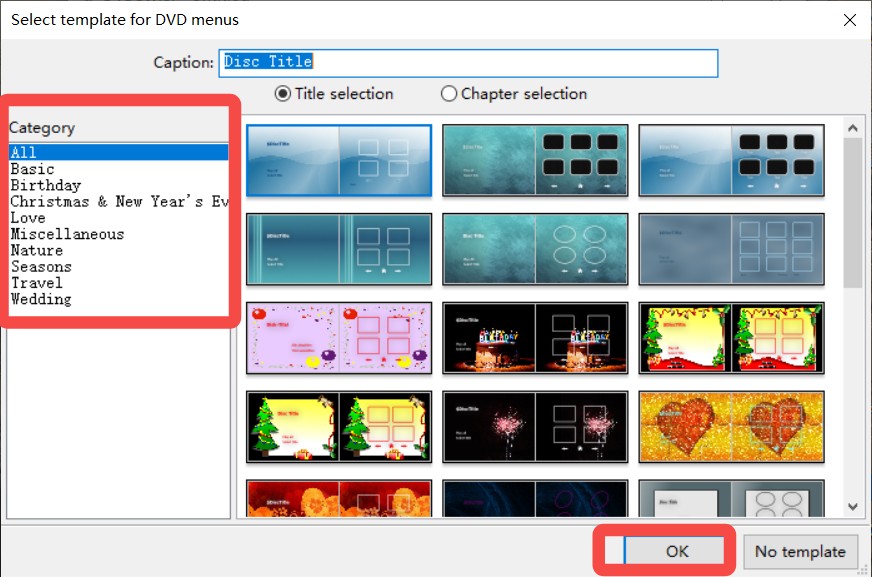
Step 2: Select Template for DVD Menus
Once done with the settings, click "OK". On the next window, select a preferred menu template. If you do not want any template, click the "No template" button in the bottom-right corner.
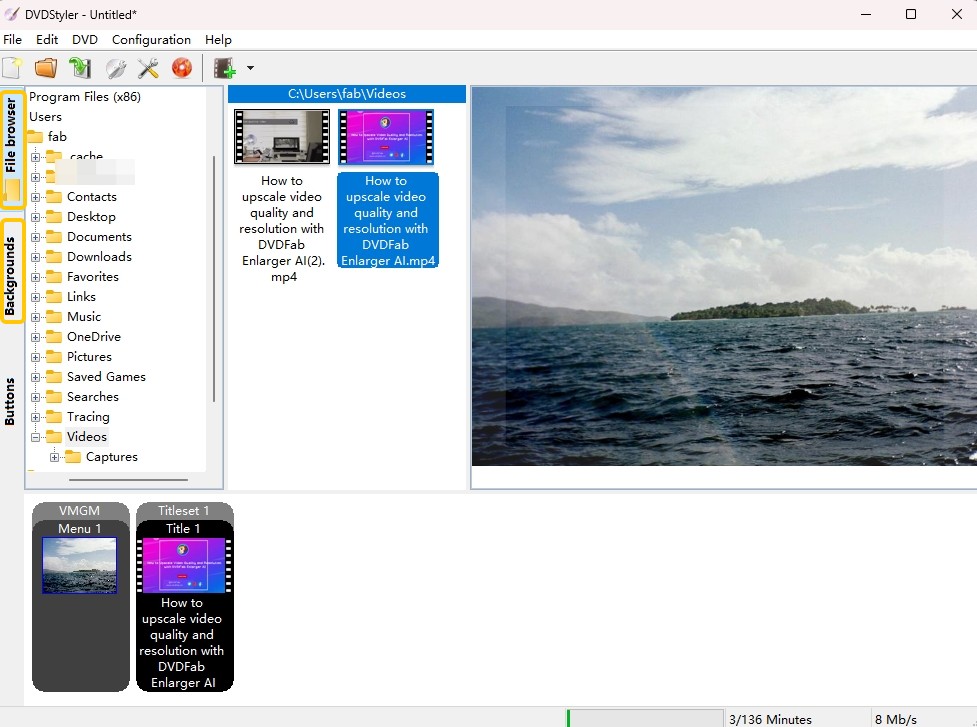
Step 3: Load Your MKV Video
Then, use the "File Browser" on the left to find your MKV video or simply drag and drop your MKV files into the "Title Set Manager" area at the bottom.
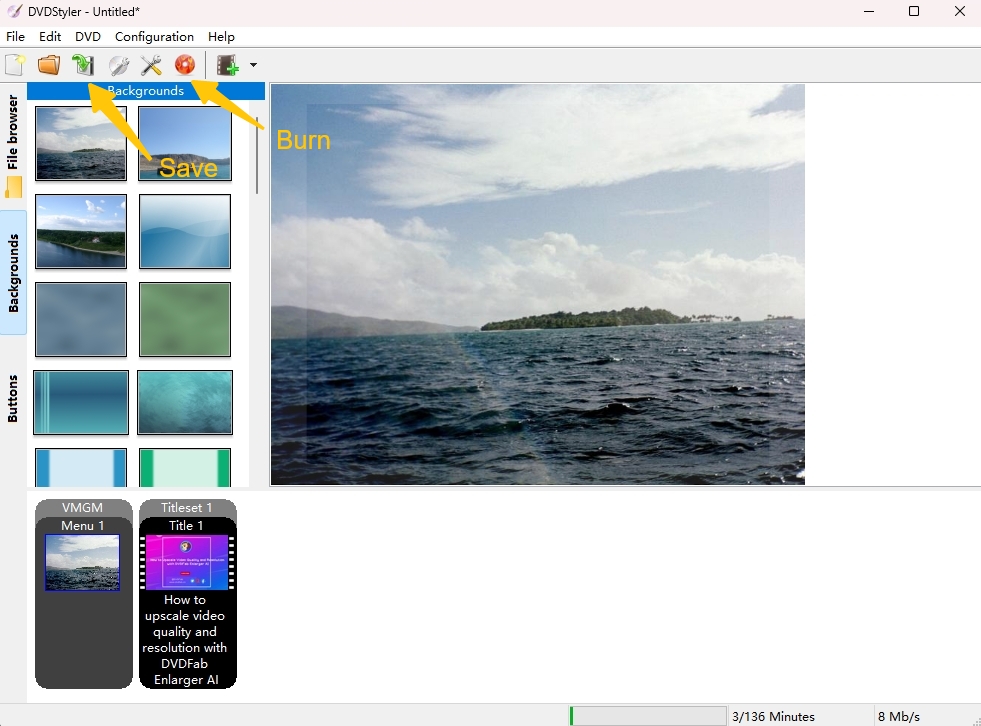
💡Tips: Use the Settings button on the Menu tab, you can get more advanced settings.
Step 4: Generate ISO or Burn to Disc
Click the red "Burn" icon in the toolbar. In the burn dialog, you can choose to generate an "ISO image" for later use or write directly to your optical drive by selecting "burn" and hitting "Start".
How to Convert MKV to DVD with Freemake Video Converter
- OS: Windows 11, 10, 8, 8.1, 7, Vista.
- Input: MKV, MP4, AVI, and more.
- Output: DVD-R/RW, DVD+R/RW, Dual Layer (DL) discs, ISO
- My experience using it: I found the colorful interface very easy to navigate for quick tasks, but the large watermark on the final DVD was quite distracting when I watched the movie on my TV.
Freemake Video Converter can convert MKV, MP4, AVI, and other files to DVD. It supports various optical media, including DVD+/-R and ISO files while also offering customizable menu templates and basic video editing features like trimming and rotation.
The free version has two notable limitations to be aware of before using this free DVD burning software. All output video carries a visible brand watermark. Also, the installer offers optional third-party software during setup; use the custom installation path and decline those offers to avoid installing unwanted programs.
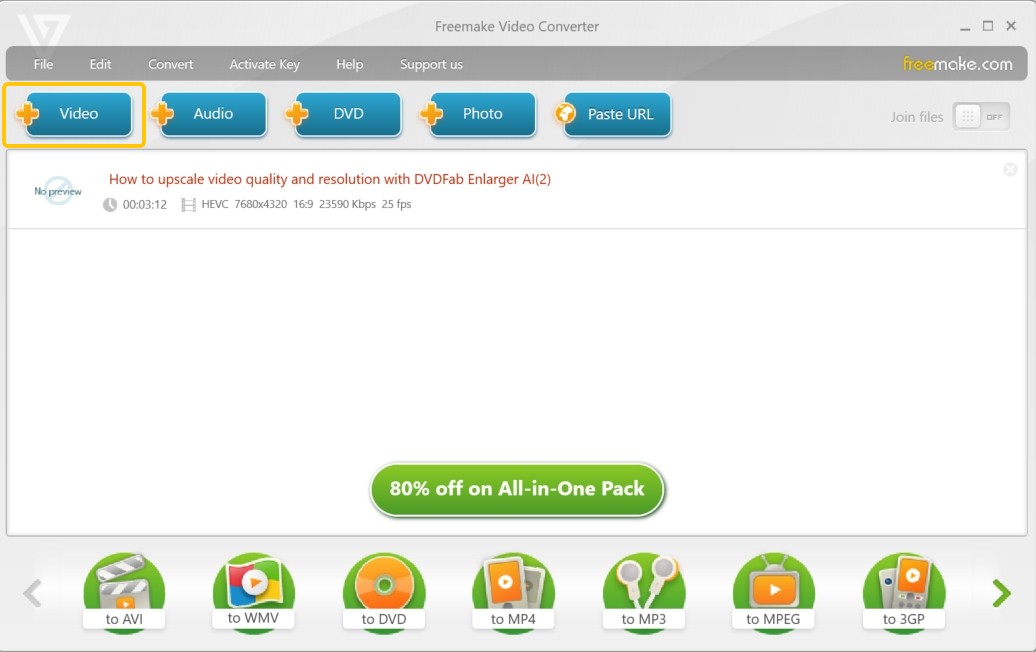
Step 1: Open Freemake and Add MKV Video
Open Freemake and simply drag your MKV files into the main window, or click the "+Video" button to browse for them.
Step 2: Choose "to DVD" Output Option
Click the "to DVD" to start customizing your DVD output. You can change audio preferences, video system (PAL/NTSC), and menu style.
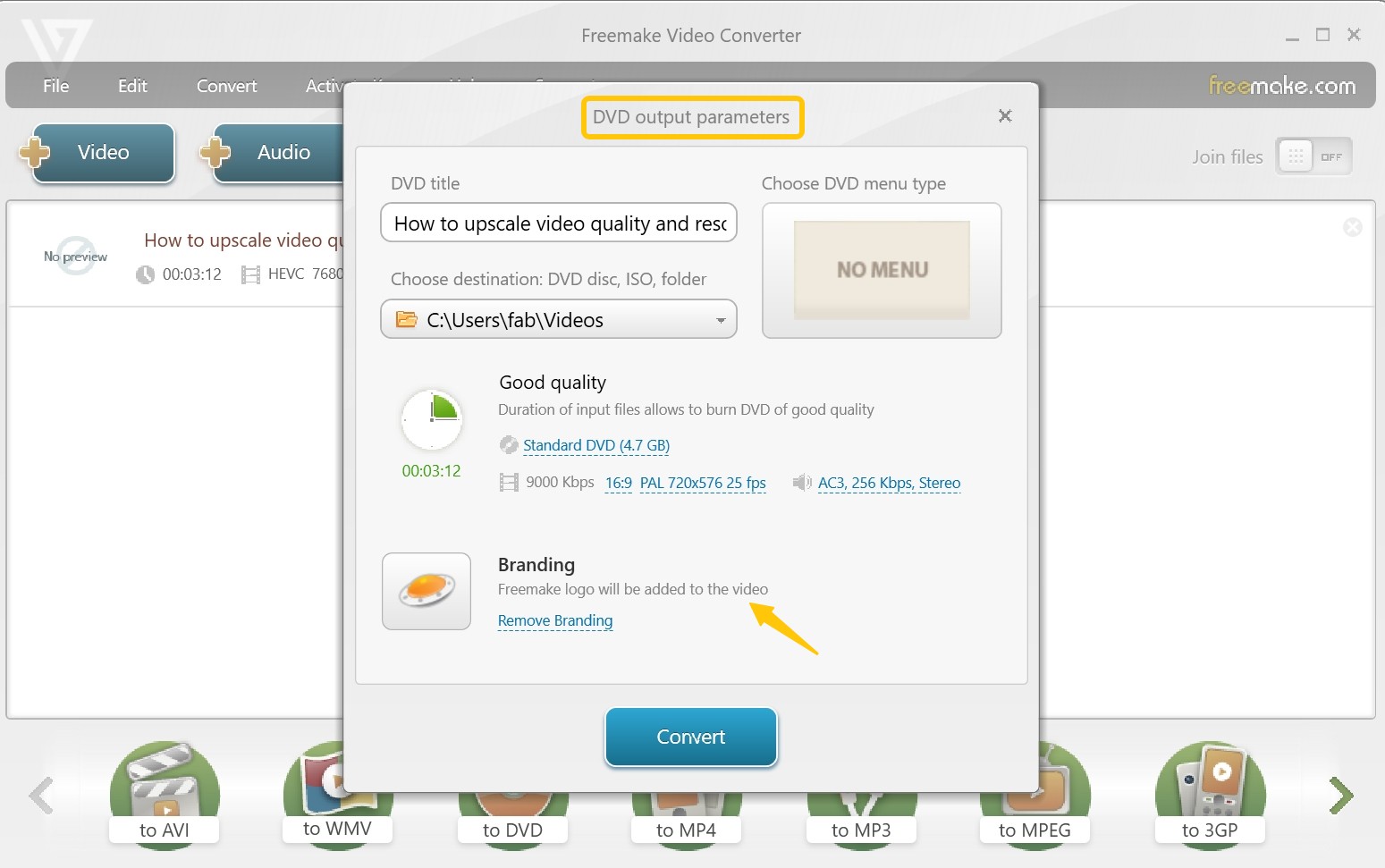
Step 3: Begin Burning MKV to DVD
Put a blank disc into the optical drive. After making sure everything is configured properly, click the "Burn" button to begin converting your MKV video onto the disc.
How to Convert MKV to DVD with WinX DVD Author
- OS: Windows 7/8/10/11
- Input: MKV, MP4, AVI, and more.
- Output: DVD discs
- My experience using it: Installation required more steps than the other tools, and encoding was the slowest in my test by a significant margin.
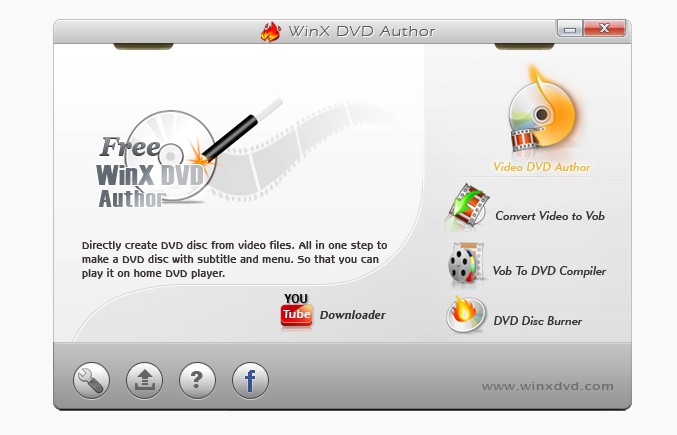
WinX DVD Author is an option for Windows users looking to convert MKV to DVD without watermarks, provided you have plenty of patience. The software provides four burning modes, including "Video DVD Author", "Vob to DVD Compiler", "Convert Video to Vob", and "DVD Disc Burner".
While it has features like "Deinterlacing" to improve picture quality on older screens, the aging engine struggles with heavy tasks. In my specific test, it took over an hour (1h 02m) to burn a single movie - four times longer than the top performers.
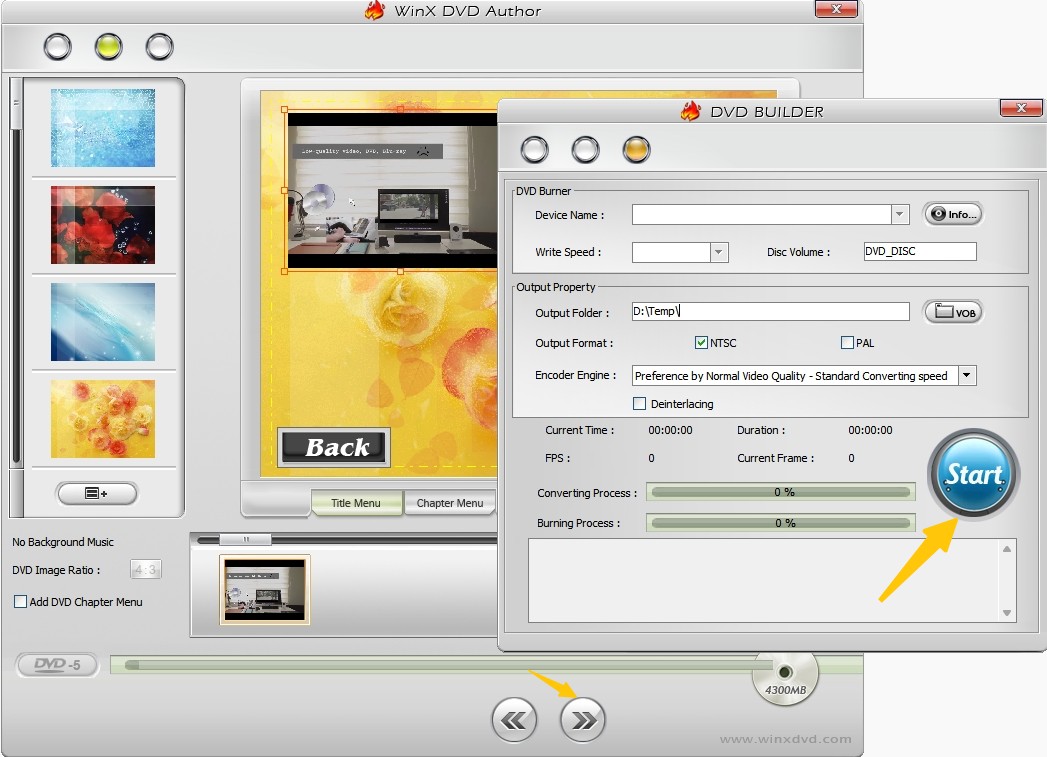
Step 1: Open WinX DVD Author and Select "Video DVD Author"
Launch the software. Since there is no startup wizard, you will see the main menu with four options. Click on "Video DVD Author".
Step 2: Add MKV Files Manually
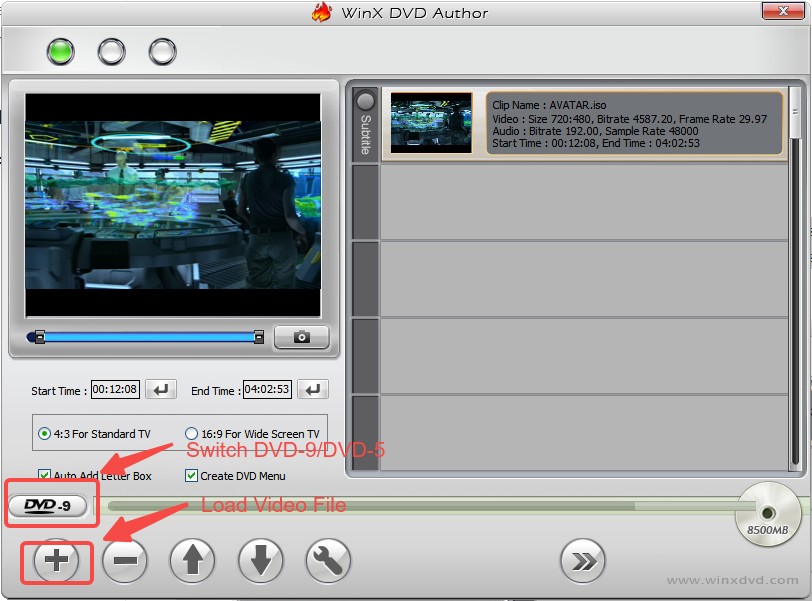
Click the "+" (Add Files) button to locate your videos. Note that drag-and-drop is not supported, so you must browse for files manually. You can also use the basic trim tool here to cut out unwanted parts of the video.
Step 3: Create a Simple Menu
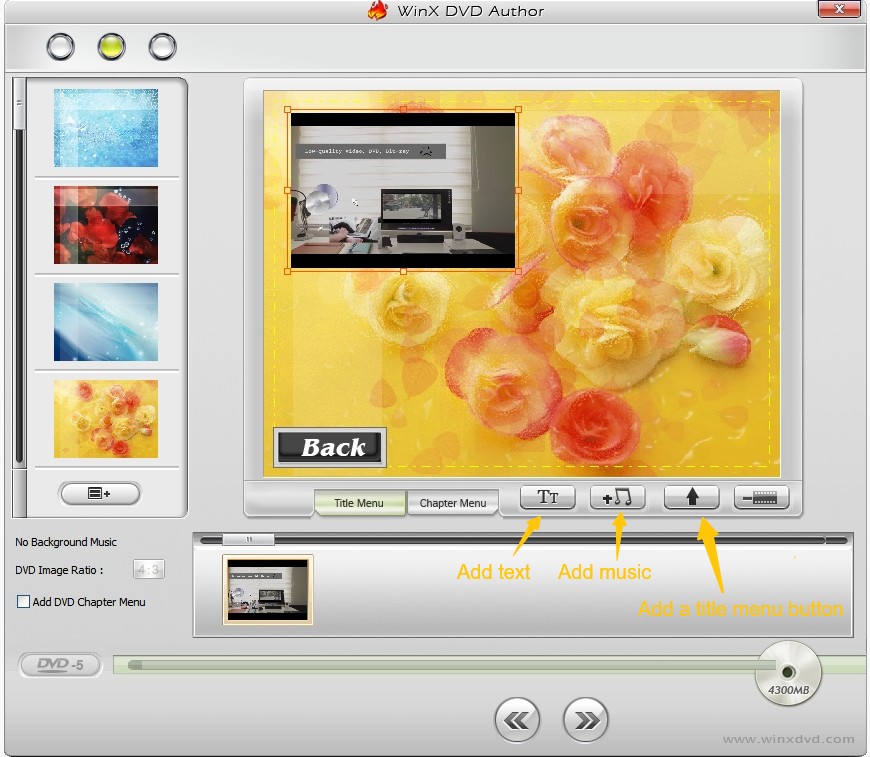
Click the "Next" arrow to enter the menu setup. The tool provides 4 basic menu templates where you can add background music or text. There is no preview function.
Step 4: Burn MKV to DVD Disc
Insert a blank disc and click the "Start" button. WinX DVD Author will begin the transcoding process. Be prepared to wait, as my test showed it took over an hour to burn a standard movie file.
FAQs
How to burn MKV to DVD with VLC or Handbrake?
Neither VLC nor HandBrake can burn video files directly to a DVD disc. VLC is a media player that also handles format conversion between containers, and HandBrake is a video transcoder — but neither one generates the VOB file structure and IFO/BUP navigation files that a standard DVD player requires. To produce a playable disc, you need dedicated DVD authoring software such as DVDFab or DVDStyler, which handles both the transcoding step (MKV to MPEG-2) and the authoring step (building the correct disc structure).
How do I burn multiple MKV files onto one DVD?
DVDFab DVD Creator lets you load multiple MKV files into a single project by dragging them all into the main interface before burning. Each file is treated as a separate title with its own chapter entry in the DVD menu. Keep in mind that a DVD-5 disc holds about 4.7GB. If your total video runtime is long, switch to a DVD-9 disc (8.5GB dual layer) in Advanced Settings, or reduce the output bitrate slightly to fit the content. DVDStyler also supports multiple titles per disc and allows you to assign separate menu buttons to each file.
Will subtitles be preserved when I convert MKV to DVD?
It depends on the tool and subtitle format. DVD-Video uses a specific subtitle format called DVD subpictures, which are bitmap-based rather than text-based. When you burn an MKV with embedded text subtitles (SRT, ASS, SSA), the authoring software converts them into DVD subpictures during encoding. DVDFab supports SRT, SMI, ASS, and SSA subtitle formats and handles this conversion automatically. DVDStyler supports SRT, ASS, and SUB. If your MKV has external subtitle files, load them during the setup step before burning.
Can a DVD player read MKV files?
No. Even if your player has a USB port, it will not play an MKV file copied to a USB drive, because the codecs inside an MKV (typically H.264 or H.265) exceed what a standard DVD player can decode. DVD players are designed for MPEG-2 video inside a VOB container with a specific IFO/BUP file structure. You need to convert the MKV to that DVD-Video format using one of the tools listed above before the disc will play.
Conclusion
Choosing the right tool to convert MKV to DVD depends entirely on your priority for speed and cost. For the best viewing experience, DVDFab DVD Creator is my top recommendation, as it delivered the sharpest picture quality and fastest burning speed. Alternatively, DVDStyler offers a viable, completely free solution without watermarks, provided you have the patience for its complex interface. By selecting either of these top performers, you ensure your MKV videos is preserved on disc without sacrificing the viewing experience.

 How to Burn MP3 to DVD: Best Audio DVD Creators Compared (2026)By Wenny Yan - Jul 10, 2026
 How to Burn Video_TS to DVD on Windows and Mac: 4 Methods That WorkBy Diana Smith - Jul 1, 2026
 Top 9 Free DVD Burners for Mac in 2026: Tested & ReviewedBy Diana Smith - Jun 23, 2026
 Convert Video to DVD: 8 Best and Free Video to DVD Converters in 2026By Diana Smith - Jun 15, 2026