DVDFab Blu-ray Ripper Review 2026: Quality, Speed, and Reliability

Summary: This DVDFab Blu-ray Ripper review looks at how the software handles real Blu-ray discs, from disc detection and decryption to profiles, AI enhancement, and hardware-accelerated encoding. Test results on a full-length movie show that it can produce both compact H.265 files and near-disc MKV backups quickly on mid-range hardware. Based on my experience, it makes the most sense for users planning to build or maintain a serious Blu-ray library.
Table of Contents
My Blu-ray collection includes remastered films, concert discs, and imported editions that are not always available from streaming services. The files also need to retain the audio tracks and subtitles that made me buy the discs in the first place. A DVDFab Blu-ray Ripper review therefore needs to answer more than whether the program can export MP4: it must show what it reads, preserves, and costs.
For this DVDFab Blu-ray Ripper review, I tested the movie 2012 on Windows 11 with an RTX 4060 Ti and an Intel i7-6700. I checked title detection, H.264 conversion, MKV Passthrough, audio and subtitle controls, licensing limits, and recent update records before reaching a verdict.
Is DVDFab Blu-ray Ripper Worth It?
DVDFab Blu-ray Ripper, a functional module of DVDFab 13, is worth considering for people who own standard Blu-ray movie or TV discs and want to convert them directly to MP4, MKV, M2TS, or audio files. It can scan commercial disc structures, identify likely main titles, and let you select the video, audio, subtitles, and chapters before conversion.
Its main advantage is that disc reading and file conversion happen in the same application. You do not need to extract the Blu-ray with one program and encode the result with another. MKV Passthrough can retain selected source streams without video re-encoding, while H.264, H.265, and AV1 profiles provide smaller files for compatible playback devices.
The limits are equally important. The standard Blu-ray Ripper module does not process 4K Ultra HD Blu-ray discs; that requires DVDFab UHD Ripper and a compatible UHD drive. Cinavia Removal and AI enhancement functions also use separate products, authorizations, or cloud credits.
| Review question | Verdict |
| Recommended use | Commercial or homemade standard Blu-rays, Blu-ray ISOs, and BDMV folders |
| Common outputs | MP4, MKV, M2TS, H.264, H.265, AV1, and common audio formats |
| Quality options | Passthrough output or compressed video profiles |
| Main strengths | Title analysis, direct conversion, audio and subtitle selection, and hardware acceleration |
| Main limits | No UHD-disc input in this module; some AI and Cinavia functions cost extra |
| Trial | 30 days, with up to three complete disc conversions |
| Internet requirement | Required for activation and Cloud Decryption |
A general video converter may be sufficient for an unprotected Blu-ray folder that has already been copied to a computer. DVDFab Blu-ray Ripper becomes more relevant when the software must first analyze a commercial disc, locate the correct playlist, and produce a file for a specific playback device.
Current Version, System Requirements, Trial, and Licensing
DVDFab Blu-ray Ripper is distributed as a module inside DVDFab 13. The installer contains several disc tools, but a Blu-ray Ripper license does not automatically authorize UHD Ripper, Blu-ray Copy, Cinavia Removal, or every AI module.
System Requirements
| Requirement | Windows | macOS |
| Operating system | Windows 11 or 10, 64-bit | macOS 12 or newer |
| Processor | Intel i3 or higher | Intel Core i5 or Apple Silicon |
| Memory | 4 GB or more | 4 GB or more |
| Storage | About 100 GB of free space | About 100 GB of free space |
| Optical hardware | Blu-ray drive | Blu-ray drive |
| Internet | Required for activation and online decryption data | Required for activation and online decryption data |
These are minimum requirements, not a prediction of ripping speed. A recent supported GPU can reduce H.264 or H.265 encoding time, but MKV Passthrough depends more heavily on disc-reading speed and the condition of the source.
Trial, Free Mode, and Paid Licenses
The 30-day trial allows new users to process up to three complete discs. This is enough to check whether the software recognizes a specific drive, detects the correct movie or episode titles, and produces files that play correctly on the intended device.
After the advanced trial expires, DVDFab continues as HD Decrypter. The free mode supports a narrower range of older discs and limited MP4 or MKV output, so it should not be treated as a permanent replacement for the licensed Blu-ray Ripper when newer commercial discs are involved.
Paid options include a 1-year license and a lifetime license. Each licensed account is also subject to DVDFab's fair-use quota of 100 disc-processing tasks per week, which resets at the beginning of the next weekly cycle.
Evolution and Core Blu-ray Technologies
DVDFab Blu-ray Ripper reads standard movie Blu-rays, Blu-ray ISO images, and disc folders. It can export a compact playback copy or retain selected streams through Passthrough profiles, but it does not create a complete Blu-ray disc backup. Saving the full disc as an ISO, folder, or recordable Blu-ray belongs to DVDFab Blu-ray Copy.
Updates Focused on Blu-ray Ripping
The update history shows development in four areas: support for newer disc structures, additional codecs, optional video enhancement, and better handling of damaged or difficult-to-read media.
| Date | Blu-ray-related update | Effect on the user |
| Dec 6, 2024 | NVIDIA AI Enhancer added for Blu-ray sources with 4K HDR10 MP4/MKV output | Added optional upscaling and SDR-to-HDR10 processing |
| Jan 21, 2025 | AV1 SDR output added, plus 4K AV1 HDR10 with NVIDIA AI Enhancer | Provided another compression option for compatible hardware and players |
| May 10, 2025 | AI Upscaler added for Blu-ray enhancement to 1080p or 4K | Added optional enhancement for lower-quality Blu-ray sources |
| Aug 1, 2025 | Support added for newer Blu-ray Java protection | Expanded compatibility with recently released disc structures |
| Nov 12, 2025 | Additional Blu-ray Java protection support | Continued compatibility updates for newer discs |
| Jan 21, 2026 | New Blu-ray Java protection support and disc-reading fixes added to the Mac release | Continued work on protected-disc recognition and loading failures |
| Apr 23, 2026 | Subtitle Generator AI and damaged-disc read-error handling added to the Mac Ripper module | Added multilingual SRT generation and more controlled reading of scratched or aging discs |
No single update proves that every new disc will load successfully. The longer pattern is more meaningful: the dated entries show continued engineering work on protection compatibility, disc reading, codecs, subtitles, and optional video processing instead of leaving the ripping engine unchanged.
The Mac changelog records releases through June 2026, while the Windows release list reached DVDFab 13.0.6.3 in July 2026. This continuing release activity matters because support for a newly released Blu-ray may depend on data added after the software version originally installed on the computer.
Core Technologies in Blu-ray Scenarios
BluPath: Disc Analysis and Playlist Detection
BluPath analyzes the playlists stored on a Blu-ray and attempts to separate the actual movie or episodes from misleading or duplicated entries. The result appears as a selected main title, with Choose Other Titles available when the user needs a different cut, bonus feature, or episode.
Cloud Decryption: Updated Disc Data
Cloud Decryption supplies updated disc information through DVDFab's online service. This is why an internet connection remains necessary even when the final video is stored locally. If the software encounters an unfamiliar disc structure, a later update may be required before that title loads correctly. More information is available in the guide to decrypting a Blu-ray.
What Requires Another Product or Add-On?
- 4K Ultra HD Blu-ray input: Requires DVDFab UHD Ripper and compatible UHD hardware.
- Complete Blu-ray disc or ISO backup: Requires DVDFab Blu-ray Copy.
- Cinavia processing: Requires Blu-ray Cinavia Removal.
- AI upscaling or HDR conversion: Requires the relevant AI authorization and supported hardware or cloud service.
- Detail Refiner AI: Uses a separate license-and-credit model.
- Subtitle Generator AI: Uses FabCloud credits when generating subtitles from disc audio.
These distinctions should be checked before purchasing. A feature appearing inside the DVDFab interface does not necessarily mean it is included with the standard Blu-ray Ripper license.
How DVDFab Blu-ray Ripper Performed in My Test
Test Conditions
| Item | Test configuration |
| Operating system | Windows 11 |
| Processor | Intel Core i7-6700 |
| Graphics card | NVIDIA GeForce RTX 4060 Ti 8 GB |
| Source | 2012 Blu-ray |
| Movie runtime | 2 hours 26 minutes |
| Source size | 33.4 GB |
| Tested outputs | MP4 H.264 and MKV Passthrough |
This is a GPU-equipped desktop test, so the H.264 result should not be used to predict performance on a computer that relies only on software encoding. Disc condition, optical-drive speed, selected codec, resolution, bitrate, and hardware acceleration can all change the completion time.
Loading and Configuring the Blu-ray
Step 1: Open Ripper and load the Blu-ray
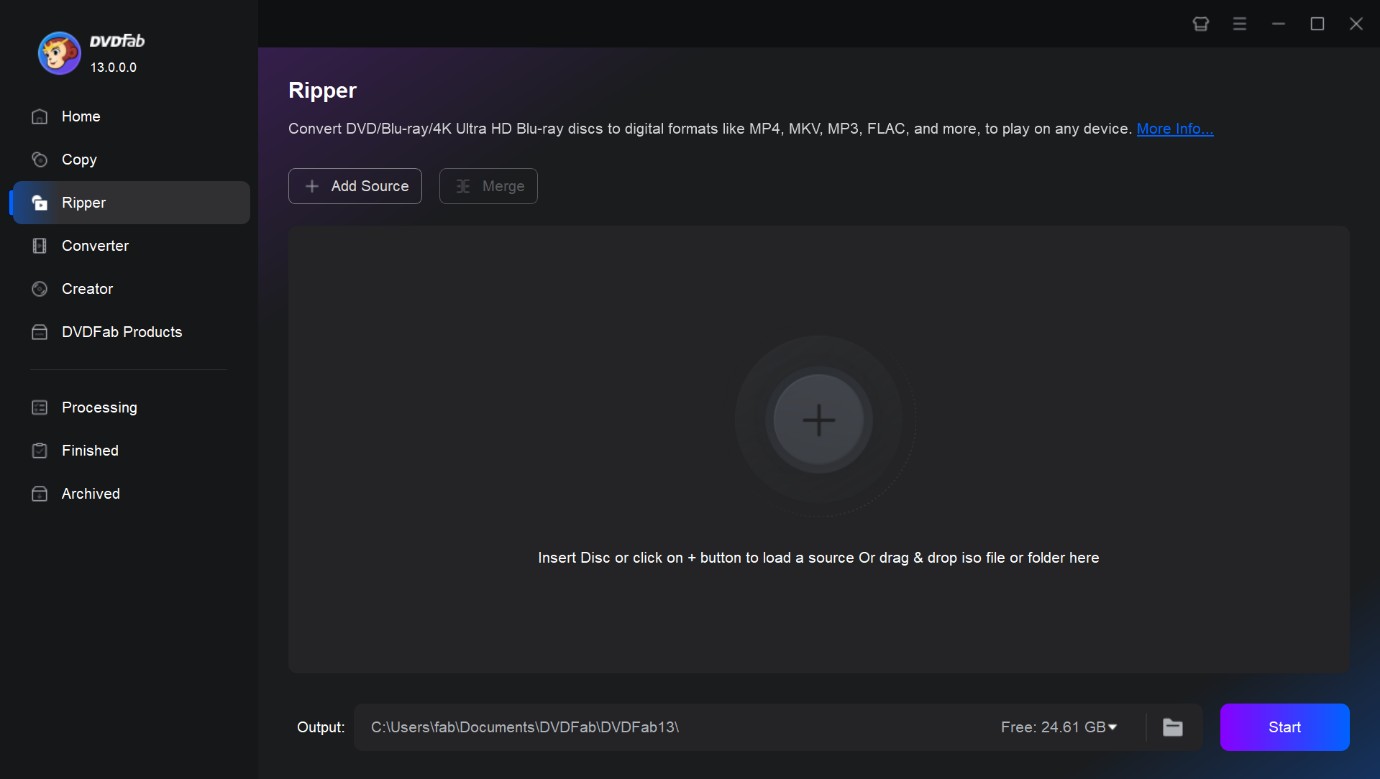
Open DVDFab 13, select Ripper, and insert the Blu-ray. An ISO or Blu-ray folder can also be dragged into the central source area.
Free Download Windows 11/10/8.1/8/7
Free Download macOS 10.13 - 15.x
Step 2: Check the selected movie title
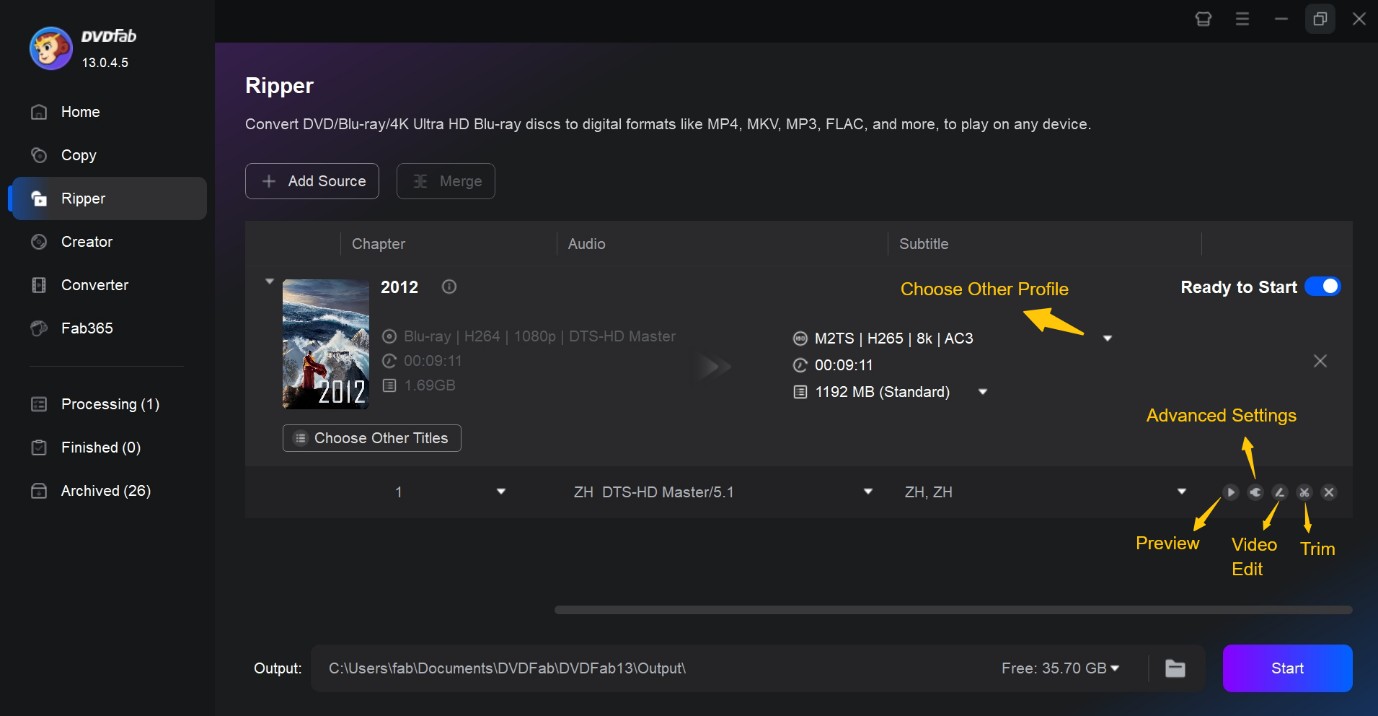
Compare the detected title with the expected runtime. If the program selects a bonus feature, short playlist, or different cut, open Choose Other Titles and select the appropriate entry manually.
Step 3: Select the output profile, audio, and subtitles
I used MP4 H.264 for a broadly compatible playback file and MKV Passthrough for a version that retained the selected streams without video re-encoding. MKV is the more suitable container when multiple audio tracks, PGS subtitles, or lossless Blu-ray audio need to be retained.
- Check that the selected title uses the expected 1080p resolution.
- Select the required audio languages and remove tracks that are not needed.
- Decide whether subtitles should remain selectable or be rendered into the video.
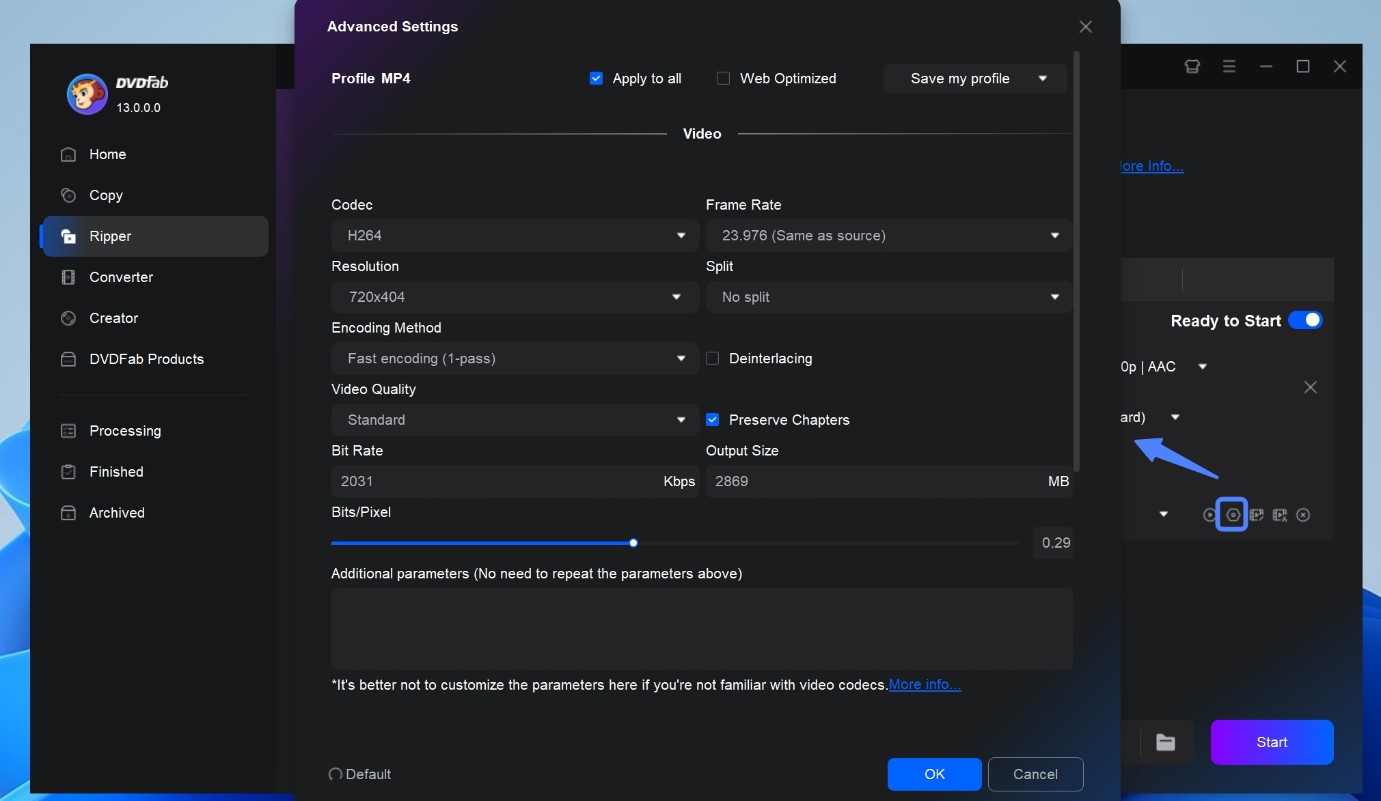
Step 4: Check the destination and start the task
Confirm the output folder and available storage, then click Start. Exporting a short chapter first is useful when the selected player has uncertain support for the audio codec or subtitle format.
Performance Results
The test covered a compressed Blu-ray to MP4 file for common playback devices and a Blu-ray to MKV Passthrough file that retained the selected source streams.
| Output profile | Processing method | Ripping time | Main trade-off |
| MP4 H.264 | Re-encoded video | 7 min 24 sec | Smaller and more widely playable, but not a bit-for-bit copy |
| MKV Passthrough | Retains selected source streams | About 7 min | Preserves more disc content but requires substantially more storage |
On this test computer, GPU-accelerated H.264 conversion did not add a large time penalty compared with MKV Passthrough. The result is specific to this hardware and source; an older GPU or software-only encoder can take longer.
The two profiles serve different purposes. MP4 H.264 is the safer choice for televisions, laptops, tablets, and other devices with limited codec support. MKV Passthrough is preferable when retaining the original video stream, lossless audio, and selected subtitles matters more than file size.
DVDFab Blu-ray Ripper Pros, Cons, and User Feedback
Pros
- Reads standard Blu-ray discs, ISO images, and Blu-ray folders in one application.
- Provides direct MP4, MKV, M2TS, and audio output without requiring a separate encoder.
- Lets users select titles, chapters, audio languages, and subtitle streams.
- Offers Passthrough profiles for retaining selected source video and audio.
- Offers built-in video editor to customize the Blu-ray.
- Uses supported NVIDIA, AMD, Intel, and Apple video hardware for compatible encoding tasks.
- Continues to receive disc-protection, reading, codec, and Ripper-module updates.
Cons
- The Blu-ray Ripper license does not include UHD Ripper, Blu-ray Copy, or Cinavia Removal.
- Several AI functions need separate authorization, supported hardware, or FabCloud credits.
What User Reports Add to the Review
Feedback for DVDFab across reviews platforms is generally positive. Users consistently praise its reliability, broad disc support, and versatility when working with Blu-ray discs. On Trustpilot, DVDFab (including its Blu-ray Ripping software) holds an Excellent rating of about 4.6 out of 5 based on more than 600 reviews, with roughly 80% of them at five stars. Many reviews explicitly mention ripping DVDs and Blu-rays for personal media servers, long-term use, and lifetime licenses.

Taken together, external user feedback lines up with the technical findings in this review: DVDFab Blu-ray Ripper is generally seen as powerful and dependable for sustained Blu-ray use.
Common Problems and FAQs
The Blu-ray Does Not Appear in DVDFab
First check whether the optical drive appears in Windows File Explorer or macOS Finder. Clean visible dust or fingerprints from the disc, reconnect an external drive, and confirm that the drive can read Blu-rays rather than DVDs only. Update DVDFab before retrying a newly released commercial title.
DVDFab Selects the Wrong Main Title
Open Choose Other Titles and compare each playlist's runtime, chapter count, audio languages, and episode order. Automatic selection can reduce manual work, but alternate cuts and TV season discs may still need manual confirmation.
The Output Has No Sound on the TV
Lossless Blu-ray formats such as DTS-HD MA and TrueHD are not decoded by every television or mobile device. Use MKV when retaining those tracks, or add AAC 5.1 or AC3 5.1 for a device that cannot play the original audio format.
Audio Becomes Unsynchronized
Export a short section with the same profile and audio settings. If the problem appears again, try another compatible output profile and submit the DVDFab log with the exact disc title, software version, and selected audio format. Switching containers alone will not correct every synchronization problem.
Is DVDFab Blu-ray Ripper free?
It has a 30-day trial limited to three complete discs. Afterward, the application changes to the more restricted HD Decrypter mode unless a Blu-ray Ripper license is activated.
Can DVDFab Blu-ray Ripper rip 4K UHD Blu-rays?
No. Standard Blu-ray Ripper processes regular Blu-rays; encrypted 4K Ultra HD Blu-ray discs require DVDFab UHD Ripper and compatible UHD hardware. Optional AI tools can upscale standard Blu-ray output, but upscaling does not turn the source into a UHD disc.
Which profile gives the best Blu-ray quality?
MKV Passthrough is the clearest choice when retaining the selected source video and lossless audio matters most. H.264 or H.265 requires re-encoding but can reduce file size for devices that do not need a disc-sized file.
How long does DVDFab take to rip a Blu-ray?
In the Windows 11 test above, a 2-hour-26-minute Blu-ray took 7 minutes 24 seconds for MP4 H.264 and about 7 minutes for MKV Passthrough. A different drive, GPU, codec, bitrate, or damaged disc can produce a different result.
Does Blu-ray Ripper remove Cinavia?
Not by itself. Cinavia processing requires the separately licensed DVDFab Blu-ray Cinavia Removal module.
Does DVDFab Blu-ray Ripper work on Windows 11 and Mac?
Yes. The Windows version supports 64-bit Windows 11 and 10, while the Mac version supports macOS 12 or newer on supported Intel and Apple Silicon systems.
Is ripping a Blu-ray legal?
It depends on the copyright and copy-protection laws in your country. Only process discs you own or have permission to copy, keep the result for permitted personal use, and do not distribute copyrighted files without authorization.
Final Verdict: Should You Buy DVDFab Blu-ray Ripper?
DVDFab Blu-ray Ripper makes the most sense for someone who regularly converts standard commercial Blu-rays and wants direct control over the main title, output codec, audio, subtitles, and file size. In my testing, it handled real Blu-ray titles reliably, identified the correct main movie without guesswork, and delivered consistent results. The workflow stays clear: load disc, check titles, pick a profile, start the job, while giving enough control over codecs, audio tracks, and subtitles for more advanced setups.

![5 Tested Tools to Convert Blu-ray to MP4 on Windows & Mac [2026]](https://images.dvdfab.cn/artifact/2026/10/08/VlnEzAK16xQgSfU_MVii_l11G2zYv56o/feature_cover.jpg) 5 Tested Tools to Convert Blu-ray to MP4 on Windows & Mac [2026]By Wenny Yan - Oct 10, 2026
5 Tested Tools to Convert Blu-ray to MP4 on Windows & Mac [2026]By Wenny Yan - Oct 10, 2026 How to Convert Blu-ray to Digital on Windows, Mac & MobileBy Wenny Yan - Oct 10, 2026
 How to Rip Blu-ray to MKV on Windows & Mac: 4 Tested ConvertersBy Diana Smith - Sep 28, 2026
 How to Convert 3D Blu-ray to 2D Video: DVDFab 3D Converter GuideBy Diana Smith - Sep 16, 2026