DVDFab 13 Review: Your Professional Disc Solution [2026 Update]

Summary: DVDFab 12 has been updated to DVDFab 13. In this DVDFab 13 review, we cover the key features, main functions, how it works, and what’s new, offering a clear overview of the suite from copy/rip/create and disc-to-disc conversion to Cinavia removal.
Table of Contents
Dear DVDFab Users:
We're excited to announce that your favorite DVDFab 12 has evolved into the more powerful and efficient DVDFab 13. Its 2026 updates have expanded Pioneer Blu-ray drive support, added DVD to UHD Converter AI, Subtitle Generator AI, and Detail Refiner AI, and addressed GPU conversion, damaged-disc reading, disc-loading, and Blu-ray Ripper issues. This review covers every major function, what changed since version 12, and which features are worth your attention depending on how you use the software.
Latest DVDFab 13 Updates in 2026
DVDFab 13 has continued to receive updates throughout 2026. Recent Windows releases have expanded optical-drive support, introduced additional AI functions, added support for newer Blu-ray Java protection, and fixed several disc-reading, loading, and GPU-related conversion problems.
| Version | Date | Main Change |
| 13.0.6.5 | Jul 30, 2026 | Latest Windows release currently listed in the DVDFab release forum. |
| 13.0.6.3 | Jul 8, 2026 | Fixed the 00:00 title-duration display in Blu-ray Ripper and crashes after loading discs in some modules. |
| 13.0.6.2 | Jun 10, 2026 | Added Detail Refiner AI to Creator and support for new Blu-ray Java protection. |
| 13.0.6.1 | May 29, 2026 | Launched Detail Refiner AI and fixed CUDA initialization failures during AI conversion in Ripper. |
| 13.0.6.0 | May 12, 2026 | Added official support for 12 Pioneer Blu-ray drive models and Pioneer support in UHD Drive Tool. |
| 13.0.5.9 | Apr 23, 2026 | Introduced DVD to UHD Converter AI for upscaling DVD sources to 4K UHD output. |
| 13.0.5.8 | Apr 20, 2026 | Added read-error handling for damaged discs and configurable retry attempts. |
| 13.0.5.6 | Jan 29, 2026 | Added Subtitle Generator AI and fixes related to Cinavia processing and soundtrack or subtitle selection. |
The Mac release schedule is separate from Windows. DVDFab for Mac 13.0.6.3 was released on June 24, 2026 and added UHD Drive Tool for compatible LG, ASUS, HP, Buffalo, and Archgon drives. Check the version for your own operating system when a feature depends on drive or platform support.
DVDFab 13 Review: Main Functions & Features
DVDFab 13 combines tools for copying discs, converting disc content to digital files, authoring video to disc, converting between supported disc formats, and processing Cinavia-protected audio on supported titles. DVDFab All-In-One combines these modules in one package for DVD, Blu-ray, and 4K UHD Blu-ray tasks. Use disc-copying and conversion features only with content you own or are authorized to process, and follow applicable local laws.
1. Copy/Burn Disc to Disc/ISO/Folder
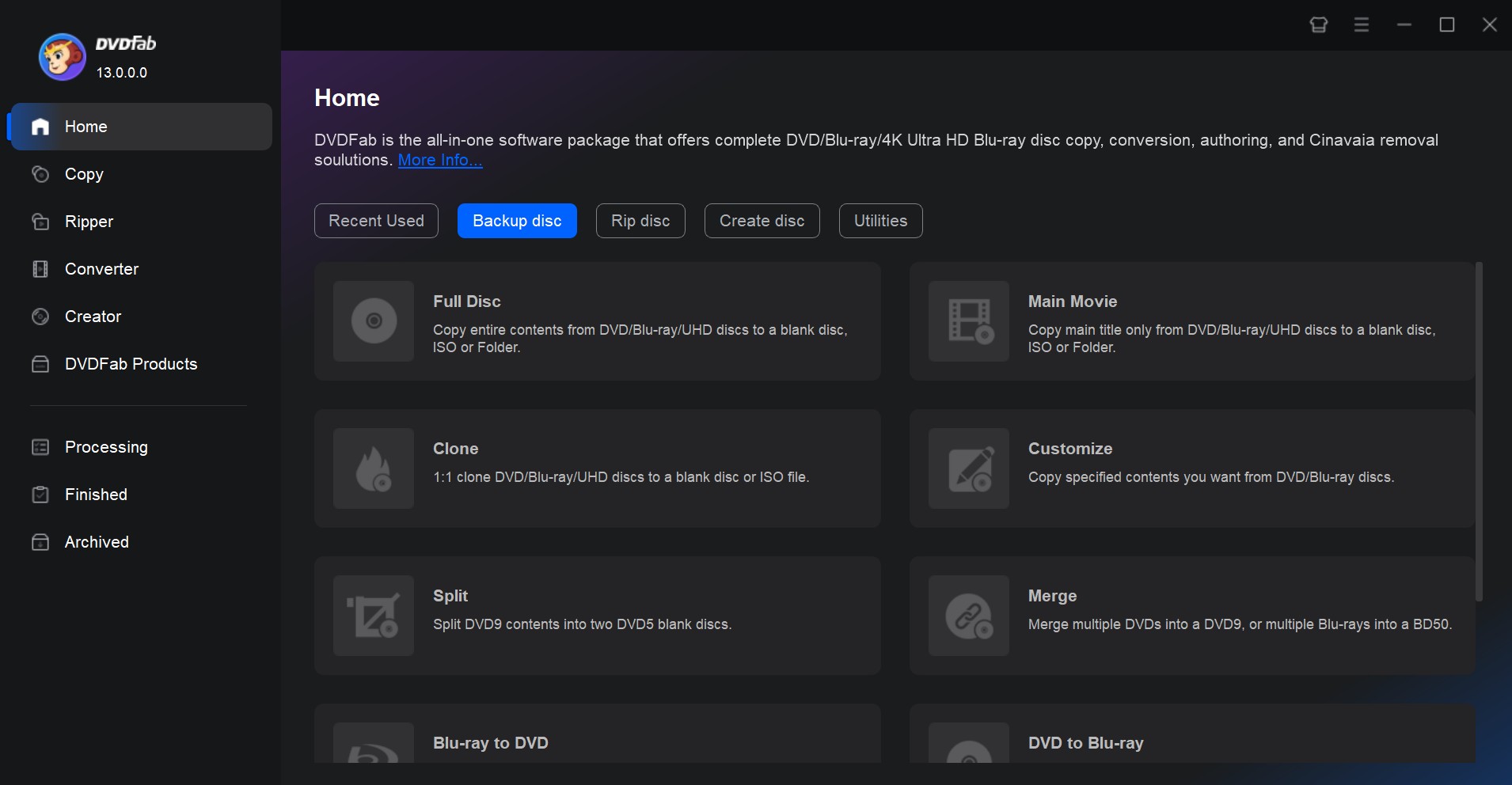
With DVDFab 13's Copy module, you can copy supported DVDs and (4K) Blu-rays to blank discs or create ISO files and folders for backup. It includes DVD Copy, Blu-ray Copy, UHD Copy, Blu-ray Recorder Copy, and 4K Recorder Copy for different disc sources.
With DVDFab DVD Copy, you can create DVD-9 to DVD-9 or DVD-5 to DVD-5 backups, compress a DVD to a smaller disc size when needed, or save the result as an ISO file or DVD folder. It offers six Copy modes, including Full Disc, Main Movie, Clone/Burn, Merge, Split, and Customize. DVDFab Blu-ray Copy provides five Copy modes and can output supported Blu-ray sources to BD-50, BD-25, ISO, or folder.
💡Learn more about DVDFab DVD Copy, DVDFab Blu-ray Copy, and DVDFab UHD Copy.
2. Convert Disc to Digital File
DVDFab 13 also includes Ripper modules for converting DVD, Blu-ray, and UHD sources to digital video or audio formats. The software provides format and device profiles for different playback needs, while its built-in video editor can crop or trim video, add watermarks and external SRT/ASS subtitles, merge clips, and adjust picture settings. Conversion time and output quality depend on the source, selected profile, optical drive, output settings, and available hardware acceleration.
💡Learn more about DVDFab DVD Ripper, DVDFab Blu-ray Ripper, and DVDFab UHD Ripper.
3. Make Disc from Video File
DVDFab 13 includes DVD Creator, Blu-ray Creator, and UHD Creator modules that can author supported video files to DVD, Blu-ray, or UHD disc structures, ISO files, or folders. Common inputs include MOV, FLV, MP4, MKV, and AVI. The Creator modules also provide menu templates and customization options for supported projects.
💡Learn more about DVDFab DVD Creator, DVDFab Blu-ray Creator, and DVDFab UHD Creator.
4. Convert Between Disc Formats
DVDFab 13 supports cross-format disc conversion in both directions: Blu-ray to DVD, DVD to Blu-ray, Blu-ray to UHD, and UHD to Blu-ray. A newer addition to this category is DVDFab DVD to UHD Converter AI, which uses AI upscaling to convert standard 480p DVD content to 4K UHD output. It accepts DVD discs, ISO files, and folders, and can output a UHD disc, ISO, or folder.
5. Remove Cinavia Protection
DVDFab 13's Cinavia Removal modules can process supported Cinavia-protected DVD, Blu-ray, and UHD titles and create backups without the Cinavia watermark signal. Available audio output depends on the source and module, with supported options including AAC, AC3, DTS-HD, and TrueHD. Playback compatibility still depends on the resulting disc or file format and the target player.
6. Other Tools & Features of DVDFab 13
- UHD Drive Tool for compatible UHD optical-drive firmware.
- Blu-ray After Editor and UHD After Editor for adding or replacing audio and subtitles in supported disc structures.
- Ongoing updates for new disc releases, drive compatibility, and disc-reading issues.
- Metadata and .nfo file output for supported media-server libraries.
- Hardware-accelerated processing on supported GPU and task combinations.
What Changed in DVDFab 13?
DVDFab 13 originally introduced a redesigned interface, a revised Ripper video editor, changes to several modules, and a different source-information display. Since then, the 13.x branch has continued to add disc-format tools, AI functions, drive support, and compatibility fixes.
1. Continued Support for New Disc Releases and Drives
DVDFab 13 continues to receive updates for new disc releases, drive compatibility, and disc-reading issues. Version 13.0.6.2 added support for newer Blu-ray Java protection, while nearby 2026 releases added Pioneer Blu-ray drive support and fixed disc-loading problems. If you regularly process newly released discs or use recently supported optical drives, the installed DVDFab version can affect whether the source loads correctly.
2. All-new Video Editing Functions
The Video Editor in the Ripper modules lets you crop, trim, merge, rotate, add subtitles and watermarks, and adjust audio or video settings before conversion.
3. Hi-Fi Audio Converter in the Ripper Modules
The Hi-Fi Audio Converter is integrated into the Ripper modules and does not require a separate Hi-Fi Audio Converter purchase. It can convert supported music Blu-rays to high-resolution audio with output options up to 24-bit/192 kHz and can create CUE files for compatible audio-library use.
4. Conversion and Stability Updates
DVDFab 13 has continued to receive conversion-engine and stability fixes rather than relying on a single fixed speed claim. Recent examples include a CUDA initialization fix for AI conversion in Ripper version 13.0.6.1 and a fix for crashes after loading discs in some modules in version 13.0.6.3. Processing time still depends on the source, output profile, optical drive, and hardware configuration.
5. New UI/UX and Source Information Display
DVDFab 13 introduced Light, Dark, and 365 interface designs. Light and Dark modes let you change the working appearance, while the 365 skin is available to Fab365 users.
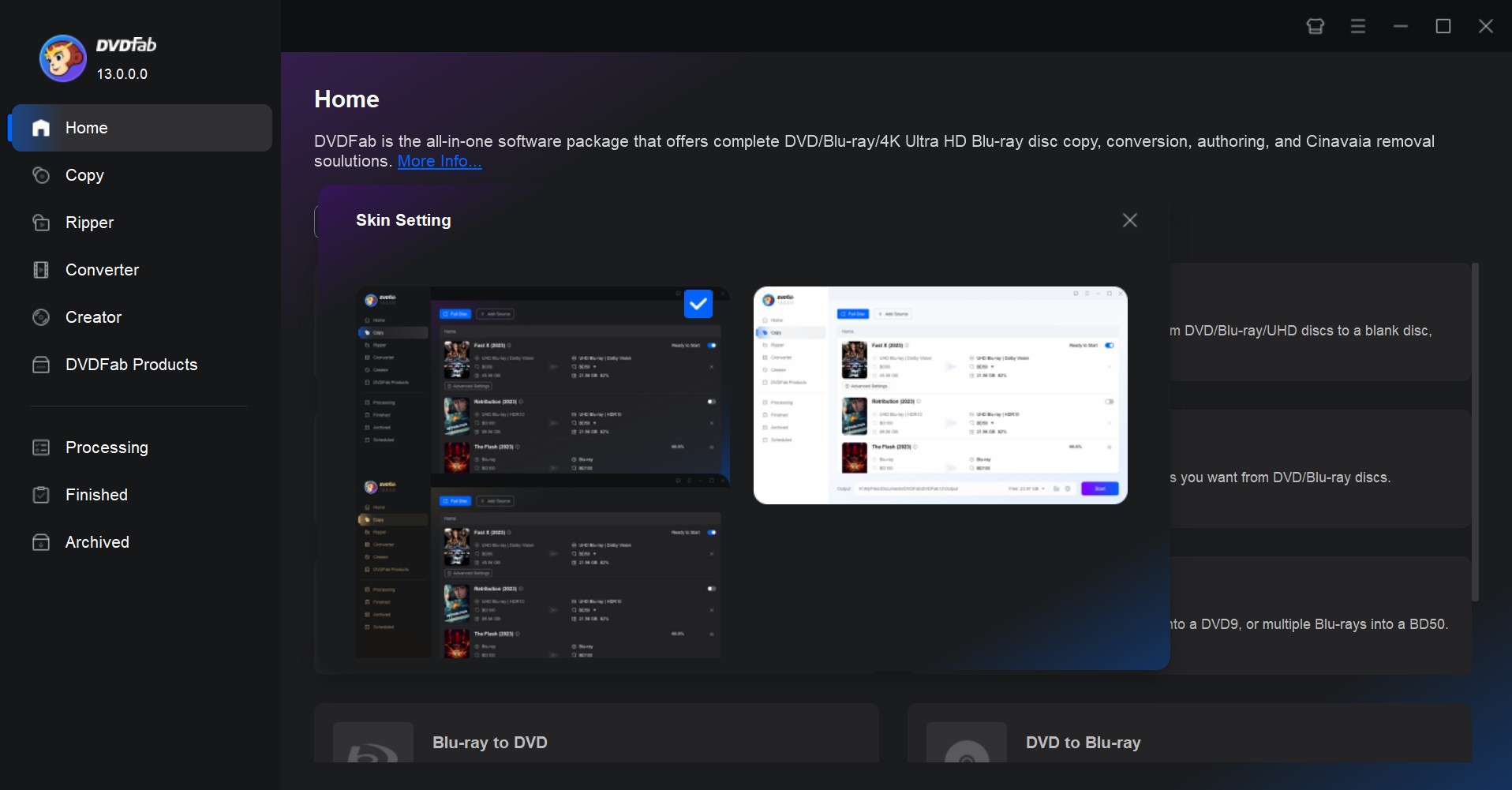
The main task screen also shows source and output information such as title, runtime, chapters, HDR status, subtitle selection, and video or audio settings together, reducing the need to open several panels just to check the current project configuration.
6. AI Tools to Enhance and Upscale Video
DVDFab 13 includes several AI functions that work with supported Ripper, Creator, and disc-conversion tasks.
- NVIDIA AI Enhancer can process supported DVD and Blu-ray sources for higher-resolution HDR10 output in compatible modules.
- AI Upscaler can increase supported DVD or Blu-ray sources to 1080p or 4K output in compatible modules.
- AI HDR Upconverter can convert supported SDR sources to HDR10 or Dolby Vision in compatible Ripper and disc-conversion modes.
- Detail Refiner AI was added in May 2026 and expanded to Creator in June. It uses cloud processing to reduce mosaic or blocky areas and restore local image detail in supported Ripper and Creator tasks.
Note: These AI functions depend on the relevant DVDFab module, hardware, source, and authorization. Detail Refiner AI uses a License + Credit model and consumes FabCloud credits for cloud processing.
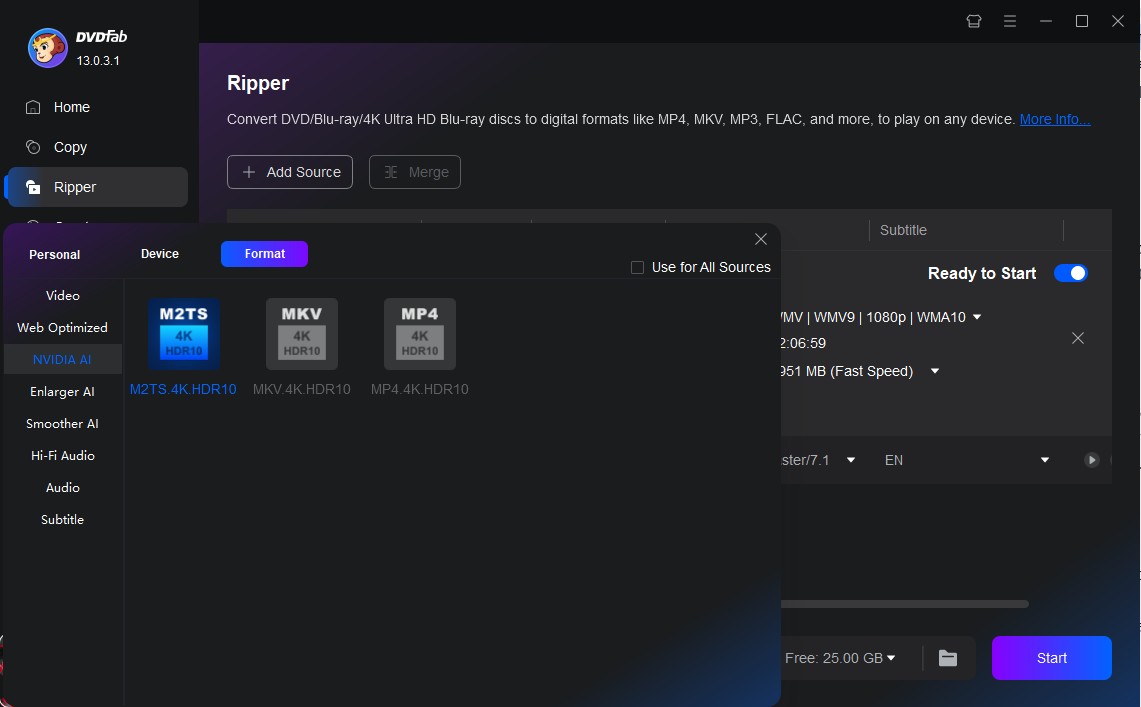
7. DVDFab Subtitle Generator AI
DVDFab Subtitle Generator AI is an AI-powered subtitle creation tool integrated into the Ripper module. It uses speech recognition combined with voice separation technology to extract dialogue from disc audio and generate time-synchronized SRT files. Multilingual output is supported, which can help when creating subtitle files for foreign-language content or accessibility use.
Note: Subtitle Generator AI uses FabCloud credits. The estimated credit cost is displayed before the task is confirmed and is calculated according to video duration.
Module Readjustments in DVDFab 13
The Video Converter and Enlarger AI modules moved from DVDFab 12 to UniFab. Existing paid users of the corresponding DVDFab products can use the replacement UniFab products according to their existing license eligibility.
1. Video Converter
DVDFab 12's Video Converter was replaced by UniFab Video Converter. It combines video conversion with editing and production functions in the UniFab product line.
2. Enlarger AI
DVDFab 12's Enlarger AI was replaced by UniFab Video Enlarger AI. The UniFab product focuses on video enhancement and resolution upscaling, including supported output up to 4K.
3. Smoother AI
Smoother AI has also migrated to UniFab Smoother AI. Existing paid DVDFab Smoother AI users can check their account license information for access to the corresponding UniFab product.
4. UHD Drive Tool
UHD Drive Tool is now available in DVDFab 13 for compatible optical drives. On Windows, version 13.0.6.0 added official support for 12 Pioneer Blu-ray drive models and firmware matching for selected Pioneer drives. On Mac, version 13.0.6.3 added UHD Drive Tool for compatible LG, ASUS, HP, Buffalo, and Archgon drives.
5. DRM Removal for Apple
DRM Removal for Apple was discontinued in DVDFab 13. Users who previously relied on that older module can still find DVDFab 12 in the DVDFab Download Center.
How to Use DVDFab 13?
The steps below use DVD Ripper as an example of the DVDFab 13 interface. Other modules such as Copy and Creator use different output settings, but the basic sequence of loading a source, choosing the output, and starting a task is similar.
Step 1: Free Download DVDFab 13 and Load the DVD Source
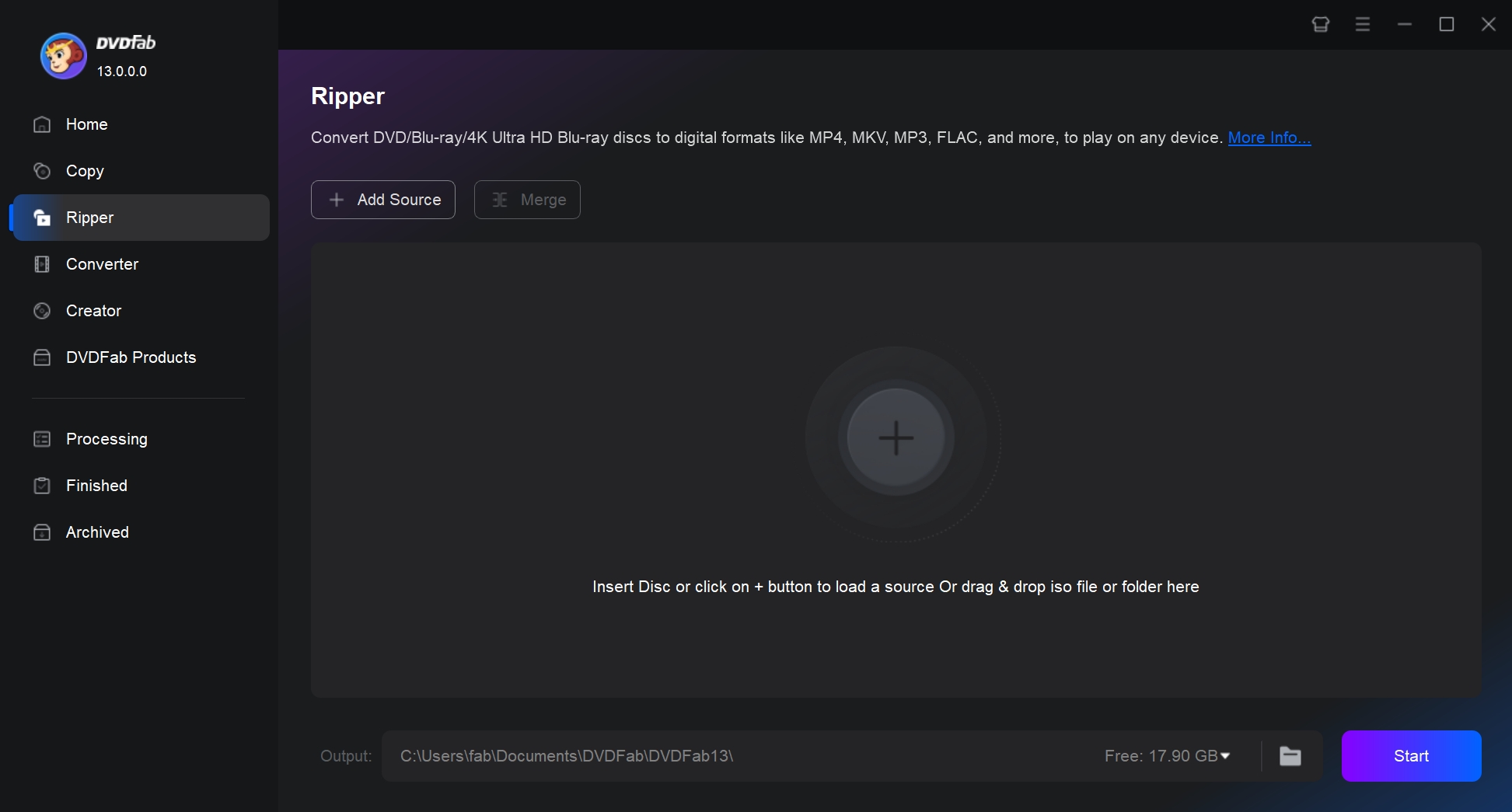
Download and launch DVDFab 13 on your computer. Click "Ripper" in the left column and select "+ Add Source" on the main page. Choose the source DVD and wait for DVDFab to analyze it.
Free Download Windows 11/10/8.1/8/7
Free Download macOS 10.13 - 15.x
Step 2: Choose One Output Profile and Customize the Video
Change the Ripper profile by clicking the dropdown menu beside the current format and selecting "Choose Other Profile". You can also click "Choose Other Titles" to select which DVD titles you want to rip.
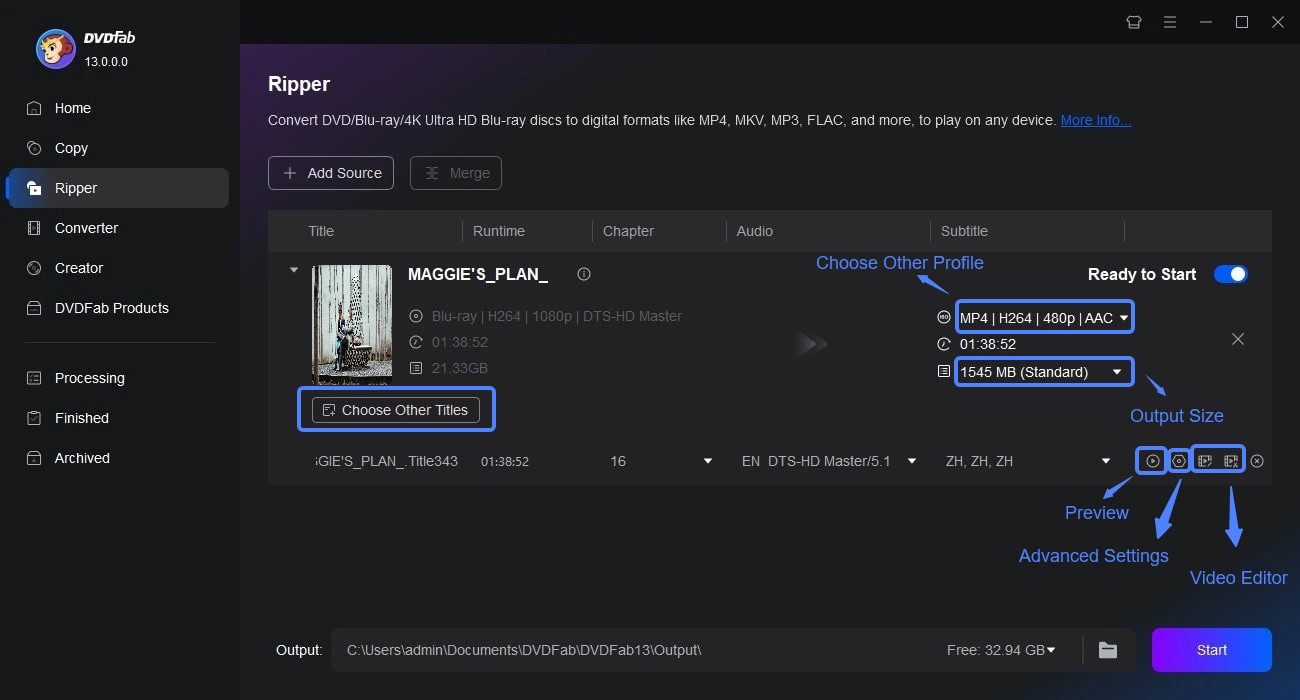
Click the Advanced Settings icon under the source to change available video, audio, and subtitle output parameters.
Click the Edit icon to crop the picture, adjust effects, add watermarks or subtitles, and change available audio or video settings.
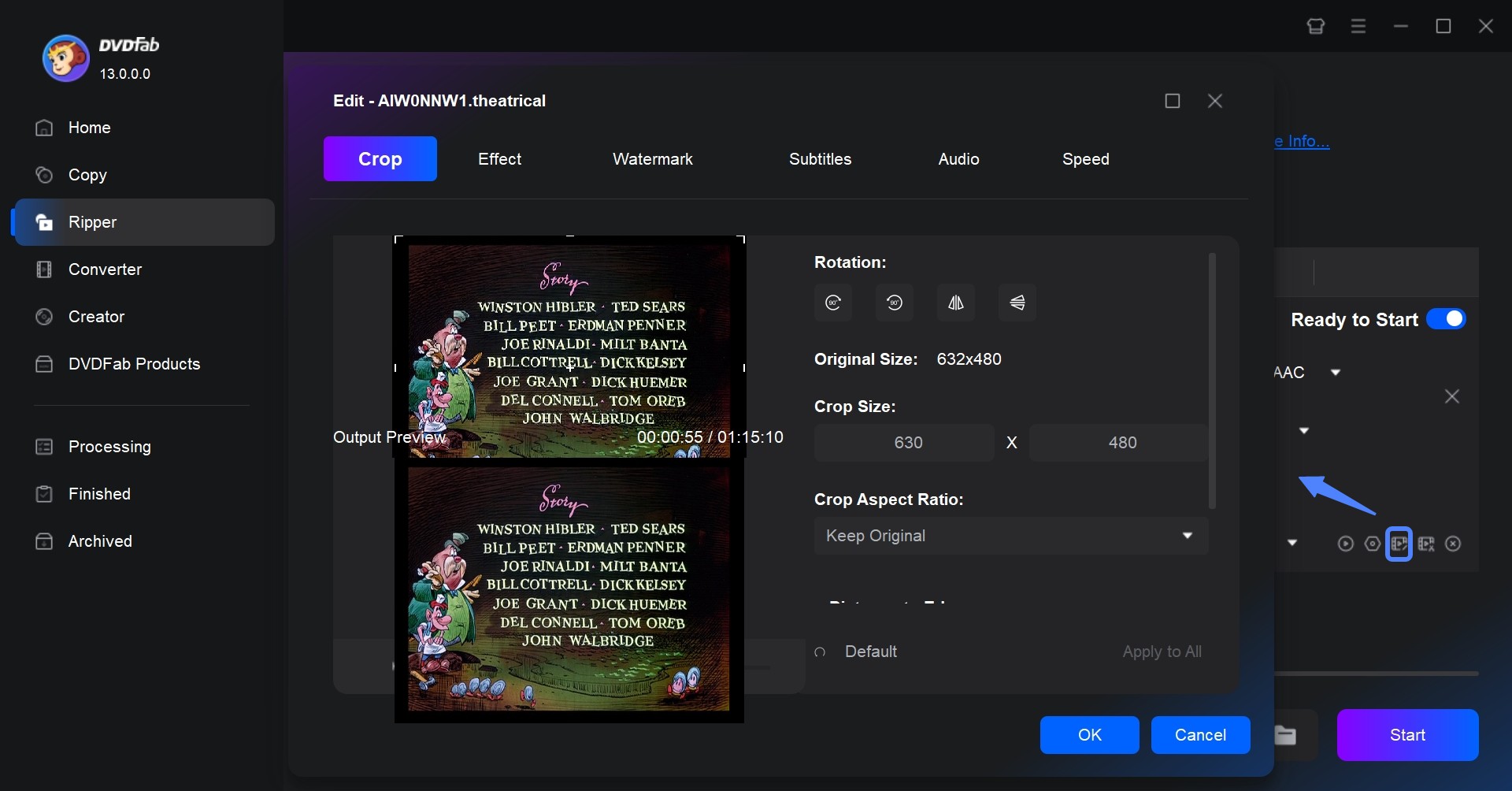
Click the Trim icon to remove unwanted sections or set the part of the title you want to convert.
Step 3: Select the Output Directory and Start Ripping
After checking the output settings, select the destination by clicking "Save to". Click the Start button at the bottom to begin the task. The task screen shows the current progress, and the "When all tasks are done" menu can be set to Do Nothing, Exit Program, or Hibernate the computer.
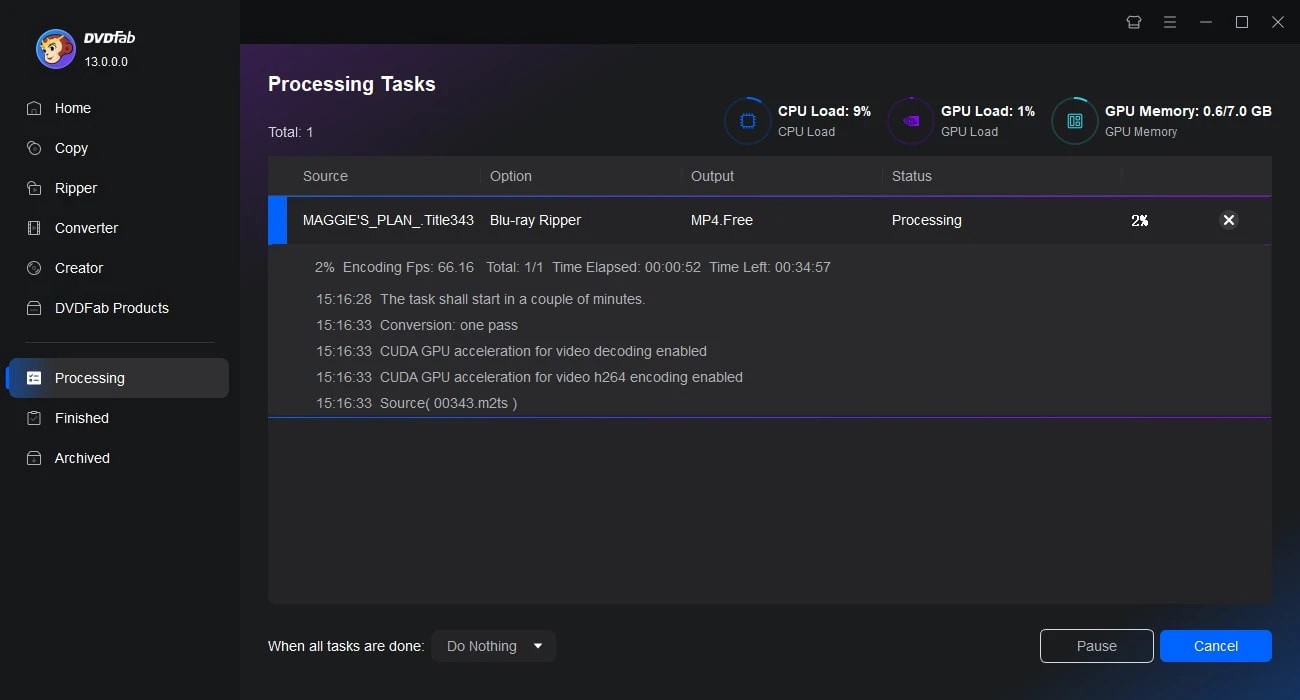
You can pause a task and resume it later when supported. Completed jobs appear in the Finished tab on the left side of the DVDFab 13 interface. You can also download DVDFab Remote on your phone to view task progress and receive notifications when a job completes or fails.
FAQs
Is DVDFab 13 Safe to Use?
Yes. DVDFab 13 is 100% clean and safe software with no adware, spyware, or viruses. It does not even collect your personal information. So feel free to install and use it. For additional details on security, privacy, and best practices, read Is DVDFab Safe.
Is DVDFab 12 Still Available?
Yes. DVDFab 12 is still listed in the DVDFab Download Center for Windows and Mac, and DVDFab 13 can coexist on the same computer with earlier major versions such as DVDFab 12 and 11.
Does DVDFab 13 Still Have the Free Version: DVDFab HD Decrypter?
Yes. Most DVDFab 13 features can be tried for 30 days. After the trial ends, the same installer still provides a limited set of free functions, including some uncompressed DVD/Blu-ray copying and the MP4.free and MKV.passthrough profiles in DVD/Blu-ray Ripper. DVDFab HD Decrypter also remains available as a simplified free option with limited copy modes, conversion profiles, and disc support.
💡See our DVDFab Crack guide on the risks of unofficial cracked versions and safer alternatives.
What is PathPlayer in DVDFab?
PathPlayer analyzes the navigation paths that a normal DVD player can access and helps DVDFab identify the playable DVD content. This can help it distinguish the titles and paths that belong to the normal playback structure from data that a standard DVD player would not use.
💡For on-the-fly disc access while playing or ripping, see DVDFab Passkey Review.
Conclusion
DVDFab 13 is still centered on the same core disc tasks: copying supported discs to other media or ISO/folder backups, converting disc content to digital files, authoring video to disc, and converting between supported disc formats. The 2026 updates have mainly expanded the tools around those core functions.
Recent additions include Subtitle Generator AI, DVD to UHD Converter AI, support for additional Pioneer Blu-ray drives, and Detail Refiner AI. Other 2026 builds have addressed damaged-disc reading, CUDA initialization, Blu-ray title-duration display, and crashes after loading discs. Mac development follows a separate release schedule and added UHD Drive Tool in version 13.0.6.3.
Choose a specific standalone module if you have a single focused task, such as disc ripping or format conversion, and do not need the full suite.