Cisdem DVD Burner Review 2026: Tests and 3 Alternatives

Summary: Cisdem DVD Burner creates playable DVD-Video discs, VIDEO_TS folders, and ISO files from common video formats on Windows and Mac. Its trial burns only the first five minutes, while current single-device licenses cost $39.99 per year or $59.99 as a one-time purchase. It includes editing, chapters, subtitles, menu design, and previewing, but 4K sources are converted to standard DVD resolution.
Table of Contents
Cisdem can turn home videos into a playable disc, but the restricted trial is enough only to check source import, menu navigation, and short output behavior, not a full-length project.
For DVD authoring, I recommend judging Cisdem by menu navigation and playback on the intended player, not by the source's original resolution. The purchase decision also depends on DVD output limits, Windows and macOS compatibility, the four-step creation process, and how to choose based on project requirements when comparing two current alternatives.
Cisdem DVD Burner Review: Current Verdict
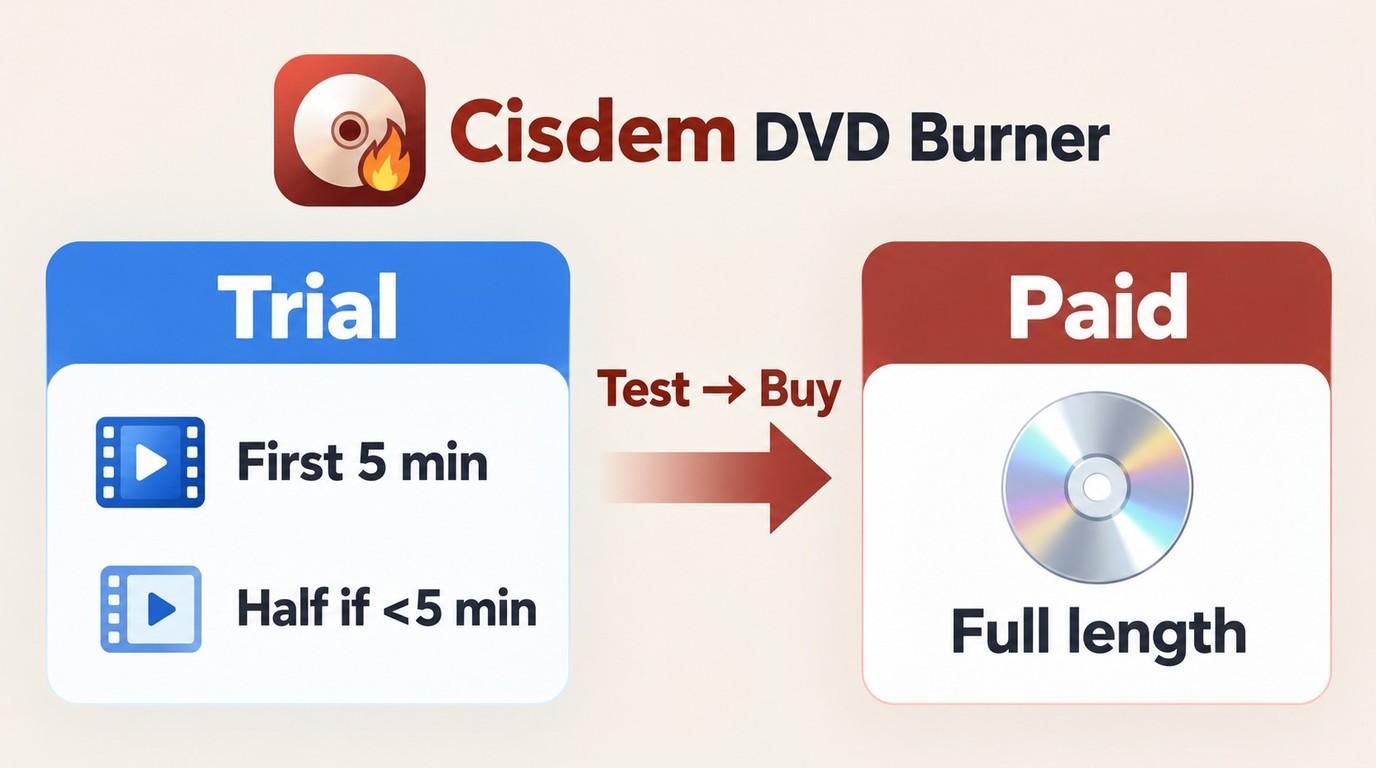
Cisdem DVD Burner is worth considering for Windows and Mac users who want to turn home videos into playable DVDs with menus, chapters, subtitles, and a small set of editing controls. Readers comparing the best DVD burner software can use this best DVD burning software overview for broader context, while Cisdem covers the main stages inside one program: import the videos, prepare the menu, preview navigation, and create a disc, DVD folder, or ISO.
Its strongest advantage is the amount of authoring control available without moving the project between several programs. Its main drawbacks are the restricted trial, standard-definition DVD output, and the cost of processing full-length projects. A free program may be enough for burning a prepared DVD structure or ISO, while paid authoring software becomes easier to justify when raw videos need menus, chapters, saved projects, and repeated DVD creation.
Cisdem DVD Burner at a Glance
| Review Item | Current Details |
| Operating systems | Windows 10+; macOS 10.15+ on Intel or Apple Silicon |
| Common video inputs | MP4, MKV, MOV, AVI, WMV, MPEG, MTS, and VOB |
| DVD outputs | Recordable DVD, VIDEO_TS folder, and ISO image |
| Authoring controls | Menus, chapters, subtitles, preview, aspect ratio, and NTSC/PAL |
| Editing | Trim, crop, rotate, picture and volume adjustments, subtitles, and watermarks |
| Main limitation | High-resolution sources become standard-definition DVD-Video |
Is Cisdem DVD Burner Free?
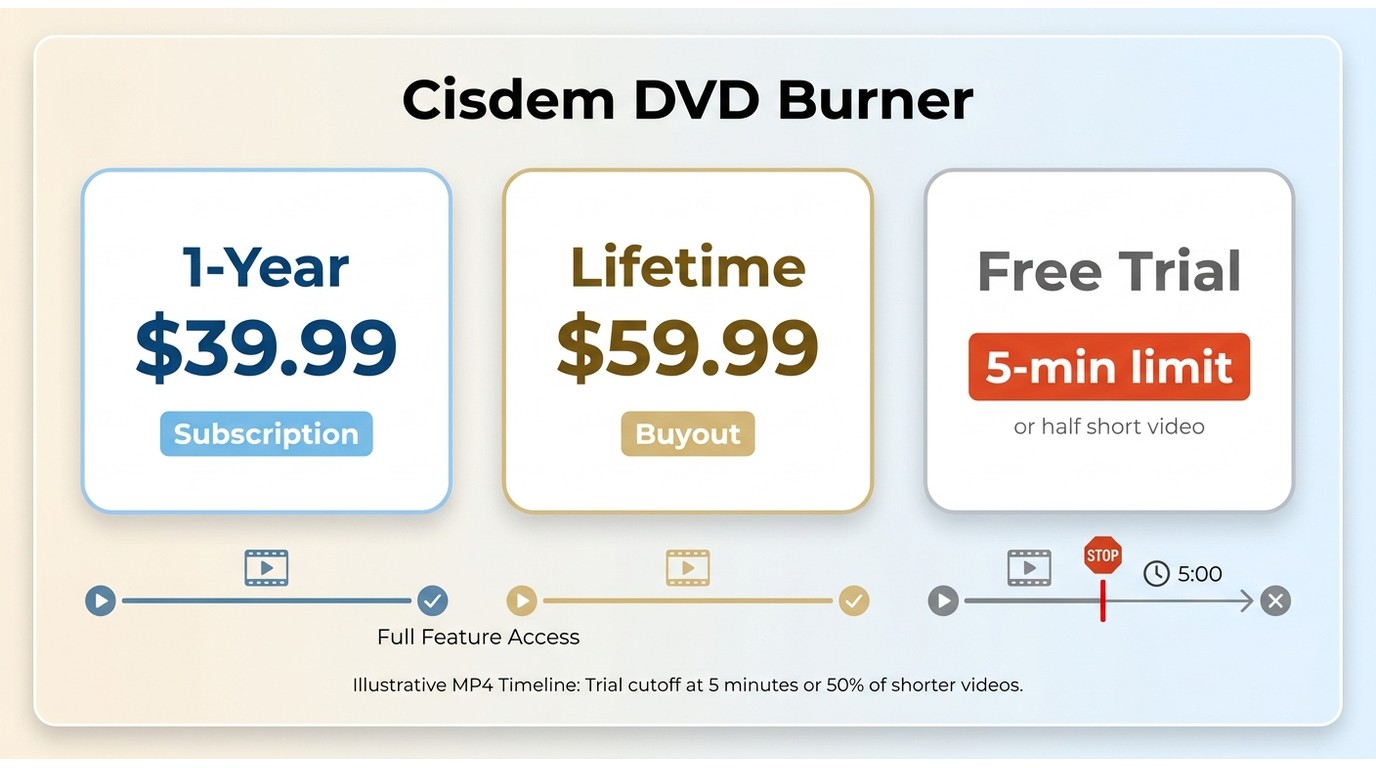
Cisdem DVD Burner can be downloaded and tested without payment, but it is not a complete free DVD authoring program. The trial includes the authoring controls while limiting a video longer than five minutes to its first five minutes. When the source is shorter than five minutes, only half of it is processed.
As of October 2026, the Windows and Mac purchase pages list the same single-device options: $39.99 for a one-year subscription and $59.99 for a one-time purchase. The store also lists a 30-day money-back guarantee.
Use the restricted trial to check whether the source imports, chapter and menu navigation work as intended, and an ISO or VIDEO_TS folder previews correctly. For a US project, confirm the NTSC setting and play a short test disc on the intended standalone player when compatible rewritable media is available.
Pros and Cons of Cisdem DVD Burner
What We Like

- Creates a playable DVD, VIDEO_TS folder, or ISO from common video files.
- Provides menu, chapter, subtitle, background music, and preview controls.
- Saves an unfinished project as a
.cdbprojectfile for later editing. - Lets users set DVD-5 or DVD-9, 16:9 or 4:3, and NTSC or PAL.
- Offers Windows and Mac versions.
What We Don't Like

- The trial cannot create a full-length output from a normal movie or long home video.
- 1080p, 4K, and higher-resolution sources are reduced to DVD-Video resolution.
- Full use requires a subscription or one-time purchase.
- The Windows version does not accept photos as source media.
- It is designed for video DVD authoring, not general data-disc or audio-CD creation.
What Users Say About Cisdem DVD Burner
Independent feedback specific to Cisdem DVD Burner is limited. A 2026 Trustpilot reviewer praised DVD Burner for Mac menu customization. Another 2026 Trustpilot reviewer reported that support successfully reset the license after a computer change.
A 2025 Trustpilot reviewer reported crashes and ISO projects that did not complete. In May 2025, a Reddit user reported limited standalone-player playback after trying both Cisdem DVD Burner and Plugin. These dated accounts are individual experiences, while source compatibility, menu navigation, and completed-disc playback remain useful project checks.
Cisdem DVD Burner Features and Output Limits
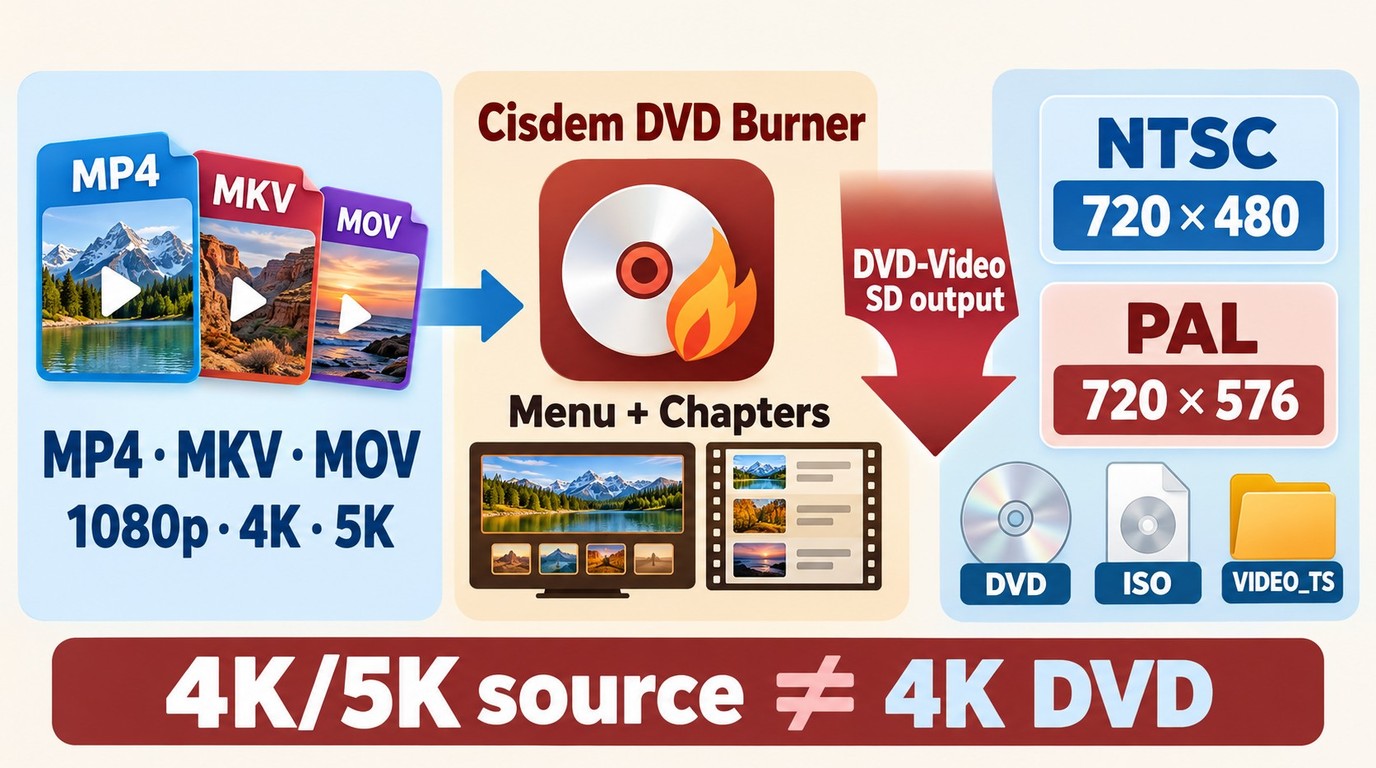
Cisdem starts with standard video files rather than an authored commercial DVD. It converts those files into the structure required by DVD-Video, adds the selected menu and navigation, and writes the result to a disc or local storage. An existing ISO or VIDEO_TS folder can also be selected for disc burning.
This distinction matters because a DVD folder or ISO preserves the newly authored menu and chapter structure, while an MP4 or MKV remains only a source video. Cisdem is not a DVD ripper, and it does not extract a movie from an existing commercial disc.
Supported Video Inputs and DVD Outputs
Cisdem lists more than 300 source formats, including MP4, MKV, MOV, AVI, WMV, MPEG, MTS, M2TS, VOB, and several older containers. Broad input support reduces the chance that a phone, camcorder, or edited home-video file needs a separate conversion before authoring.
The finished project can be written directly to compatible recordable media or saved as a VIDEO_TS folder or ISO image. A folder is useful for checking the DVD structure in software before using a blank disc. An ISO keeps the menu, titles, and chapters in one image file and can be burned later.
A physical disc requires a compatible DVD writer and blank media, while an ISO or VIDEO_TS folder can be created without an optical writer. Each option contains an authored DVD-Video project and remains at standard DVD resolution.
Video Editing, Subtitles, Chapters, and DVD Menus
The editor covers changes that commonly need to happen before authoring: trimming unwanted sections, cropping or rotating the frame, adjusting brightness and contrast, changing volume, and adding a watermark or permanent subtitle. Chapter markers can be added so a long family video or event recording is easier to navigate.
Menu controls in this DVD menu maker include templates, custom backgrounds, text, buttons, frames, and background music. The project can use a menu with chapters, a title menu without chapter pages, or no menu. Preview the buttons and chapter links before burning because a visually complete menu can still contain navigation that returns to the wrong title.
What Happens to 1080p, 4K, and 5K Sources?
Support for 1080p, 4K, or 5K input means Cisdem can import and convert the source. It does not mean the finished DVD remains HD or 4K. Standard NTSC DVD-Video uses 720 × 480 pixels, while PAL DVD-Video uses 720 × 576.
The conversion reduces the source resolution and re-encodes the video for DVD playback. This is normal for DVD-Video and is not a 1:1 copy of the high-resolution source. Keep the original video file separately when preserving its HD or 4K resolution matters.
Windows and Mac Compatibility
Cisdem currently provides Windows and macOS editions. The Windows edition 4.0.0.4000 was released on May 28, 2026. The Windows product pages advertise Windows 10 or later. Readers using an older Windows release should check the installer requirements instead of relying on older reviews that still list Windows 7 or 8.
The macOS edition 8.4.0 was released on October 26, 2026. Native Apple Silicon arm64 support was introduced in version 8.3.0 on August 27, 2026. The listed minimum is macOS 10.15, with support for Intel and Apple Silicon hardware.
Cisdem Turns Videos into Playable DVDs
The following process is for turning video files into a playable DVD-Video project. If the source is already an ISO or VIDEO_TS folder, use the separate ISO or DVD-folder burning command instead of importing it as a normal video.
Step 1: Add the source Videos
Install the Windows or Mac edition and open a new DVD project. Drag the videos into the source area or use the file-import command. Arrange the titles in the intended playback order and check the duration and capacity indicator before editing.
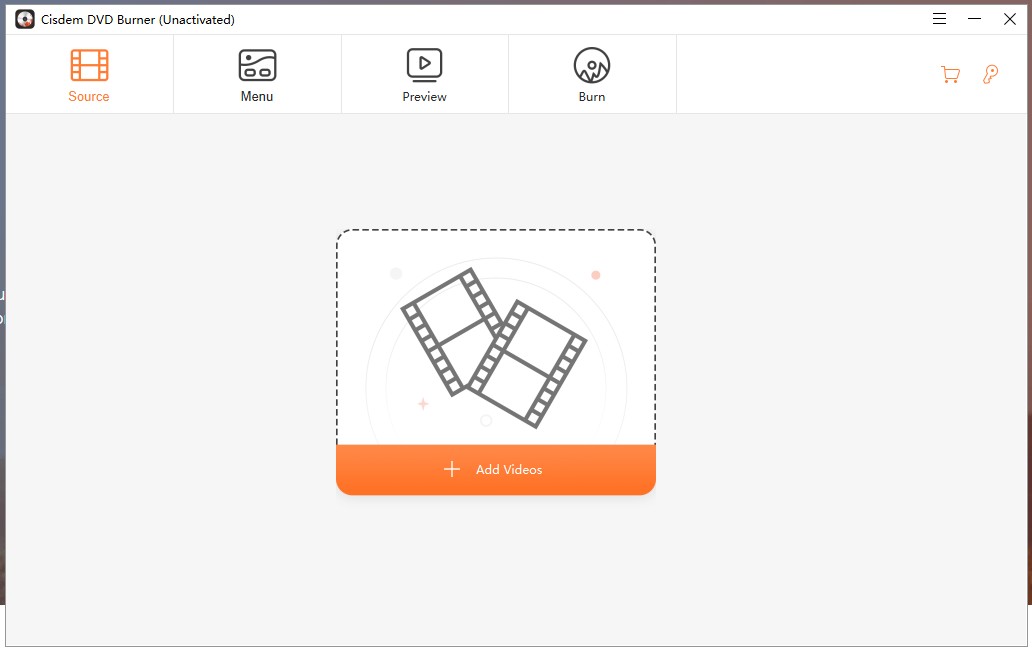
Select DVD-5 or DVD-9 according to the blank media and estimated project size. A long source can exceed disc capacity after DVD conversion even when its original file size appears smaller.
Step 2: Edit Videos and Add Chapters or Subtitles
Open the editor for a title to trim, crop, rotate, adjust the picture, change the volume, or add a subtitle or watermark. Place chapter markers at useful scene changes instead of dividing the title into many short sections that make the chapter menu difficult to scan.
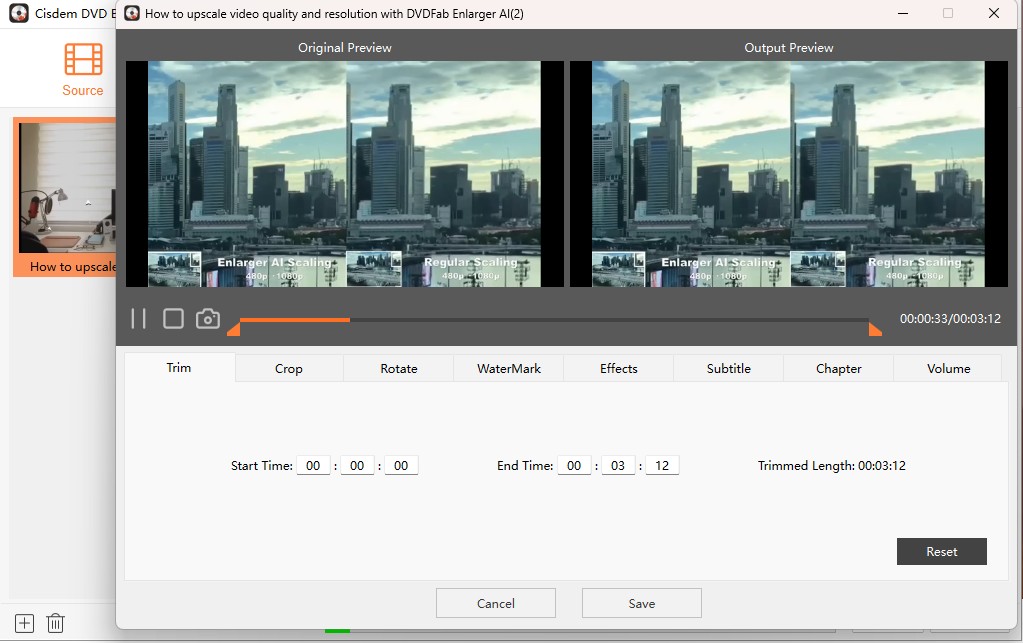
Check the aspect ratio at this stage. A 16:9 source authored as 4:3 can look stretched or compressed on a television.
Step 3: Customize and Preview the DVD Menu
Open the Menu section and choose a title-and-chapter menu, title menu, or no-menu project. Replace the background, text, buttons, frames, or music as needed. Keep button labels short enough to remain visible on the television screen.
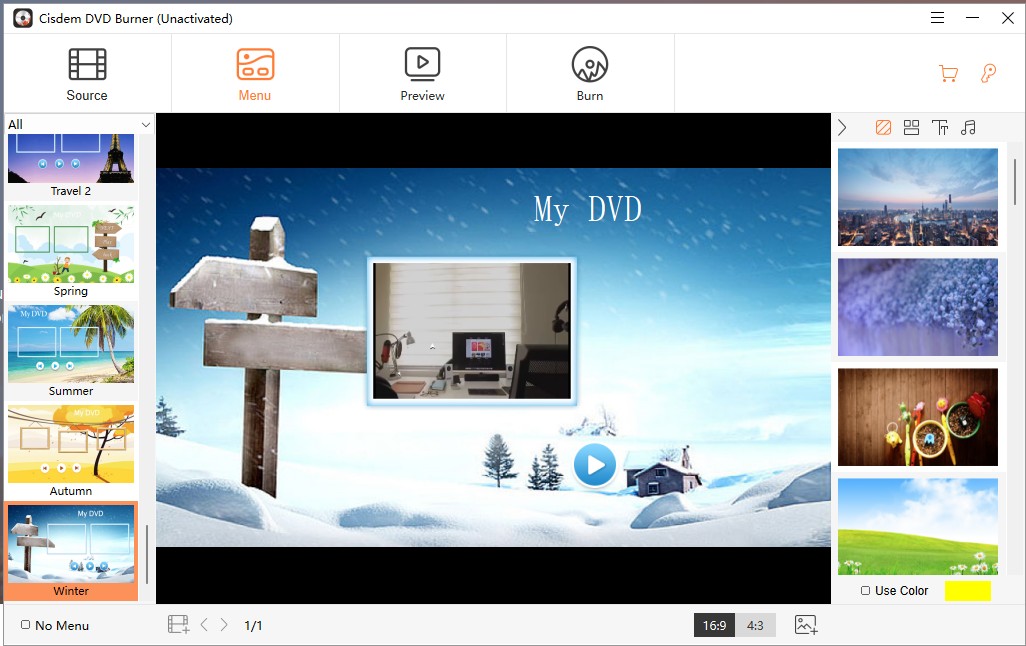
Use the built-in preview to open each title and chapter and check the Previous, Next, Menu, and Play controls. Correct a broken link before proceeding to the output screen.
Step 4: Choose the Output and Start Burning
Open the Burn settings and confirm the disc name, DVD-5 or DVD-9 target, 16:9 or 4:3 aspect ratio, NTSC or PAL television standard, and quality setting. Select the optical drive for direct burning or choose a VIDEO_TS folder or ISO for local output.
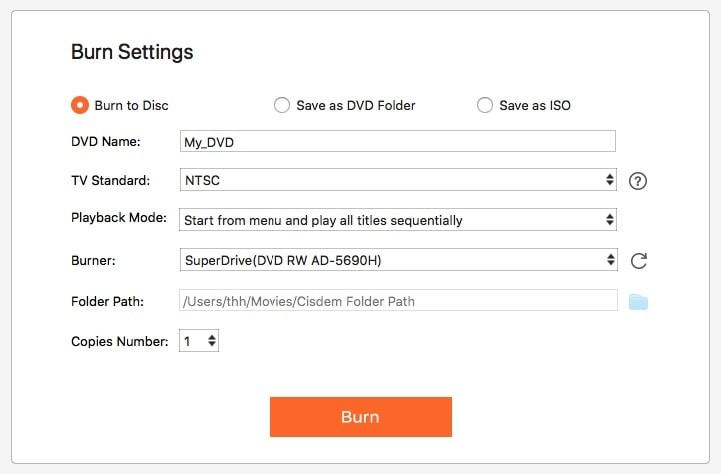
When direct disc burning is required, insert blank media supported by the drive and confirm that the drive appears in the destination list. Start the task, allow the conversion and authoring stages to finish, and check the resulting folder, ISO, or disc before making additional copies.
Common Cisdem DVD Burner Problems and Fixes
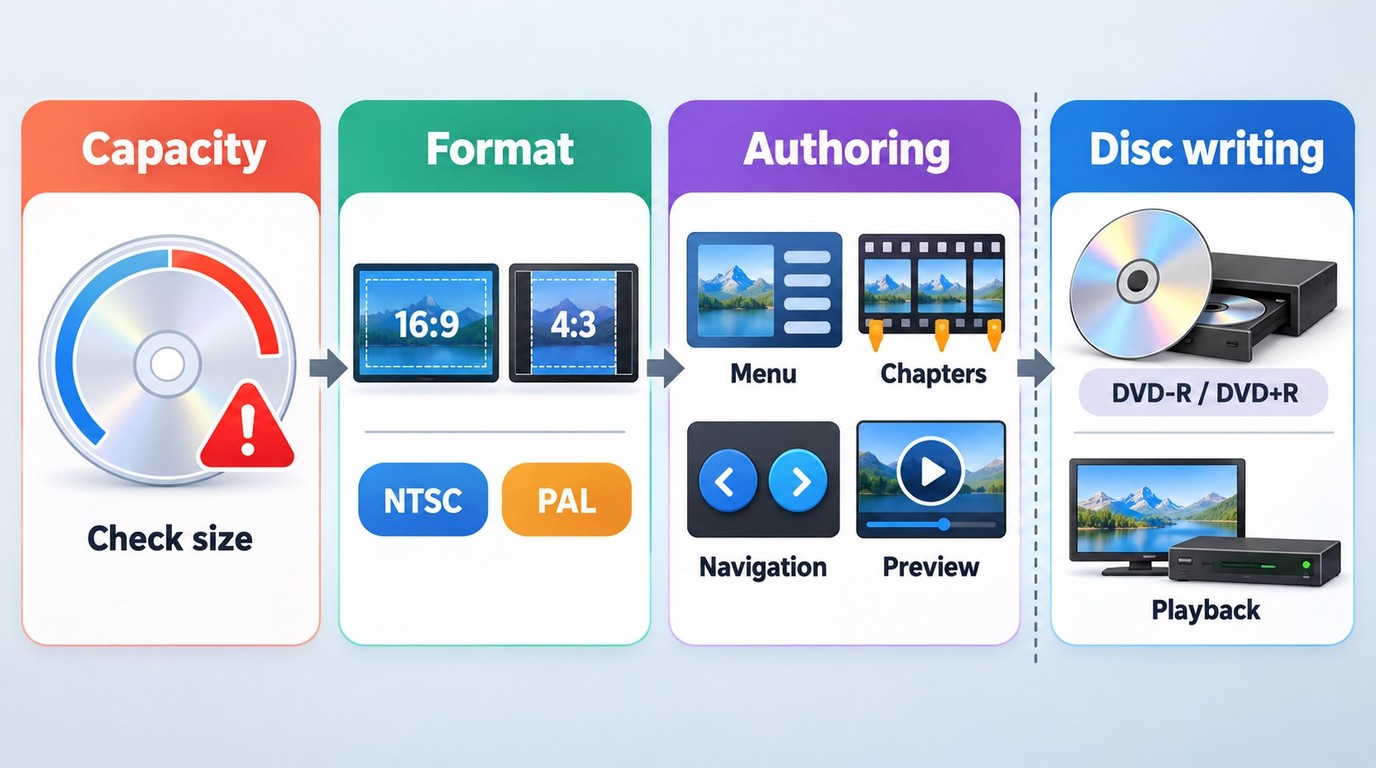
DVD creation has two separate stages: converting and authoring the video, then writing the authored data to physical media. Identifying which stage failed prevents unnecessary changes to the menu or video settings.
The Project Is Larger Than the Blank DVD
- Symptom: The capacity indicator exceeds the selected disc or the project cannot begin.
- Likely cause: DVD size depends on video duration, DVD bitrate, audio, and menu data rather than the source file size alone.
- Check and action: Select DVD-9 when the drive and target player support dual-layer media. Otherwise choose Fit to Disc, trim unneeded footage, lower the selected quality, or divide the project between discs. Review the capacity meter after each change.
The DVD Looks Distorted or Lower in Resolution
- Symptom: A widescreen video looks narrow or stretched, or a 1080p/4K source plays at a lower resolution.
- Likely cause: The project uses the wrong aspect ratio, or the source has been converted to standard DVD-Video resolution.
- Check and action: Match 16:9 or 4:3 to the source and target display. Expect NTSC DVD output at 720 × 480 or PAL output at 720 × 576. Keep the original HD or 4K file if a high-resolution master is needed.
The Disc Plays on a Computer but Not a DVD Player
- Symptom: Software playback works, but a standalone player does not recognize or correctly play the disc.
- Likely cause: The player may not support the blank-media type, or the project uses the wrong NTSC/PAL setting for the equipment.
- Check and action: Review the player's supported DVD-R, DVD+R, DVD-RW, or dual-layer media and confirm the television standard. Copying a raw MP4 to a Windows data disc does not create an authored DVD-Video project for a standalone player. Burning an ISO reproduces the structure already stored in the image, so the ISO must contain an authored DVD-Video project. Creating an ISO first and burning it as a separate task can help determine whether the issue comes from authoring or physical writing.
Cisdem Stops During Conversion or Burning
- Symptom: The progress stops or the program displays a conversion or writing error.
- Likely cause: The source file, available storage, optical drive, or blank media may have interrupted the task.
- Check and action: Confirm that the source still opens, the destination has enough free space, Windows recognizes the writable drive, and the inserted media matches it. On Windows, open the program menu and select Show log in Explorer to locate
log.txtandConvertlog.txtfor Cisdem support.
Alternatives to Cisdem DVD Burner
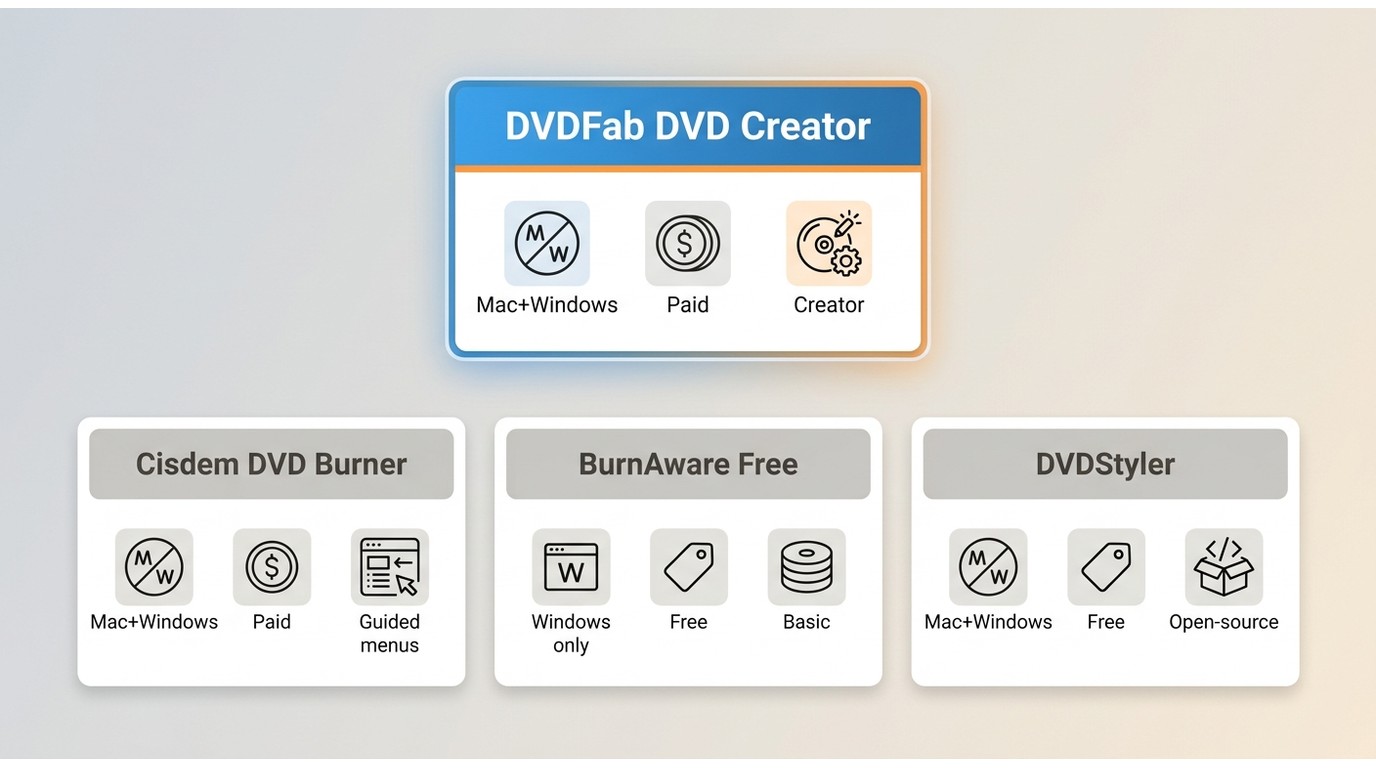
Another program becomes relevant when Cisdem's five-minute trial, editing limits, operating-system requirements, or price does not match the project. The options below cover two active choices, broader paid authoring with DVDFab DVD Creator and general disc or ISO burning with BurnAware Free, plus a legacy release note for DVDStyler.
DVDFab DVD Creator: Menus and Library Metadata
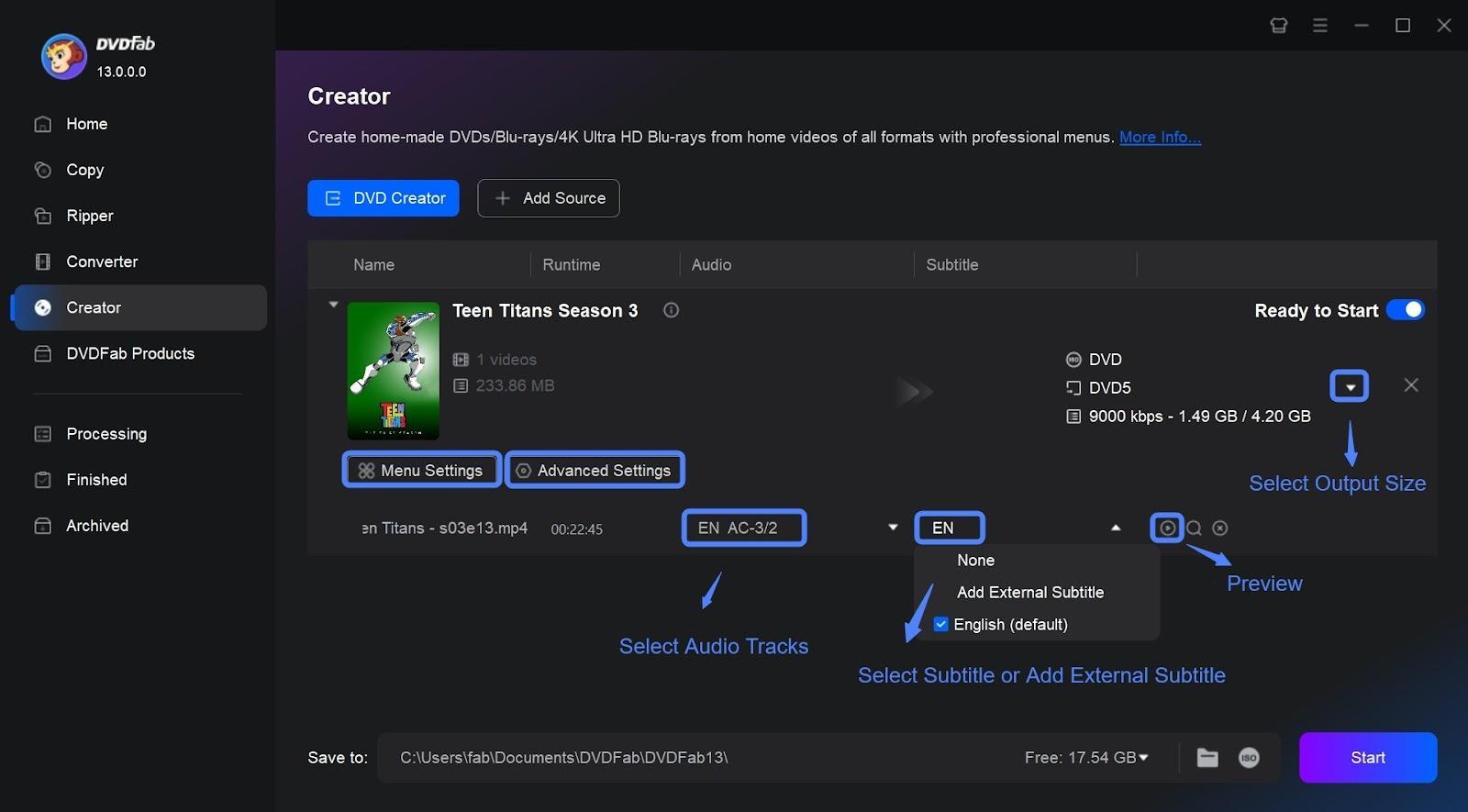
DVDFab DVD Creator converts more than 200 listed video formats into DVD-5 or DVD-9 structures and can write a disc or save an ISO or folder. It provides menu templates, chapter editing, external subtitles, video adjustments, and Windows and macOS editions. DVDFab DVD Creator suits mixed-source DVD projects that need menu and library organization. Generated .nfo metadata can keep titles, cast information, and cover art organized in PlayerFab or Kodi.
Free Download Windows 11/10 (64-bit)
DVDStyler: Legacy Release Status
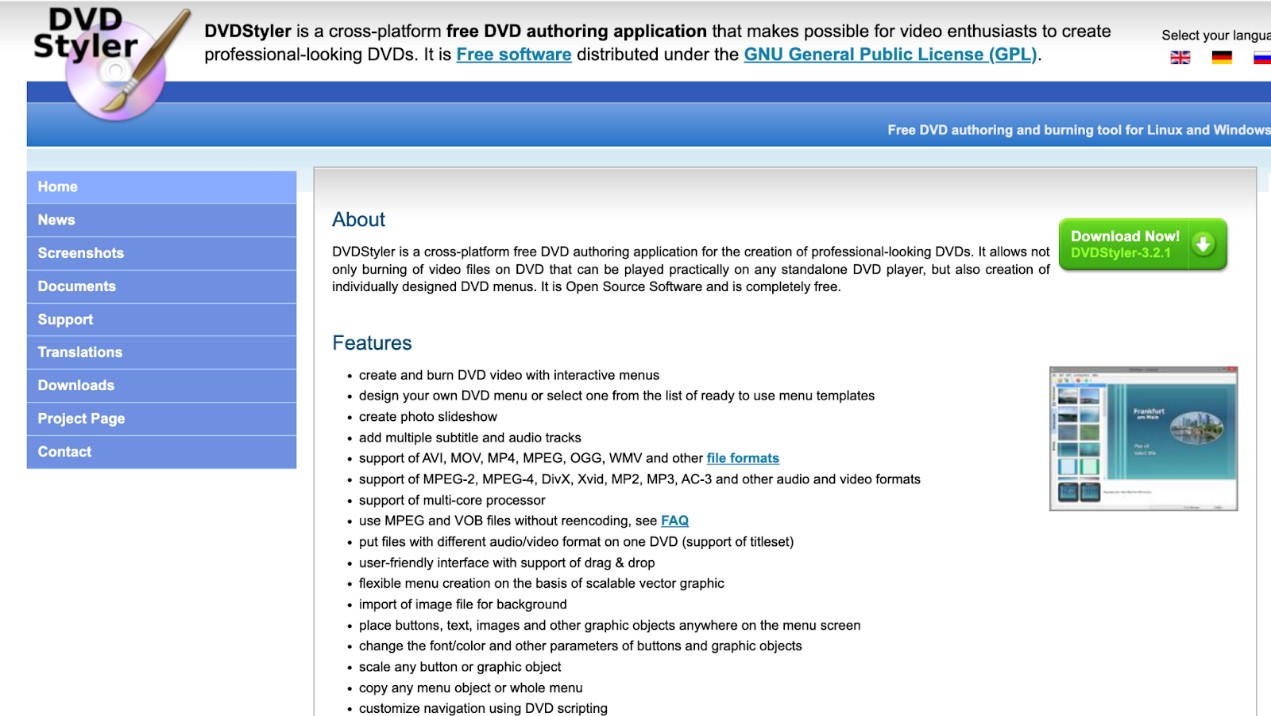
DVDStyler’s latest release listed in its official news is version 3.2.1, dated November 2, 2021. DVDStyler 3.2.1 is a free, open-source DVD authoring program, and its site lists Windows and Linux, interactive menus, photo slideshows, multiple audio and subtitle tracks, mixed-format titles, and movable menu objects. It offers more direct control over menu placement than a template-only editor.
BurnAware Free
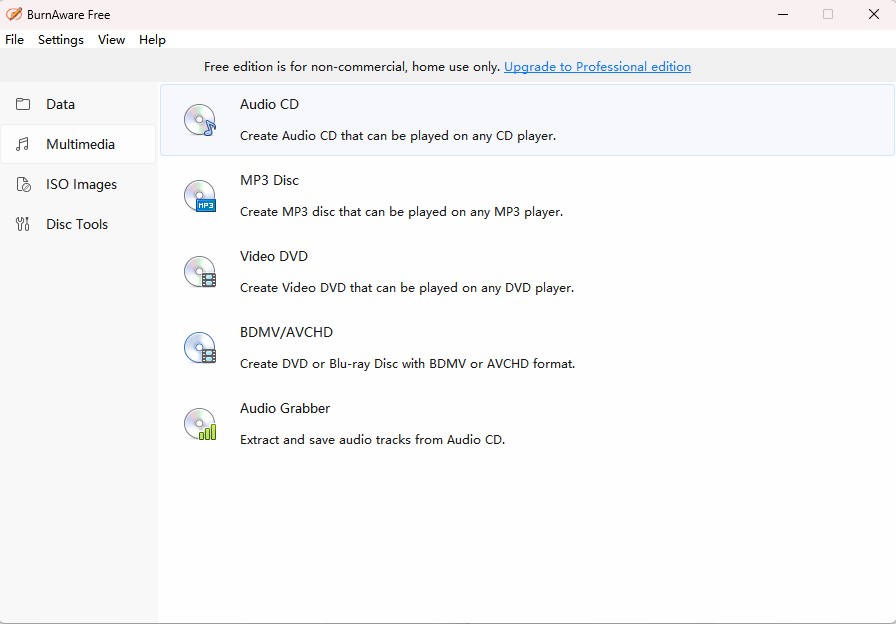
BurnAware Free 19.4 is a Windows disc-burning program for CDs, DVDs, Blu-ray media, and ISO images. The free edition can Burn a prepared DVD-Video structure, audio CD, data disc, or ISO, but its current edition comparison does not include the video-to-DVD converter. Converting AVI, MOV, MPG, VOB, MP4, WMV, or MKV directly to DVD-Video requires BurnAware Premium or Professional.
Cisdem vs Its Alternatives: Quick Comparison
| Comparison Item | Cisdem DVD Burner | DVDFab DVD Creator | BurnAware Free |
| Operating systems | Windows 10 or later; macOS 10.15 or later | Windows 11/10 (64-bit); macOS 12 or later | Windows |
| Raw-video DVD authoring | Yes; converts common video files | Yes; supports 200+ input formats | No; Premium or Professional required |
| Menus and chapters | Templates, custom menus, chapters, and preview | Templates, menu editing, chapters, and preview | No comparable authoring controls documented |
| Editing and subtitles | Trim, crop, rotate, watermark, subtitles | Trim, crop, adjustments, watermark, external subtitles | No equivalent editing panel documented |
| DVD outputs | Disc, VIDEO_TS folder, and ISO | Disc, VIDEO_TS folder, and ISO | Prepared DVD-Video, data, audio, and ISO |
| Free-use boundary | First five minutes; half of shorter videos | 30-day evaluation; some features limited | Free edition; business use excluded |
FAQs About Cisdem DVD Burner
Is Cisdem DVD Burner Safe to Download?
Download the installer from Cisdem's official website and scan it with the security software already installed on the computer. Avoid modified installers or third-party download bundles.
Can Cisdem DVD Burner Burn CDs?
Cisdem DVD Burner is presented as a video-to-DVD authoring product and does not list audio-CD or data-CD creation among its main tasks. For an audio or data CD, compare the best CD burners, including CD-capable tools such as BurnAware.
Can Cisdem DVD Burner Copy an Existing DVD?
It can Burn an existing ISO image or VIDEO_TS folder to a compatible blank DVD. It is not a DVD-ripping or disc-extraction program, so it does not copy the video from a commercial DVD into a new project.
Can Cisdem Create a Blu-ray Disc?
Cisdem states that video can be written to BD-R or BD-RE media, but the authored result remains DVD quality rather than an HD Blu-ray Video project. Use dedicated Blu-ray authoring software when the required output is BDMV, BD-25, or BD-50 with high-definition video.
Conclusion: Is Cisdem DVD Burner Worth It?
Cisdem DVD Burner is a reasonable paid option for Windows or Mac users who need to turn common video files into a playable DVD with menus, chapters, subtitles, previewing, and disc, folder, or ISO output. Before purchasing, confirm that the source imports correctly, the menu controls meet the project requirements, and standard-definition DVD output is acceptable.
The trial is useful for checking the interface and source compatibility, but its five-minute limit does not represent a full-length project. The annual license suits shorter-term use, while the one-time license is more relevant for repeated DVD projects.
For raw-video DVD authoring, choose Cisdem when its menu tools and trial checks meet the project, or DVDFab DVD Creator when mixed source formats, additional editing, subtitles, chapters, or menu control justify another paid program. BurnAware Free covers CD, data-disc, ISO, and prepared DVD-Video burning on Windows. Keep the original HD or 4K source separately because every standard DVD-Video option reduces it to DVD resolution.

![5 Top AVI to DVD Converters for Windows and Mac [2026]](https://images.dvdfab.cn/artifact/2026/10/19/HsCx2t8W3VyD6wHfogzkhte4XqgpBqdz/feature_cover.jpg) 5 Top AVI to DVD Converters for Windows and Mac [2026]By Diana Smith - Oct 20, 2026
5 Top AVI to DVD Converters for Windows and Mac [2026]By Diana Smith - Oct 20, 2026 How to Burn MP3 to DVD: Best Audio DVD Creators Compared (2026)By Wenny Yan - Oct 15, 2026
 How to Burn Video_TS to DVD on Windows and Mac: 4 Methods That WorkBy Diana Smith - Oct 15, 2026
![Convert Video to DVD: 5 Free & Paid Video to DVD Converters [2026]](https://images.dvdfab.cn/media/convert_vidoe_to_dvd_dza0f3.png/public) Convert Video to DVD: 5 Free & Paid Video to DVD Converters [2026]By Diana Smith - Oct 14, 2026
Convert Video to DVD: 5 Free & Paid Video to DVD Converters [2026]By Diana Smith - Oct 14, 2026