DVDFab vs MakeMKV: Comparison, Test Result & Step-by-Step Guide

Summary: DVDFab vs MakeMKV comes down to output control and disc workflow. MakeMKV is better for fast 1:1 MKV archiving of DVD and Blu-ray sources. DVDFab is a more complete all-in-one suite for users who need more than MKV backup. It supports MKV, MP4, AVI, device profiles, file compression, disc cloning, video editing, and disc burning for a broader DVD, Blu-ray, and UHD backup workflow.
Table of Contents
DVDFab and MakeMKV look similar at first, but the better choice depends on your ripping goal. MakeMKV has long been the go-to choice for people who want a free, lossless rip. DVDFab, on the other hand, is a paid tool that covers far more ground — format conversion, video editing, device presets, and broader decryption support.
MakeMKV had website and license-related disruptions in 2026. As of October 2026, the official purchase option remains unavailable, while the current MakeMKV beta key is valid until the end of October 2026. That does not make MakeMKV unusable, but it does make long-term paid access worth checking before you choose.
I've tested both tools on the same encrypted DVD to compare source loading, title detection, speed, output size, and playback quality. Below, I'll show what each tool does well, where it falls short, and which one makes more sense for DVD, Blu-ray, and UHD users.

DVDFab vs MakeMKV: Quick Verdict
The right choice depends on what you want to do with the disc after ripping. MakeMKV is a better fit if you only need a direct MKV archive and do not plan to compress the file, convert it to MP4, or edit the video. DVDFab is more suitable if you want more control over the output, such as choosing different formats, reducing file size, using device presets, editing the video, or handling DVD, Blu-ray, and UHD sources in one workflow.
| User Need | Better Choice | Reason |
| Fast 1:1 MKV archive | MakeMKV/DVDFab | Both tools can convert DVD and Blu-ray sources to MKV while preserving video, audio, chapters, and metadata. |
| MP4 or smaller files | DVDFab | DVDFab supports MP4, MKV, AVI, audio formats, device profiles, compression, and custom settings. |
| Blu-ray ripping with format control | DVDFab | DVDFab supports Blu-ray discs, ISO files, folders, passthrough profiles, and many video/audio formats. |
| UHD Blu-ray workflow | DVDFab | DVDFab has a dedicated UHD Ripper module for MKV, M2TS, MP4, HDR10, and Dolby Vision workflows. |
| Linux support | MakeMKV | MakeMKV supports Windows, macOS, and Linux. DVDFab is available for Windows and macOS. |
| Free DVD-to-MKV use | MakeMKV/DVDFab | For MakeMKV, DVD ripping is free, while Blu-ray use is shareware, and direct purchase is currently unavailable on the official purchase page. For DVDFab, the free HD Decrypter version can also rip DVDs and Blu-rays to MKV. |
Note: As of October 2026, MakeMKV 2.0.0 is the latest public version. Permanent registration purchases remain unavailable, while the current beta key is valid until the end of October 2026.
DVDFab vs MakeMKV: What DVDFab Does Better
DVDFab is one of the leading DVD rippers on the market, with more than 20 years of experience in disc backup software. It is not only a DVD ripper, but also a complete disc processing suite that includes DVD, Blu-ray, and UHD ripping, copying, and burning modules.
In this section, I will focus on the DVDFab DVD Ripper module. DVDFab DVD Ripper can rip protected DVD discs, ISO files, and folders to MP4, MKV, AVI, MP3, WAV, FLAC, and many other video or audio formats. It also provides device profiles, advanced output settings, subtitle options, and a built-in editor, so you can adjust the output for phones, tablets, TVs, media servers, or home theater playback. DVDFab also supports ripping Blu-ray and UHD Blu-ray sources with a similar workflow to DVD Ripper.
Compared with MakeMKV, DVDFab covers more disc processing needs in one product family. It also benefits from professional development and regular updates, which makes it a more stable choice for users who often handle DVDs, Blu-rays, and UHD discs.
👍What makes DVDFab stand out:
- Handles both legacy and newer encryption, including cloud-based decryption for discs that stump local tools
- Supports 1,000+ output formats, including MP4, MKV, AVI, MOV, and device-specific presets for 260+ devices (phones, tablets, consoles, smart TVs)
- Offers both a 1:1 passthrough mode and adjustable compression, which is useful if you need smaller files for storage or streaming
- DVDFab lets you enjoy digital copies of DVDs in 5.1 AC3 audio quality with theatrical sound satisfaction
- Uses GPU encoding to speed up conversion, which matters for large collections
- You can trim, crop, add subtitles, or watermark directly within the application
- DVDFab has consistently updated its cutting-edge features, blog and forum
❌Limitation:
- DVDFab is not available on Linux OS
- The free trial allows up to three full disc conversions, but support is available on paid plans
How to Rip DVDs Using DVDFab
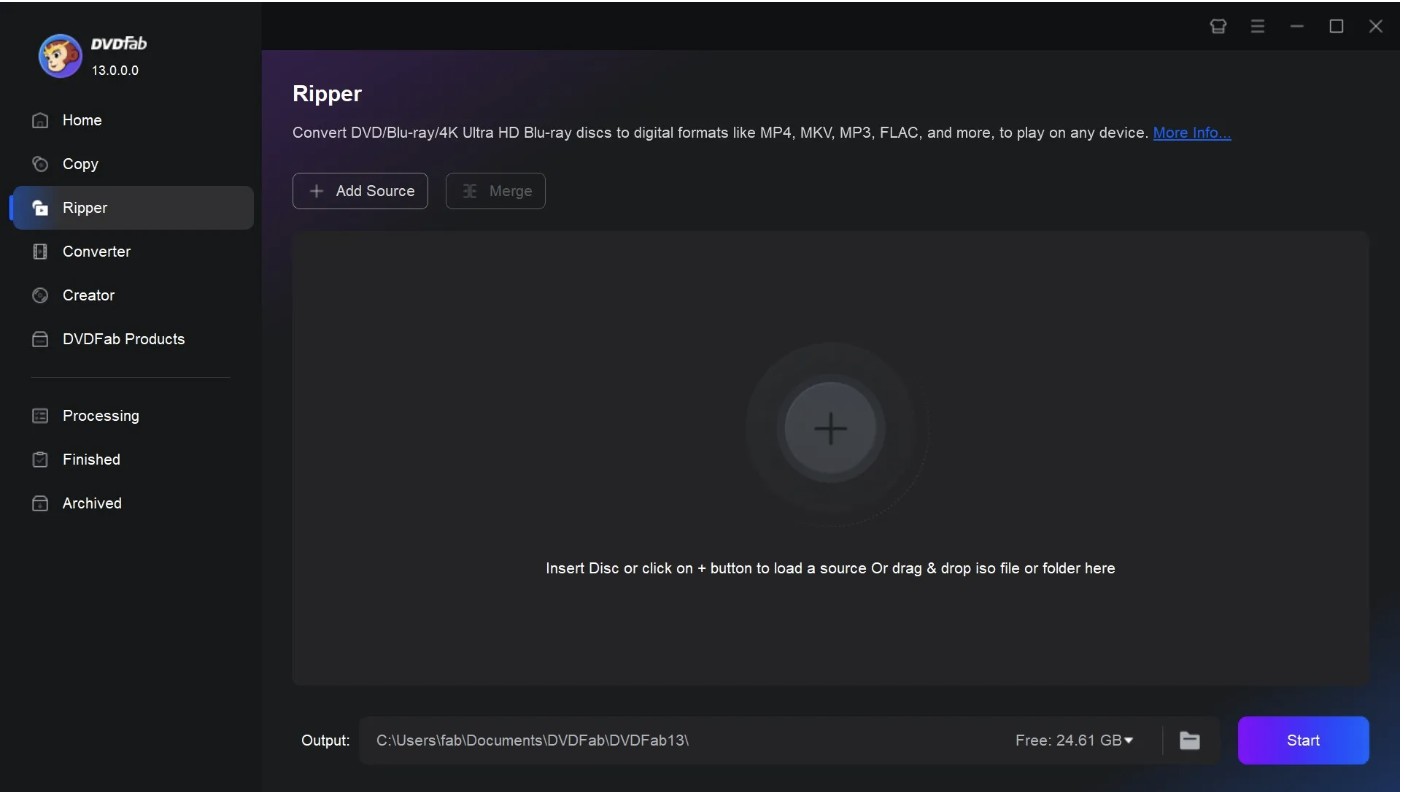
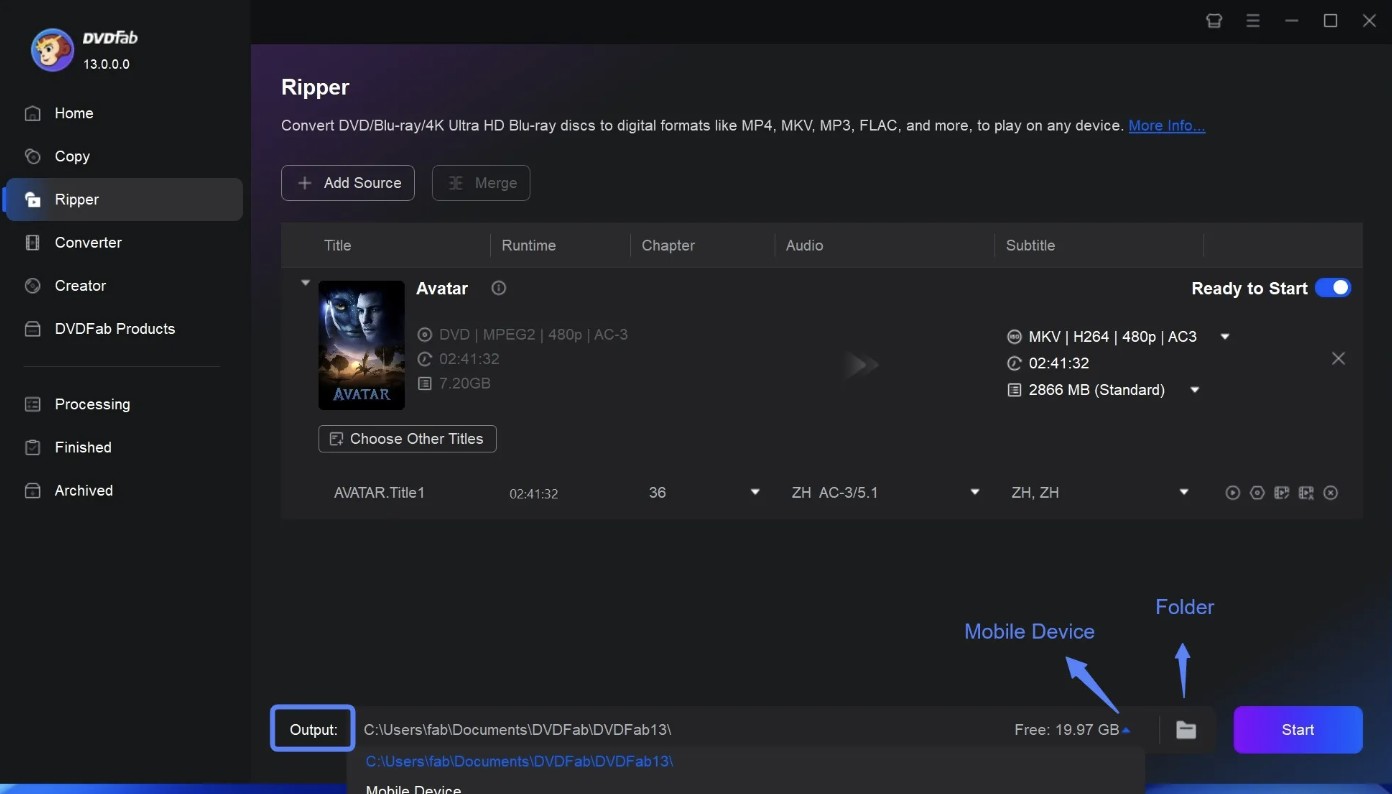
Step 1: Launch and run the DVDFab program > go for the "Ripper" Module > put the DVD in the optical drive for ripping. Otherwise, hit the "+" option to load the video source. You can also go for the drag & drop option to load the video source to the main interface if the source video is an ISO image file or folder.
Free Download Windows 11/10/8.1/8/7
Free Download macOS 12 or newer
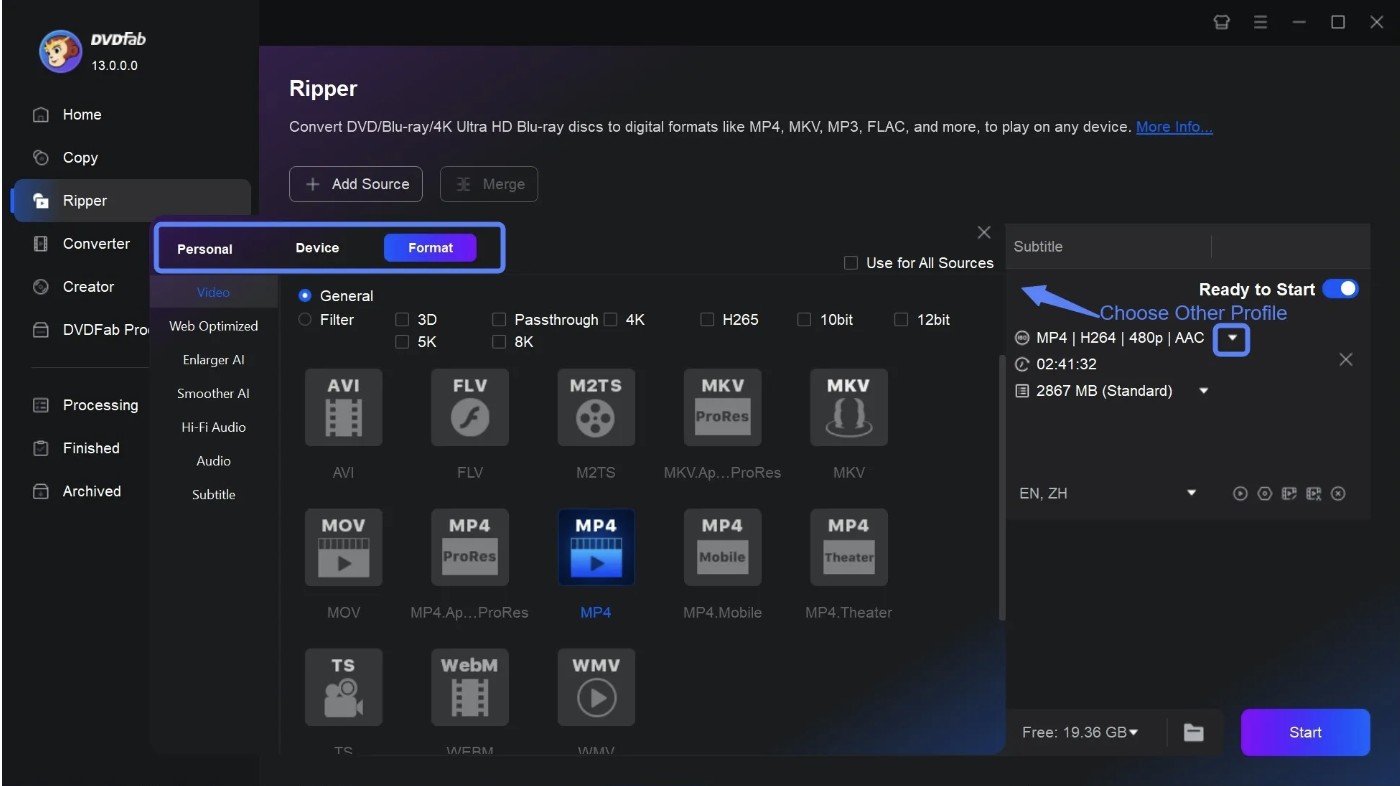
Step 2: Move to the "Profile Selection Box" > from the built-in library, and select the output profile format, such as MP4, MKV, etc., per your requirements.
Step 3: Go to the "Advanced Setting" to select the output parameters, such as subtitles, chapters, audio, etc., according to your choice. You can also try the built-in editor to edit the content with multiple options.
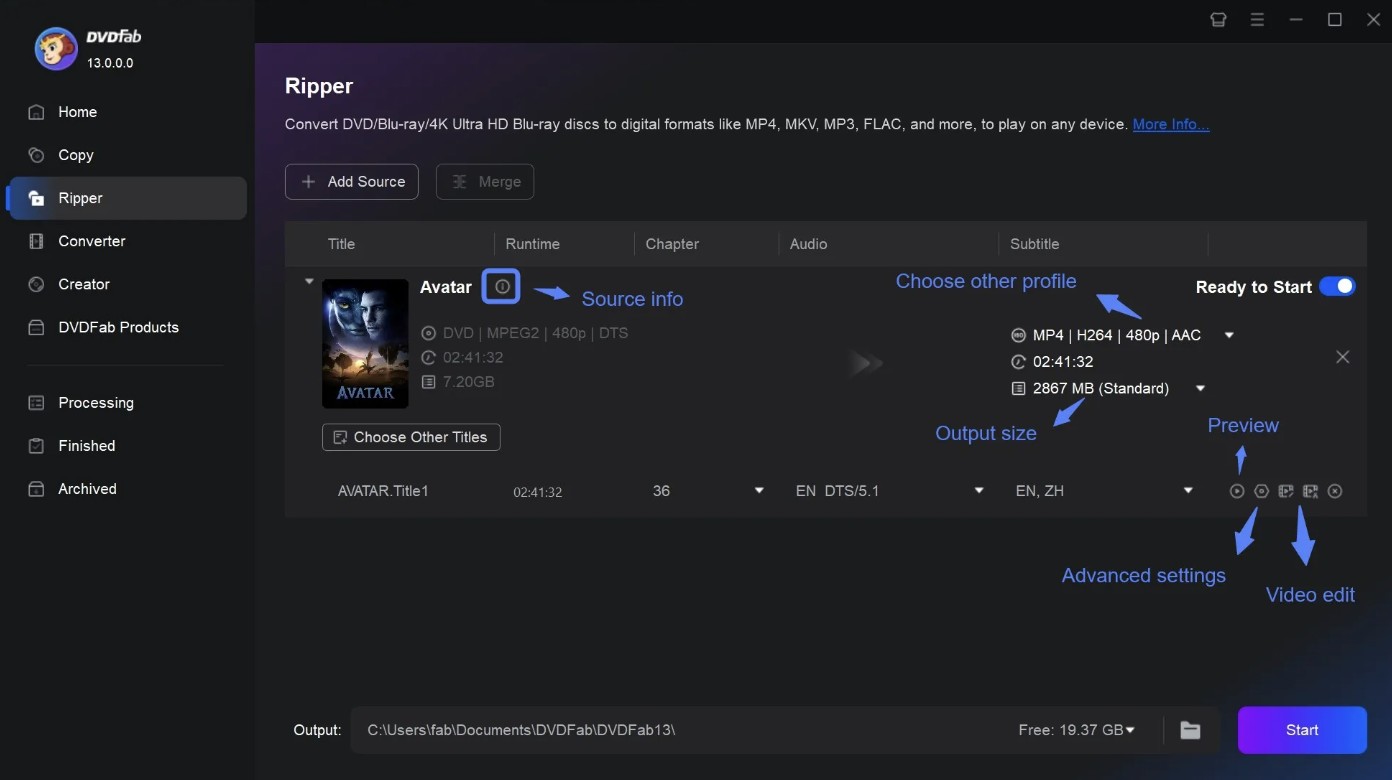
Step 4: Next, move to the Folder > choose directory to save your output ripped DVD > opt for the "Start" option to begin the DVD ripping process.
DVDFab vs MakeMKV: What MakeMKV Does Better
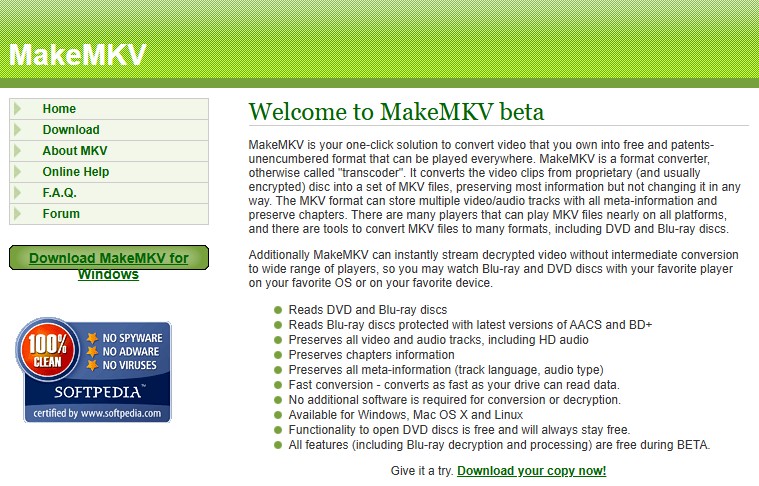
MakeMKV is a lossless disc-ripping tool that converts DVDs and Blu-rays into MKV files without re-encoding the video. That means the output is bit-for-bit identical to the source disc, with no quality loss and no compression artifacts. The trade-off is file size: a two-hour DVD can easily produce a 6–7 GB MKV file.
For years, MakeMKV was the near-universal recommendation on forums like Reddit’s r/DataHoarder and r/PleX for anyone building a home media library. That reputation is largely still deserved, but 2025 and 2026 introduced some real concerns about beta key expiration, purchase page outages, and its long-term reliability. As a result, some users may start looking for MakeMKV alternatives like DVDFab.
👍What MakeMKV does well:
- Runs on Windows, Mac, and Linux.
- Remux-based ripping: all original video, audios, subtitles, and chapters are preserved as-is.
- Supports CSS (DVD), AACS, and BD+ (Blu-ray), covering the vast majority of consumer discs.
- Free to use with the current beta key. MakeMKV has historically offered a permanent registration key, but new permanent purchases are currently unavailable.
❌Limitation:
- MKV is the only output format.
- No video editing. MakeMKV doesn't convert, compress, or edit.
- Permanent registration purchases remain unavailable, and beta users still need to replace expired temporary keys periodically.
How to Rip DVDs Using MakeMKV
Step 1: Go to the MakeMKV website and select the appropriate downloading link compatible with your system OS to launch the program.
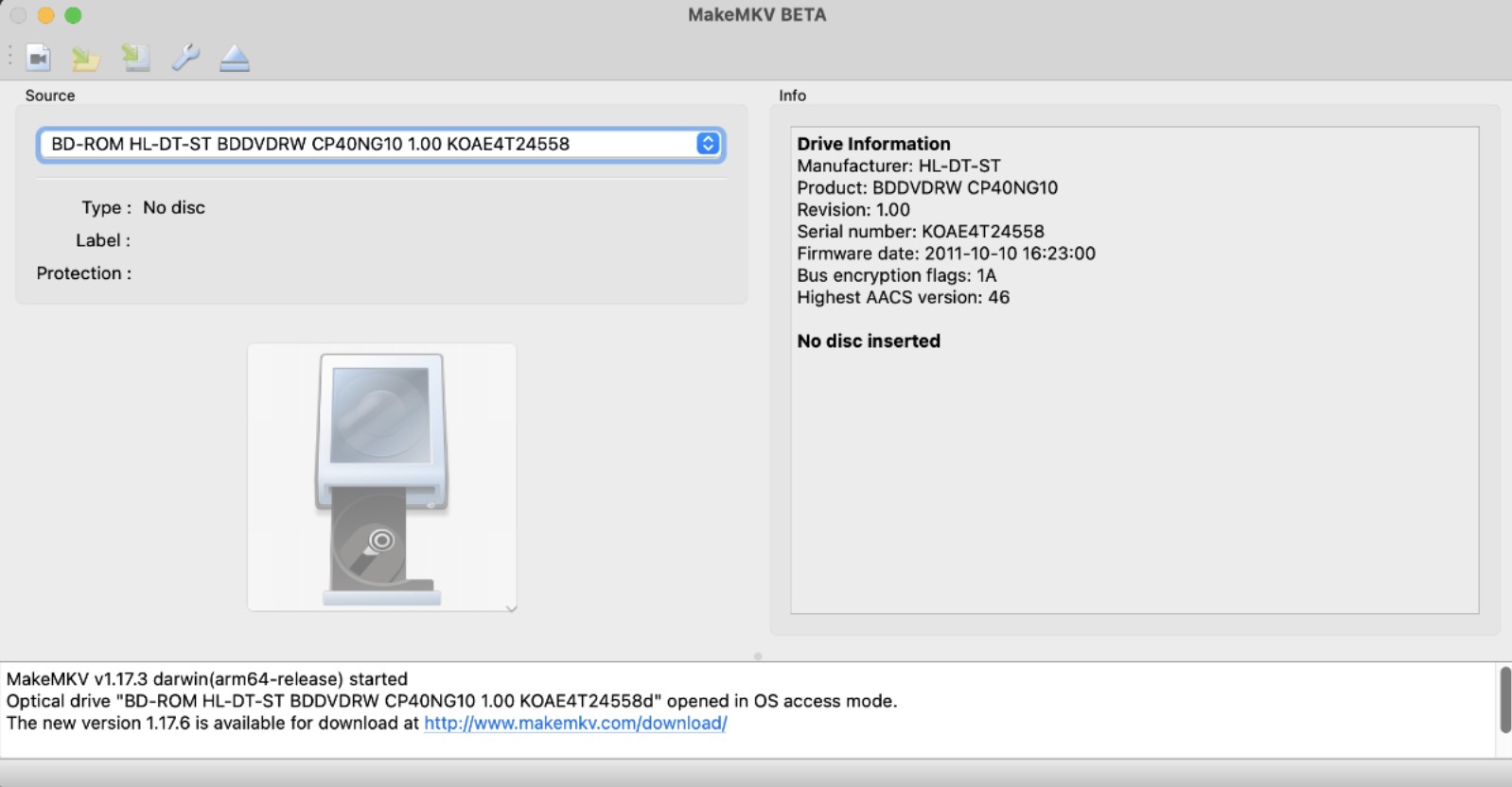
Step 2: After launching the program, insert your preferred DVD into the optical drive. MakeMKV will automatically detect and show it. Select the DVD drive icon and the drive will be scanned automatically.
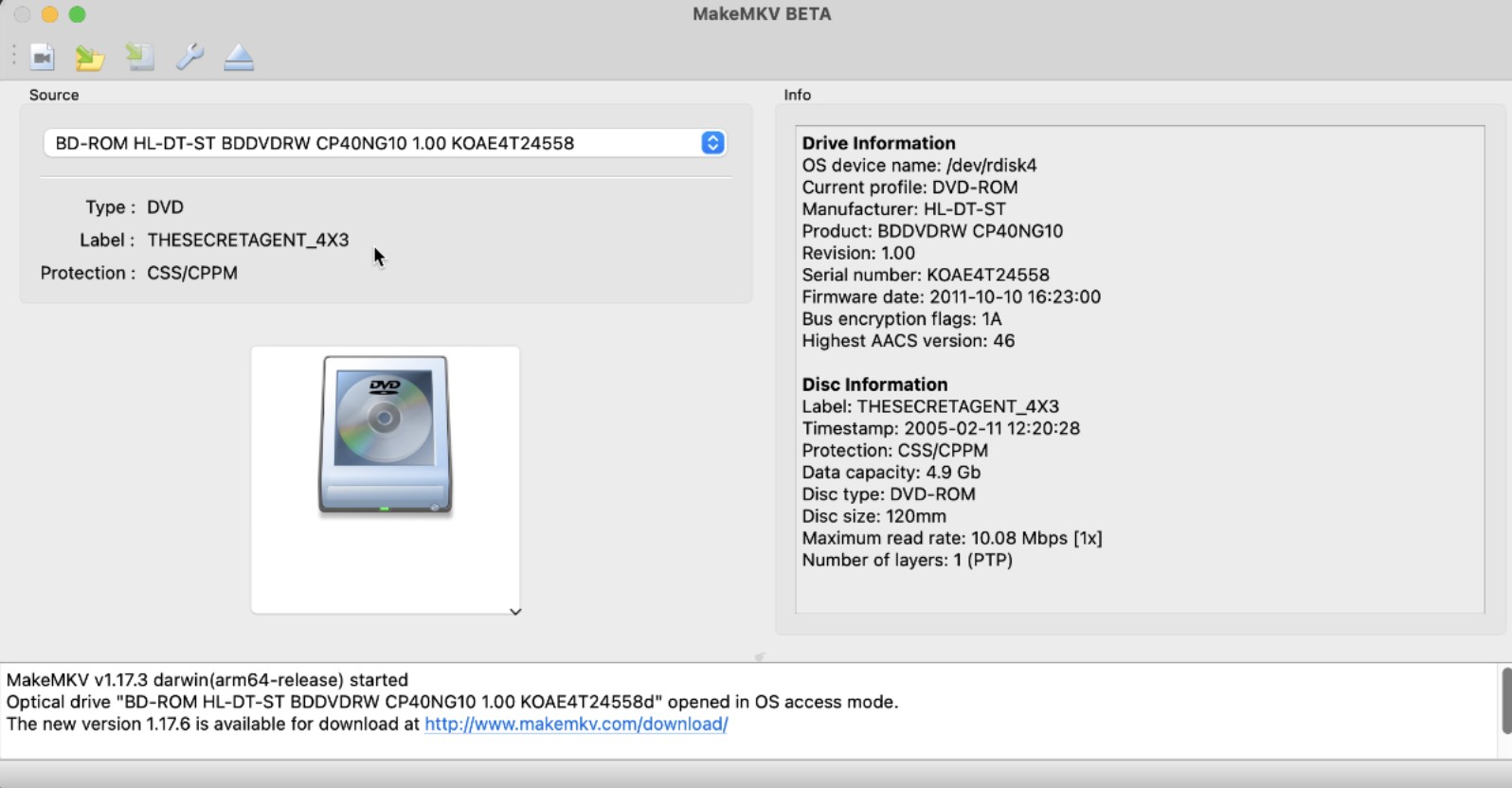
Step 3: MakeMKV takes a few minutes to detect and remove if there is any encryption, error, or unwanted file. After this process, you can see all the chapters of the inserted DVD
Step 4: The larger file refers to the main movie, and the other refers to the other content on the disc. You can rip the entire disc or any specific file as per your choice. Now, right-click anywhere in the chapter box > remove "Unselect All" to remove all the "Tick" signs from each chapter.
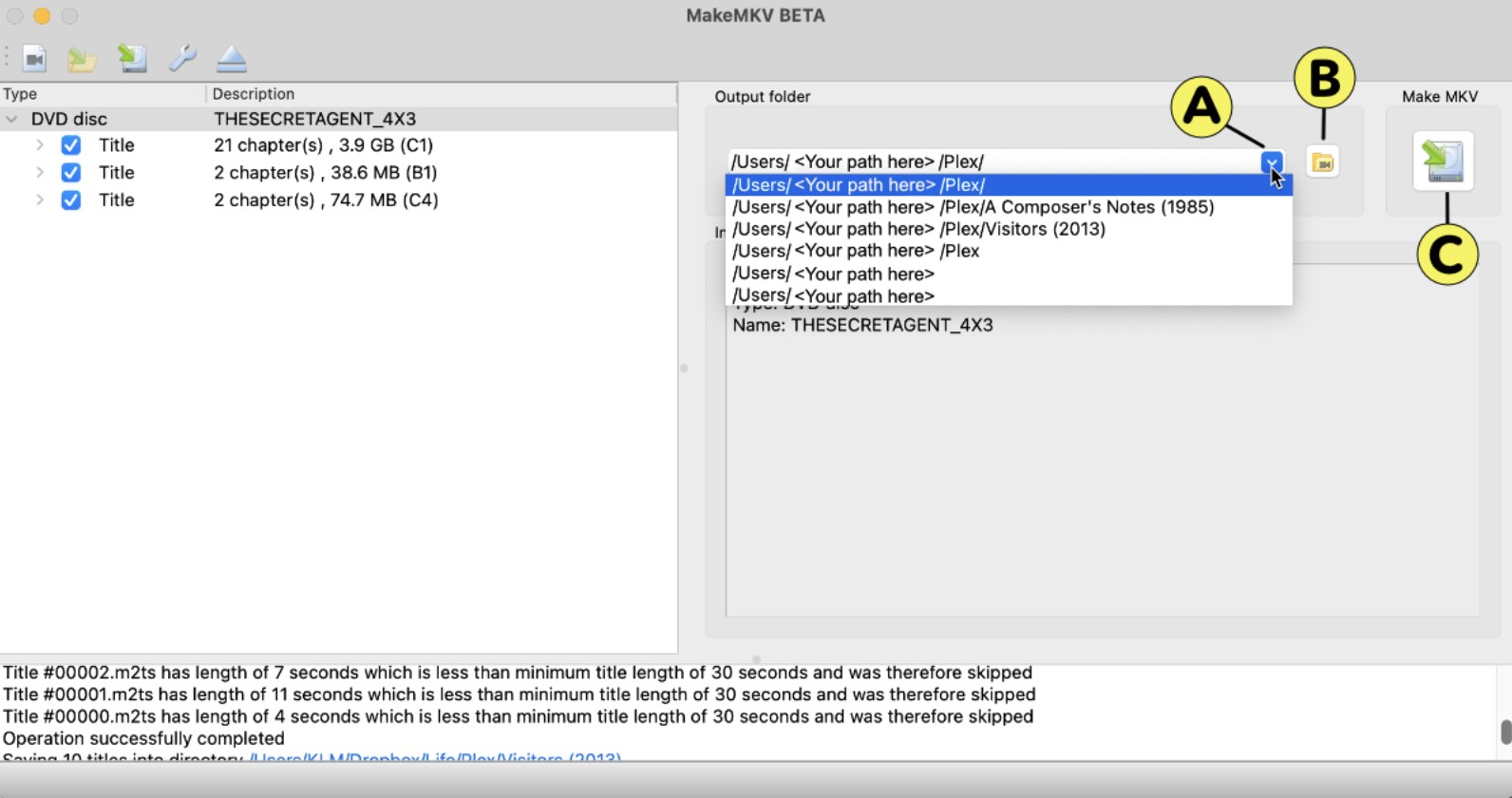
Step 5: Now, select the specific file that you want to rip and tick the relevant box according to your choice. Then select the "Title" option to open the drop-down menu and select your desired language for the movie. While scrolling through the subtitles, you can also select the subtitles.
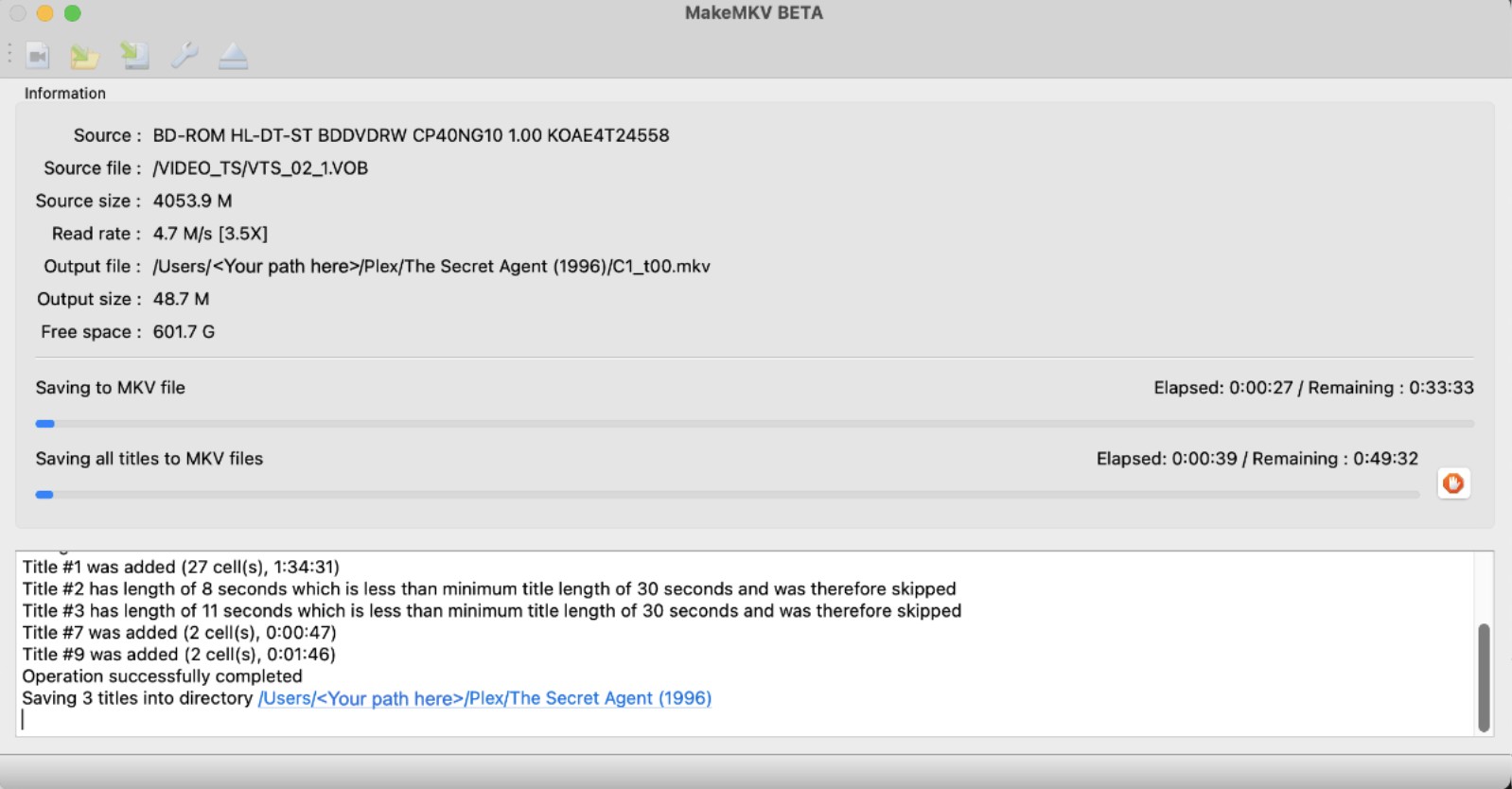
Step 6: On the right side, you can see the "Output Folder," where the ripped DVD will be saved. You can also change the location if needed. Then, click "Make MKV" on the right side to rip DVD using MakeMKV. Wait for a few minutes, and you will get the ripped DVD in MKV format.
DVDFab vs MakeMKV: DVD, Blu-ray, and UHD Feature Comparison
This comparison shows the main difference between the two tools across DVD, Blu-ray, and UHD use cases. MakeMKV focuses on MKV archiving. DVDFab provides more output formats and separate modules for DVD, Blu-ray, UHD, copy, and creation workflows.
| Feature | MakeMKV | DVDFab |
| Disc Decryption | Built-in support for CSS and most standard protections | Full support (CSS, APS, RCE, Sony ARccOS, AACS, BD+, BD-J, RC, NEW, etc.) |
| DVD ripping | Yes, outputs MKV | Yes, outputs MKV, MP4, AVI, audio formats, and device profiles |
| Blu-ray ripping | Yes, outputs MKV | Yes, outputs MKV, MP4, M2TS, and many video/audio formats |
| UHD Blu-ray workflow | No separate UHD Ripper module or MP4/M2TS UHD profile listed on the public product page | Dedicated UHD Ripper module for MKV, M2TS, MP4, HDR10, and Dolby Vision workflows |
| Output format | MKV only | DVD/Blu-ray: many video and audio formats; UHD: MKV, M2TS, MP4, and audio formats |
| Compression | No video compression | Profile-based compression and custom output settings |
| Passthrough / remux | MKV remux | Passthrough profiles are available |
| Metadata and chapters | Preserves chapters and metadata | Supports metadata and profile-based output control |
| Editing | No | Crop, trim, subtitles, watermark, and parameter adjustment |
| Device presets | No | Yes |
| Disc copy / creator workflow | No | Available through separate DVDFab Copy and Creator modules |
| OS | Windows, macOS, Linux | Windows, macOS |
| Price / access | DVD free; Blu-ray shareware; purchase currently unavailable | Paid modules with trial access |
DVDFab vs MakeMKV: Hands-on Test and Performance
I tested both tools with the same DVD source, computer, and optical drive to keep the comparison consistent. The source was a dual-layer DVD-Video disc with CSS protection. DVDFab used the MKV Passthrough profile, while MakeMKV used its standard MKV remux workflow. I checked source loading, main-title detection, audio and subtitle selection, ripping time, output file size, and playback quality after export.
Test environment:
- OS: Windows 11
- CPU & GPU: Intel Core i7 and NVIDIA GeForce RTX
- Optical drive: ASUS ZenDrive U9M
- Disc used: 8 Mile, main movie, 1 hour 50 minutes
- Disc type: DVD-Video, dual-layer DVD-9, CSS-encrypted
Test results:
| Item | Source Loading | Output Format | Time | Output File Size | Output A/V Result |
| DVDFab DVD Ripper | Yes | MKV Passthrough | 1m37s | 5.07GB | 720x480, DTS 5.1 |
| MakeMKV | Yes | MKV remux | 1m34s | 6.01GB | 720x480, AC3 5.1 |
MakeMKV was slightly faster in this test because it created a direct MKV remux. DVDFab finished at a similar speed in MKV Passthrough mode and produced a smaller file and better audiu quality in this run.
The practical result is clear: MakeMKV is strong for direct MKV archiving, while DVDFab gives more control over output format, file size, device compatibility, subtitles, and later editing. For a simple MKV backup, MakeMKV remains efficient. For users who need MP4, compression, Blu-ray/UHD options, or related disc modules, DVDFab is more flexible.
FAQs
Is MakeMKV legal?
MakeMKV is legal as long as you use this program for personal and non-commercial purposes. If you own the disc you are ripping and are not sharing or misusing the ripped DVD files, it's legal to use MakeMKV. The legality also varies depending on the type of disc's encryption and the country where you have used the software. Before using, you should also check the disc terms and local laws.
Does DVDFab remove encryption?
Yes. DVDFab uses a combination of local decryption and a cloud-based decryption service to handle most forms of DVD and Blu-ray copy protection, including CSS, AACS, BD+, BD-J, and Cinavia. The cloud service is particularly useful for newer discs that use updated encryption not yet handled by local tools.
Is MakeMKV still being actively maintained?
Yes. MakeMKV is still actively maintained. Version 2.0.0 was released on September 20, 2026, and the current beta key is valid through the end of October. However, permanent registration purchases are still unavailable.
Conclusion
Neither tool is the obvious winner for everyone. The right choice comes down to what you're actually trying to do. If you want a lossless archive of your disc collection, are comfortable working with MKV files, and don't mind a lightweight two-step workflow (MakeMKV + HandBrake), MakeMKV gets the job done at a fraction of the cost. If you want an all-in-one solution, DVDFab covers more ground. It's also the more reliable option for users who need consistent, supported software they don't have to babysit.

 How to Rip and Transfer DVD to iPad/iPhone: Free and Paid Options in 2026By Wenny Yan - Oct 15, 2026
 How to Convert DVD to Digital in 2026: 7 Software, Service & Hardware MethodsBy Diana Smith - Oct 14, 2026
 Best Free DVD Ripper for Mac in 2026: 6 Tested ToolsBy Diana Smith - Oct 14, 2026
 4 Free DVD Rippers for Windows 10/11: Best Tools & Step-by-Step GuideBy Diana Smith - Oct 13, 2026