DVDFab vs MakeMKV: Comparison, Test Result & Step-by-Step Guide

Summary: If you're exploring DVD ripper tools, you've probably come across recommendations for both DVDFab and MakeMKV. What are the differences between MakeMKV vs DVDFab? How do you use each one? And which is the best fit for your needs? This article will answer all your questions.
Table of Contents
If you're trying to decide between DVDFab and MakeMKV, you're asking a question that looks simple but actually depends a lot on what you need from a DVD ripping tool. MakeMKV has long been the go-to choice for people who want a free, lossless rip. DVDFab, on the other hand, is a paid tool that covers far more ground — format conversion, video editing, device presets, and broader decryption support.
But the choice has gotten more complicated lately. MakeMKV went through a rough patch in 2025: its domain expired unexpectedly, the payment gateway went offline, and by January 2026, many users were hitting a "Fatal error: Application version is too old" loop that blocked them from using the software. If software reliability matters to you, that's worth factoring in.
I've tested both tools on the same encrypted DVD to give you a performance comparison. Below, I'll walk through what each tool does well, where it falls short, and which one makes more sense depending on your setup.
DVDFab: Top Contender in the DVDFab vs MakeMKV Battle
DVDFab is one of the leading DVD rippers on the market, with over 20 years of experience. In addition to being a popular DVD ripper, it also includes other modules like Blu-ray and UHD rippers, making it a versatile tool for various disc formats. In this section, we'll focus on DVDFab DVD Ripper module.
👍What makes DVDFab stand out:
- Handles both legacy and newer encryption, including cloud-based decryption for discs that stump local tools
- Supports 1,000+ output formats, including MP4, MKV, AVI, MOV, and device-specific presets for 260+ devices (phones, tablets, consoles, smart TVs)
- Offers both a 1:1 passthrough mode and adjustable compression, which is useful if you need smaller files for storage or streaming
- DVDFab lets you enjoy digital copies of DVDs in 5.1 AC3 audio quality with theatrical sound satisfaction
- Uses GPU encoding to speed up conversion, which matters for large collections
- You can trim, crop, add subtitles, or watermark directly within the application
- DVDFab has consistently updated its cutting-edge features, blog and forum
❌Limitation:
- DVDFab is not available on Linux OS
- The free trial allows up to three full disc conversions, but support is available on paid plans
How to Rip DVDs Using DVDFab
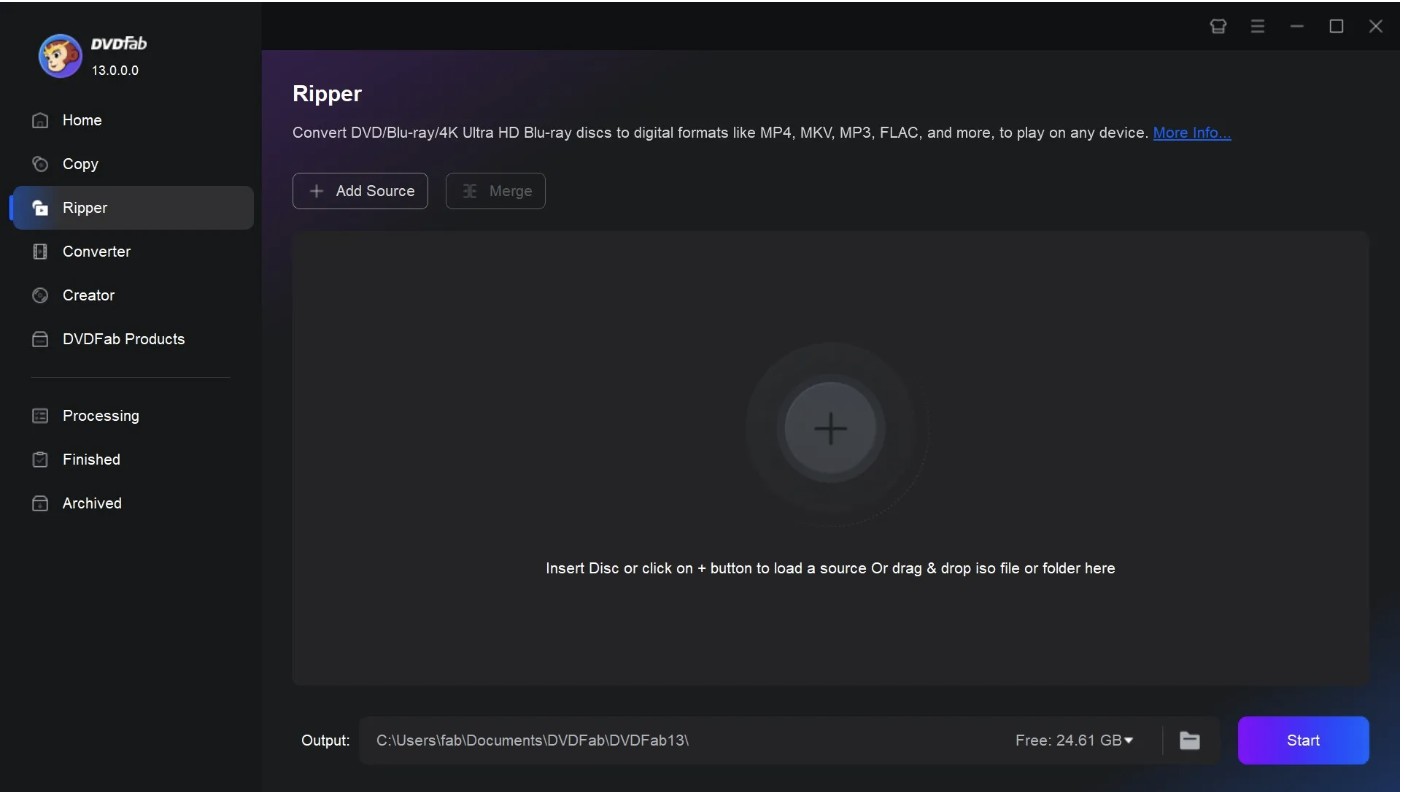
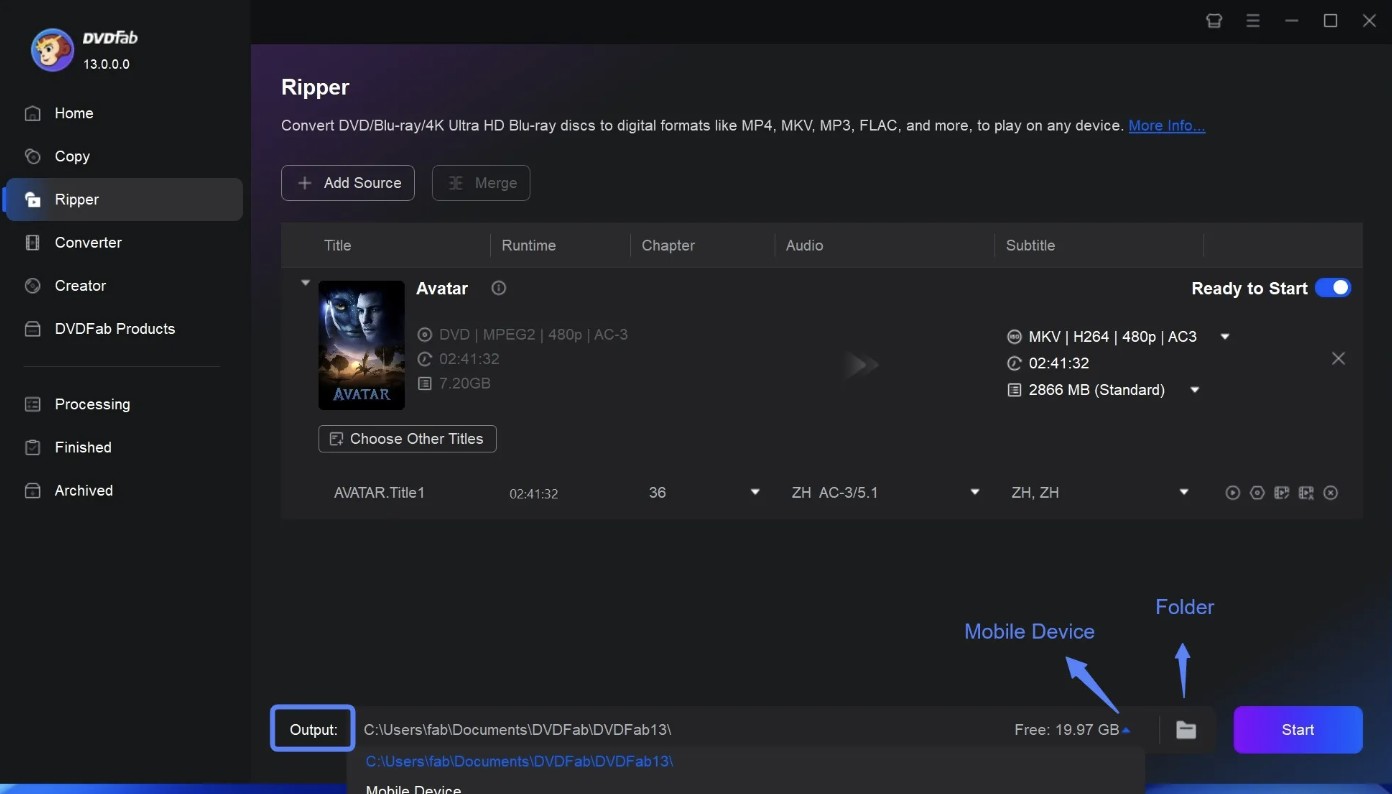
Step 1: Launch and run the DVDFab program > go for the "Ripper" Module > put the DVD in the optical drive for ripping. Otherwise, hit the "+" option to load the video source. You can also go for the drag & drop option to load the video source to the main interface if the source video is an ISO image file or folder.
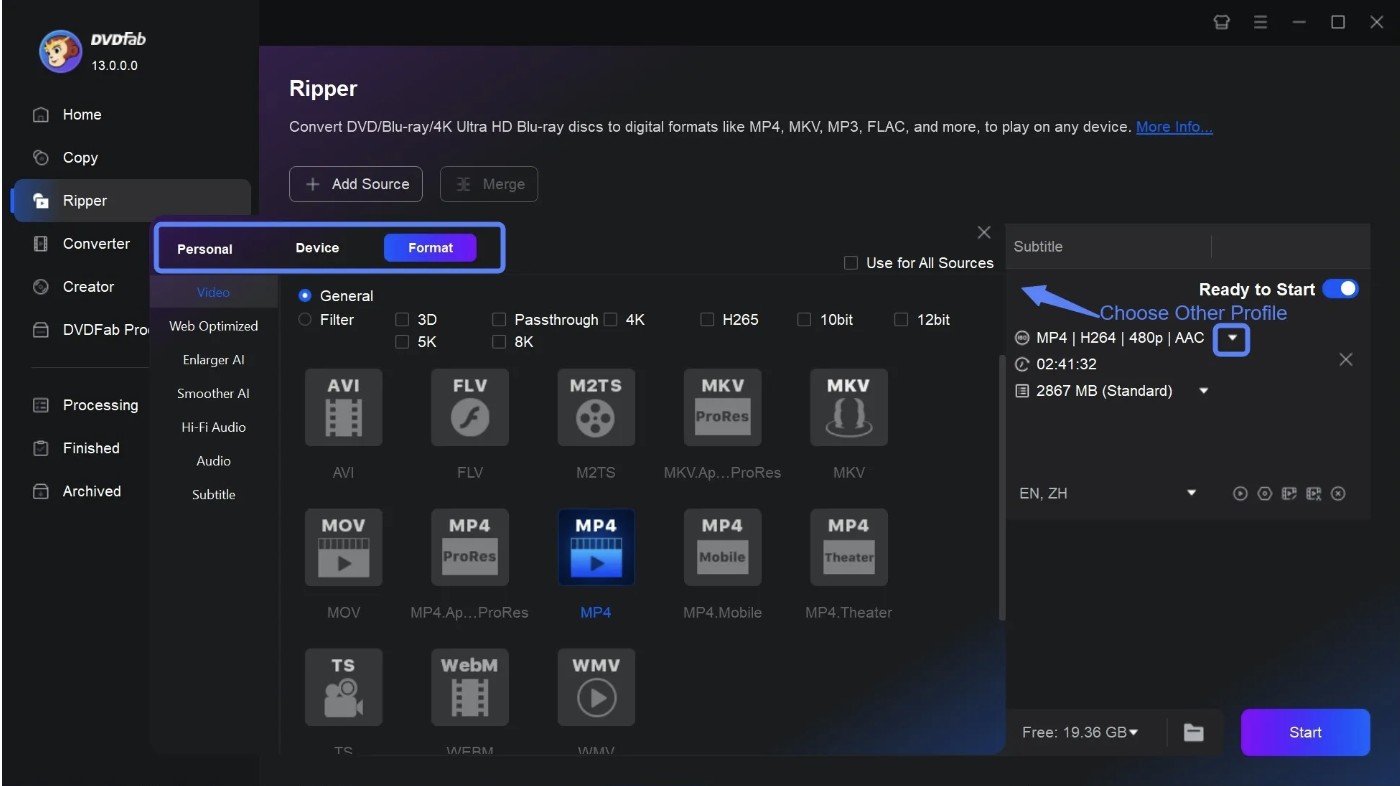
Step 2: Move to the "Profile Selection Box" > from the built-in library, and select the output profile format, such as MP4, MKV, etc., per your requirements.
Step 3: Go to the "Advanced Setting" to select the output parameters, such as subtitles, chapters, audio, etc., according to your choice. You can also try the built-in editor to edit the content with multiple options.
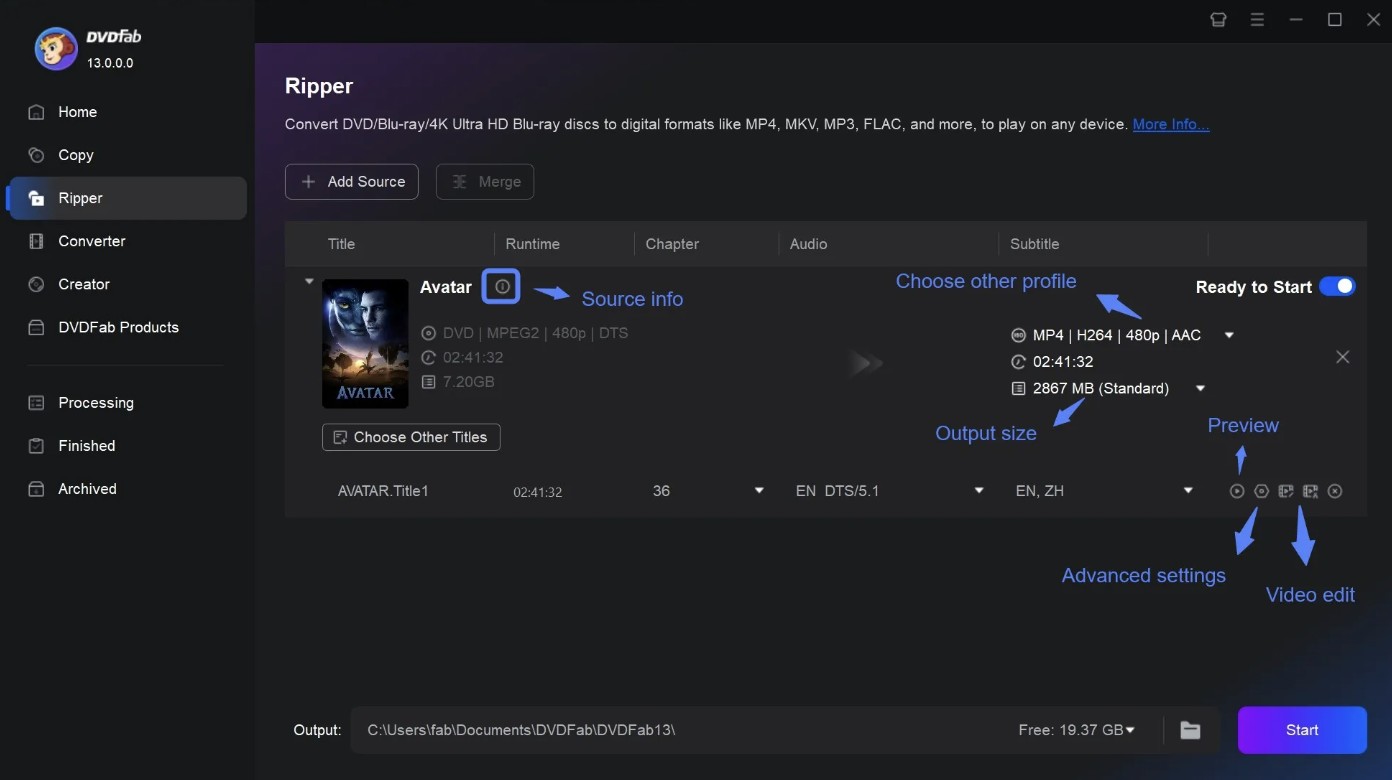
Step 4: Next, move to the Folder > choose directory to save your output ripped DVD > opt for the "Start" option to begin the DVD ripping process.
MakeMKV: Strong Contender in the DVDFab vs MakeMKV Showdown
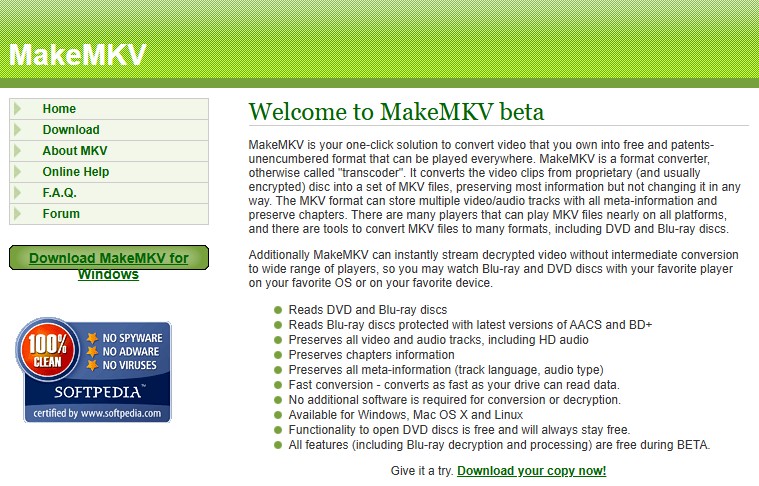
MakeMKV is a lossless disc-ripping tool that converts DVDs and Blu-rays into MKV files without re-encoding the video. That means the output is bit-for-bit identical to the source disc, with no quality loss and no compression artifacts. The trade-off is file size: a two-hour DVD can easily produce a 6–7 GB MKV file.
For years, MakeMKV was the near-universal recommendation on forums like Reddit's r/DataHoarder and r/PleX for anyone building a home media library. That reputation is largely still deserved, but 2025 introduced some real concerns about its long-term reliability.
👍What MakeMKV does well:
- Runs on Windows, Mac, and Linux.
- Remux-based ripping: all original video, audios, subtitles, and chapters are preserved as-is.
- Supports CSS (DVD), AACS, and BD+ (Blu-ray), covering the vast majority of consumer discs.
- Free to use with a regularly-updated beta key. A permanent license costs around $50.
❌Limitation:
- MKV is the only output format.
- No video editing. MakeMKV doesn't convert, compress, or edit.
- Insufficient official maintenance, with delays in releasing free beta keys and permanent keys.
How to Rip DVDs Using MakeMKV
Step 1: Go to the MakeMKV website and select the appropriate downloading link compatible with your system OS to launch the program.
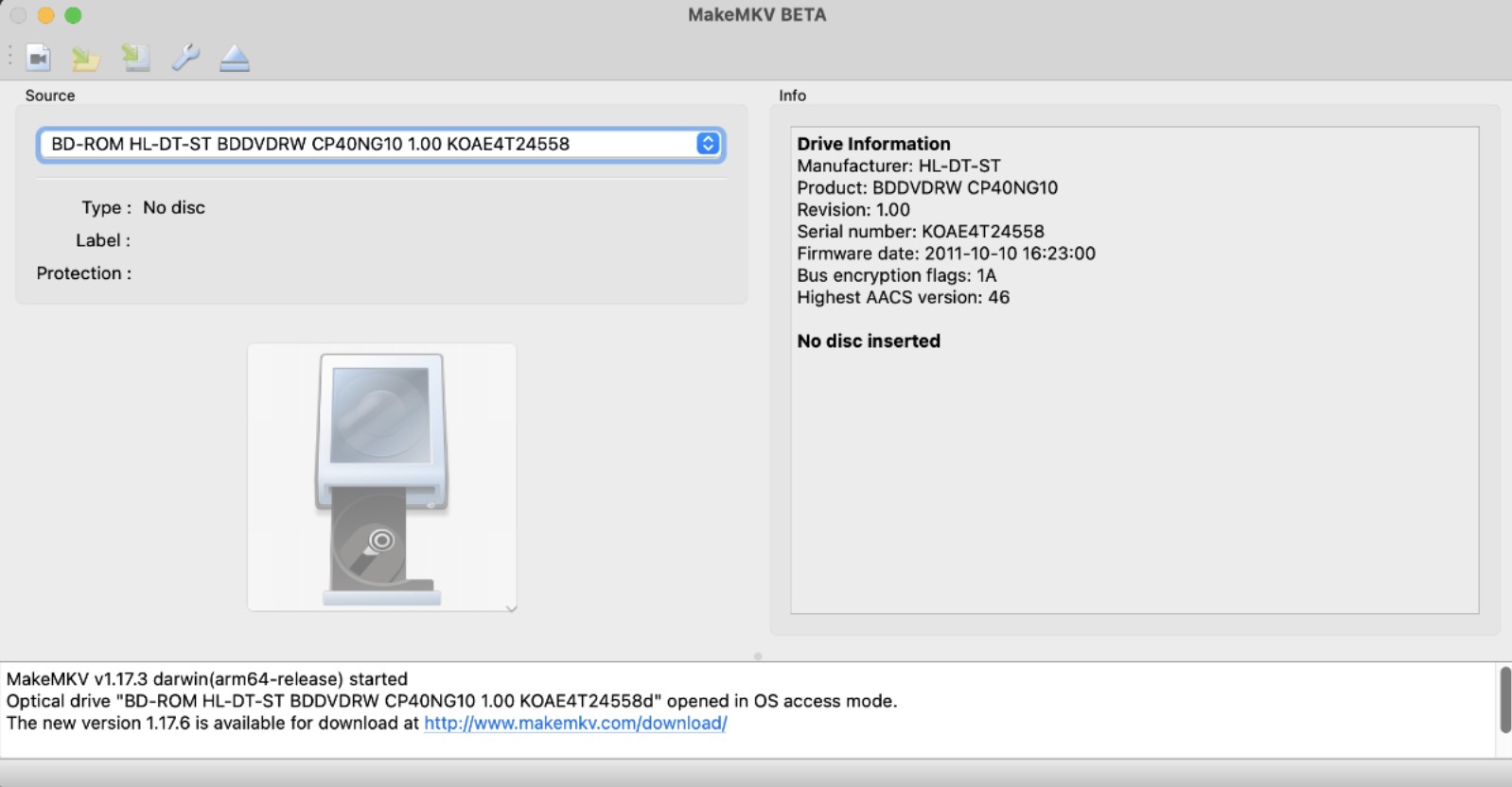
Step 2: After launching the program, insert your preferred DVD into the optical drive. MakeMKV will automatically detect and show it. Select the DVD drive icon and the drive will be scanned automatically.
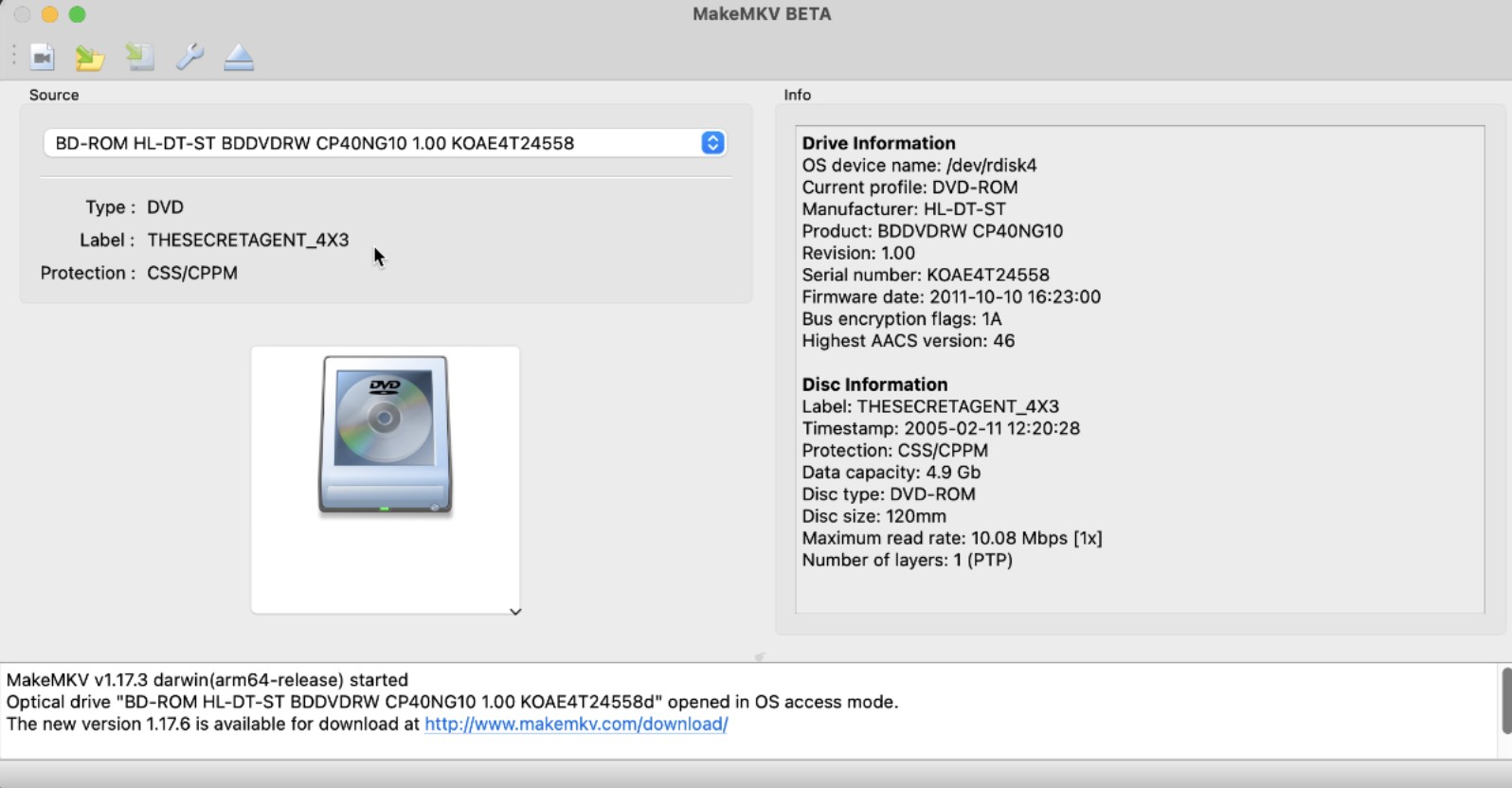
Step 3: MakeMKV takes a few minutes to detect and remove if there is any encryption, error, or unwanted file. After this process, you can see all the chapters of the inserted DVD
Step 4: The larger file refers to the main movie, and the other refers to the other content on the disc. You can rip the entire disc or any specific file as per your choice. Now, right-click anywhere in the chapter box > remove "Unselect All" to remove all the "Tick" signs from each chapter.
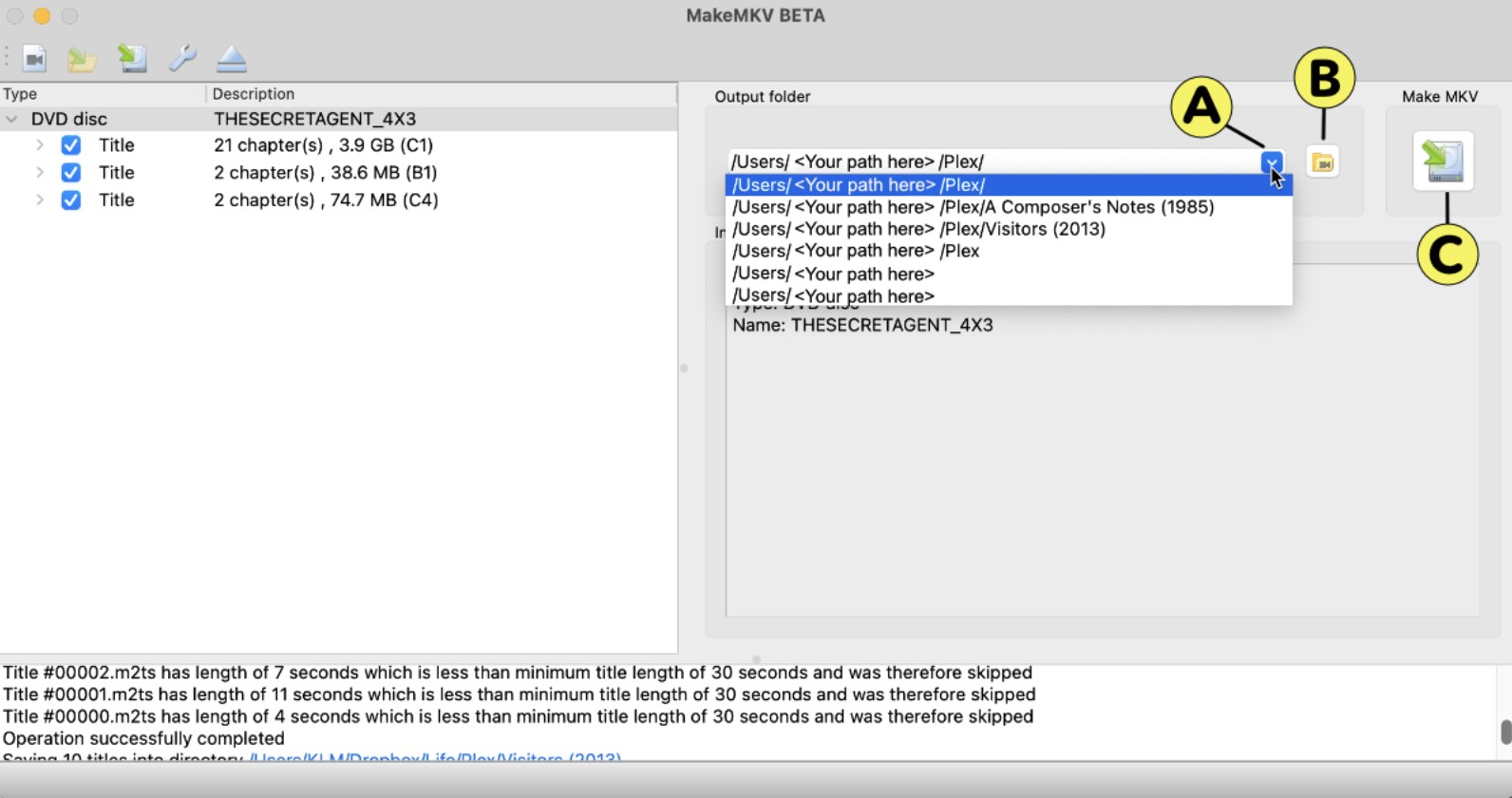
Step 5: Now, select the specific file that you want to rip and tick the relevant box according to your choice. Then select the "Title" option to open the drop-down menu and select your desired language for the movie. While scrolling through the subtitles, you can also select the subtitles.
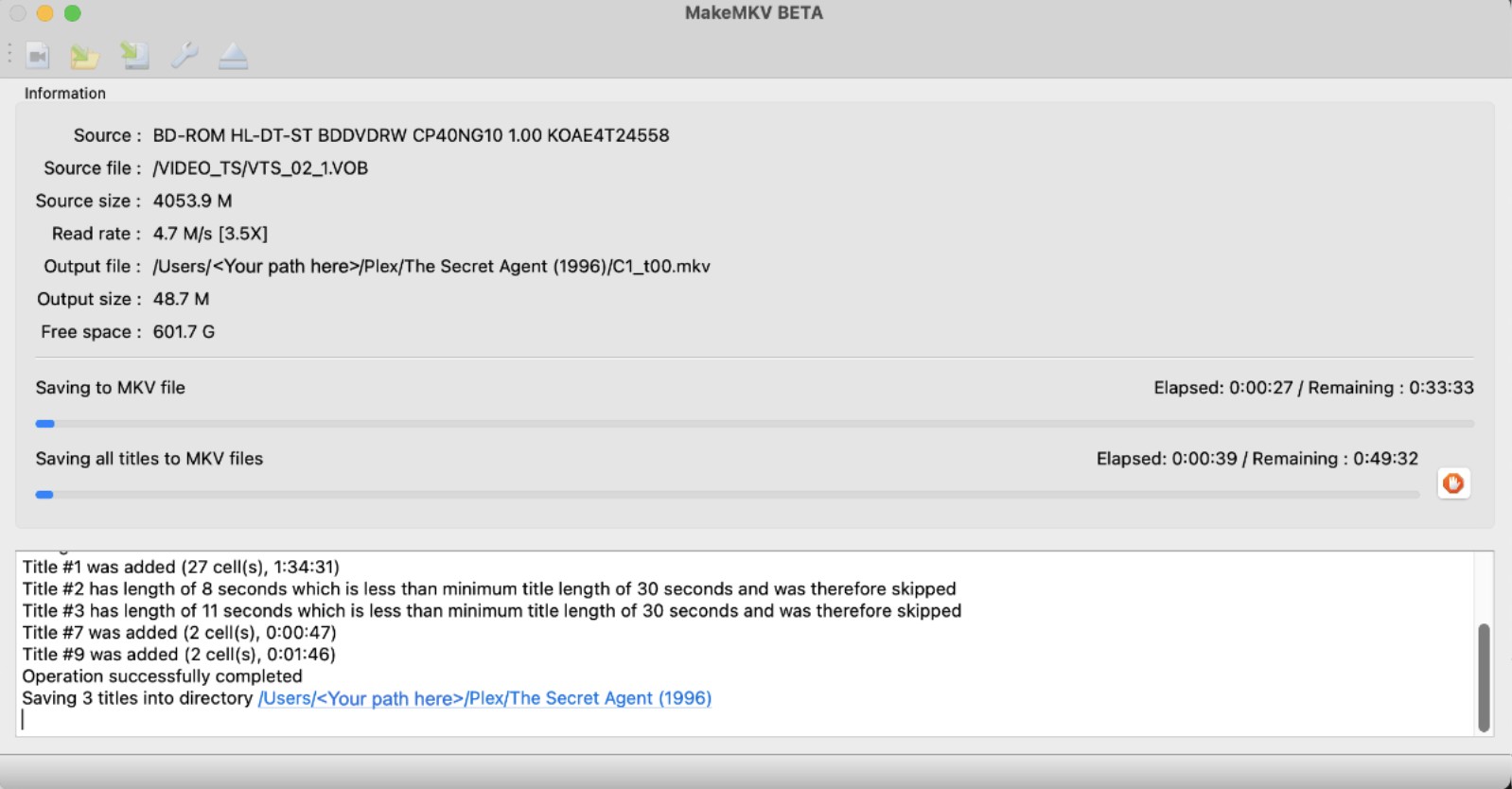
Step 6: On the right side, you can see the "Output Folder," where the ripped DVD will be saved. You can also change the location if needed. Then, click "Make MKV" on the right side to rip DVD using MakeMKV. Wait for a few minutes, and you will get the ripped DVD in MKV format.
[Comparison] DVDFab vs MakeMKV – Which One is Best for You?
To help you choose between DVDFab and MakeMKV, we present a concise, data-driven comparison based on our team's hands-on testing, with a focus on real-world DVD-ripping performance and features.
MakeMKV vs DVDFab: Hands-on Test and Performance
We evaluated two tools using the same encrypted, dual-layer movie DVD to keep conditions consistent. Since on DVD media, ripping throughput is also limited by the drive's read speed and firmware, we tested these to DVD rippers on the same computer with the same drive. Below are the test scenario and results.
Test enviroments:
- OS: Windows 11
- CPU & GPU: Intel Core i7 & Nvidia GeForce RTX
- Optical drive: ASUS ZenDrive U9M
- Disc we used: 8mile (main movie, 1h50m)
- Disc type: DVD-Video, dual-layer DVD-9, CSS-encrypted
Test results:
DVDFab delivered nearly the same speed as MakeMKV yet produced a smaller file, with lossless video and audio, and even better audio in our run.
| Item | Decryption | Output format | Time | Output file size | Output A/V quality |
| DVDFab DVD Ripper | ✔ | MKV (Passthrough) |
1m37s |
5.07GB |
720*480
DTS 5.1
|
| MakeMKV | ✔ | MKV (remux) | 1m34s |
6.01GB |
720*480
AC3 5.1
|
DVDFab vs MakeMKV: Feature Comparison Table
| DVD Ripping Capabilities | DVDFab DVD Rippier | MakeMKV |
|---|---|---|
|
Compatible OS |
Windows & Mac | Windows, Mac & Linux |
|
Ripping Speed |
5 minutes for standard video | 15 minutes for standard DVD |
|
Output Format Support |
Multiple formats (more than 1000 video and audio formats, such as MP4, MKV, AVI, MOV, etc.) | Only MKV |
|
Output File Size |
Reduced size with lossless compression | Large file size |
|
Batch Processing |
Yes | Yes |
|
Decryption |
Full support (CSS, APS, RCE, Sony ARccOS, etc.) | Built-in support for CSS and most standard protections |
|
Video Resolution |
HD to 8K output support irrespective of source DVD resolution |
Output in 480p |
|
Audio Quality |
5.1 AC3 |
DTS-HD MA Stereo |
|
Vedio Editing |
Yes | No |
|
Device Presets |
260 + | No |
|
Watermark Adding |
Yes | No |
|
Meta Info & Subtitles Saving |
Yes | No |
FAQs
MakeMKV is legal as long as you use this program for personal and non-commercial purposes. If you own the disc you are ripping and are not sharing or misusing the ripped DVD files, it's legal to use MakeMKV. The legality also varies depending on the type of disc's encryption and the country where you have used the software. Before using, you should also check the disc terms and local laws.
Yes. DVDFab uses a combination of local decryption and a cloud-based decryption service to handle most forms of DVD and Blu-ray copy protection, including CSS, AACS, BD+, BD-J, and Cinavia. The cloud service is particularly useful for newer discs that use updated encryption not yet handled by local tools.
Is MakeMKV still being actively maintained?
This is a fair question given what happened in 2025. MakeMKV is developed by a very small team (essentially a one-person operation), and in 2025 the project experienced its worst reliability stretch in years: the domain expired unexpectedly, the payment gateway went offline, and a software-side error in early 2026 made the app crash on launch for many users.
The developer has resolved these issues, and MakeMKV is still functional as of this writing, but these incidents highlighted a real risk: the entire project depends on a single maintainer. For users who need a tool they can count on, this is worth factoring into the decision.
Conclusion
Neither tool is the obvious winner for everyone. The right choice comes down to what you're actually trying to do. If you want a lossless archive of your disc collection, are comfortable working with MKV files, and don't mind a lightweight two-step workflow (MakeMKV + HandBrake), MakeMKV gets the job done at a fraction of the cost. If you want an all-in-one solution, DVDFab covers more ground. It's also the more reliable option for users who need consistent, supported software they don't have to babysit.

 5 Free DVD Rippers for Windows 10/11: Best Tools & Step-by-Step GuideBy Diana Smith - May 14, 2026
 Convert ISO to AVI Free in 2026: 4 Tools for Windows & MacBy Diana Smith - May 14, 2026
 How to Rip DVDs for Plex: Guide to Formats, Tools, and Library SetupBy Diana Smith - May 8, 2026
 How to Convert DVD to MKV Free and Lossless: Top 6 Software in 2026By Wenny Yan - May 8, 2026