How to Copy DVD to DVD or Computer on Windows 10/11/8/7 [Tested Ways]

Summary: To copy a DVD on Windows 10/11/8/7, first check your disc type and preferred output. For protected commercial discs, use specialized software such as DVDFab DVD Copy, DVDFab DVD Ripper, or HandBrake to copy the DVD to another disc, ISO, VIDEO_TS folder, or MP4/MKV file on your computer. For homemade or data DVDs, Windows File Explorer may be enough.
Table of Contents
If you've ever tried to play an old DVD on a Windows 10 or Windows 11, you may know the frustration. Some drives won't read it, and even if they do, scratches or aging discs can ruin the playback. That's exactly why I started backing up my DVDs years ago. Copying a DVD to another disc or saving it on your PC not only prevents data loss but also makes your movies easier to access anytime.
In this article, I test the main ways to copy a DVD on Windows 10/11/8/7, including DVDFab DVD Copy, DVDFab DVD Ripper, DVD Cloner, HandBrake, and Windows File Explorer. You will see which method fits copying DVD to another DVD, full DVD backup, MP4/MKV conversion, and homemade or data DVDs, along with the limits of Windows built-in tools.

Quick Answer: Best Ways to Copy a DVD on Windows 10/11/8/7
The best way to copy a DVD on Windows depends on your disc type and preferred output. Copying DVD to another DVD, ISO, and VIDEO_TS belong to the DVD copy and full backup workflow, while MP4 and MKV belong to the DVD ripping and conversion workflow.
| Your Disc Type | Your Preferred Output | Best Method | Tools I Recommended |
| Commercial or protected DVD | Another blank DVD, ISO, or VIDEO_TS folder | DVD copy / full DVD backup | DVDFab DVD Copy, DVD Cloner |
| Commercial or protected DVD | MP4, MKV, or other digital video files | DVD ripping / conversion | DVDFab DVD Ripper |
| Homemade or unprotected DVD source | MP4 or MKV | Free transcoding | HandBrake |
| Homemade, data, or unprotected DVD | Files copied to computer or burned to another disc | Windows built-in copy / burn | Windows File Explorer |
What You Need Before Copying a DVD on Windows
Before copying a DVD on Windows 10/11/8/7, prepare the right hardware and choose the correct output. Copying a DVD to another blank disc needs a writable DVD drive and a blank DVD-5 or DVD-9. A computer backup needs enough storage for an ISO file, VIDEO_TS folder, MP4, or MKV file.
Use a DVD reader if you only want to copy DVD to computer. Use a DVD writer if you want to copy DVD to another blank disc. Many modern laptops no longer include an optical drive, so an external USB DVD drive may be required.
Blank discs are needed only for copying DVD to another DVD. DVD-9 has more capacity, while DVD-5 may require compression if the source DVD is larger. Use high-quality blank DVDs to reduce write errors during burning.
Use DVD copy software for DVD, ISO, or VIDEO_TS output. Use DVD ripper software for MP4, MKV, or other digital files. If you only need to copy files from a homemade or data DVD, Windows File Explorer may be enough.
ISO and VIDEO_TS backups are usually larger because they keep the DVD structure. MP4 or MKV files can be smaller depending on the codec, bitrate, and compression settings.
How to Copy DVD to DVD, ISO, or VIDEO_TS on Windows 10/11/8/7
Using DVDFab DVD Copy
DVDFab DVD Copy software allows you to copy a DVD to another blank disc, ISO image, or VIDEO_TS folder on Windows 10/11/8/7. It is designed for DVD copy and full backup tasks, so it is better for users who want to keep DVD menus, chapters, audio tracks, subtitles, and the original disc structure. On compatible discs, it supports many common DVD protections, including CSS, APS, region codes, DADC, and 99-title structures.
For full backup, DVDFab DVD Copy can create a 1:1 DVD-9 to DVD-9 or DVD-5 to DVD-5 copy. If you need to fit a larger DVD-9 source onto a smaller DVD-5 disc, it can also compress the content with adjustable copy modes. The six copy modes, including Full Disc, Main Movie, Customize, Split, Merge, and Clone/Burn, make it suitable for different DVD copy, ISO, and VIDEO_TS backup needs. The latest Windows version is DVDFab 13.0.6.2, updated on June 10, 2026, with enhanced support for newly released DVDs, complex disc structures, and Japanese DVD encryption.
- Fully supports Windows 11/10/8.1/8/7 and macOS 10.13 - 15.x
- Copy any protected DVD, even if it is a newly purchased encrypted disc
- 1:1 Copy DVD-9 to blank DVD-9 or compress to DVD-5 discs
- Copy DVD to ISO or save them as DVD folders on your hard drive
- Support batch DVD copying at lightning-fast speeds without compromising quality
- Fine-tune your copies with Advanced Settings, giving you control over the output
- Six DVD copy modes: Full Disc, Main Movie, Customize, Split, Merge, Clone/Burn

How to Copy a DVD to Another DVD on Windows 10/11 with DVDFab DVD Copy
Step 1: Download and install DVDFab DVD Copy
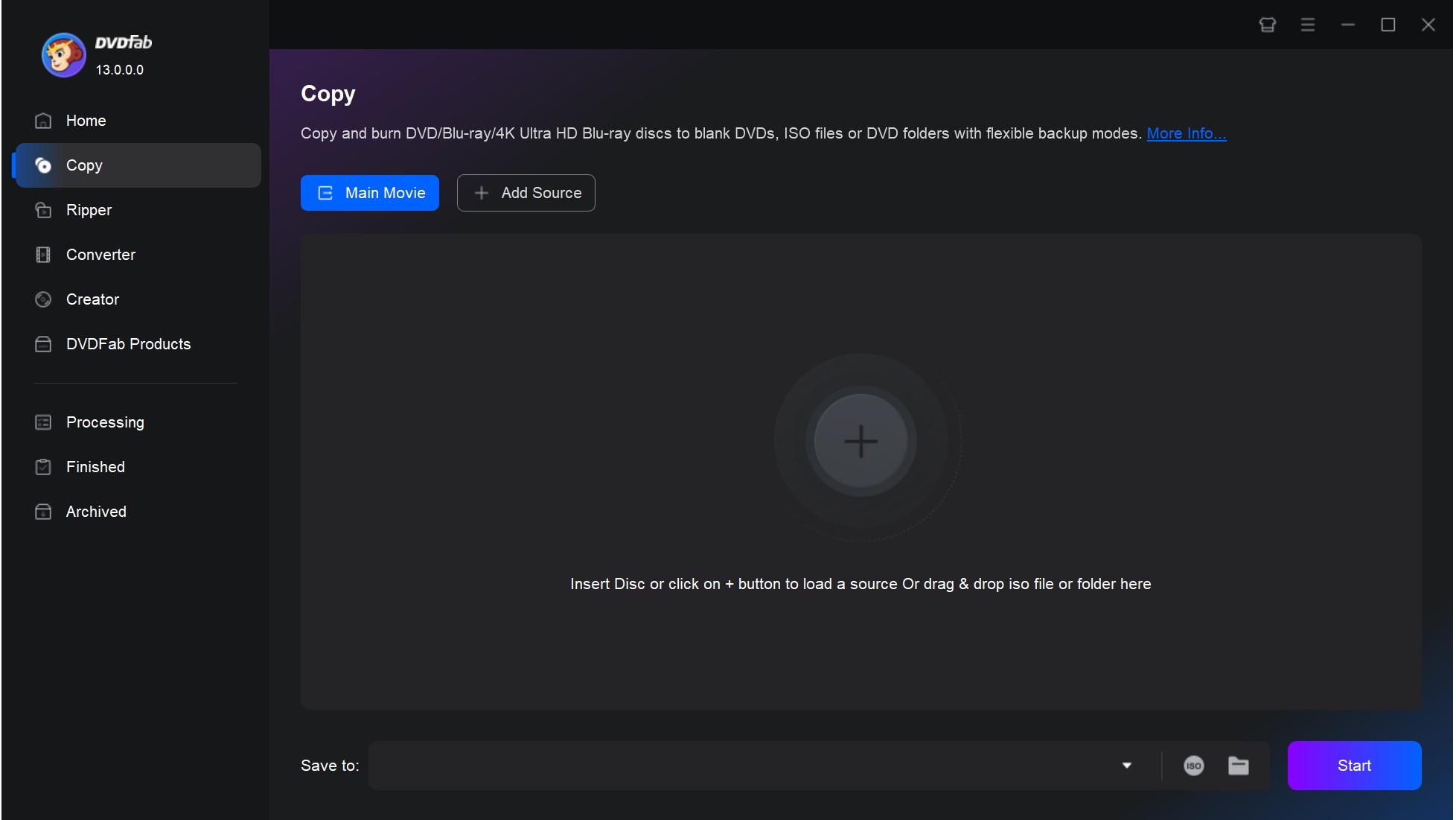
After installing this free DVD copy software on Windows 10, click the "Copy" module. Insert your disc into the optical drive, and DVDFab will automatically detect and load it to the main interface.
Step 2: Choose One DVD Copy Mode
Choose any mode you need from the six DVD copy mode available in this program, including "Full Disc", "Main Movie", "Customize", "Split", "Merge" and "Clone/Burn".
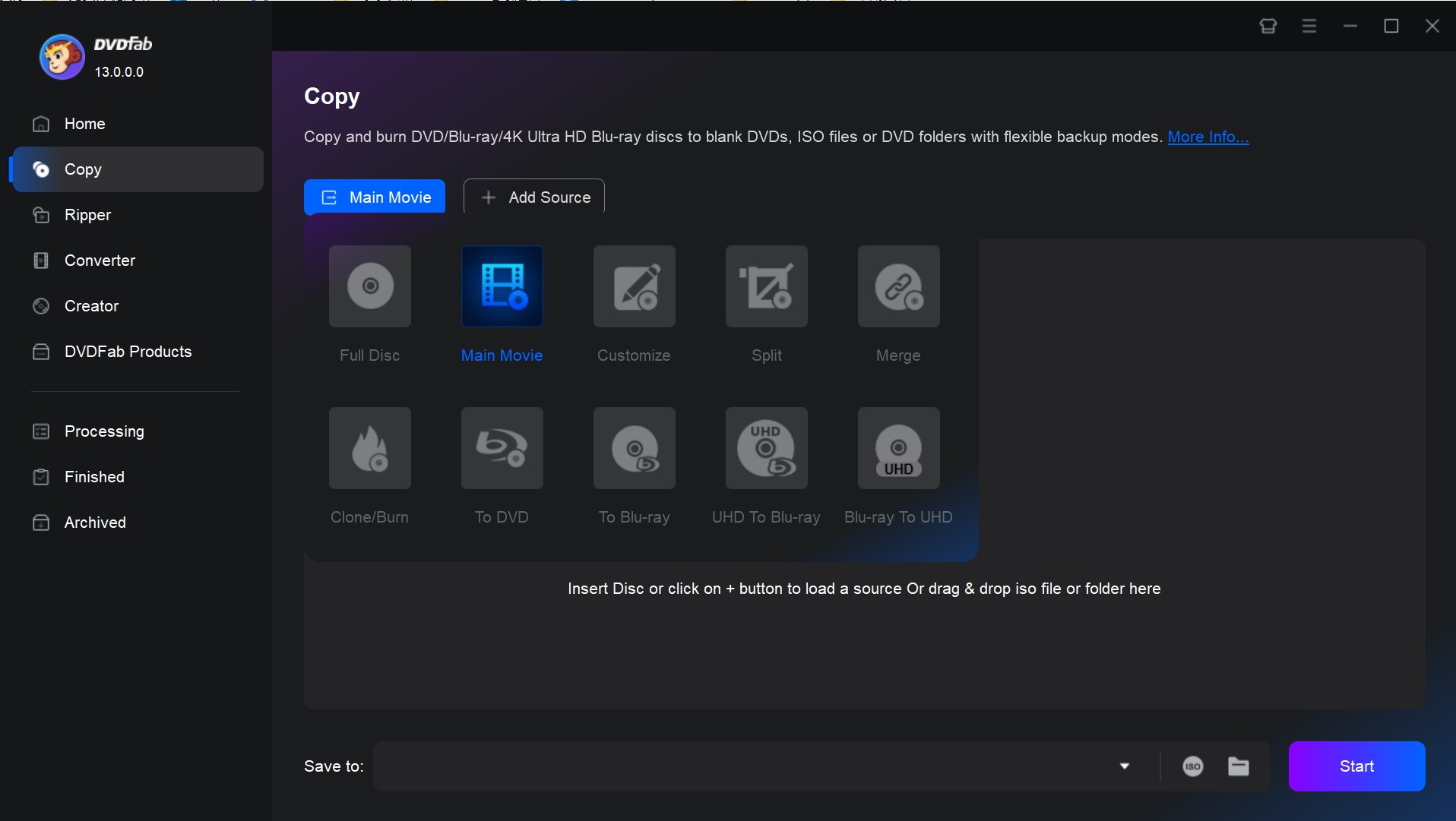
- Full Disc: copy the entire DVD, including menus, trailers, and special features.
- Main Movie: copy only the main movie from the DVD, without any menus or special features.
- Customize: copy any content you want from the source, compressed or not.
- Clone/Burn: create an exact 1:1 copy of the original DVD, including the structure and all contents.
- Split: split a DVD-9 (dual-layer DVD) into two DVD-5 discs
- Merge: merge two or more DVDs into a single DVD.
Step 3: Select a Preferred Chapter and Customize Your DVD
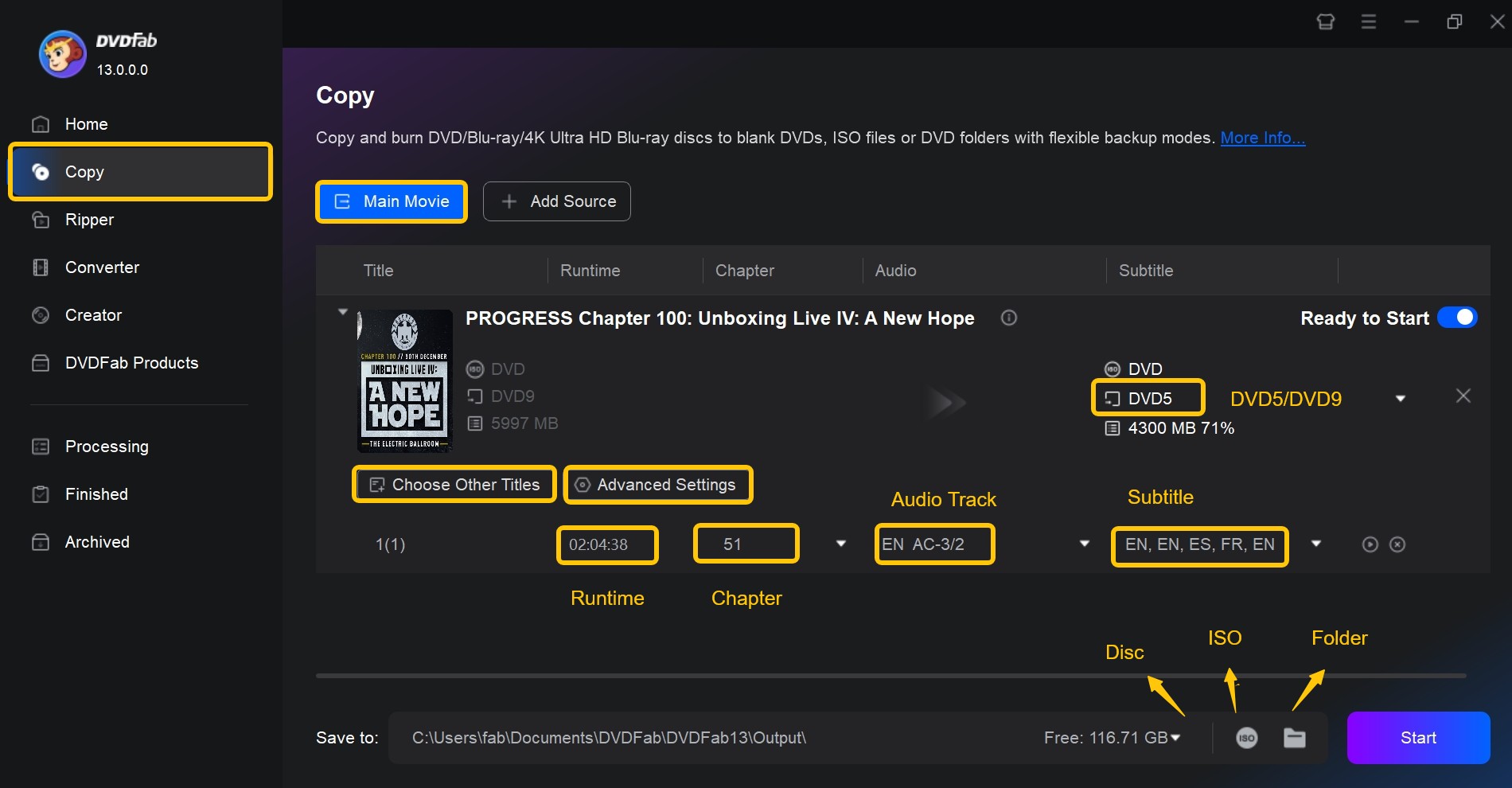
As to which "Chapter", "Audio" and "Subtitle" to copy, it depends on you. If you want to customize the DVD file, click the "Advanced Settings" and "Choose Other Titles".
Step 4: Start to Copy a DVD to Another DVD on Windows 10
If you want to copy a DVD to blank DVD on Windows 10, click the Little Triangle and select your desired drive destination. If you want to copy DVD to computer as an ISO image file or folder, click the ISO or Folder icon. Finally, click the "Start" button and DVDFab will complete the DVD copy task with fast speed and high quality.
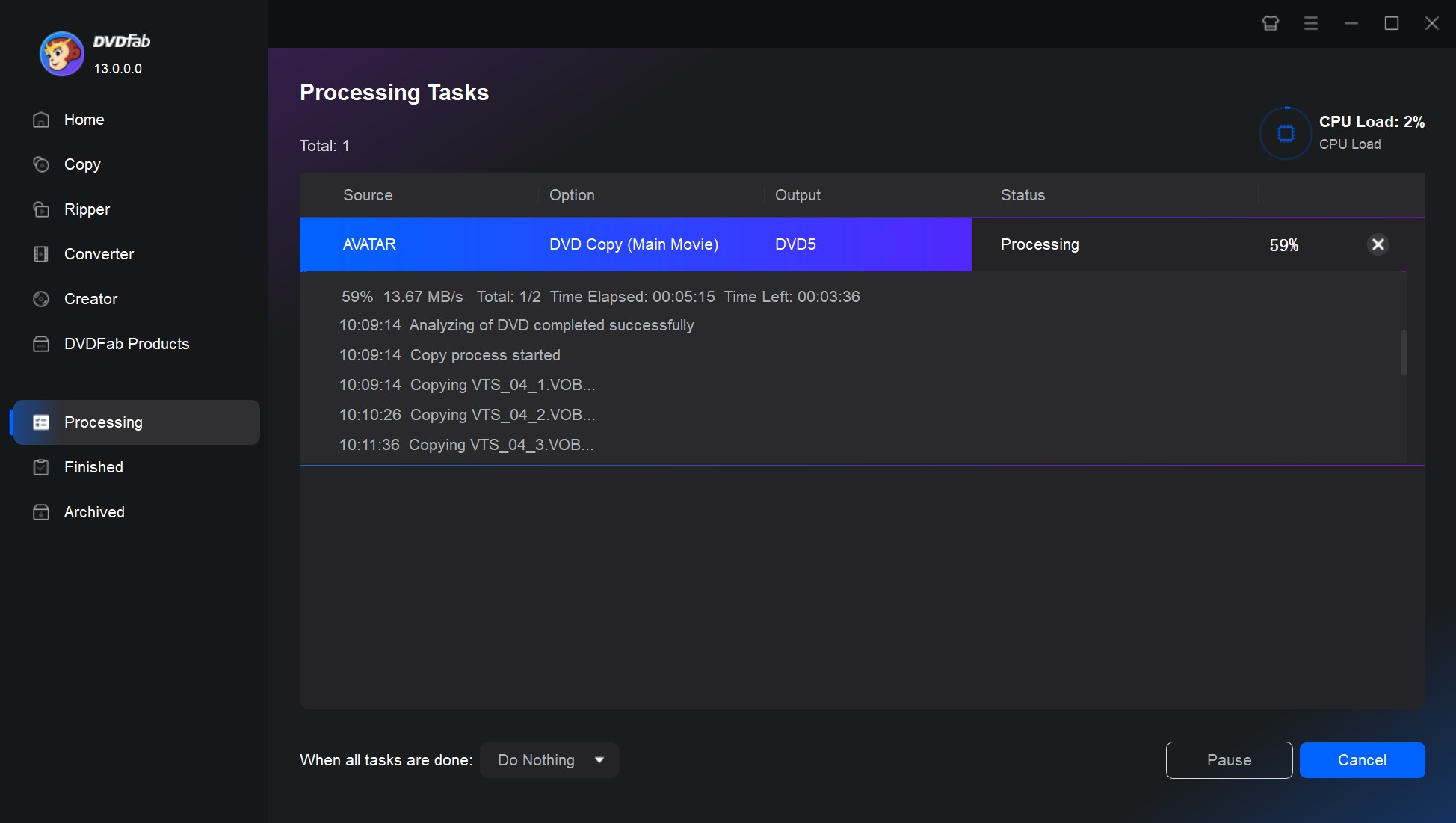
Here is also a video tutorial on how to copy your DVD with DVDFab on Windows 7/8/10/11:
Using DVD Cloner
DVD Cloner is another DVD copy tool for users who want to copy a DVD to another DVD. It supports both lossless 1:1 copying and compression to DVD-5, giving users flexible options for creating full-disc or main-movie backups with excellent quality. The latest Windows version listed on its official site is DVD-Cloner XR V22.30.1494, released on March 20, 2026, with recent updates focused on support for newly released movies. However, it offers many copy modes and software versions, which may confuse users, and it cannot copy DVDs to ISO files or VIDEO_TS folders.
- Provides full-disc and main-movie copy workflows.
- Supports DVD compression when fitting larger sources onto smaller discs.
- Offers a simple interface for users who mainly need DVD backup.
How to Copy DVD to DVD in a 1:1 Ratio using DVD Cloner
Step 1: Install the latest version of DVD-Cloner on your Windows computer. DVD Cloner offers a 7-day trial.
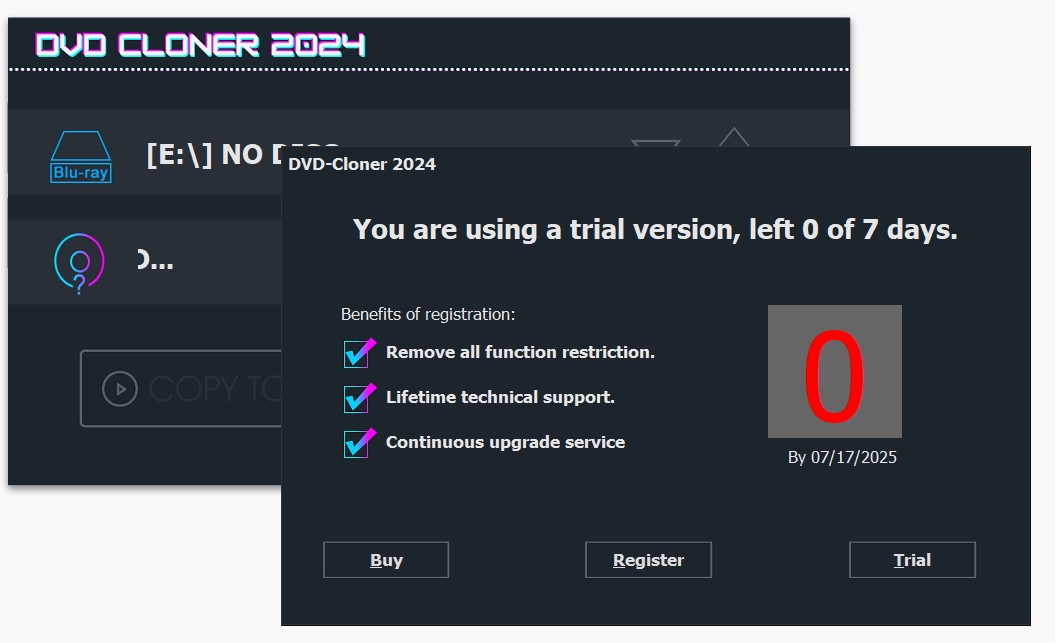
Step 2: Launch DVD Cloner and choose the "Copy a DVD or Blu-ray movie disc" option on the main interface.
Step 3: Insert the DVD into your optical drive. DVD Cloner will automatically load the disc. Click Next to proceed.
Step 4: Choose a copy mode. Select "Movie ONLY" if you want to copy just the main movie without bonus features.
Step 5: Next, select "Saving as folder" or "Saving as ISO" and click the Browse (pen) button to pick a destination on your computer or connected USB drive. After finishing the setup, start copying the DVD.
How to Copy DVD to Computer as MP4 or MKV on Windows 10/11/8/7
With DVDFab DVD Ripper
DVDFab DVD Ripper is designed to copy DVD to computer as MP4, MKV, AVI, MP3, FLAC, and other digital video or audio formats. It is different from DVD copy software because it focuses on conversion, compression, and playback compatibility rather than creating another playable DVD disc. It can handle many common DVD protections and help convert DVD movies into files for Windows PCs, phones, tablets, USB drives, or media servers.
DVDFab DVD Ripper also provides compression profiles and advanced settings for codec, resolution, bitrate, frame rate, audio tracks, and subtitles. This is useful when you want to reduce file size while keeping the output suitable for everyday playback. For example, MP4 is usually better for broad device compatibility, while MKV is better when you want to keep more audio, subtitle, or chapter information.
💡 DVD Ripper and the DVD Copy module mentioned above are both built into DVDFab, so you can use both functional modules after downloading the software. This allows you to handle different DVD copying needs in one program, whether you want to create a disc backup or convert a DVD to a digital video file.
- Remove any old and new DVD copy protection in 5-10 seconds.
- Supports batch conversions with GPU hardware acceleration.
- Copy DVD/ISO/folder to computer in 1000+ video and audio formats.
- Offers 260+ optimized presets for popular devices like iPads and game consoles.
- Comes with an intuitive editor for adjusting and refining your videos.
- Offers options for lossless audio extraction and high-definition video conversion.
How to Copy DVD to Computer on Windows 10/11 using DVDFab DVD Ripper
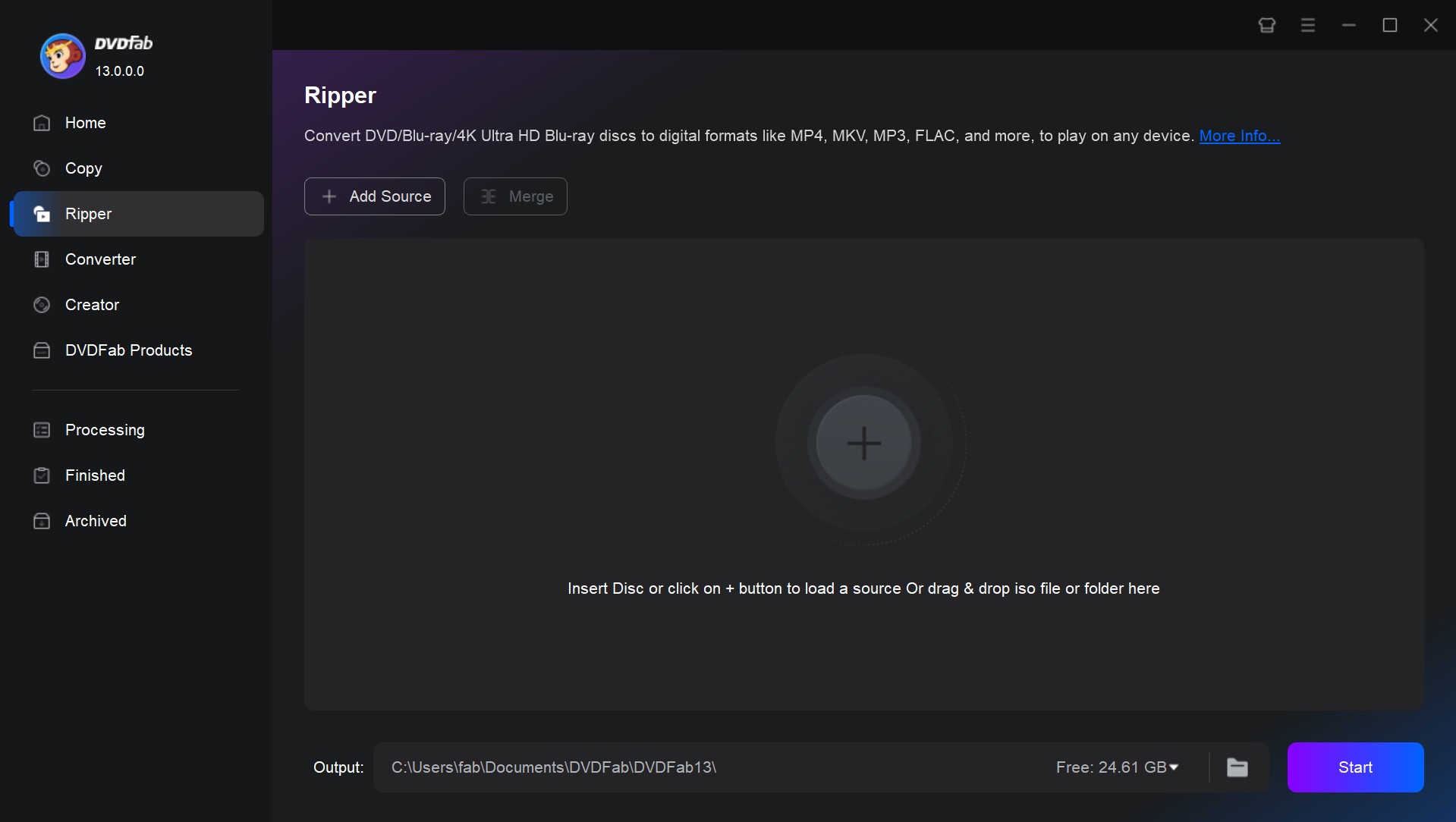
Step 1: Launch DVDFab software and Insert the DVD
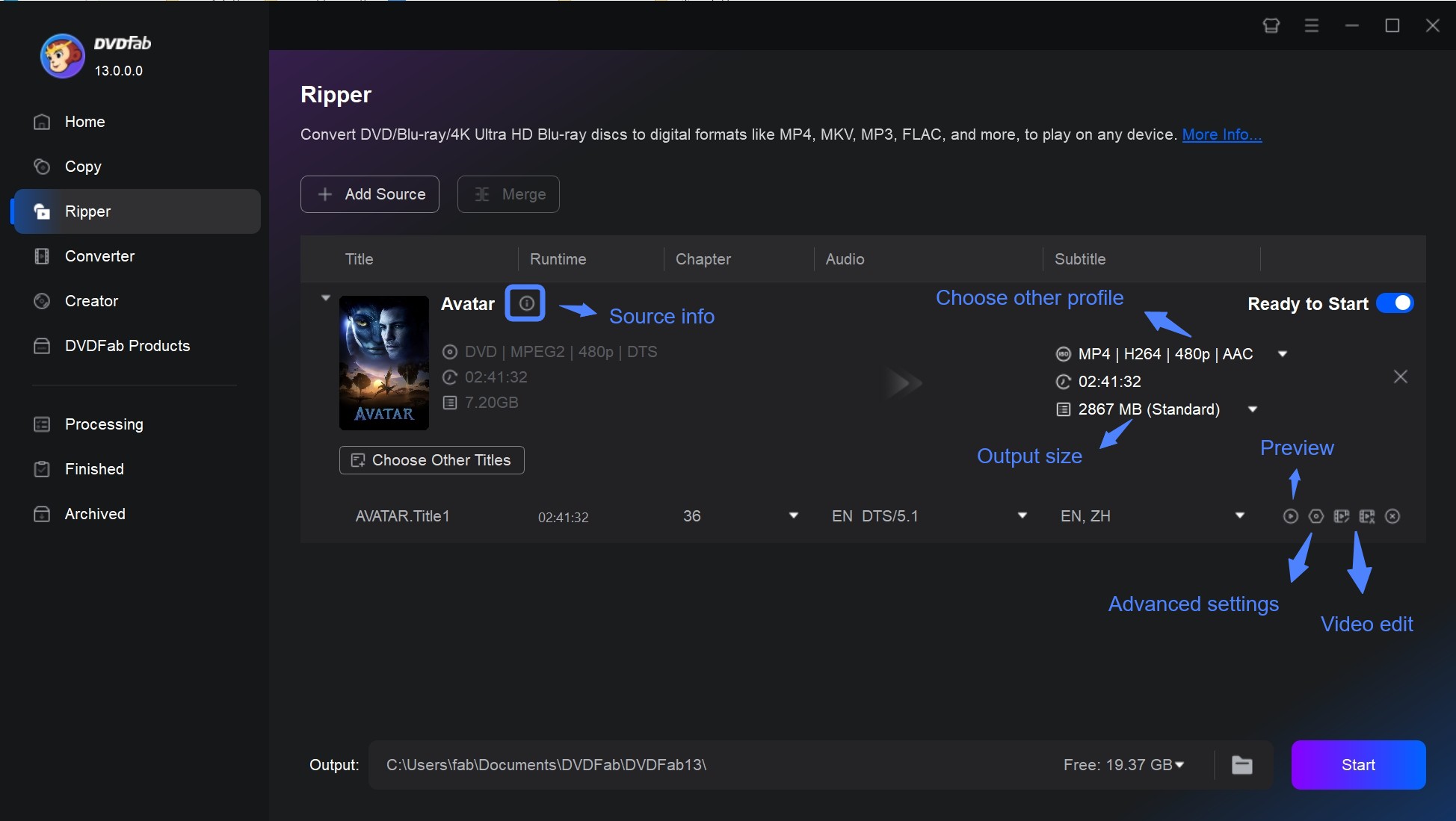
Launch DVDFab 13 and select the "Ripper" module on your Windows 10 computer. Insert the DVD that you want to rip into your DVD drive, then DVDFab will automatically detect and load it.
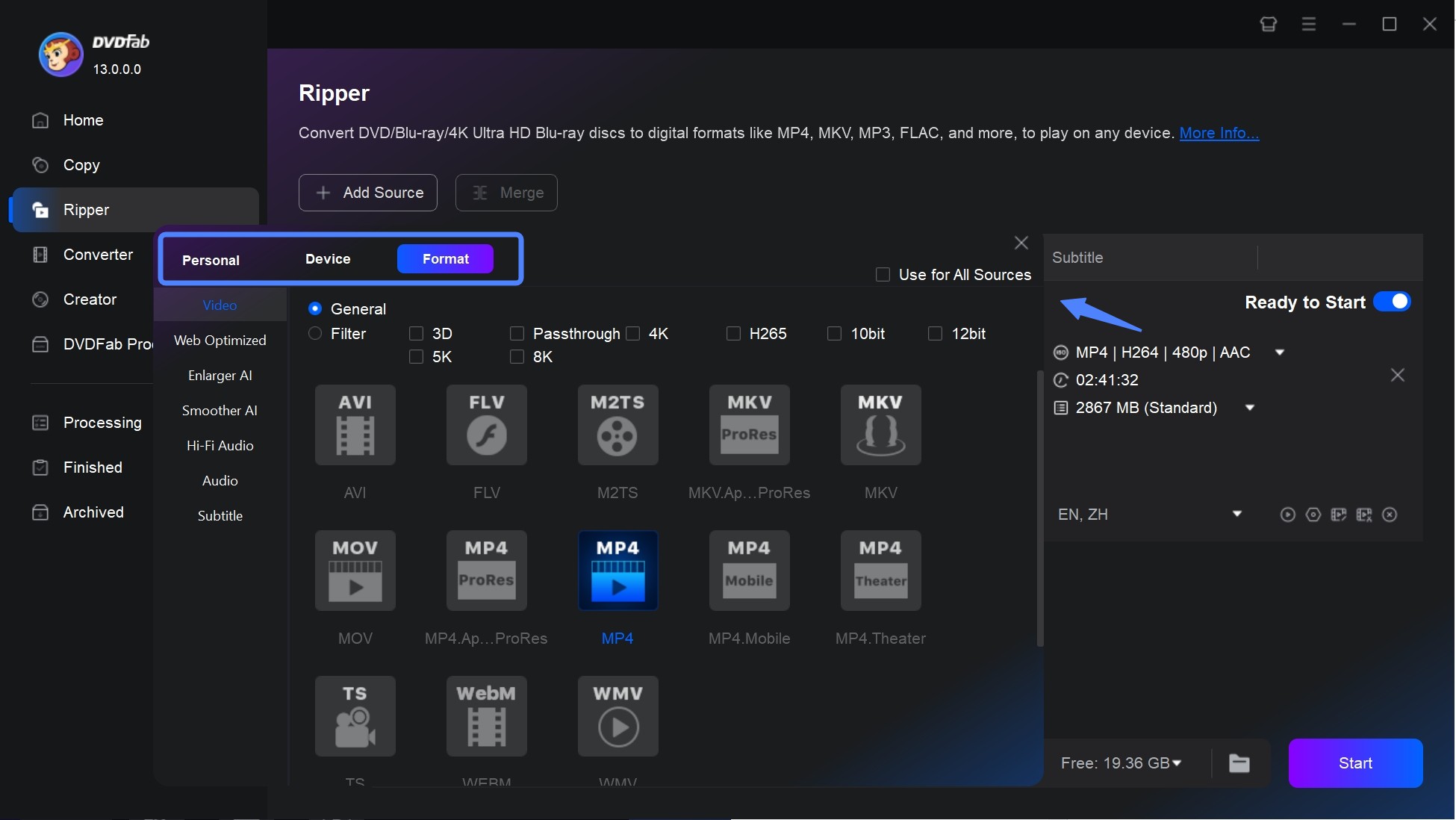
Step 2: Choose an Output Format
After the DVD is loaded, click "Choose Other Profile" to select the output format you want.
Step 3: Customize the Video via Advanced Setting and Video Editor
Go back to the main interface, and you can select the specific tiles, chapters, audio tracks, and subtitles you want to copy. Then click the "Advanced Settings" and "Video Edit" button to edit your videos as per your needs.
Step 4: Start to Copy DVD to Computer on Windows 10
Once you have set the output parameters, click the "Folder" icon to select an output destination on your computer and click on the "Start" button to begin copying your DVD to computer on Windows 10/11/8/7.
With HandBrake
HandBrake is a free, open-source video transcoder for Windows, Mac, and Linux. It can convert homemade or unprotected DVDs to MP4, MKV, or WebM, with options for presets, video filters, subtitles, audio passthrough, and file compression. The current official version is HandBrake 1.11.2, released on March 22, 2026.
However, HandBrake itself does not handle any DVD copy protection. With a third-party library such as libdvdcss, it may read some basic CSS-protected DVDs, but this setup is not part of HandBrake and does not support all commercial DVD protections. HandBrake also always converts the video instead of making a 1:1 copy, so output quality, file size, and speed depend on the preset, codec, bitrate, and hardware. This makes it more difficult for beginners who want a simple DVD copying tool.
- Provides presets for common devices, web playback, and general video conversion
- Supports queue-based encoding for multiple conversion tasks
- Can reduce file size when smaller MP4 or MKV output is preferred
How to Copy a DVD on Windows 10 with HandBrake?
Step 1: Insert the DVD into your DVD-ROM drive.
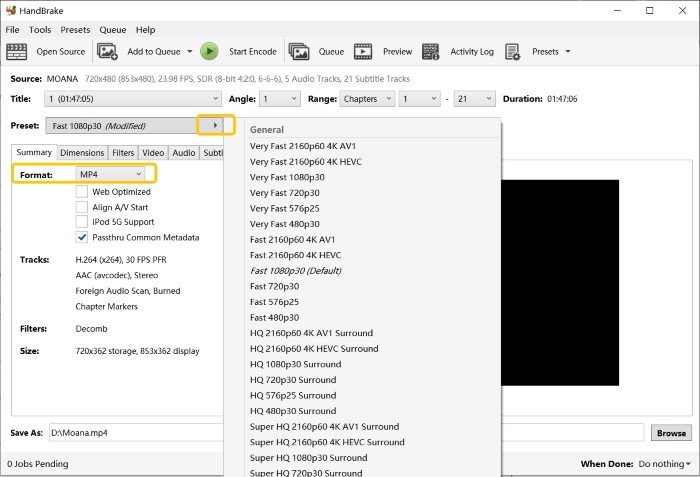
Step 2: Run HandBrake. Click the "Open Source" button at the top left, choose your DVD drive, and let the program scan the disc.
Step 3: Under Title dropdown list, choose which title you want to rip. Generally, the longest one is the main movie.
Step 4: Choose MP4 or MKV as the output format and adjust video, audio, or subtitle options if needed.
Step 5: In the Destination field, click "Browse" to specify the save path.
Step 6: After adjusting all settings, click "Start Encode" to begin the DVD copying process.
How to Copy Homemade or Data DVDs on Windows 10/11/8/7 Without Software
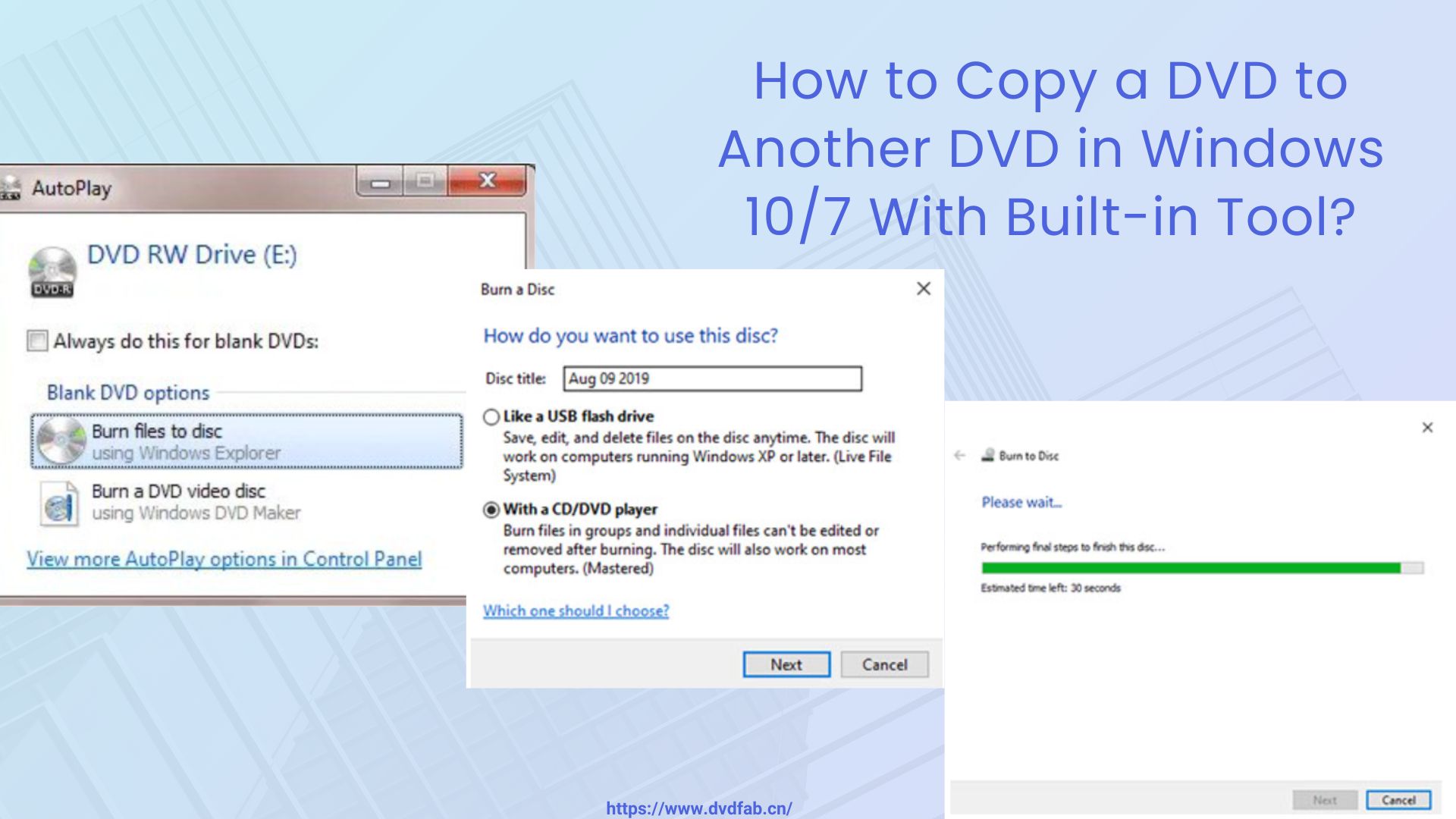
If your DVD is homemade, unprotected, or works like a normal data disc, you can copy it on Windows 10/11/8/7 without third-party DVD copy software. This method uses Windows File Explorer to copy files to your computer or burn them to another blank disc. It does not work for most commercial movie DVDs.. Here is a step-by-step guide on how to copy DVD to laptop:
Step 1: Insert a homemade DVD to your optical drive. Copy your DVD file to a new folder on your computer.
Step 2: Replace the homemade DVD into the optical drive with a blank DVD.
Step 3: Follow the notice "Burn files to disc" on your screen. Select "copy a homemade DVD to a USB flash drive" or "a CD/DVD player".
Step 4: Click "Next" and drag your files into the blank disc window. Choose the option of "Manage" from the top of the windows and click "Finish burning".
Remember, this method will not work if the DVD has copyright protections. Also, the copied DVD will only play on computers; it might not work on DVD players. If you want to copy your protected DVD movies to a DVD for seamless playback on your media players, it is still recommended to use a professional tool like DVDFab DVD Copy.
FAQs
Is it legal to copy a DVD on Windows?
DVD copying laws vary by country and region. Copying homemade videos or discs you have permission to copy is different from bypassing protection on commercial DVDs. Use DVD copy tools only for content you own or have permission to copy, and follow local copyright rules.
How to copy a DVD to a USB on Windows 10?
Copy DVD to USB on Windows 10 is straightforward. You can either copy the DVD files directly or convert the DVD to a digital format for easier playback.
If the DVD is not copy-protected, you can copy the files manually:
- Place the DVD in your computer's DVD drive and plug the USB drive into the port.
- Open File Explorer: Press Windows + E and click on the DVD drive.
- Copy DVD Files: Select all the files (usually in the VIDEO_TS folder), right-click and select Copy.
- Navigate to the USB drive, right-click and select Paste.
For protected DVDs or to convert them to a more portable format, use software like DVDFab DVD Ripper. Please refer to Part III of this article for detailed procedures.
Can I copy a DVD on Windows 7 or Windows 8?
Yes. The basic workflow is similar on Windows 7/8/10/11: use File Explorer for homemade or data DVDs, DVD copy software for copying DVD to another DVD or ISO/folder backup, and DVD ripper software for MP4/MKV output. Check software compatibility before installing on older Windows systems.
Can I copy a DVD to another DVD with Windows Media Player?
No. Windows Media Player can burn audio CDs and data discs, but it does not support copying or burning video DVDs. To copy a DVD to another DVD, you would need a third-party DVD copy software like DVDFab DVD Copy. These programs can replicate menus, chapters, and video structure accurately, which Windows Media Player cannot do.
Conclusion
The best way to copy a DVD on Windows 10/11/8/7 depends on your disc type and output goal. For copying a DVD to another DVD, ISO, or VIDEO_TS backup, DVDFab DVD Copy is the better fit. For MP4 or MKV files on your computer, DVDFab DVD Ripper is more suitable because it focuses on conversion, compression, and playback compatibility. With reliable software like DVDFab DVD Copy and the step-by-step instructions in this article, you can transfer your DVDs to various storage devices without losing quality.

![How to Rip DVD to ISO on Windows 11/10/8/7 and Mac? [2026 Update]](https://r3.dvdfab.cn/upload/resource/dvd-to-iso-ei38.jpeg) How to Rip DVD to ISO on Windows 11/10/8/7 and Mac? [2026 Update]By Wenny Yan - Jun 17, 2026
How to Rip DVD to ISO on Windows 11/10/8/7 and Mac? [2026 Update]By Wenny Yan - Jun 17, 2026![Top 11 ISO Creators to Create ISO File on Windows & Mac [2026 Updated]](https://r3.dvdfab.cn/upload/resource/create-iso-file-ytTu.jpeg) Top 11 ISO Creators to Create ISO File on Windows & Mac [2026 Updated]By Wenny Yan - Jun 16, 2026
Top 11 ISO Creators to Create ISO File on Windows & Mac [2026 Updated]By Wenny Yan - Jun 16, 2026 9 Best Free DVD Copy Software in 2026: Tested & ReviewedBy Wenny Yan - Jun 11, 2026
 How to Copy DVD on Mac: 6 Tested DVD Copy Software for Mac in 2026By Wenny Yan - Jun 9, 2026