How to Rip DVD with Subtitles and Extract Subtitles from DVD to SRT [2026]

Summary: To rip a DVD with subtitles, first decide whether you want subtitles that can be turned on and off, subtitles permanently burned into the picture, or a separate subtitle file. DVDFab DVD Ripper can keep DVD subtitle tracks in the ripped video, render one track into the picture, process forced subtitles, or extract subtitles as IDX/SUB. DVDFab can also use OCR to convert DVD subtitles to editable SRT text.
Table of Contents
Ripping a movie and handling its DVD subtitles are two separate decisions. You may want to keep selectable subtitle tracks, retain only forced subtitles for foreign dialogue, burn one subtitle permanently into the video, or extract the subtitles as separate files. Standard DVD VobSub subtitles are image-based rather than ready-made SRT text, so creating an editable .srt file requires OCR. Here is how to rip your DVDs while keeping the exact subtitles you need, or extract them as separate .srt files for flexible playback.
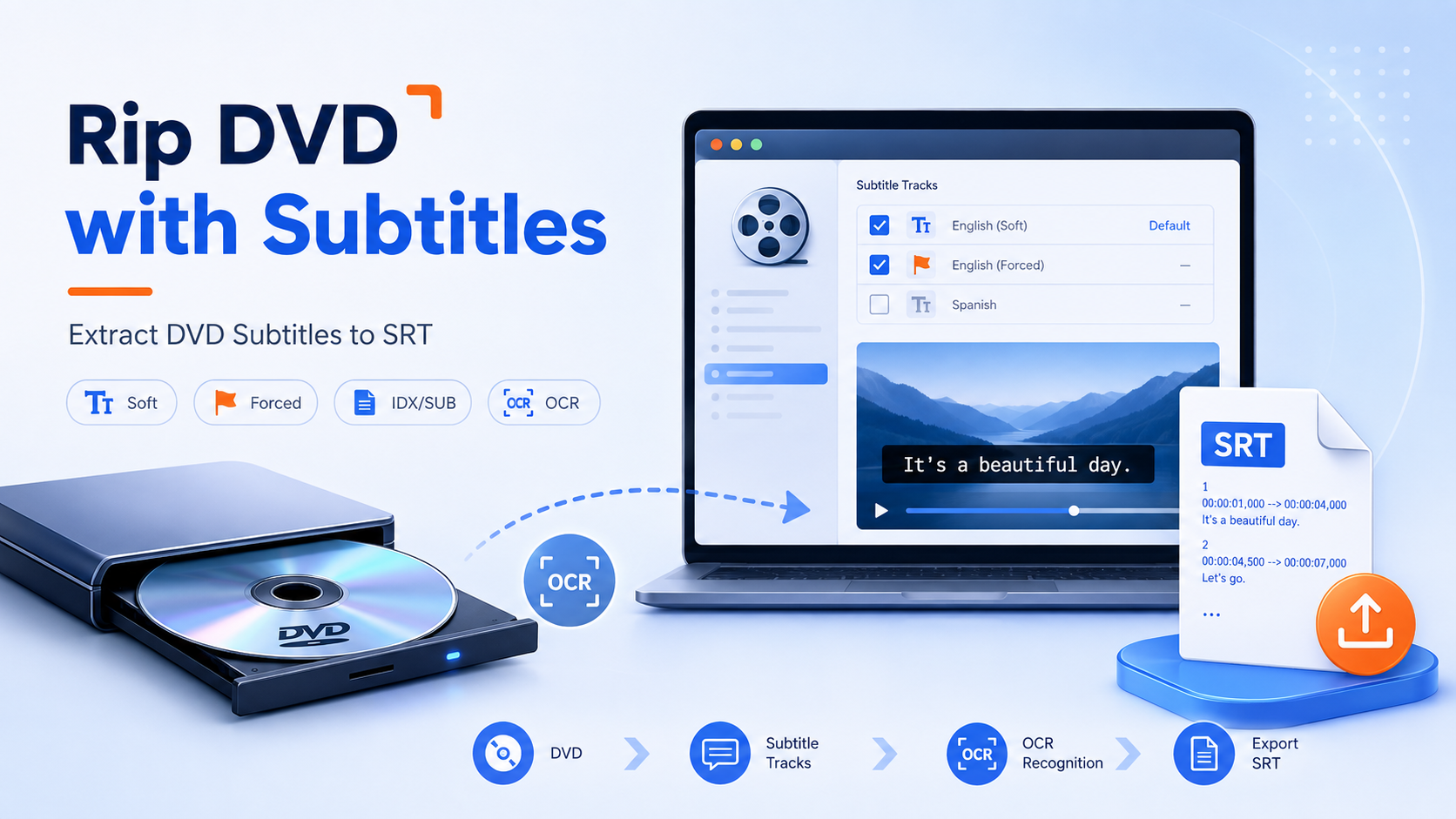
Rip DVD with Subtitles or Extract Subtitles: Which Output Do You Need?
DVD subtitles refer to the built-in subtitle tracks on a DVD. During playback, the player overlays the subtitles on top of the video. On DVDs, subtitles are commonly stored as SPU/VobSub data, which is essentially bitmap images plus display timing and control information, rather than common plain-text subtitles such as SRT.
Before you start ripping, it is useful to understand the three common types of DVD subtitles:
- • Soft Subtitles: Subtitles exist as a separate track or separate file, so you can turn them on or off and switch languages in the player. Choose this when you want playback flexibility.
- • Hard Subtitles (Burned-in / Non-toggleable): Subtitles are permanently rendered into the video image and cannot be turned off. This is useful when the target player cannot display the original subtitle track correctly.
- • Forced Subtitles: These appear only when needed, such as for foreign-language dialogue or important on-screen text. Some DVDs flag forced lines inside a larger subtitle stream, while others store them in a separate subtitle track.
| Your Goal | Subtitle Result | Recommended Output |
| Rip a DVD and switch subtitles on or off later | Selectable subtitle track inside the video | Remux the subtitle into a suitable container such as MKV |
| Make one subtitle permanently visible | Subtitle rendered into the video image | Direct render / burn-in |
| Keep the original DVD bitmap subtitle separately | Image-based subtitle data | IDX/SUB |
| Edit, search, translate, or reuse subtitle text | Text subtitle | SRT created through OCR |
How to Rip DVD with Subtitles (Soft and Forced)
First, let's look at how to rip a DVD while keeping subtitles. DVDFab DVD Ripper, based on is OCR Technology, covers selectable subtitles, burned-in subtitles, forced subtitles, external subtitle files, and separate subtitle extraction in the same ripping process. HandBrake is a useful free alternative when the main job is video encoding with subtitle tracks.
Method 1. Rip DVD with Subtitles via DVDFab DVD Ripper
DVDFab DVD Ripper is a multifunctional DVD ripping tool that lets you rip DVDs with subtitles to a wide range of digital video or audio formats for playback on your PC and other devices, such as media players and home theater systems. It supports not only physical discs, but also ISO files and VIDEO_TS folders as input. It can also extract subtitles from DVDs for more flexible backup and management.
Key Features:
- Rip DVD with subtitles by directly rendering them to video or remuxing them into the output file.
- Extract original DVD subtitles as separate IDX/SUB files.
- Convert DVD bitmap subtitles to SRT with OCR on Windows and Mac.
- Load physical DVD discs, ISO image files, and VIDEO_TS folders.
- Rip DVD content to 1000+ video/audio formats and 260+ device profiles.
- Add external subtitles in SRT or ASS format to the ripped video.
Supported OS:
Free Download Windows 11/10/8.1/8/7
Free Download macOS 10.13 - 15.x
How to Rip a DVD and Keep the Subtitles You Want?
Ripping DVDs with desired inner subtitles means extracting the content, usually movies or TV shows, while including the subtitles embedded within the DVD. You can watch the video tutorial or follow the written steps.
Step 1: Open DVDFab DVD Ripper and click the "Ripper" module. Put the DVD you want to rip in your DVD drive.
Step 2: After DVDFab recognizes the DVD, select your desired title, chapter, audio tracks and output format. Click the "Subtitle" button and select your desired inner subtitle.
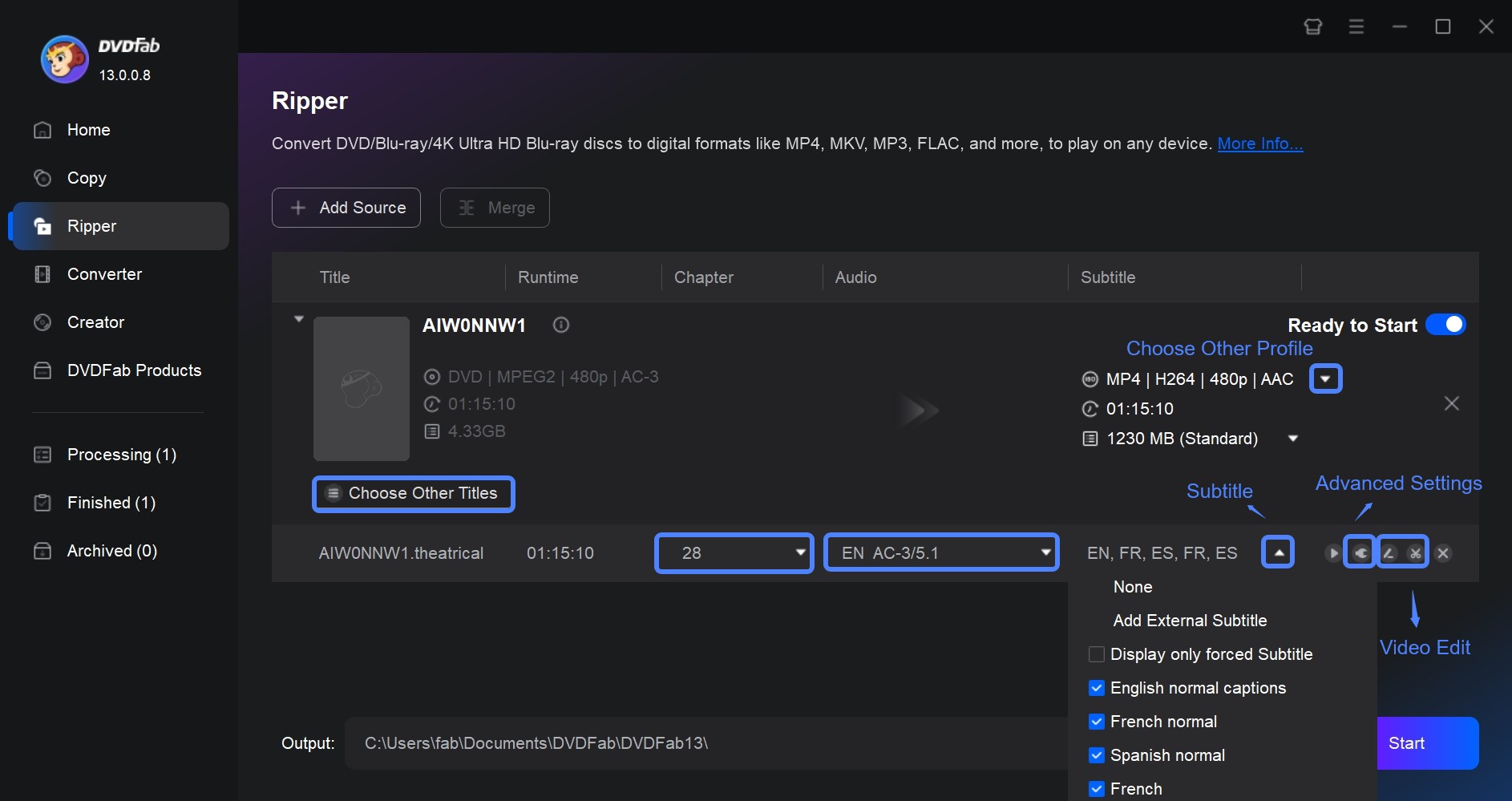
Step 3: Click "Advanced Settings" and select your desired subtitle mode as "Direct render to video" or "Remux into the file".
- 💡Remux into file: the subtitle remains selectable during playback when the output container and player support the subtitle format.
- 💡Direct render to video: the selected subtitle becomes part of the video image and cannot be disabled during playback.
Step 4: Select the output directory to save your ripped DVD video with the desired inner subtitle. Finally, click the "Start" button to begin the DVD subtitle ripping process.
How to Rip DVD with Forced Subtitles?
Forced subtitles appear automatically for short sections, such as foreign-language dialogue or important on-screen text, without displaying the complete normal subtitle track.
Step 1: Load your DVD to DVDFab DVD Ripper. Select the profile for your output video.
Step 2: Select the "Subtitle" dropdown arrow to enable "Display only Forced Subtitles". You have 3 options to select: Forced only, Normal and forced only, and Scan Forced Subtitle.
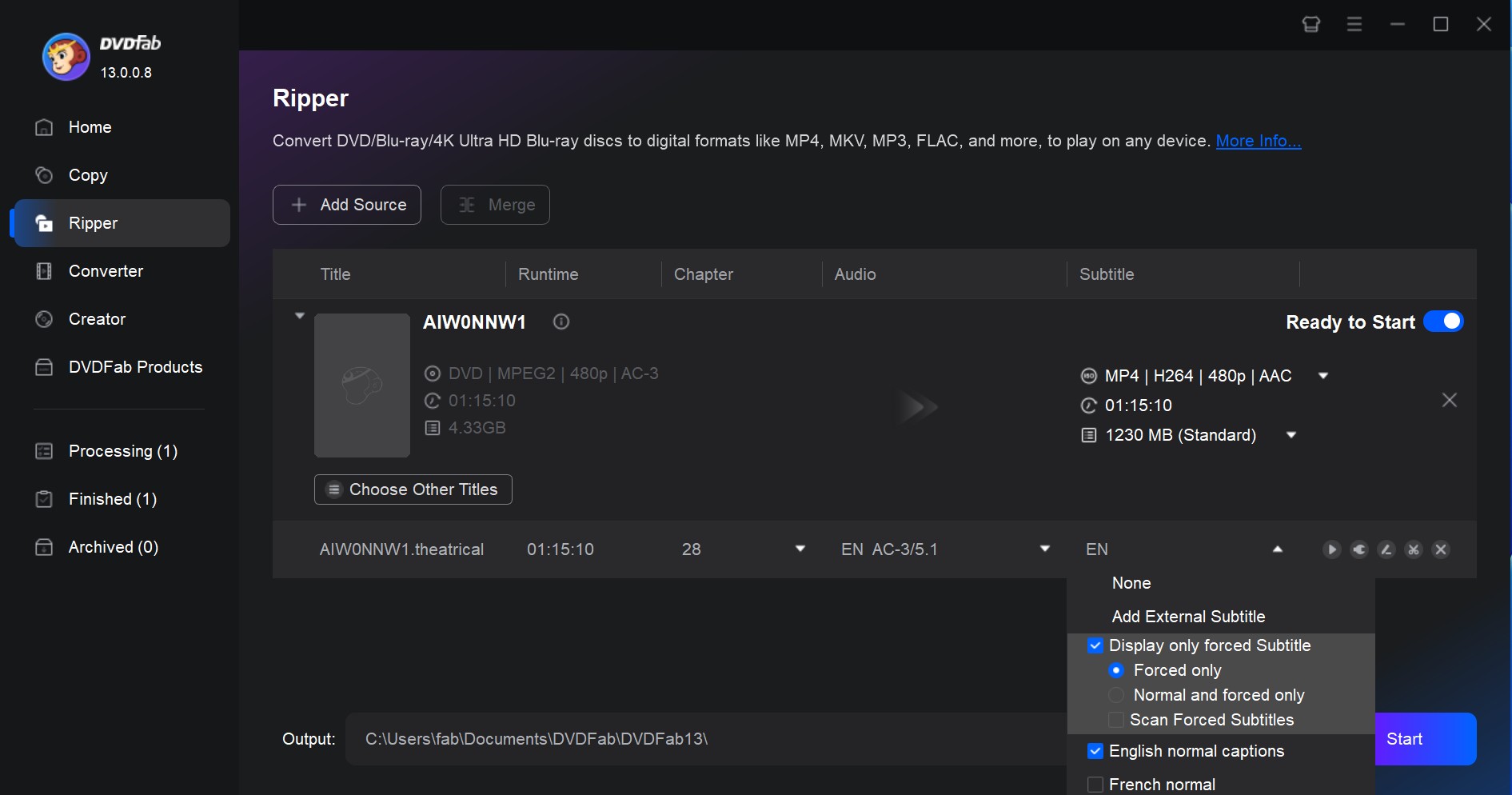
Step 3: Once all settings are done, click the "Start" button to rip your DVD video with forced subtitles.
I would check at least one scene where forced dialogue is known to appear before archiving the finished file. If nothing appears, try the other subtitle tracks instead of assuming the disc has no forced subtitles; DVDs are inconsistent about whether those lines are flagged inside a full subtitle stream or stored separately.
How to Add External Subtitles While Ripping a DVD?
If the DVD doesn't include the language you need, you can add an external SRT or ASS subtitle file during ripping.
Step 1: Launch DVDFab DVD Ripper on your PC. Select Ripper and add your DVD.
Step 2: Rip the DVD to MKV, MP4, and other formats by clicking "Choose Other Profile".
Step 3: Navigate to Subtitle and click Add External Subtitle in the dropdown menu to add subtitles to your ripped file.
Step 4: Find and upload your subtitle file from the system. From the pop-up video editing window, select the subtitle font, size, character set, color, style, and other available settings.
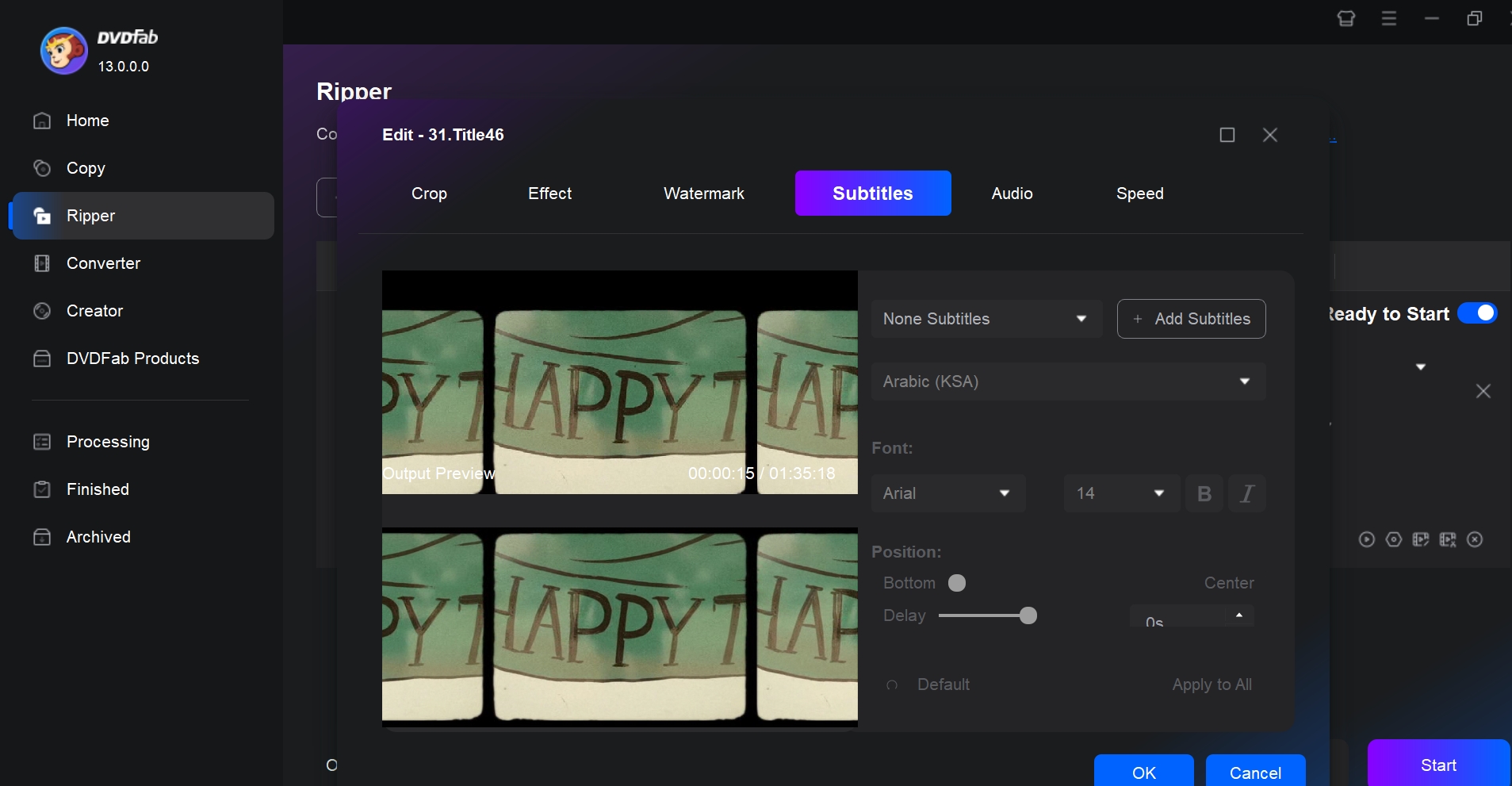
Step 5: Customize your video settings and set the output destination. Click the Start button to add external subtitles to your ripped DVD video.
Method 2. Rip and Burn-in Subtitles with HandBrake
HandBrake is a free, open-source video converter available on Mac, Windows, and Linux. It is a useful choice when the DVD is already readable and the main job is encoding the video to MP4 or MKV while keeping or burning a subtitle track.
Steps to rip DVD with subtitles with HandBrake:
Step 1: Launch HandBrake. Insert your DVD disc into the computer's drive and select the source with Open Source.
Step 2: From the Title drop-down menu, select the main movie or specific chapter you want to rip. Then select your desired output format and video preset.
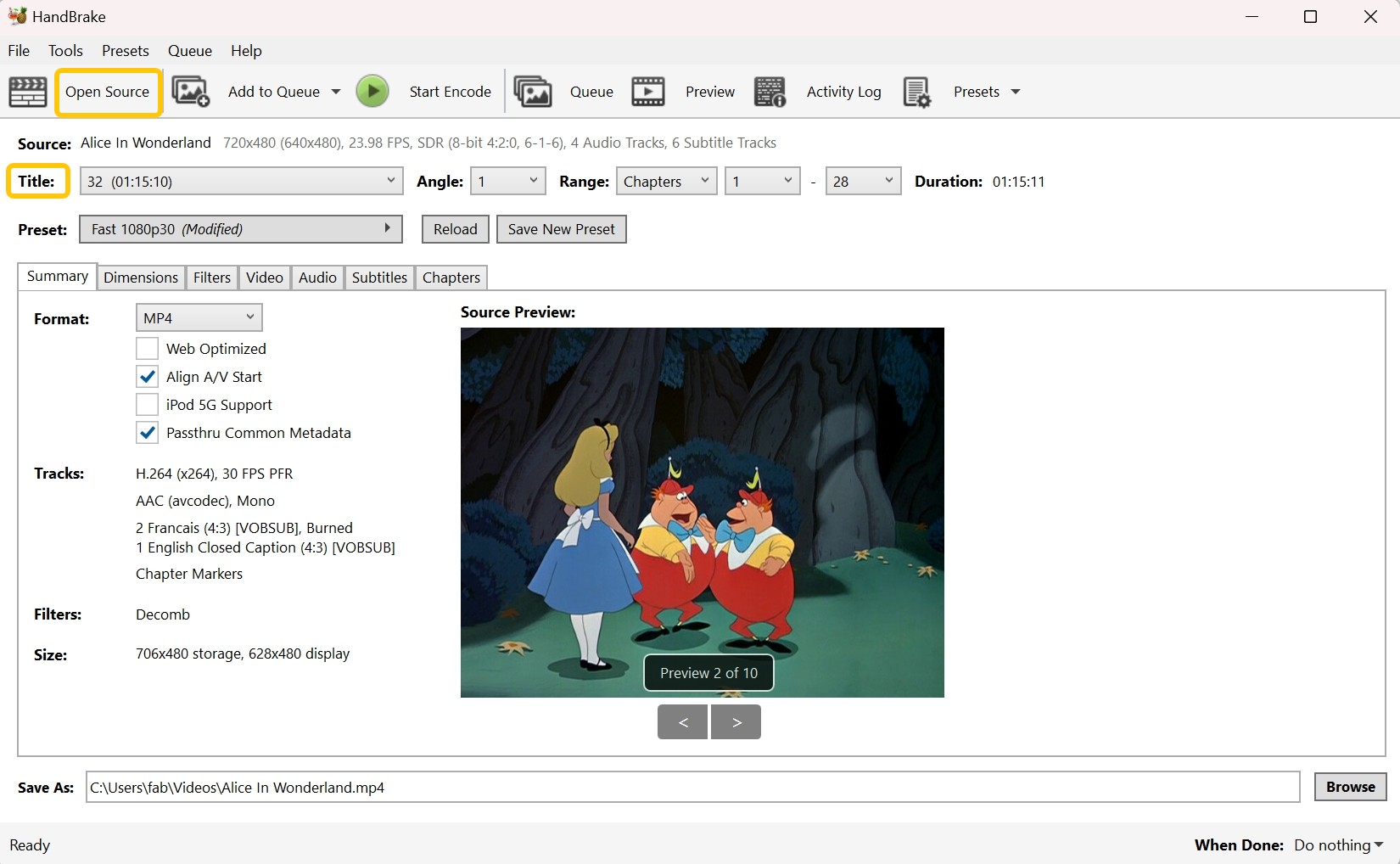
Step 3: Navigate to the Subtitles tab and add the subtitle track or language you actually want to keep. I would avoid adding every available subtitle stream by default; keeping only the needed languages makes the finished file easier to manage, especially for discs with commentary, SDH, or duplicate subtitle tracks.
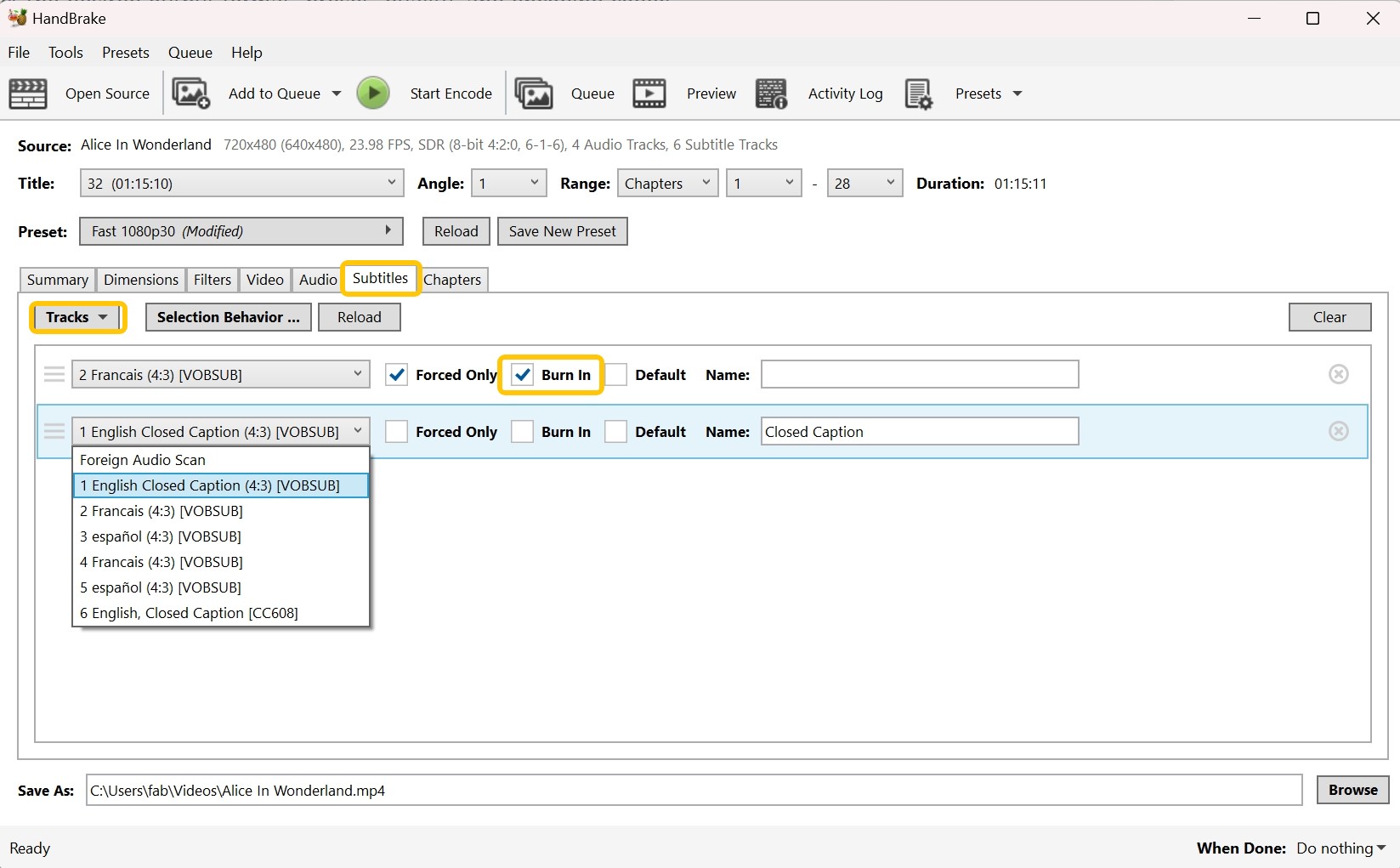
Step 4: If you want the subtitles permanently embedded into the video, check the Burn In box. A burned-in subtitle becomes part of the picture and cannot be switched off later.
Step 5: Hit the Start Encode button on the top menu bar to begin the conversion. When it finishes, check the subtitle behavior in the player or device you intend to use.
How to Extract Subtitles from DVD to .srt Files
A normal DVD subtitle is usually an image-based VobSub/SPU stream rather than ready-made SRT text. That means "extract DVD subtitles to SRT" is really a two-part job: read the original subtitle images and use OCR to recognize them as text. If you want to keep the original DVD subtitle graphics instead, IDX/SUB is the more direct output.
Method 1. Extract Subtitles from DVD with DVDFab DVD Ripper
DVDFab DVD Ripper is especially relevant here for its OCR-based subtitle extraction. DVD VobSub subtitles are image-based, so turning them into editable SRT text normally requires character recognition rather than a simple file export. On Windows and Mac, DVDFab can run that OCR directly from the DVD and save the recognized subtitle as SRT, which removes the extra step of exporting IDX/SUB first and moving it into a separate OCR program. If preserving the original subtitle graphics matters more than editable text, DVDFab can also extract the subtitle as IDX/SUB instead.
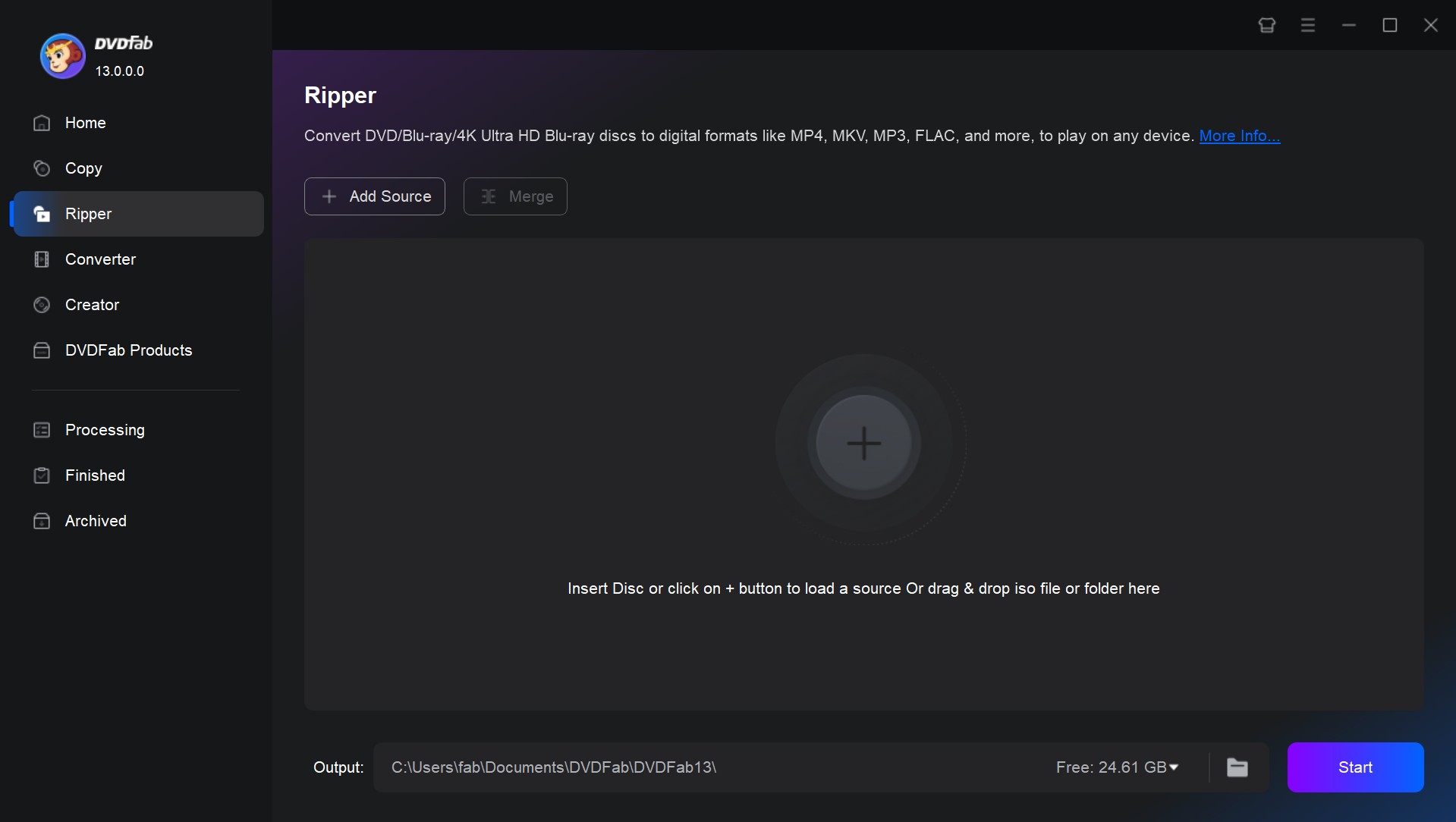
Step 1: Download and launch DVDFab DVD Ripper. Choose the "Ripper" module from the option bar. Then insert your DVD into your optical drive.
Step 2: Click the button of "Choose Other Profile" to convert your DVD to MP4 or other digital formats. If you only want the subtitle output, click "Subtitle" > "SRT".
💡How to choose the subtitle output?
- MKV + remuxed VobSub: choose this when you want the original DVD bitmap subtitle track to remain selectable inside the video.
- IDX/SUB: choose this when you want the original image-based DVD subtitle as separate files without converting it to text.
- SRT: choose this when you need editable, searchable, or translatable subtitle text. Because the SRT is created through OCR, check the text after extraction.
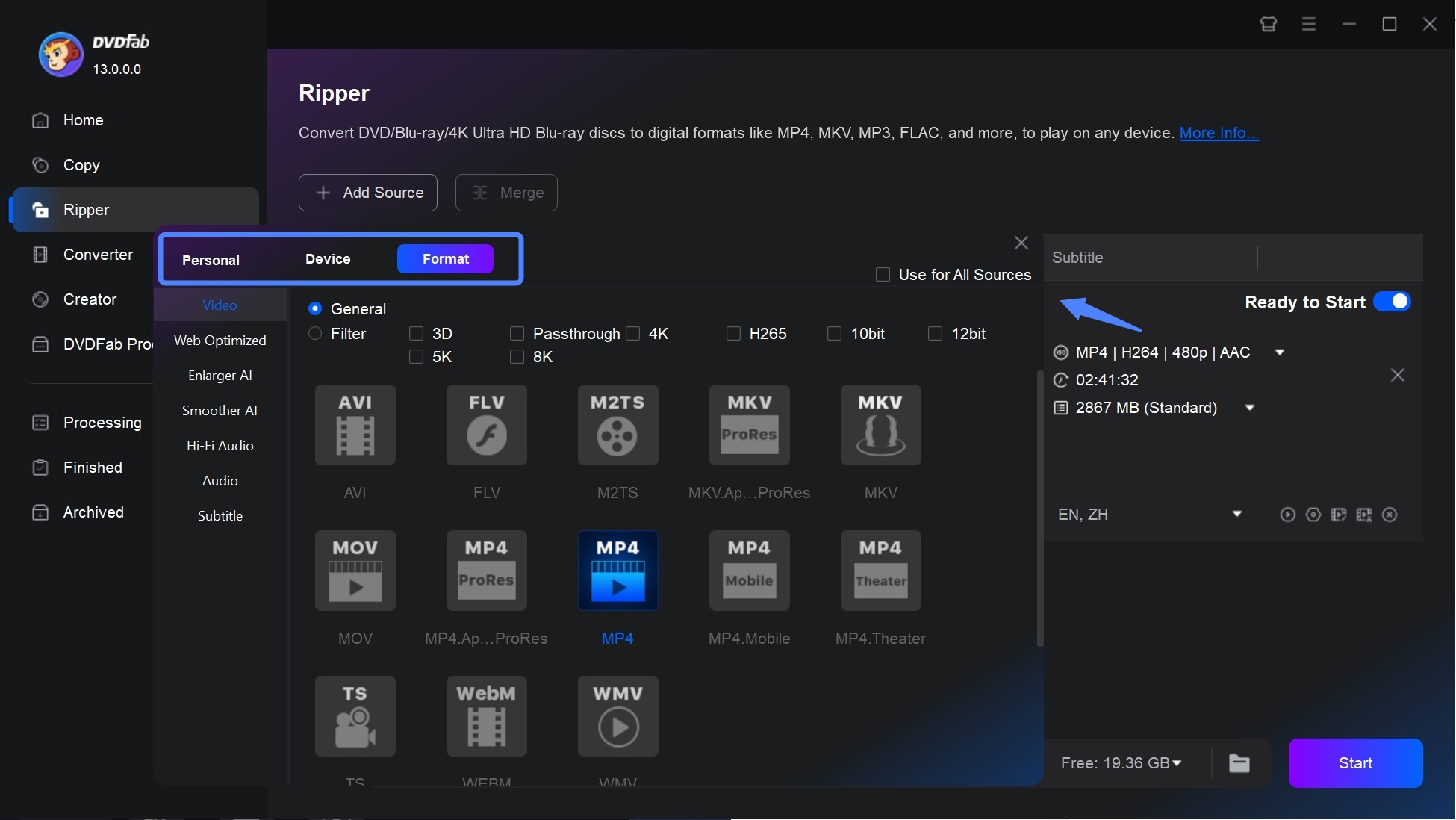
Step 3: Return to the main interface and select the movie title, chapter, audio tracks and subtitles you want to rip and extract.
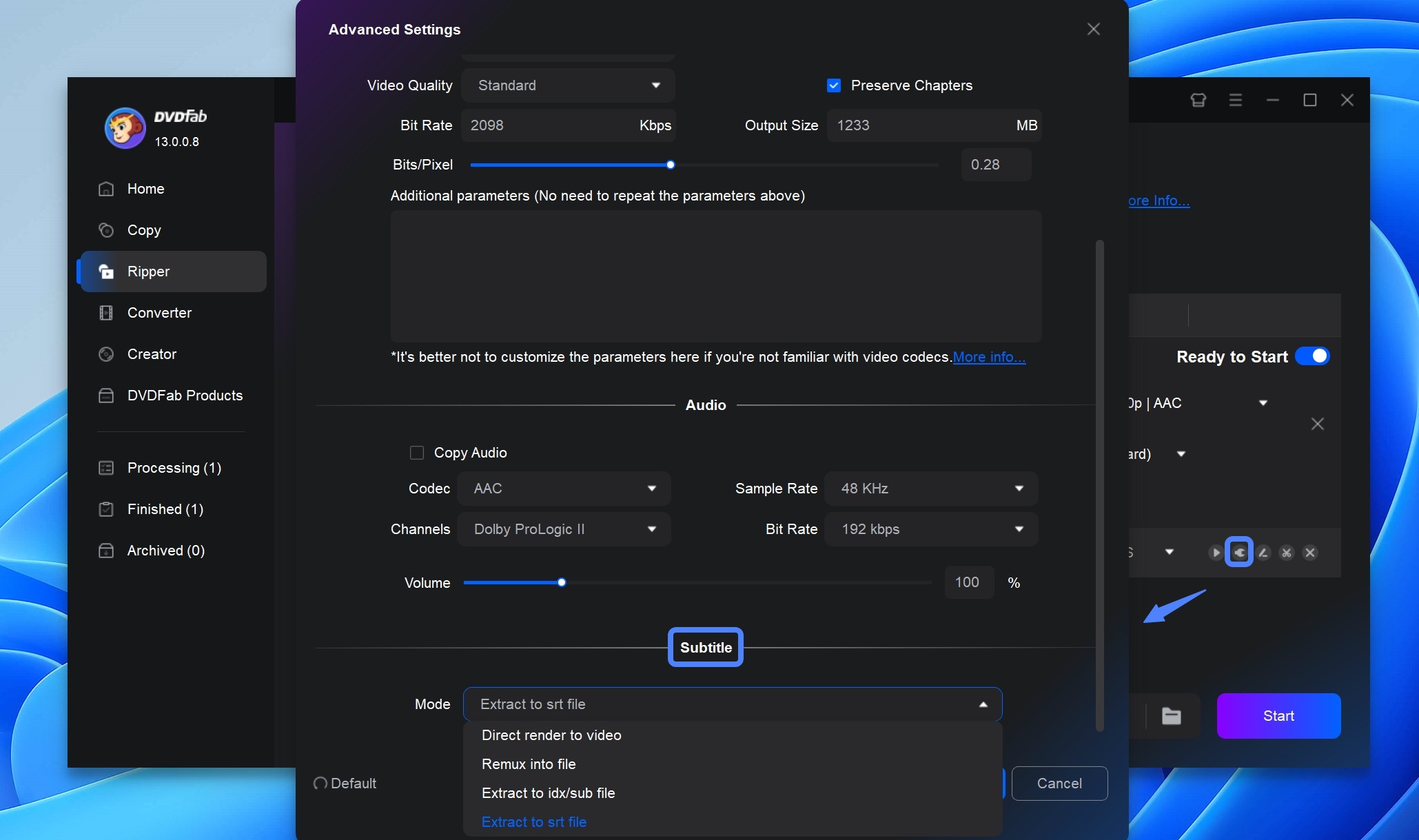
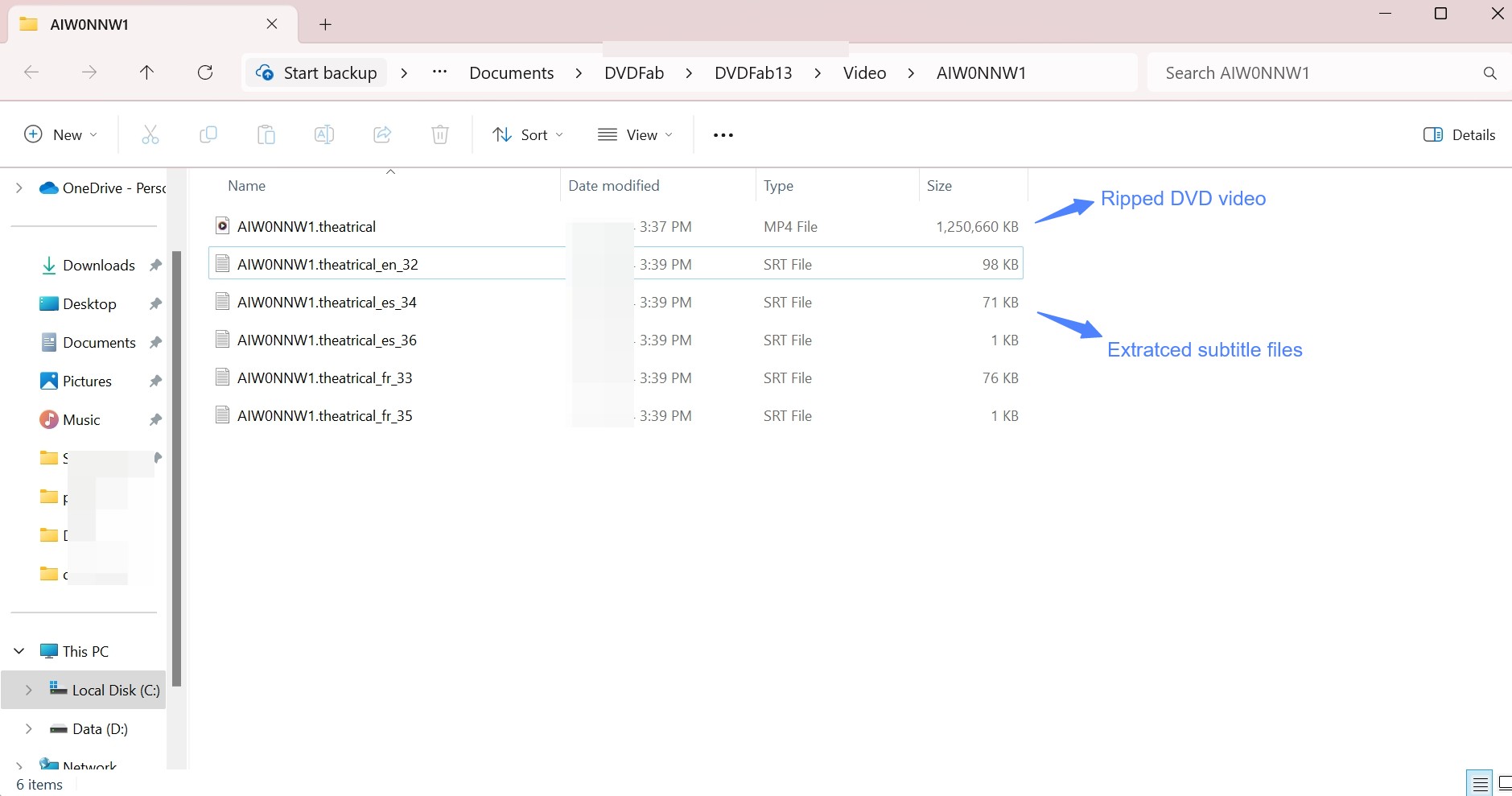
Step 4: Click "Advanced Settings" to adjust the video, audio and subtitle settings. Select "Extract to idx/sub file" or "Extract to srt file" and DVDFab will create a separate subtitle file.
Step 5: Select the output directory at the Save to section. You can save it on your local hard drive or another available destination. Finally, click the "Start" button to begin the DVD subtitle extraction process.
Method 2. Convert DVD VobSub to SRT with Subtitle Edit
Subtitle Edit is a better free choice than older SubRip-style methods when you already have image-based DVD Sub/idx files and want to turn them into editable text. It gives you an OCR workspace where you can review uncertain words while the subtitle is being recognized instead of treating OCR as a one-click export.
Step 1: Open Subtitle Edit and import the DVD Sub/idx or another supported image-based subtitle.
Step 2: Select the correct language and an available OCR method.
Step 3: Run OCR and review unknown or incorrectly recognized words while the subtitle images are processed.
Step 4: Correct remaining spelling, punctuation, names, and character errors.
Step 5: Save the corrected subtitle as SRT.
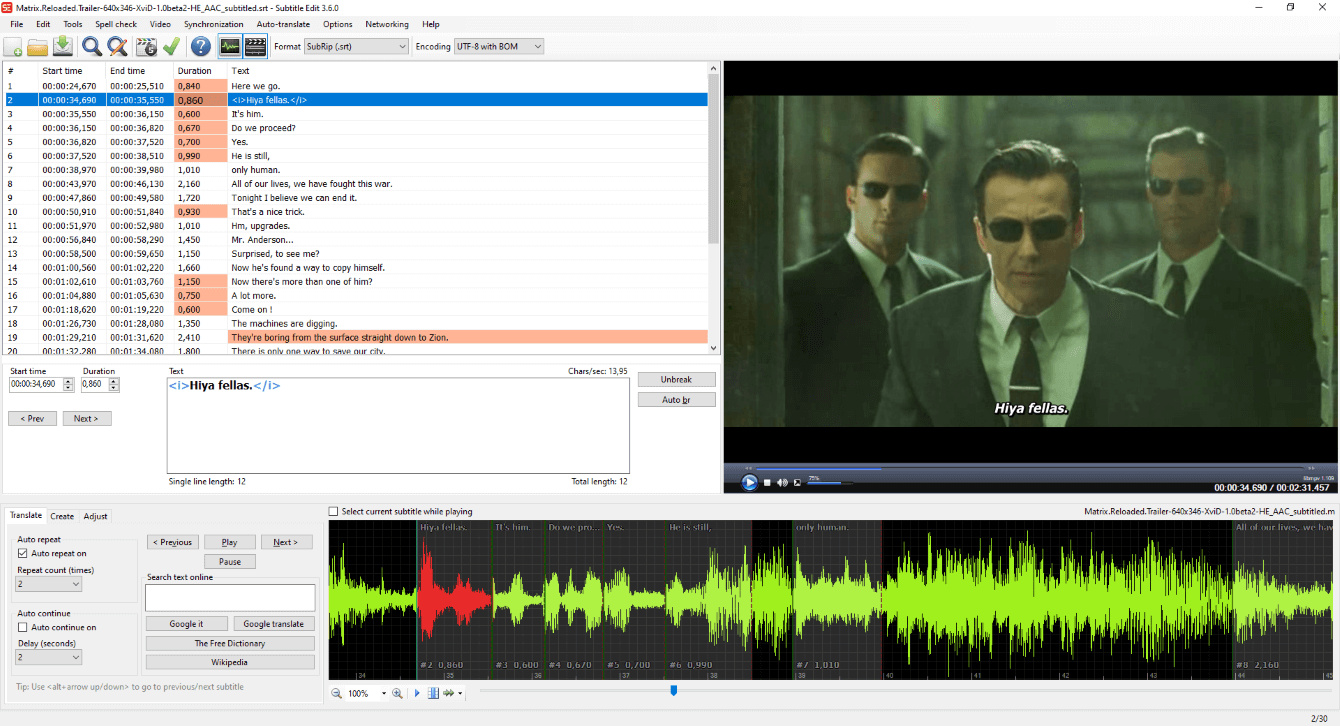
For users who already have VobSub files, Subtitle Edit gives more room for manual OCR correction. If the starting point is still the DVD and you also need to rip the movie, DVDFab's integrated SRT output removes the extra subtitle-extraction step.
Method 3. Keep Original DVD Subtitle Tracks with MakeMKV
MakeMKV makes more sense when you do not need SRT at all and simply want the original DVD subtitle tracks preserved with the movie. The subtitles remain image-based VobSub tracks in the MKV, so there is no OCR stage and no OCR text error to correct.
I would choose this route for an archive copy when retaining the original DVD subtitle stream matters more than getting editable text. If SRT becomes necessary later, the preserved VobSub track can still be processed with OCR separately.
Why DVD Subtitles Go Missing or Show Incorrectly
Forced Subtitles Do Not Appear
- Symptom: The normal subtitle track works, but foreign-language sections that should appear automatically are missing.
- Likely cause: The DVD may use forced flags inside a larger subtitle track, or it may store the foreign-language lines in a separate subtitle stream.
- Check: Find a scene where you know the forced subtitle should appear and compare the available subtitle tracks. In DVDFab, test Forced only or Scan Forced Subtitle.
- Next action: If the automatic scan does not find the expected lines, select and test the likely subtitle tracks manually before processing the entire movie.
Subtitles Work in MKV but Not as Expected in MP4
- Symptom: DVD bitmap subtitles remain selectable in an MKV but disappear, become burned in, or cannot be kept the same way after an MP4 conversion.
- Likely cause: The subtitle type and output container do not offer the same playback options. For DVD bitmap subtitles, MKV gives you more room to preserve original selectable tracks, while MP4 setups are generally easier when paired with text subtitles such as SRT or with one subtitle burned into the picture.
- Check: Determine whether the subtitle is the original bitmap VobSub stream or a text subtitle such as SRT, then check what your actual player supports.
- Next action: Keep the original bitmap subtitle in MKV when selectable DVD subtitles matter. If the playback device works better with MP4 and text subtitles, convert the needed subtitle to SRT through OCR.
The Extracted SRT Contains Wrong Words or Characters
- Symptom: The SRT file exists, but some names, punctuation marks, numbers, or accented characters are wrong.
- Likely cause: OCR misread parts of the original subtitle images.
- Check: Compare the SRT with several subtitle frames from the DVD, especially unusual fonts, names, punctuation, and short lines.
- Next action: Correct the SRT in a subtitle editor before translation, archiving, or other reuse. A clean-looking OCR result can still contain small text errors that are easy to overlook during normal playback.
FAQs
How do I know if my DVD has subtitles?
You can check the DVD subtitle or language menu, look at the languages listed on the disc packaging, or load the DVD in a ripping tool such as DVDFab DVD Ripper and inspect the subtitle tracks detected for the title.
Should I rip my DVD to MP4 or MKV to keep the subtitles?
It depends on how and where you plan to play the ripped files. According to discussions among home media server enthusiasts on Reddit's r/PleX, the MKV container is the superior choice if you want to keep multiple subtitle tracks intact. MKV natively supports and copies embedded DVD subtitles 1:1.
On the other hand, if you convert the DVD into an .mp4 container, you will likely lose the embedded DVD subtitles during the conversion process. While MP4 is historically more universally supported by older devices , getting subtitles to work usually requires extracting them beforehand.
Why are forced subtitles missing after ripping a DVD?
A DVD may mark individual subtitle entries as forced or place foreign-dialogue subtitles in a separate track. Check the available subtitle streams and test the relevant forced-subtitle option before processing the complete title.
How to add or replace subtitles on a Blu-ray?
- Step 1: Download and open DVDFab 13. Find and click on Blu-ray After Editor in the Utilities section, then upload the Blu-ray/UHD file either by clicking the "+" button or dragging it into the interface.
- Step 2: Once uploaded, all Blu-ray/UHD titles will appear on the main interface. Click edit beside your desired title and choose either "Audio" or "Subtitles" to introduce new or replace existing components.
- Step 3: Change language and delay settings under "Settings".
- Step 4: Click the "Start" button to begin altering the Blu-ray file. We've made the process flexible so you can cancel out anytime you prefer.
Conclusion
When ripping a DVD with subtitles, I would choose the subtitle result before choosing the output format. Use "Remux into file" when you want a selectable subtitle track, "Direct render to video" when the subtitle must remain permanently visible, and the forced-subtitle options when you only need selected foreign-dialogue or on-screen text.
If you need a separate subtitle file, choose IDX/SUB when preserving the original DVD bitmap subtitle matters and SRT when you need editable text. The important difference is that SRT requires OCR, so the resulting text should be checked before you treat it as an archival or translation-ready subtitle.
For this particular job, DVDFab DVD Ripper has the advantage of keeping the main decisions in one place: selectable or burned-in subtitles, forced subtitle controls, external SRT/ASS files, IDX/SUB extraction, and OCR-to-SRT output. Subtitle Edit is the stronger companion when detailed OCR correction is the priority, while MakeMKV is the simpler choice when the goal is to preserve the original DVD subtitle tracks inside an MKV without converting them to text.

 Free DVD Decoder for Windows XP and Windows 11: 3 Ways to Play DVDsBy Diana Smith - Sep 23, 2026
 How to Compress ISO Files: 4 Methods for Storage, Playback, and ArchivesBy Diana Smith - Sep 16, 2026
 How to Rip DVD to Facebook and Upload the Video in 2026By Diana Smith - Sep 15, 2026
![How to Rip DVDs for Plex: Guide to Formats, Tools, and Library Setup [2026]](https://images.dvdfab.cn/media/Screenshot_2026-09-08_at_18.53.34_j36v3l.png/public) How to Rip DVDs for Plex: Guide to Formats, Tools, and Library Setup [2026]By Diana Smith - Sep 8, 2026
How to Rip DVDs for Plex: Guide to Formats, Tools, and Library Setup [2026]By Diana Smith - Sep 8, 2026