
What is a DVD Drive? Definition, Functions and Types Explained

Summary: Choosing between an internal, external, or virtual DVD drive depends on how much desk space you have and whether your laptop still has a disc slot at all. This guide compares read speeds across drive types, flags the reliability signals worth checking before buying an external unit, and walks through the Device Manager and power-setting fixes that resolve most drives that stop responding.
Table of Contents
Most laptops sold in the US today skip the disc slot entirely, yet a DVD drive is still what you reach for to play an old movie, install software that never got a digital release, or pull files off a disc that predates cloud storage. This guide covers the DVD drive definition, how the read and write process actually works, which drive type fits your setup, and what to try when a drive stops responding.
What is a DVD Drive?
A DVD (Optical) drive, short for Digital Versatile Disc Drive, is a hardware component that can be installed either inside a computer or other electronic device or used as an external unit to read and write discs. In a broad sense, it is a type of optical disc drive.
From a technical point of view, a DVD drive uses laser beams and electromagnetic wave technology to read or write data on DVD discs, acting as a bridge between physical optical discs and a computer's digital system.
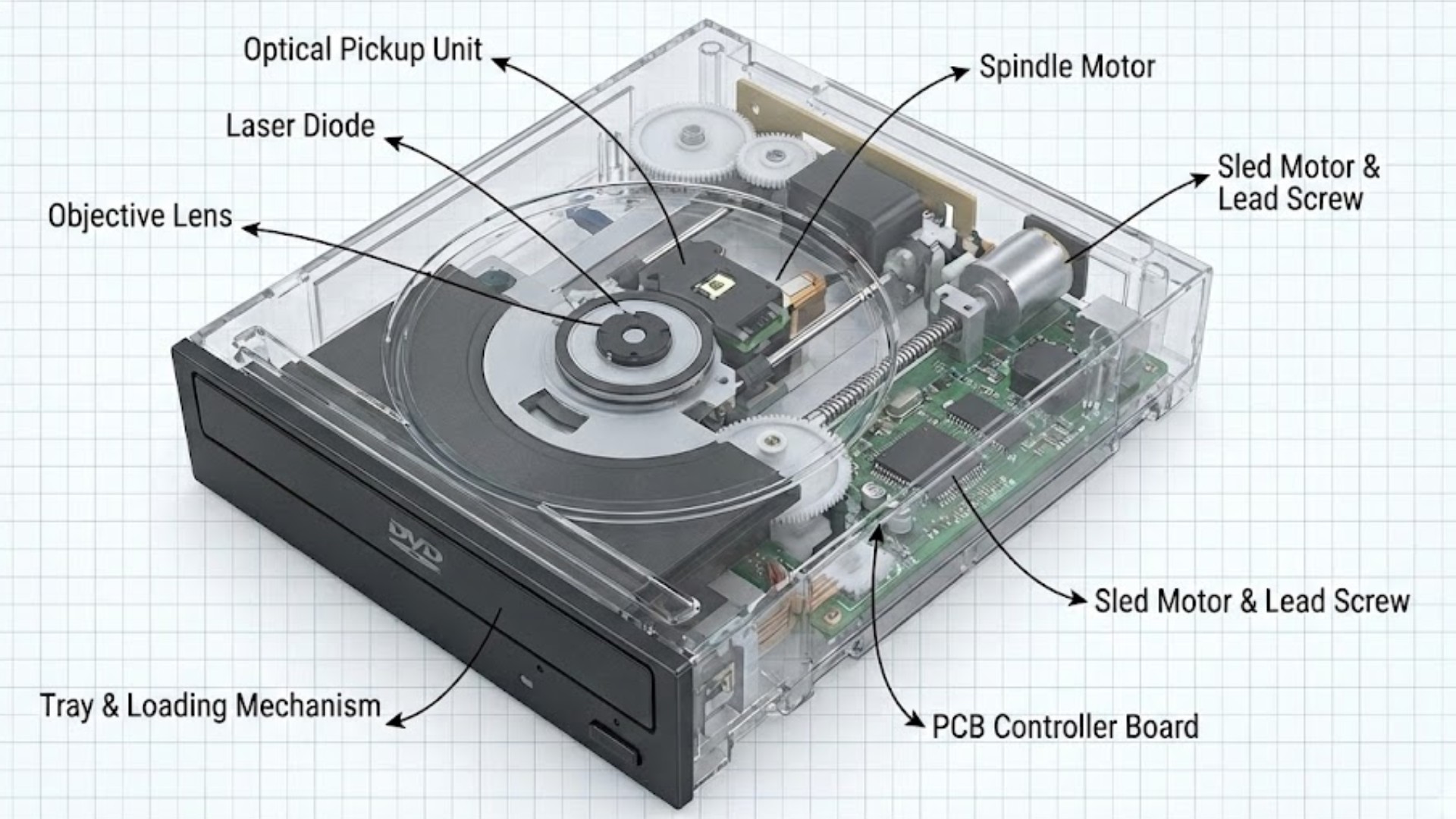
A DVD drive works as an input device when reading discs and as an output device when burning them. As an input device, it reads the pits and lands on the disc and converts them into digital signals the computer can process. As an output device, it uses a high-power laser to change the chemical properties of the disc's dye layer, permanently recording digital files onto the disc.
So even as computer manufacturers phase out built-in optical drives, a DVD drive remains a practical tool for playing physical movies, installing older software, and reading cold data backups stored on disc.
How Does a DVD Drive Work?
In simple terms, an optical drive works in four steps: emit a laser, focus it on the disc, capture the reflected light, then decode the result into data.
Laser Beam Technology
A DVD drive is a type of optical disc drive. Different types of optical disc drives use lasers with different wavelengths; the shorter the wavelength, the narrower the beam and the higher the data density that can be read. In terms of performance, the DVD drive sits in the middle.
| Drive Type | Laser Wavelength | Laser Color | Data Density & Characteristics | Typical Disc Capacity |
| CD drive | About 780 nm | Infrared | Longer wavelength, can only read lower-density data pits; track spacing is relatively large | About 700 MB |
| DVD drive | 650 nm | Red | Finer laser than CD, allowing smaller and more tightly packed data pits; data density is significantly higher | About 4.7 GB for a single layer |
| Blu-ray drive | 405 nm | Red Blue-violet | Very fine laser beam can form micron-level data points on the disc, achieving the highest data density | About 25 GB for a single layer |
The surface of a DVD is covered with tiny irregular bumps and flats, known as pits and lands, and how strongly each one reflects the laser is what the drive's sensor actually reads. When the DVD drive's laser hits a land, the light is strongly reflected back to the sensor, representing binary 1 or a specific signal state. When the laser hits a pit, the light scatters or undergoes destructive interference, so the reflected light becomes weaker, representing binary 0. The sensor inside the DVD drive captures these changes and converts them into electrical signals, which the computer reconstructs into movies or files.
DVD Drive Reading Speed
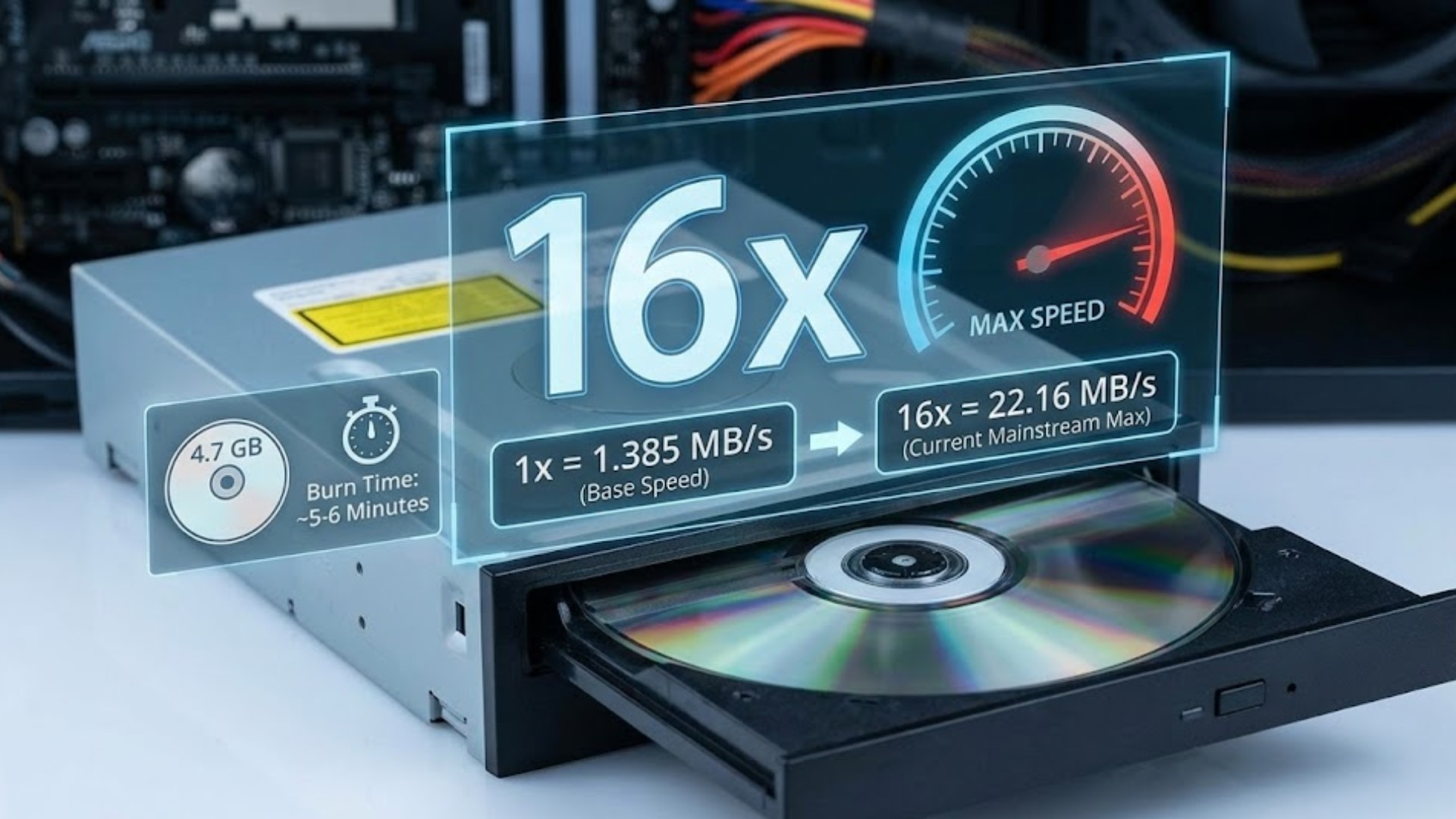
The 8x, 16x, or 24x printed on a DVD drive's box refers to its maximum data transfer rate.
In the DVD standard, 1x (single speed) is defined as 1.385 MB/s, roughly the minimum speed needed to play a standard DVD movie.
- 8x = 11.08 MB/s
- 16x = 22.16 MB/s (the current maximum speed for most mainstream DVD burners)
- 24x = 33.24 MB/s
For most users, a 16x drive is already fast enough to burn a full 4.7 GB DVD disc in about 5 to 6 minutes.
Different Types of DVD Drives
Not all DVD drives are the same. When choosing or using a drive, it helps to look at it from two angles: connection type (physical form) and supported formats (functionality).
Internal DVD Drives
Internal DVD drives are installed directly inside the computer case and connected to the motherboard. They are usually more stable and offer slightly faster data transfer speeds than external drives because the connection is direct, but they are not portable.
Desktop Internal Drives:
- This is the most traditional form of optical drive, installed in the 5.25-inch drive bay at the front of a desktop case. They connect to the motherboard via a SATA interface. Due to their larger size, they have a more robust mechanical structure and better heat dissipation, and they typically support the highest read/write speeds, such as 16x or 24x.
Laptop Internal Drives:
- Also known as slimline drives, these ultra-thin drives are built to fit the limited space inside a laptop, usually only 9.5 mm or 12.7 mm thick. As laptop makers keep chasing thinner designs, this type of drive is now mostly limited to certain rugged or business laptops rather than mainstream models.
- Don't take up additional desk space.
- Provides stable read speeds and better overall performance.
- Comparatively harder to install.
- Cannot be easily switched between multiple computers.
- Limited to desktop PCs and a shrinking number of laptop models.
External DVD Drives
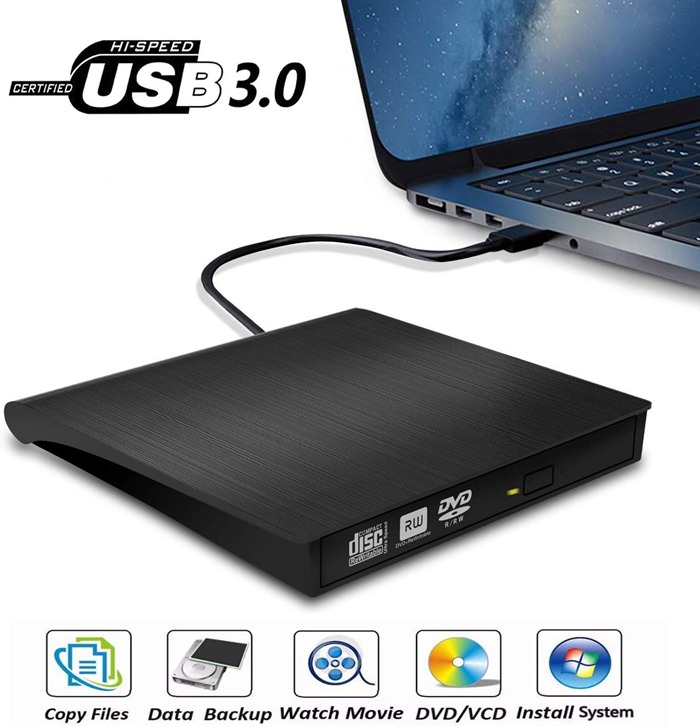
With the rise of MacBook Air and Ultrabooks, computers no longer reserve space for internal optical drives, so external DVD drives have become the mainstream option. An external drive is worth considering if you have a bit of extra space beside your desktop or a laptop with no disc slot at all; our best external DVD drive guide breaks down how to judge build quality and connection type before buying.
Reliability varies more than the spec sheet suggests. On forums like r/makemkv, users troubleshooting failed disc reads often trace the problem back to no-name, bus-powered drives that need repeated unplugging or a reboot before a disc mounts. A drive with its own power connector, or one from a recognized brand, tends to read more consistently. If you want the drive to also handle Blu-ray or UHD discs, check whether it needs a firmware update first, since that support is not always available out of the box.
External DVD drives usually offer USB connectivity with USB Type-A or USB Type-C ports, and you should choose based on the ports your computer supports.
- USB Connectivity: An external DVD drive is essentially a slim internal drive enclosed in a case and connected via a USB cable.
- USB Type-A: The traditional rectangular connector, compatible with most desktop PCs and older laptops.
- USB Type-C: More modern external drives use a Type-C connector, which typically connects directly to a MacBook or newer ultrabooks.
- Easy to install and use.
- You get extra storage.
- Can be switched between multiple devices anytime and anywhere.
- Takes up physical desk space while in use.
- Can overheat during heavy use.
- Connection can become unstable due to loose ports, a weak power supply, or an unbranded build.
Supported Formats (ROM vs. RW vs. RAM)
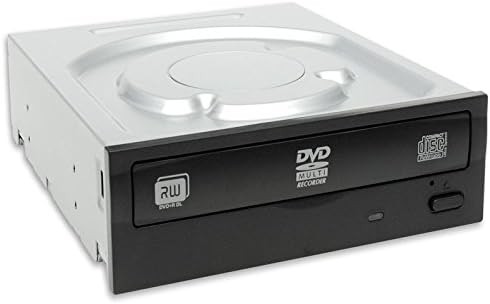
Aside from the physical form, the labels printed on the front panel of an optical drive determine what it can do. Typically, you will see labels such as DVD-ROM, DVD-RAM, and DVD-RW/+RW, each indicating slightly different capabilities.
- DVD-ROM Drive (DVD Reader): As mentioned earlier, this type of drive can only read data from DVDs and CDs; it cannot burn discs. It is mainly used for installing software, watching movies, or playing older disc-based games.
- DVD-RW/DVD+RW (DVD Writer/Burner): This is currently the most common type. It can not only read data, but also write data to DVD-R or DVD+R blank discs (write-once) as well as DVD-RW or DVD+RW discs, which can be erased and rewritten multiple times. Most modern drives are labeled "DVD Multi Recorder" and support both DVD- and DVD+ formats.
- DVD-RAM: This is an older format, but excellent in terms of data reliability. A DVD-RAM disc can access data randomly like a hard drive, and it has a very long lifespan, making it suitable for long-term archiving. It is not very common today, but higher-end drives still support reading this format.
DVD Virtual Drives
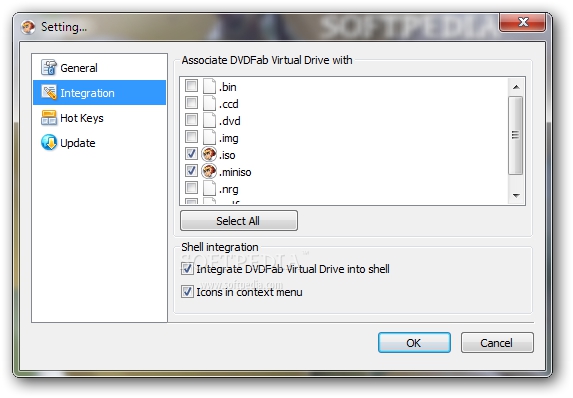
When you search for "DVD drive" or "what is a DVD drive," you may come across something that looks like a drive but cannot be touched in the real world: the virtual drive.
A virtual DVD drive is not physical hardware; it is a drive simulated by software. In the "This PC" folder on your computer, it looks exactly like a real DVD drive icon and even has a drive letter, such as G:. It uses software algorithms to make the operating system treat it as if a physical drive were connected.
If you're considering this route, DVDFab Virtual Drive is a virtual Blu-ray/DVD emulator that can emulate up to 18 drives and works with DVD and Blu-ray images. With it, you can copy DVD and Blu-ray files to your storage by saving them as an ISO disc image.
- Don't take up additional desk space.
- No risk of DVD physical damage.
- Simulates multiple DVD drives on a single computer to suit specific scenarios.
- Reading speed is much faster than physical drives.
- Unable to read physical discs.
- Need time to get familiar with operation process.
What to Do With DVD Drive Not Working?
A drive that stops responding is annoying, but it is rarely a reason to throw it out right away. Work through the troubleshooting steps below first. If the problem looks physical, a technician can also take a look at your external CD/DVD drive or your laptop's built-in drive.
Reasons for Your DVD Drive Not Working
There are usually three categories behind a drive that will not read a disc. Check each one before assuming the drive itself is dead.
- Drive issues: hardware failure, outdated firmware, dust on the laser lens, or a loose connection.
- Disc issues: a scratched or damaged disc, a format mismatch, such as trying to play or burn a Blu-ray disc in a standard DVD drive, or copy protection that blocks reading.
- Software issues: no playback software installed that supports the disc or file type.
Hardware and connection problems make up most of what shows up in troubleshooting threads on forums like r/techsupport, and they are usually fixable without buying a replacement. Work through these in order:
- Restart the computer and try a different USB port or SATA cable. Windows includes generic drivers for CD/DVD drives, so even an unbranded external drive typically does not need a special driver install to be recognized.
- Open Device Manager. If the drive does not appear there at all, that usually points to a hardware or connection problem rather than a missing driver, since Device Manager can only list devices it detects.
- If the drive reads the first disc fine but fails on the next one until you reboot or unplug it, open the drive's Properties in Device Manager and uncheck "Allow the computer to turn off this device to save power" on the Power Management tab.
- If the drive still will not show up after a clean reboot, corrupted UpperFilters or LowerFilters registry entries can occasionally block detection even when the hardware itself is fine.
- If none of the above helps and the drive is several years old, worn laser optics are a common failure point that no driver or setting change will fix.
For playback software issues, one option built specifically for disc, ISO, and folder playback is PlayerFab.
PlayerFab supports physical DVD/Blu-ray/UHD discs, as well as ISO image files or DVD folders. Whether your DVD drive is external, internal, or virtual, and whether your disc carries a region code lock or not, PlayerFab is built to play back the content without extra conversion steps.
- Supports playback of DVD/Blu-ray/UHD disc, ISO image and DVD folders.
- Utilizes AMD, Intel and NVIDIA technology to ensure fluent playback.
- Plays DVD/Blu-ray/UHD disc from all countries and regions.
- Provides full navigation menu playback.
Tip: Copy Data before Your DVD Drives Stop Working
It is always a sensible move to plan for a rainy day. Copying your DVD content in advance protects you before a drive stops working, whether the cause turns out to be mechanical or something you did by accident. DVDFab DVD Copy is one backup option built for exactly this.
The backup with DVDFab DVD Copy is lossless: you can convert a DVD disc to an ISO image or folder and store it on your hard drive for later playback, or save it onto another disc. This DVD copy protection removal software also lets you remove DVD copy protection before copying the original data, so a drive that eventually fails does not take your disc collection with it.
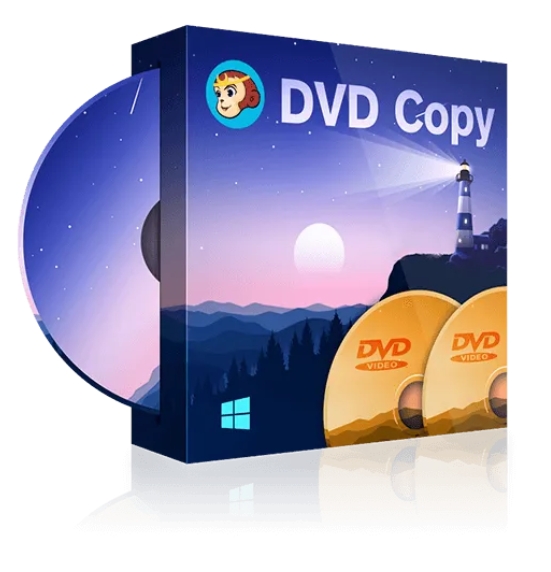
- Allows 1:1 lossless DVD copying.
- Provides six DVD copying modes.
- Compresses DVD-9 to DVD-5 with high quality.
- Processes multiple tasks quickly and simultaneously.
- Allows you to set subtitles, audio tracks, and volume labels.
How to keep a lossless backup with DVDFab DVD Copy?
Step 1: Download and launch DVDFab Software
Free Download Windows 11/10/8.1/8/7
Free Download macOS 10.13 - 15.x
Step 2: Load the DVD Source
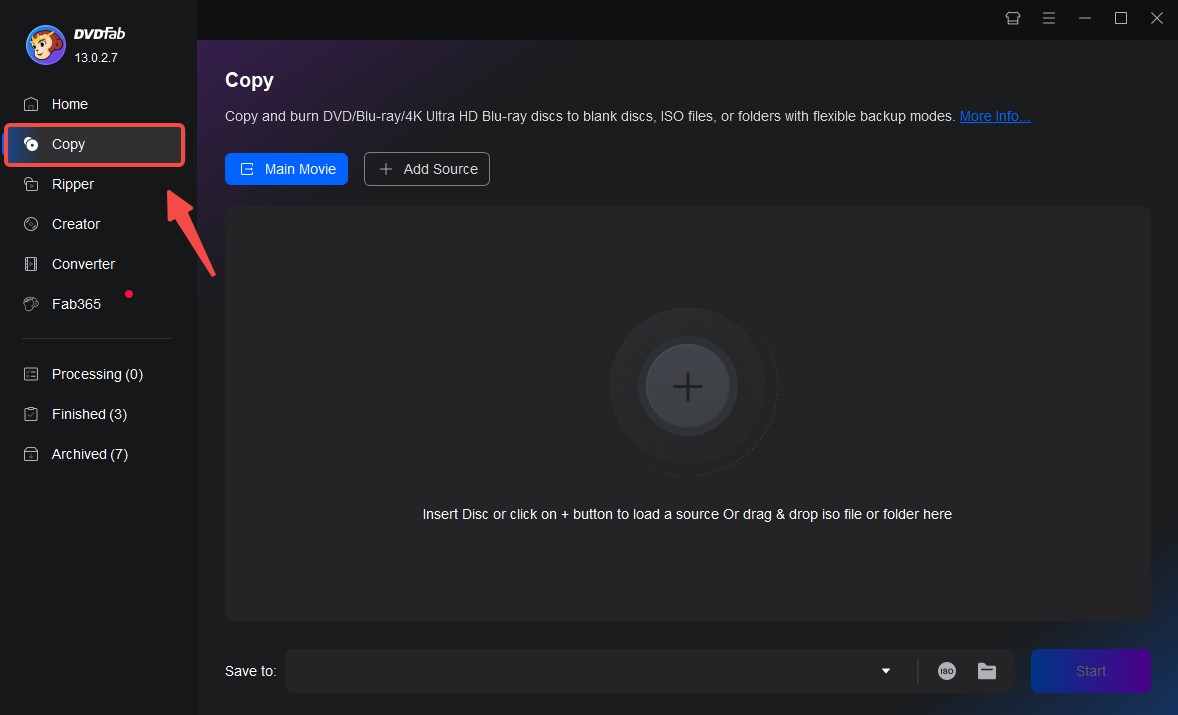
Click the "Copy" button, then insert the DVD you want to back up into your computer's optical drive. Click "Add" to load the DVD source. If the source is an ISO file, you can load it by drag and drop instead.
Step 3: Choosing a Copy Mode and Customizing the Output DVD
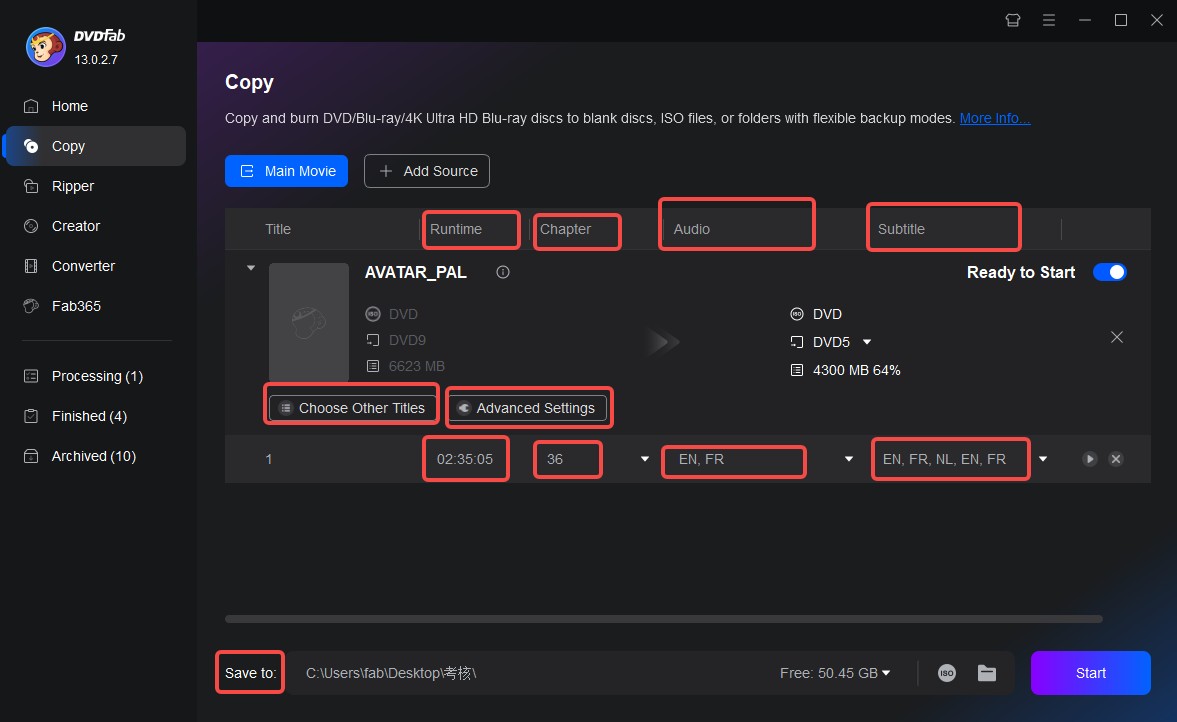
Select a copy mode from the six available options. Once you have picked a mode, you can customize the output DVD further, such as choosing which audio tracks, subtitles, and chapters to include.
Step 4: Click "Start" to Begin Copying Your DVD
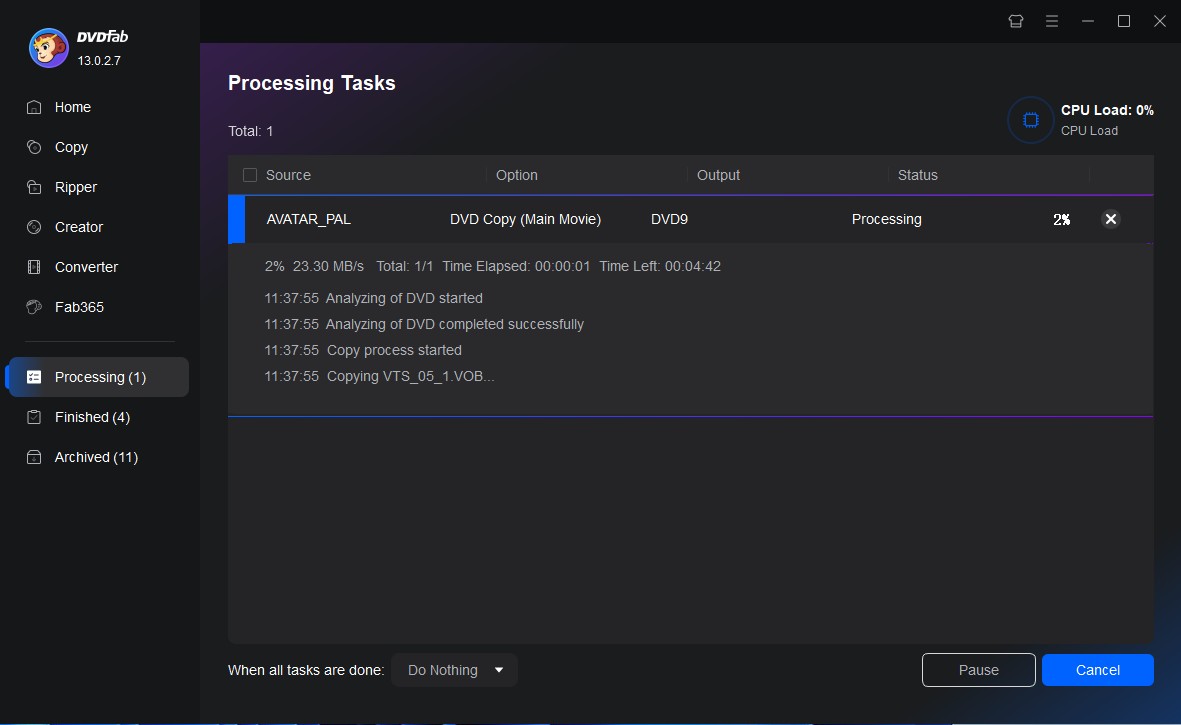
FAQs about DVD Drive
Are DVD drives obsolete?
No, DVD drives are not obsolete, though they are far less common than they used to be. USB flash drives, cloud storage, and streaming have all cut into the reasons people used to reach for a disc drive every day. Even so, a DVD drive remains the most direct way to play a DVD movie without ripping or converting it first, and plenty of people keep one around for exactly that reason.
What is the difference between an optical drive and a DVD drive?
A DVD drive and an optical drive are not really two different things; a DVD drive is one type of optical drive. "Optical" refers to using light, specifically a laser, as the reading mechanism, and CD, DVD, and Blu-ray drives all work this way. A drive that also reads Blu-ray discs can handle shorter laser wavelengths than a standard one, which is why it can read higher-density discs.
Are external DVD drives good?
Yes, an external DVD drive is a practical option, especially if your laptop or desktop has no built-in disc slot. It connects over USB, so setup is a matter of plugging it in rather than opening the case. Speed is the one trade-off worth knowing about: most external drives are bus-powered over USB and top out around 8x, while an internal desktop drive wired directly to the motherboard can reach 16x or 24x. For occasional use that difference rarely matters, but it explains why an internal drive can feel faster on paper.
Can I still buy a laptop with a DVD drive?
It has gotten harder. Most mainstream and premium laptops dropped the built-in drive years ago to save space and battery room, and that trend has not reversed. A handful of bulkier budget or business laptops still ship with one, but they are now the exception rather than the rule. If you cannot find a model with a slot built in, pairing any laptop with an external DVD drive over USB covers the same need without waiting on a specific laptop line to stock one.
How do I choose a reliable external DVD drive?
Build quality varies more than most spec sheets show. Discussions among users ripping discs with tools like MakeMKV point to a common pattern: unbranded, bus-powered drives are more likely to need a reboot or a few unplug-and-replug cycles before a disc mounts. A drive with a separate power connector, or one from a brand with an established track record, tends to behave more predictably. If you also want it to read Blu-ray or UHD discs, confirm whether that support requires a firmware update, since it is not always enabled out of the box.
Conclusion
Virtual DVD drives have not replaced the physical kind. Internal, external, and virtual drives remain distinct options, each suited to a different setup. An internal drive fits a desktop with room to spare, an external drive covers laptops and ultrabooks without a disc slot, and a virtual drive works well when you are dealing with ISO files rather than physical media. Whichever type you rely on, backing up important discs with software such as DVDFab DVD Copy is worth doing before a mechanical failure makes that decision for you.

![How to Burn ISO to DVD on Windows 11 and Mac [2026]](https://images.dvdfab.cn/media/Screenshot_2026-08-07_at_10.57.26_d3iqro.png/public) How to Burn ISO to DVD on Windows 11 and Mac [2026]By Diana Smith - Aug 7, 2026
How to Burn ISO to DVD on Windows 11 and Mac [2026]By Diana Smith - Aug 7, 2026![How to Rip DVD to ISO on Windows 11/10/8/7 and Mac? [2026 Update]](https://r3.dvdfab.cn/upload/resource/dvd-to-iso-ei38.jpeg) How to Rip DVD to ISO on Windows 11/10/8/7 and Mac? [2026 Update]By Wenny Yan - Jun 17, 2026
How to Rip DVD to ISO on Windows 11/10/8/7 and Mac? [2026 Update]By Wenny Yan - Jun 17, 2026![Top 11 ISO Creators to Create ISO File on Windows & Mac [2026 Updated]](https://r3.dvdfab.cn/upload/resource/create-iso-file-ytTu.jpeg) Top 11 ISO Creators to Create ISO File on Windows & Mac [2026 Updated]By Wenny Yan - Jun 16, 2026
Top 11 ISO Creators to Create ISO File on Windows & Mac [2026 Updated]By Wenny Yan - Jun 16, 2026![How to Copy DVD to DVD or Computer on Windows 10/11/8/7 [Tested Ways]](https://r1.dvdfab.cn/upload/resource/how-to-copy-dvd-windows-10-hO78.jpeg) How to Copy DVD to DVD or Computer on Windows 10/11/8/7 [Tested Ways]By Wenny Yan - Jun 16, 2026
How to Copy DVD to DVD or Computer on Windows 10/11/8/7 [Tested Ways]By Wenny Yan - Jun 16, 2026