How to Convert DVD to AVI Free and Easily [2026 Updated]

Summary: Converting DVD to AVI effectively requires choosing the right ripper based on your disc type. For encrypted commercial DVDs, DVDFab DVD Ripper is the recommended solution due to its built-in decryption and GPU acceleration. For homemade or unencrypted discs, free tools like VLC and Icepine are viable alternatives. This guide covers 5 verified methods to help you digitize collections for playback on legacy hardware, such as older car DVD players and DivX-certified devices.
Table of Contents
I remember the frustration of trying to load some movies onto a flash drive for my parents' old player, only to find it refused to play the modern MP4 files. It turned out that while most devices have moved on, legacy hardware like older car stereos and set-top boxes still lives and dies by the AVI format. If you want to keep these older devices useful, you do not need the latest technology. You need specific and reliable compatibility with DivX or Xvid codecs.
I spent days testing over a dozen rippers to see which ones could handle these older standards without causing audio sync issues. Once you get the files converted to AVI, you will likely want to offload your physical discs entirely. If you plan to move your library to a flash drive for these devices, my guide on using a DVD to USB Converter covers the specific drive formatting you will need to make sure they play correctly.
How to Convert DVD to AVI with DVDFab DVD Ripper
💻Supported OS: Windows 11/10/8.1/8/7 & macOS 10.13 - 15.x
DVDFab DVD Ripper is the industry-leading solution designed for digitizing commercial, copy-protected DVDs that free tools often fail to read. It is the ideal choice for converting DVD collections to AVI, ensuring compatibility with legacy hardware such as older car stereos, DVD players, and set-top boxes. Powered by advanced GPU acceleration, it maintains original quality while delivering the fast ripping speeds.
💡You can follow the video or detailed steps.
Step 1: Open DVDFab DVD Ripper and Load Source
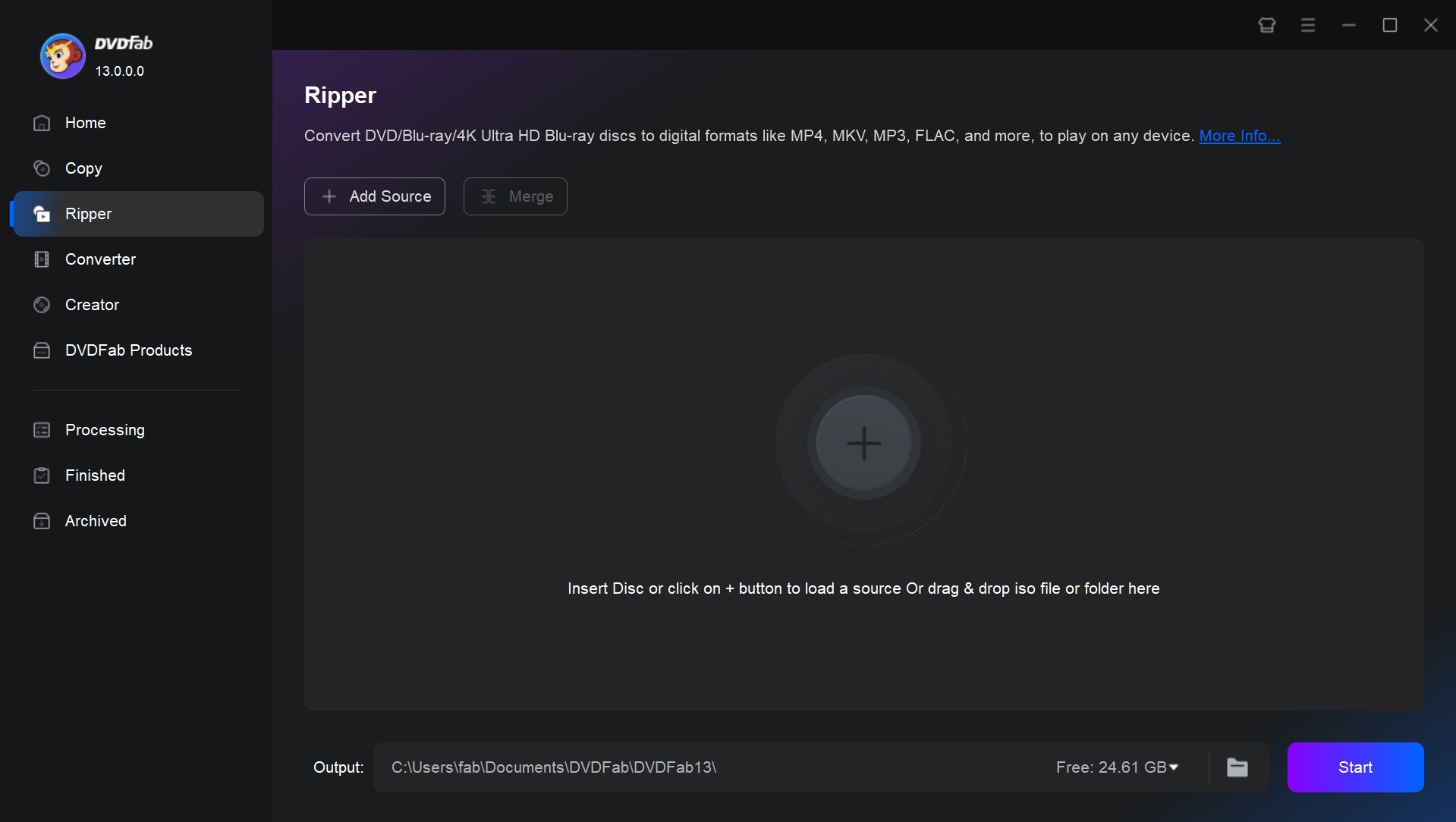
Launch DVDFab 13 and select the Ripper module. Insert your DVD disc into the drive, or drag an ISO/Folder to the center. DVDFab automatically analyzes the Source Info and removes copy protections (like Region Codes) instantly upon loading.
Step 2: Select the AVI Profile
After loading your DVD, you will see all information on the main interface. Now you can select video titles, chapters, audio tracks and subtitles you want to rip, or even add external subtitles.
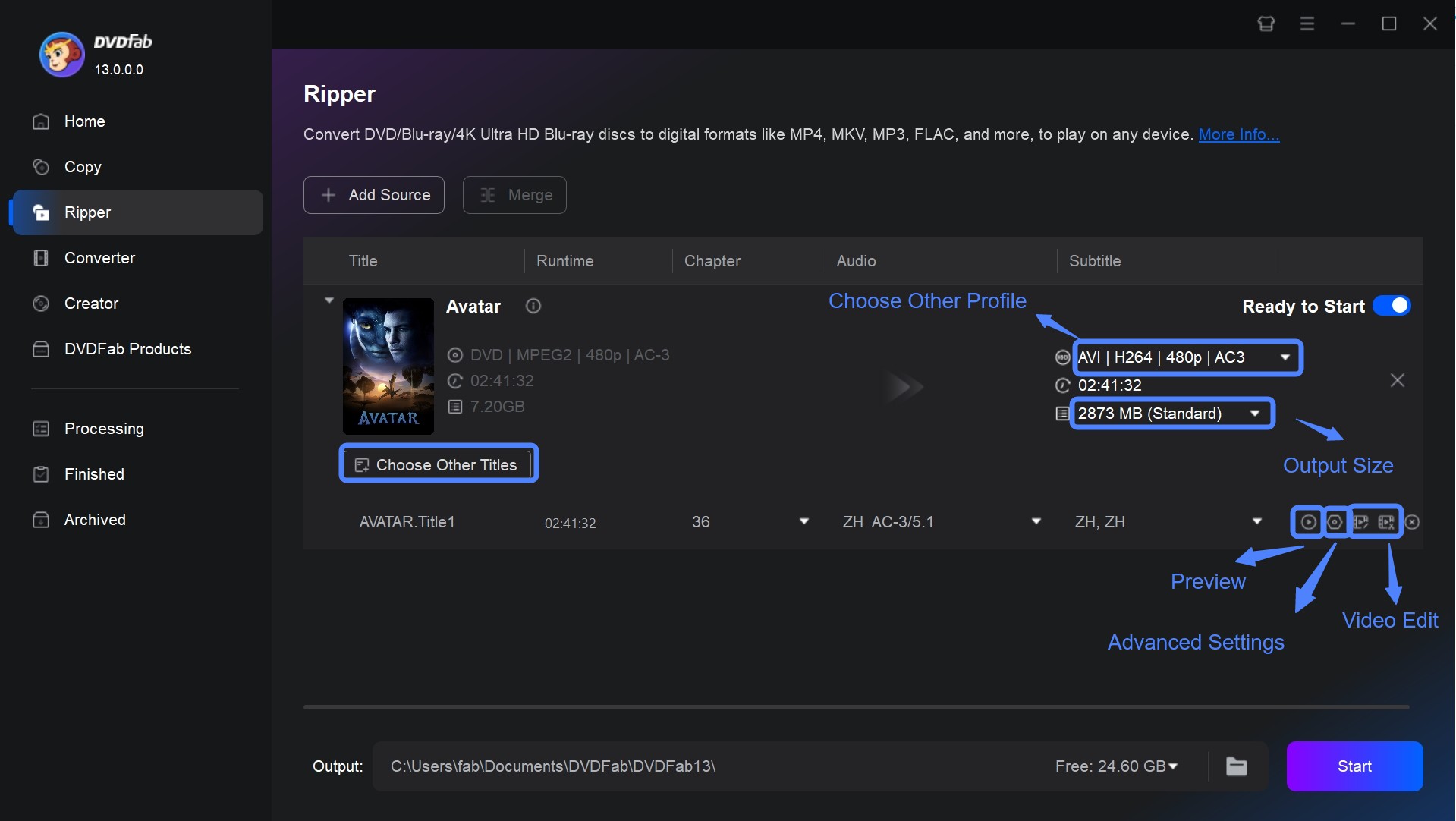
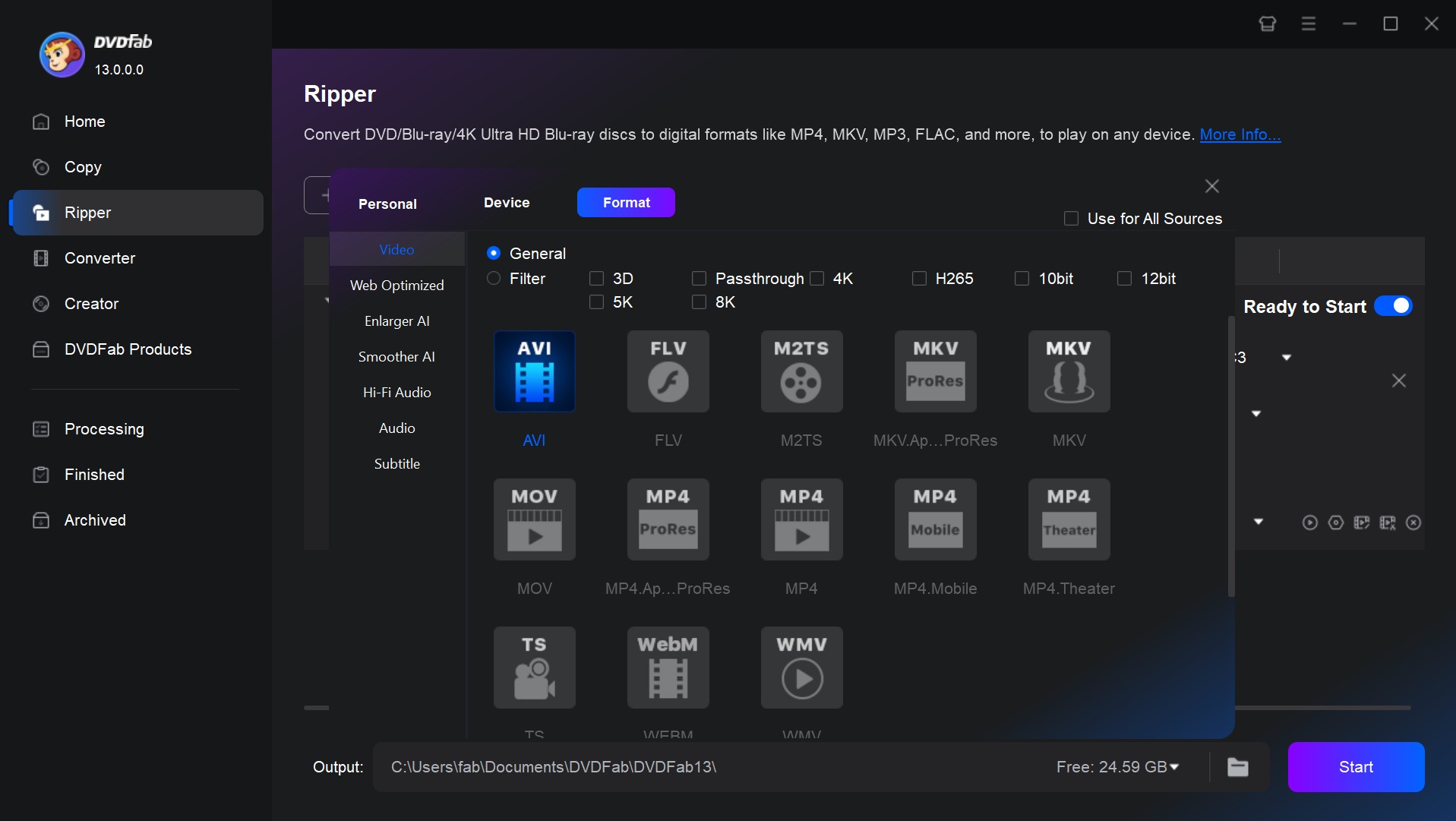
Then click "Choose Other Profile". Here you can click "Format" - "Video" to select the AVI format directly. Or click "Device" to select your preferred playback device.
Step 3: Personalize Your Video
These settings are where DVDFab has a clear advantage over free tools. You can fine-tune the video before conversion.
💡(Optional): If your disc lacks the native language, use the Subtitle Generator AI. It uses vocal separation technology to generate accurate subtitles from the audio track.
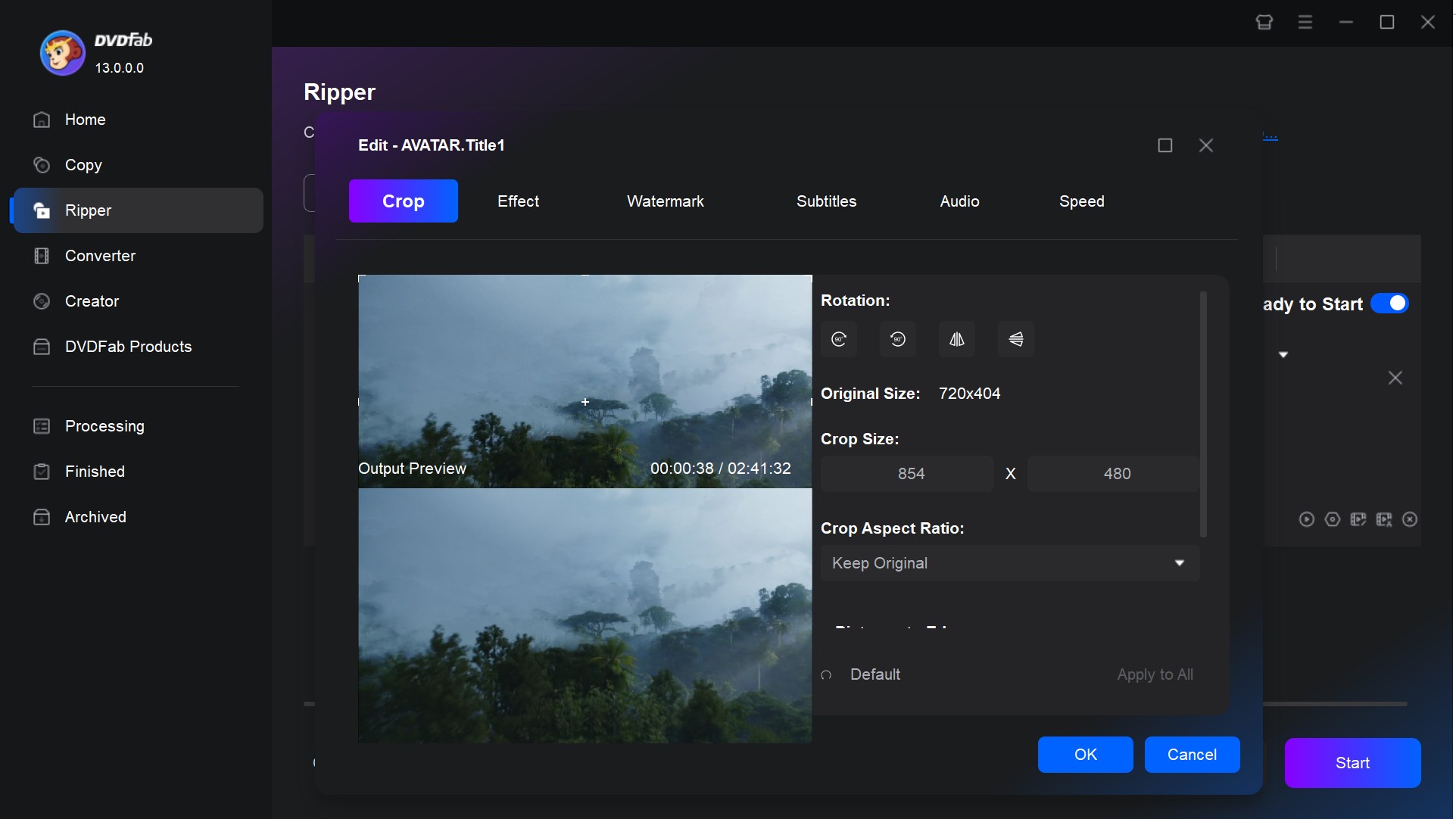
Also, you can click the Video Edit icon to crop black bars, remove opening adverts, and adjust the Resolution, Frame Rate, and Bit Rate through Advanced Settings.
Step 4: Start Ripping with GPU Acceleration
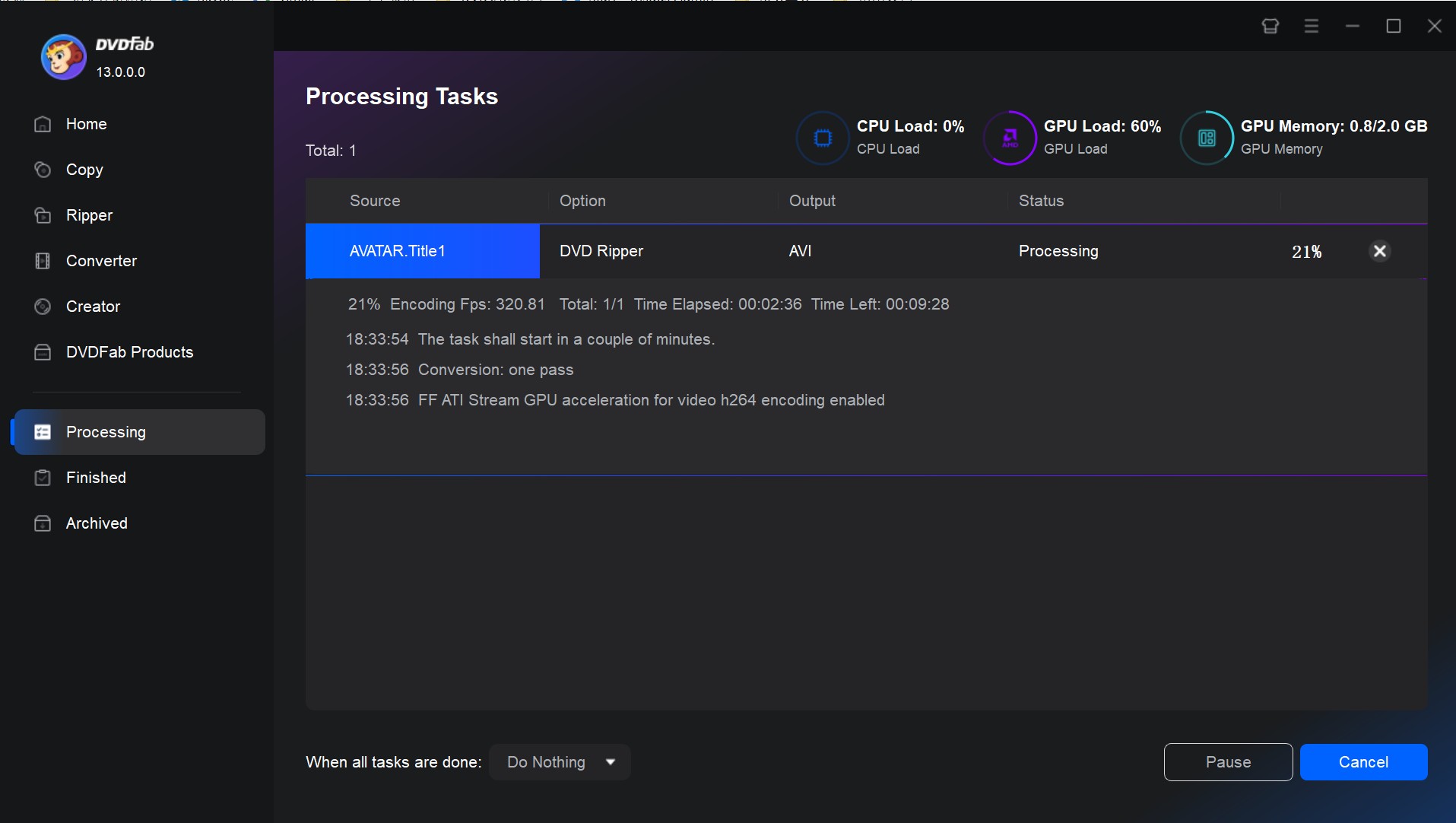
Once customized, select your output folder at the bottom. Click the "Start" button for DVD to AVI conversion. With hardware acceleration enabled, DVDFab can process the conversion queue rapidly.
How to Convert DVD to AVI with VLC Media Player
💻Supported OS: Windows XP-11, Mac OS X 10.7.5 or later, Linux, Android, and iOS
VLC Media Player is an open-source multimedia player developed by the VideoLAN project. While known for playback, it features a hidden "Convert / Save" tool that allows you to convert DVD to AVI for free without installing extra plugins. It is an excellent choice for digitizing unencrypted home discs directly on Windows, macOS, and Linux.
Step 1: Open VLC and Add your Disc
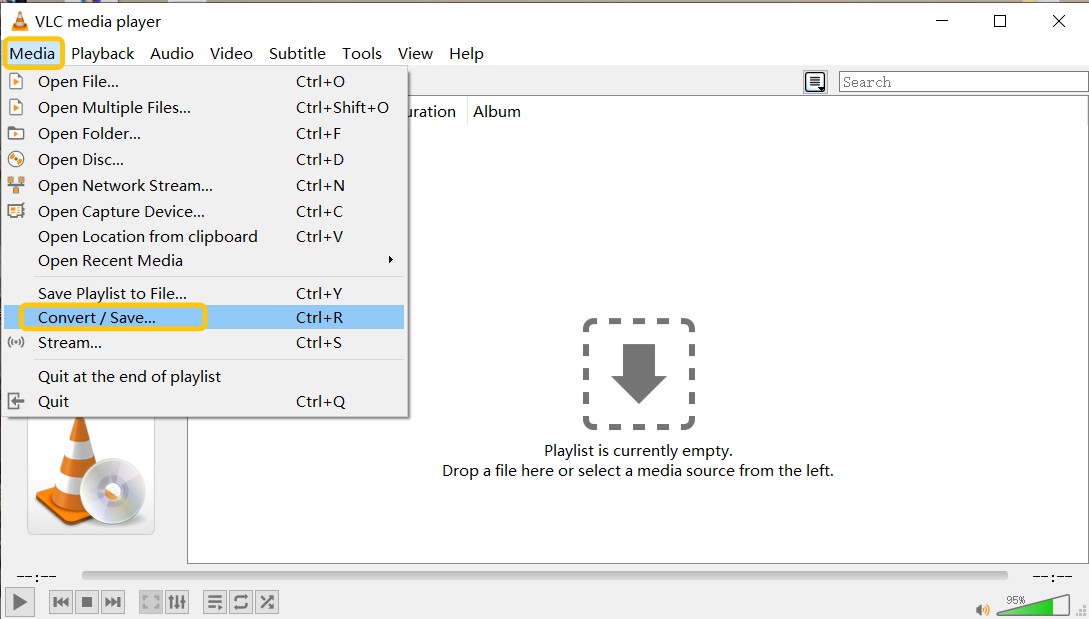
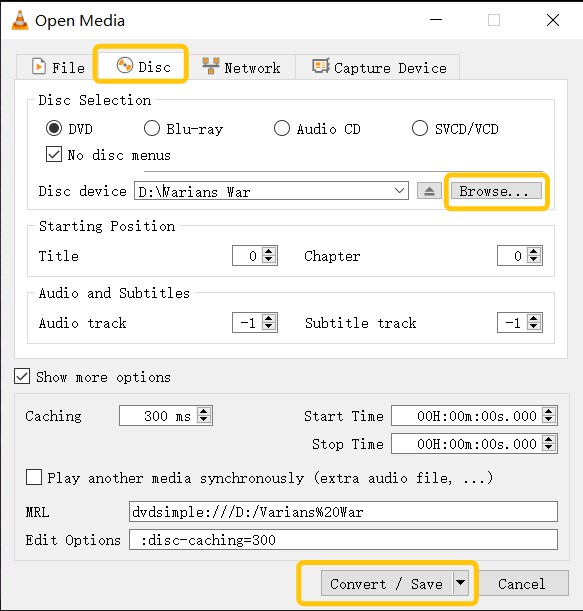
Launch VLC and navigate to Media > Convert / Save. Switch to the Disc tab.
Disc Selection: Ensure DVD is selected. Choose your optical drive under "Disc Device". VLC allows you to choose specific Titles and Chapters. If you are ripping a movie, select the longest title (usually Title 1) to avoid converting the DVD menu loop endlessly.
Step 2: Create a Custom AVI Profile
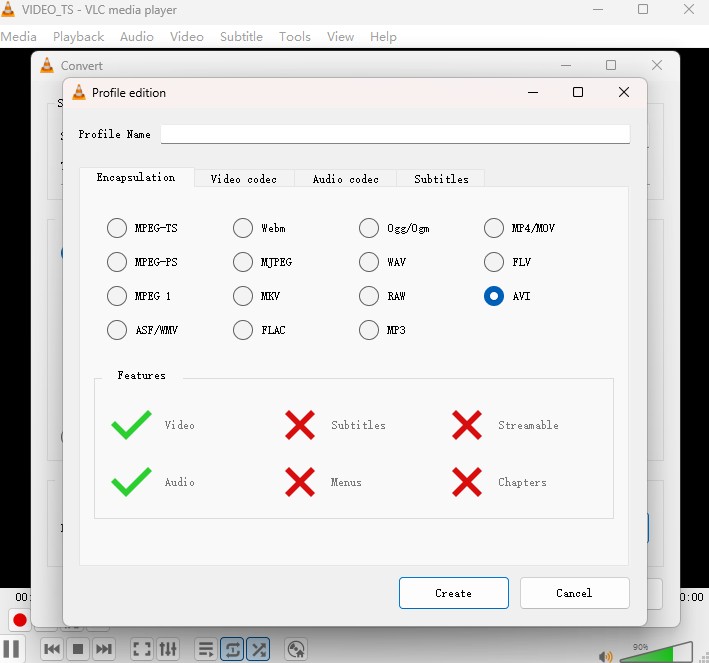
Since VLC often lacks a default AVI preset, you must create one manually to ensure compatibility.
- Click the Create a new profile button next to the profile dropdown.
- In the "Profile edition" window, type a profile name. Then, navigate to the Encapsulation tab and strictly select AVI.
- Switch to the Video codec tab. Check the "Video" box and set the codec to MPEG-4 or DivX.
Car stereos and DivX-certified players from the 2000s require Xvid or DivX video paired with MP3 audio. H.264 inside an AVI container is technically valid but is not recognized by most legacy hardware manufactured before 2015, which is why selecting MPEG-4 here is important for playback compatibility.
Step 3: Start Conversion
Click Browse to choose a save location. You must manually type the .avi extension at the end of your filename, or VLC might save it without an extension.
Click Start to begin the DVD to AVI conversion. VLC plays the disc in the background as it converts. The time taken depends on the length and complexity of the DVD content.
How to Rip DVD to AVI for Free with XMedia-Recode
💻Supported OS: Windows 11, 10, 8, 8.1, 7
XMedia Recode is a free Windows converter that provides granular control over codec and bitrate settings for AVI output. It supports NVIDIA, AMD, and Intel GPU acceleration for faster encoding, and a batch queue lets you process multiple titles in sequence. It does not bypass copy protection, so it works only with unprotected home recordings and VIDEO_TS folders.
Step 1: Download and Install XMedia Recode
Download and install the latest XMedia Recode (Version 3.6.3.0, 64bit). It includes the latest FFmpeg codec updates and stability fixes for long DVD conversions.
Step 2: Load Unprotected DVD
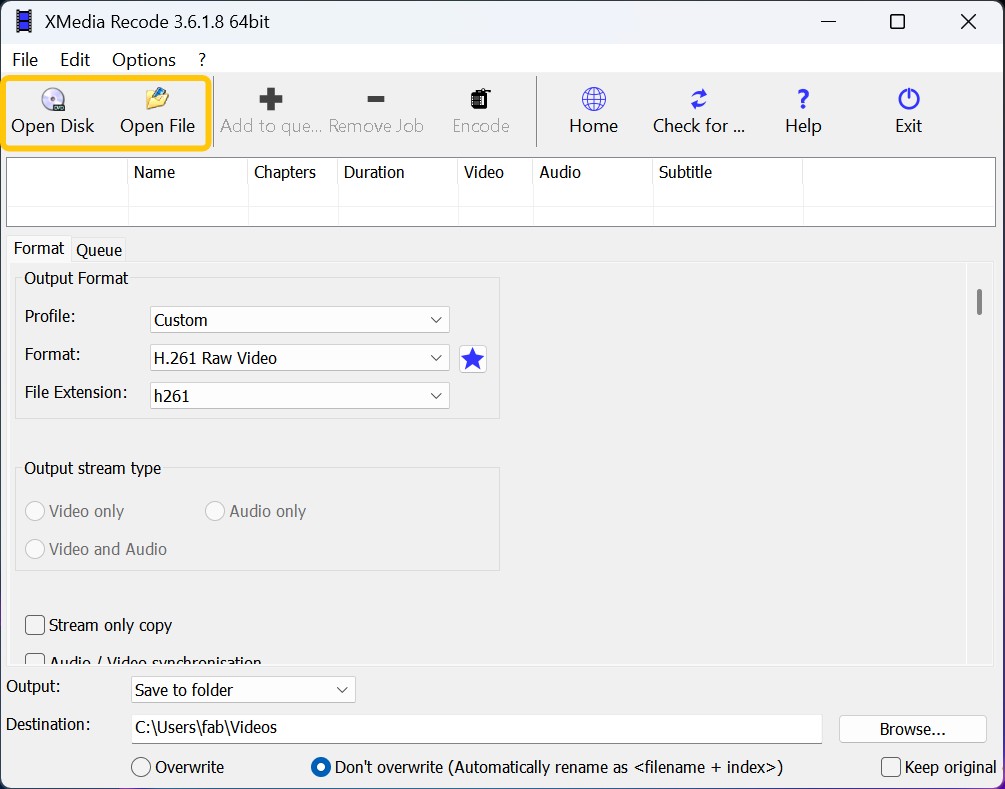
Click Open Disc to load your DVD drive. Click Open Disk and insert the DVD. For VIDEO_TS folder conversion, click Open File. Then choose the main movie title from the list.
Step 3: Configure AVI and New Video Filters
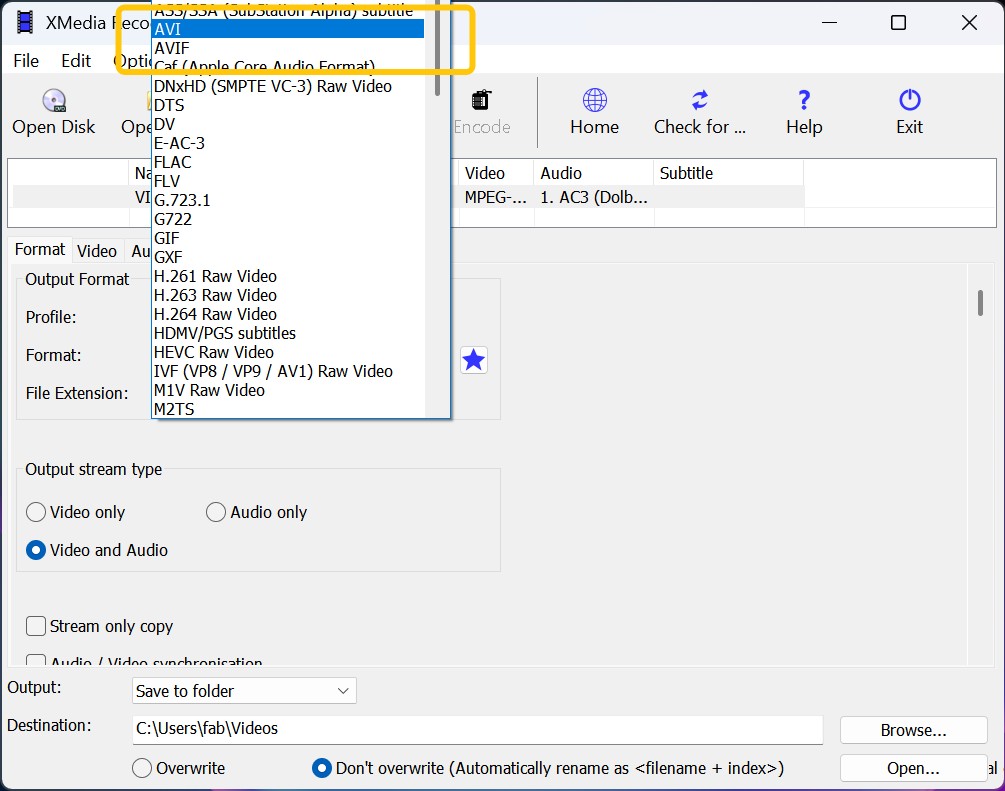
Under the Format tab, select AVI. Then switch to the Video tab and choose MPEG-4 (Xvid) as the codec for best compatibility with old players.
Adjust bitrate and frame rate as needed. In Video, set the FourCC for AVI compatibility and codec matching. Choose an audio codec (MP3 or AC3). If needed, add soft subtitles or burn them in with the Subtitle filter.
New Feature: If your old home videos look washed out, navigate to the Filters/Preview tab. You can now use the newly added "RGB normalization" filter to automatically correct color imbalances before encoding.
Step 4: Start to convert DVD to AVI
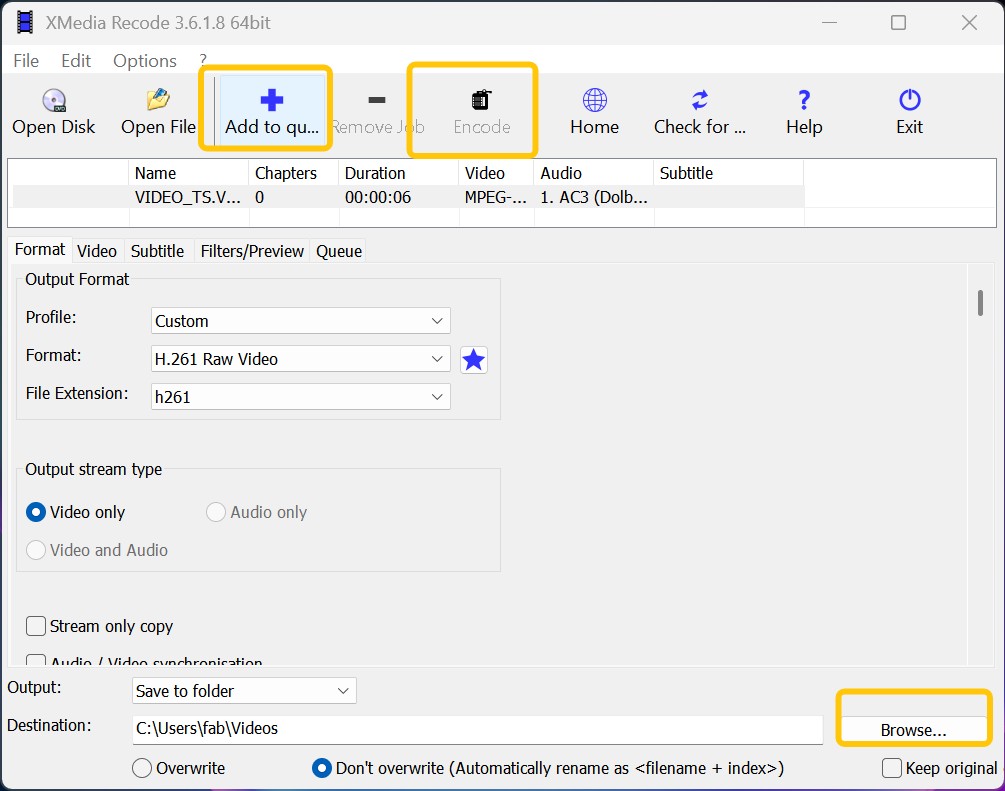
After configuring all settings, click Browse to set the output path. Then select the title you want to convert and click Add the job to the queue (the blue plus icon on the navigation bar). Finally, click Encode to start ripping DVD to AVI for free.
Rip DVD to AVI with Icepine Free DVD to AVI Converter
💻Supported OS: Windows XP/Vista/7
Icepine Free DVD to AVI Converter is a classic and lightweight Windows utility. It converts DVDs to AVI files with Xvid, DivX, or H.264 video and MP3 audio. Icepine converts on the fly, so it does not create large temporary files. You can pick titles or chapters, trim clips, and burn in subtitles. While it supports essential codecs, you should be aware that it is a legacy software (v2.0.2) designed for the Windows 7 era, so it may require Compatibility Mode to run on Windows 10 or 11.
Steps to Rip DVD to AVI with Icepine
Step 1: Download and install Icepine Free DVD to AVI Converter (v2.0.2) on your computer. Please note that it targets Windows XP/Vista/7 and does not remove DVD copy protection.
Step 2: Insert the DVD you want to convert, and then click Add to load your disc to the software. You can also add a VIDEO_TS folder to the software.
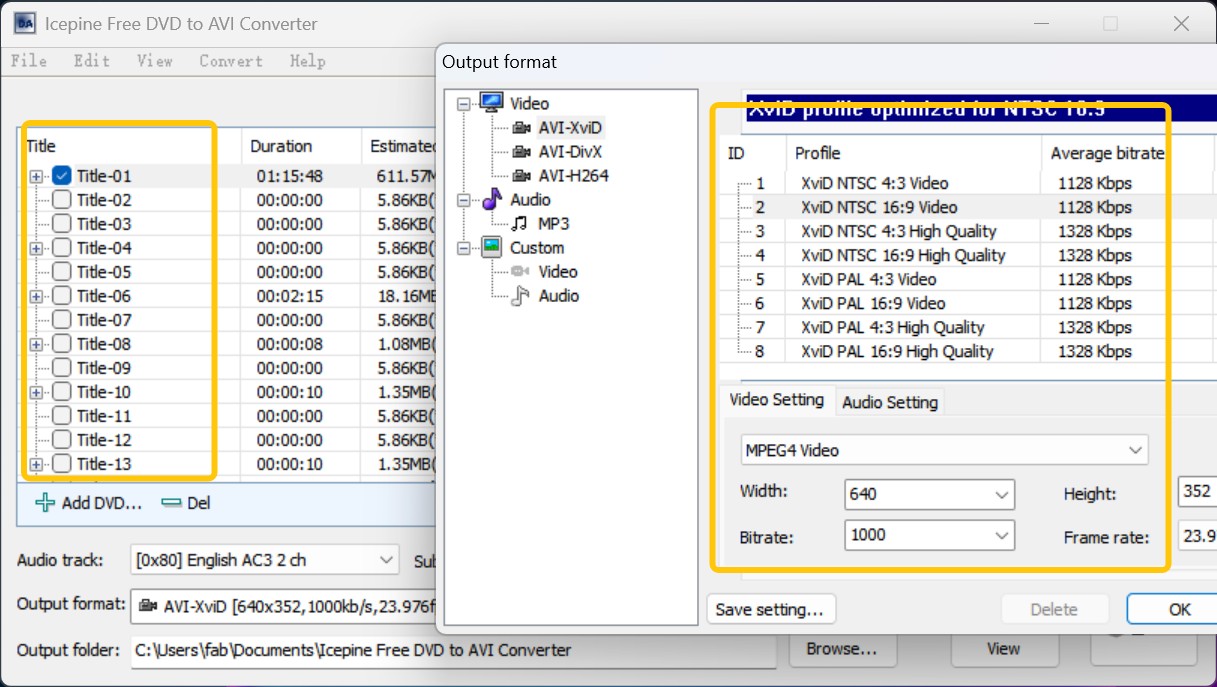
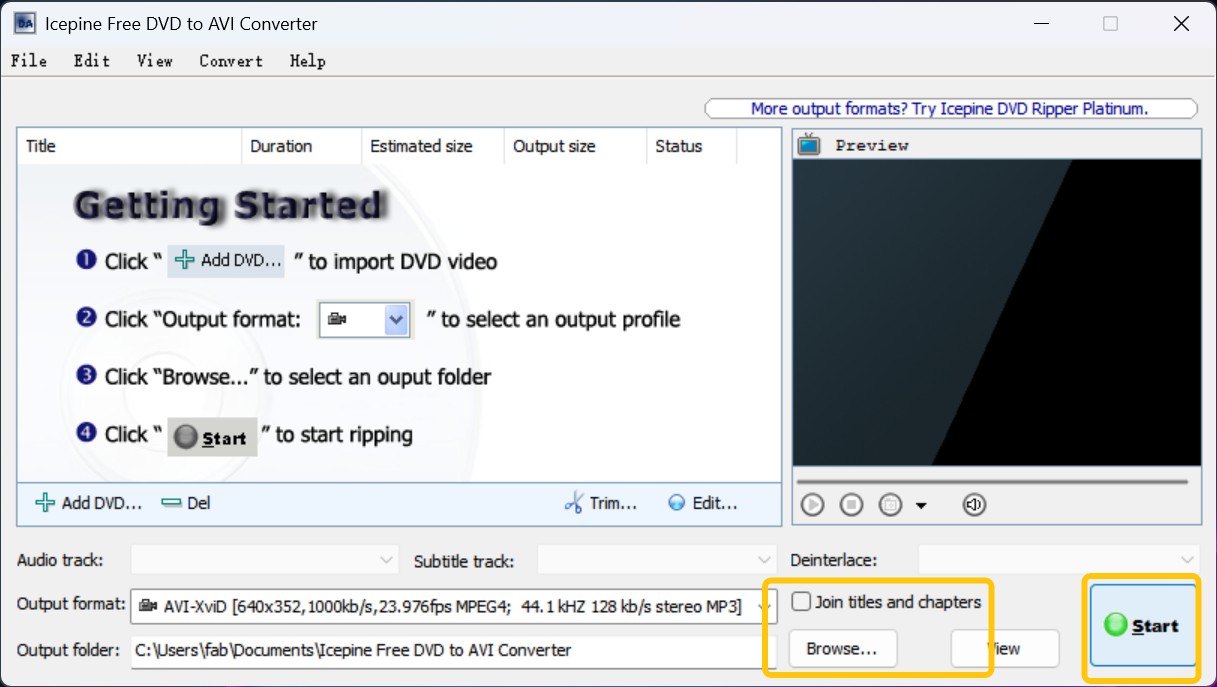
After the software displays title and size information, pick the main movie title (usually the longest one) or specific chapters. Select the audio and subtitle tracks you want. To merge chapters, use the Join titles and chapters function.
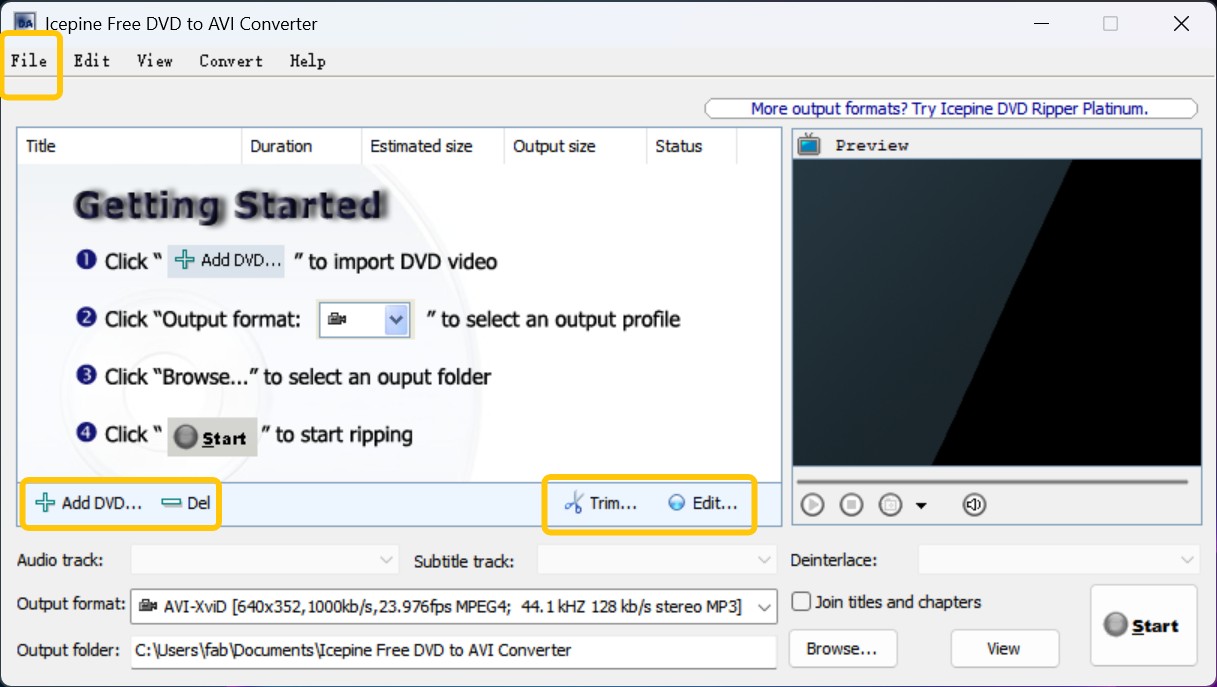
Step 3: Set AVI as the container. Choose Xvid, DivX, or H.264 for video and MP3 for audio. Trim, adjust bitrate, resolution, and frame rate as needed.
Step 4: Click Browse to select output directory, then start the job. Icepine encodes on the fly without large interim files.
Convert DVDs to AVI for Free with Online Tool
💻Website: https://www.files-conversion.com/
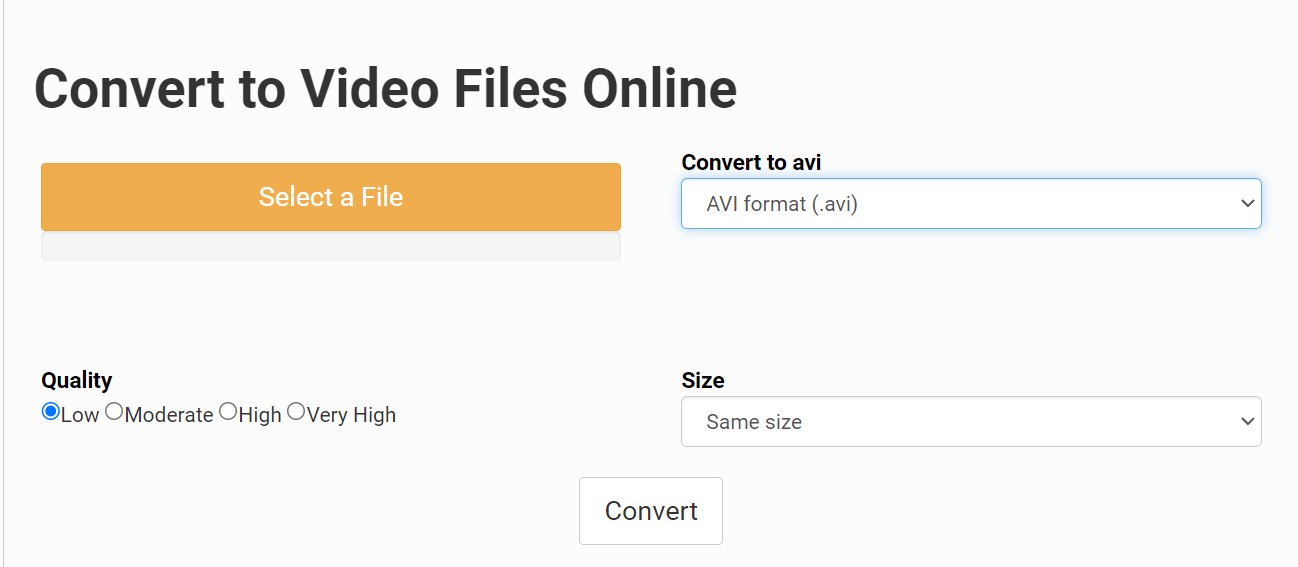
If you feel bothered to download a third DVD ripper software on your computer, then you can ask an online application for help. Files-conversion is an open-source AVI converter that provides you a free service to rip DVDs (only VOB files). And dozens of popular formats are supported by this free AVI converter. Even better, you can select output qualities, from Low, Moderate, High, to Very High.
💡Files-conversion is not a specialized DVD to AVI ripper. It only accepts extracted VOB files, not disc images or direct DVD access.
Steps to Convert DVD to AVI with Free Online Converter
Step 1: Open the official website of the File-Conversion and then click on the Select a File button to add your VOB file.
Step 2: Reveal the drop-down list of "Convert to" to select the AVI format on the second position.
Step 3: Pick up a quality level per you need. The higher the quality is, the more space the output video file will take up. Also, don't forget to choose a video size.
Step 4: When all of the above things are done, you can click that Convert button to initiate the conversion process.
Comparison of the Top 5 DVD to AVI Converters
The choice between these tools comes down to two factors: whether your discs are encrypted, and whether you need cross-platform support. The table below covers the key technical differences across all five options.
| DVD to AVI Converter | DVDFab DVD Ripper | VLC Media Player | XMedia Recode | Icepine Free | Files-conversion online |
| User Rating |
4.5/5 From Trustpilot |
4.5/5 From TechRadar |
4/5 From TechRadar |
N/A | N/A |
| Decryption | Strong (CSS, APS, RC, Sony DADC, and more) | ❌ | ❌ | ❌ | ❌ |
| GPU Acceleration | ✔️ | ❌ | ✔️ | ❌ | ❌ |
| Input Formats | DVD disc/ISO/Folder | DVD disc/Folder/ISO | DVD disc/Folder | DVD disc/Folder | VOB |
| Output Formats | 1000+ video/audio | 10+ video/audio | AVI/MP4/MKV… | AVI | AVI/MP4/MKV… |
| Preset Devices | 260+ | 10+ | Basic | ❌ | ❌ |
| Video Editor | Professional | Basic | Basic | Basic | ❌ |
Which Tool Should You Choose
Best for Commercial DVDs: DVDFab DVD Ripper
It is the only DVD to AVI converter on the list that natively supports newly-released encrypted discs. If you need to rip a Hollywood movie for your car player without "Read Error" messages, this is the professional choice.
Best Free Tool for Windows: XMedia Recode
It stands out because it supports GPU acceleration, making it significantly faster than VLC or Icepine. However, it cannot handle copy-protected movies.
Best Cross-Platform Option: VLC Media Player
The go-to choice if you use macOS or Linux and don't want to buy software. It works for basic home DVD conversion but lacks advanced editing features and batch processing speed.
Best for Old Computers: Icepine Free DVD to AVI Converter
Ideal for legacy machines (Windows 7/XP). It converts on-the-fly without creating large temporary files, but it lacks updates and support for modern copy protections.
FAQs
Is it legal to rip DVDs to AVI files?
Ripping DVD to digital for personal backup and home use is often considered a gray area tolerated under Fair Use principles in many regions. However, bypassing encryption on commercial discs is technically restricted by regulations like the DMCA in the US. We strongly advocate using these tools for digitizing your own legally purchased collection, not for redistribution or commercial purposes.
Why is there no sound in my converted AVI file?
The most frequent cause is an incompatible audio codec inside the AVI container. Legacy AVI players require MP3 or AC3 audio tracks, and AAC audio, which modern encoders often default to, is not recognized by most older hardware. In VLC, set the audio codec to MP3 during the profile creation step. In DVDFab, check the audio settings before converting to confirm the track format matches your device's requirements.
Can HandBrake convert DVD to AVI?
No, HandBrake officially dropped AVI support starting from version 0.9.4. Modern versions of HandBrake only output MP4, MKV, and WebM formats. If you strictly need the AVI format for older hardware, we recommend using DVDFab DVD Ripper or XMedia Recode. We advise against downloading ancient versions of HandBrake from third-party sites as they may pose security risks.
Conclusion
Getting to a working AVI file on legacy hardware is usually a two-step problem. The first step is decryption: only one tool on this list handles commercial discs. The second step, and the one more often overlooked, is codec selection. A file labeled .avi still fails to play on car stereos and DivX-certified devices if the video is encoded in H.264 or the audio is AAC. Choosing the right tool gets the disc read. Choosing the right codec gets the file to actually play.

 Free DVD Decoder for Windows XP and Windows 11: 3 Ways to Play DVDsBy Diana Smith - Sep 23, 2026
 How to Compress ISO Files: 4 Methods for Storage, Playback, and ArchivesBy Diana Smith - Sep 16, 2026
 How to Rip DVD to Facebook and Upload the Video in 2026By Diana Smith - Sep 15, 2026
![How to Rip DVDs for Plex: Guide to Formats, Tools, and Library Setup [2026]](https://images.dvdfab.cn/media/Screenshot_2026-09-08_at_18.53.34_j36v3l.png/public) How to Rip DVDs for Plex: Guide to Formats, Tools, and Library Setup [2026]By Diana Smith - Sep 8, 2026
How to Rip DVDs for Plex: Guide to Formats, Tools, and Library Setup [2026]By Diana Smith - Sep 8, 2026