How to Rip Blu-ray to MKV on Windows & Mac: 4 Best Converters Tested

Summary: Ripping Blu-ray to MKV is one of the most effective ways to keep full disc quality, preserve multiple tracks, and make your movies easier to play on different devices. I tested four Blu-ray to MKV converters under identical hardware conditions. DVDFab completed a 33 GB disc in 13 minutes with GPU acceleration; HandBrake needed over 5 hours on CPU for the same source.
Table of Contents
I upgraded my laptop and found it had no Blu-ray drive. Rather than leave my disc collection unused, I started converting the discs to MKV. The format preserves original video, lossless audio, multiple subtitle tracks, and chapter markers in a single container that plays on TVs, tablets, media servers, and streaming boxes without region restrictions. I tested four tools across the full range of scenarios: encrypted commercial discs, lossless passthrough rips, 3D content, H.265 compression, and 4K UHD discs.
Why Rip Blu-ray to MKV Files?
With bitrates often two to three times higher than most streaming services, Blu-rays include lossless formats like Dolby TrueHD. However, physical discs and players can be inconvenient, especially on devices without a drive. That's where MKV comes in.
- Keep all original streams: Video, multiple audio tracks, and chapters can be preserved in one file without re-encoding.
- Balance quality and convenience: Enjoy Blu-ray-level picture and sound while accessing your movies instantly from a NAS, or when you rip Blu-ray for Plex or Kodi.
- Play anywhere: MKV works across TVs, laptops, and streaming boxes without worrying about region codes or physical media.
- Manage your collection at scale: A lossless 1080p Blu-ray rip typically runs 20 to 30 GB; a 4K UHD rip can reach 50 to 90 GB. Knowing the size upfront helps you plan storage or decide whether to compress later.
These advantages make MKV a practical format for archiving and playback. The tools below handle different parts of the process, from full decryption to compression-focused encoding.
Way 1: Rip Blu-ray to MKV With DVDFab Blu-ray Ripper
DVDFab Blu-ray Ripper is a professional tool that can rip any Blu-ray to MKV Passthrough files on Windows and Mac. Its exclusive Cloud Decryption Service helps you unlock major copy mechanisms and ensures a seamless Blu-ray conversion. Besides lossless MKV, DVDFab also lets you convert Blu-ray to MKV in different formats, including 3D MKV, H265 MKV, and 4K MKV.
- Removes copy protection from recent and older Blu-ray discs automatically.
- Rips 2D or 3D Blu-ray to a wide range of 2D and 3D video formats.
- Convert Blu-ray discs, ISO, or folders to 1000+ formats and 245+ devices.
- Preserves audio tracks, subtitle streams, and chapter metadata in the output file.
- GPU acceleration and multi-task support reduce conversion time significantly.
- Output settings cover codec, resolution, quality level, and audio track selection.
- Edit Blu-rays with the built-in editor, such as trimming, adjusting brightness and adding watermarks.
- It is currently unavailable to users of the Linux operating system.
- You have to pay for it after the 30-day free trial.

Steps to Convert Blu-ray to MKV without Quality Loss
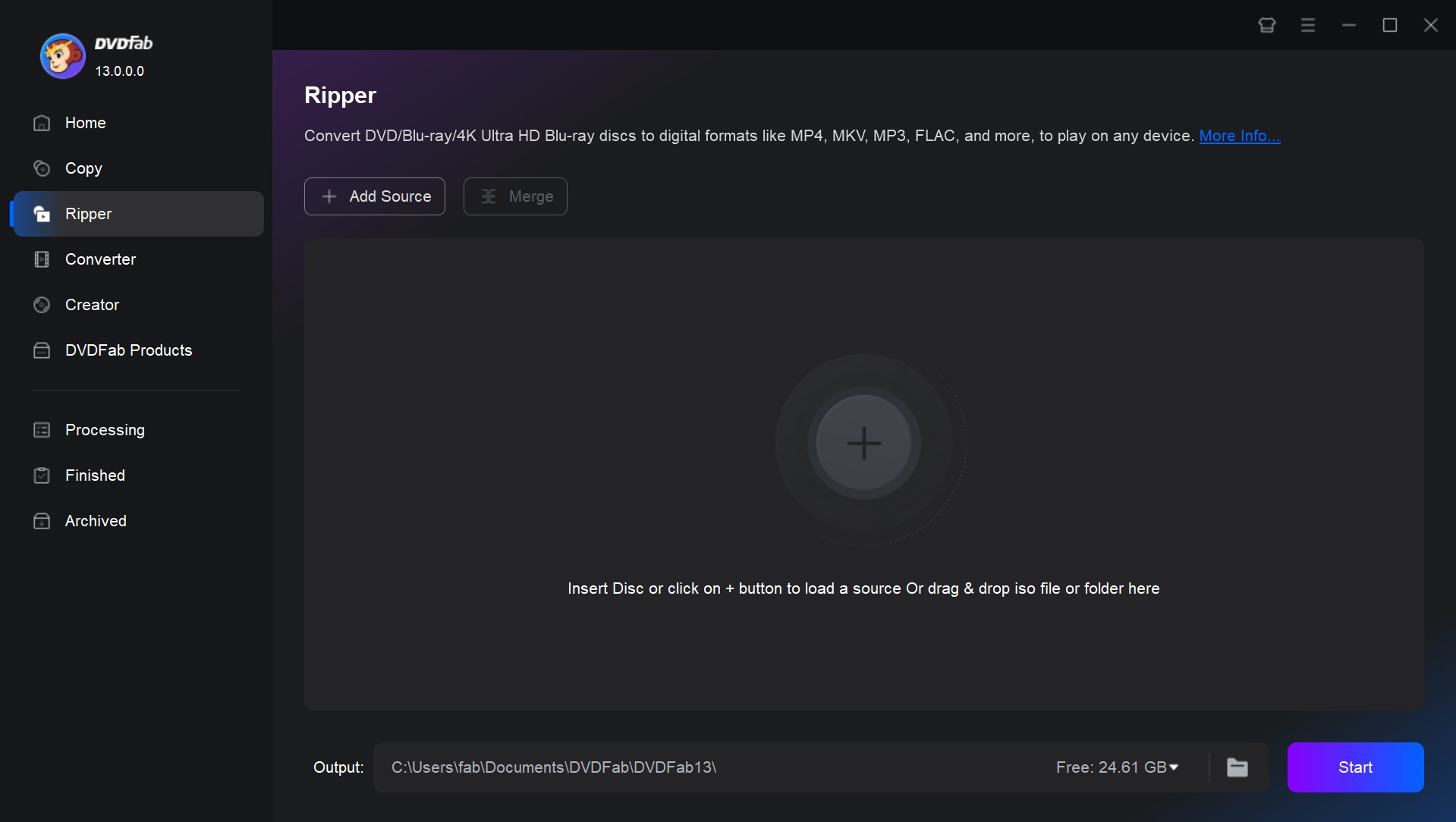
Step 1: Launch DVDFab 13 and load Blu-ray disc/ISO/folder
Open DVDFab v13.0.6.0 and go to the Ripper module. Insert the Blu-ray disc you want to rip or use the Add button to load an ISO file or folder that's already stored on your computer.
Step 2: Choose an MKV profile and customize the video
Access the profile switcher ("Choose Other Profile") and make sure to select the Format tab. Then choose a MKV profile as you like. If you want to convert Blu-ray to MP4 or other format, feel free to use any of the other options and the filters to gain access to even more formats.
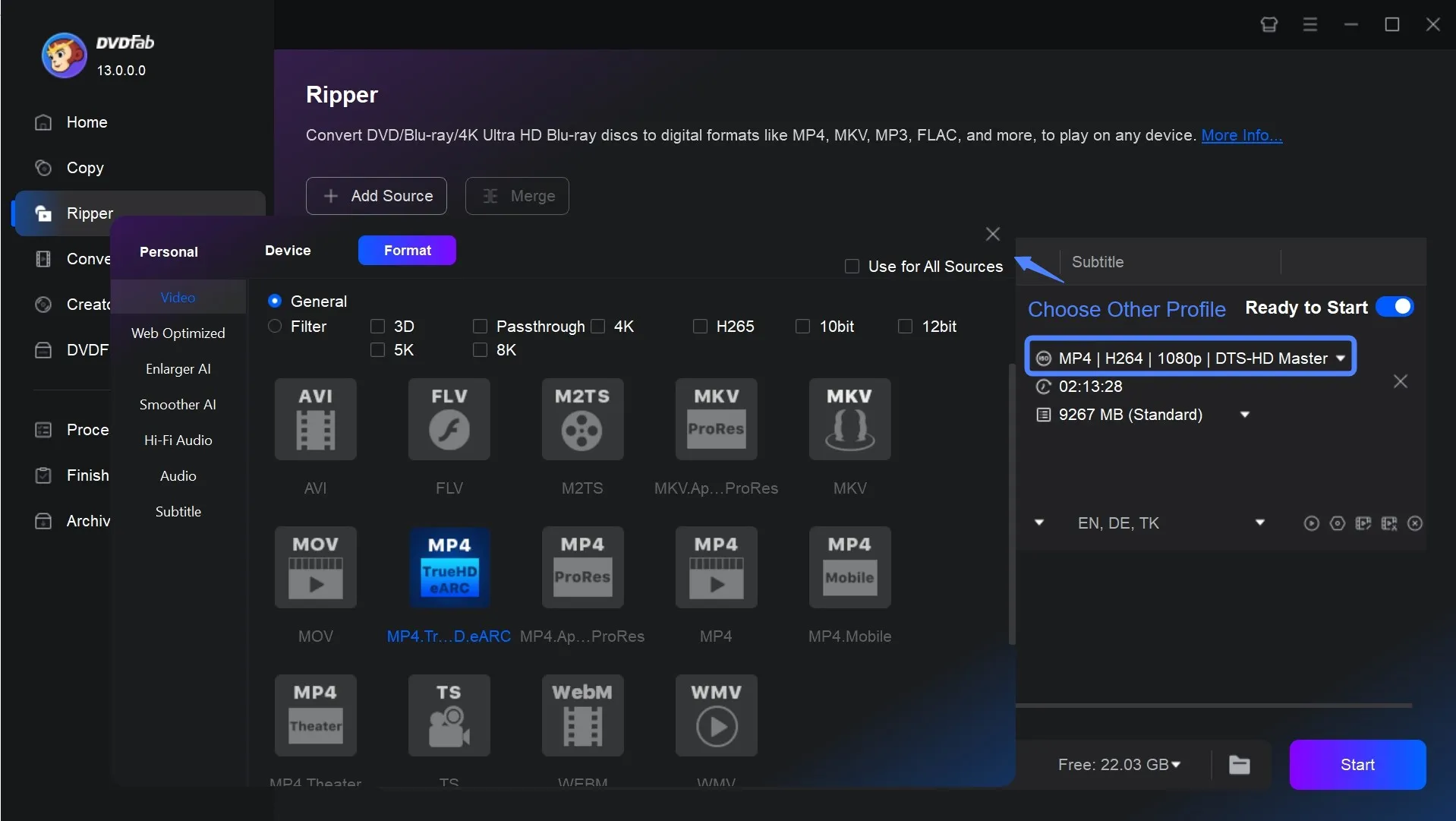
Before ripping Blu-ray to MKV, you may want to utilize the editing options. For example, you can choose which titles, chapters, audio tracks, and subtitles you want to rip directly from the main menu.
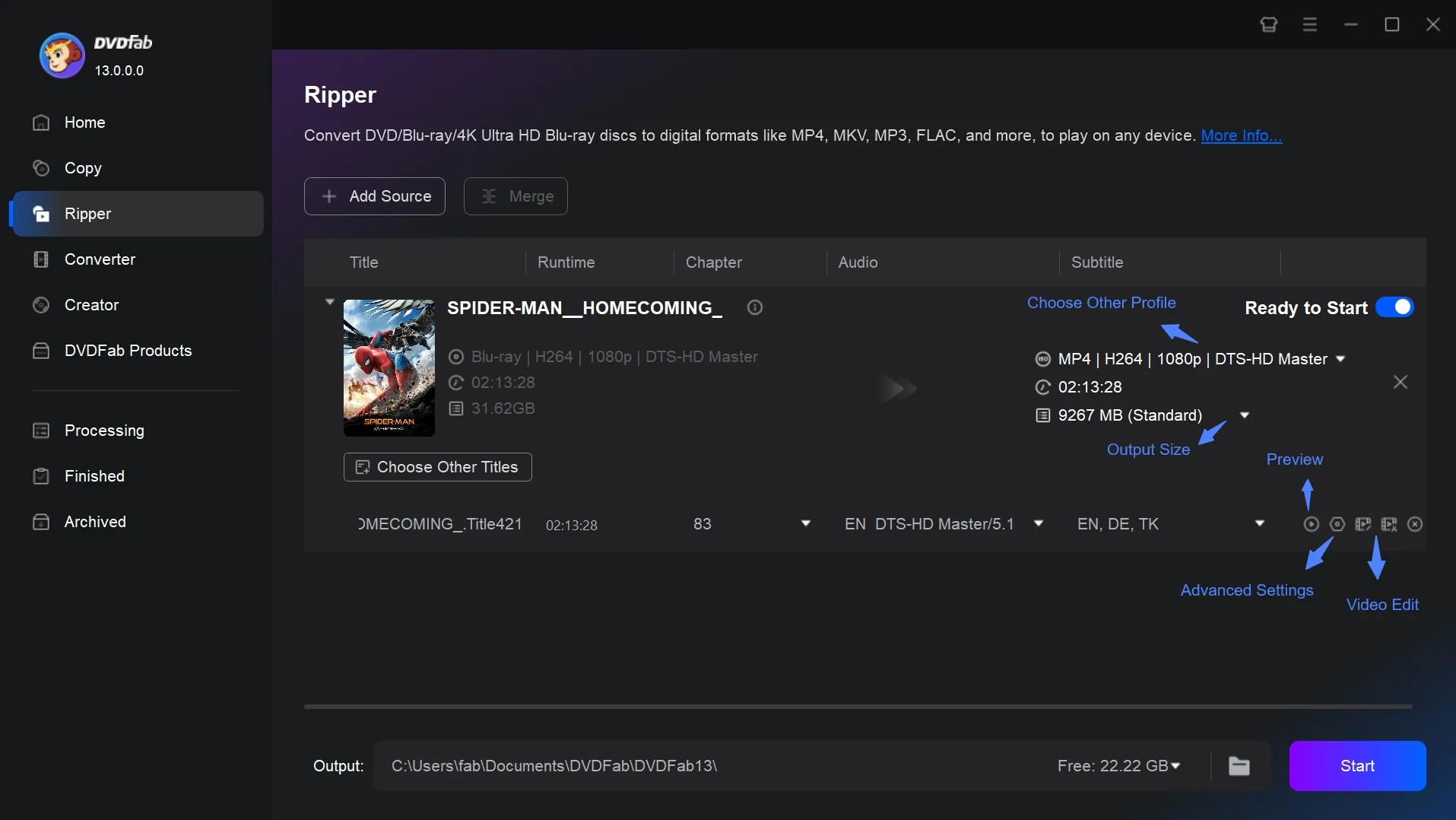
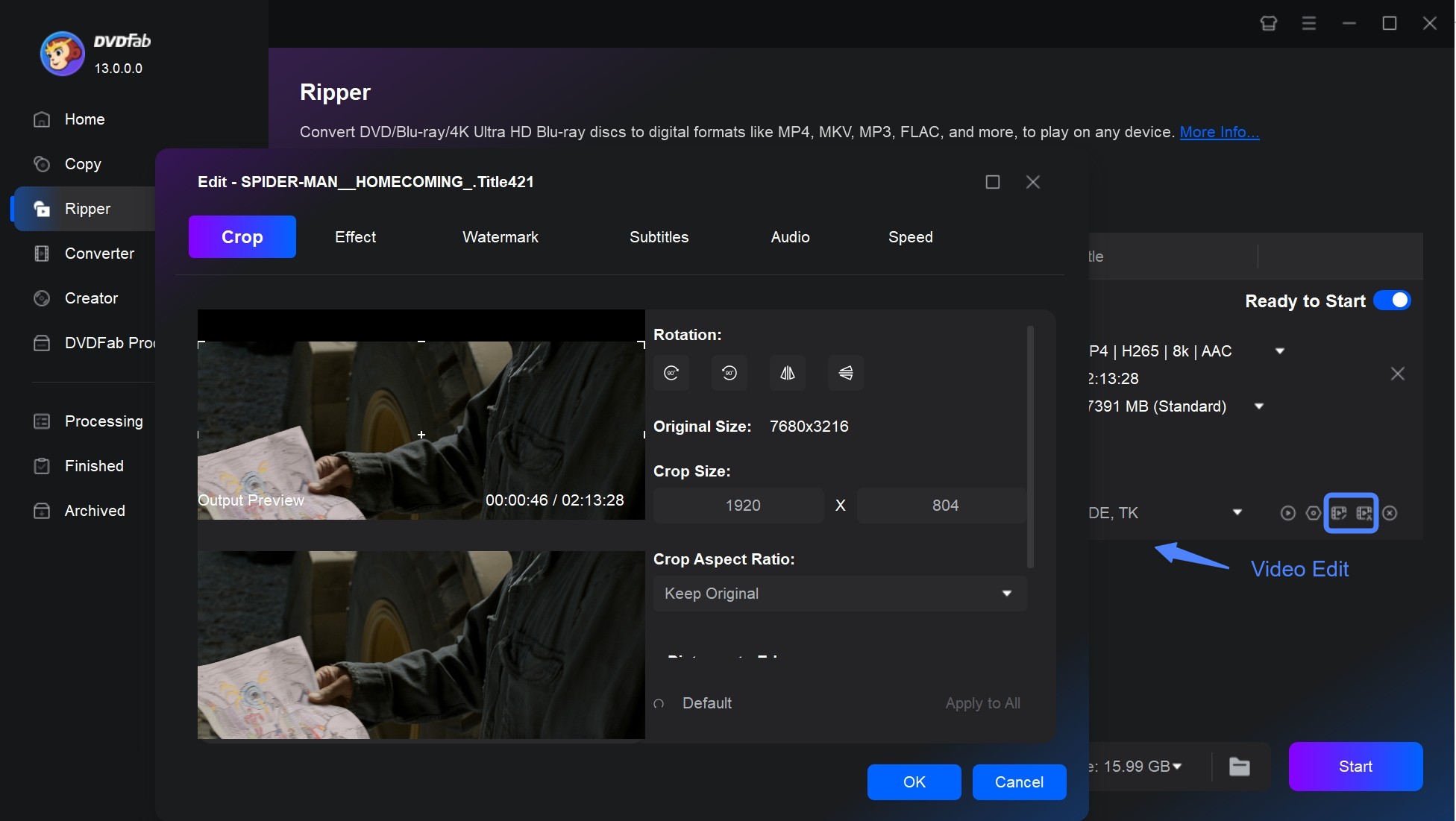
The "Advanced Settings" menu lets you adjust video quality, frame rate, resolution, and audio codec. The "Video Edit" menu provides trimming, cropping, subtitle overlay, watermark placement, and color adjustments.
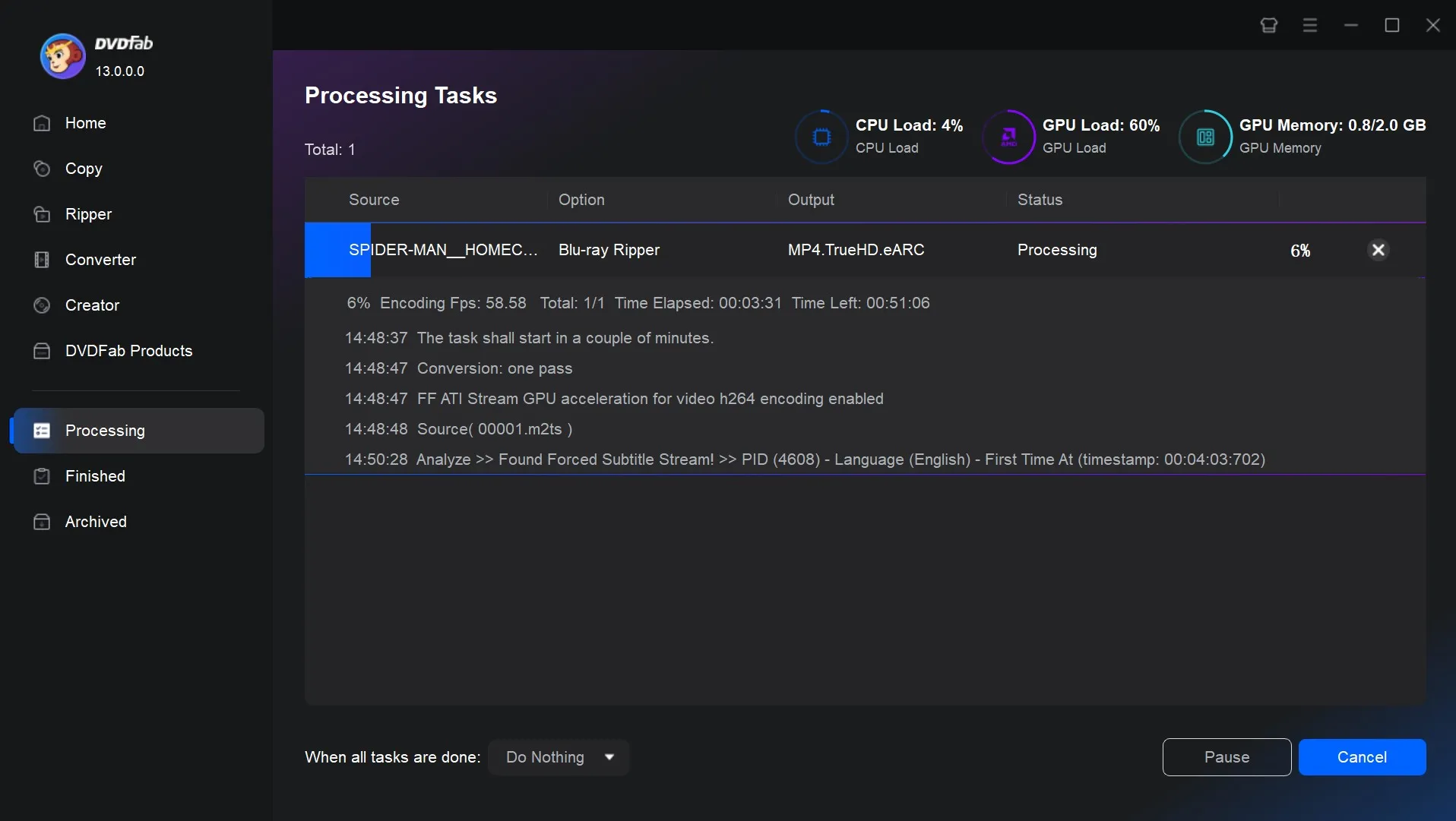
Step 3: Select the output and start ripping Blu-ray
Use the bottom menu to set the destination folder, then click Start to begin the conversion. DVDFab processes the file and shows progress until the MKV is complete.
Way 2: Rip Blu-ray to MKV with AnyMP4 Blu-ray Ripper
AnyMP4 Blu-ray Ripper converts Blu-ray discs, ISO files, and BDMV folders to over 500 output formats, including MKV. Before conversion starts, you can select individual audio tracks and subtitle streams, then apply edits such as rotation, trimming, cropping, watermark overlay, and color adjustments. Hardware acceleration is supported on systems with compatible GPUs.
One limitation that comes up consistently in user reviews on Amazon and community forums: AnyMP4 has difficulty importing discs with newer commercial copy protection. It handles region-code protection well, but heavily protected titles from recent releases may fail to load. If your library is primarily older titles or region-locked discs, this is less of a concern.
- Accelerates the ripping process with hardware acceleration
- MKV output parameters (codec, bitrate, resolution) are fully adjustable
- Lossless conversion mode copies streams directly without re-encoding
- There isn't a free version available
- Failed to decrypt some Blu-ray discs
- Trial mode restricts output length, making full-disc testing difficult
How to Rip 3D Blu-ray to MKV using AnyMP4 Blu-ray Ripper?
Step 1: Download and install AnyMP4 Blu-ray Ripper 8.1.68 for Windows or macOS to ensure compatibility with the latest disc formats.
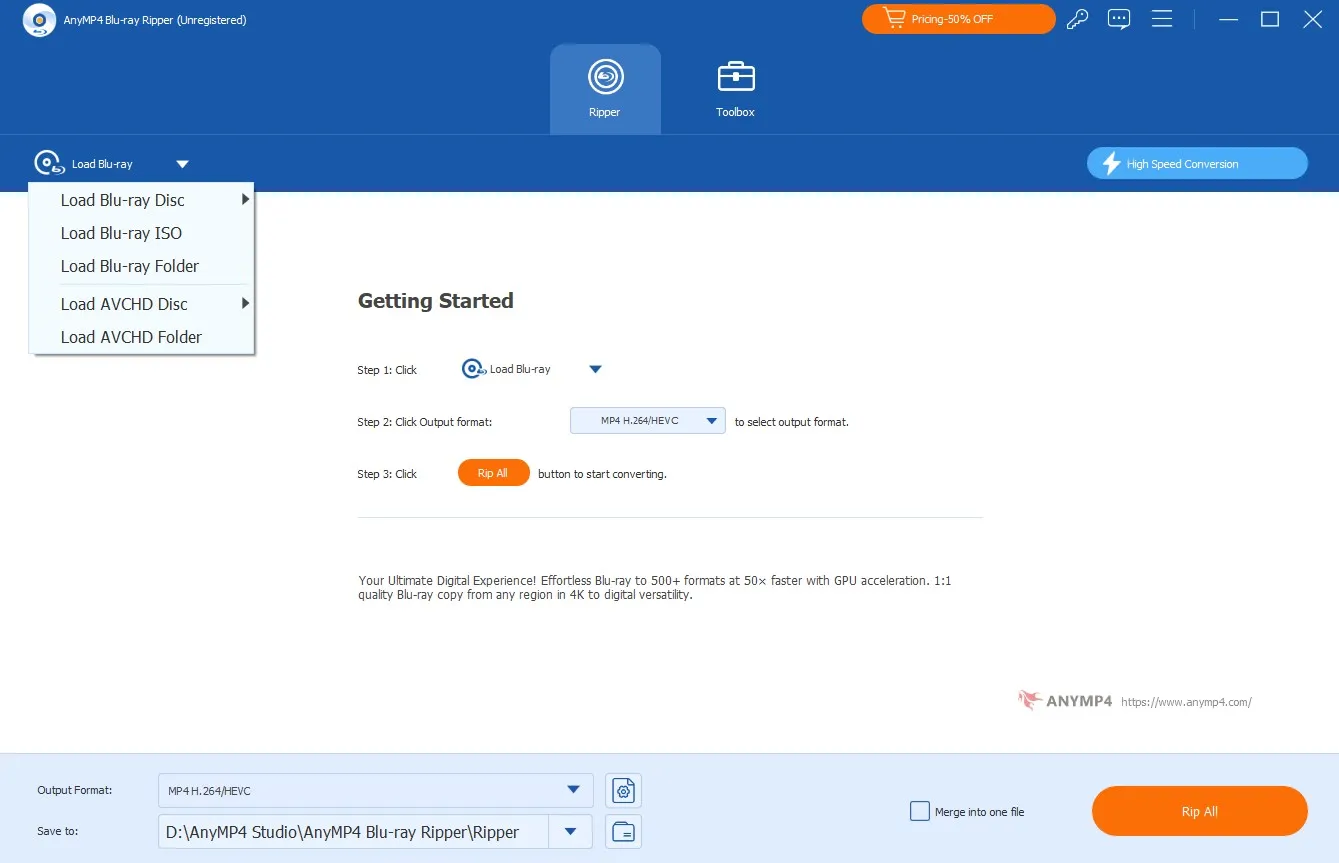
Step 2: Open the program and switch to the Ripper tab. Click the "+" icon in the middle of the window to load your Blu-ray disc. If you already backed up the disc, you can also add a Blu-ray folder or ISO file instead of the physical disc.
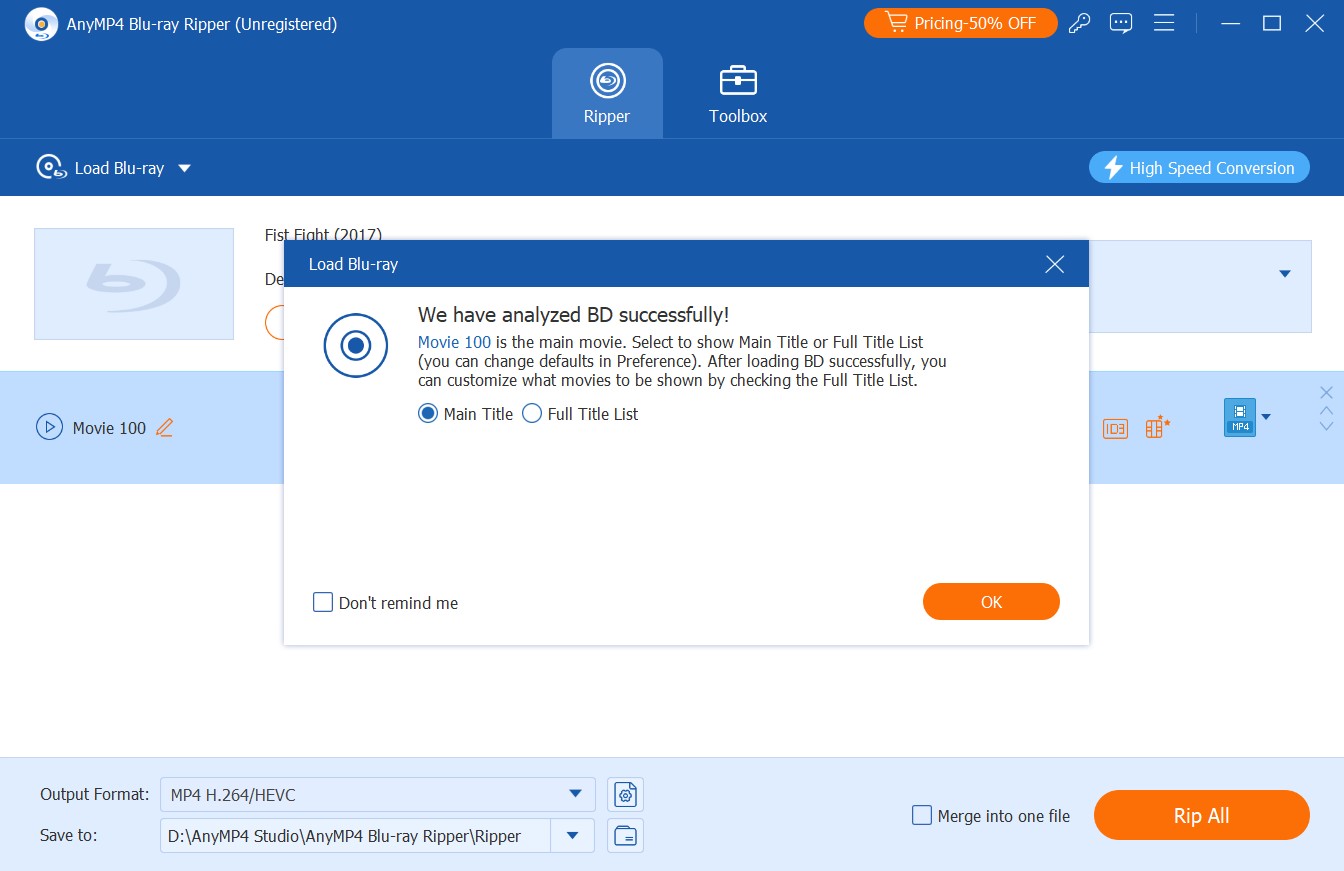
Step 3: Once imported, AnyMP4 scans the disc and shows the available titles. Click "Full Title List" to see all content, then pick the main movie or other clips you want to keep.
Once done, click on the OK button to continue. To locate your preferred MKV format easily, click on the Video tab and use the Search box.
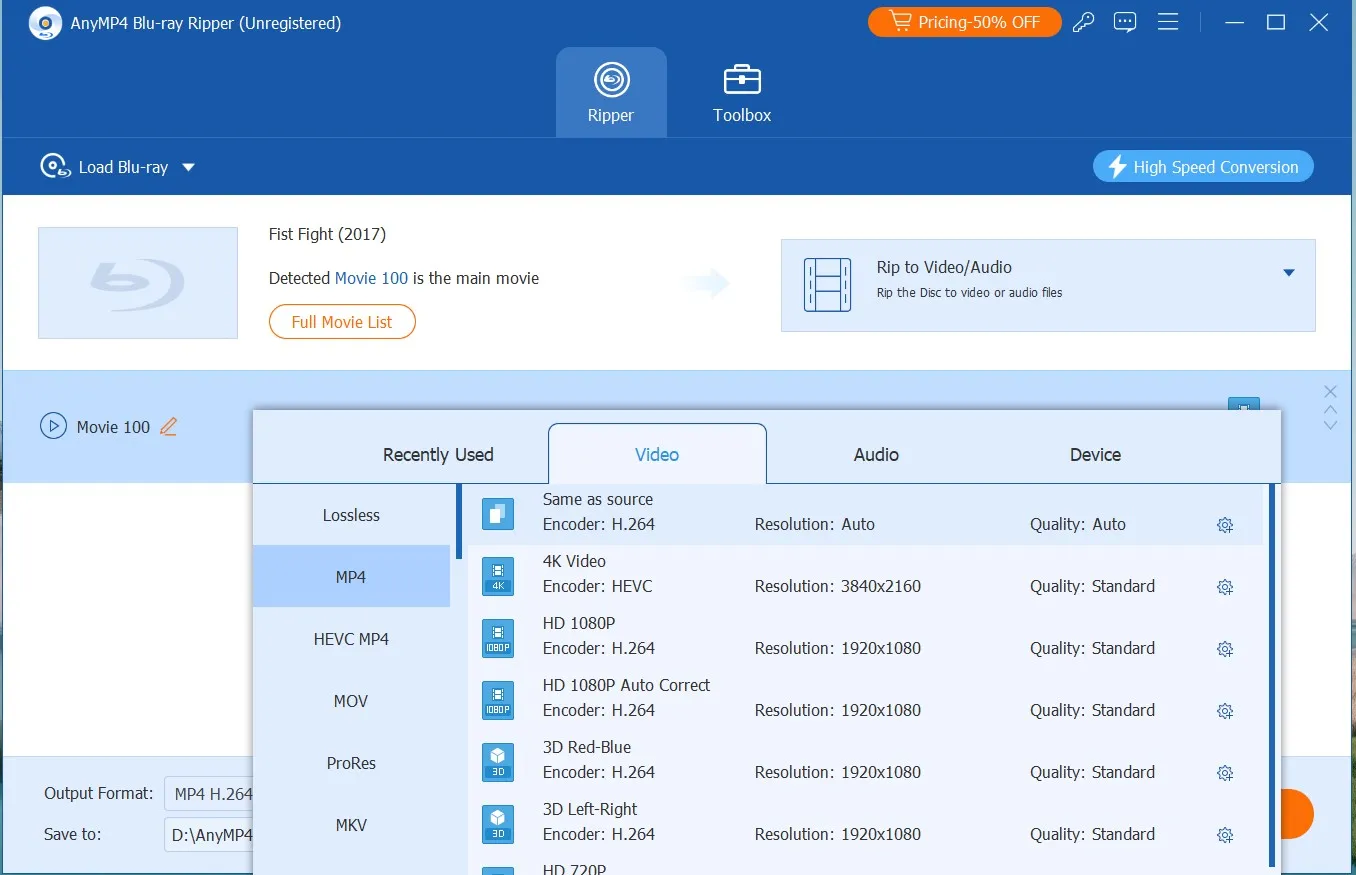
Step 4: Go to the "Save to" field and choose where you want to store the MKV file. Once everything is ready, click "Rip All" to initiate the conversion. If your system supports hardware decoding, enabling GPU acceleration can speed up the process significantly.
Way 3: Free Blu-ray to MKV Conversion with MakeMKV
MakeMKV is a renowned and free tool for converting Blu-ray and DVD discs into MKV files without re-encoding. It can decrypt AACS and BD+ protected discs and preserves the original video, audio, chapters, and metadata as a 1:1 copy.
The software runs on Windows, macOS, and Linux, and is free to use while in beta (with a license key that requires periodic renewal). However, it supports only MKV output, lacks Blu-ray menu support and post-conversion editing features, and does not offer GPU acceleration. Due to its decryption capability, the legality of using MakeMKV may vary by country or region.
- Works on Windows, macOS, and Linux
- Free to use while the beta license is active
- Keeps the original video, audio tracks, and chapter markers without re-encoding
- It only exports in MKV format
- Does not support Blu-ray menus
- No built-in tools for trimming, or other advanced editing
- The beta key needs to be renewed periodically to keep using the program for free
How to Convert Blu-ray to MKV free with MakeMKV?
Step 1: Download MakeMKV 1.18.3 from makemkv.com and install it for your operating system. Open the program and insert your Blu-ray disc into the drive. For protected commercial discs, MakeMKV uses its built-in decryption keys. If a specific disc fails, check the MakeMKV forum for updated key files.
Step 2: Click the Blu-ray drive icon to import the disc. MakeMKV will analyze it and list all available titles. This process may take two minutes depending on the disc's encryption.
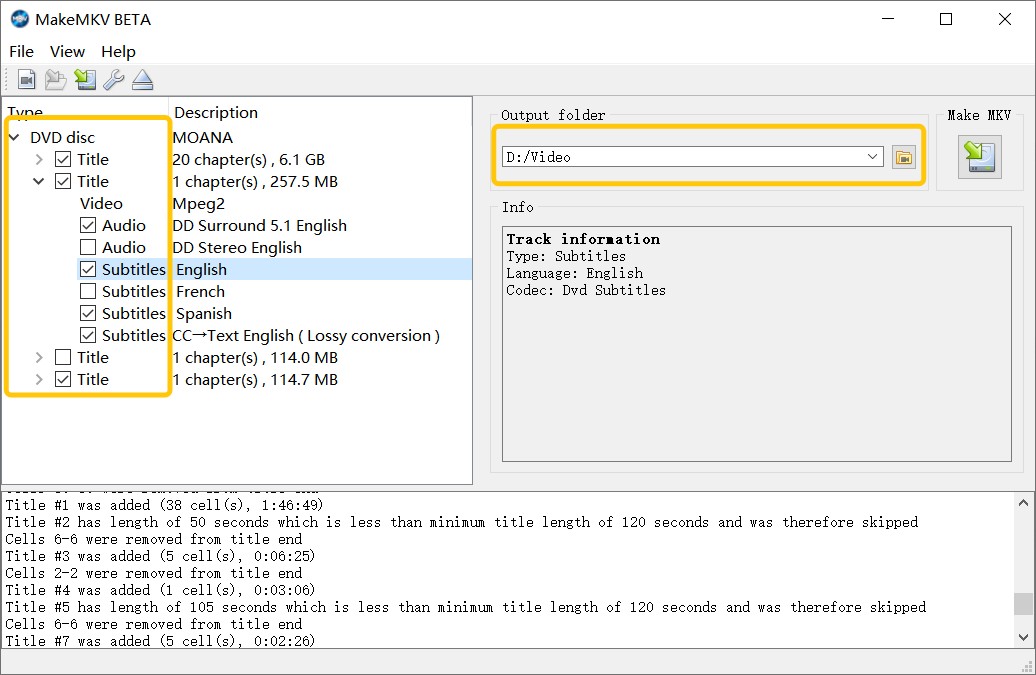
Step 3: In the list on the left, tick the titles you want to keep, along with the audio and subtitle tracks you need. At the bottom, set an output folder where the MKV files will be saved.
Step 4: Click the Make MKV button to start ripping your Blu-ray. A progress bar will show how far along the process is.
Way 4: Convert Non-protected Blu-ray to MKV with HandBrake
HandBrake is a free and multi-platform video transcoder used to rip non-protected Blu-ray discs to MKV. It also offers MP4 and WebM formats aside from MKV. HandBrake comes with a range of built-in presets and supports adjusting video quality, selecting audio tracks and subtitles, and applying filters such as deinterlacing or cropping.
However, it cannot decrypt Blu-ray discs by itself. Since HandBrake re-encodes the video instead of copying it 1:1, some quality loss is unavoidable. However, by using a higher bitrate and fine-tuning the encoding settings, you can keep the loss to a minimum.
- Open-source software with no feature limitations
- Flexible output settings with device presets for common players
- Runs on Windows, macOS and Linux
- Supports MKV with H.264, H.265, and AV1 encoding options
- The interface can feel overwhelming for new users
- Re-encodes video rather than copying streams, so some quality loss is unavoidable
- CPU-only encoding is very slow
How to Rip Blu-ray to MKV Free with HandBrake?
Step 1: Download HandBrake 1.11.1 from handbrake.fr and install it. Start the program, then insert a non-protected Blu-ray disc or mount a decrypted folder or ISO. Click "Open Source" to load the source, and HandBrake will scan and list available titles.
Step 2: From the Title dropdown, pick the main movie or the segment you want to convert. If needed, narrow it down further by selecting a specific chapter range. In the Audio and Subtitles tabs, choose the tracks you want to keep in the MKV file.
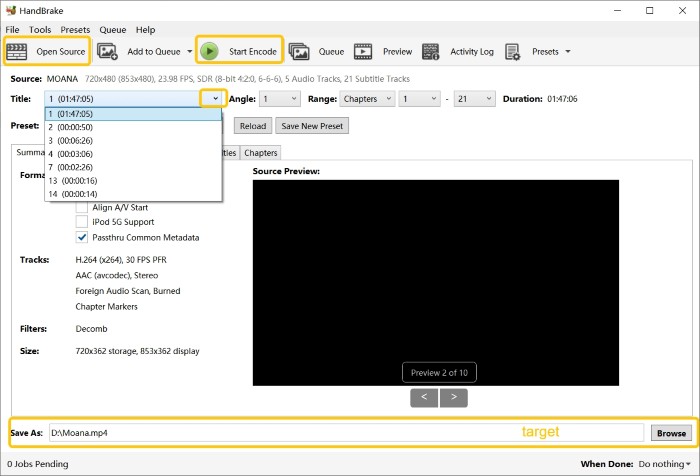
Step 3: Under Summary, select MKV as the container. Then pick a preset or adjust settings manually in the Video tab (codec, quality slider or bitrate, frame rate).
You can also use the Dimensions and Filters tabs to handle cropping, scaling, or deinterlacing.
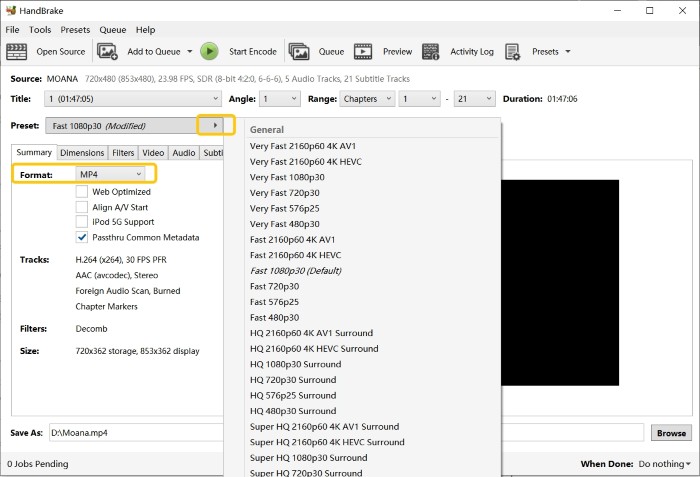
Step 4: Click Browse to choose where the MKV file will be saved. When everything is set, press "Start Encode". HandBrake will begin ripping Blu-ray to MKV and show progress in the main window until the job is finished.
Comparison of the Top 4 Blu-ray to MKV Converters
The table below covers key differences across the four tools: decryption scope, input and output format support, encoding speed, editing options, and ease of use. Ratings are sourced from third-party review platforms and are subject to change.
| Converters | DVDFab Blu-ray Ripper | AnyMP4_Blu-ray Ripper | MakeMKV | HandBrake |
| Decrypt Blu-ray |
AACS/BD+/ BD-J/ RC/ Country_Code, etc. | Region Code | AACS/BD+ | NO |
| Input Formats | Blu-ray disc, ISO, Folder | Blu-ray disc, ISO, Folder | Blu-rays disc, ISO | Blu-rays disc, ISO |
| Output Formats | MKV and 1000+ video/audio | MKV and 500+ video/audio | MKV | MKV, MP4, WebM |
| Speed | Super Fast | Fast | Medium | Slow |
| Video Editing | Yes | Yes | No | Basic |
| Ease of Use | Easy | Medium | Easy | Complex |
| Rating | 4.5/5 from Trustpilot | 4.0/5 from Trustpilot | 4.5/5 from TechRadar | 3.4/5 from Trustpilot |
Top 2 Tested Tools to Rip Blu-ray to MKV
As a Blu-ray enthusiast with a personal collection of hundreds of discs, I've long been on the hunt for reliable software to digitize my Blu-ray library. In my search, I've focused on a few key factors: ripping speed, output quality (especially whether the video is compressed), and the ability to handle copy-protected discs.
After testing several tools, I selected two standout programs. Under the same testing conditions, I put both to the test—and here are the results.
| Software | Decryption | Audio/Video Codec | Bit Rate | Hardware Acceleration | Conversion Time |
|
DVDFab
Blu-ray
Ripper
|
✅
|
H265/AAC
|
5649kbps
|
✅
|
13 min 26 sec
|
|
HandBrake
|
❌
|
H265/AAC
|
N/A | ❌ |
5 hr 38min 33 sec
|
Processor: Intel® Core™ i7-6700 CPU @ 3.40GHz
DVDFab Blu-ray Ripper stands out with superior decryption support, faster performance, and hardware acceleration. It handles the latest Blu-ray Copy protections, making it suitable for a much wider range of discs. DVDFab also delivers a high average bit rate of 5649kbps, ensuring excellent output quality with more preserved details.
Most notably, DVDFab's conversion time was just 13 minutes and 26 seconds. In contrast, HandBrake took over 5 hours for the same task, with no support for protected discs or GPU acceleration.
FAQs
How to convert Blu-ray to MKV with VLC?
VLC can read some Blu-ray discs and save them as MKV files, but it is not a dedicated Blu-ray ripper. It only works with unprotected discs or with extra decryption files added manually, so the setup is a bit technical.
- Step 1: Download and install the latest version of VLC.
- Step 2: Download the KEYDB.cfg key database and the AACS library file (libaacs.dll on Windows or libaacs.dylib on macOS). Place KEYDB.cfg in the appropriate AACS folder for your system and copy the file into VLC's installation directory.
- Step 3: Open VLC, insert your Blu-ray disc, then go to Media → Convert / Save.... Switch to the Disc tab, tick Blu-ray, and select your disc.
- Step 4: Choose the main title and chapter range you wish to rip. Then click Convert / Save and set MKV as the output profile. Finally, choose an output folder and click Start.
Is there a free Blu-ray to MKV converter for Linux?
Yes. MakeMKV is one of the most popular free options for Linux users. The Linux version has the same core features as its Windows and macOS counterparts: it can decrypt most AACS/BD+ protected discs, preserve HD audio tracks and subtitles, and remux directly to MKV without re-encoding. The ripping process is essentially the same as described earlier in this article.
Can I rip Blu-ray to MKV without losing quality?
Yes. Look for an MKV profile labeled passthrough, remux, or lossless in your Blu-ray ripping software. In that mode, the video and audio streams are copied instead of re-encoded, so the quality matches the original disc. The trade-off is file size: the MKV will be large, often close to the size of the Blu-ray, and some devices may need specific codec support to play it correctly.
Can Blu-ray players play MKV files?
Some Blu-ray players can open MKV files from a USB drive or over a home network, but MKV is not part of the standard Blu-ray disc format. Support varies by brand and model and depends on which codecs the player can handle. If your player does not read MKV files, you can use a software media player on a computer, a streaming box, or a media server to play or cast the MKV instead.
Why is my Blu-ray MKV file so large, and how can I reduce the size?
A lossless MKV rip preserves every bit of the original disc, which is why the files are large (20 to 40 GB for 1080p, 50 to 90 GB for 4K). To reduce size without a significant quality drop, run the MKV through HandBrake using H.265 encoding. An RF value of 20 to 22 in HandBrake's quality slider generally produces a file around 8 to 15 GB for a two-hour 1080p film while keeping the difference from the original difficult to detect on standard screens. Enable GPU acceleration (NVENC, VCE, or QuickSync) in HandBrake's Preferences to keep encoding time manageable.
Conclusion
Converting BDMV to MKV is a practical way to back up Blu-ray movies while keeping multiple audio tracks, subtitles, and chapters in a single file. DVDFab Blu-ray Ripper can handle full BDMV folders and output different MKV profiles with flexible control over quality and size. For free options, MakeMKV is well suited to lossless BDMV to MKV backups, while HandBrake is helpful for creating smaller MKV encodes from already-decrypted sources.

![How to Rip and Extract Hi-Fi Audio from Blu-rays Easily? [2026 Update]](https://r4.dvdfab.cn/upload/resource/en/how-to-convert-blu-rays-to-hi-fi-audio-files-AGcW.jpg) How to Rip and Extract Hi-Fi Audio from Blu-rays Easily? [2026 Update]By Diana Smith - May 19, 2026
How to Rip and Extract Hi-Fi Audio from Blu-rays Easily? [2026 Update]By Diana Smith - May 19, 2026 How to Convert 3D Blu-ray to SBS 3D MKV/MP4: Detailed Guide in 2026By Diana Smith - May 15, 2026
 How to Convert Blu-ray to MP4 on Windows & Mac: Top 6 ConvertersBy Wenny Yan - May 11, 2026
 How to Convert Blu-ray to Digital on Windows, Mac & MobileBy Wenny Yan - May 7, 2026