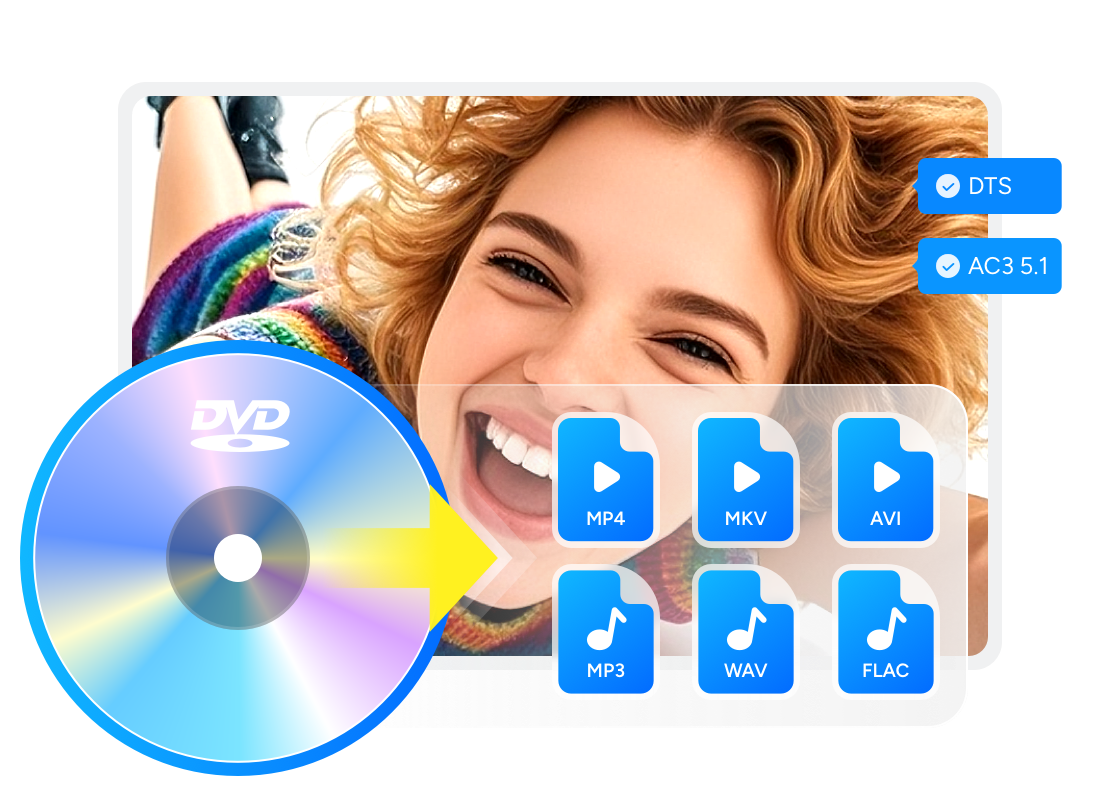
4 Free DVD Rippers for Windows 10/11: Best Tools & Step-by-Step Guide

Summary: The best DVD rippers for Windows 10/11 in 2026 depend on your disc type and output needs. HandBrake is a good free choice for converting unprotected DVDs to MP4, MKV, or WebM, while MakeMKV is better for full quality MKV backups that keep audio tracks, subtitles, metadata, and chapters. VLC can handle simple DVD ripping tests, and DVDFab DVD Ripper may be more useful when you need a guided interface, more output profiles, or support for protected DVDs. These tools help you digitize DVDs for easier backup, playback, and storage on modern devices.
Table of Contents
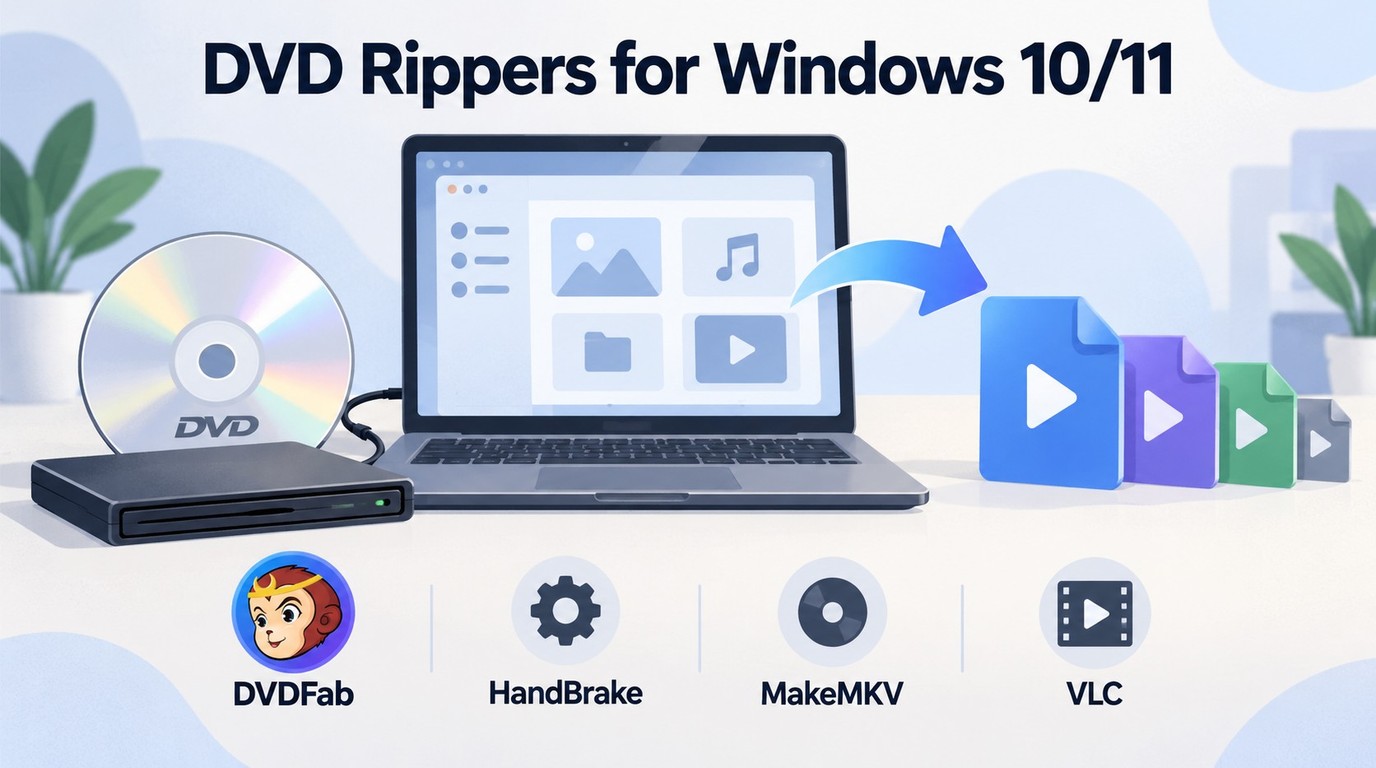
If you still have DVDs on a Windows 10 PC, you may now have a simple problem: the discs still work, but the system around them has changed. Microsoft ended Windows 10 support on October 14, 2025, and many new laptops no longer include a built-in DVD drive. A reliable DVD ripper for Windows 10 or Windows 11 can help you save movies, home videos, or training discs as digital files before the discs become harder to use.
In this guide, I will walk you through the best free DVD ripper for Windows 10/11. I will also explain how to rip DVD on Windows 10 and what to do if your DVD has subtitles, multiple audio tracks, or copy protection.
Choose by the file you need
- For DVD discs, DVD ISO images, and VIDEO_TS folders with output-profile and track controls, DVDFab DVD Ripper offers a paid module and a limited trial. DVDFab HD Decrypter supplies separate, limited free capabilities.
- For an unprotected home-video DVD and a smaller encoded file, HandBrake provides free, open-source conversion. VLC offers basic conversion inside a media player.
- For selected video and audio streams saved without video re-encoding, MakeMKV creates MKV files. Its DVD functions are free.
Best Free DVD Rippers for Windows 10/11: 4 Options
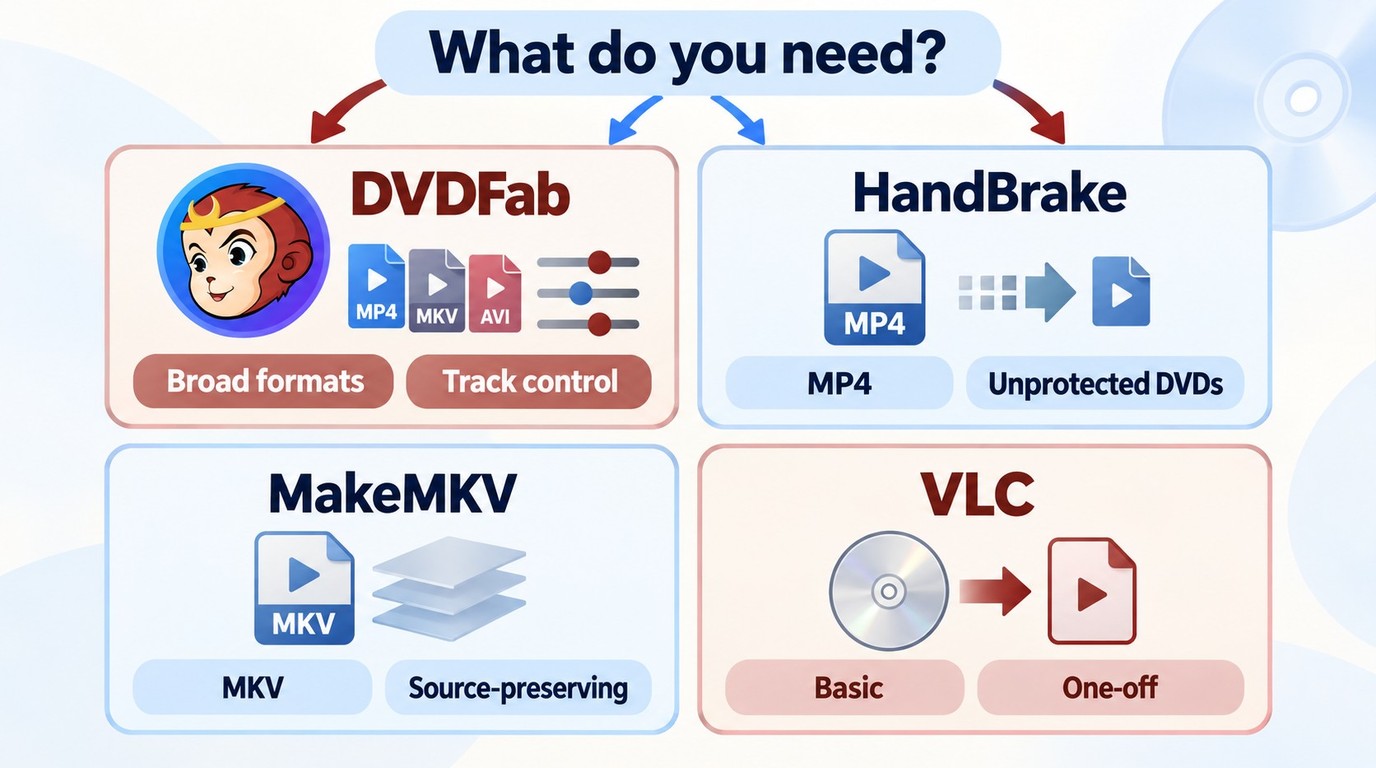
These four options include free applications and a limited paid-product trial, not four unrestricted free products. DVDFab DVD Ripper is paid; HandBrake and VLC are free and open source, while MakeMKV’s DVD functionality is free. Your source and output goal determine which to use.
A working DVD drive comes first. For a laptop without one, connect an external DVD drive before opening the application. Use the backup tools for content you are authorized to access and copy, where permitted by applicable law and relevant license terms.
1. DVDFab DVD Ripper - Best for Encrypted DVDs & High-Speed Ripping
DVDFab DVD Ripper stands as the best DVD ripper for Windows 10 equipped with advanced disc ripping and conversion features. The software enables users to efficiently rip DVDs, Blu-rays, and 4K UHD Blu-rays into a wide range of audio and 2D/3D video formats suitable for device-specific compatibility, such as 3D MKV.H.265, 3D MP4.H.265, 3D MP4.4K, 3D MKV.4K, H.265, MP4.4K, MKV.4K, MPEG-4, MP4 Passthrough, MKV Passthrough, MP4, FLV, MKV, AVI, MP3, etc.
Moreover, this Windows DVD ripper offers a built-in video editor for content customization, and guarantees high-quality, fast conversions with its cutting-edge technology. Setting itself apart, DVDFab continues to be updated to tackle the latest DVD protections for a smooth DVD ripping experience.
💡Working Systems:
Free Download Windows 11/10/8.1/8/7
Free Download macOS 12 or newer
👍Key Features:
- The powerful tool can remove protection from newly purchased encrypted DVDs.
- Rip DVD to 1000+ video/audio formats and 260+ profiles playable on various devices.
- Select titles, chapters, audio, and subtitles to rip.
- Offer a built-in video editor to crop, trim, merge video, add watermarks & subtitles.
- Support batch and lightning-fast conversion with GPU acceleration
- Convert DVD Subtitles to SRT File via OCR Technology.
- Auto-synchronize all the meta info of the source DVD and display them on media server.
👎Cons:
- Only MP4 and MKV output are supported in the free version.
How to Rip a DVD on Windows 10/11 with DVDFab DVD Ripper
Step 1: Run DVD Ripper for Windows 10 and Load the DVD Source
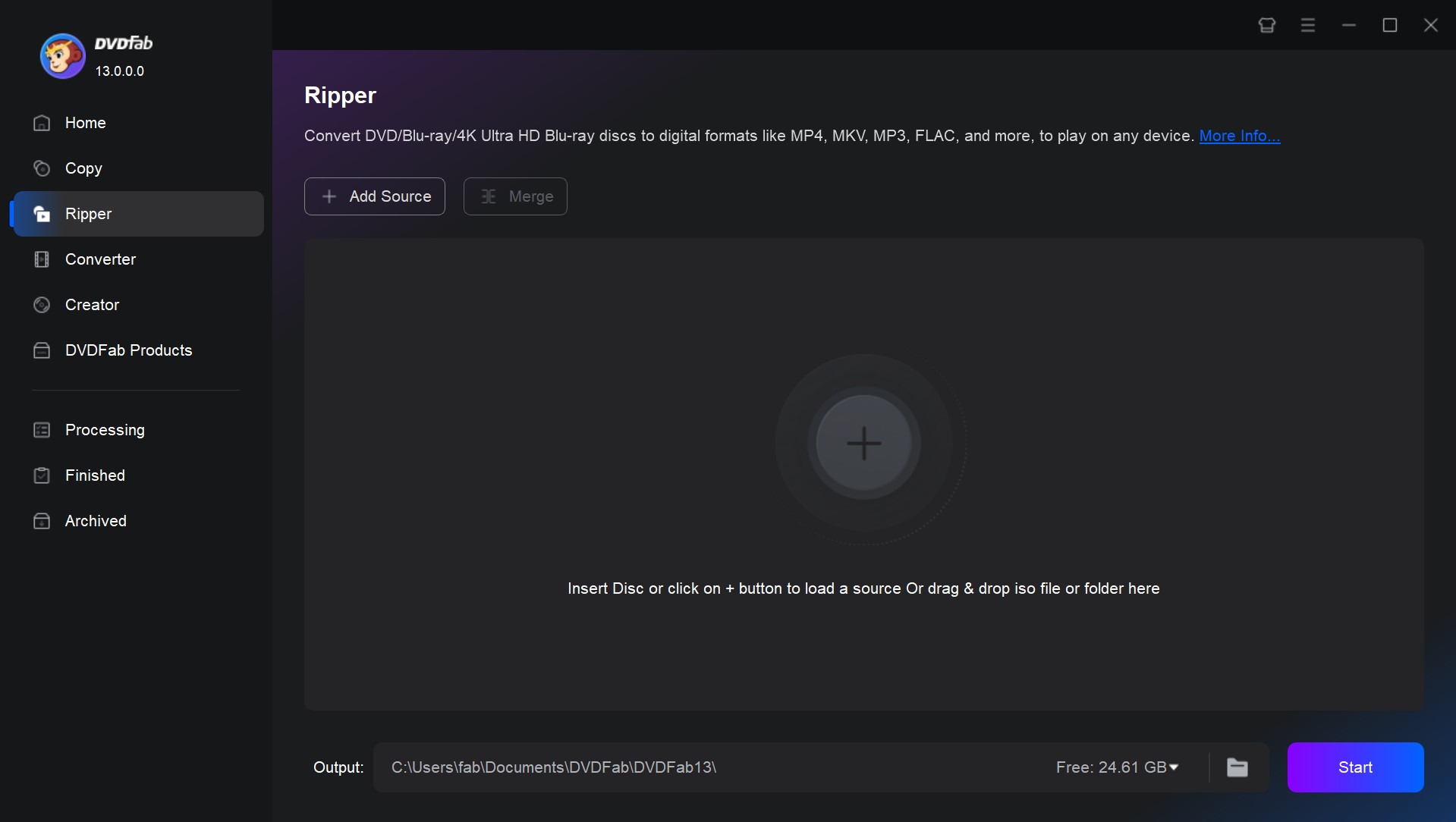
Download and install DVDFab DVD Ripper, and choose the "Ripper" module when the program runs. Next, insert the DVD disc into the drive on PC, or simply drag & drop the ISO file or folder onto the main UI. DVDFab will automatically remove any copy protection when loading the disc.
Step 2: Choose One Profile and Customize the Output Video
Click "Choose Other Profile" to select your desired profile from the profile library on the left panel. You can choose to rip and convert your DVD to MP4, AVI, MKV or other popular digital formats. Or you can also choose your preferred output device.
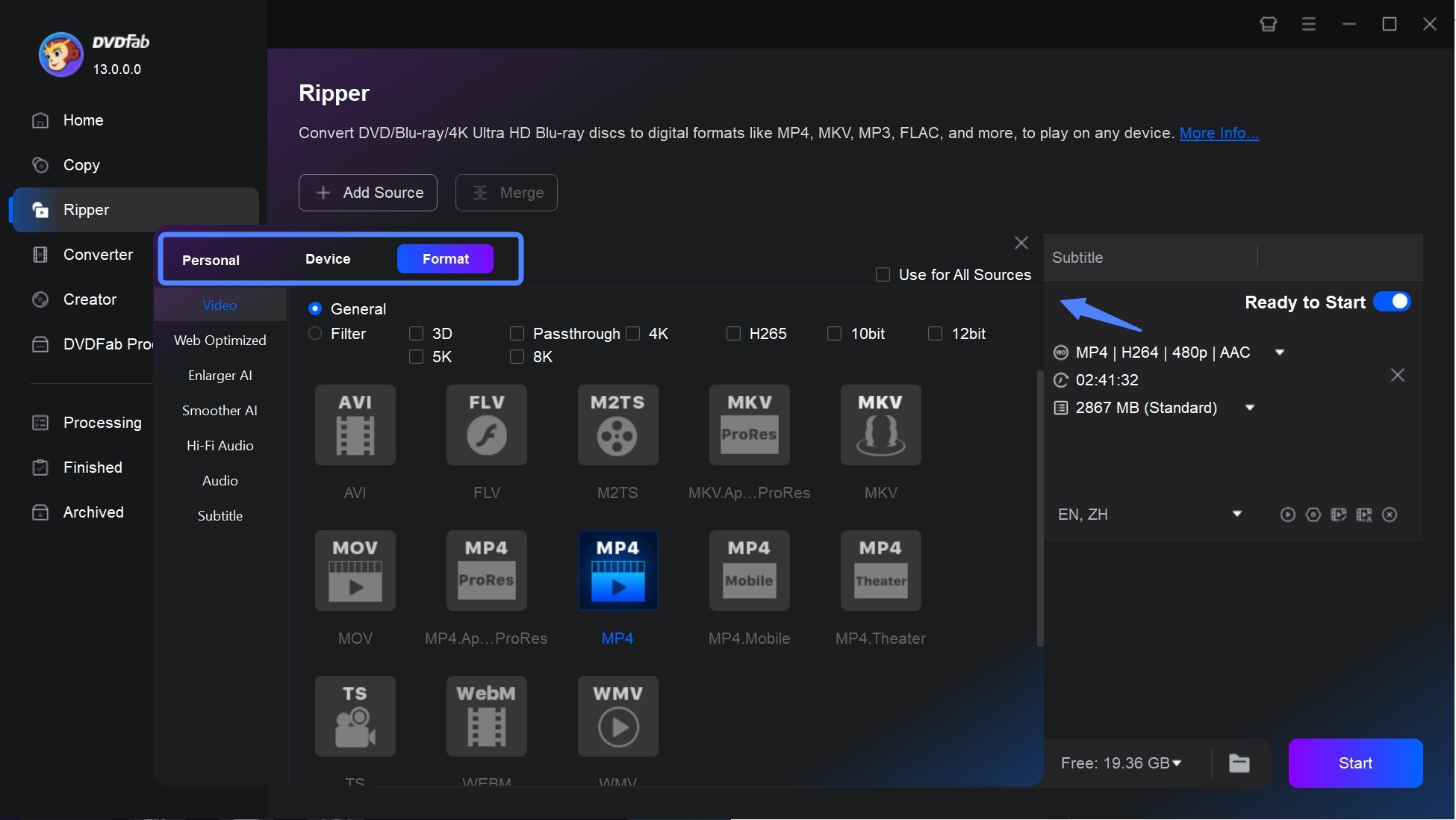
💡Note: DVDFab DVD Ripper is a powerful tool for converting DVDs to digital formats while preserving quality. To get the best results, follow these recommended settings based on your needs.
| Use Case | Format | Resolution | Bitrate | Audio | Encoder |
|---|---|---|---|---|---|
| High Quality | MKV (H.265/HEVC) | 1080p (or original) | 5000–8000 kbps | AAC/AC3 5.1 (384–448 kbps) | Software (CPU) |
| Balanced | MP4 (H.264) | 720p | 2500–4000 kbps | AAC Stereo (192–256 kbps) | Hardware (GPU) |
| Mobile/Streaming | MP4 (H.264) | 480p–720p | 1500–2500 kbps | AAC Stereo (128 kbps) | Hardware (GPU) |
| Lossless Archive | ISO/MKV | Original | Uncompressed | Original (AC3/DTS) | Software (CPU) |
Tap the Wrench icon (Advanced Settings) to set the video, audio, and subtitle parameters. The built-in editor lets you trim, crop, merge, and rotate. You can add a watermark and subtitles, and adjust brightness, saturation, and contrast to enhance video quality.
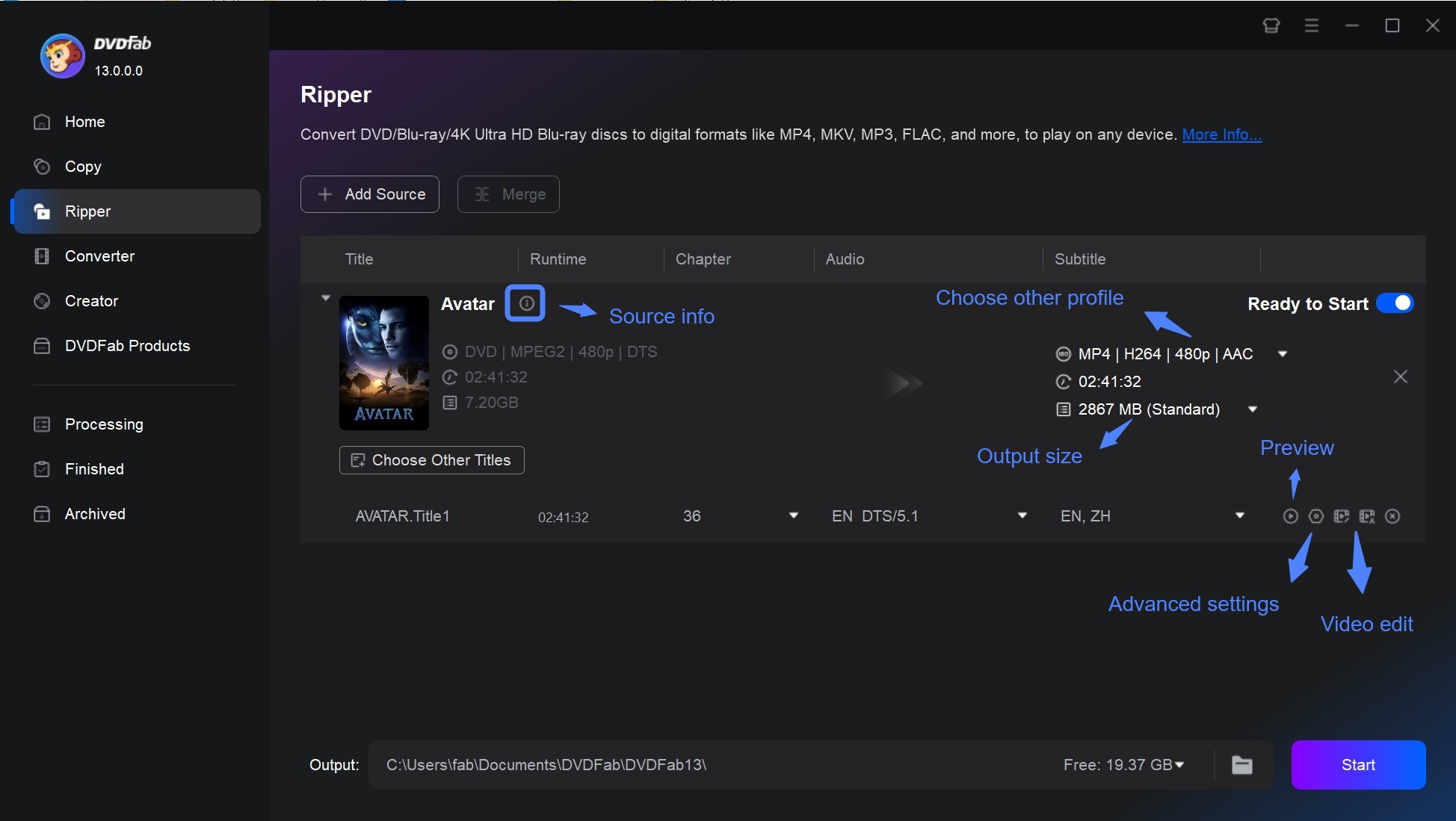
Step 3: Start to Rip a DVD on Windows 10
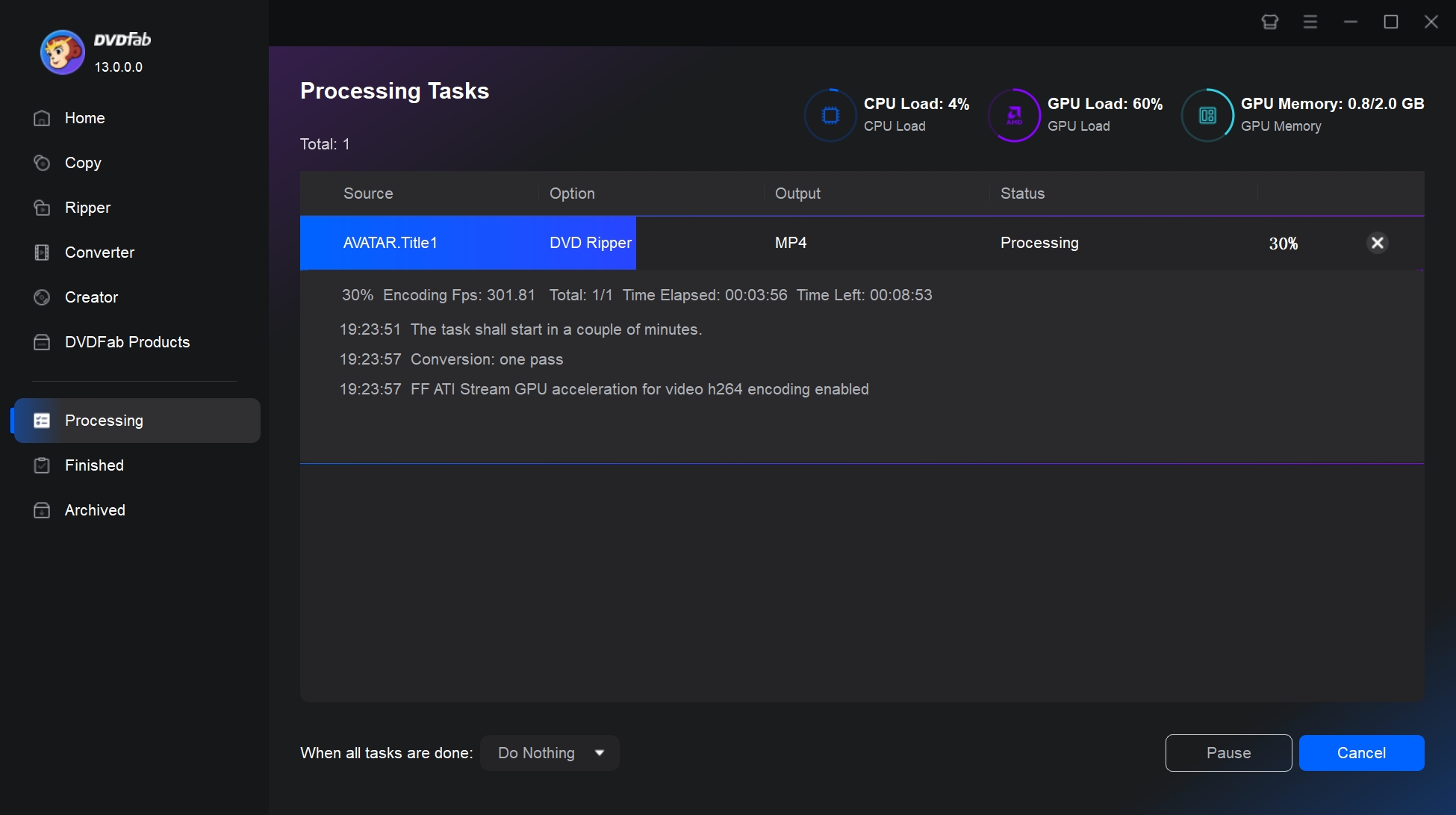
Set file directory to save the output video on HDD (folder) or transfer to mobile. In the meanwhile, you can choose "GPU Hardware Acceleration" to launch the batch conversion. Once done, press the 'Start' button to wait for the video.

2. HandBrake - Best Free Open-Source DVD Ripper for Windows 10/11
HandBrake is an open-source and free DVD Ripping software for Windows 10, Mac and Linux. This wonderful program allows you to save DVDs by ripping them into videos for the particular device listed in its presets. With HandBrake, the parameters can be manually tweaked a lot using its settings, the picture quality can be changed, the video files can be compressed, and much more using a fast tool like this. However, HandBrake cannot handle copy-protected DVDs. If you want to learn more detailed information about HandBrake and its real user feedback, you can read the HandBrake review.
💡Working Systems: Windows, macOS, and Linux.
Key Features:
- Free and open-source software.
- Work with libdvdcss to decrypt and rip CSS protected DVDs.
- Convert DVD and Blu-ray to MP4, MKV, and WebM.
- Advanced video editing features and batch conversion.
Cons:
- Some advanced features may not be available in the user interface.
- Encoding speed is slow compared to other video transcoding software.
- May not be able to rip copy-protected DVD without Libdvdcss.
- The output video formats and profiles are limited.
How to Rip a DVD on Windows 10/11 with HandBrake?
Step 1: Download and install HandBrake from the official website. Insert your DVD into the computer's drive.
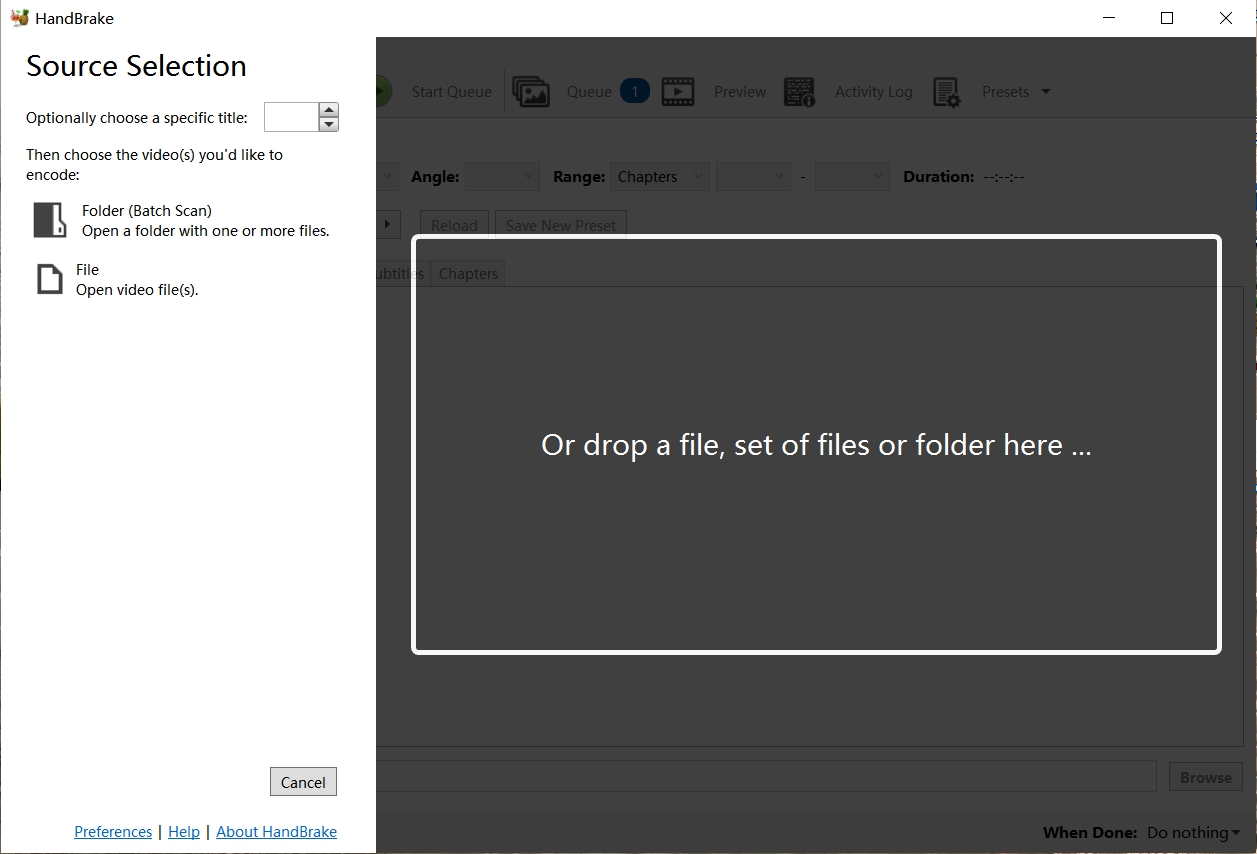
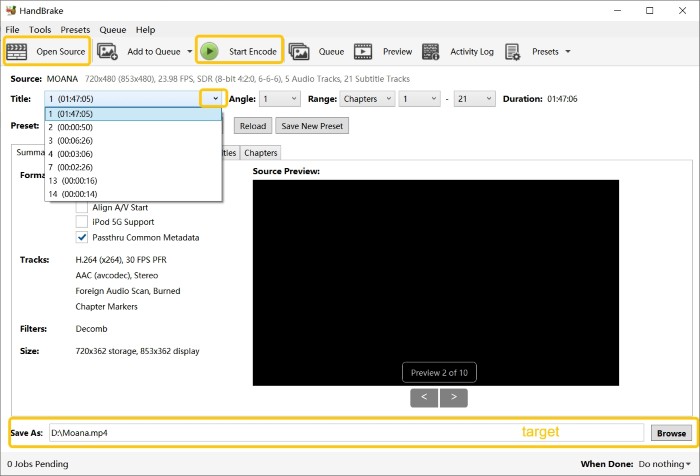
Step 2: Open HandBrake, and click on the "Source" button located at the top left of the window. Select your DVD from the menu. Wait for HandBrake to scan the DVD and then select the longest title (usually the main film).
Step 3: After your DVD information is loaded, select "Preset" at the top of the screen and choose an option like "Fast 480p30" or "Fast576p25". These presets will provide rips appropriate for most DVDs.
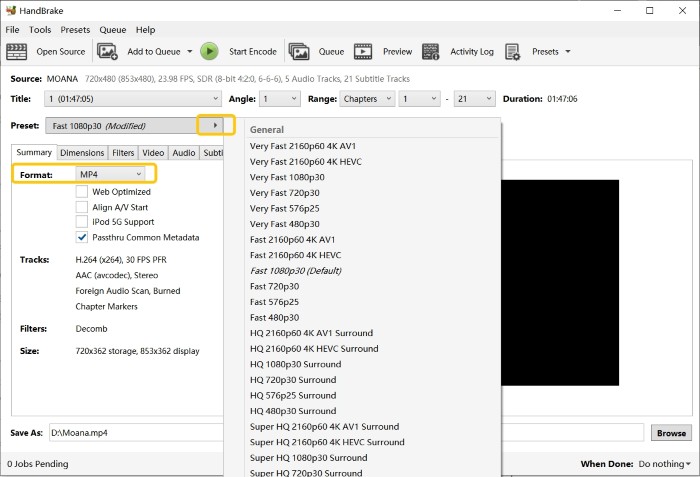
💡Note: If you want to output a general high-quality video with balanced quality and size. You can refer to the following settings.
- Format: MP4 (H.264) or MKV (H.265/HEVC) 58
- Preset: Fast 1080p30 (modify the resolution to match source) 34
- Encoder:
- Software (CPU): For best quality (slower).
- Hardware (GPU): NVEnc (NVIDIA) or QSV (Intel) for faster speeds 13.
- Quality:
- Constant Quality (RF): 18–23 (lower = better quality, larger files) 58.
- Avoid "Constant Bitrate" (causes quality loss in dynamic scenes) 34.
- Audio: AAC Stereo (128–192 kbps) or AAC/AC3 5.1 (384–448 kbps) 8.
- Subtitles: Soft subtitles (selectable) or burned-in 8.
- Filters: Enable Deinterlace for interlaced DVDs 8.
Step 4: Click on the "Summary" tab and select the desired output format (MKV, MP4, or Webm). Then, go to the "Video" tab and choose a video codec. If your computer has a compatible GPU hardware, you can choose a GPU-accelerated video codec to speed up the DVD ripping time.
Step 5: Click on "Save As" button and browse to the location where you want to save your ripped DVD on your PC. Finally, click on the green "Start Encode" button to start the DVD to MKV ripping process on your Windows 10/11.
3. MakeMKV - Best for Lossless DVD Backup
MakeMKV is a free DVD ripper for Windows 10/11 that focuses on fast, and lossless ripping. It decrypts some DVD and Blu-ray discs and converts the content into MKV format while preserving all video, audio, chapter information, and subtitle tracks. If the user has limited storage space, the larger output MKV file could be inconvenient. Nonetheless, larger file sizes means better video quality. Plus, MakeMKV does not offer extensive personalized settings, so if you want a custom output file, you may need to look for other tools.
💡Working Systems: Windows, macOS & Linux
👍Key Features:
- Fast ripping and conversion.
- Easy-to-use interface.
- Free to use for DVD ripping.
- Preserve original video and audio quality.
- Bypass CSS and region codes.
👎Cons:
- No video editing or compression tools.
- Only output MKV format.
- Require a separate player for MKV playback.
- Purchases are temporarily unavailabl
How to Rip a DVD on Windows 10/11 using MakeMKV?
Step 1: Download and open MakeMKV. Then insert the DVD to rip into your computer's disc drive.
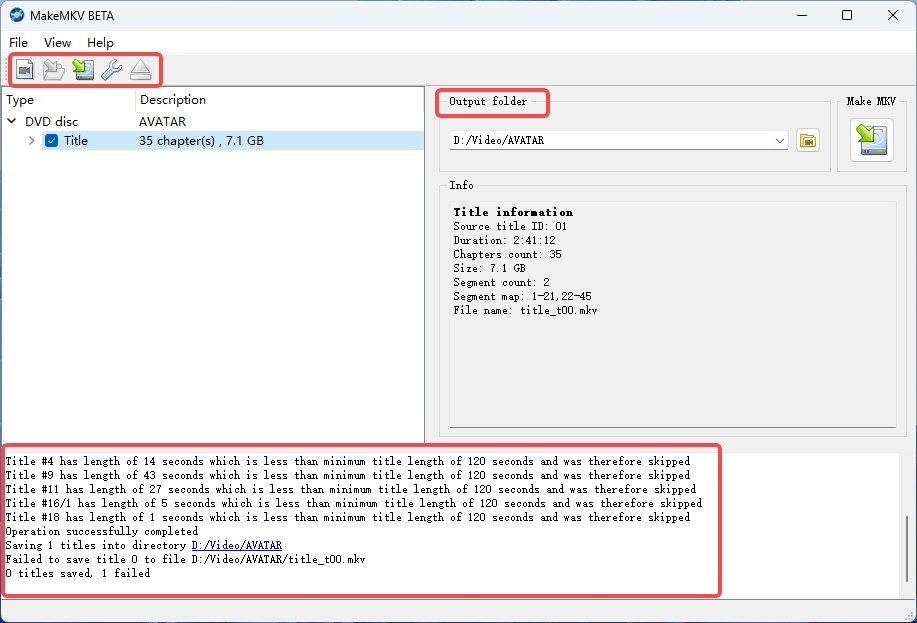
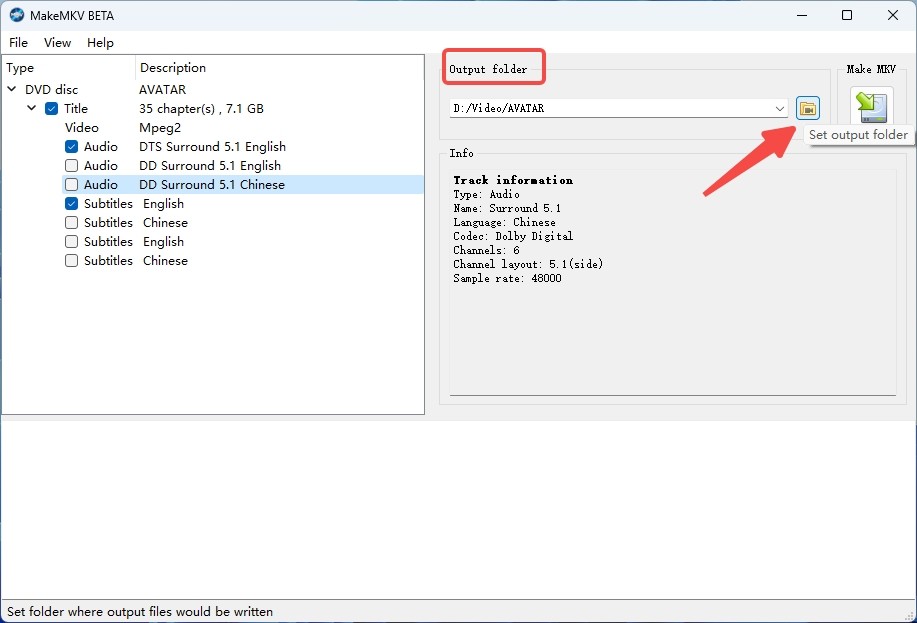
Step 2: In MakeMKV, click the "File" menu and select "Open Disc" to load the DVD into the program. The disc's title sets will be listed in the program interface. The main film or any particular title, audio, or subtitle tracks you wish to include can be chosen.
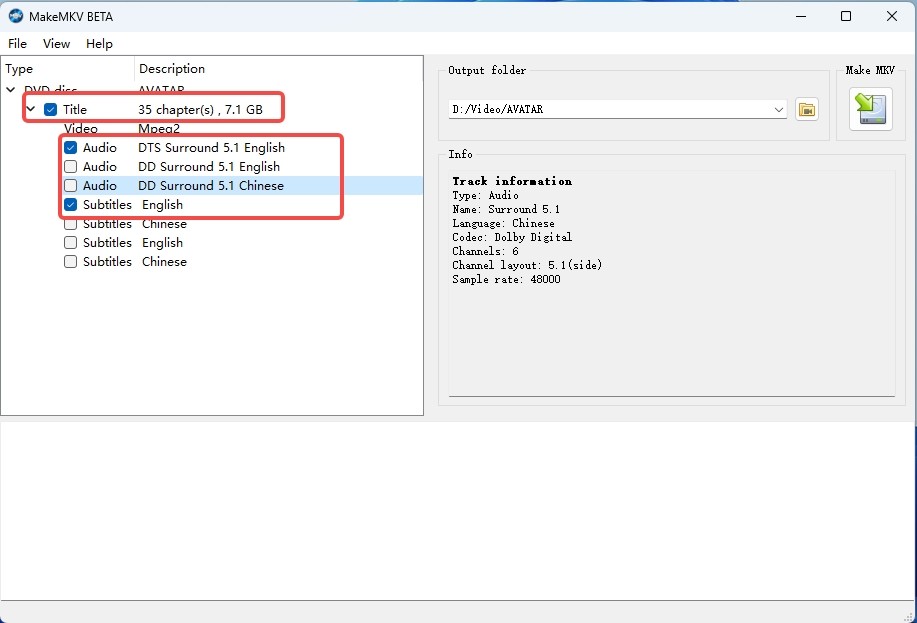
Step 3: Click the folder icon on the right side of the screen and select the destination where you want to save the MKV file.
Step 4: Finally, lick the "Make MKV" button to start the ripping process and wait till it is complete.
4. VLC Media Player - Free DVD Ripping (Basic Option)
VLC Media Player is a free, open-source DVD ripper for Windows 10 that can play, stream, and convert almost any audio and video format. It can create a raw or transcoded video file from a DVD. This makes it a useful backup option when you want to try a simple rip without installing a dedicated DVD ripper. VLC is not the most convenient choice for complex DVDs. If the disc has menus, several titles, multiple subtitle tracks, or unusual structure, VLC may take more effort than expected. It is better for simple homemade DVDs or quick tests than for large DVD collections.
💡Working Systems: Windows XP/Vista/10/7/8, Mac, Linux
Key Features:
- Digitize both DVDs and Blu-rays to MP4, M4A, WEBM, OGG, MP3, etc.
- Choose title, chapter, audio and subtitle.
- Serve as a media player and free DVD Ripper for Mac as well.
Cons:
- Cannot rip commercial or copy-protected DVDs.
- Lack video editing features.
How to Rip a DVD on Windows 10/11 with VLC?
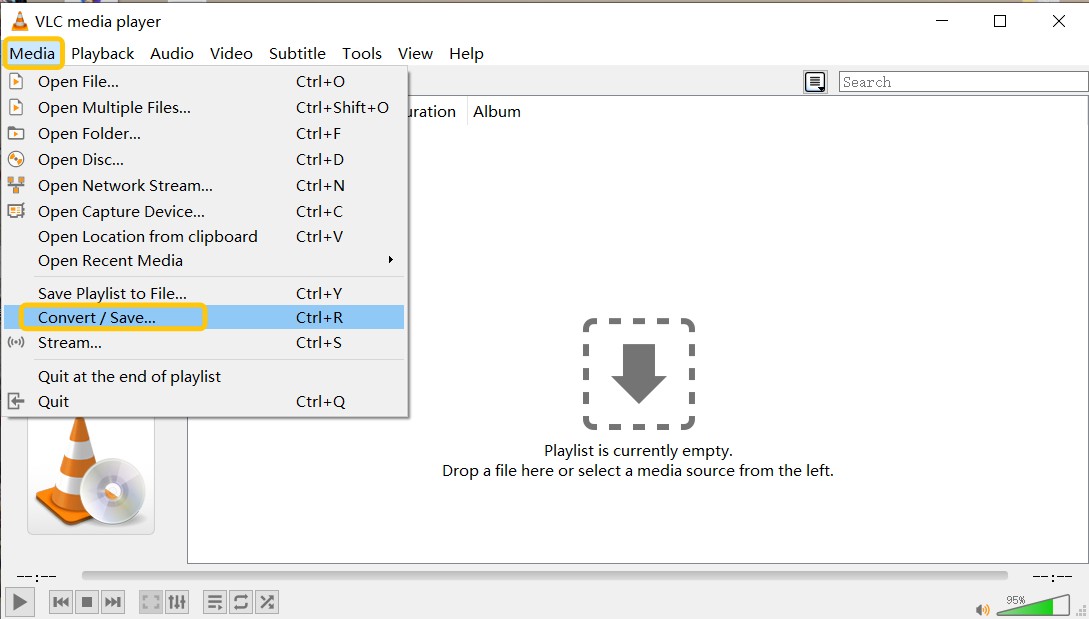
Step 1: Download and install VLC Media Player, insert the desired DVD into your drive and open the player. Go to "Media", then select "Convert/Save".
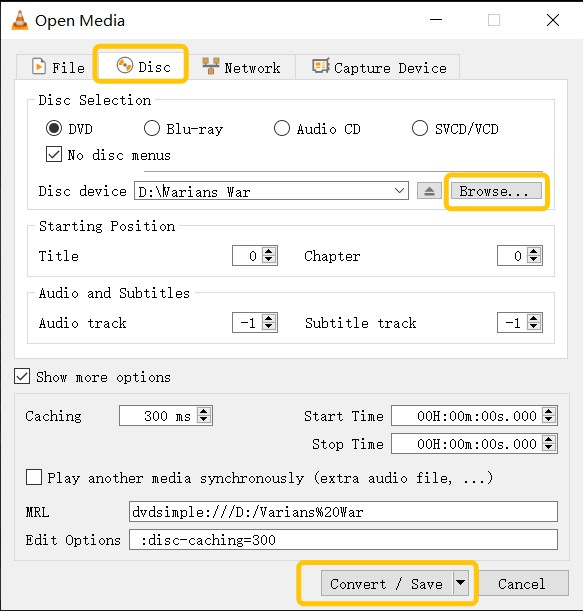
Step 2: Choose the "Disc" tab, add your DVD, input the correct disc device name and deselect "No disk menus". Select the audio and subtitle track you want.
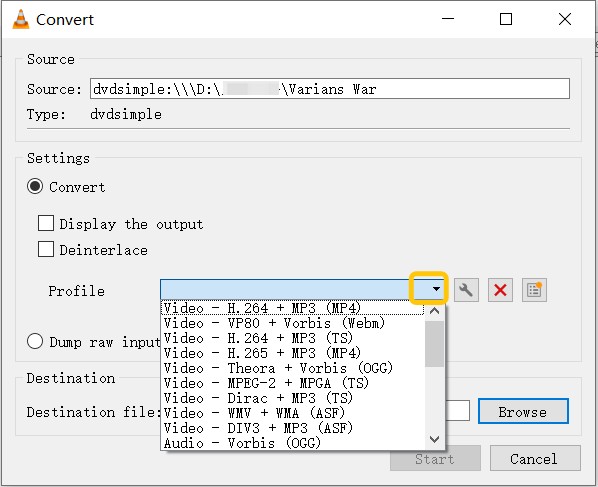
Step 3: Click on "Convert/Save" again and select "Video for MPEG4 1080p TV/device" as the output format. Set your save location by clicking "Browse".
Step 4: Start the ripping process by clicking "Start". The process time will depend on your PC and the DVD size.
Detailed Comparison of the Best DVD Ripper for Windows 10
To make your selection process easier, we have synthesized the features of these DVD ripper tools for Windows 10/11 into a comparison table. Then you will get a concise overview of what each tool offers and choose the best one to convert DVD to digital files.
| DVD Ripper | Inputs | Main Outputs | Decryption / DRM | Lossless Backup | GPU Acceleration | Editing / Subtitles |
|---|---|---|---|---|---|---|
| DVDFab DVD Ripper | DVD disc/ISO/VIDEO_TS | 1000+ video/audio profiles, device presets | Can handle new commercial DVDs (regular updates) | Yes (ISO/MKV copy scenarios) | Yes | Trimming, cropping, merging, watermark; subtitle OCR |
| HandBrake | DVD/ISO/VIDEO_TS | MP4, MKV, WebM | No commercial DRM; CSS with libdvdcss only | No | Partial (hardware encoders) | Filters and encoding tweaks |
| MakeMKV | DVD/Blu-ray/ISO | MKV (tracks preserved) | AACS/BD+ (needs keys for some discs) | Yes (no transcoding) | No (direct copy) | None |
| VLC Media Player | DVD/CD | MP4, MKV, AVI (via convert) | No commercial DRM; CSS with libdvdcss only | No | No | Very basic |
Common Issues When Using DVD Rippers for Windows 10/11
DVD drive detection, source compatibility, and DVD output quality are different problems. Start with the failing stage: Windows must see the drive, the application must load the disc, and the output settings must suit the source. Changing the video profile will not fix a disconnected drive.
1. DVD Ripper Not Detecting the DVD Drive on Windows 10/11
A drive missing from Windows needs a connection or device check first. A drive visible in File Explorer but missing from one application needs an application check. Separate those cases before changing conversion settings.
- Reconnect an external drive, inspect its cable and power connection, and try another available USB port.
- Open Device Manager with Win + X and inspect DVD/CD-ROM drives. A warning icon identifies a device problem requiring attention.
- Update the device driver if an update is available. If needed, uninstall the drive entry and restart Windows so it detects the device again.
- Close another program using the disc and reopen the ripper. For DVDFab, install the current official application update through the download buttons, then load the disc again.
Try another readable DVD in the same drive. One failing disc points to disc compatibility; several failures point to the drive, connection, or software. Record the error message before retrying.
2. DVD Compatibility and Authorized Personal Backups
DVD compatibility includes disc structure and protection support. DVDFab DVD Ripper automatically removes supported native DVD copy protections, including CSS and region-code restrictions, through its updating cloud service. For a DVD that does not load, install the official DVDFab update and retry.
DVD discs, DVD ISO images, and VIDEO_TS folders belong to this module’s input scope. An image file’s extension alone does not establish what kind of disc it contains. Check the disc type and selected title.
A copy-protected DVD needs compatible software and appropriate authorization. Permission to copy content and permission concerning access controls are separate questions.
3. Rips Look Soft or Blocky After Conversion
DVD source resolution is normally NTSC 720×480 or PAL 720×576. Excessive compression and enlarging that image both affect how the output looks. Preserve the source aspect ratio and compare the same scene before changing settings again.
Use the original dimensions as the starting point. For an encoded file, adjust quality if movement becomes blocky or fine textures disappear. There is no single bitrate that suits every DVD scene. For source preservation, select a compatible passthrough profile instead of a newly encoded profile.
Increasing the output dimensions does not recover original HD detail. AI enhancement is a separate feature or entitlement; the DVD Ripper trial provides a way to assess the ordinary conversion and source-preservation profiles first. Keep an unchanged source-stream copy when retaining the original detail is the priority.
FAQs
Is There a Built-in DVD Ripper on Windows 10?
No, Windows 10 does not come with a built-in DVD ripping feature. However, it does include the Windows Media Player, which can play DVDs if you have the necessary DVD codec installed. For ripping DVDs to your Windows PC, you will need to use third-party software, like DVDFab DVD Ripper.
Can Windows Media Player rip a video DVD on Windows 10?
No. You can rip audio CDs with Windows Media Player, but its audio-CD function does not convert a video DVD into MP4. Burning a data DVD is another operation and does not change that distinction.
Which DVD ripper should I choose for Windows 10?
I recommend DVDFab DVD Ripper for DVD input and profile, title, audio, and subtitle controls. HandBrake supplies free encoding for unprotected DVDs; MakeMKV preserves selected streams in MKV; VLC handles basic conversion. DVD Ripper is paid with a limited trial, while HD Decrypter supplies separate limited free capabilities.
Will an MP4 or MKV file keep my DVD menus?
No. Those files contain selected video titles and supported tracks, not the original interactive menus. An ISO or VIDEO_TS backup made with full-disc DVD copy software preserves disc structure. That is a separate copying task, not DVD Ripper’s video-file export.
Can I save each episode from a TV DVD separately?
Yes. Select the individual episode titles and the audio and subtitle tracks you want, then export each selected title as a separate file. Preview them: trailers, extras, and combined episode titles can appear alongside the episodes. Use clear season and episode filenames rather than assuming the longest title is correct.
Conclusion
For most Windows 10/11 users, the right DVD ripper comes down to disc compatibility and output control. Use DVDFab DVD Ripper for DVD discs, DVD ISO images, or VIDEO_TS folders with profile and track controls. Its limited trial covers up to three DVDs within 30 days. Choose MP4 encoding or compatible MKV passthrough, then set your destination folder. HandBrake provides free encoding for unprotected DVDs. MakeMKV preserves selected streams in MKV; VLC supplies basic player-based conversion. Save your required tracks, then play the file on your intended device.

 How to Copy DVDs to Hard Drive: Tested Tools for Windows 10/11, Mac and LinuxBy Wenny Yan - Oct 20, 2026
 How to Rip and Transfer DVD to iPad/iPhone: Free and Paid Options in 2026By Wenny Yan - Oct 15, 2026
 How to Convert DVD to Digital in 2026: 7 Software, Service & Hardware MethodsBy Diana Smith - Oct 14, 2026
 Best Free DVD Ripper for Mac in 2026: 6 Tested ToolsBy Diana Smith - Oct 14, 2026