Best Free DVD Ripper for Mac in 2026: 6 Tested Tools

Summary: The best DVD ripper for Mac depends on your disc type and output goal. DVDFab DVD Ripper for Mac is the best tool for commercial protected DVDs and flexible MP4, MKV, and MOV output. HandBrake works well for transcoding unencrypted DVD sources, while MakeMKV is good for creating a 1:1 MKV backup while keeping the original tracks. To rip your DVD, connect an external DVD drive to your Mac, such as an Apple USB SuperDrive, since modern Macs do not have built-in optical drives.
Table of Contents
Necessity & Tips for Using Mac DVD Ripper
With Apple phasing out optical drives from modern MacBook Air, MacBook Pro, and iMac models, playing a physical disc has become a hardware challenge. Beyond the lack of hardware support, digitizing your DVD on Mac offers the critical advantages:
- The flexibility of multi-device playback eliminates the need for physical discs or compatible drives. Some Mac users want to watch their collections on Samsung TVs using apps like Apple TV.
- MP4 can create a smaller, widely compatible playback file, while MKV passthrough, ISO, and VIDEO_TS preserve different parts of the disc structure and usually require more storage.
- Advanced rippers may also let you select the main title, merge clips, or adjust older SD video for modern displays.
For an accessible home-authored DVD, a free transcoder may be sufficient. A supported retail DVD may require dedicated disc-reading software. For discs you own or are authorized to use, follow applicable law and license terms.
How to Test and Choose the Best DVD Ripper for Mac
To choose a DVD Ripper for Mac, compare the disc source, intended output, free-use limits, processing settings, and current support for your MacBook or iMac:
- Disc support: Check whether the app accepts home-authored DVDs, retail discs, ISO images, or VIDEO_TS folders. If you need a full disc duplicate instead of a playback file, compare DVD copy software instead.
- DVD ripping speed: Different DVD rippers vary in ripping speed. GPU hardware acceleration can reduce encoding time on supported hardware, but the source disc, optical drive, Mac hardware, and output settings also affect the result.
- Output quality and formats: Choose MP4 for broad playback and smaller files or MKV passthrough for selected original streams. If preserving the full disc structure is the priority, use compatible disc-copy software for ISO or VIDEO_TS output.
- Customize your video: Some DVD rippers include a video editor, so you can handle basic trimming, cropping and image processing without other editing software, which lets you tweak frame size and color to better suit your playback device's screen.
- Mac compatibility: Check whether the tool supports your installed macOS version, Intel or Apple Silicon hardware, and the external DVD drive connected to a Mac without a built-in optical drive.
- Free status: Free, open-source software, time-limited beta access, restricted trials, and paid apps with free previews have different limits. Check the disc allowance, output cap, and paid-upgrade requirement.

Our comparison used macOS 14 Sonoma and an LG BP50NB40 external optical drive. We assessed source support, output options, Mac compatibility, editing, acceleration, and free-use limits. The candidates include open-source software, time-limited beta access, restricted trials, and paid tools rather than seven products with identical free access.
The comparison below reflects current vendor information as of September 2026.
| Software | Mac | Input | Output | DVD Decryption | Video Editing | GPU Acceleration | Best For |
|---|---|---|---|---|---|---|---|
| DVDFab DVD Ripper | macOS 12 or newer | DVD, ISO, VIDEO_TS | MP4, MKV, MOV, M4V, MP3, FLAC, and more | Supports most old and new DVD protections | Yes | Yes | Commercial DVDs and flexible output |
| MakeMKV | macOS 10.7+ | DVD, Blu-ray | MKV | Basic | No | No | 1:1 MKV backup |
| HandBrake | macOS 10.13+, Windows, Linux | Unencrypted DVD, VIDEO_TS | MP4, MKV, WebM | Not built in | No | Yes | Free transcoding |
| MacX DVD Ripper Pro | macOS 10.13+ | DVD, ISO, folder | MP4, MOV, M4V | Basic | Yes | Yes | Mac device profiles |
| Mac DVDRipper Pro | macOS 11+ | DVD disc | DVD archive, Apple formats | Basic | No | No | Mac-native paid ripping |
| Cisdem Video Converter | macOS 10.15+ | Video files, DVD | Common video/audio formats | Basic | Yes | Yes | Multi-purpose conversion |
The best macOS DVD ripper software varies depending on your needs. In general, you are concerned with a DVD ripper's decryption capability, ripping speed, and output quality. Taking all these factors into consideration, I recommend you try DVDFab DVD Ripper, which is a pionner in this field. Plus, if you are looking for a free program that can decrypt some basic encryptions, I recommend MakeMKV.
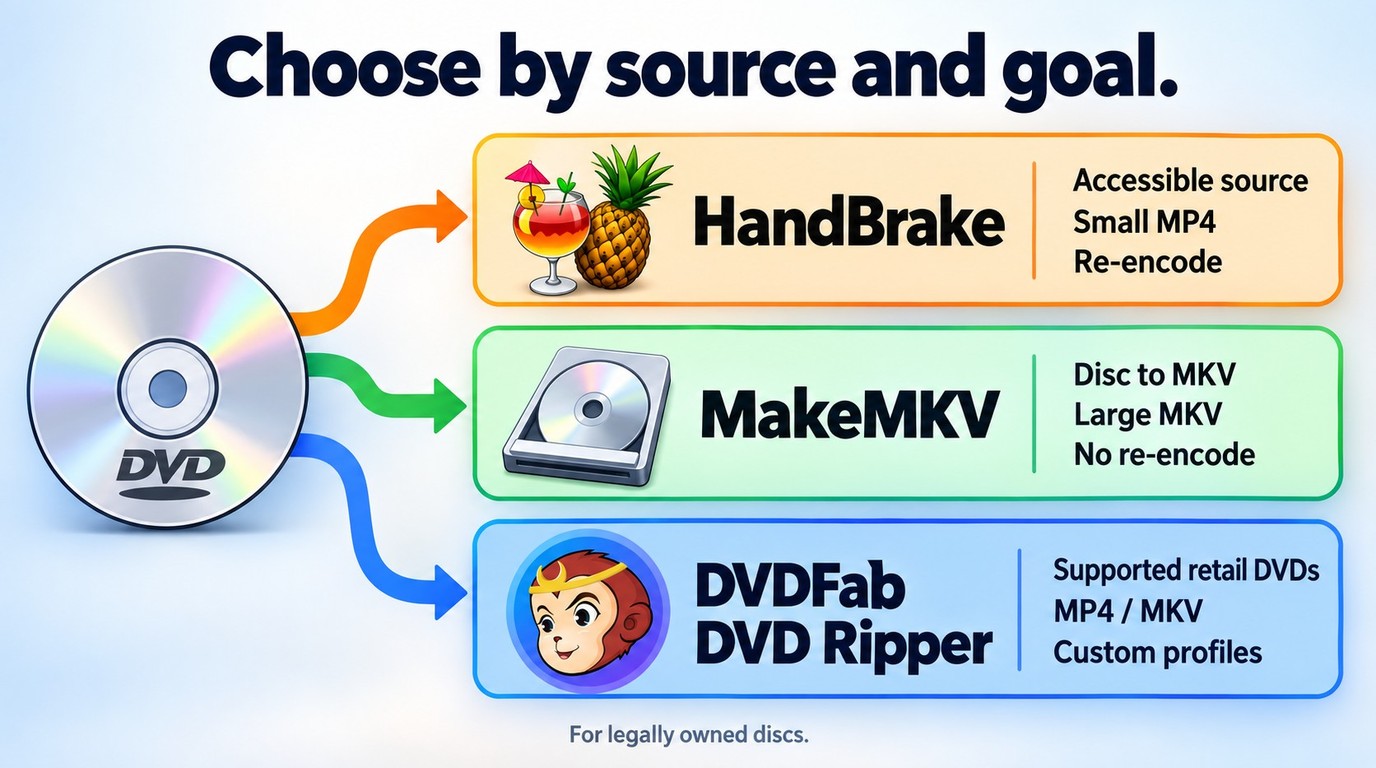
Top 6 Best Free DVD Ripper Software for Mac
The reviews below compare each product's disc support, output goal, Mac compatibility, and free-use limits. A free listing may mean open-source access, a renewable beta, a restricted trial, or a limited preview.
DVDFab DVD Ripper for Mac – For Flexible MP4 and MKV Output
📌Why I pick it: A single Mac app for protected DVD sources, MP4 or MKV output, subtitle and audio selection, editing, and supported hardware acceleration.
📢User Feedback: "Ripped over 500 discs… interface is incredibly easy to use." — Trustpilot
DVDFab DVD Ripper is a top-rated tool for macOS users who need to digitize commercial discs without technical hassles. It supports macOS Sequoia, runs natively on ARM64 chips, including M1, M2, M3, and M4, and also supports Intel-based Macs. It stands out by automatically handling advanced copy protections such as Disney X-project, region codes, and Sony ARccOS through its Cloud Decryption Service. It also uses Apple’s VideoToolbox framework for GPU acceleration, making it faster than non-optimized tools in compatible Mac workflows.
In my test, DVDFab DVD Ripper for Mac (v13.0.6.8, released on Oct 8, 2026) was the easiest option when I needed MP4 or MKV output instead of a full DVD folder. After loading the disc, I could choose a device profile, select subtitles and audio tracks, and adjust quality settings before starting the conversion. Ripping a two-hour DVD movie to MP4 on my Mac took only about five minutes.
Free Download Windows 11/10/8.1/8/7
Free Download macOS 12 or newer
DVDFab DVD Ripper provides a free trial for 30 days, after which it seamlessly transitions to its entirely free and simple version, DVDFab HD Decrypter. This free version also works as the best DVD ripping software for Mac, allowing conversion of most encrypted DVDs and Blu-rays to MP4 or MKV formats. Both versions are in one package, DVDFab 13, for your convenience.
MakeMKV – Best for 1:1 MKV Archives
📌Why I pick it: Time-limited beta access for saving selected DVD and Blu-ray titles as large MKV archive files.
📢User Feedback: "Use MakeMKV for ripping and HandBrake for transcoding. That's convenient!" — MacRumors
MakeMKV for Mac is a 1:1 MKV backup tool that reads DVD and Blu-ray discs and saves selected titles as MKV files. It can keep the original video, audio tracks, subtitles, chapters, and metadata without requiring users to choose a compressed MP4 profile.
MakeMKV 2.0.0, released on September 20, 2026, is the current version. It mainly introduces a version bump along with small improvements and bug fixes. In my test workflow, MakeMKV was straightforward when I wanted a large MKV backup. After scanning the disc, I selected the main title and saved it as MKV. The output preserved the original tracks, but the file size was much larger than a compressed MP4, so it is better for archiving or media servers than for phones with limited storage. It is best used with a compressor like HandBrake when you need to reduce the size of the large MKV output.
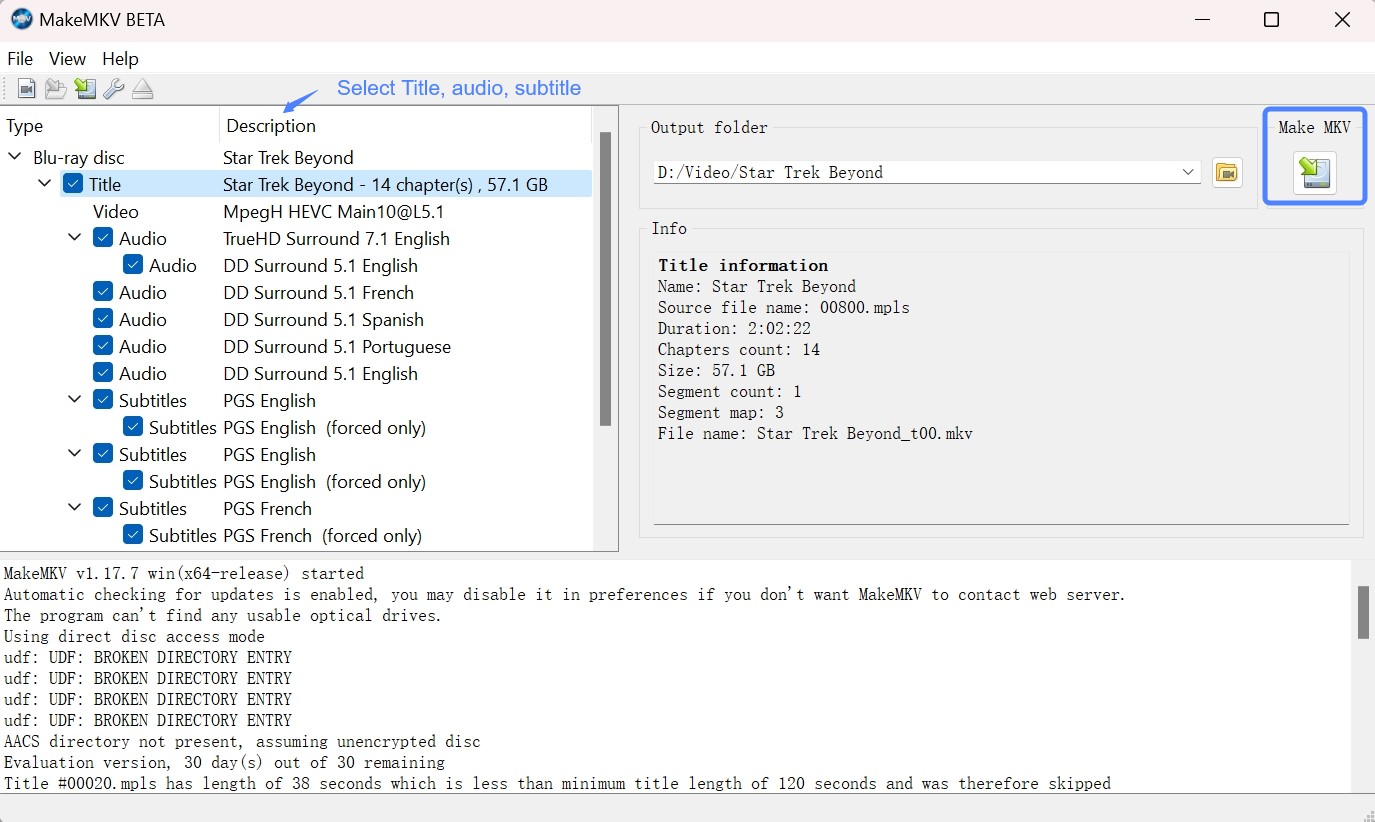
How to Rip a DVD on Mac with MakeMKV
Step 1: Download MakeMKV v2.0.0 from the official site and open the installer. Beta access is time-limited, so use the current MakeMKV key when the app requests it.
If macOS displays an Unidentified Developer warning, right-click the installer icon, select "Open," and confirm "Open" in the dialog. This uses the standard macOS confirmation for software downloaded outside the App Store.
Step 2: Click the File menu and select Open Disc. MakeMKV will scan the DVD and display the available titles. After the analysis, select the titles, video, audio tracks, and subtitles you want to save.
Step 3: Click the "Make MKV" button on the right. Then MakeMKV will start to convert DVD to MKV on your Mac.
HandBrake – Best for Free Transcoding
📌Why I pick it: Free transcoder for accessible DVD sources with MP4, MKV, and WebM output.
📢User Feedback: "Free… excellent format support"— TechRadar
HandBrake is an open-source video transcoder for Mac, Windows and Linux. It excels at converting unencrypted media into modern formats like MP4, MKV, and WebM with advanced compression efficiency. It offers extensive presets for Apple devices (iPhone, Apple TV) and supports the latest AV1 codec for high-quality streaming.
In my test, HandBrake worked well once the DVD source was already accessible. I could choose a preset, adjust the resolution and bitrate, and export a smaller MP4 file for playback on a Mac, iPhone, or TV. However, unlike DVDFab, HandBrake cannot rip copy-protected DVDs natively. If HandBrake cannot scan an accessible source, see our guide to the HandBrake No Valid Source Found error, which also explains when libdvdcss HandBrake setup may be relevant.
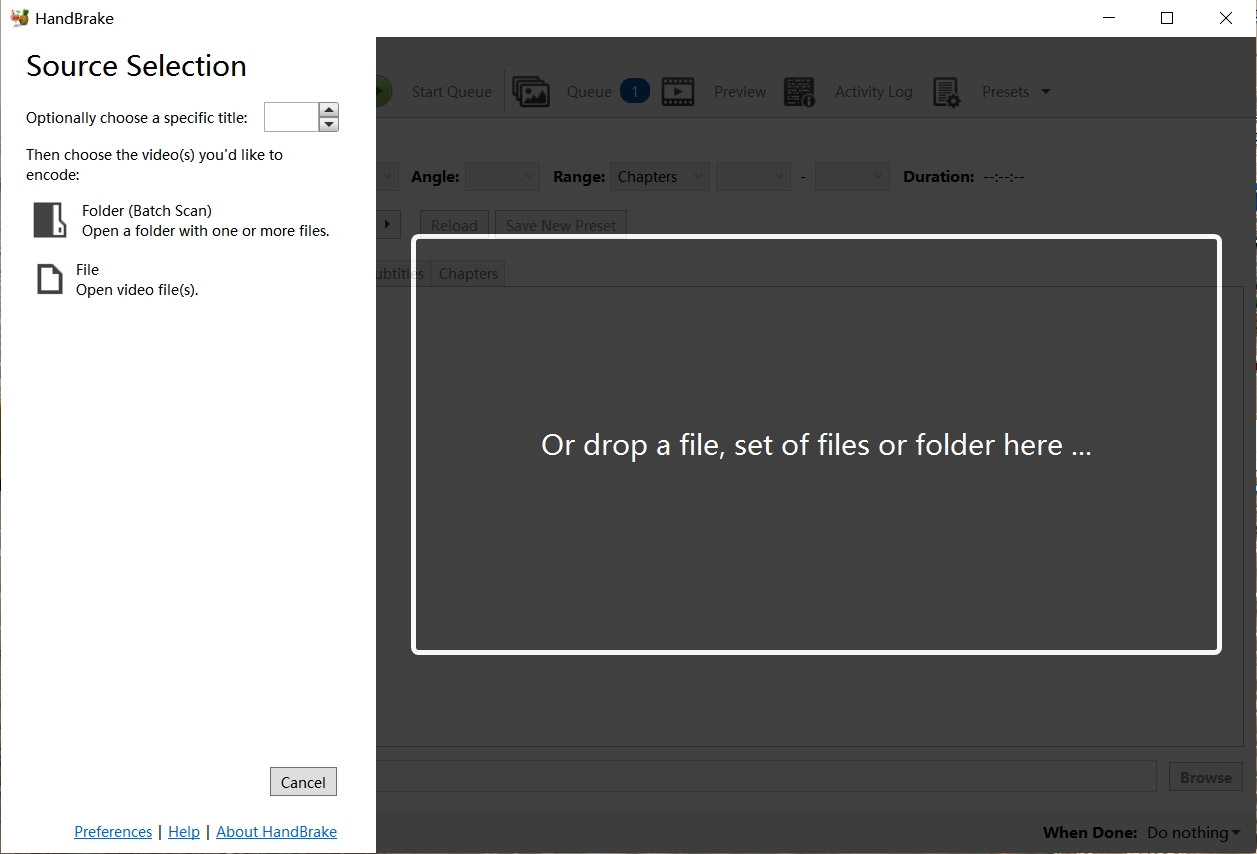
How to rip DVD on Mac with HandBrake?
Step 1: HandBrake's official download page lists version 1.11.2 for macOS as of September 2026. Download the macOS installer and use HandBrake after the DVD source is accessible to the app.
Step 2: Insert the DVD into your disc drive. In the Source Selection menu, choose the DVD you inserted. HandBrake will then scan the DVD for available titles.
Step 3: Once the scanning is complete, select the title and chapters. You can also customize settings such as choosing a preset and format. Adjusting video and audio parameters if needed.
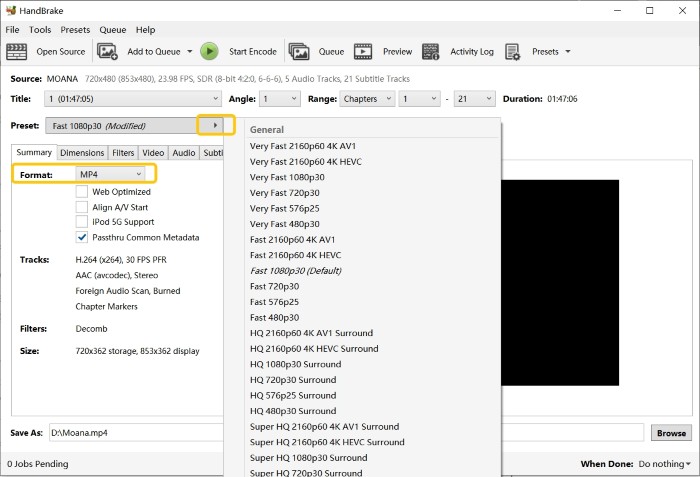
Step 4: Click on the Browse button to select the destination folder and name the output file. Then simply click on the Start button.
MacX DVD Ripper – Best for Device Profiles
📌Why I pick it: Fast Mac-first workflow and device profiles.
📢User Feedback: The linked Trustpilot profile covers MacXDVD Software as a company, not MacX DVD Ripper Pro alone.
MacX DVD Ripper is paid DVD ripping software for Mac. The current version is MacX DVD Ripper Pro 6.9.0, released on June 4, 2026, with native Apple Silicon support. It can rip DVDs to Mac friendly formats such as MOV, M4V, and H.264, as well as formats optimized for devices such as iPhone, iPad, Android devices, and more. It can also process some encrypted commercial DVDs.
In my workflow check, MacX DVD Ripper Pro was useful for device profile output. The preset list made it easier to choose an iPhone or Apple TV format without manually adjusting every codec setting. However, the trial version can rip only the first five minutes of any DVD, and the Trim function is unavailable until you purchase the full version. MacXDVD Software's United States Trustpilot page shows a company-wide score of 4.7 from 245 reviews as of September 2026; it is not a product-only score for MacX DVD Ripper Pro. Use the trial with your own discs, and consult the product's update or troubleshooting resources if a title stalls during processing.
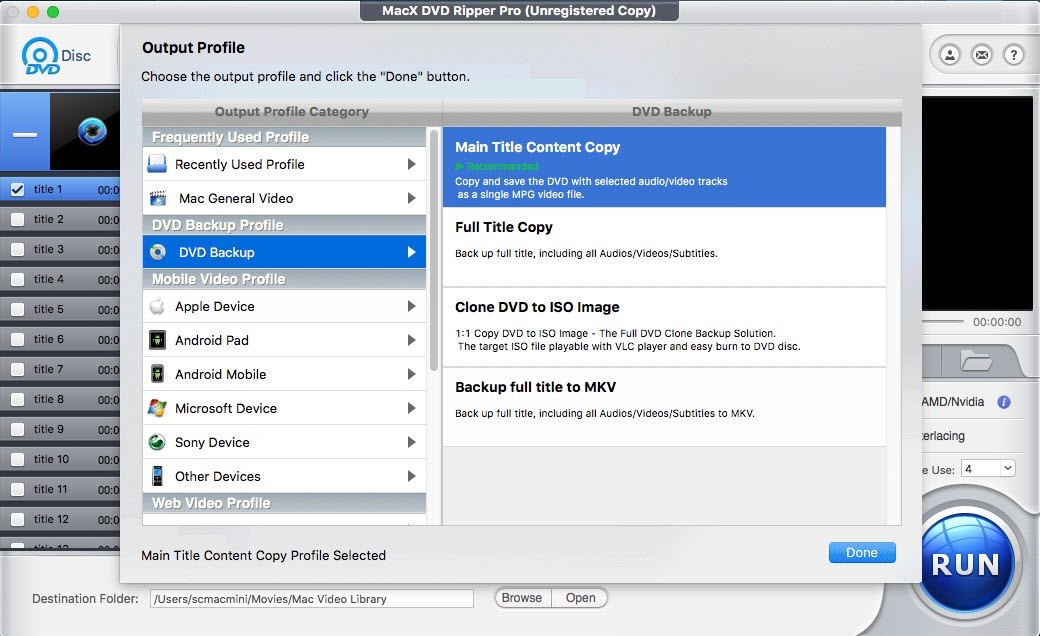
How to rip DVD on macOS with MacX DVD Ripper?
Step 1: Begin by launching the MacX DVD Ripper. Insert the DVD on your Mac and then click on the "DVD Disc" button to import the DVD.
Step 2: Select the output format you want for the ripped DVD from the profiles list. You can also customize the video, such as cropping, merging, rotating, and adjusting parameters.
Step 3: Choose the destination folder where you want the ripped DVD file to be saved. Finally, click on the "RUN" button to start ripping DVD on Macintosh.
Mac DVDRipper Pro – Best for Restoration Tools
📌Why I pick it: Unique AI tools designed to restore grainy DVDs and VHS transfers.
📢User Feedback: Seasoned Mac users recommend it for big projects. — MacRumors
Mac DVDRipper Pro is a paid native Mac DVD ripper for users who prefer a dedicated macOS app. The latest version is Mac DVDRipper Pro 14.2.1, released on April 26, 2026, and it requires Mac OS X 11.0 or higher. It can convert DVDs to MP4 and M4V, create DVD archives, and prepare videos for devices such as iPhones, MacBooks, and Sony TVs. It supports homemade DVDs as well as some encrypted commercial discs.
In my test workflow, Mac DVDRipper Pro felt more like a dedicated Mac app than a conversion suite for multiple systems. Its AI subtitle, denoising, color correction, and upscaling features are more useful for old homemade DVDs or VHS to DVD transfers than for standard disc copying. However, the free trial offers unlimited 15 minute previews and 5 full rips.
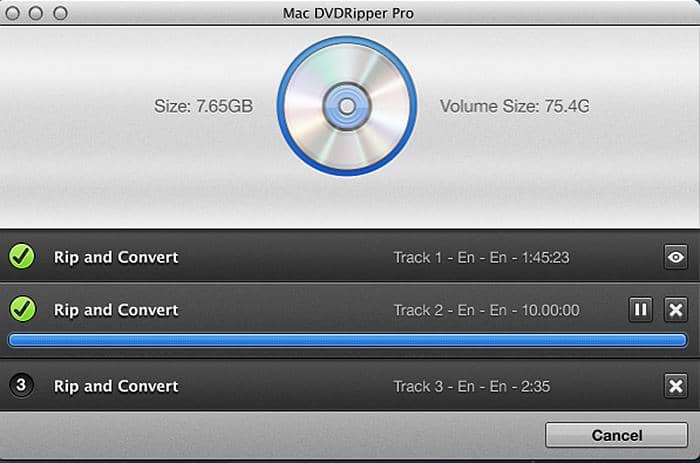
How to Rip a DVD on Mac with Mac DVDRipper Pro
Step 1: Insert the DVD into your optical drive. Then, open Mac DVDRipper Pro, click the drop-down menu, and select the DVD source.
Step 2: Next, choose the output format, such as MP4.
Step 3: Finally, select a save path for the ripped files, click the "Rip" button, and you are all set.
Cisdem VideoPaw – Best for Occasional Disc Conversion
📌Why I pick it: DVD ripping, video conversion, and editing modules in one Mac app.
📢User Feedback: "customer support handled my questions about a reinstall promptly." — Trustpilot
Cisdem's current product is branded Cisdem VideoPaw, and DVD Ripper is offered as a module within the app. The current Mac version is Cisdem VideoPaw 10.4.0, released on June 15, 2026. It is useful if you need DVD ripping together with video conversion, compression, online video handling, or format conversion in one app, as covered in this Cisdem Video Converter review.
Cisdem VideoPaw is more useful as a general video conversion suite than a dedicated DVD backup tool. It is a good option if you frequently convert videos between formats and only occasionally need DVD conversion. If your main goal is configurable MP4 or MKV output, DVDFab offers broader format and editing control, while MakeMKV beta access centers on creating large MKV archive files.
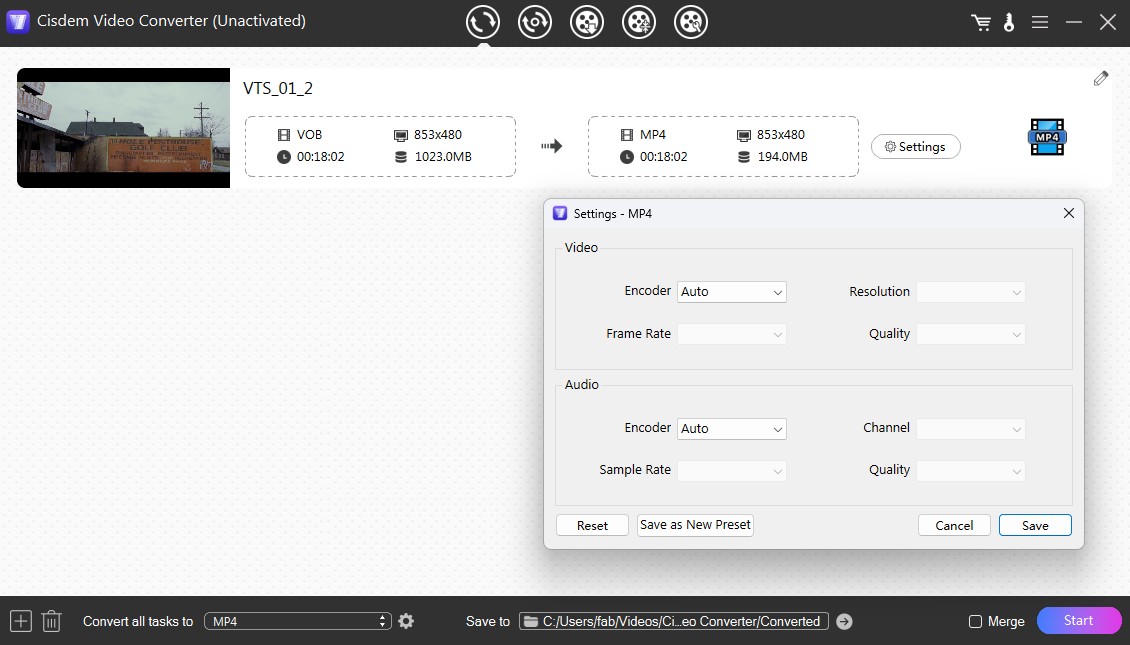
How to Use Cisdem VideoPaw for DVD Conversion
Step 1: Download and launch Cisdem VideoPaw on your Mac. Open the DVD Ripper module, then drag and drop a supported DVD disc or VIDEO_TS folder into the interface.
Step 2: Use the "✓" checkbox to select the main title. Next, choose subtitles and soundtracks in your preferred languages.
Step 3: Click the format icon to access extensive output format options categorized by terminal devices for selection.
Step 4: After configuring the settings, click the conversion icon at the bottom right to start DVD conversion.
Rip DVDs on Mac with DVDFab DVD Ripper
The steps below use DVDFab DVD Ripper to show how to rip a DVD on Mac from a disc you own or are authorized to use, subject to applicable law and license terms.
Step 1: Download and Install the Mac DVD Ripper
Free Download Windows 11/10/8.1/8/7
Free Download macOS 12 or newer
Step 2: Load the DVD and Select Ripper
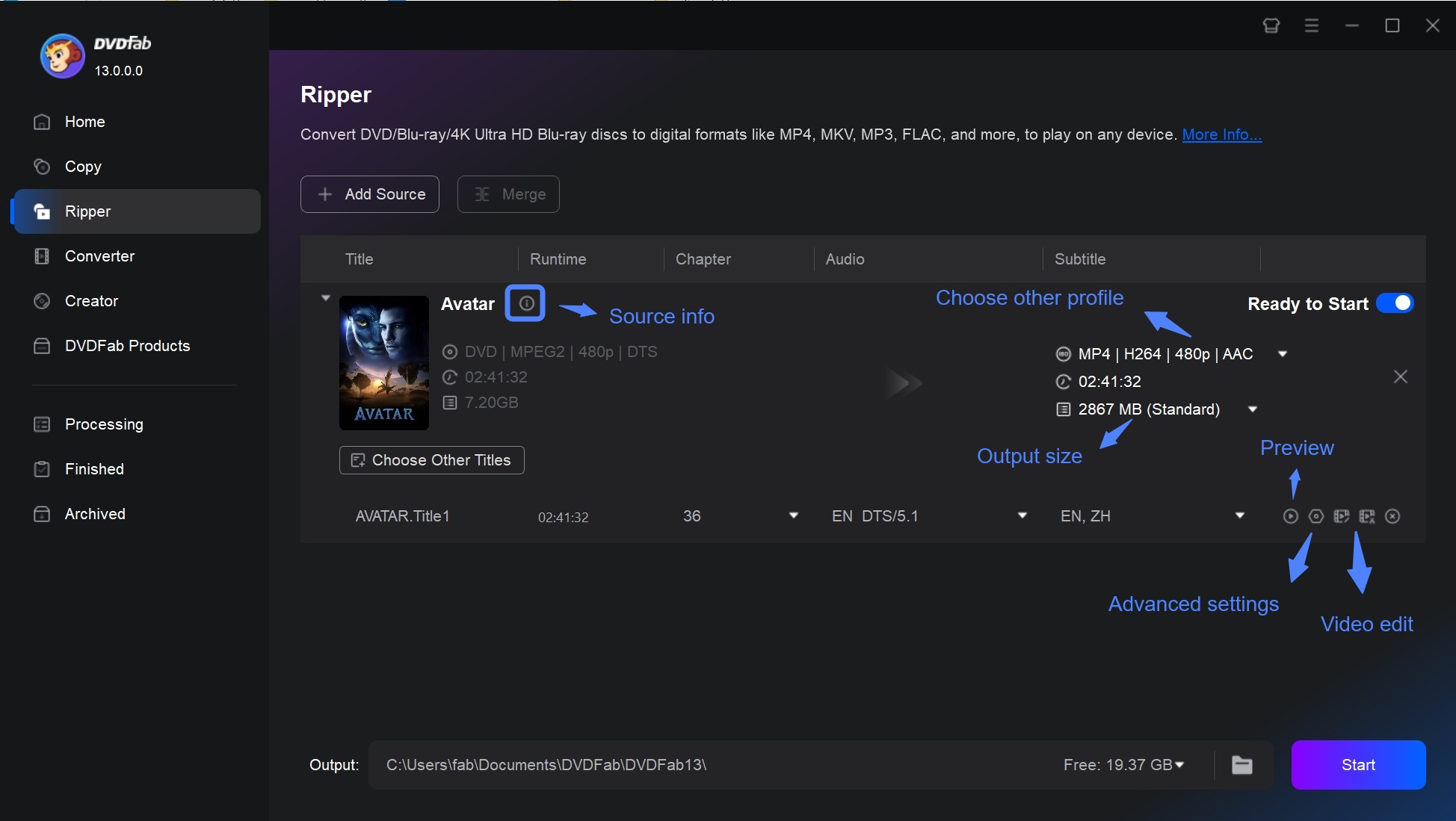
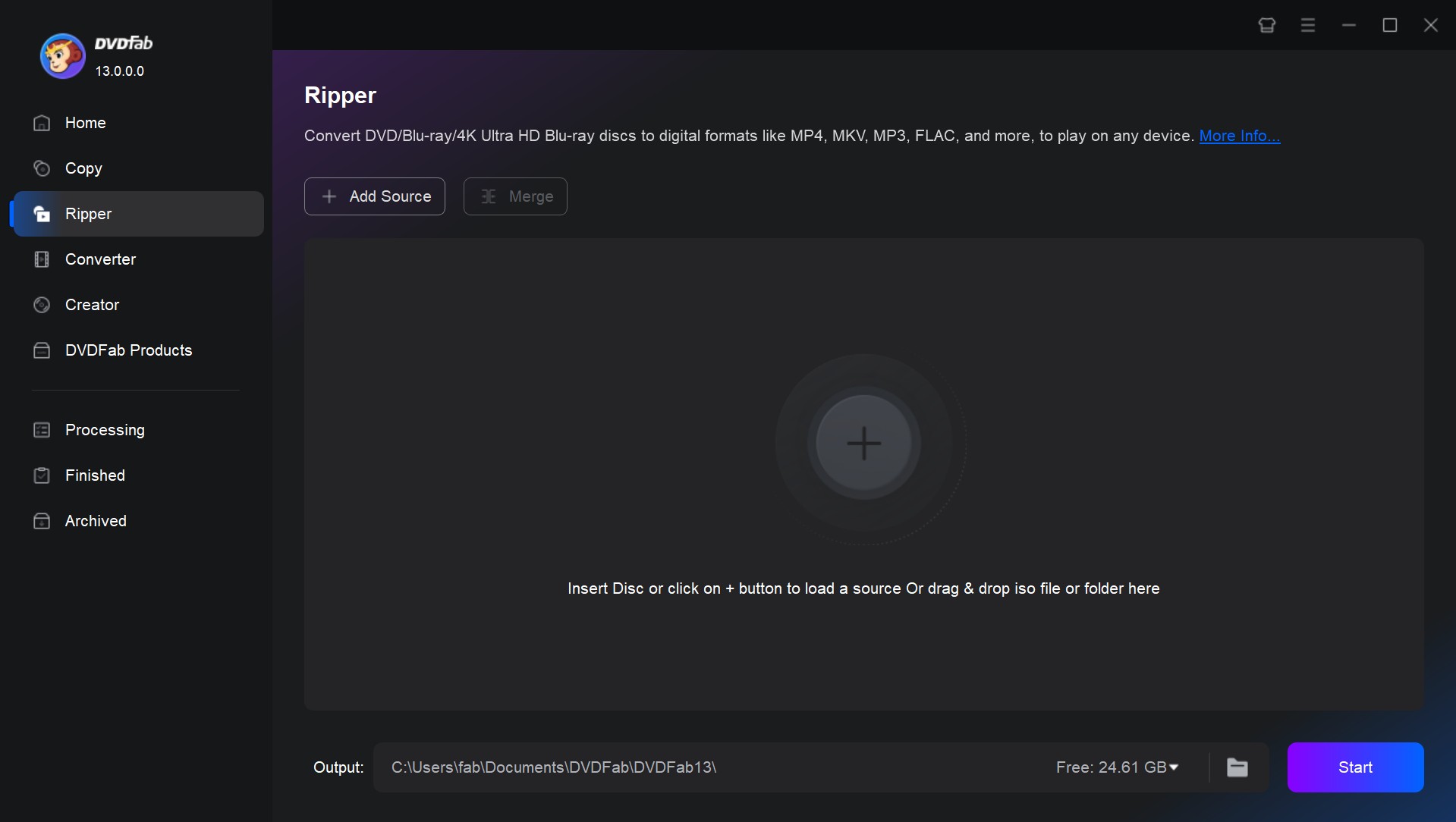
Insert the DVD you want to rip into your computer's optical drive, or use the Add button on the main page. If you have an ISO file or a folder instead, you can easily drag and drop it onto the main page.
DVDFab analyzes supported DVD sources and can select the main title before conversion.
Step 3: Choose the Format and Edit
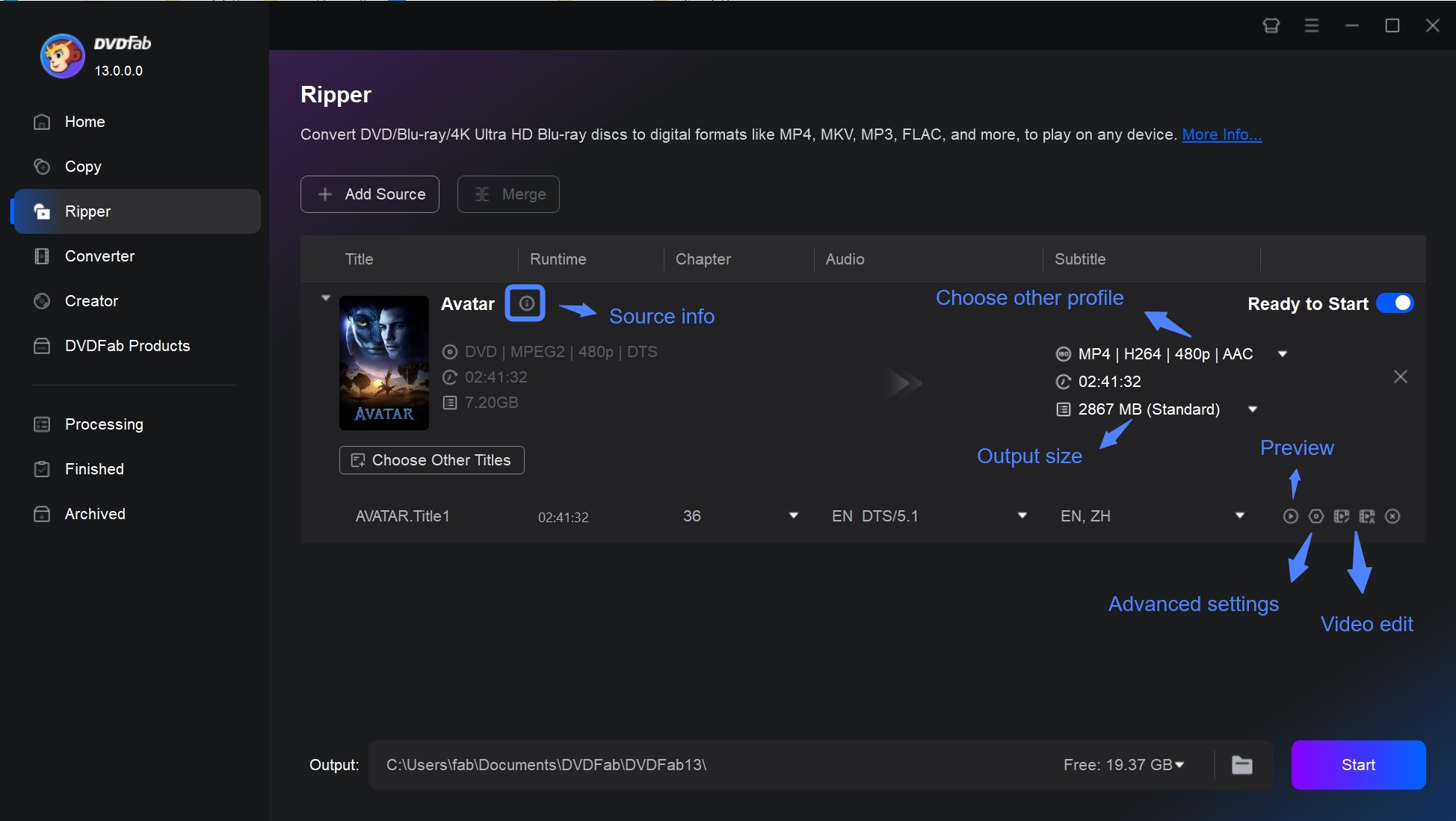
Click the "Choose Other Profile" button (or the profile icon) to open the format library. Choose MP4 for smaller files and broad device compatibility, or select MKV Passthrough to preserve the selected video, audio, and subtitle streams without re-encoding. ISO and VIDEO_TS are intended for disc-structure workflows, so use a compatible disc-copy function when you need either output. The software also supports converting DVDs to formats like MOV, FLV, WMV, or extracting audio as MP3.
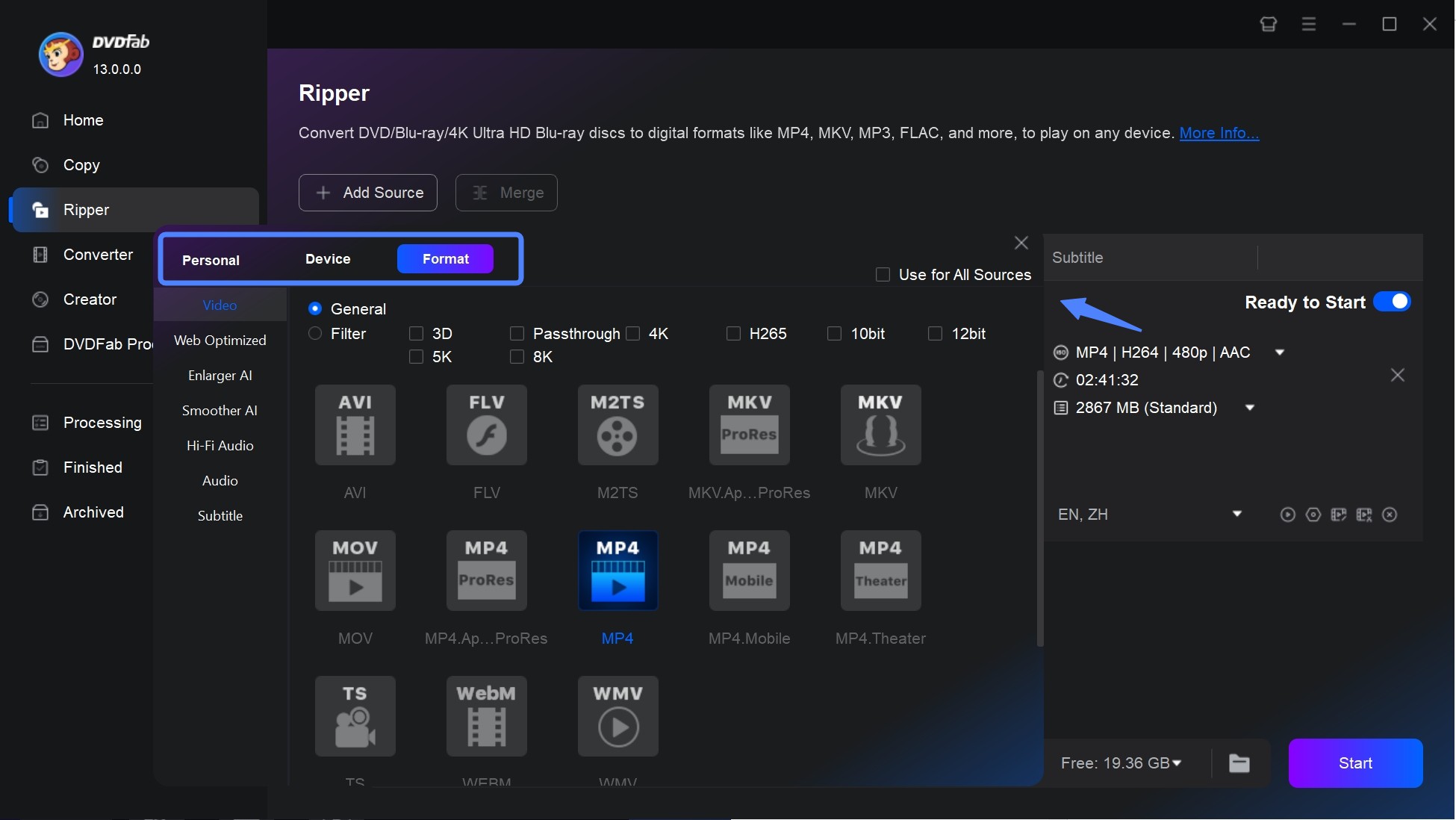
Before ripping, you can fine-tune your video using the toolbar icons:
- Advanced Settings: Click this to adjust technical parameters such as video resolution, frame rate, bitrate, and audio channels.
- Video Edit: Open the built-in editor to crop black bars, trim unwanted clips, rotate the video, or add text and images.
Step 4: Choose the Destination and Start
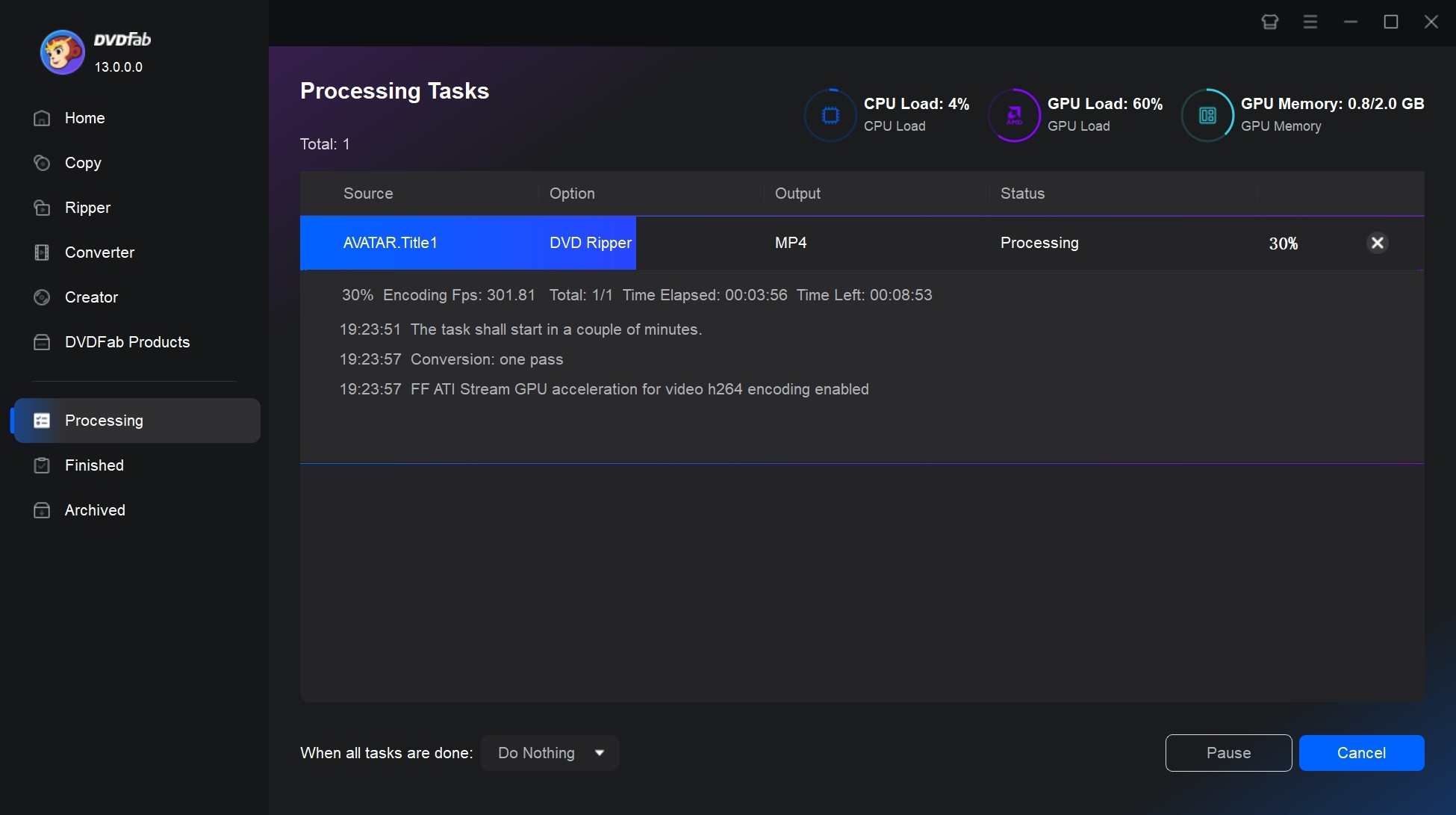
You are given the choice to either store the video files on your hard drive or mobile device. On supported Macs, Apple VideoToolbox hardware acceleration can shorten processing time, although actual speed depends on the CPU, GPU, memory, optical drive, source disc, and selected output settings. Click the "Start" button and DVDFab will begin to convert DVD to MP4 on Mac.
FAQs
Is it legal to rip a DVD on Mac?
It is generally considered legal to make backup copies of your beloved DVDs for personal use. However, making copies of commercial DVDs may be illegal in some places. Please use any free DVD rippers mentioned responsibly and in accordance with your local laws.
What is the best DVD ripper software for Mac?
The best choice I recommend in 2026 is DVDFab DVD Ripper. It is fast, lightweight, and optimized for ripping DVDs to iPhone, iPad, Apple TV formats, and supports almost all known DVD protections. DVDFab is ideal for users creating high-quality digital backups.
Is there a free DVD ripper for Mac that works with encrypted discs?
Yes, but free DVD rippers for Mac that handle encrypted discs are increasingly limited, especially with the advancement of DVD copy protections. Here are the most recommended options based on performance:
- DVDFab offers a free DVD ripper for Mac in the form of HD Decrypter. It can decrypt and rip DVDs released 1 year ago to MP4 or MKV formats. However, newer discs with advanced DRM (such as Cinavia) may require the full paid version.
- MakeMKV is also one of the reliable tools that can decrypt commercial DVDs on Mac for free. It bypasses the most common protections such as CSS and region codes. However, it tends to output larger MKV files and lacks editing options.
What is the best format to rip a DVD on Mac?
MP4 is widely used on all kinds of portable devices like PS4, Xbox One, etc. MKV is well-known for its container format for keeping multiple videos, audios, images and subtitles. And AVI is also be frequently used when converting DVD to digital.
How to rip DVDs on Mac with VLC?
VLC is a multi-platform compatible player. Although it is capable of converting video formats and even ripping DVDs, the process can be complicated and may result in quality degradation, not to mention its inability to handle any DRM-protected DVDs. If you insist on using it, here's how you can rip a DVD using VLC on your Mac:
- Open VLC media player on your Mac. Go to the "File" menu and select "Open Disc".
- In the "Open Media" window, select the "Disc" tab.
- Check the box next to "DVD" and select the DVD drive from the dropdown menu.
- The DVD menu option doesn't work well on VLC. But you can choose audio and subtitles.
- While the DVD is playing, go to the "Playback" menu and select "Convert/Save".
- In the "Convert" window, under the "Profile" dropdown menu, select the format you want to convert the DVD to (e.g. MP4).
- Choose the destination folder where you want the ripped files to be saved. Click on the "Start" button to begin ripping the DVD.
Do Apple Silicon Macs need an external DVD drive?
Most current Apple Silicon Macs do not include an optical drive, so you need a compatible external DVD drive. The ripping software must also support your installed macOS version and either run on Apple Silicon or use a supported translation layer. Install the app from its official download page and check its stated system and drive requirements.
Why does a DVD ripper show very short titles or stop scanning?
Several unusually short titles, a prolonged scan, or a stalled read can result from the disc structure, limited app support, drive-readability problems, or source damage. Install the latest app update, inspect the disc and drive, consult the official troubleshooting guide, and use the product trial with that specific DVD before purchasing.
Conclusion
The best free DVD ripper for Mac depends on your disc type and output needs, while our broader free DVD ripper roundup also covers Windows choices. For protected retail DVDs, DVD ISO files, or VIDEO_TS folders, I would choose DVDFab DVD Ripper for Mac when I need disc analysis, MP4 or MKV output, subtitle and audio control, and batch conversion in one Mac app.
For a free workflow, use HandBrake when the DVD source is home-authored, unencrypted, or already accessible. If you want to keep the selected original video, audio, and subtitle streams, use MakeMKV to save the disc as an MKV file, then use HandBrake to create a smaller MP4 or device-friendly version. The tradeoff covered in this DVDFab vs MakeMKV comparison is whether you need configurable conversion or an archive-first MKV file: DVDFab suits users who want one Mac app with editing and acceleration, while MakeMKV remains a straightforward choice for large MKV archives.

 4 Free DVD Rippers for Windows 10/11: Best Tools & Step-by-Step GuideBy Diana Smith - Oct 13, 2026
![How to Convert DVD to AVI Free: 3 Current Options [2026]](https://images.dvdfab.cn/artifact/2026/09/17/2HqH4KgGwIXxwkHdUUZtp0D98DCpL4gS/feature_cover.jpg) How to Convert DVD to AVI Free: 3 Current Options [2026]By Diana Smith - Oct 12, 2026
How to Convert DVD to AVI Free: 3 Current Options [2026]By Diana Smith - Oct 12, 2026 How to Copy DVD to Computer on Windows & Mac: Rip and Direct CopyBy Wenny Yan - Oct 12, 2026
 Free DVD Decoder for Windows XP and Windows 11: 3 Ways to Play DVDsBy Diana Smith - Sep 23, 2026