HandBrake Review 2026: Is It Free and Worth Using?

Summary: HandBrake is a free, open-source video transcoder valued for strong batch processing, good output quality, offline privacy, device presets, and hardware acceleration. Its main drawbacks are a steep learning curve, limited output containers (MP4, MKV, and WebM), and high CPU usage during encoding.
Table of Contents
HandBrake is still worth using when you need free, local video transcoding or want to convert an unprotected disc source. It is less suitable for protected commercial DVDs, broader device-profile needs, or users who prefer a guided disc workflow with minimal setup. In this HandBrake review, I'll examine its features, workflow, strengths, limitations, and best-fit use cases.

HandBrake Review: What It Does in 2026
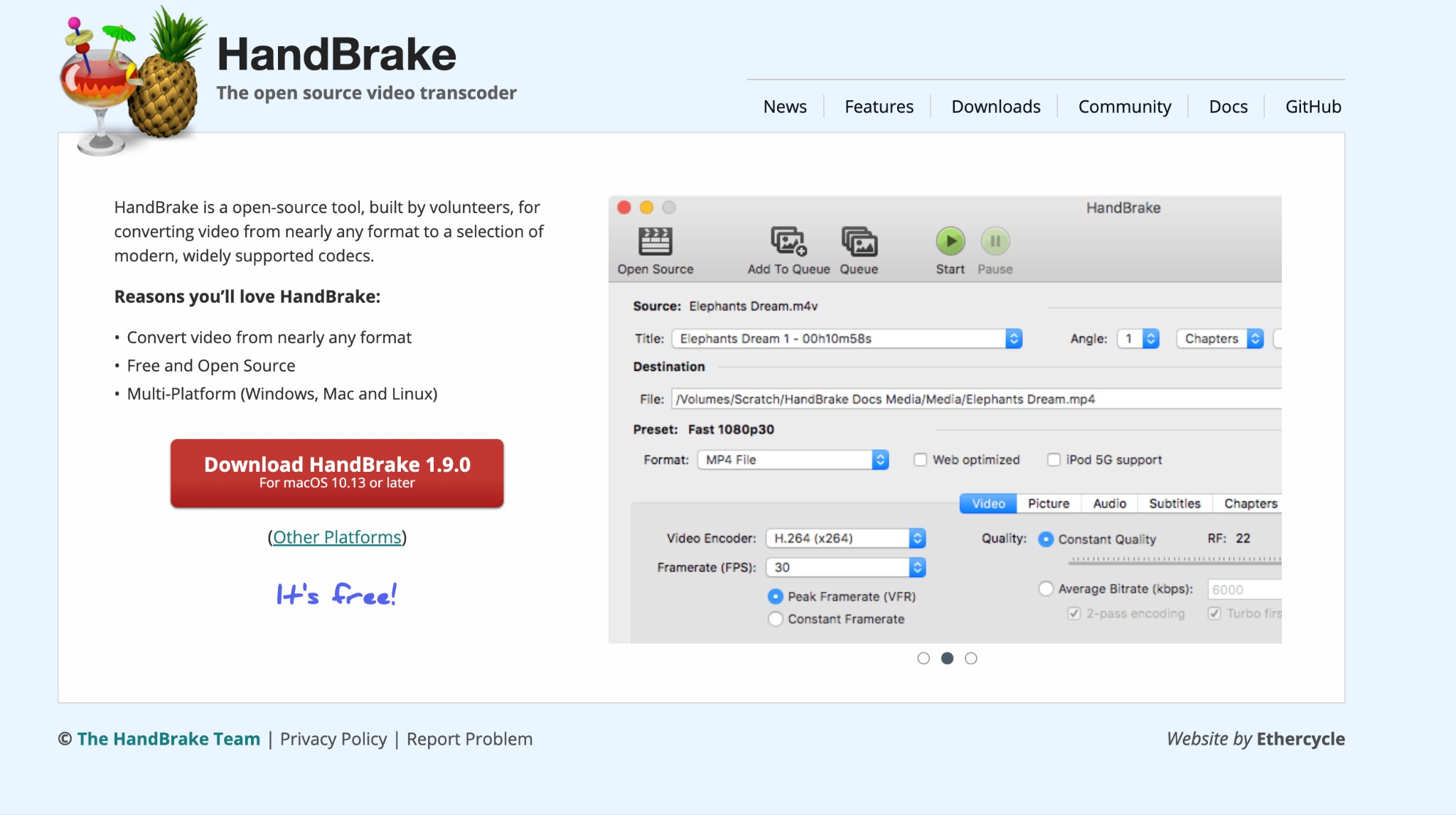
What is HandBrake? It is a free, open-source video transcoder available for Windows, macOS, and Linux. It can open many common video formats, including MP4, MKV, MOV, AVI, FLV, and WebM, and convert them into MP4, MKV, or WebM files using codecs such as H.264, H.265, and AV1. It also provides presets for phones, tablets, TVs, streaming devices, and web playback.
HandBrake can convert unprotected DVD and Blu-ray content into digital video files for smaller file sizes, broader playback compatibility, or personal backups. However, it cannot decrypt copy-protected commercial discs. The current version is HandBrake 1.11.2, released on March 22, 2026.
Core Features and Output Formats
HandBrake combines beginner-friendly presets with detailed controls for video, audio, subtitles, filters, and output quality. Its main features include:
- Queueing multiple videos for batch conversion
- Converting videos and unprotected DVD or Blu-ray sources to MP4, MKV, or WebM
- Using device and web presets for easier playback compatibility
- Cropping, scaling, deinterlacing, denoising, and applying other video filters
- Adding, selecting, removing, passing through, or burning subtitles into the video
- Downmixing surround sound or converting audio to another codec
- Passing through supported audio tracks without re-encoding
- Adjusting audio gain and, for compatible AC3 sources, dynamic range compression
- Selecting titles, chapters, and specific time ranges
- Preserving chapter markers and HDR metadata where supported
- Using supported hardware encoders to reduce conversion time
- Previewing the output before starting a full encode
For a closer look at its queue and batch workflow, see this HandBrake batch conversion tutorial.
Is HandBrake Free?
Yes. HandBrake is free software for personal and professional transcoding tasks, with no paid edition required to access its core encoder, preset, filter, preview, or queue features.
Free does not mean it replaces every specialist utility. It works well with ordinary video files and supported unprotected media, while commercial-disc tasks can require a different source-reading workflow.
Platforms and System Requirements
HandBrake remains available for Windows, macOS, and Linux, but the requirements differ by platform.
| Platform | Current guidance |
| Windows | Windows 11 is supported; Windows 10 version 1909 or later is deprecated. |
| macOS | macOS 14 Sonoma, 15 Sequoia, and 26 Tahoe are supported; the app is universal for Intel and Apple Silicon. |
| Linux | Current Fedora and Ubuntu LTS releases are supported through the documented packages, Flatpak, or source routes. |
Memory guidance: Plan for 16 GB for 480p through 1080p work and 32 GB for 4K. These are planning figures rather than a promise of equal performance. Encoder, filters, resolution, storage speed, and hardware support all affect HandBrake encoding speed.
How to Use HandBrake for Video Conversion
The following steps explain how to convert a supported video file or unprotected disc source. HandBrake cannot decrypt protected discs on its own. The third-party libdvdcss library may help it read some DVDs protected only by basic CSS encryption, but it is not a general solution for newer protection schemes.
Step 1: Download HandBrake and Load the Source
Get the HandBrake official download from handbrake.fr. The project also publishes checksums and OpenPGP verification information, which lets you confirm that the installer matches the file released by the project.
- Download the build for your operating system from the official project site.
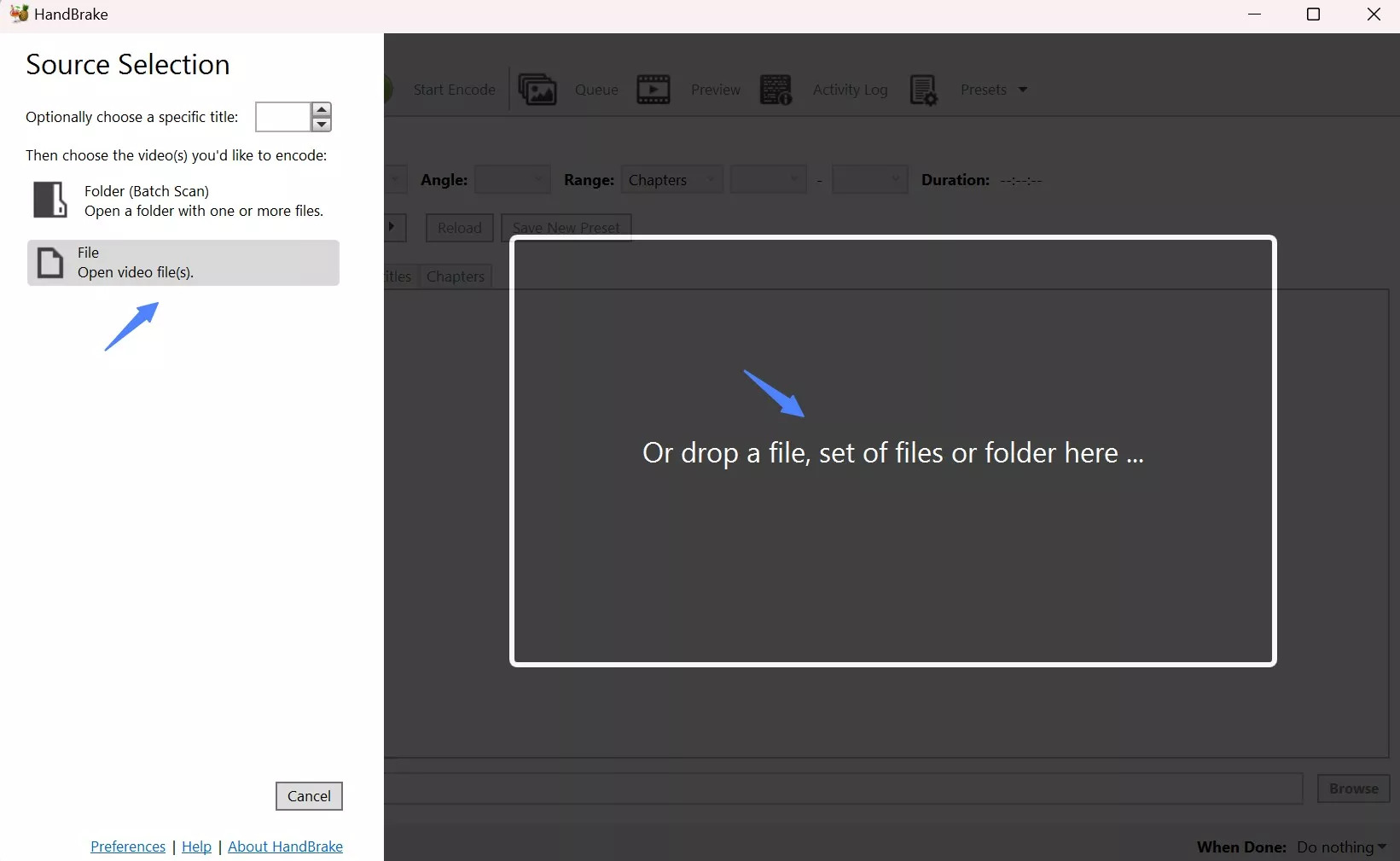
- Install and open HandBrake, then select Open Source.
- Load a supported video file, folder, or unprotected disc source.
If a source will not scan, use the focused guide for the HandBrake "no valid source found" error.
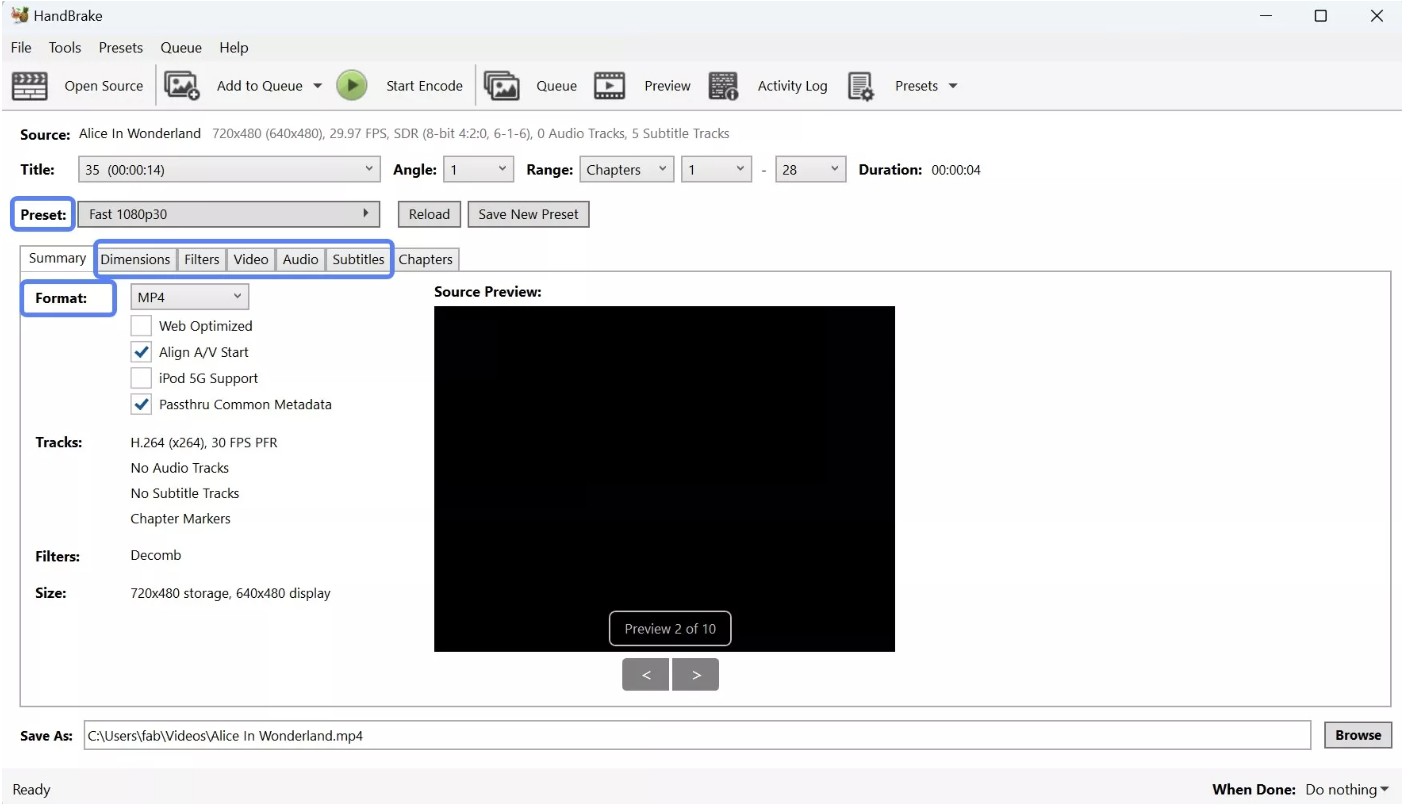
Step 2: Choose a Preset and Container
Start with the playback target, then choose a preset, container, and codec. MP4 is a practical compatibility choice, MKV is useful for richer track and subtitle handling, and WebM fits web-oriented codec combinations.
- Select a preset near the source resolution rather than increasing resolution without a clear need.
- Choose MP4/M4V, MKV, or WebM as the container.
- Confirm that the selected video and audio codecs work on the destination device or app.
Step 3: Balance Quality, Size, and Speed
HandBrake video quality depends on the source, codec, constant-quality target, encoder preset, filters, resolution, and hardware path. Smaller files usually require a tradeoff in detail, encoding time, compatibility, or some combination of the three.
- Use the constant-quality control as the main quality target instead of guessing a fixed bitrate for every source.
- Apply filters only when the source needs them; heavy denoising or deinterlacing adds time and can change detail.
- Compare a short preview with the intended playback device before committing a long queue.
I use the same source segment when comparing software and hardware encoders, then check motion, fine texture, file size, and device playback. That controlled comparison is more useful than treating one preset name as a universal answer.
Step 4: Preview, Queue, and Encode
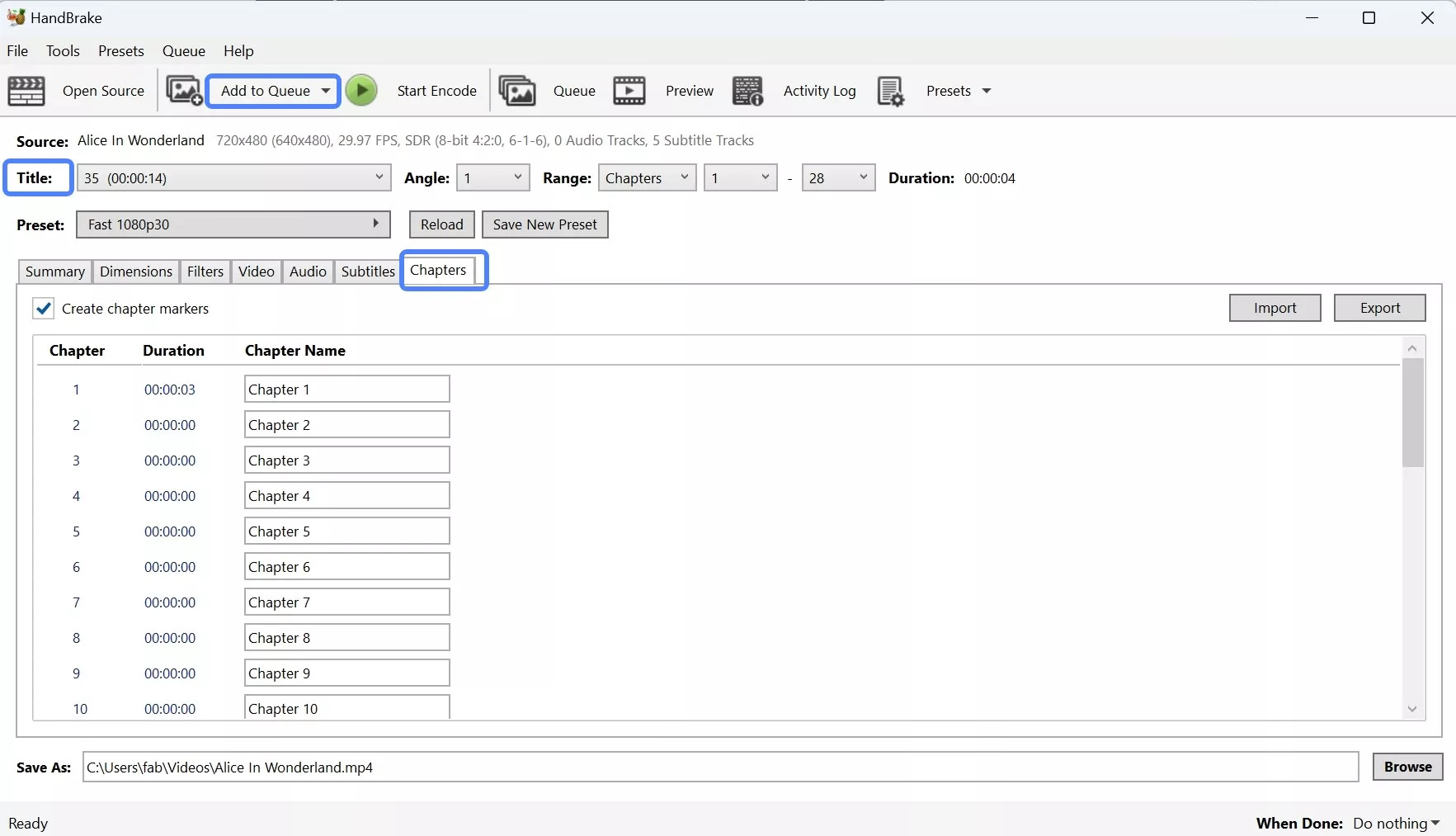
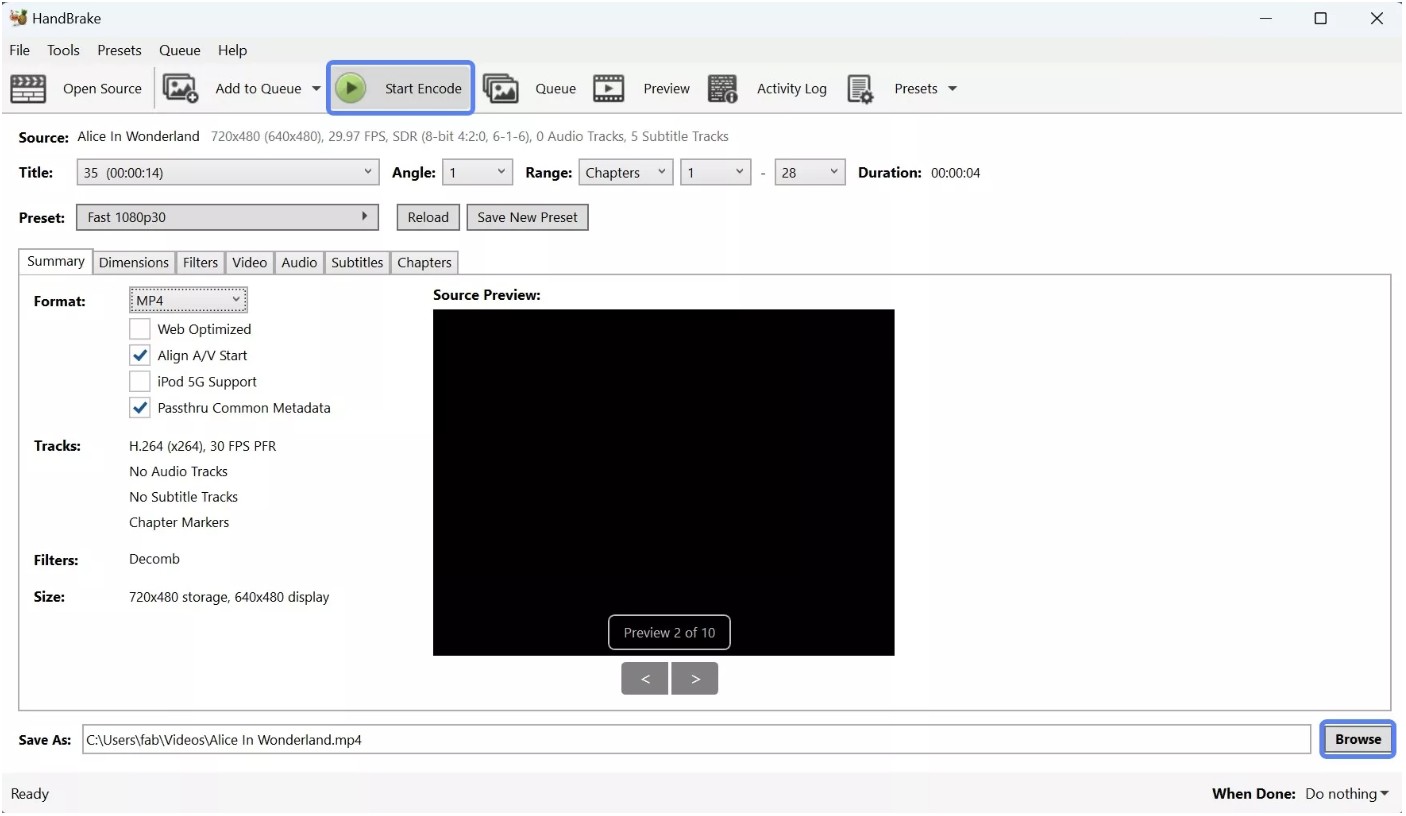
Preview the settings, add the job to HandBrake's encode queue, choose the destination, and start encoding. The queue is built in, although scanning several sources and tuning each title can still require manual preparation.
- Open Preview and inspect a representative section.
- Choose the destination with Browse.
- Select Add to Queue, repeat for additional jobs, and then start the queue.
- Play the finished file and verify video, audio, subtitles, chapters, and seeking.
HandBrake Feedback: Its Pros and Cons
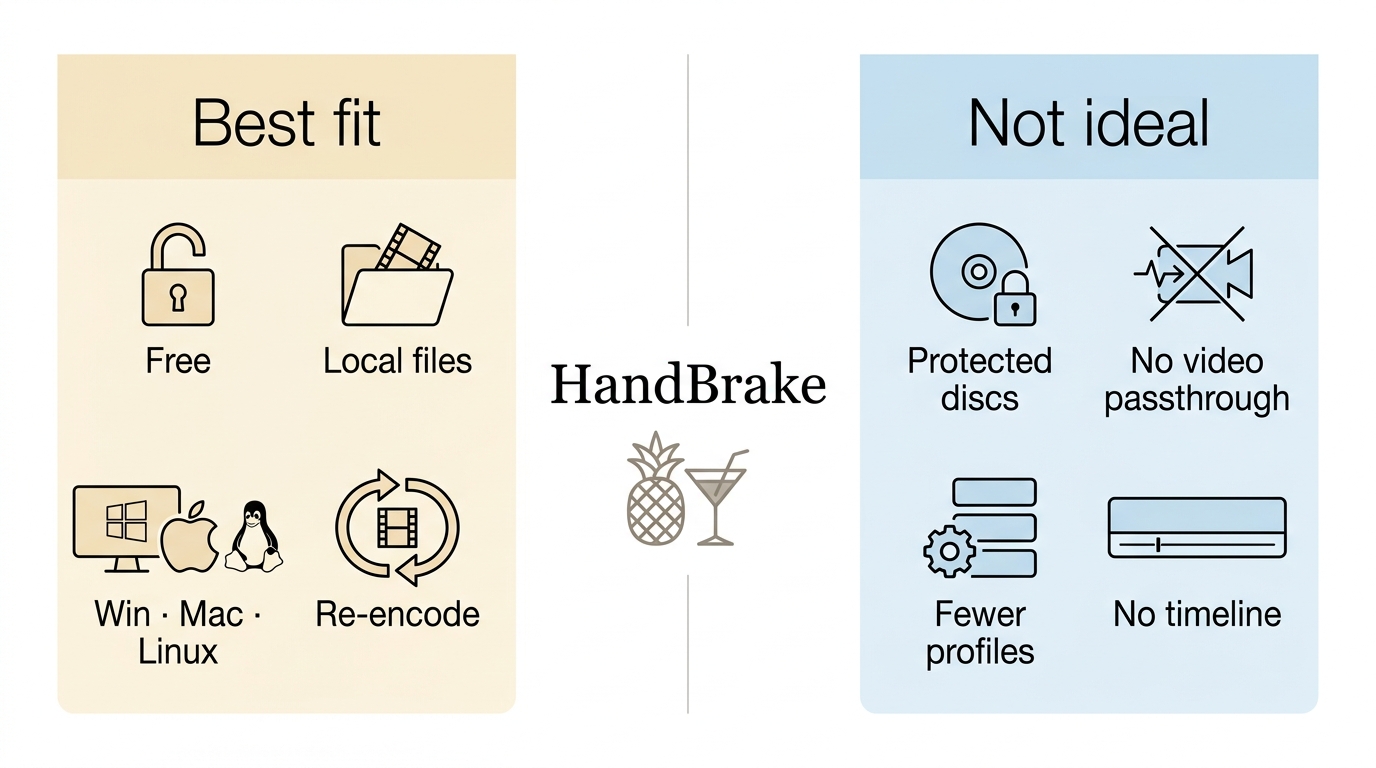
In my test, HandBrake works best for users who want a free, flexible transcoder and do not mind adjusting a few encoding settings. Its presets, preview feature, and built-in queue are useful for everyday conversions, while the advanced video, audio, subtitle, and filter controls give experienced users more control over the output.
However, the large number of settings can make the interface difficult for beginners. HandBrake does not decrypt copy-protected discs on its own. Encoding may also take a long time on older or less powerful hardware. Although multiple jobs can be added to the queue, importing and managing large batches is less convenient than with some professional alternatives.
- Free local transcoding: HandBrake converts ordinary video files and supported unprotected media without requiring a paid license.
- Useful preview and queue: Preview helps check a short sample, while the built-in queue organizes multiple encode jobs.
- Flexible quality control: Presets, constant-quality settings, filters, audio, and subtitles support detailed output decisions.
- Broad source compatibility: HandBrake reads many common camera, phone, screen-recording, and video-file sources, then writes MP4/M4V, MKV, or WebM.
- Limited output containers: HandBrake writes MP4/M4V, MKV, and WebM, so it is less suitable when a workflow requires another container.
- Variable encoding time: Performance depends on the encoder, preset, filters, resolution, quality target, and available CPU or GPU path. Demanding settings can make long videos take considerably longer to process.
- No built-in disc decryption: HandBrake can process unprotected DVD and Blu-ray sources, but it is not designed to decrypt protected commercial discs. Libdvdcss may help with basic CSS protection, but it does not cover newer protection schemes.
- Not a full editor or authoring tool: HandBrake can crop, scale, filter, and manage tracks, but it does not provide a timeline editor or create DVD and Blu-ray disc structures.
HandBrake Alternative: DVDFab DVD Ripper
HandBrake works well when the source opens without issues, but its limitations become more noticeable when you need to process protected commercial DVDs, preserve the original video through passthrough, or choose from a wider range of ready-made device profiles. In these situations, I would use a dedicated DVD ripper instead.
HandBrake vs DVDFab DVD Ripper
DVDFab DVD Ripper is a tested alternative to HandBrake that offers broader and more reliable disc-ripping features. It supports most copy-protected DVDs and can convert them to passthrough formats such as MKV or re-encoded formats such as MP4, AVI, and more. The comparison below shows how the two tools differ and which one better suits your needs.
| Comparison Dimension | HandBrake | DVDFab DVD Ripper |
| Supported Platforms | Windows, macOS, and Linux | Windows and macOS |
| DVD Decryption | No official support for decrypting CSS or DRM; requires third-party libdvdcss to handle some CSS-protected DVDs | Built-in decryption for CSS, APS, RC, RCE, Sony ARccOS, UOPs, RipGuard, and more; continuously updated through Cloud Decryption Service |
| Supported Input | Unprotected DVDs and Blu-rays, ISO files, VIDEO_TS folders, and common video files | DVD-5/9, DVD±R/RW, DVD-RAM, DVD-R DL, ISO files, VIDEO_TS folders, and commercial or homemade discs |
| Output Containers | MP4/M4V, MKV, and WebM | MP4, MKV, AVI, and more; supports 1,000+ video and audio formats |
| Video Encoders | H.264, H.265/HEVC, AV1, MPEG-4, and MPEG-2 | H.264, H.265/HEVC, MPEG-4, and AV1 |
| Audio Output | AAC, AC3/E-AC3, TrueHD, Opus, FLAC, ALAC, Vorbis, and MP3 | MP3, WAV, FLAC, AAC, AC3, and more |
| Hardware Acceleration | Intel QSV, NVIDIA NVENC, AMD VCN/AMF, Apple VideoToolbox, and Media Foundation | NVIDIA CUDA/NVENC, AMD AMF, Intel Quick Sync, and macOS VideoToolbox |
| Quality Modes | Re-encoding only, with adjustable CRF or bitrate; no lossless backup mode | Lossless MKV Passthrough and compressed modes; can preserve the original quality 1:1 |
| Ripping Speed | About 20 minutes for a DVD-9 with hardware acceleration | About 4–7 minutes for a two-hour movie on an RTX 4060 Ti using the Fast Speed preset |
| Built-in Editing | Basic filters such as cropping, scaling, deinterlacing, and denoising | Full editor with cropping, trimming, merging, watermarking, external subtitle import, color adjustment, and audio track selection |
| Device Presets | General presets are available, but there is no large catalog of device-specific profiles | 260+ device presets for Apple, Samsung, Sony, and other brands |
| Batch Processing and Queue | Supports a batch queue | Supports multitasking and queued batch processing |
| AI Enhancement | None | NVIDIA AI Enhancer and Detail Refiner AI for mosaic removal and detail restoration |
| Metadata and Subtitles | Basic subtitle tracks and chapter markers | Automatically syncs movie information, generates .nfo files, converts subtitles to SRT with OCR, and provides built-in subtitle adjustments |
| Updates and Support | Community-driven with no fixed update schedule | 50+ official updates per year with customer support |
| Typical Use Cases | Compressing decrypted or homemade DVDs and free cross-platform transcoding | Decrypting and backing up commercially protected DVDs; suitable for users who prioritize speed, lossless output, or ease of use |
Key Features of DVDFab DVD Ripper
- Removes old and latest copy-protection technologies, such as CSS, region code, APS, Sony DADC, etc., from DVD disc
- Rip and convert DVD content to over a thousand digital media formats, including popular ones like MP4, MKV, and more
- Supports batch conversion at rapid speed with the latest CPU and GPU Hardware acceleration technologies
- Customize output videos with tailored settings and a built-in video editing function to trim, crop, or add watermarks and subtitles
Ripping DVDs With DVDFab DVD Ripper
Step 1: Free download DVDFab DVD Ripper on your computer.
Free Download Windows 11/10/8.1/8/7
Free Download macOS 10.13 - 15.x
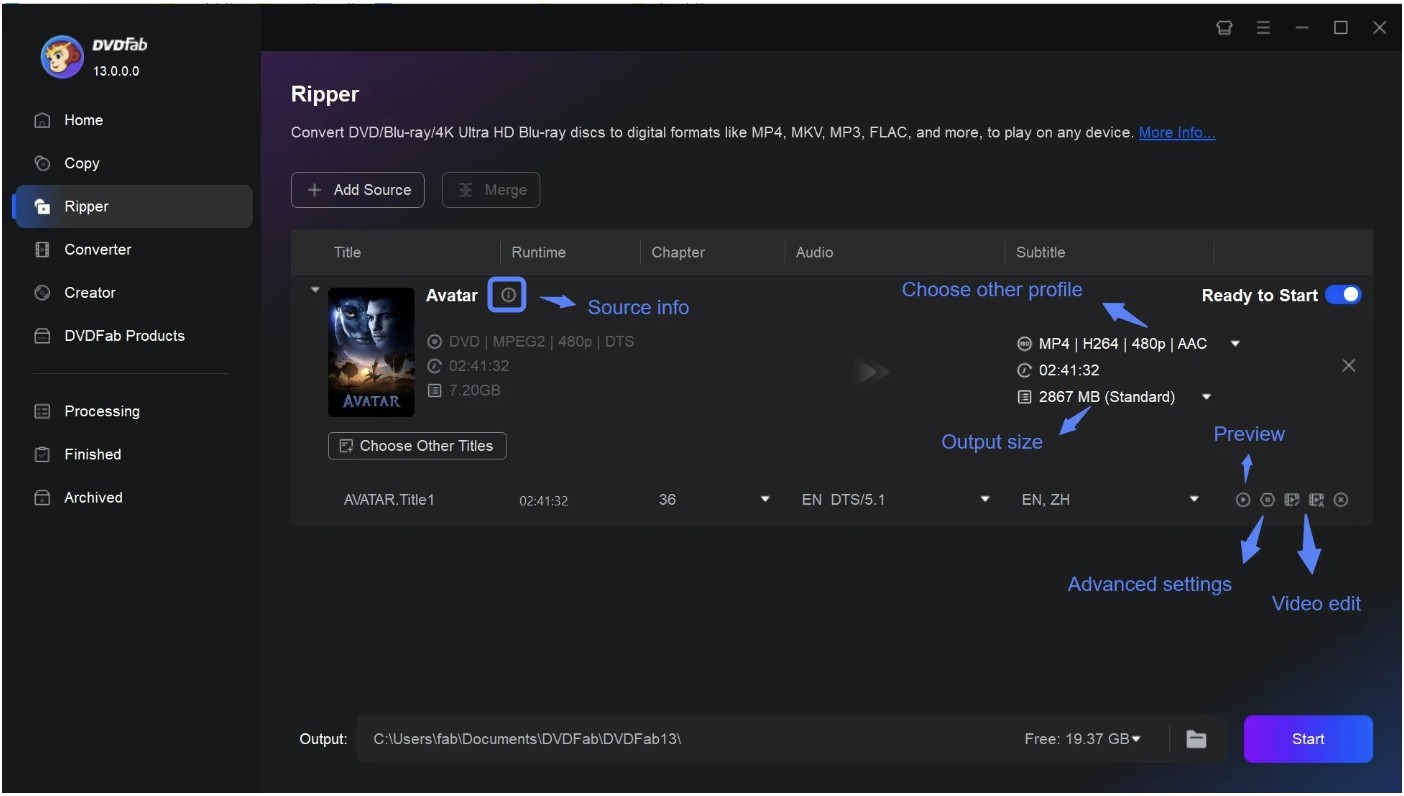
Step 2: Open DVDFab, select the Ripper module, and insert the DVD. You can also load a DVD folder or ISO file by clicking Add Source or dragging it into the interface. DVDFab will analyze the disc and remove supported copy protections.
Step 3: Click Choose Other Profile and select a format such as MP4, MKV, or a preset for your playback device. Choose a passthrough profile when you want to retain the original video and audio quality.
Step 4: Select the title, chapters, audio tracks, and subtitles you want to keep. You can also adjust the resolution, codec, bitrate, and other settings or use the built-in editor to trim, crop, or modify the video.
Step 5: Choose a destination folder and click Start. DVDFab will convert the DVD and display the progress until the digital video is ready.
FAQs
Where should I download HandBrake safely?
Use handbrake.fr, the project's GitHub releases, or its documented Flathub route. You can compare the published checksum or OpenPGP signature to verify the installer.
Does HandBrake work well on a current Mac?
Yes. HandBrake for Mac supports the Intel and Apple Silicon systems listed in its current requirements. Actual speed depends on the codec, preset, filters, resolution, and available hardware encoding.
How Long Does HandBrake Take to Convert a Video?
There is no fixed conversion time because speed depends on the source length, resolution, encoder, preset, filters, and hardware. Supported HandBrake GPU acceleration can shorten some jobs, while slower software presets and heavy filters can make the same video take much longer.
Can HandBrake process several videos in one queue?
Yes. HandBrake includes an encode queue for multiple jobs, although each source may still require its own title, profile, and track settings.
Does HandBrake always reduce video quality?
HandBrake re-encodes video, so some change is inherent, but the visible result depends on the source and settings. A suitable constant-quality target, restrained filters, and a short preview can help balance detail and file size.
Conclusion
HandBrake remains one of the most capable free transcoders for everyday video conversion and unprotected disc sources. The real decision is whether its limitations affect your workflow. For ordinary video files and unprotected discs, HandBrake is often all you need. For protected commercial DVDs, lossless MKV Passthrough, broader device profiles, or a more smooth ripping process, a advanced HandBrake alternative such as DVDFab DVD Ripper is the more practical choice.

 4 Free DVD Rippers for Windows 10/11: Best Tools & Step-by-Step GuideBy Diana Smith - Oct 13, 2026
![How to Convert DVD to AVI Free: 3 Current Options [2026]](https://images.dvdfab.cn/artifact/2026/09/17/2HqH4KgGwIXxwkHdUUZtp0D98DCpL4gS/feature_cover.jpg) How to Convert DVD to AVI Free: 3 Current Options [2026]By Diana Smith - Oct 12, 2026
How to Convert DVD to AVI Free: 3 Current Options [2026]By Diana Smith - Oct 12, 2026 How to Copy DVD to Computer on Windows & Mac: Rip and Direct CopyBy Wenny Yan - Oct 12, 2026
 Free DVD Decoder for Windows XP and Windows 11: 3 Ways to Play DVDsBy Diana Smith - Sep 23, 2026