How to Make Your Own DVDs on Mac and Windows

Making your own DVDs becomes confusing when a disc holds video files but will not play in a standalone DVD player. The key is DVD-Video authoring: load local videos, customize the menu and playback settings, then burn the authored project to compatible DVD media.
Choose DVD-Video for compatible standalone players; choose a data DVD when you only need to store the original files. Before you begin, gather the items below.
- • Compatible writable DVD media, such as a DVD-R for write-once use or a DVD-RW for rewritable storage.
- • A computer with a built-in DVD writer, or a compatible external DVD writer.
- • DVD authoring software that creates a DVD-Video structure with menus and playback settings.
- • Local video files that you are authorized to use and copy.
How to Make a DVD with DVDFab DVD Creator
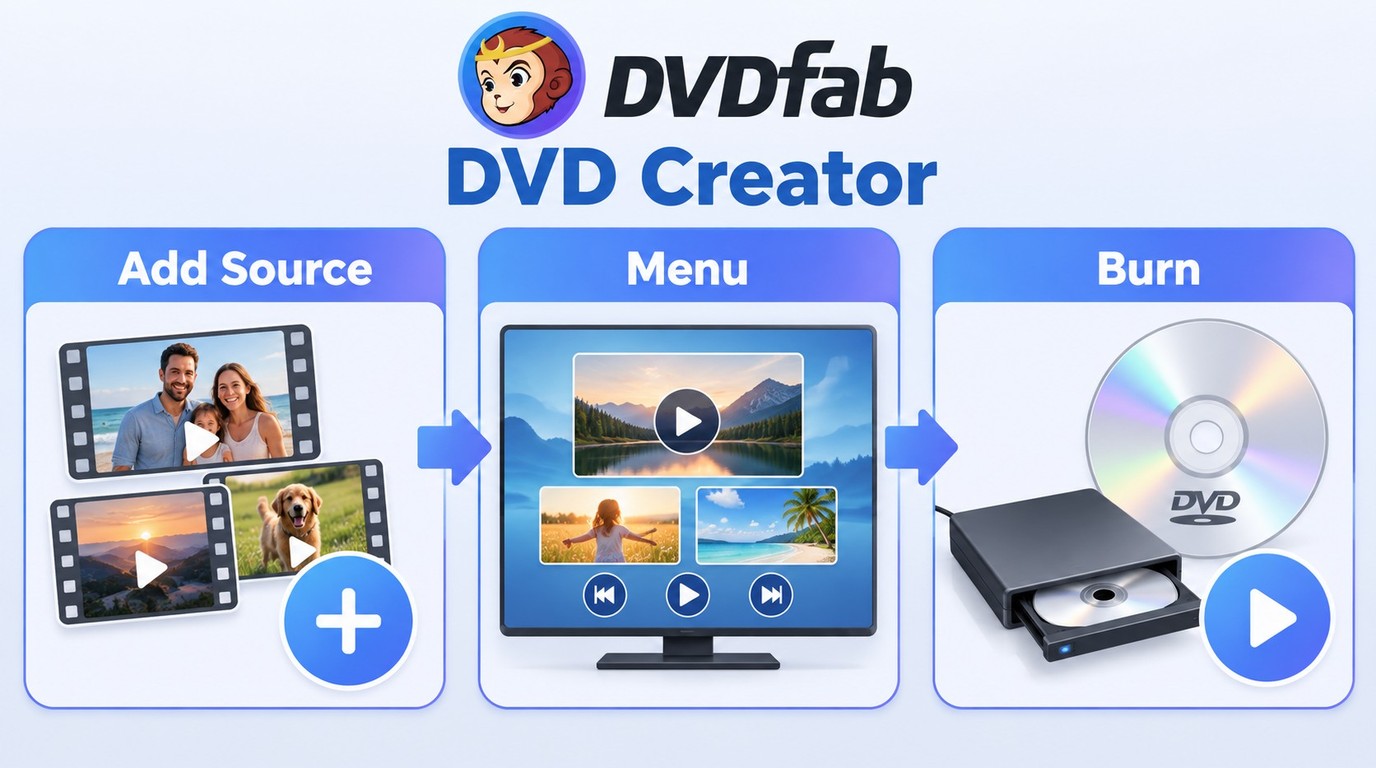
DVDFab DVD Creator is an excellent tool for anyone looking to make a DVD easily. It allows you to convert a variety of video formats and burn them to high-quality DVDs. With support for GPU acceleration, the software ensures the entire process more efficient. Additionally, DVDFab offers powerful customization features, including the ability to design personalized menus, and edit videos by trimming clips or adjusting the content to suit your preferences.
Use this process to author local videos as DVD-Video for content you own or are authorized to use.
Step 1: Launch DVDFab software and Load Your Videos
Open DVDFab 13, select the Creator module, and choose "DVD Creator" from the top-left mode switcher. Then, add the videos you want to burn to a DVD or save as digital files. You can also drag and drop the videos into the main window.
DVDFab DVD Creator requires Windows 11/10 64-bit or macOS 12+. Use the official DVDFab download for the installer, and connect a compatible external DVD writer if your computer does not have one. A local MP4 file can be added through the same import screen for an MP4 to DVD conversion.
Note: DVDFab allows you to burn multiple videos of different formats to one DVD simultaneously and arrange their playback order as desired.
Free DownloadWindows 11/10/8.1/8/7
Free DownloadmacOS 12 or newer

Step 2: Make a DVD Menu and Customize the Output Settings
Customize your DVD by choosing the desired audio tracks and subtitles. Click "Advanced Settings" to adjust the output settings, including selecting DVD-9/5, menu properties, and playback mode.
DVD-Video is a standard-definition format, so authoring an HD source converts it to standard definition; keep the original HD file separately and use the official DVDFab DVD Creator trial, which has some feature limits, to check the DVD result you want. For a conventional US DVD player, choose NTSC, match the source aspect ratio, and select DVD-5 or DVD-9 to match the writable media; DVD-9 holds more data, while longer video on the same disc requires a lower video bitrate.
When you burn a DVD with subtitles, select the intended SRT or ASS track, set the chapter navigation, and preview the menu before continuing.
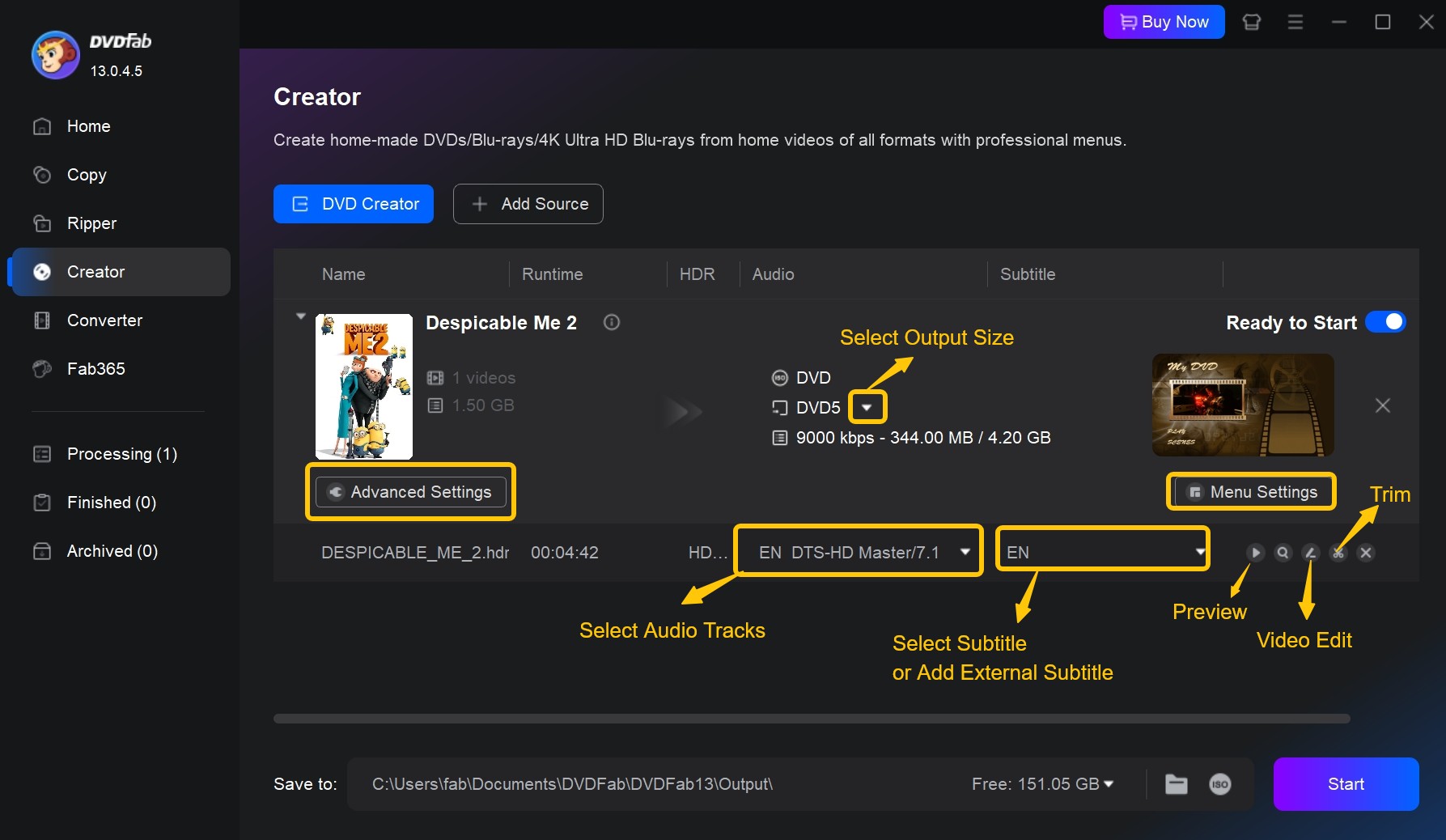
To create DVD menu, click the "Menu Settings" button and choose a template. You can then personalize the menu by editing text (font, size, color), moving elements, and changing the background image.
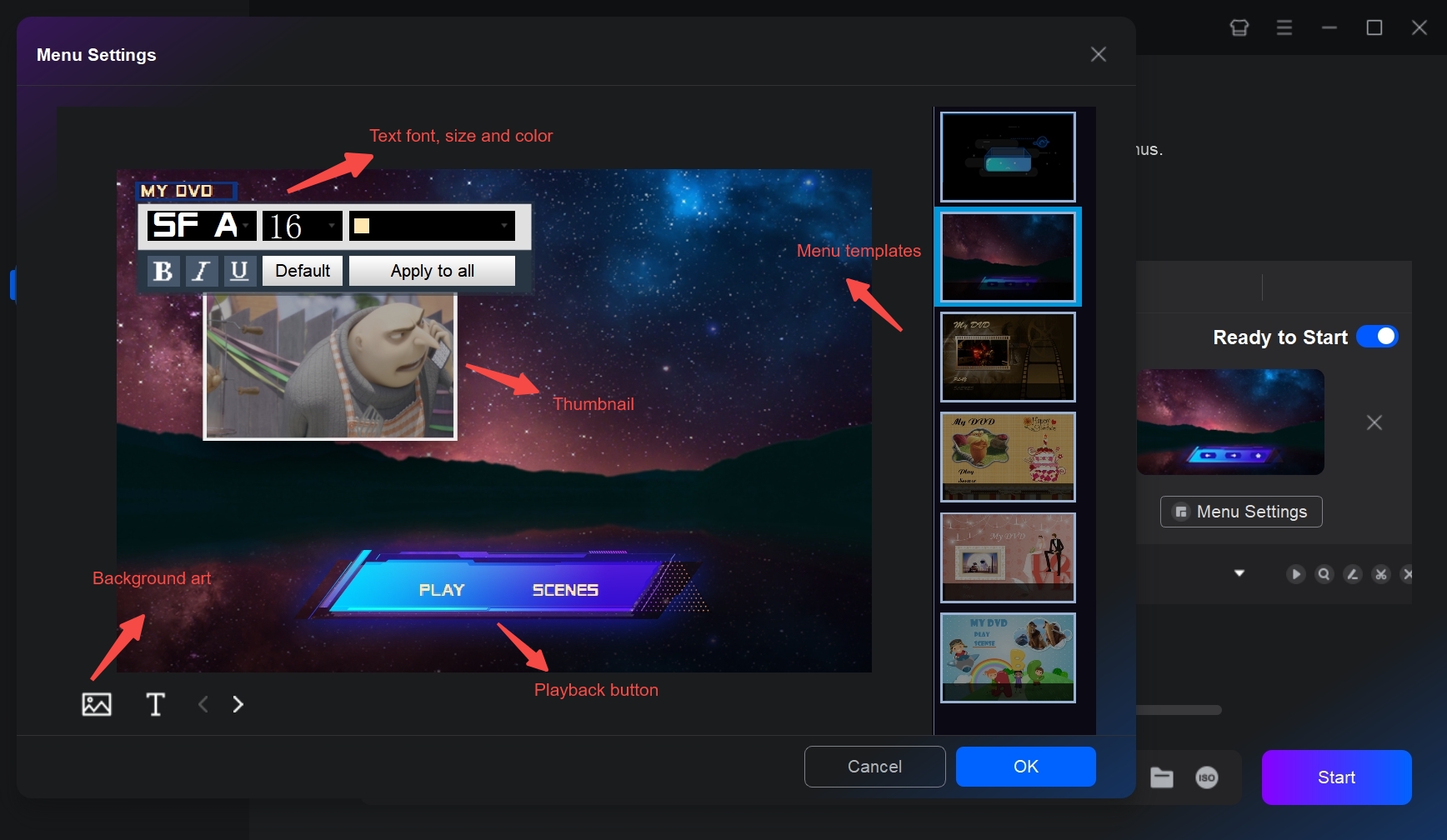
Then, you can use the "Video Edit" and "Trim" features to crop, rotate, flip, or trim your video. It also supports advanced editing features like adjusting brightness, applying filters, and adding watermarks to your video.
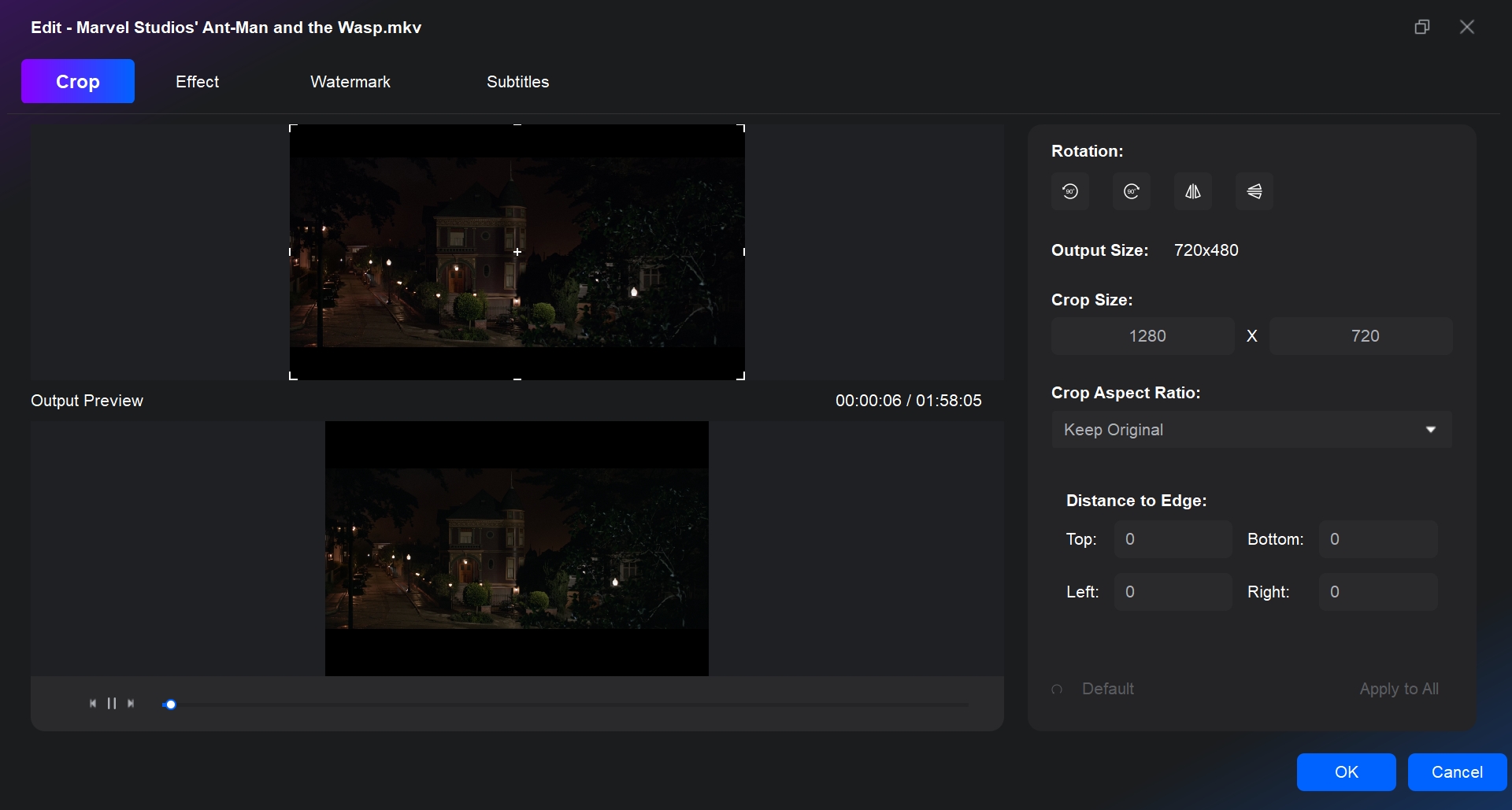
Step 3: Select a Directory and Start to Make Your DVD
Move to the bottom of the main interface to select an output directory. If you want to burn to a DVD, choose your optical drive from the drop-down list. To save as a DVD folder, click the Folder icon, or choose the Image icon for an ISO file.
| Output | Best for | Physical burning needed |
|---|---|---|
| Physical DVD | Compatible standalone DVD player | Written during creation |
| Authored ISO | Storage or later disc burning | Yes, for a physical DVD |
| VIDEO_TS folder | Software playback or later burning | Yes, for a physical DVD |
Finally, click the "Start" button to burn the videos to DVD. DVDFab DVD Creator outputs a physical DVD, an ISO image, or a DVD folder. GPU acceleration assists video processing; physical writing speed is set by the DVD writer and media. The same output choices apply when converting a recorded MTS to DVD.
An authored DVD must be checked on the intended playback device. Test the menu navigation, chapters, selected audio and subtitles, and playback near the beginning, middle, and end of the video.
If the disc does not play correctly, confirm that it contains an authored DVD-Video structure, that the recordable media is supported by the player, and that the burn completed. Choose a write speed supported by both the DVD writer and the media. For Creator or burning errors, use DVDFab's troubleshooting and support options.
FAQs
What are the free tools to make your own DVD?
Free tools differ in whether they author DVD-Video or simply write an existing disc structure. As of October 2026, ImgBurn 2.5.8.0 remains the latest listed release and was published on June 16, 2013. It can burn an already-authored VIDEO_TS folder or image to DVD, but it does not create DVD-Video menus from raw MP4 files. DVDStyler is a free DVD-authoring application with custom menus. Version 3.2.1 was released on November 2, 2021. DVDFab DVD Creator provides a currently supported author-and-burn process on Windows 11/10 64-bit and macOS 12+, combining local video import, menu creation, and physical DVD, ISO, or VIDEO_TS output.
Can I make a playable DVD with built-in computer tools?
File Explorer can burn a DVD on Windows 10, and Finder can burn files on a Mac, but these tools store ordinary video files as a data disc. Creating a DVD-Video disc for a standalone DVD player requires DVD authoring; a player reads raw MP4 files only when it supports the file format and codec. For data-disc storage, insert writable media, select the files in File Explorer or Finder, and use the available disc-burning command. To create a video disc with menus and DVD-Video navigation, use the authoring steps above instead.
What do I need to pay for when making a DVD?
Possible costs include compatible writable DVDs, a DVD writer if your computer does not have one, and a paid authoring license if a free application does not provide the menus, editing, or output options you need.
Why does my DVD work on a computer but not a DVD player?
A computer may read video files from a data disc even when a standalone player cannot. Check that the disc has an authored VIDEO_TS structure, the player supports the recordable media type, and the burn completed successfully. Test the disc on the intended player, including its menus, chapters, audio, subtitles, and several points in the video. A laptop also needs a compatible DVD drive and DVD playback software.
Can I burn my own videos to DVD legally?
Use original videos or content you have permission to copy. Authorized access and permission to copy are separate requirements, and permission depends on the content and intended use. Do not redistribute copied material without permission. Follow applicable law and any relevant platform terms when copying content to DVD.
Conclusion
Making a DVD on Windows and Mac using DVDFab DVD Creator allows users to easily burn high-quality video discs with customizable menus and settings. The tool supports a wide range of video file formats, ensuring compatibility with most media. By adjusting key parameters such as burn speed and menu templates, users can achieve consistent and reliable results, whether creating DVDs for personal use or professional distribution.
For those who also need to work with ISO files, here's a guide to the Best ISO Burner tools available.

![5 Top AVI to DVD Converters for Windows and Mac [2026]](https://images.dvdfab.cn/artifact/2026/10/19/HsCx2t8W3VyD6wHfogzkhte4XqgpBqdz/feature_cover.jpg) 5 Top AVI to DVD Converters for Windows and Mac [2026]By Diana Smith - Oct 20, 2026
5 Top AVI to DVD Converters for Windows and Mac [2026]By Diana Smith - Oct 20, 2026 How to Burn MP3 to DVD: Best Audio DVD Creators Compared (2026)By Wenny Yan - Oct 15, 2026
 How to Burn Video_TS to DVD on Windows and Mac: 4 Methods That WorkBy Diana Smith - Oct 15, 2026
![Convert Video to DVD: 5 Free & Paid Video to DVD Converters [2026]](https://images.dvdfab.cn/media/convert_vidoe_to_dvd_dza0f3.png/public) Convert Video to DVD: 5 Free & Paid Video to DVD Converters [2026]By Diana Smith - Oct 14, 2026
Convert Video to DVD: 5 Free & Paid Video to DVD Converters [2026]By Diana Smith - Oct 14, 2026