Latest Posts
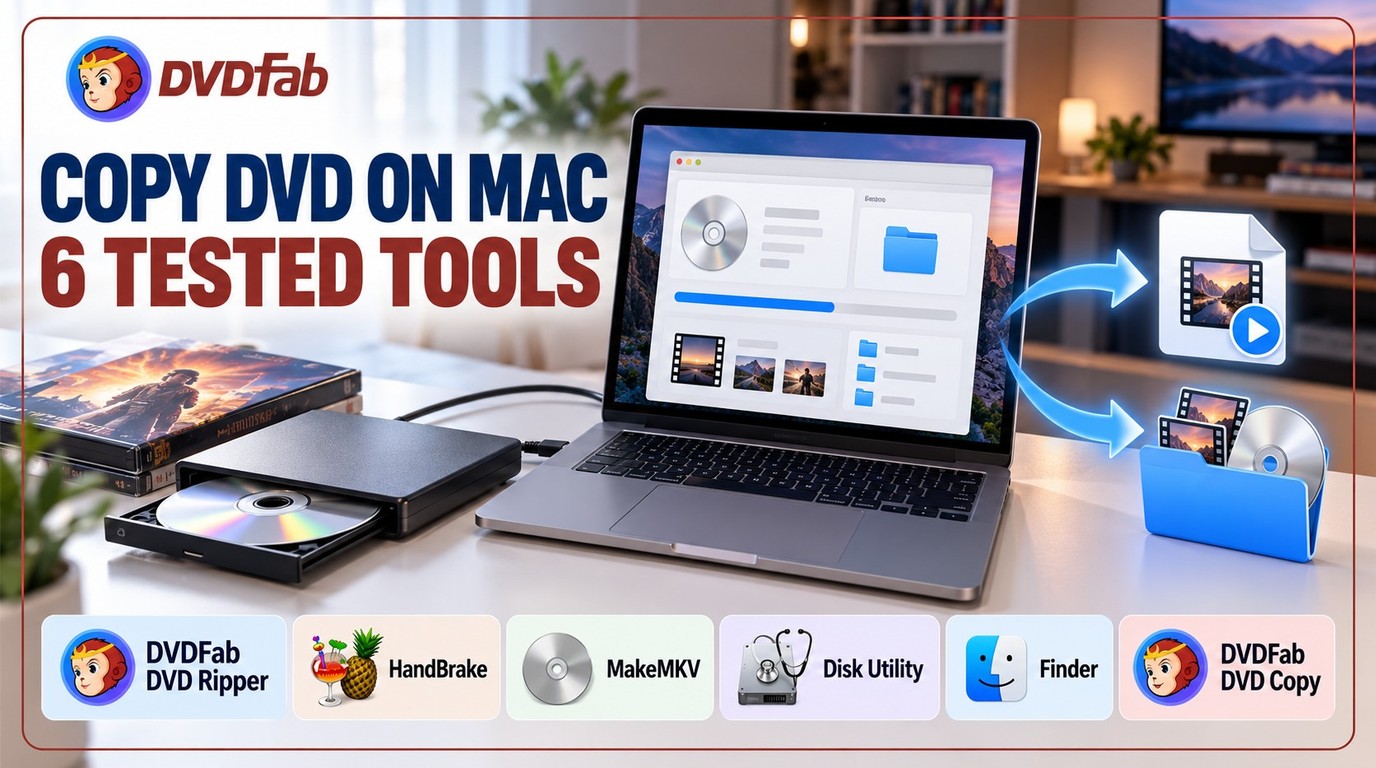 How to Copy DVD on Mac: 6 Tested DVD Copy Software for Mac in 2026
To copy a DVD on Mac, you first need an external DVD drive if your Mac has no built-in optical drive. Movie DVDs should be saved as MP4 or MKV with tools such as DVDFab DVD Ripper, HandBrake, or MakeMKV, while data or software DVDs can be backed up as CDR or ISO files with Disk Utility or Finder. Protected commercial DVDs usually need a dedicated DVD ripper or copy tool like DVDFab because Disk Utility and HandBrake have clear limits.
By Wenny Yan - Oct 26, 2026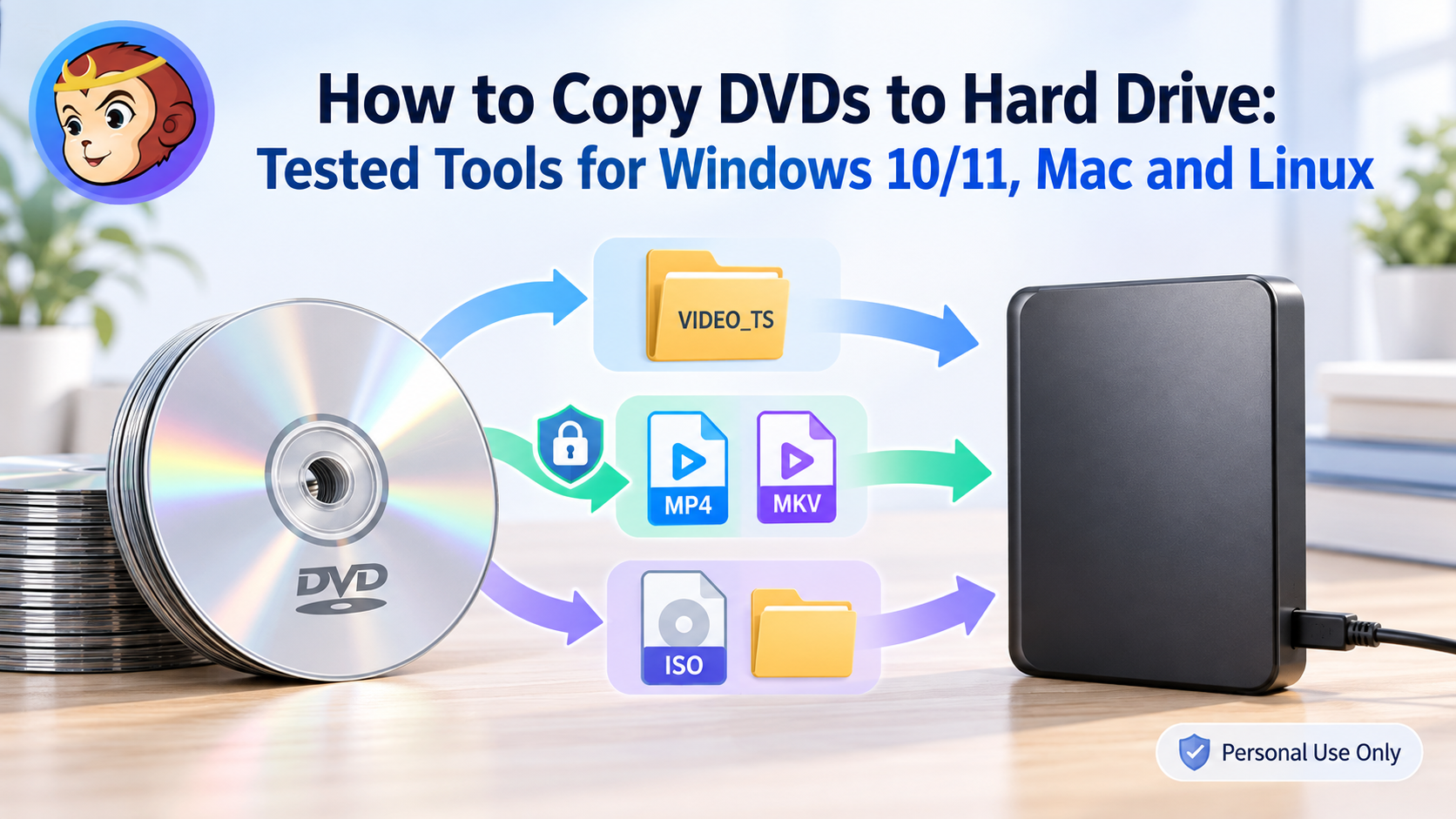 How to Copy DVDs to Hard Drive: Tested Tools for Windows 10/11, Mac and Linux
To copy a DVD to a hard drive, choose the method based on the disc type and output format. For unprotected or homemade DVDs, insert the disc and copy the VIDEO_TS folder to your computer using File Explorer or Finder. For commercial or encrypted discs, you must use tools like DVDFab, MakeMKV, or HandBrake to bypass copy protections and convert the content into a digital format such as MP4, MKV or ISO, which you can then save to your PC or external hard drive. Please also copy only discs you own and use them for purely personal purposes.
By Wenny Yan - Oct 20, 2026 How to Rip Blu-ray for Plex: 3 Workflows for Your Library
This guide compares three ways to rip Blu-ray for Plex: DVDFab Blu-ray Ripper, MakeMKV, and HandBrake, with real speed and quality test data. It also covers which formats trigger Direct Play, why Plex Pass affects hardware transcoding, and how to fix common playback and subtitle issues on Plex Media Server.
By Wenny Yan - Oct 19, 2026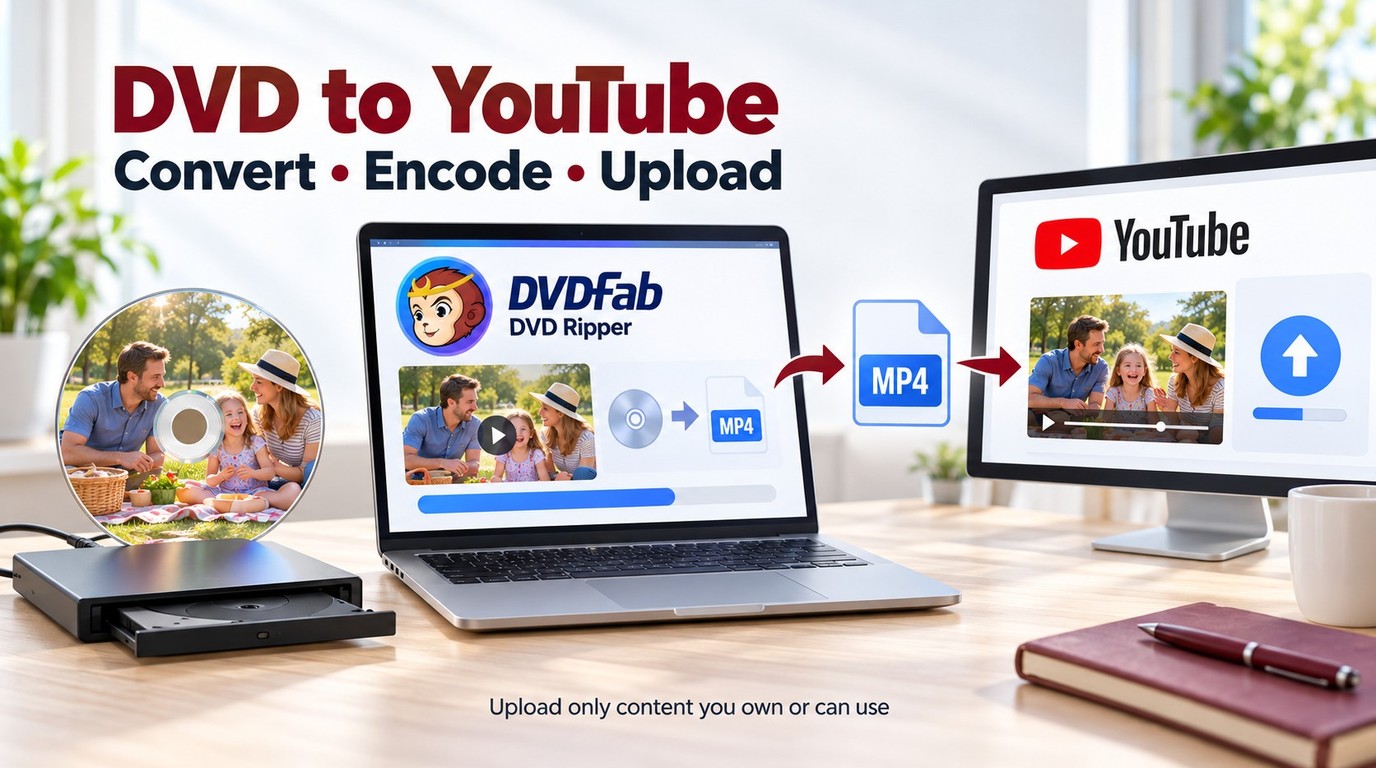 How to Upload a DVD to YouTube: Convert, Encode, and Upload Without Errors
Uploading a DVD to YouTube isn't just about ripping the disc; it's about creating a file YouTube accepts, with stable quality and no upload errors. This guide explains how to convert your DVD into a YouTube-ready video, highlights the supported formats and recommended encoding, and clarifies time and size limits.
By Wenny Yan - Oct 19, 2026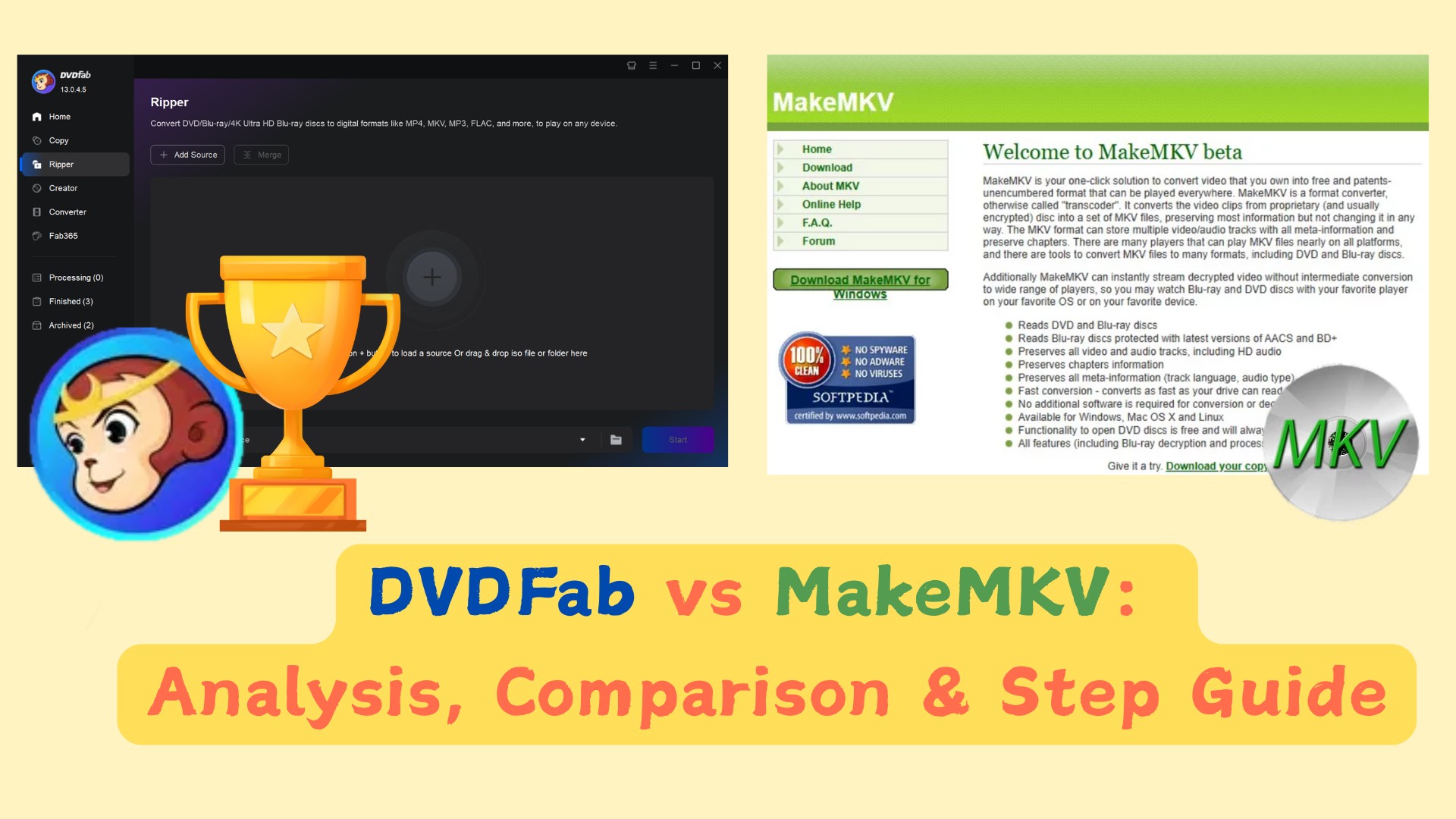 DVDFab vs MakeMKV: Comparison, Test Result & Step-by-Step Guide
DVDFab vs MakeMKV comes down to output control and disc workflow. MakeMKV is better for fast 1:1 MKV archiving of DVD and Blu-ray sources. DVDFab is a more complete all-in-one suite for users who need more than MKV backup. It supports MKV, MP4, AVI, device profiles, file compression, disc cloning, video editing, and disc burning for a broader DVD, Blu-ray, and UHD backup workflow.
By Wenny Yan - Oct 15, 2026![How to Use MakeMKV to Rip DVD and Blu-ray Discs [October 2026 Updated]](https://r1.dvdfab.cn/upload/resource/en/how-to-use-makemkv-to-rip-dvd-and-blu-ray-KMWP.jpg) How to Use MakeMKV to Rip DVD and Blu-ray Discs [October 2026 Updated]
How to Use MakeMKV to Rip DVD and Blu-ray Discs [October 2026 Updated]MakeMKV can rip DVDs and Blu-rays to MKV files by reading the disc, letting you choose the main title, and saving the selected video, audio, subtitles, and chapter data without re-encoding. It is a direct way to make a digital copy for personal backup or local playback, but it only exports MKV, does not compress files, and needs the right optical drive for DVD, Blu-ray, or UHD Blu-ray discs.
By Wenny Yan - Oct 15, 2026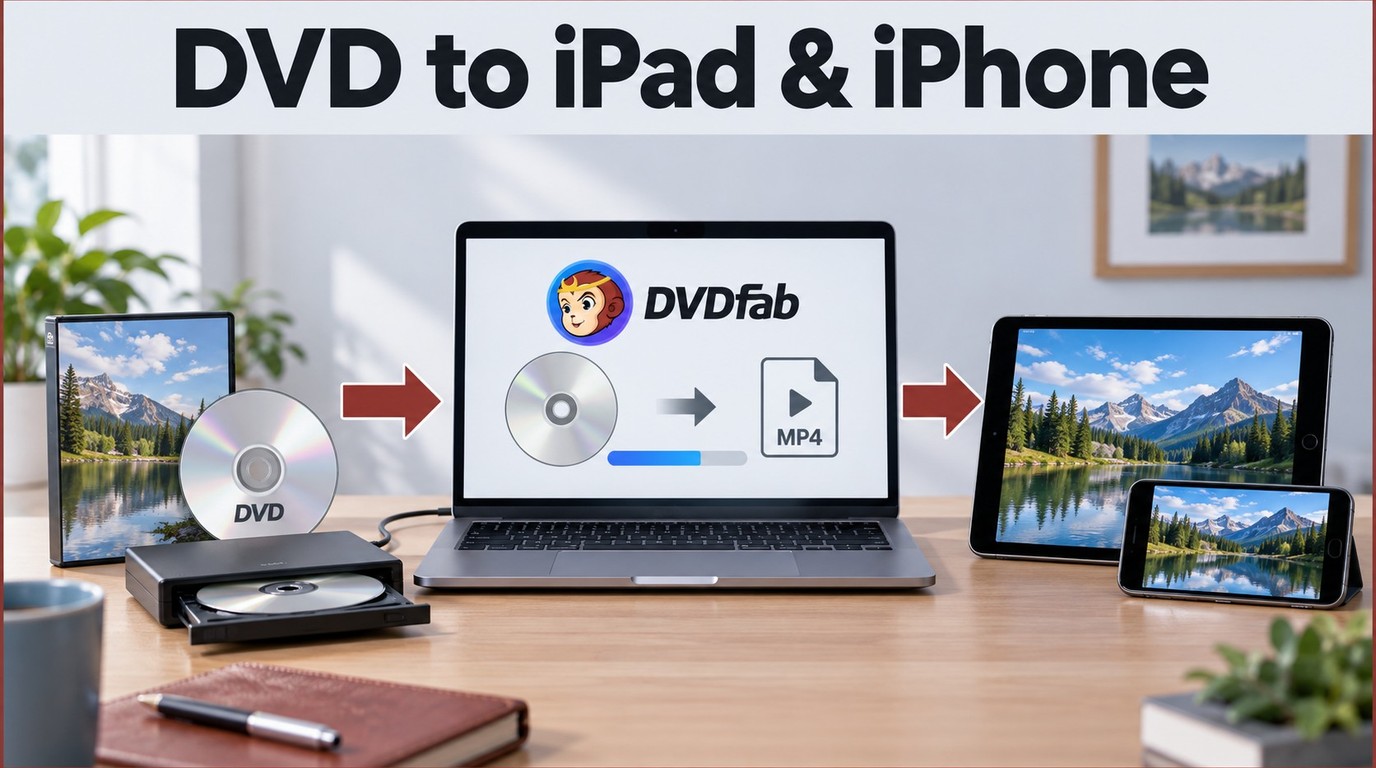 How to Rip and Transfer DVD to iPad/iPhone: Free and Paid Options in 2026
iPads and iPhones don't have DVD drives, and most commercial discs include copy protection that free tools can't bypass. This guide covers three DVD rippers for converting your collection to iPad-compatible formats, and four ways to transfer the file to your device. For protected commercial DVDs, DVDFab handles what HandBrake and VLC cannot. For wireless transfers on a Mac, AirDrop is the fastest option.
By Wenny Yan - Oct 15, 2026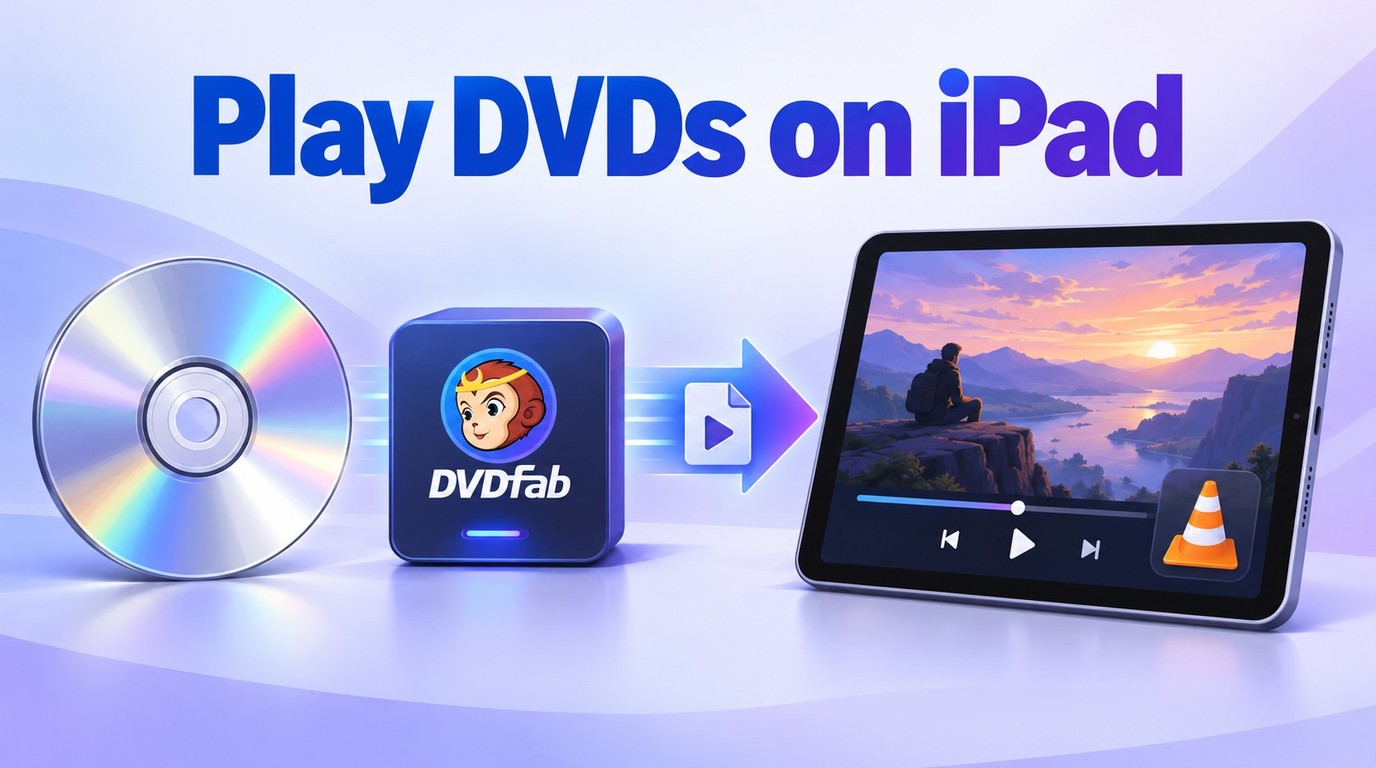 How to Play DVDs on iPad: Check the Best DVD Player for iPad
Since there is no built-in DVD player for iPad, I tested the most effective way to turn physical discs into iPad-ready video files. By using DVDFab DVD Ripper on your computer and a player app like V on your iPad, you can enjoy your DVD library without any external DVD drive attached to the tablet.
By Wenny Yan - Oct 15, 2026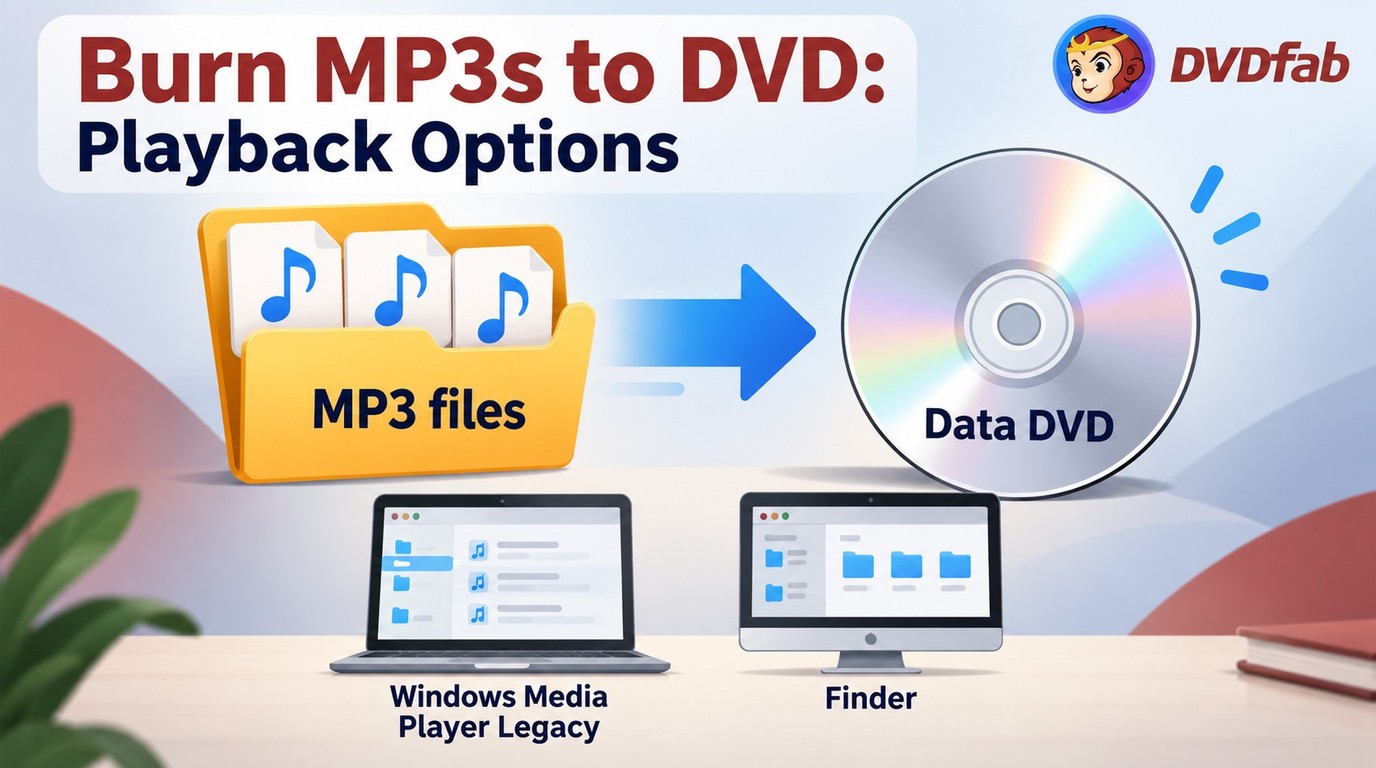 How to Burn MP3 to DVD: Best Audio DVD Creators Compared (2026)
To burn MP3 to DVD, you usually do not need to convert the MP3 files. Burn them as a data DVD with Windows Media Player Legacy on Windows or Finder on Mac, then check whether the target player supports MP3 files from DVD media. Use an Audio CD for standard CD-player compatibility, and use DVD authoring software like DVDFab only when the project contains video and needs a DVD-Video disc with menus.
By Wenny Yan - Oct 15, 2026 How to Make Your Own DVDs on Mac and Windows
Learn how to make your own DVDs on Mac and Windows with DVDFab’s three-step process for adding videos, creating menus, and burning a playable DVD-Video disc.
By Wenny Yan - Oct 14, 2026 WonderFox DVD Ripper Pro Review: Free vs Pro
WonderFox DVD Ripper Pro is a Windows-only DVD ripping tool for digitizing physical DVD collections into formats such as MP4, MKV, AVI, MPG, and device presets. It is easy to use and supports many common DVD sources, but it does not support macOS, Blu-ray, or UHD Blu-ray ripping. The free trial is limited to 15 minutes per DVD or video, so the paid version is needed for full-length ripping.
By Wenny Yan - Oct 14, 2026 How to Convert MKV to DVD: 4 Tested Tools for Playable Discs (2026)
To convert MKV to DVD, you need specialized software to transcode video files into DVD-compatible formats like MPEG-2. Recent tests show DVDFab DVD Creator is the best overall choice, delivering the fastest burning speed and highest picture quality. For a free option without watermarks, DVDStyler is a good choice, though it is limited by a complex, outdated interface and occasional stability errors. The process generally involves importing MKV videos, customizing menus, and burning the output to a disc.
By Wenny Yan - Oct 12, 2026