How to Convert DVD to Digital in 2026: 7 Software, Service & Hardware Methods

Summary: Converting DVD to digital is the process of extracting video data from physical discs into digital files like MP4, MKV, or ISO. To digitize a DVD collection, you can use software such as DVDFab DVD Ripper for encrypted discs and HandBrake for homemade DVD, or utilize mail-in transfer services like Walmart. This guide compares best methods to convert DVDs for playback on mobile devices, TVs, and Plex servers.
Table of Contents
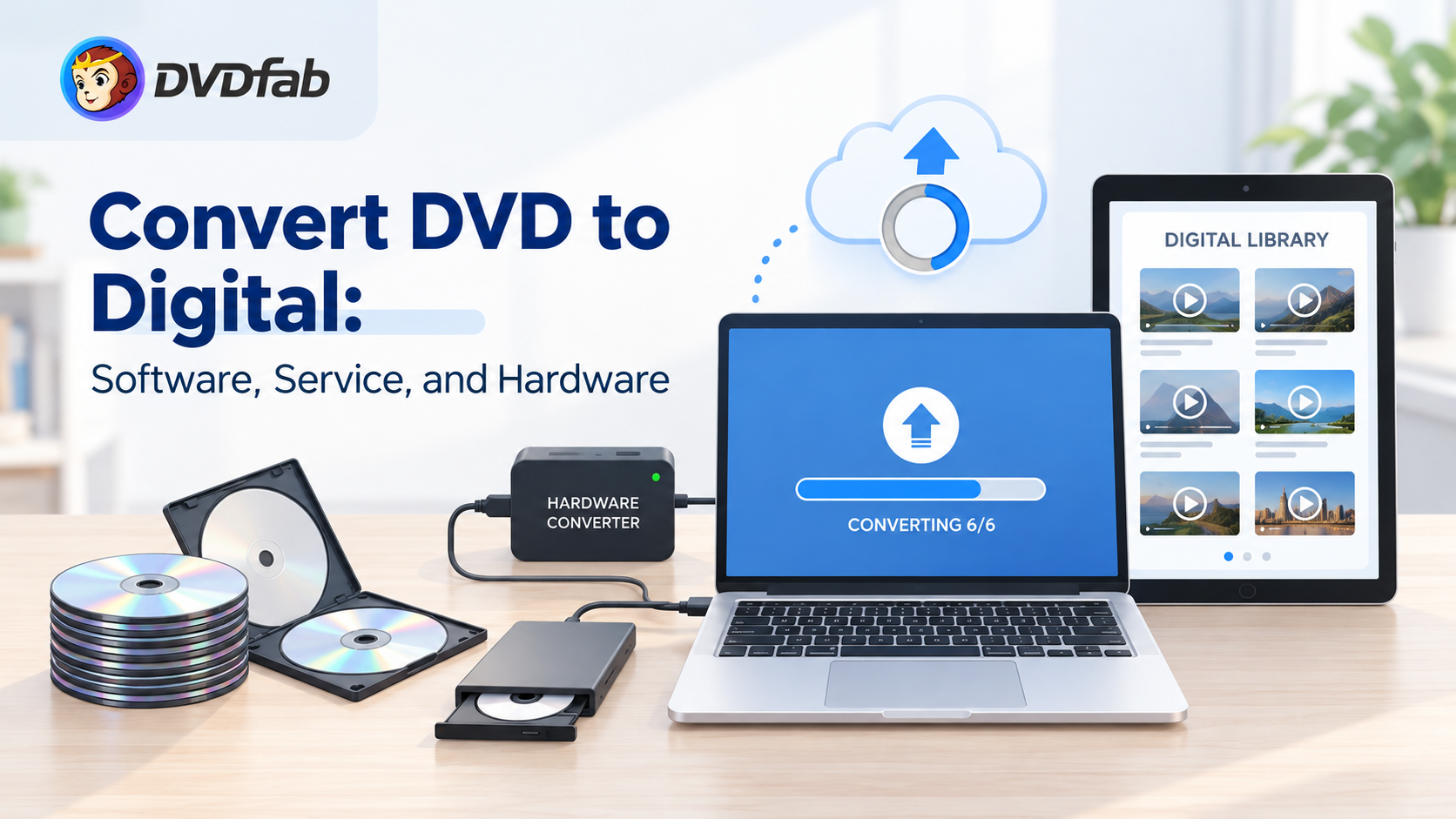
DVDs that still play in a living-room player can be difficult to watch on a laptop, phone, or streaming device because many current devices lack optical drives. To convert DVD to digital, use an authorized software conversion to create a local file, send eligible personal recordings to a transfer service, or record a player’s analog output with capture hardware.
I would start by deciding whether you need a compatible viewing file, a source-stream archive, or a delivered copy of personal recordings. This article explains how to digitize DVDs that you are authorized to access and copy, where permitted by applicable law and platform terms, without confusing a cloud-library license with a local file.
What to Check Before Converting DVDs
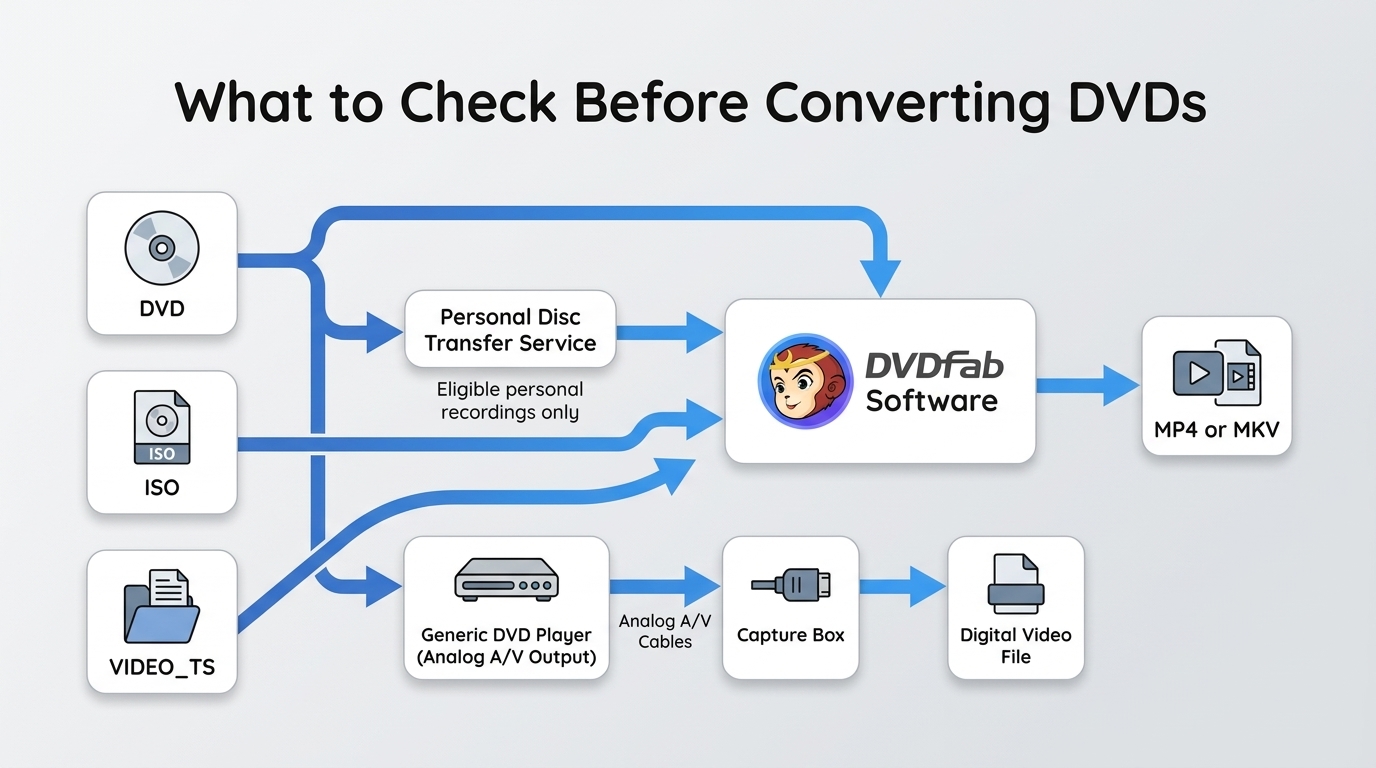
Before choosing a method, identify the disc and the result you need. A computer-based conversion requires a readable DVD drive; a transfer service is mainly for accepted personal-recording discs; real-time capture requires a DVD player with analog output.
- Source: commercial DVD, homemade DVD, ISO, or VIDEO_TS folder.
- Output: compatible viewing file, selected source-stream archive, or provider-delivered copy.
- Playback target: computer, TV, phone, USB drive, or media server.
- Disc dimensions: NTSC DVD is typically 720×480, while PAL DVD is typically 720×576.
Quality, Playback, and Conversion Time
- Source preservation: Passthrough or remux output can retain selected compatible video and audio streams without normal re-encoding, but a movie file does not automatically preserve the DVD menu.
- Re-encoded output: MP4 and similar viewing files can reduce storage use, although bitrate, codec, deinterlacing, and audio settings can affect the result.
- Subtitles and audio: Select the required language tracks and confirm that subtitles appear as expected.
- Playback: Check audio sync, framing, visible artifacts, and compatibility on the device where you plan to watch the file.
- Conversion time: Software processing varies with the drive, hardware, and output profile, while analog capture runs in real time.
Preview the expected movie or episode before conversion, then play one completed file before applying the same settings to more discs.
Snapshot: Best Ways to Convert DVD to Digital
DIY Ripping Software vs. DVD Transfer Services
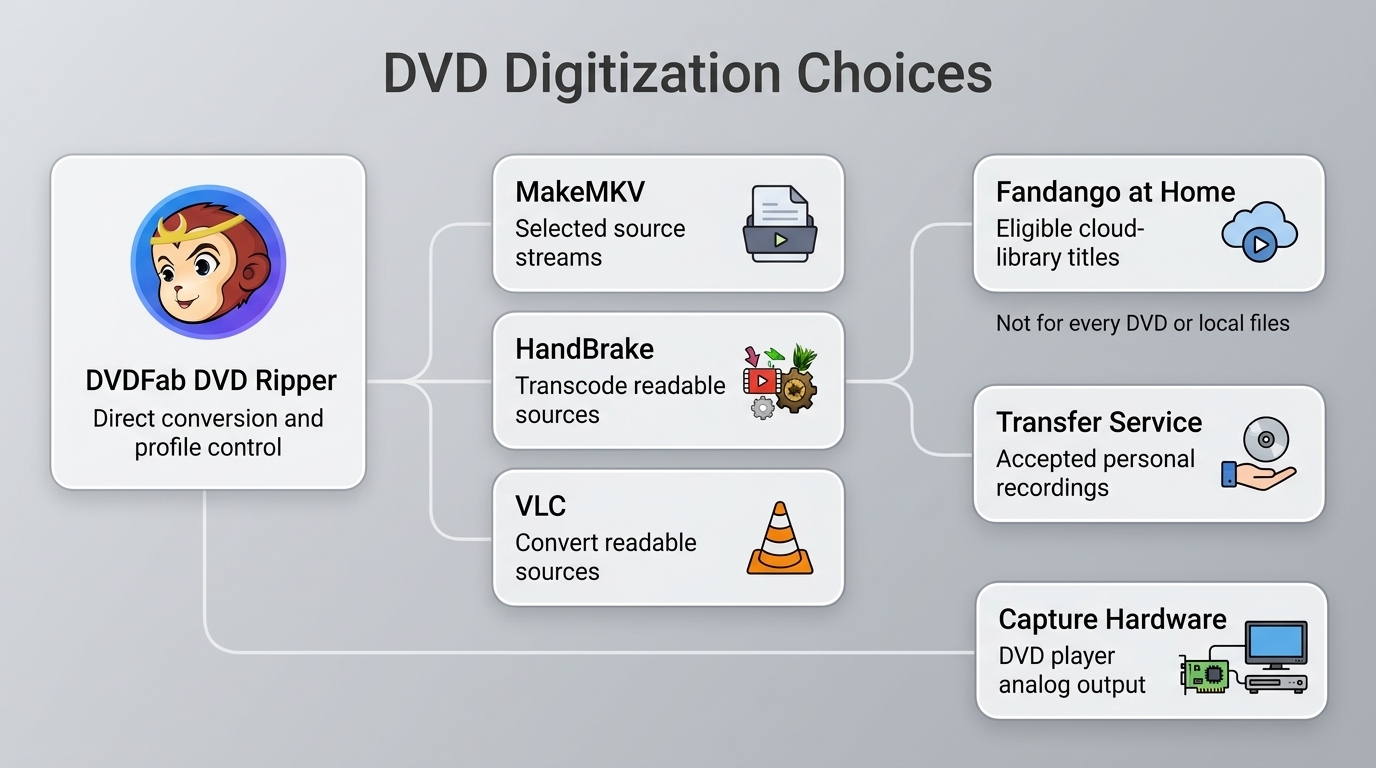
Use software when you want a local file and have a compatible DVD drive. A transfer service is better suited to a few accepted personal recordings when you do not want to set up a computer, while capture hardware records a DVD player’s analog output in real time. The table separates these options by output purpose and billing model:
| Method | Output purpose | Workflow | Platform | Billing basis |
|---|---|---|---|---|
| DVDFab DVD Ripper | Viewing file or source-stream archive | Direct conversion | Windows, Mac | Limited trial; paid module |
| HandBrake | Smaller viewing copy | Re-encode readable source | Windows, Mac, Linux | Free |
| MakeMKV | Selected-title source-stream archive | MKV remux | Windows, Mac, Linux | DVD conversion free |
| VLC Media Player | Occasional readable-source conversion | Basic conversion | Windows, Mac, Linux | Free |
| Personal-recording transfer service | Delivered digital copy | Ship or eligible drop-off | No computer drive needed | Per item or duration |
| ClearClick Video2Digital 3.0 | Analog-output recording | Real-time RCA capture | Standalone; DVD player needed | $209.95 device |
For a local file from a DVD you are authorized to copy, DVDFab DVD Ripper provides direct conversion profiles, MakeMKV creates selected MKV title files, and HandBrake or VLC can convert sources they can read. Choose a re-encoded file for convenient playback, a passthrough or remux file when retaining selected source streams matters, or a transfer service for a small number of accepted personal recordings without a computer drive.
How to Convert DVD to Digital File with the Best Software
DVDFab DVD Ripper
DVDFab DVD Ripper converts supported homemade and protected DVDs to MP4, MKV, AVI, MOV, MP3, FLAC, and other digital formats on Windows and macOS. It provides title, audio, subtitle, codec, bitrate, frame-rate, editing, and hardware-acceleration controls, with 1000+ video/audio formats and 260+ device profiles. In our test, it identified the expected main title and completed both an H.264 MP4 encode and an MKV passthrough copy.
💻Compatible systems: Windows & macOS
Main Functions:
- Supports common and newly released DVD protections on supported discs.
- More than 1000+ audio and video formats are supported for DVD digitization.
- The digitized video is compatible with more than 260 preset devices.
- Adjust video quality, including resolution, codec, bit rate, and frame rate.
- Video editing options: cutting, combining, altering brightness and contrast, etc.
- SRT files are used to extract movie subtitles.
- Digitize DVD collection at once via multitasking mode.
- Serve as DVDFab 2D to 3D converter to rip 2D DVDs to 3D videos.

How to Convert DVD to Digital with DVDFab DVD Ripper
👇Video Guide
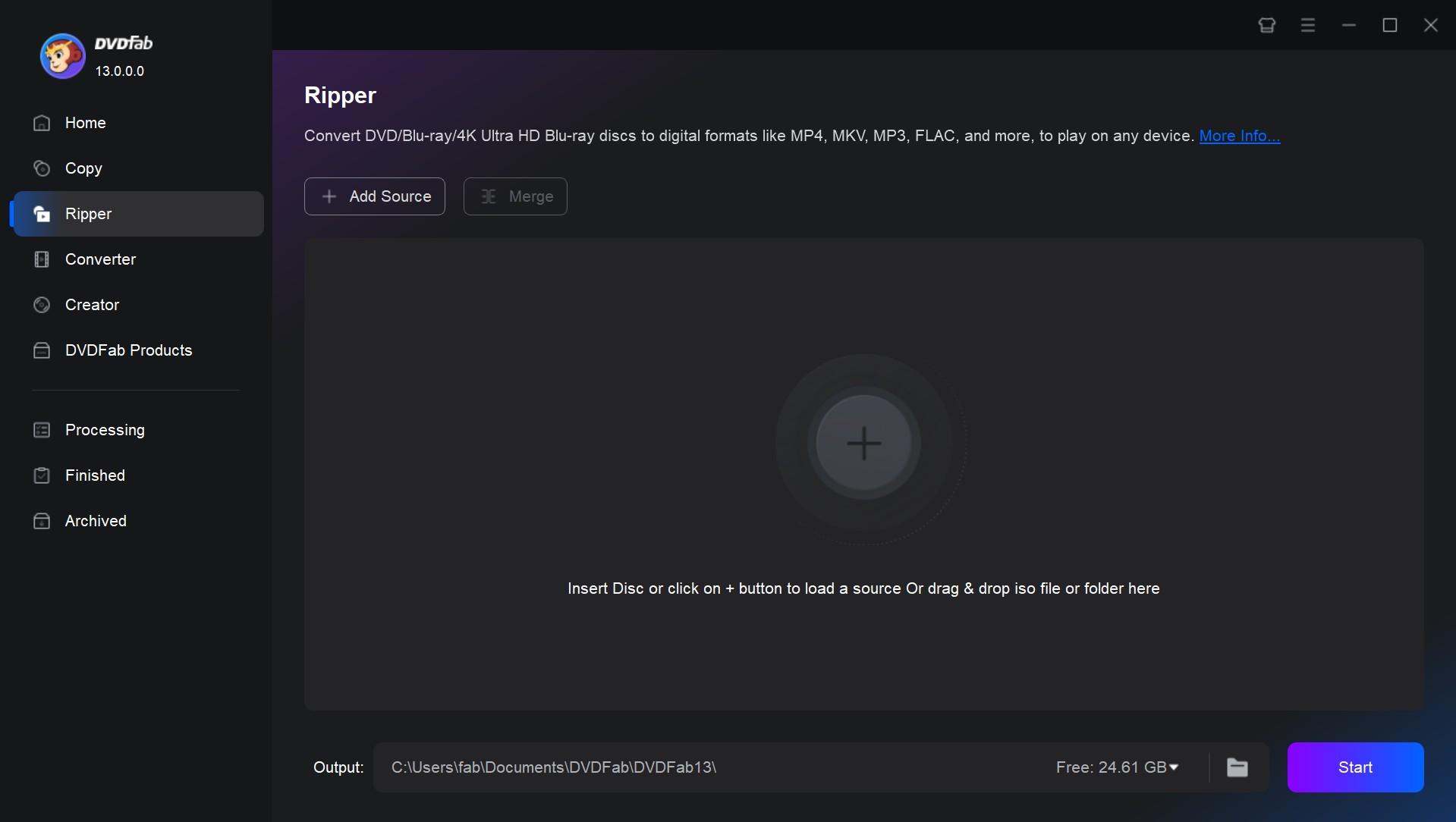
Step 1: Launch DVDFab software and load the source DVD
Install DVDFab software and select the Ripper module from the drop-down menu. Insert a DVD into the optical drive, or click the Plus sign to load an ISO file or VIDEO_TS folder.
Step 2: Select a profile and change the settings
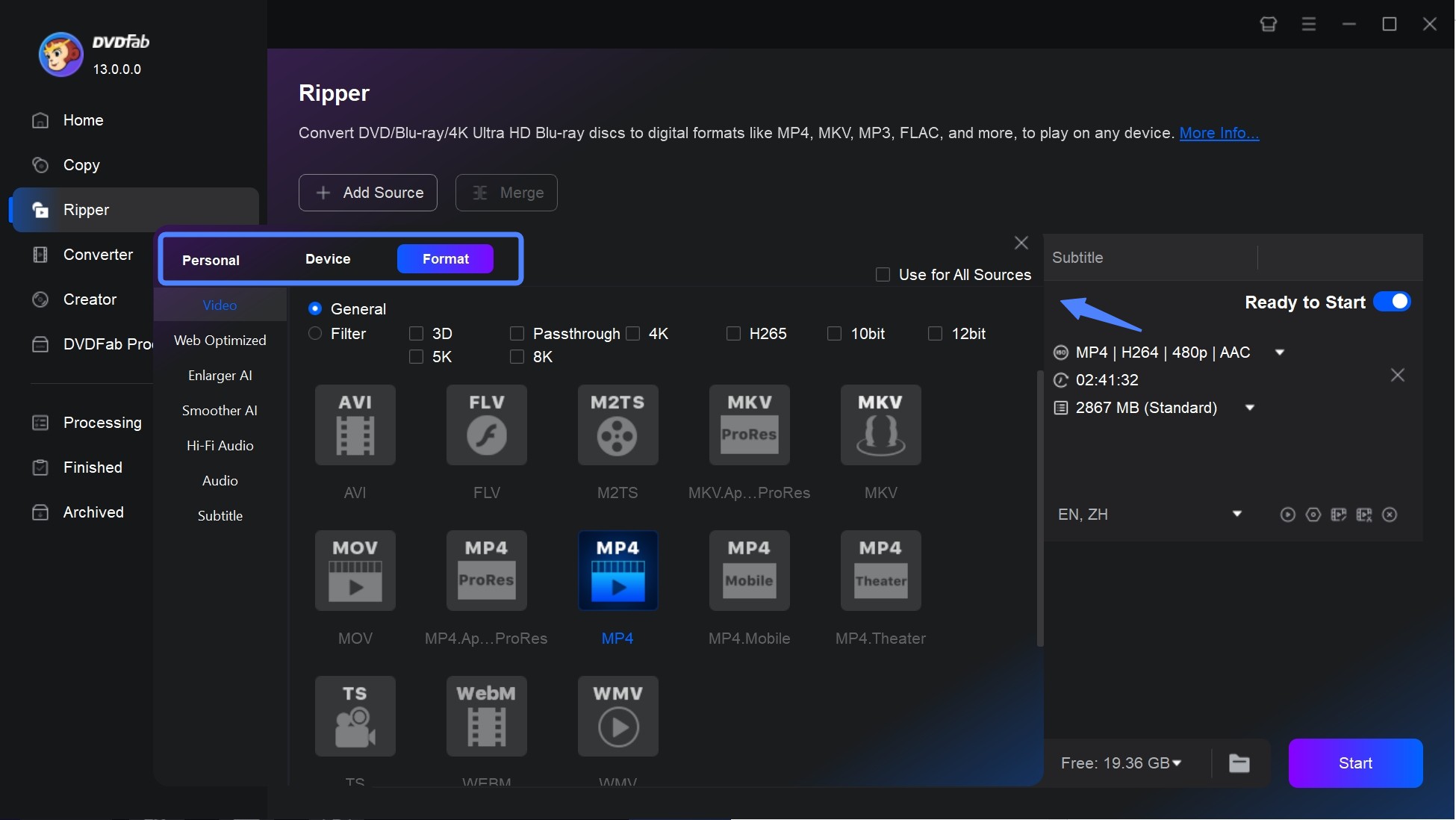
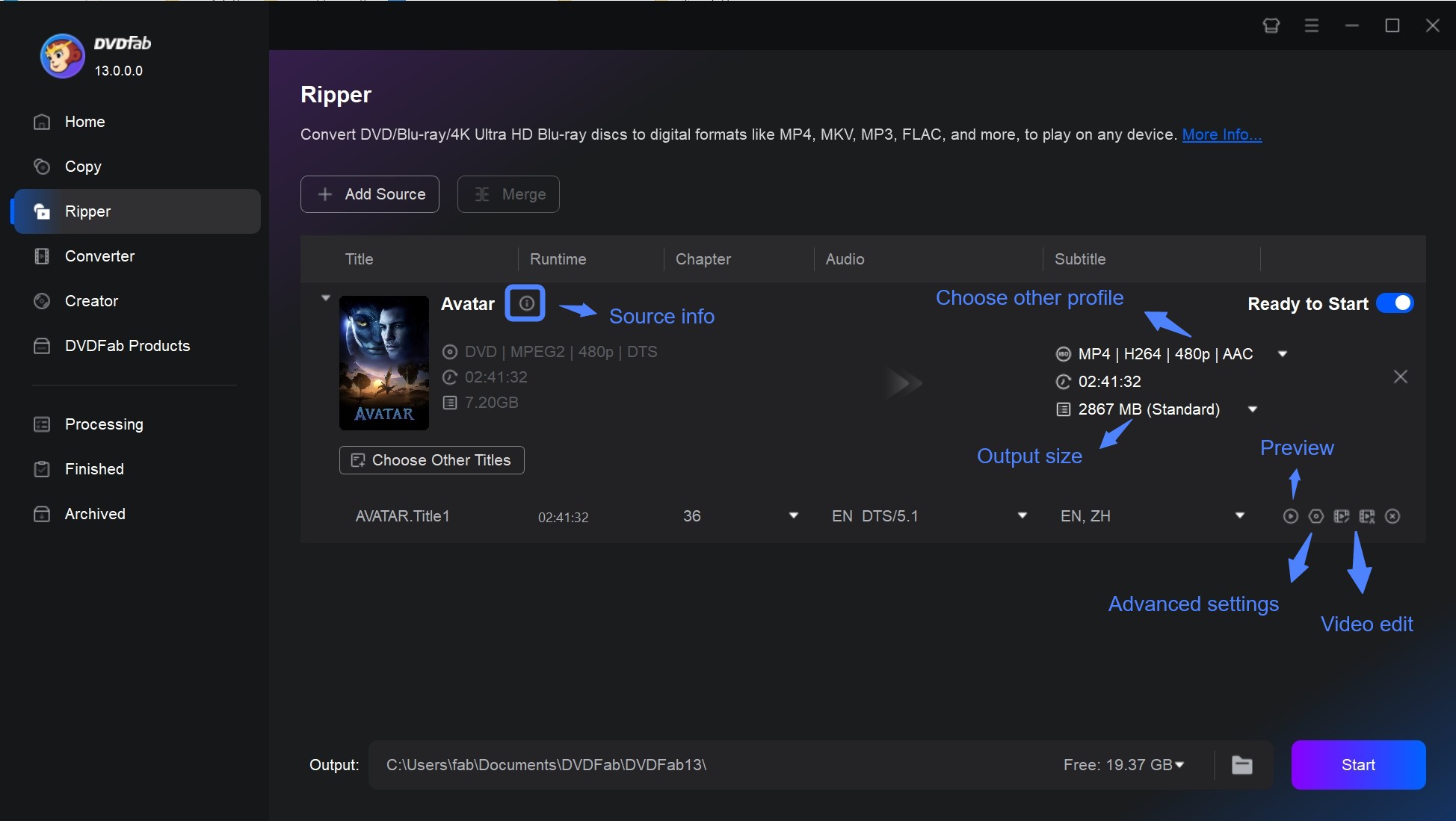
Once the source is loaded, preview the titles and compare their durations with the expected movie or episode. Click "Choose Other Profile" to convert DVD to MP4, convert DVD to AVI, or select an MKV profile. Select the required audio and subtitle tracks before conversion. Subtitle options include rendering, remuxing, or IDX/Sub extraction; OCR-to-SRT is available on Windows, and external SRT/ASS subtitles are supported.
The Wrench icon opens Advanced Settings for bitrate and codec control; the Pen icon opens the Video Editor for cropping, trimming, and brightness adjustments.
Step 3: Start digitizing DVDs
After making the necessary adjustments, click the Start button to convert the DVD. You can pause or resume the task, and additional selected titles can be placed in the task queue. Play a completed file to check audio sync, subtitles, and framing before queueing more discs. For longer tasks, the auto-shutdown option can power off or hibernate the computer when the queue is complete.
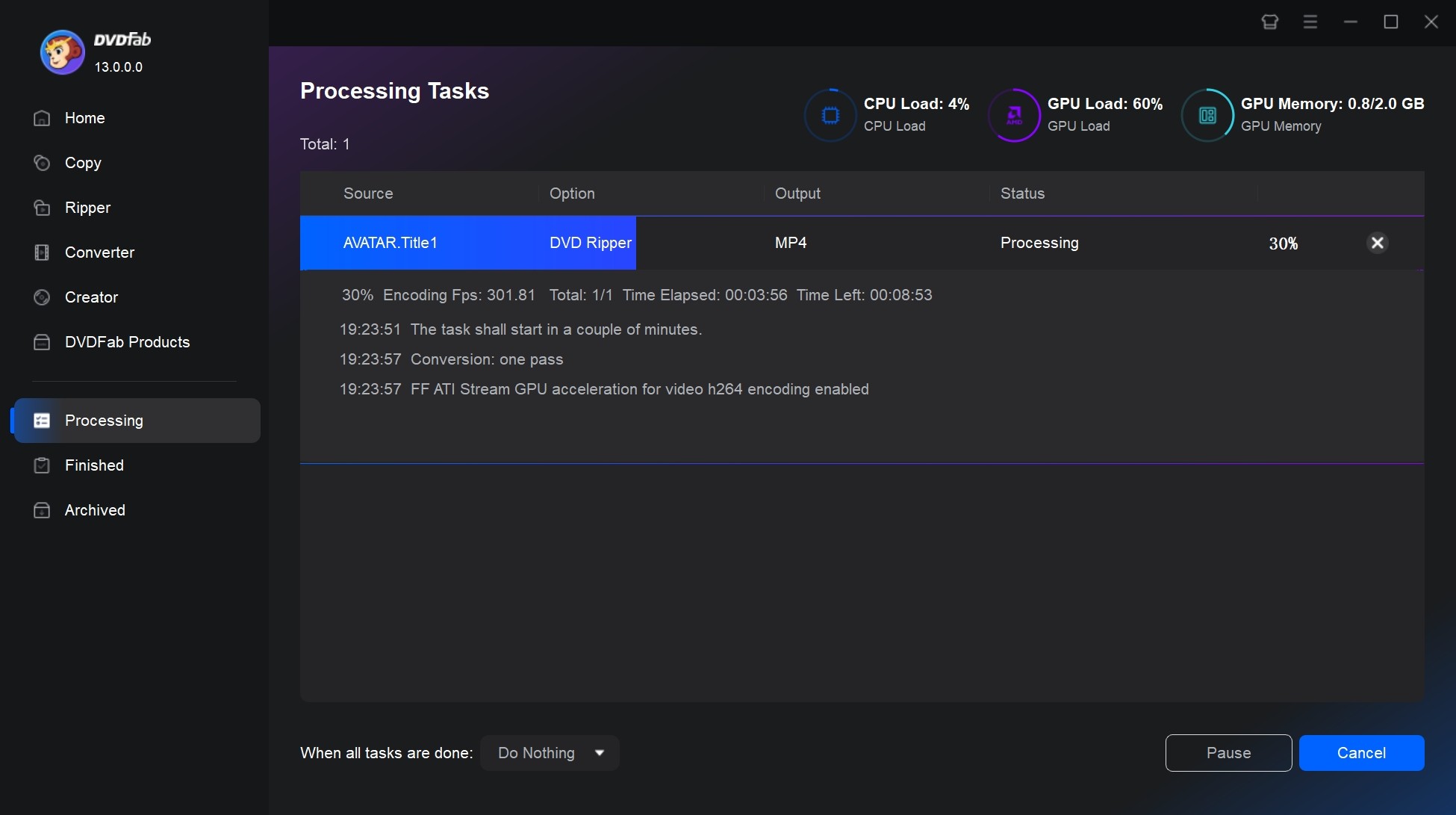

We tested the film "8 Mile" (runtime 1h50m14s) and solely converted the main feature (source file 6.13 GB). With H.264 MP4 and AAC 5.1 at 720p, the output was 1.91 GB, and the rip time was 5 minutes and 29 seconds. With the MKV passthrough profile, the task took 1 minute 37 seconds and produced a 5.07 GB file.
HandBrake
HandBrake is an open-source and free DVD Ripper for Windows 10 and other supported desktop systems. It is a transcoder that re-encodes readable DVDs or local video files into formats such as MP4, MKV, and WebM. It also provides settings for the video encoder, frame rate, bitrate, audio tracks, and subtitles. HandBrake does not itself remove copy protection.
- Reads unprotected DVDs, supported local files, and other readable sources
- Supports MP4, MKV, WebM, and a range of encoding presets
- Supports batch scanning and an encoding queue
- Includes filters covered in this DVD editing software guide, such as deinterlacing, denoising, and cropping
- Offers fewer output containers than some dedicated DVD conversion tools
- Does not itself remove copy protection
- Re-encoding time depends on the source, preset, codec, and computer hardware
How to Convert DVD to Digital Free with HandBrake
Step 1: Insert a readable DVD that you are authorized to access and copy, or prepare a readable local source file. Open HandBrake, click "Open Source" in the upper-left corner, and select the disc or file.
Step 2: Select a conversion preset. Preview the available titles and compare their durations with the expected movie or episode instead of assuming the longest title is correct. Choose a preset that matches the device on which you intend to play the video.
Step 3: In the Output Settings section, choose your desired output format. Then in the main window, click the "Browse" button. This is where you're going to choose where the new digital copy of the DVD will be saved.
Step 4: Finally, click the "Start Encode" button at the top of the window. HandBrake will now convert DVD into a digital copy.
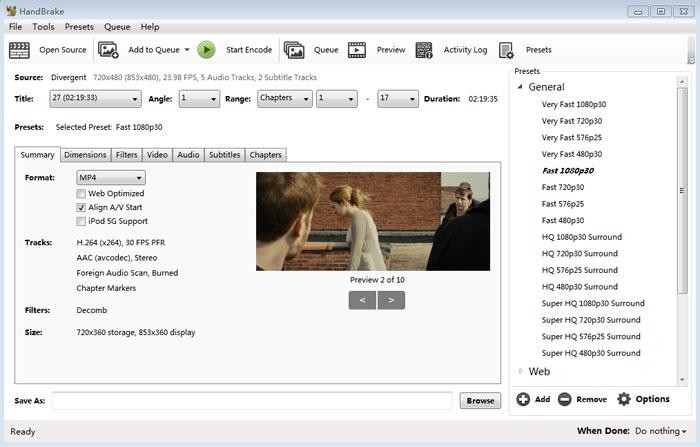
In our test, using the same test source file, HandBrake stands out for space savings, though with trade-offs. Its H.264 MP4 encode finished in 12 minutes and 28 seconds and shrank the file to 675 MB, with a lower 720×362 resolution and stereo AAC audio.
MakeMKV
MakeMKV creates MKV files from selected DVD or Blu-ray titles while retaining selected source video, audio, chapters, and subtitles without normal re-encoding. It does not create a VIDEO_TS copy or a direct MP4 file, and a movie MKV does not retain the DVD menu structure. A separate transcoder such as HandBrake can turn a readable MKV into an MP4 viewing copy.
- Reads supported DVD and Blu-ray titles
- Remuxes selected DVD titles without normal re-encoding
- Retains selected audio tracks, subtitles, and chapter information
- DVD conversion is free
- Outputs selected titles as DVD to MKV files rather than MP4
- Does not include video editing or compression controls
- Source-stream MKV files can require substantial storage space
Note:MakeMKV's DVD-opening functionality is free. The current release is MakeMKV 2.0.0, released on September 20, 2026.
How to Convert a DVD to MKV with MakeMKV
💡A common choice for a local media library is to create a source-stream MKV with MakeMKV, then load that readable file in HandBrake to make a separate, smaller MP4 viewing copy with compatible audio and source-appropriate dimensions. The MKV retains selected title streams but not DVD menus. Test the MP4 for audio sync, subtitles, framing, and playback compatibility before deleting or moving the source-stream copy.
Step 1: Insert the DVD that you want to make a digital copy of into your computer's disk drive. Open MakeMKV and select the drive that has your DVD in it. Click the "Open Disk" button and MakeMKV will begin scanning the DVD for titles that can be ripped.
Step 2: Once the scan is complete, MakeMKV will list the titles found on the disc. Preview the title durations, then select the movie, episodes, audio tracks, and subtitles you want to save. MakeMKV creates selected-title MKV files rather than a full disc copy with menus.
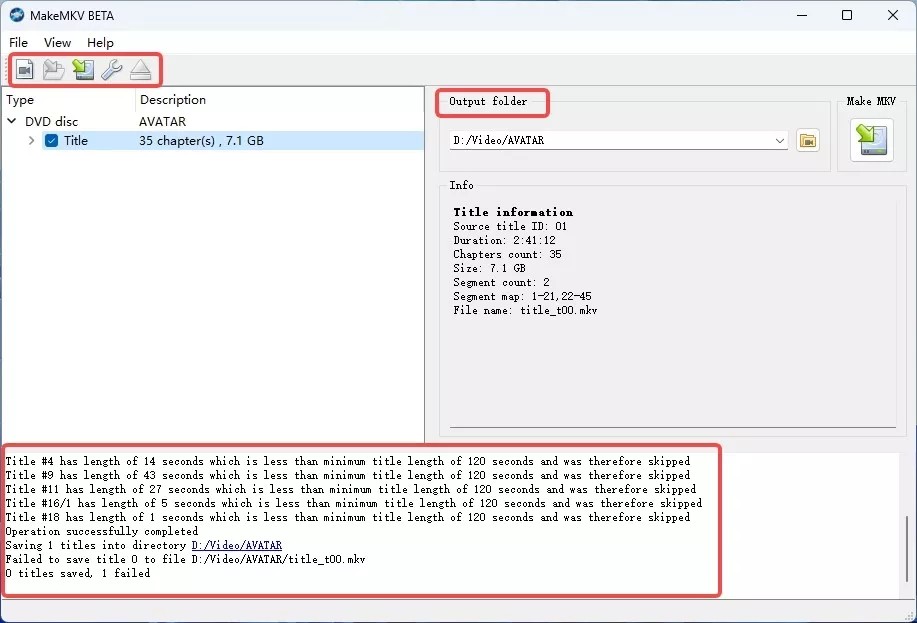
Step 3: Choose the location where you want to save the digital copy on your computer. You can do this by clicking the "Browse" button on the right side of the "Output Folder" field.
Step 4: When everything is set, click the "Make MKV" button on the right side of the program window to convert DVD to digital file.
MakeMKV ripped a near-identical 6.01 GB copy of the source file in 1 minute and 34 seconds. It retained the original resolution and AC3 5.1 audio. Because this was a remux rather than a re-encode, the output file remained large.
VLC Media Player
VLC Media Player includes DVD playback and basic conversion profiles for readable sources. You can convert DVD to WMV, MP4, H.264, H.265, WebM, and other supported formats. DVD reading support depends on the operating system, optical drive, and installed libraries, while its conversion controls are more limited than those in a dedicated transcoder.
💻Compatible systems: Windows, Mac and Linux
- A free option for converting readable DVD sources
- Provides basic format and conversion-profile controls
- Available for Windows, Mac, and Linux
- DVD reading support depends on the platform and installed libraries
- Compatibility can vary by DVD drive and source
- Provides fewer conversion and editing controls than dedicated tools
Steps to Digitize DVDs Using VLC Media Player
Step 1: Download and install VLC Media Player, then insert a readable DVD that you are authorized to access and copy.
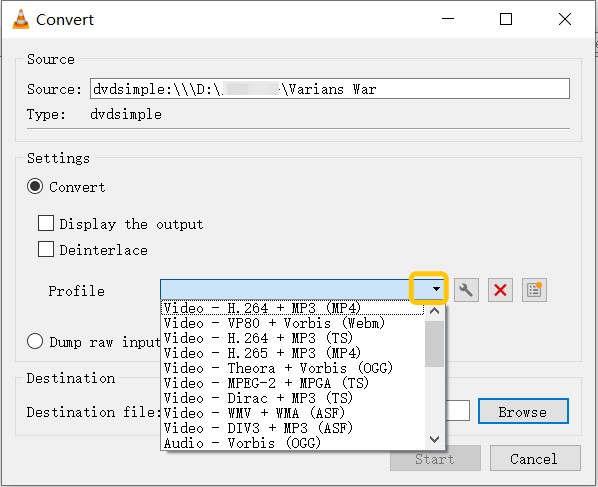
Step 2: Click on the Media tab in the top left corner of VLC Media Player, and select Convert/Save from the dropdown menu.
Step 3: In the Convert window that appears, choose a destination folder to save the digitized DVD file, select a video format from the Profile dropdown menu.
💡Tips on how to trim a video in VLC:
To trim a video in VLC, first open VLC and load your video. Activate the "Advanced Controls" by selecting "View" > "Advanced Controls" to reveal additional buttons. Navigate to the starting point of the section you wish to keep and click the red "Record" button, then play the video. Once you reach the desired endpoint, press the "Record" button again to stop. The trimmed segment will be saved in your "Videos" or "My Videos" folder by default. This method allows you to capture and save a specific portion of the video efficiently.
Step 4: Click on the Start button to begin the digitization process.
Because VLC does not include built-in DVD decryption, we used a homemade DVD of similar size for this test. The conversion took about 53 minutes, and the first three of four attempts stopped before completion. Based on this result, I would test one complete title before using VLC for a larger batch.
How to Convert DVD to Digital Without a Computer Drive
Fandango at Home Disc to Digital
Disc to Digital adds eligible titles to a cloud account library rather than creating a local MP4 or MKV file from the disc. DVD titles can have SD or HDX options.
- Adds eligible titles to a cloud account library
- Does not require a computer or optical drive
- Does not create a local MP4 or MKV file
- Availability is limited to eligible catalog titles
Cloud Library Access vs. a Local Video File
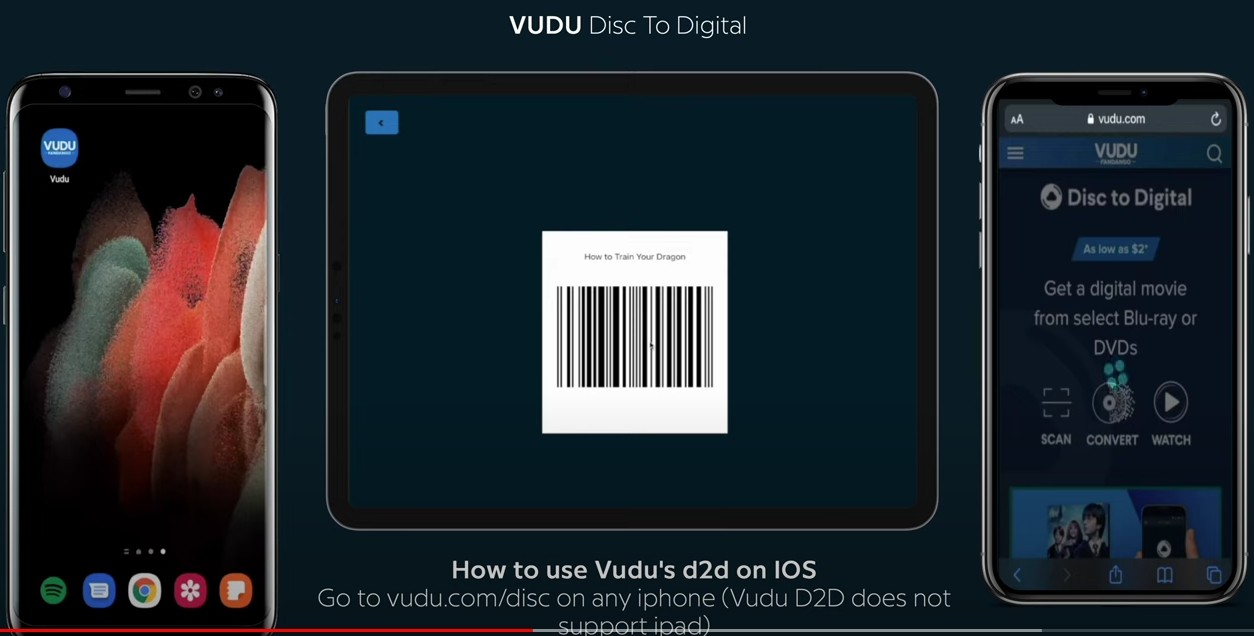
A cloud-library title remains tied to the account service. A local MP4 or MKV file can instead be copied to compatible storage devices and organized with the rest of a personal media collection.
Mail-in Transfer Services
If you have only a few personal recordings to digitize and prefer not to deal with software or hardware, a transfer service may be convenient. Before ordering, compare accepted personal-recording media, per-item versus duration billing, USB and shipping add-ons, return of originals, turnaround time, and whether files are delivered by download or USB. You can also check whether a provider offers drop-off service for your ZIP code. The service and capture-device prices in this part of the article are as of October 2026.
- Many services also accept personal recordings on VHS, MiniDVD, and camcorder media.
- No optical drive or conversion software is required
- Per-item or duration-based billing becomes expensive for a sizable collection.
- Shipping and processing add turnaround time.
- A third party handles your original media.
- Some services do not accept copy-protected commercial titles.
DVDWalmart (Powered by Capture)
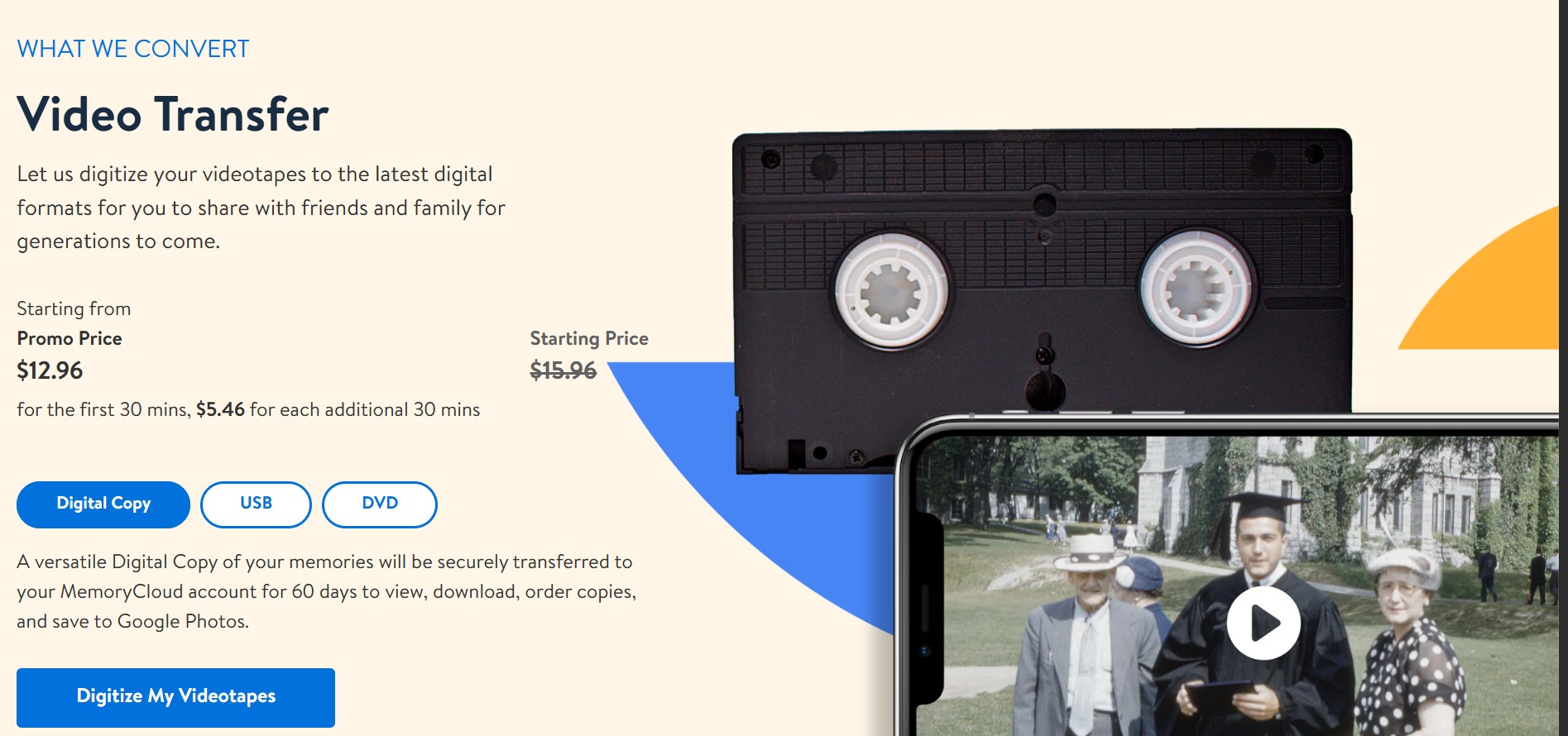
Walmart's digital-media transfer program is fulfilled by Capture and is intended for eligible personal recordings. Depending on local availability, you can place an order for shipment or eligible drop-off, receive digital files, and add a USB copy. Capture excludes copy-protected commercial discs.
Price: $15.96 for the first 30 minutes per device, plus $5.46 for each additional 30 minutes; an optional USB drive costs $12.96 per order.
YesVideo Orders Through Capture

YesVideo directs consumer digitization orders to Capture. Capture accepts eligible DVD and MiniDVD personal recordings and can deliver the converted files digitally, with an optional USB drive.
Price: $19.99 per item; an optional USB drive costs $14.99.
Legacybox
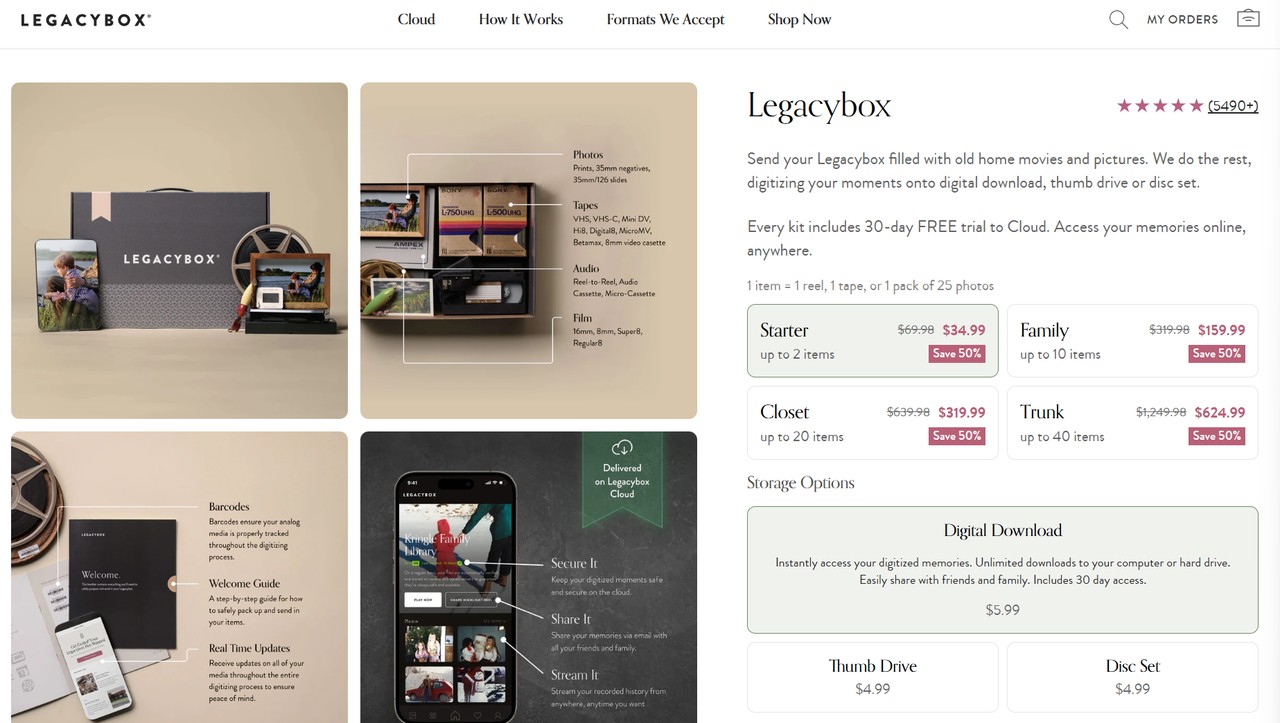
Legacybox offers mail-in conversion for accepted personal recordings and other supported media. Converted files can be delivered digitally or through available physical-media options, and the original items are returned after processing.
Price: $69.98 for a starter kit covering up to two items.
iMemories
iMemories accepts DVDs and MiniDVDs containing personal recordings and provides digital delivery options. It excludes copyrighted television and Hollywood material from its accepted conversion scope.
I placed an order with iMemories to convert three DVDs to digital MP4 files. The results were satisfactory—everything worked properly on both my iPhone and my computer—but it cost me about $45. With that in mind, the value isn't excellent for cinephiles with vast DVD collections; you'd be better off purchasing software and converting DVDs to digital files by yourself, as you won't be paid per disc.
ClearClick Video2Digital 3.0: Real-Time Analog Capture
The ClearClick Video2Digital Converter 3.0 records analog RCA/AV output from a DVD player or another compatible source onto a USB flash drive or MicroSD card. The current standard model costs $209.95 and works without a computer during recording. Because it records the player's analog output in real time rather than reading DVD source streams directly, it serves a different purpose from DVD ripping software.
- Record analog output and Convert DVD to USB without a computer
- Saves recordings to a USB flash drive or MicroSD card
- Supports pausing and resuming a recording
- Requires a separate DVD player with RCA/AV output
- Records analog playback rather than disc source streams
- The transfer runs in real time
- Does not provide video encoding or editing controls
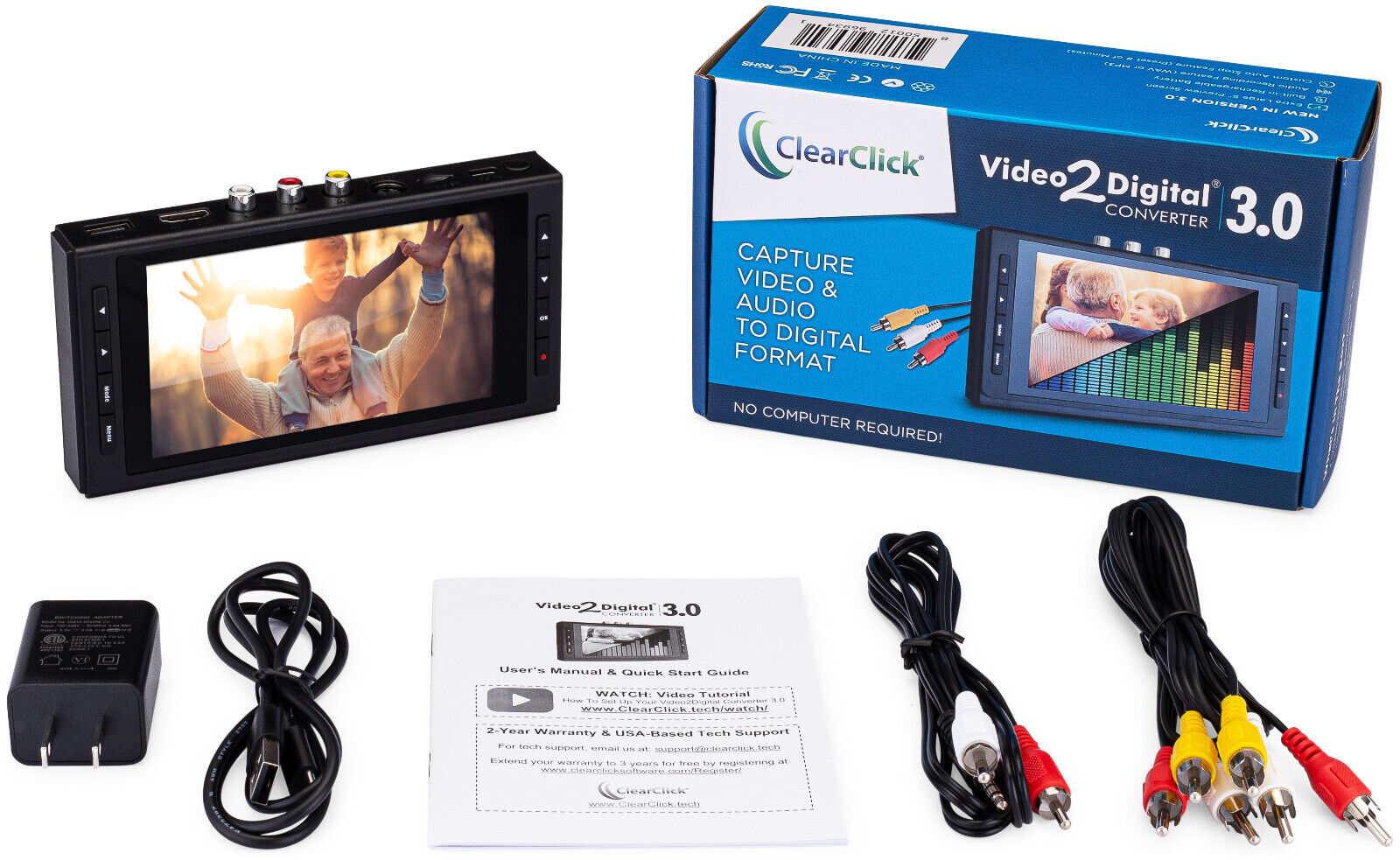
How to Convert DVD to Digital Using ClearClick
Step 1: Connect the Video2Digital Converter 3.0 to the RCA/AV output of your DVD player or another compatible video source.
Step 2: Insert a USB flash drive or MicroSD card into the converter. ClearClick specifies storage media of 512 GB or less.
Step 3: Press the "Record" button. The video appears on the 5-inch LCD while it is being captured, and no computer is required.
Step 4: Press "Record" again to stop, or use Custom Auto Stop to end the recording after a preset time.
Step 5: Remove the USB flash drive or MicroSD card and connect it to your computer or another compatible device to copy and back up the recording.
The capture setup required a separate DVD player, the converter, RCA cables, and storage media. Because the device records playback in real time, a full movie takes roughly its running time to capture; our complete setup-and-capture test took about three hours. Use capture hardware when you specifically need analog-output recording without a computer drive. If a computer can read the DVD directly, software conversion avoids the real-time capture step.
Feature Matrix: Compare Methods to Digitize DVD Collections
While the snapshot above compares platforms and billing, this matrix focuses on source requirements, local output, processing method, and collection features.
| Tool | Supported DVDs | Output Format | Meta Info | GPU Acceleration | Compatibility |
|---|---|---|---|---|---|
| DVDFab DVD Ripper | Supported homemade and protected DVDs | 1000+ Video & Audio Formats | Auto-download | Yes (Intel QSV, NVIDIA CUDA, AMD) | Windows & MacOS |
| HandBrake | Homemade and unencrypted DVD* | MP4, MKV, WebM | Manual edit needed | Yes, on supported hardware | Windows, Mac, and Linux |
| MakeMKV | Supported DVD titles | MKV | Preserves original | No | Windows, Mac, and Linux |
| VLC Media Player | Homemade and unencrypted DVD | WMV, MP4, MP3, AVI, etc | None | No | Windows, Mac, and Linux |
| Fandango-at-Home | Eligible DVDs & Blu-rays | Cloud copy | Service-managed | N/A | Mobile app/web |
| DVD to Digital services | Accepted personal recordings; varies by provider | Digital files; varies by provider | None | N/A | N/A |
| Capture Hardware | DVD player analog output; source-dependent | Digital recording | None | No | Stand-alone device (no PC required to capture) |
| *HandBrake and VLC do not include built-in DVD decryption. Some setups use libdvdcss for CSS-protected discs where permitted. | |||||
Where to Store Your Digitized DVD Collection
How you store your converted files determines how easily you can access them across devices and how well they hold up over time. Four main options cover most scenarios.
- You can transfer the digitized DVDs to an external hard drive for storage. This is a convenient option as it allows you to access the files easily on different devices. Keep an independent copy on another drive or in cloud storage so one device failure does not remove your entire collection.
- You can upload the digitized DVDs to a cloud storage service such as Google Drive, Dropbox, or iCloud. This option provides easy access to your files from anywhere with an internet connection.
- You can also store the digitized DVDs on your computer's internal hard drive. This may be a good option if you have ample storage space available.
- If you have a few DVDs to store, you can use a USB flash drive to copy completed, compatible video files between devices.
Programs like Plex and All My Movies can help catalog your files, but metadata does not automatically create an organized archive. When you rip DVDs for Plex, use consistent movie or episode names and check that each file matches the correct title before adding the collection.
FAQs
What is the best format for a DVD digital copy?
MP4 with H.264 video and compatible audio is a useful choice for a viewing copy because it works with many media players, phones, smart TVs, and game consoles. A passthrough MKV is better when you want to preserve selected source video, audio, subtitle tracks, and chapters without normal re-encoding.
A full-disc ISO serves a different purpose: it retains the DVD's files, menus, and disc structure for compatible playback software. Converting an ISO to MKV creates selected-title MKV output instead of retaining the full menu structure. If you plan to play a DVD copy on Xbox or another specific device, check its supported container, video, audio, and subtitle formats before converting the full collection.
Is it legal to digitize a DVD collection?
Owning a DVD does not by itself grant permission for every copying or access-control action. Personal conversion requires the relevant rights or permission and authorized access; do not redistribute the files, and follow applicable law and platform terms for the specific use case.
When those conditions are met, a local copy can be used for personal offline viewing.
What hardware do I need to digitize DVDs?
You need a compatible Windows or Mac computer with a built-in DVD drive or an external USB DVD drive, plus enough storage to save the DVD to a hard drive. A USB flash drive can store a completed digital file, but it cannot read the original disc. If you do not have a computer or DVD drive, a transfer service may be suitable for authorized personal recordings.
How much storage space does a digitized DVD take?
File size depends on the selected titles, duration, total bitrate, video codec, and the audio and subtitle tracks you keep. A source-preserving MKV retains selected streams, while a full-disc ISO also keeps the disc structure and menus. Re-encoding to MP4 can reduce the file size, but the result depends on the chosen codec and bitrate. For a bitrate-based estimate, multiply the total bitrate in bits per second by the duration in seconds, then divide by eight to estimate the file size in bytes.
Does Disc to Digital give me a local video file?
No. Disc to Digital adds an eligible title to a cloud account library instead of creating a local MP4 or MKV file from the disc. If you need a file that you can store on your own drive, use an authorized local conversion method or a personal-recording transfer service that delivers downloadable files or USB media.
Why does my DVD show only very short titles?
A DVD can contain several brief titles for menus, previews, or bonus clips. Preview the available titles and compare their durations with the expected movie or episode before starting. If the expected title is missing or the scan fails, install the current DVDFab version and use the official troubleshooting or support options.
Conclusion
Choose the output according to how you plan to use it: an MP4 viewing copy offers broad playback compatibility, a source-stream MKV preserves selected video, audio, subtitle, and chapter data without normal re-encoding, and a transfer service is suitable for a few authorized personal recordings when you do not have a DVD drive.
For an ongoing collection, DVD ripping software gives you direct control over titles, tracks, and output settings. DVDFab DVD Ripper provides a free trial, so you can download it from the official product page, convert one authorized disc, and check playback, audio sync, subtitles, and framing before adding more tasks to the queue.

 Best Free DVD Ripper for Mac in 2026: 6 Tested ToolsBy Diana Smith - Oct 14, 2026
 4 Free DVD Rippers for Windows 10/11: Best Tools & Step-by-Step GuideBy Diana Smith - Oct 13, 2026
![How to Convert DVD to AVI Free: 3 Current Options [2026]](https://images.dvdfab.cn/artifact/2026/09/17/2HqH4KgGwIXxwkHdUUZtp0D98DCpL4gS/feature_cover.jpg) How to Convert DVD to AVI Free: 3 Current Options [2026]By Diana Smith - Oct 12, 2026
How to Convert DVD to AVI Free: 3 Current Options [2026]By Diana Smith - Oct 12, 2026 How to Copy DVD to Computer on Windows & Mac: Rip and Direct CopyBy Wenny Yan - Oct 12, 2026