Can PS4 Play DVDs? Yes - PS4 DVD Player How to Play & Fix [2026]

Summary: Yes, the PS4 can play standard DVDs and Blu-ray discs, but not 4K UHD Blu-ray discs or CDs. To play a DVD, connect your PS4 to the internet once to activate disc playback, insert the disc, and select the disc icon on the home screen. If the DVD will not play, check the disc region code, clean or finalize the disc, enable HDCP, update the system software, or convert the DVD to a PS4-compatible digital video file with DVDFab for USB playback.
You insert a DVD expecting your PS4 to play it, but the disc may not start until playback is activated. Supported DVDs work on every PS4 model after a one-time internet connection, so the console can serve as a PS4 DVD player and play DVDs offline afterward.
Direct disc playback is the first option. If it fails, the checks below cover activation, disc compatibility, and common playback errors, followed by an optional way to play an authorized local video file from a USB drive.
Can PS4 Play DVDs? (Quick Answer)
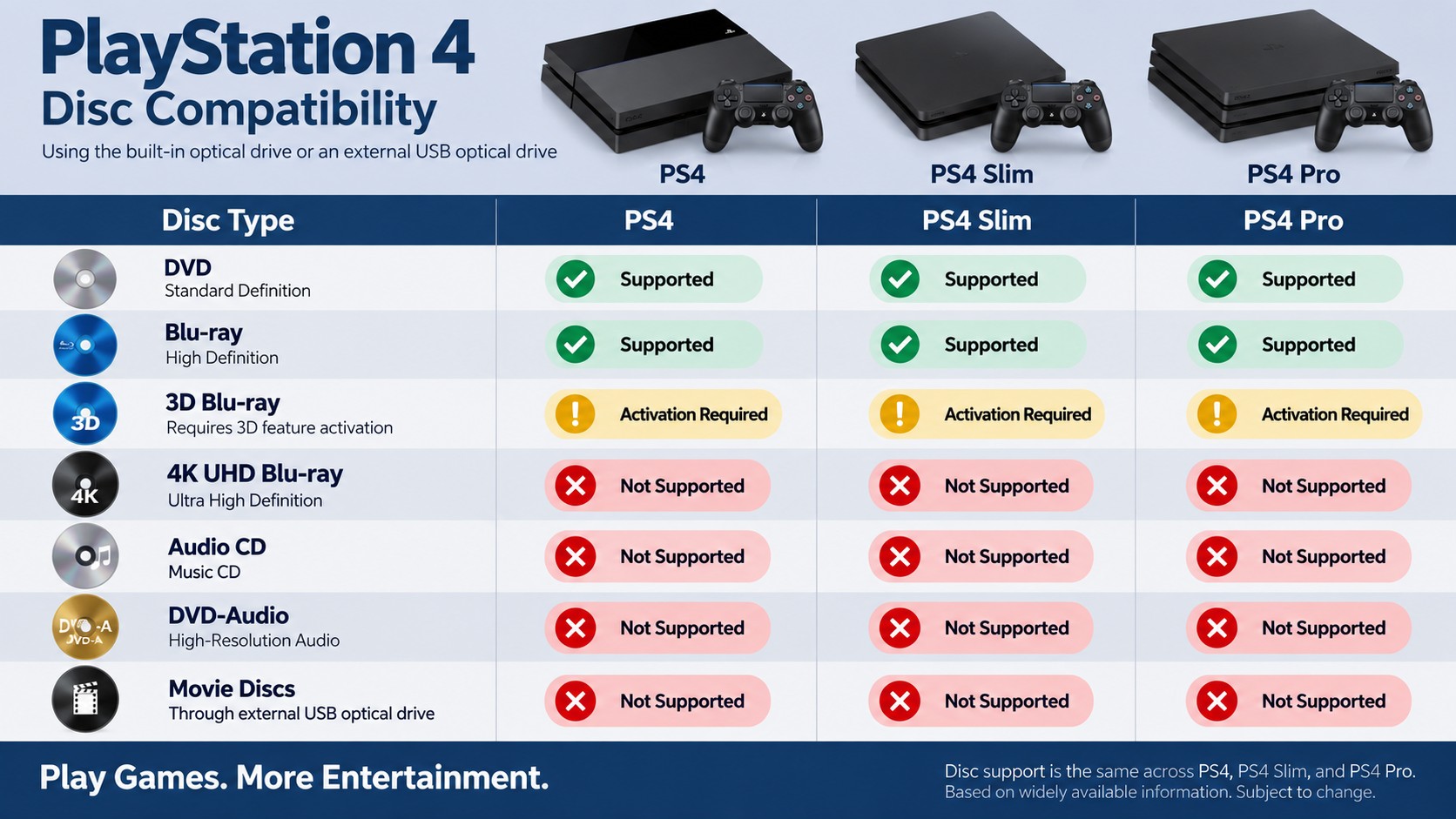
Yes. PS4 can play standard DVDs, including DVD-Video discs, on all PS4 models: original PS4, PS4 Slim, and PS4 Pro.
PS4 is also a Blu-ray player, but it is not a 4K UHD Blu-ray player. PS4 Pro can output some 4K video content, but it still uses a standard Blu-ray drive and cannot play 4K UHD Blu-ray discs.
| Disc or Playback Type | PS4 Support | Notes |
| Standard DVD / DVD-Video | ✔ Yes | Requires one-time internet activation; supported DVDs then play offline |
| Blu-ray Disc | ✔ Yes | Region restrictions may apply |
| 3D Blu-ray | ✔ Yes | Requires system software 1.75 or later |
| 4K UHD Blu-ray | ✗ No | Not supported on PS4 or PS4 Pro; may show an unrecognized disc message |
| Audio CD / DVD-Audio | ✗ No | Neither format is supported |
| External USB disc drive for movies | ✗ No | Movie discs must use the built-in PS4 disc drive |
There are three limits you should know before you use PS4 as a DVD player.
- First, PS4 needs a one-time online activation to enable disc playback. After activation, supported DVDs can play without an internet connection. Copyright-protected Blu-ray playback may require renewal of the AACS encryption key through a system software update.
- Second, PS4 games are region-free, but DVD and Blu-ray movie discs may be region-coded. If the disc region does not match your PS4, you may see: “Cannot play this disc due to region restrictions.”
- Third, PS4 does not play 4K UHD Blu-ray discs, audio CDs, DVD-Audio discs, or movie discs through an external USB optical drive. To play a 4K UHD Blu-ray disc, you need a PS5 console with a compatible installed disc drive or another player that supports 4K UHD Blu-ray.
PS4-supported DVD and Blu-ray Formats
✅Supported DVD Formats:
| Disc Type | Supported? |
| DVD-ROM (commercial) | ✔ Yes |
| DVD-R / DVD-RW | ✔ Supported recording format; finalized |
| DVD+R / DVD+RW | ✔ Supported recording format; finalized |
| DVD-Video (standard movies) | ✔ Yes |
| AVCHD (on DVD) | ✔ Yes |
Recordable DVD playback requires a supported recording format and a finalized disc. Do not insert an 8 cm mini DVD because PS4 does not support 8 cm discs.
Note: A DVD must use a supported format and be compatible with the region requirements of your PS4.
✅Supported Blu-ray Formats:
| Disc Type | Supported? |
| BD-ROM (commercial Blu-ray) | ✔ Yes |
| BD-R (single-layer and dual-layer) | ✔ Yes |
| BD-RE (rewritable) | ✔ Yes |
| 3D Blu-ray | ✔ Yes, with system software 1.75 or later |
Note: Ultra HD Blu-ray (4K UHD) discs are not supported on PS4 or PS4 Pro.
How to Play a DVD on PS4 Directly
Before you play your first DVD on PS4, connect the console to the internet once to enable disc playback. After activation, supported DVDs can play offline.
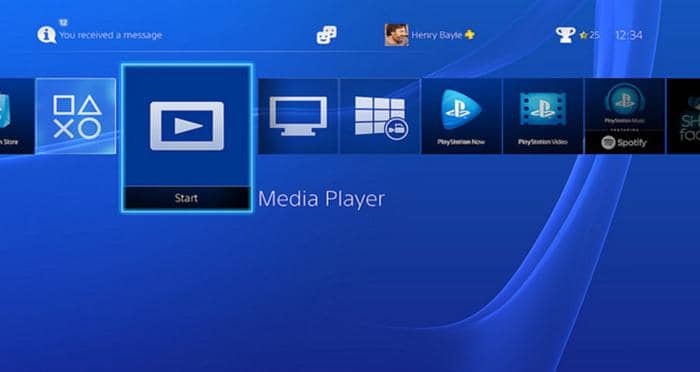
Follow these steps to play a DVD on PS4:
- Turn on your PS4 and sign in to your user account. Make sure the system is connected to the internet if this is your first time playing a disc.
- Insert the DVD into the built-in PS4 disc drive. Do not use an external USB DVD drive. PS4 movie disc playback works only with the internal drive.
- Select the disc icon on the PS4 home screen and press play. If the DVD region matches your console and the disc is supported, the movie will start.
Standard Blu-ray discs also play through the built-in PS4 drive; follow the Blu-ray playback steps for PS4 for the related setup.
Why Won't My PS4 Play a DVD? (Troubleshooting)
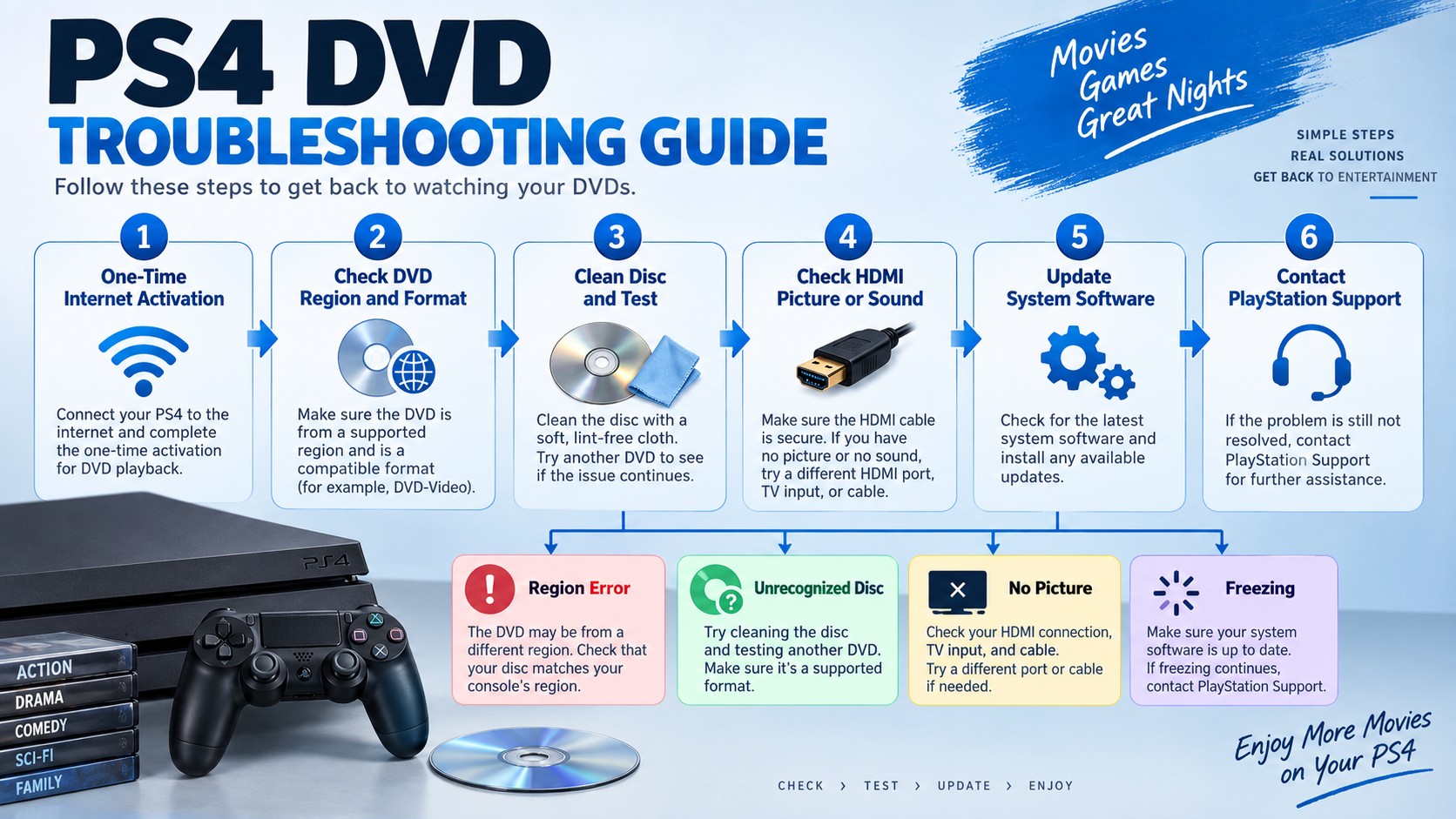
A PS4 can work as a PS4 DVD player, but a few setup and disc limits can stop playback. If you cannot play DVD on PS4, check the causes below in order.
Successful game or Blu-ray playback does not establish that a particular DVD is compatible or readable. If games or Blu-ray discs work but DVDs do not, try a second clean, supported, region-compatible DVD before drawing a conclusion about the drive. Check first-use activation and system software, and confirm that a burned DVD uses a supported recording mode and has been finalized. If a movie starts and then stops, note the exact error code and stopping point, then compare it with another DVD.
1. The PS4 has not been activated for disc playback yet
This is the most common cause when users try to play DVD on PS4 for the first time. PS4 requires a one-time internet connection to enable disc playback. Supported DVDs can then play offline. For copyright-protected Blu-ray playback, see the AACS key renewal note in the quick answer above. This is a required first-time setup, not a sign that the DVD drive is broken.
What to do:
- Connect the PS4 to the Internet.
- Insert the DVD or Blu-ray disc.
- Follow the on-screen prompt to activate disc playback.
- Once activated, the console can play supported DVDs offline.
2. The DVD region does not match your PS4
PS4 games are region-free, but DVD and Blu-ray movie discs are region-locked. The region is based on the market where the console was sold. If the DVD region does not match, the PS4 may show “Cannot play this disc due to region restrictions”.
What to do:
- Use a DVD that matches your PS4 region and meets the console's playback requirements.
3. The disc is a 4K UHD Blu-ray
No PS4 model can play 4K UHD Blu-ray discs. This includes the original PS4, PS4 Slim, and PS4 Pro. A PS4 Pro can output some 4K video content, but it still has a standard Blu-ray drive and cannot read 4K UHD Blu-ray movie discs. If you insert a 4K UHD Blu-ray, the console may show “unrecognized disc”.
What to do:
- Use a standard DVD or standard Blu-ray disc.
- Use a PS5 console with a compatible installed disc drive if you need 4K UHD Blu-ray playback.
4. The disc is an audio CD or DVD-Audio disc
PS4 does not play audio CDs. It also does not support DVD-Audio discs, so these formats will not work even if the optical drive can accept the disc.
What to do:
- Use standard DVD-Video discs for movie playback.
- Use another CD or DVD-Audio player for those formats.
5. You are trying to use an external USB DVD drive
PS4 cannot play movie discs through an external USB optical drive. DVD and Blu-ray movie playback only works through the built-in optical drive on the console.
What to do:
- Insert the DVD into the PS4 internal disc drive.
- Do not use an external USB DVD or Blu-ray drive for movie discs.
6. The DVD is dirty or scratched
A dirty or scratched disc can fail to load, freeze, skip, or stop during playback. If one DVD fails but other supported discs work, the disc itself may be the problem.
What to do:
- Hold the disc by the edges.
- Use a clean microfiber cloth.
- Wipe from the center of the disc outward in straight lines.
- Do not wipe in circles.
- Try another clean, supported, region-compatible DVD to check whether the problem is limited to one disc.
- If the movie starts and then stops, note the stopping point and exact error code before testing another DVD.
- If scratches remain after cleaning, follow these steps for how to fix a scratched DVD, then test the disc again.
7. There is no picture or no sound
The DVD may be playing, but the TV input, HDMI connection, or PS4 output settings may be wrong. This can make it look like the PS4 DVD player function is not working.
What to do:
- Check that the HDMI cable is connected firmly.
- Make sure the TV is on the correct HDMI input.
- Restart the PS4 and TV.
- Go to Settings > Sound and Screen > Video Output Settings.
- Check the resolution and display output settings.
8. Playback stutters, freezes, or the PS4 becomes unresponsive
This may happen because of system software issues, heat, dust, or a problem with the disc. If several supported DVDs fail after activation, the internal disc drive may need inspection.
What to do:
- Update the PS4 system software from Settings > System Software Update.
- Keep the console in a well-ventilated place.
- Remove dust around the vents.
- Try a different clean DVD.
- If several supported discs fail after activation, contact PlayStation Support and provide the error code and the steps you already tried.
How to Rip a DVD to a PS4-Compatible Video
Direct playback is the simplest option for a supported DVD. When you need an authorized local video file instead, DVDFab DVD Ripper can convert DVD content you own or are authorized to use to a PS4-compatible MP4 file for playback through the PS4 Media Player app.
Supported OS:
Free Download Windows 11/10/8.1/8/7
Free Download macOS 12 or newer
Key Features:
- Converts DVDs to PS4-compatible MP4 video.
- Converts DVDs to other 1000+ video and audio formats, including MKV, AVI, MP3, etc.
- Can process DVD region codes and common copy protections where legally permitted.
- Supports GPU hardware acceleration to reduce conversion time.
- Lets you adjust codec, resolution, bitrate, audio, and subtitle settings.
- Lets you edit the video with the built-in video editor and trimmer.
How to Rip DVD to PS4 with DVDFab DVD Ripper Easily:
Step 1: Install and launch DVDFab 13 on your Windows or Mac computer. Choose the Ripper module from the main interface.
Step 2: Insert the DVD disc into the computer drive. DVDFab will detect the disc. You can also load a DVD folder or ISO file if you already have one on your computer.
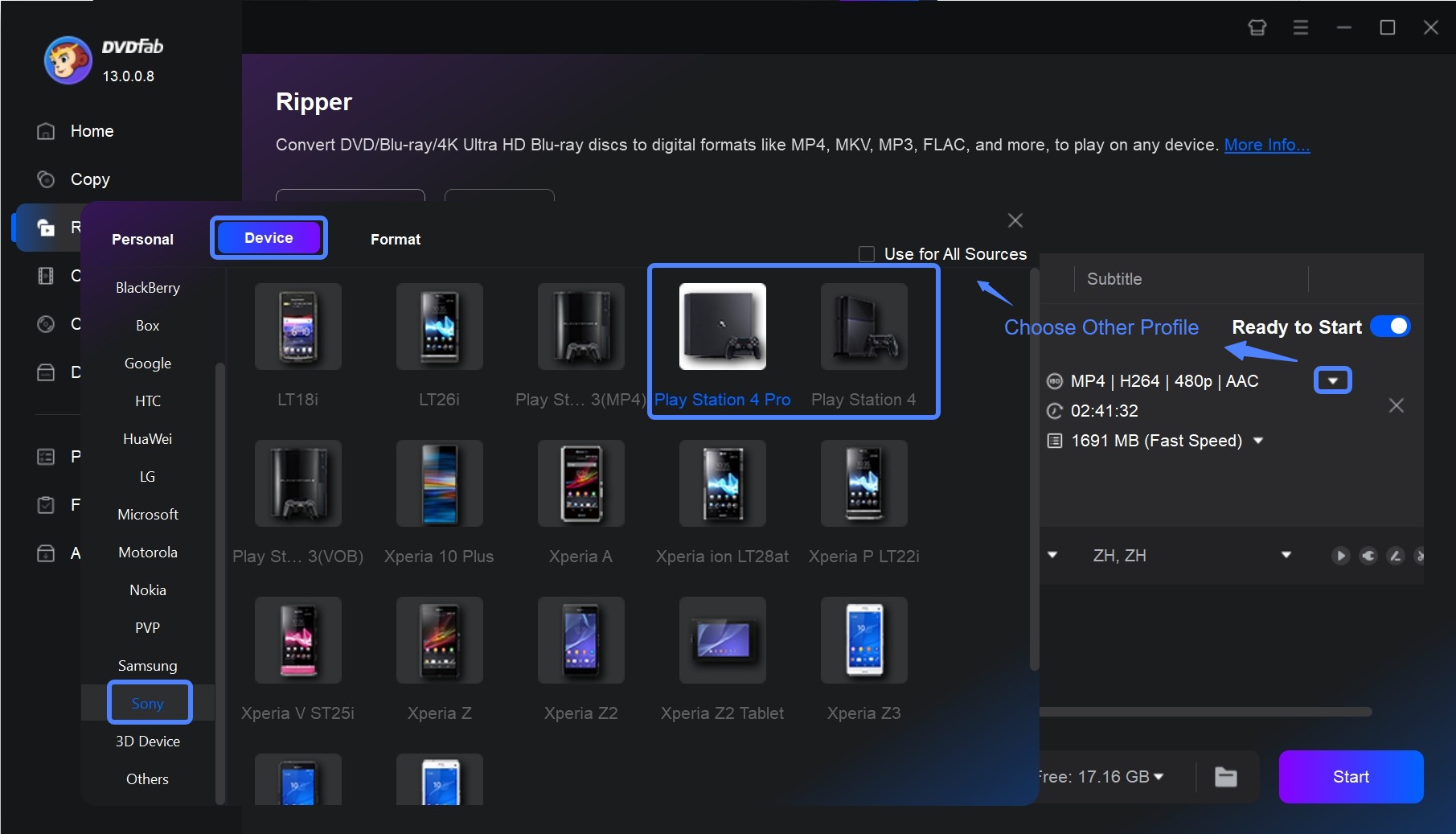
Step 3: Open the profile list and choose MP4 with H.264/MPEG-4 AVC High Profile Level 4.2 video and AAC LC audio. You can also adjust output settings, including resolution, bitrate, audio, and subtitles. PS4 Pro additionally supports H.264 Level 5.2.
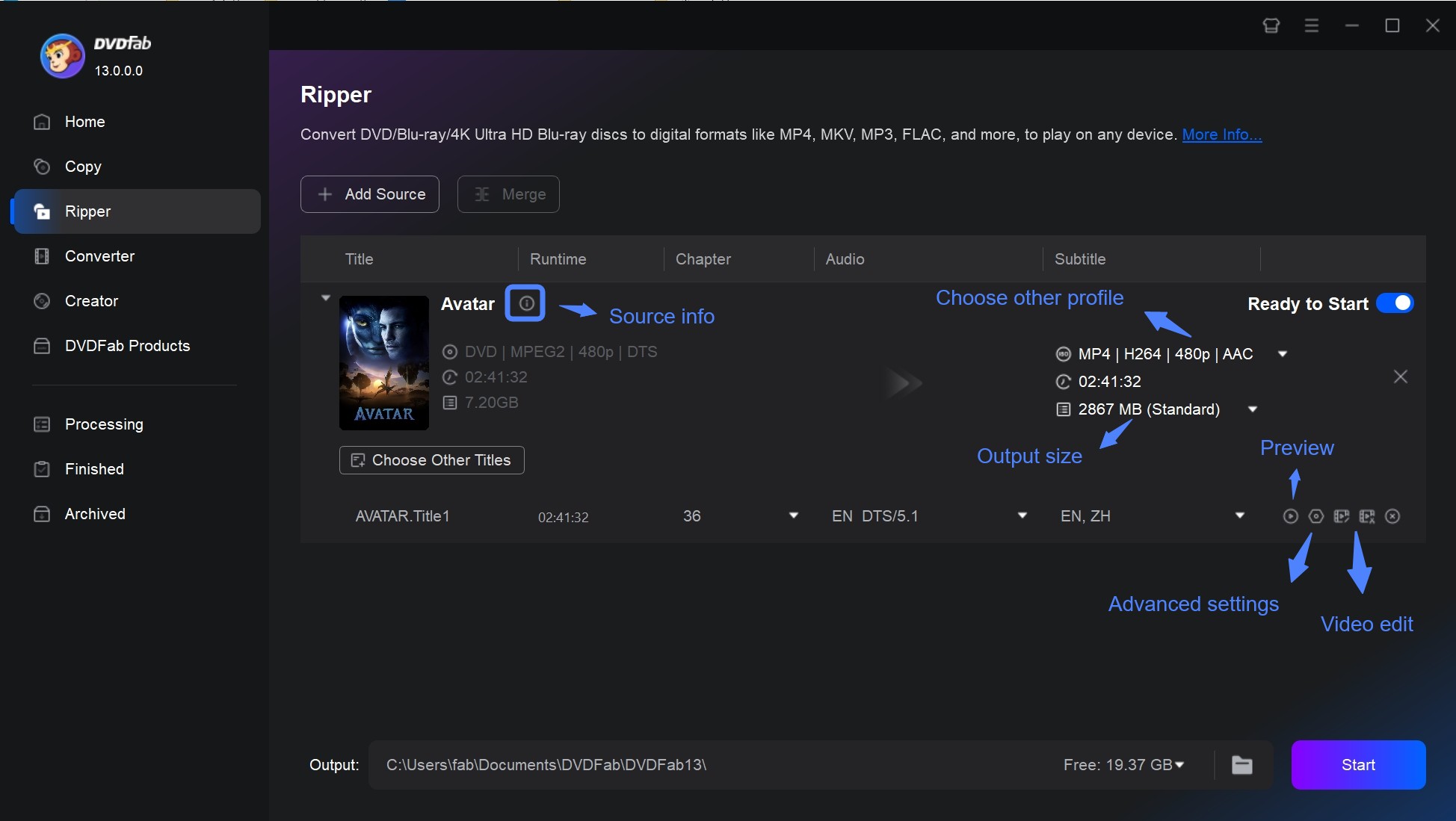
Step 4: Choose an output folder on your computer. Then select Start to convert the DVD to a PS4-compatible video file. When the conversion finishes, move the video file to a USB drive.
How to Play the Converted DVD on PS4 via USB
PS4 cannot play movie discs from an external USB optical drive. This USB method plays a compatible local video file, not the DVD itself. Use an exFAT or FAT32 USB storage device, place the video inside a folder at the USB root, and install the Media Player app from PlayStation Store. An MP4 file extension alone does not confirm compatibility because the video and audio codecs must also be supported.
| Setting | PS4-compatible choice |
| Container | MP4 |
| Video | H.264 High Profile Level 4.2 |
| Audio | AAC LC |
| USB format | exFAT or FAT32 |
| Folder | /Videos/movie.MP4 |
| PS4 Pro option | H.264 Level 5.2 |
Playback specifications are based on PlayStation's official support page for video, music, discs, and USB drives, as of September 2026.
Before you start:
- Install the Media Player app from PlayStation Store.
- Copy the converted DVD video file into a folder at the USB root, such as /Videos/movie.MP4.
- Insert the USB drive into your PS4.
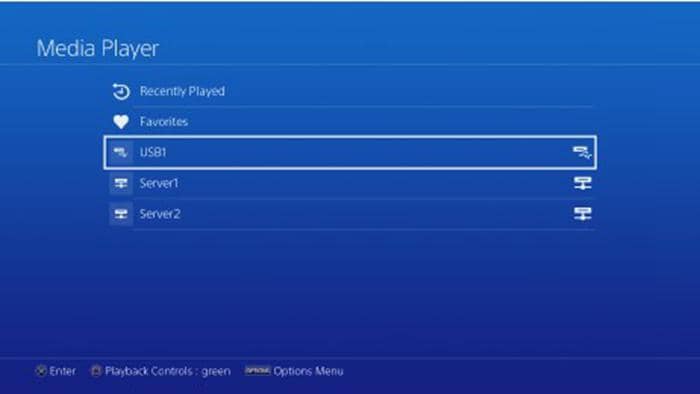
- Open Media Player on PS4: Go to the PS4 content area or Library, then open Media Player.
- Select your USB device: Media Player will show the connected USB storage device. Select it.
- Choose the converted DVD video: Find the converted MP4 file and press X to start playback.
FAQs
Do DVD region codes affect PS4 playback?
Yes. PS4 games are region-free, but DVD movie playback is subject to the console's region requirements. Use a region-compatible DVD.
Can the PS4 play Blu-ray discs?
Yes. PS4 supports standard Blu-ray movie discs, but no PS4 model can play 4K UHD Blu-ray discs. Copyright-protected Blu-ray playback may require an AACS encryption key renewal through a system software update.
Which audio disc formats does PS4 support?
PS4 does not play audio CDs or DVD-Audio discs.
Does the PS5 play DVDs?
Our guide to PS5 DVD playback explains the model difference: PS5 consoles with a compatible installed disc drive can play DVDs; consoles without a usable disc drive cannot play physical DVDs.
Which movie discs can PS3 play?
All PS3 models can play standard Blu-ray and DVD movie discs with up-to-date system software.
Can my PS4 play a burned DVD?
A burned movie DVD must use a PS4-supported recording format and be finalized. Copying an MP4 file onto a data DVD does not create a DVD-Video disc; for file playback, put a compatible MP4 inside a folder on a USB drive and use Media Player.
Conclusion
Every PS4 can play supported standard DVDs, so the console can work as a PS4 DVD player after one-time online activation. Supported DVDs can then play offline. The key limits are simple. Movie discs must meet the console's region and playback requirements; an unfinalized, damaged, or unsupported disc may not play. No PS4 model plays 4K UHD Blu-ray discs, audio CDs, DVD-Audio discs, or movie discs through an external USB optical drive. Direct playback remains the first choice for a supported DVD. If you need an authorized local video file for USB playback, DVDFab DVD Ripper can create a PS4-compatible MP4 with selectable output settings for the Media Player app.
Use note: Convert only content you own or are authorized to access, keep the resulting file for personal, noncommercial use, and follow applicable law and relevant terms. Unauthorized copying or redistribution may be illegal; do not use this process for either.

 Free DVD Decoder for Windows XP and Windows 11: 3 Ways to Play DVDsBy Diana Smith - Sep 23, 2026
 How to Compress ISO Files: 4 Methods for Storage, Playback, and ArchivesBy Diana Smith - Sep 16, 2026
 How to Rip DVD to Facebook and Upload the Video in 2026By Diana Smith - Sep 15, 2026
![How to Rip DVDs for Plex: Guide to Formats, Tools, and Library Setup [2026]](https://images.dvdfab.cn/media/Screenshot_2026-09-08_at_18.53.34_j36v3l.png/public) How to Rip DVDs for Plex: Guide to Formats, Tools, and Library Setup [2026]By Diana Smith - Sep 8, 2026
How to Rip DVDs for Plex: Guide to Formats, Tools, and Library Setup [2026]By Diana Smith - Sep 8, 2026