How to Remove Cinavia from Blu-ray: Tools, Steps, and Audio Checks

Summary: Cinavia Message Code 3 mutes audio when a Blu-ray player detects a Cinavia code in a copied soundtrack. Standard ripping or transcoding usually retains the code; for authorized personal backups where local law permits, DVDFab Blu-ray Cinavia Removal can process the affected track through Blu-ray Copy, Blu-ray Ripper, or Blu-ray to DVD Converter, with the output determined by the selected module.
Table of Contents
A Blu-ray backup may play normally at first and then lose its sound when the player displays Cinavia Message Code 3. This is not a volume or speaker problem. The player has detected a Cinavia code in the audio track and restricted playback.
Copying the disc to an ISO, MKV, or MP4 file does not automatically address the code because it is designed to remain in the audio after copying and format conversion. If you are playing a commercial title, first confirm that the disc or source is authorized. For a personal backup that you are permitted to make, select a Blu-ray Cinavia tool according to whether you need the original disc structure, a playable video file, or DVD output.
What Cinavia Message Code 3 Means—and What Can Fix It
Cinavia is an audio watermarking technology used with some professionally produced video. The code is embedded in the soundtrack, and a compatible Blu-ray player reads it during playback or copying. Message Code 3 means that the player has muted the audio because the detected code does not match the permitted use of that copy. The video may continue because this message applies to the audio track.

Changing the volume, renaming the file, remuxing it into another container, or converting it with a standard video transcoder does not normally process the Cinavia code. Cinavia is designed to remain detectable after an audio track is copied, converted, compressed, or recorded. An MKV or MP4 created from the same track may still trigger the message on a player that checks for Cinavia.
For a commercial movie, the official response is to use a copy made with the copyright owner’s permission. If local law permits you to process a personal backup, the software must specifically support Cinavia audio processing; general disc decryption or video conversion alone does not provide that function. For more information about affected devices and temporary playback behavior, see Cinavia Message Code 3: Meaning and How to Fix Audio Muted Errors.
Can You Disable Cinavia on a Blu-ray Player?
Modern Blu-ray players that detect Cinavia do not normally provide a user setting that turns the detector off. Older or unlicensed playback hardware may behave differently, but buying an old player or avoiding firmware updates is not a dependable way to maintain a disc collection.
Claims involving hidden service menus or modified firmware also vary by model and can affect normal player functions. If an authorized disc triggers the message, check the disc, player firmware, and manufacturer support first. If the problem concerns a permitted backup, address the affected audio track during the backup process instead of relying on a player-specific setting.
Blu-ray Cinavia Removal Tools Compared
A standard Blu-ray ripper is not automatically a Cinavia removal tool. Check whether the software documentation specifically lists Cinavia audio processing and whether its output matches the way you store or play your movies.
| Comparison Item | DVDFab Blu-ray Cinavia Removal | Leawo Blu-ray Cinavia Removal |
| Supported Input | Blu-ray disc or ISO supported by the selected DVDFab module | Blu-ray disc, folder, or ISO |
| Main Output Choices | Blu-ray disc, ISO, folder, video file, or DVD output, depending on the paired module | Blu-ray disc, folder, or ISO copy |
| Copy Modes | Full Disc and Main Movie through Blu-ray Copy | Full Movie and Main Movie |
| Audio Output | DTS-HD output in Blu-ray Copy; Ripper and Converter output depends on the chosen profile | Copy-oriented Blu-ray audio output based on the selected source track |
| Operating Systems | Windows and macOS editions | Windows and macOS |
| Additional Requirements | A supported DVDFab Blu-ray module, a Blu-ray drive for physical discs, and an internet connection | A Blu-ray drive for physical discs and an internet connection |
| Main Limitation | Works through Blu-ray Copy, Ripper, or Blu-ray to DVD Converter instead of a separate copying screen | The Cinavia module focuses on Blu-ray copy output instead of direct MP4 or MKV conversion |
DVDFab Blu-ray Cinavia Removal
DVDFab Blu-ray Cinavia Removal works with DVDFab Blu-ray Copy, Blu-ray Ripper, and Blu-ray to DVD Converter to detect and process Cinavia-affected audio tracks during copying or conversion. In Blu-ray Copy mode, it can retain the selected track as lossless DTS-HD audio, while the conversion modes support formats such as AAC, AC3, MP3, M4A, WAV, and FLAC. This helps prevent audio muting or playback interruptions on Cinavia-enabled Blu-ray players.
For Cinavia-affected DVD or 4K UHD Blu-ray sources, use DVDFab DVD Cinavia Removal or DVDFab UHD Cinavia Removal, respectively. Both perform the same core function but are designed for different disc formats.
Free Download Windows 11/10/8.1/8/7
Free Download macOS 10.13 - 15.x
Leawo Blu-ray Cinavia Removal
Leawo Blu-ray Cinavia Removal accepts a Blu-ray disc, folder, or ISO and creates a Blu-ray disc, folder, or ISO copy. Full Movie retains the complete title structure, while Main Movie copies the selected feature. The module is intended for readers who need another Blu-ray-format backup instead of a direct MP4 or MKV file.
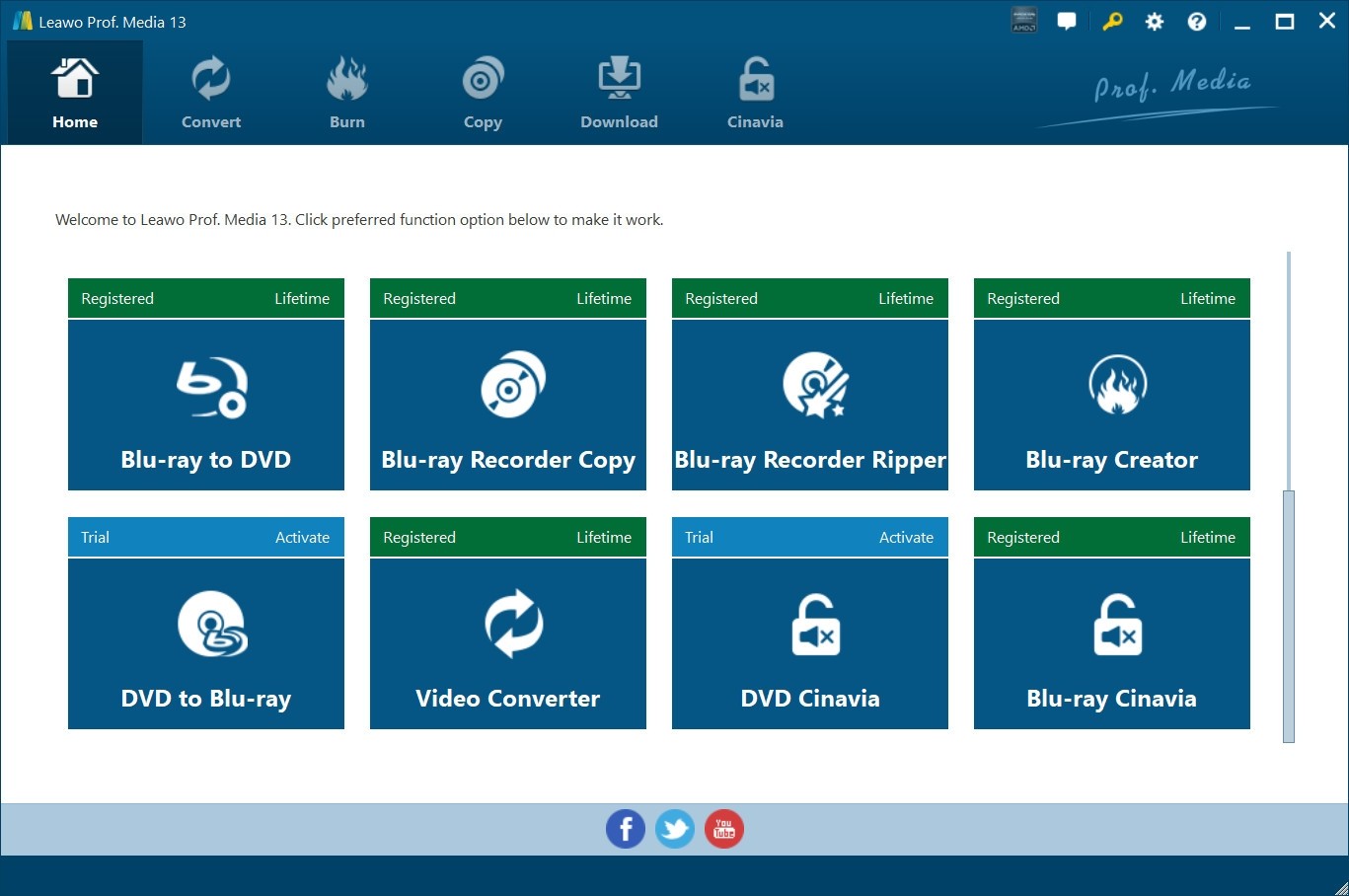
Leawo offers Windows and macOS versions and lists an internet connection among its requirements. Before writing a physical disc, save the result to a folder or ISO and inspect the selected audio track.
How to Remove Cinavia from a Blu-ray with DVDFab
Select the DVDFab module according to the output you need. Blu-ray Copy is for a disc, ISO, or folder that retains Blu-ray structure. Blu-ray Ripper creates a video file for playback on a computer, TV, or media player. Blu-ray to DVD Converter is for standard DVD output.
The steps below use Blu-ray Copy as the example. Process only discs you own or are authorized to use, and follow the laws that apply where you live.
Step 1: Load the Blu-ray and Choose a Copy Mode
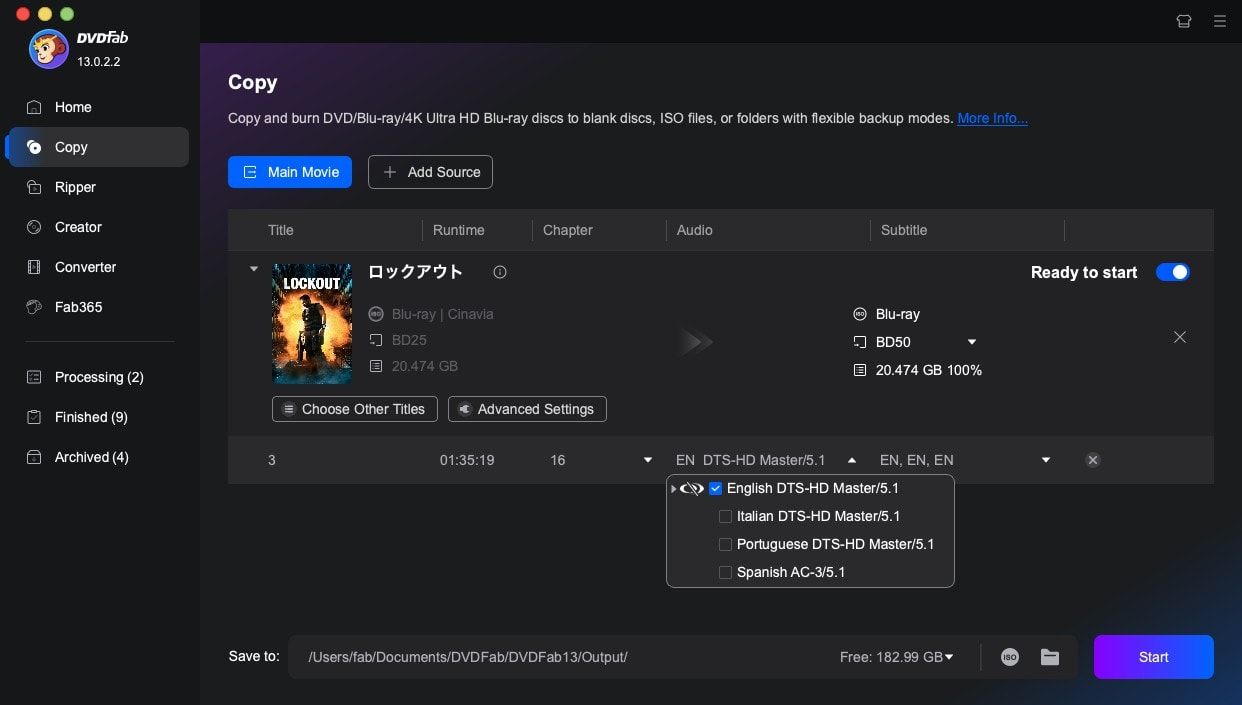
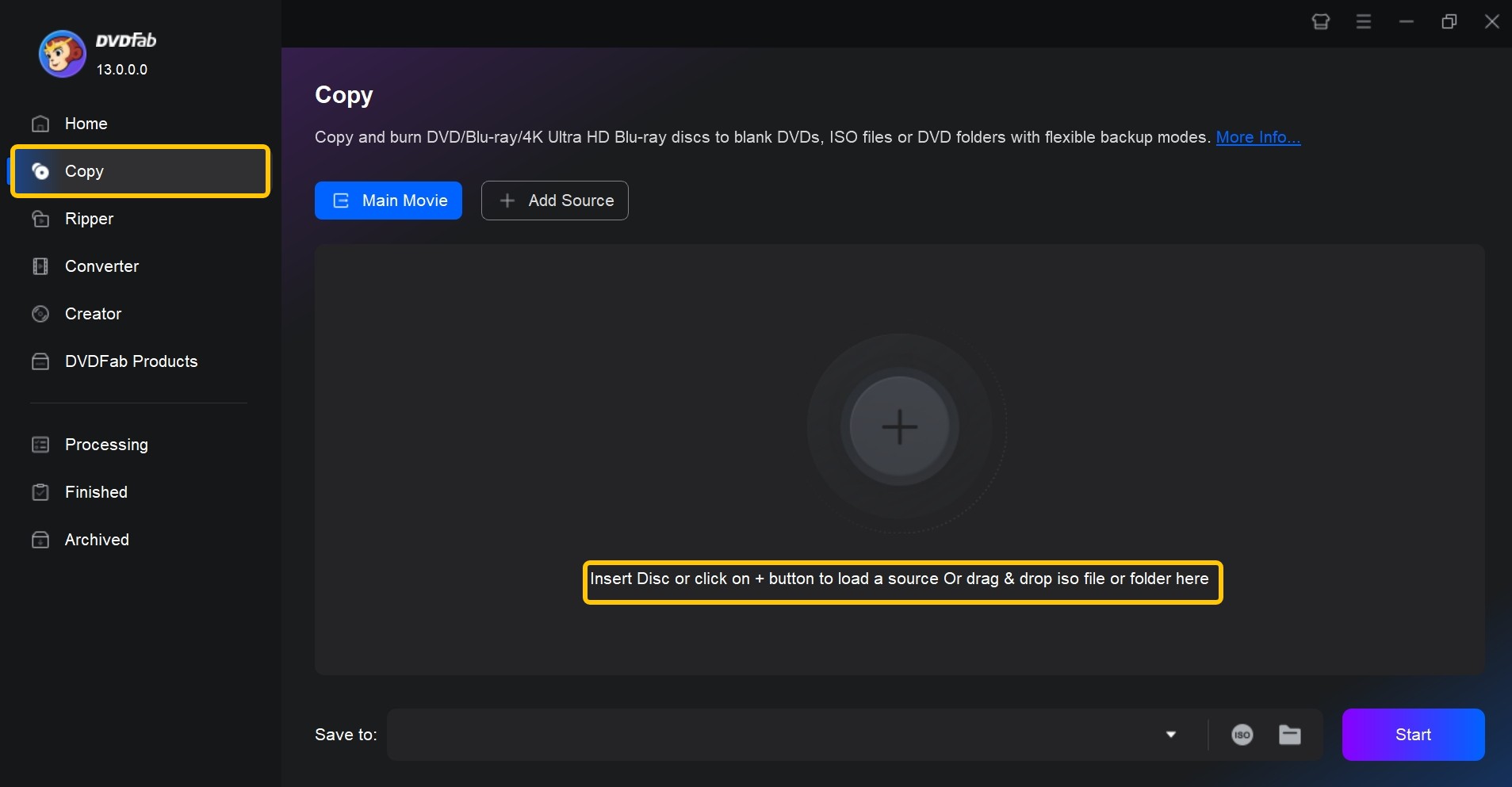
Open DVDFab 13 and select Copy. Insert the Blu-ray into a compatible drive, or drag the ISO source into the main window. Choose Full Disc when you need the complete disc structure, or Main Movie when you need the feature title and selected tracks without all extras.
Step 2: Select the Affected Audio Track
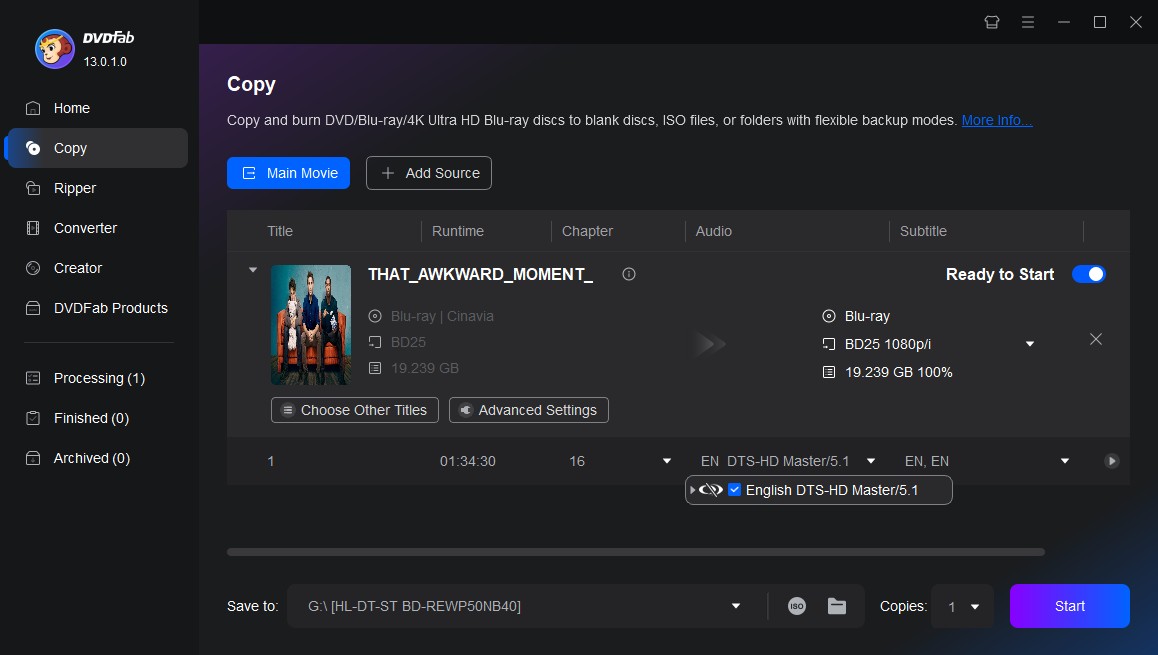
Open the audio list and locate the track marked with the Cinavia logo. Check its language and audio format before selecting it; the first track in the list may be an audio-description track or a language you do not need.
Click the Cinavia logo until a red slash appears across it. This indicates that Cinavia processing is selected for that track. Set BD-50 or BD-25 according to the output disc or file size you need, and choose the output folder.
Step 3: Start the Task and Check the Output Audio
Click Start and allow the task to finish before opening or writing the result. A live internet connection is required while DVDFab analyzes and processes the source.
Troubleshooting Cinavia Removal and Audio Problems
The Cinavia Icon Does Not Appear
The source may not contain a track that DVDFab identifies as Cinavia-affected, or the selected language track may not be the affected one. Reopen the audio list and inspect each relevant language track.
Confirm that DVDFab is updated, the disc can be read without drive errors, and the computer has an active internet connection. If the same source still produces no notification, send the DVDFab log and source information to technical support instead of assuming that every audio track requires processing.
DVDFab Closes or the Task Fails During Analysis
Install the latest available DVDFab update and load the source again. If the application closes during analysis or conversion, open the hardware-acceleration settings, disable GPU processing, and retry with Software-only selected.
When the failure is limited to one disc, keep the task and server logs and include them in a support request. Disc condition, drive reading, source support, and audio analysis can produce different symptoms, so a crash alone does not identify the cause.
The Output Has No Audio or Uses the Wrong Language
Return to the source and compare the selected tracks by language, codec, channel layout, and audio-description label. A title may contain several tracks in the same language, and the first one is not always the main soundtrack.
Check whether the chosen output mode retained every selected track or only the default one. If the track appears in the output but does not play automatically, select it manually in the player. If the required track is absent, create the output again after correcting the audio selection; do not write the result to a blank disc until the folder or ISO plays correctly.
Frequently Asked Questions
Is Cinavia still used on Blu-ray discs?
Yes. Cinavia detection remains part of supported Blu-ray playback systems, although the presence of a Cinavia code depends on the specific title and release. Software that recognizes the source may display a Cinavia mark beside the affected audio track.
Does re-encoding the audio remove Cinavia?
Not with a standard audio or video converter. Cinavia codes are designed to remain detectable after copying, compression, format conversion, and recording, so a different codec or container alone does not address the code.
Do I need an internet connection for DVDFab Blu-ray Cinavia Removal?
Yes. DVDFab lists a live internet connection as a requirement for Blu-ray Cinavia analysis and processing. A physical Blu-ray also requires a compatible Blu-ray drive.
Can the same Cinavia removal tool process DVDs and UHD Blu-rays?
Not necessarily. DVDFab provides separate DVD, Blu-ray, and UHD Cinavia Removal products, so select the product that matches the source disc type and the related Copy or Ripper module.
Is removing Cinavia legal for a personal Blu-ray backup?
The rules for copying protected media differ by country and region. Use only discs you own or are authorized to process, keep permitted backups for personal use, and check the law that applies where you live.
Will Cinavia removal change the audio format or quality?
It depends on the selected module and profile. Blu-ray Copy is documented to produce a processed DTS-HD track in supported tasks, while Blu-ray Ripper or Blu-ray to DVD Converter may convert the audio to AAC, AC3, MP3, FLAC, or another selected format.
Is CinEX HD Utility still available in 2026?
CinEX HD Utility now appears mainly in third-party software catalogs, where listed releases date from 2014 to 2017 and target older Windows versions. I could not verify an active official product page or current support documentation, so its licensing, maintenance, database availability, and compatibility with modern systems remain unclear. For a current setup, use software with an active official download and support page.
Conclusion
Cinavia Message Code 3 is caused by a code in the audio track, not by the player’s volume controls or speakers. Ordinary Blu-ray copying and video conversion normally retain that code. If an authorized commercial disc displays the message, confirm the source and obtain a permitted copy first.
For a personal backup that local law allows, select a tool that specifically documents Blu-ray Cinavia audio processing. Use Blu-ray Copy when the disc structure matters, Blu-ray Ripper when you need a playable video file, or Blu-ray to DVD Converter for DVD output. Select the exact language track marked with Cinavia, and check the completed audio before writing a disc or archiving the result.