How to Convert ISO to MKV Without Quality Loss or With Compression

Summary: To convert ISO to MKV, choose remuxing when you want to keep the existing video and audio streams, or re-encoding when you need a smaller file. DVDFab covers both paths and places title, audio, subtitle, profile, and task controls in one interface; MakeMKV focuses on MKV remuxing, while HandBrake focuses on compression. Load the ISO, verify the main title, choose MKV Passthrough or a compressed MKV profile, and check the finished file before processing the rest of your library.
Table of Contents
When I move an aging disc collection to a NAS, an ISO image often preserves more structure than I need for daily playback, while a careless conversion can drop the correct title, surround track, or forced subtitles. Converting ISO to MKV makes the library easier to browse, but the first choice matters: remux the original streams for maximum fidelity, or re-encode them to reduce storage use.
I reviewed the recorded Windows 10 test setup and current ISO conversion software releases. The sections below explain when DVDFab, MakeMKV, HandBrake, FFmpeg, or VLC provides the clearest path for source loading, file size, subtitles, chapters, batch tasks, and playback checks.
Quick Answer: Choose the Right ISO to MKV Method
Choose DVDFab DVD Ripper or DVDFab Blu-ray Ripper first when you need to rip DVD to both MKV Passthrough and compressed MKV profiles, a task queue, detailed track selection, or verified support for a protected source. Choose MakeMKV for a focused original-stream MKV export. Choose HandBrake when the source already opens and reducing file size matters most. FFmpeg suits a supported unprotected DVD ISO and a compatible build. VLC remains a basic option for an occasional mounted source.
| Tool | Best for | Video processing | Main condition | Output |
| DVDFab | Passthrough, compression, protected-source support, and queued tasks | Remux or re-encode | Paid after the evaluation period | MKV and other video or audio profiles |
| MakeMKV | Focused original-stream MKV export | Remux | Large output files | MKV |
| HandBrake | Free compression and codec control | Re-encode | The source must already be readable | MKV, MP4, or WebM |
| FFmpeg | Advanced unprotected DVD ISO processing | Stream copy or re-encode | Correct build and title selection | MKV and other containers |
| VLC | Occasional basic conversion | Re-encode | Limited title, subtitle, and batch control | Custom media profiles |
My Recommendations by Scenario
- One application for remuxing and compression: Choose DVDFab; check whether the ISO contains DVD or Blu-ray structure before opening the matching Ripper module.
- Original-stream MKV with a focused interface: Choose MakeMKV; keep enough free storage because the video stream is not recompressed.
- Free compression of a readable source: Choose HandBrake; its video output is always re-encoded.
- Command-line processing of an unprotected DVD ISO: Choose FFmpeg only after confirming the build includes the DVD-Video demuxer and required libraries.
- Temporary conversion from a mounted readable source: VLC can work, but verify the selected title before a long conversion.
How I Tested
I based this update on the article's recorded Windows 10 x64 test environment: an Intel Core i7-6700, 16 GB of RAM, an NVIDIA GeForce RTX 4060 Ti, and a 6.13 GB DVD ISO with a 1:50:14 main title. The earlier test did not record every application build, so I removed its unsupported speed ranking. For a repeatable comparison, use DVDFab 13.0.6.3, MakeMKV 1.18.4, HandBrake 1.11.2, VLC 3.0.23, and a compatible FFmpeg build, then record source loading, title detection, processing time, output size, chapters, audio, subtitles, and playback quality.
ISO vs MKV and Remux vs Re-encoding
An ISO is a disc image that can preserve titles, playlists, menus, chapters, and the original DVD or Blu-ray directory structure. MKV is a media container that stores selected video, audio, subtitle, chapter, and metadata tracks in one file. DVD-Video is not a simple linear video file, so the converter must identify the correct title or program chain before export.
| Item | ISO | MKV |
| Type | Disc image | Media container |
| Typical contents | Disc structure, titles, menus, and playlists | Selected video, audio, subtitles, chapters, and metadata |
| Playback | Often needs mounting or disc-aware software | Supported by many players and media servers |
| File size | Usually represents most or all disc data | Depends on selected tracks and video processing |
| Library use | Preserves the disc layout | Easier to name, organize, and play as one title |
Remuxing Keeps the Existing Streams
DVDFab MKV Passthrough and MakeMKV place the existing video, audio, subtitle, and chapter streams into an MKV container without creating a new video stream. This avoids generation loss. Removing menus, extras, and unwanted tracks may reduce size, but the finished MKV can remain close to the size of the selected title.
Re-encoding Creates New Video
DVDFab compress and convert DVD to MKV profiles and HandBrake encode the source into H.264, H.265, AV1, or another selected codec. Re-encoding can reduce storage use, but the result depends on the encoder, quality setting, resolution, filters, source condition, and playback device. HandBrake does not provide video passthrough, so every HandBrake video export creates a new stream.
How to Convert ISO to MKV Without Re-encoding
Method 1: Remux ISO to MKV with DVDFab
DVDFab DVD Ripper and DVDFab Blu-ray Ripper accept protected disc, ISO, and folder sources, then export the selected title to MKV or another digital format. For an original-stream ISO to MKV task, the MKV Passthrough profile remuxes the source video, audio, subtitles, and chapters instead of creating a new video stream. This method suits home-theater playback, media servers, and disc archives where storage size is secondary.
The public download center currently lists DVDFab 13.0.6.3. The Ripper modules provide title selection, track controls, a task queue, output profiles, and supported GPU encoders for compressed MKV. DVD and Blu-ray sources use their corresponding Ripper modules, so confirm the ISO structure first.
DVDFab provides more output choices than a remux-only application because the same interface supports passthrough and re-encoding. Full use requires payment after evaluation, and passthrough does not substantially reduce the selected video's size. I place it first for mixed DVD and Blu-ray ISO collections needing consistent title and track control.
- Accepts protected DVD and Blu-ray discs, folders, and ISO images.
- Provides MKV Passthrough and compressed MKV profiles.
- Selects titles, chapters, audio tracks, and subtitles.
- Adds multiple jobs to a sequential task queue.
- Uses supported GPU encoders for compressed output.
- Covers remuxing and compression.
- Provides detailed track selection.
- Supports queued conversion tasks.
- Uses separate DVD and Blu-ray modules.
- Passthrough files remain large.
Tutorial: Remux an ISO with DVDFab MKV Passthrough
You can watch the video or follow the steps:
Step 1: Launch DVDFab and add the ISO.
Free Download Windows 11/10/8.1/8/7
Free Download macOS 10.13 - 15.x
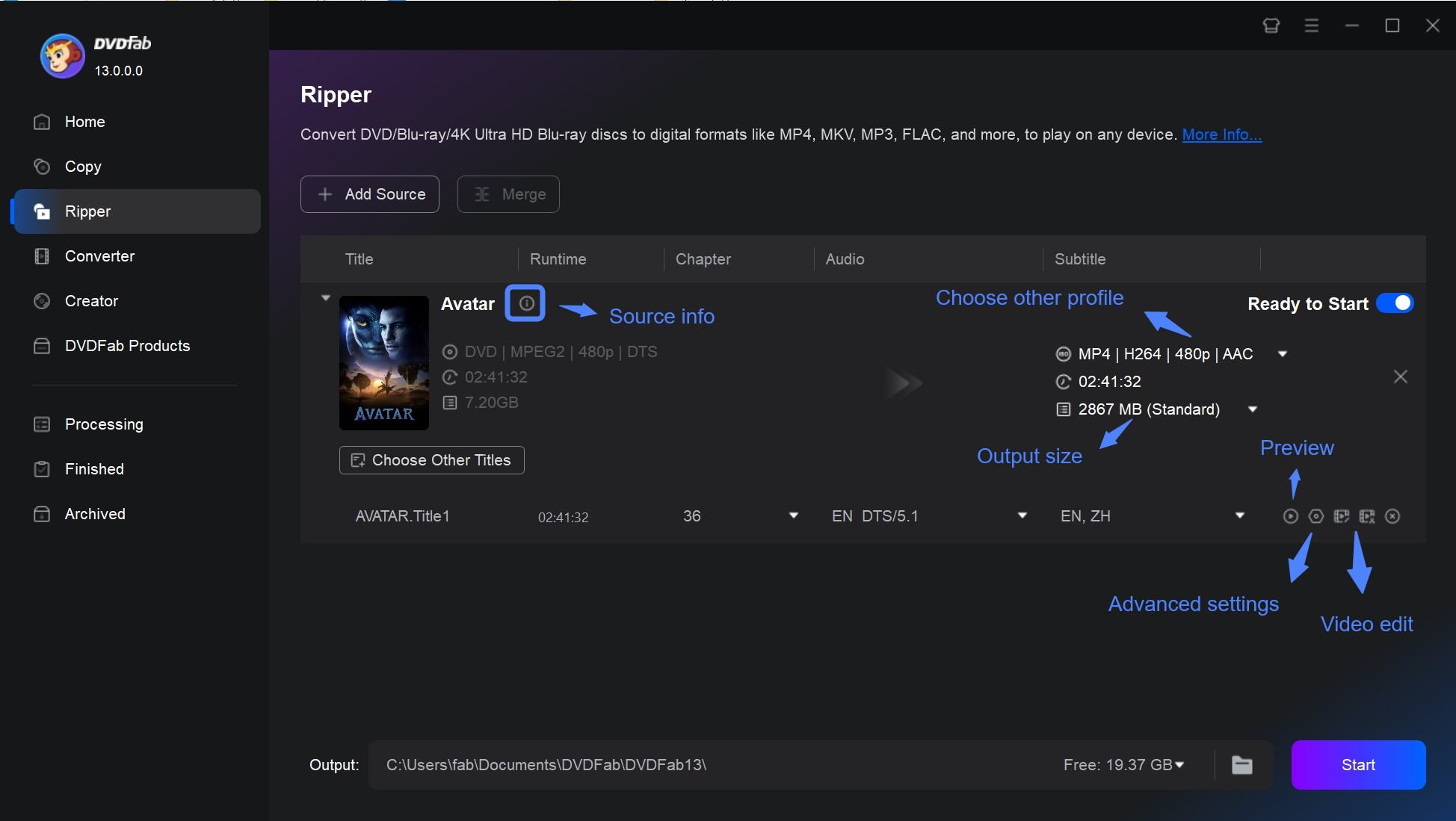
Open DVDFab 13 and select Ripper. Add the ISO directly with the navigation controls or drag it into the workspace. Use DVD Ripper for a DVD ISO and Blu-ray Ripper for a Blu-ray ISO.
Step 2: Choose MKV Passthrough.
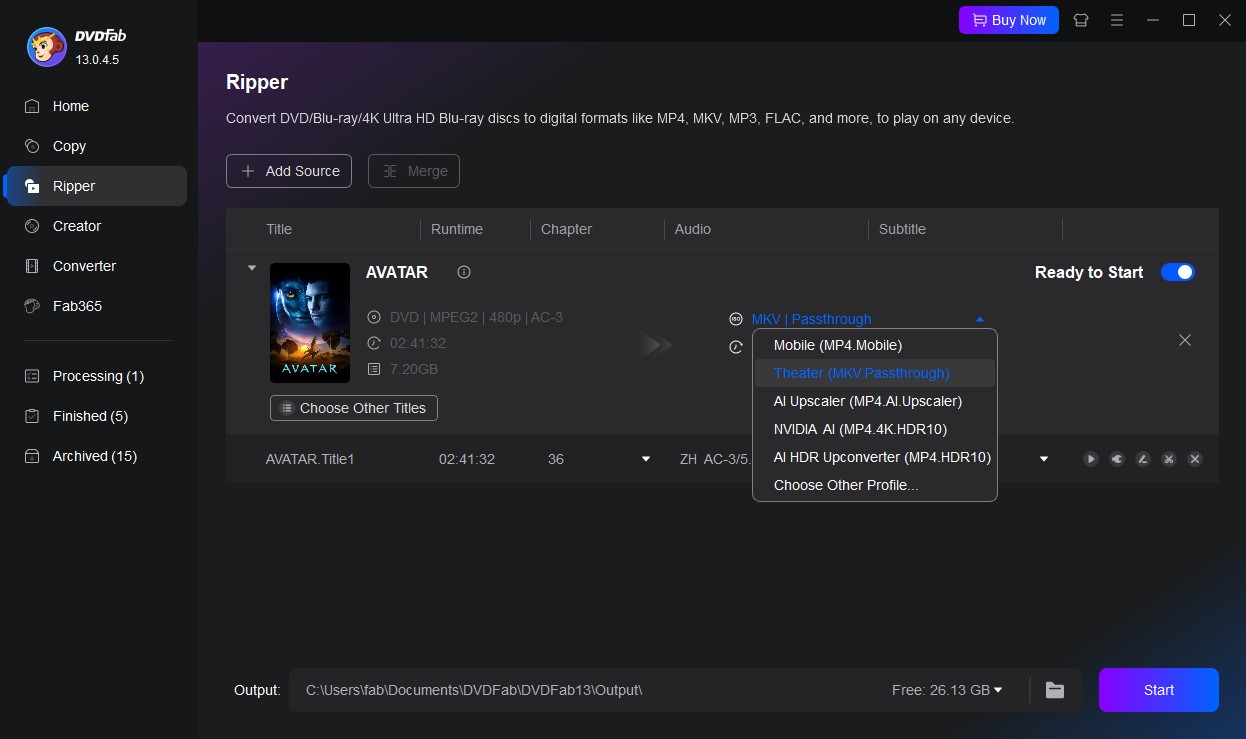
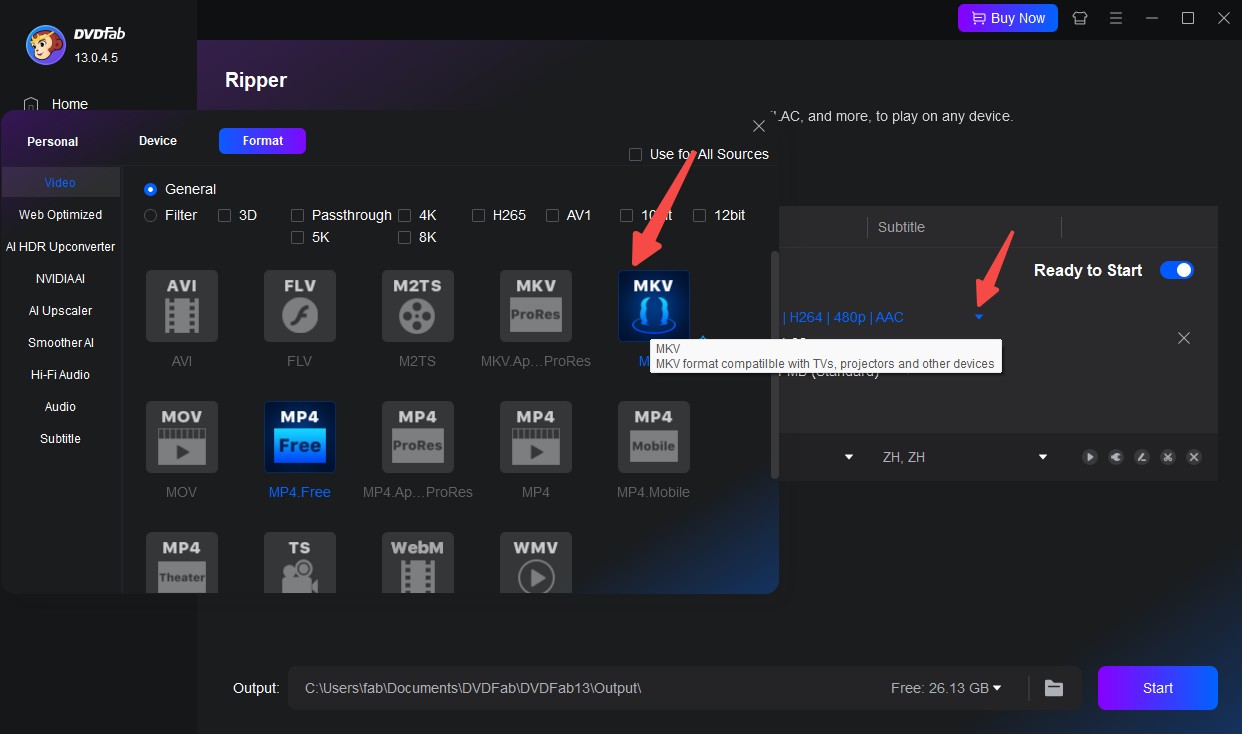
Open Choose Other Profile, select the MKV category, and choose MKV Passthrough. Select another profile only when you intend to re-encode the video.
Optional: Review output controls.
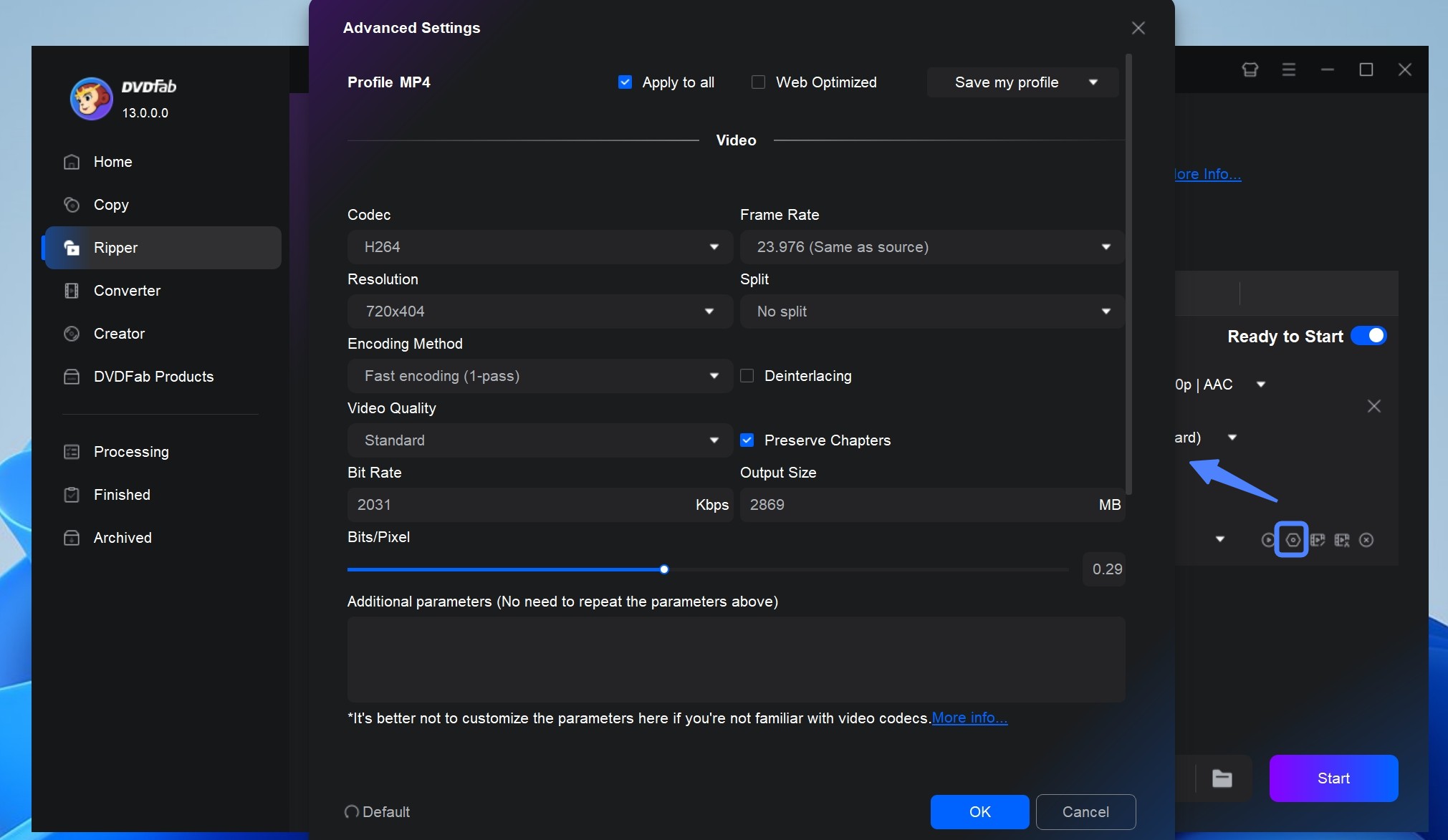
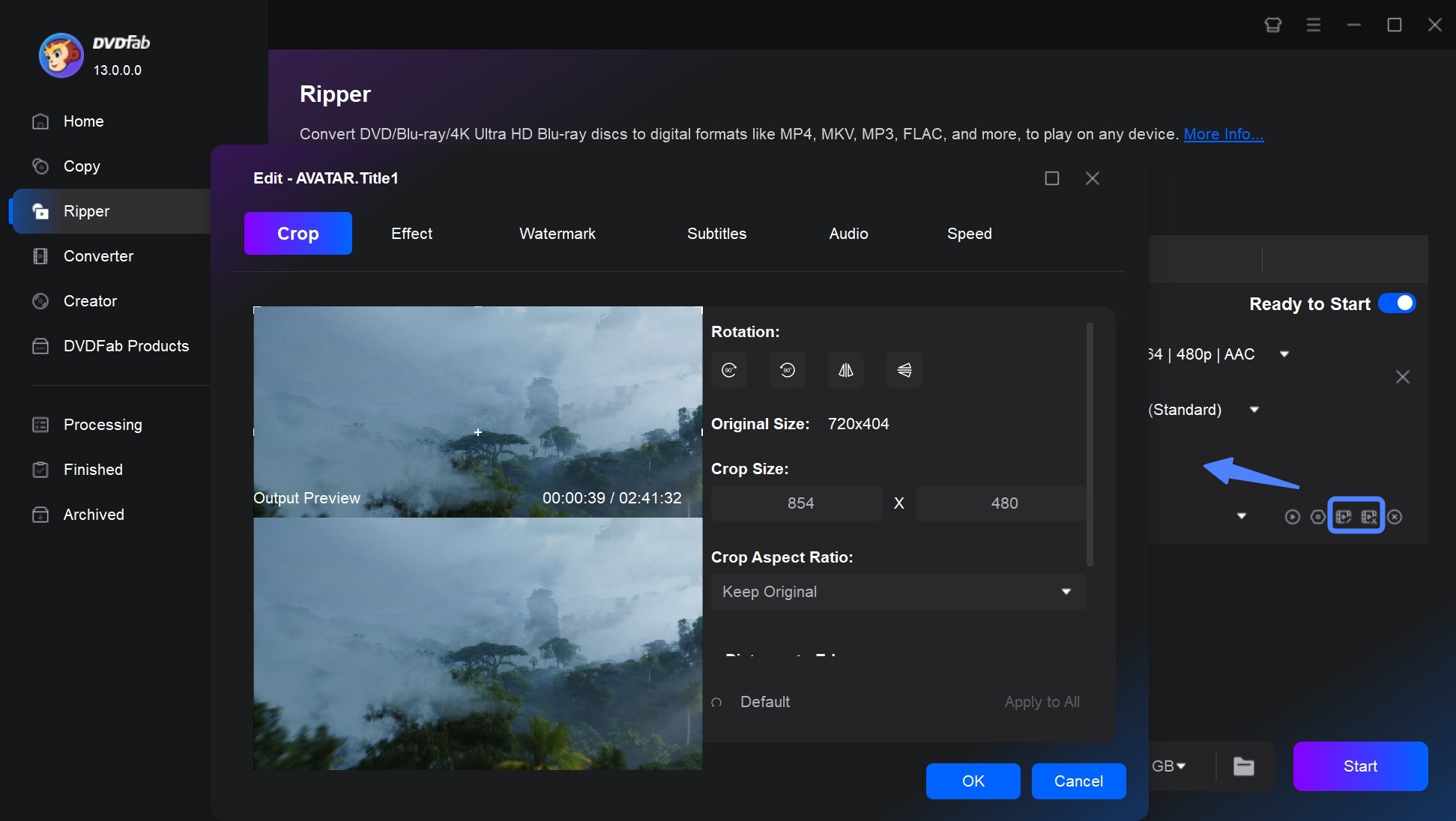
Check the detected main title, runtime, chapter count, audio tracks, and subtitle tracks. Advanced Settings applies to compressed profiles; Video Edit can trim, crop, add subtitles, or add a watermark when editing is required.
One r/DataHoarder discussion illustrates why many home-media users keep image-based VobSub or PGS subtitle tracks inside MKV and create SRT files only when searchable text is required. OCR can introduce recognition errors, so verify any converted subtitle file before deleting the original track.
| Video | Audio | Subtitles | Result |
| MKV Passthrough | Keep required original tracks | Remux required VobSub or PGS tracks | Existing media streams in an MKV container |
Step 3: Choose the output folder and start.
Select the destination folder, click Start, and play the exported MKV. Confirm its runtime, audio, subtitles, chapters, and target-device compatibility before processing more ISO files.
Best for: Users with DVD and Blu-ray ISO collections who need original-stream MKV output, detailed track control, and optional queued tasks.
Method 2: Remux ISO with MakeMKV
MakeMKV opens DVD, Blu-ray, and ISO sources and places selected video, audio, subtitle, chapter, and metadata streams into an MKV file without changing the media data. The result keeps the existing compressed streams and normally processes close to source-reading speed. It suits desktop media users who want a focused remux and do not need compression, editing, or alternative output containers.
MakeMKV 1.18.4 was released on June 15, 2026 for Windows and macOS, with Linux packages discussed through its forum. The beta is time-limited, so check the current official download and forum pages rather than relying on an old fixed beta-key date.
MakeMKV can be the simpler choice for a single readable-source remux, but it exports only MKV and does not reduce the video stream's size. I place it after DVDFab because compressed profiles, editing controls, and a comparable graphical task queue are outside its main purpose.
- Preserves video, audio, subtitles, chapters, and metadata.
- Reads DVD, Blu-ray, and ISO sources.
- Supports Windows, macOS, and Linux.
- Produces MKV without video re-encoding.
- Outputs MKV only.
- Does not compress video.
- Beta access is time-limited.
Tutorial: Convert ISO to MKV with MakeMKV
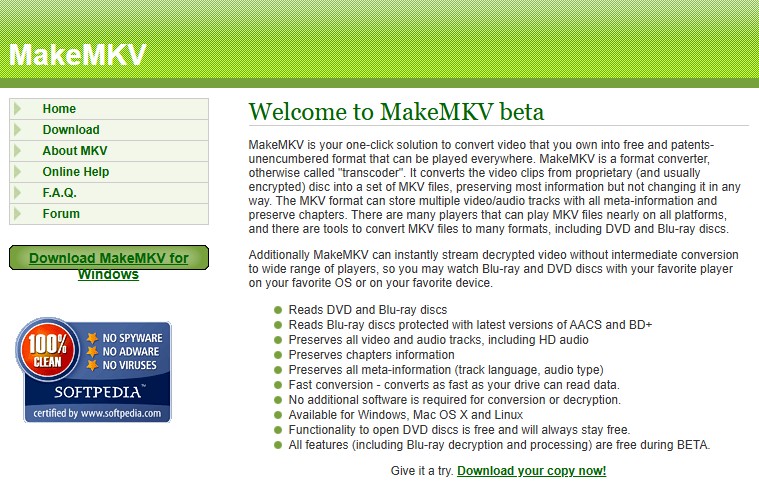
Step 1: Install MakeMKV 1.18.4 from its official download page, open the application, and choose File > Open files.
Step 2: Select the ISO and wait for MakeMKV to scan its titles. Compare runtime and chapter count before selecting the main title.
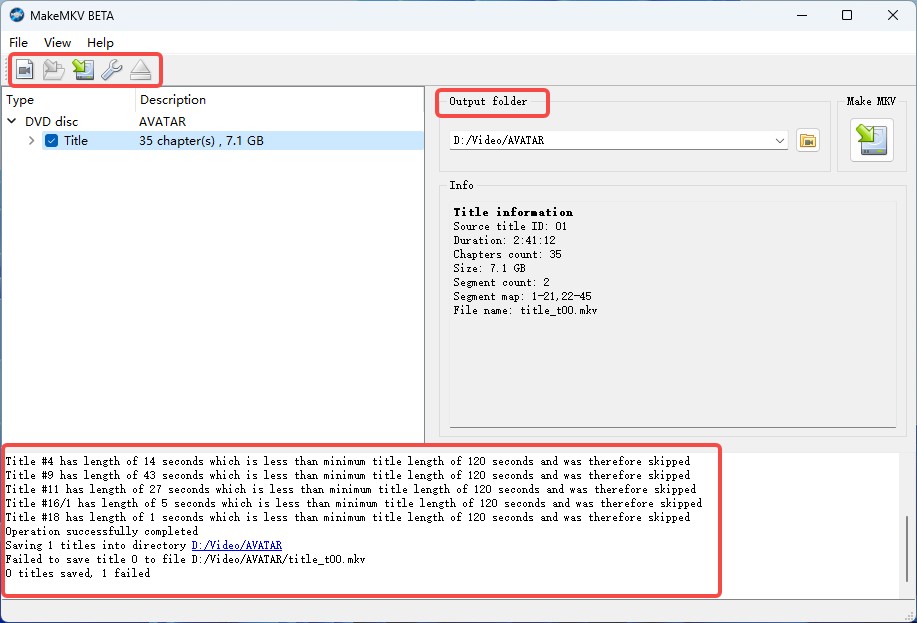
Step 3: Keep the required audio and subtitle tracks, choose the output folder, and click Make MKV.
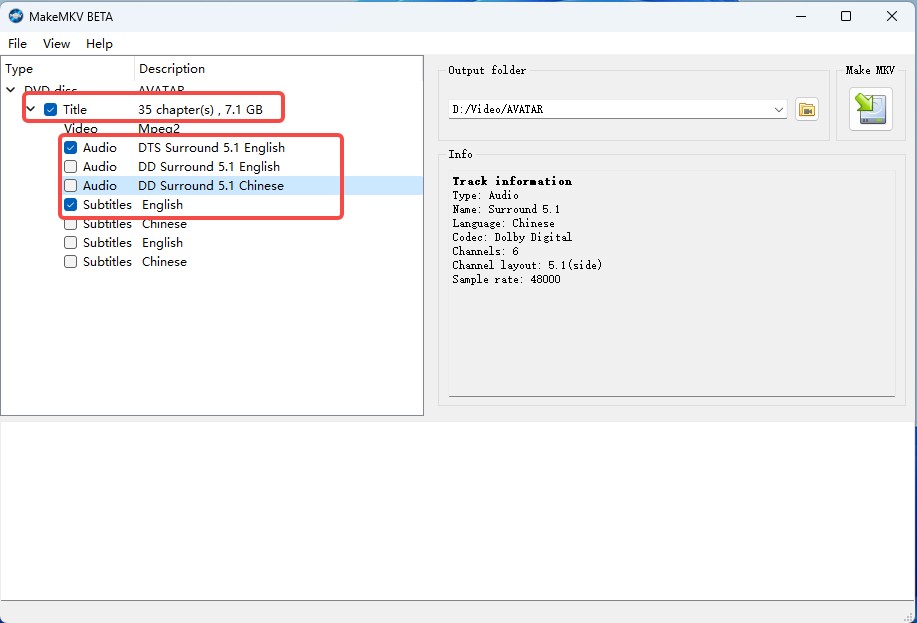
Best for: Users who want an original-stream MKV from a readable ISO and do not need compression or multiple output formats.
DVDFab vs MakeMKV for Original-Stream MKV
| Tool | Source and title controls | Output choices | Batch tasks | Suitable scenario |
| DVDFab | DVD and Blu-ray ISO modules with track controls | MKV Passthrough and compressed profiles | Task Queue | Mixed or complex collections |
| MakeMKV | Remux-focused title and track selection | MKV | No comparable graphical queue | Focused original-stream export |
How to Convert ISO to a Smaller MKV File
Method 1: Compress ISO to MKV with DVDFab
DVDFab appears first in the compression section because the Ripper module can switch from MKV Passthrough to an H.264, H.265, or AV1 MKV profile without loading the source into another application. Advanced Settings controls the codec, resolution, frame rate, quality, audio format, channels, and subtitle output. This method suits users who need smaller files and detailed source selection in the same application.
Supported hardware encoders can use NVIDIA, AMD, Intel, or Apple video engines when the selected codec and computer support them. Hardware encoding can reduce processing time, but file size and output quality still depend on the source, encoder, quality control, filters, resolution, and playback requirements.
DVDFab keeps source loading, title selection, compression, and task management together, but the paid-use boundary still applies. I place it first for collections that mix protected and unprotected sources or require both passthrough and compressed outputs. A short preview remains the safest way to check detail, motion, subtitles, and compatibility.
Free Download Windows 11/10/8.1/8/7
Free Download macOS 10.13 - 15.x
Tutorial: Compress ISO to MKV with DVDFab
Step 1: Add the ISO to the correct Ripper module and verify the main title, audio, and subtitles.
Step 2: Open Choose Other Profile and select an MKV H.264, H.265, or AV1 profile.
| Use case | First choice | Video | Audio | Subtitle approach |
| Broad device support | DVDFab H.264 MKV | H.264 at source resolution | AAC or compatible surround audio | Test soft tracks on the target device |
| Smaller files on newer devices | DVDFab H.265 MKV | H.265 at source resolution | Compatible passthrough or AAC | Keep required image-based tracks |
| Recent AV1-capable hardware | DVDFab AV1 MKV | AV1 | Check device support | Verify player support |
Step 3: Keep the source resolution unless the target device requires a lower limit. Choose audio passthrough only when the player supports the source codec.
Step 4: Preview a short section, start the conversion, and check the completed file before applying the settings to other titles.
Method 2: Compress ISO with HandBrake
HandBrake is a free video transcoder for readable DVD, Blu-ray, ISO, and common video sources. It creates a new video stream, so use it when the target is a smaller MKV rather than an untouched remux. The Video tab provides H.264, H.265, and AV1 encoders, while the Audio and Subtitles tabs control conversion, passthrough, language, and forced-subtitle behavior.
HandBrake 1.11.2 was released on March 22, 2026. Its current feature set includes MKV output, title and chapter selection, batch scanning, encode queues, chapter markers, subtitle controls, constant-quality encoding, and optional hardware encoders when compatible hardware and drivers are detected.
HandBrake gives detailed free compression controls, but it does not circumvent copy protection or preserve the original video through passthrough. I place it after DVDFab because the source must already be readable and every video job requires re-encoding. It remains practical for homemade discs, accessible backups, and ordinary video files.
- Encodes MKV with H.264, H.265, AV1, and VP9.
- Provides constant-quality and average-bitrate modes.
- Supports encode queues and batch scanning.
- Preserves chapters and compatible audio tracks.
- Passes multiple PGS or VobSub tracks into MKV.
- Does not read protected sources by itself.
- Video always re-encodes.
- Settings require careful review.
Tutorial: Convert ISO to MKV with HandBrake
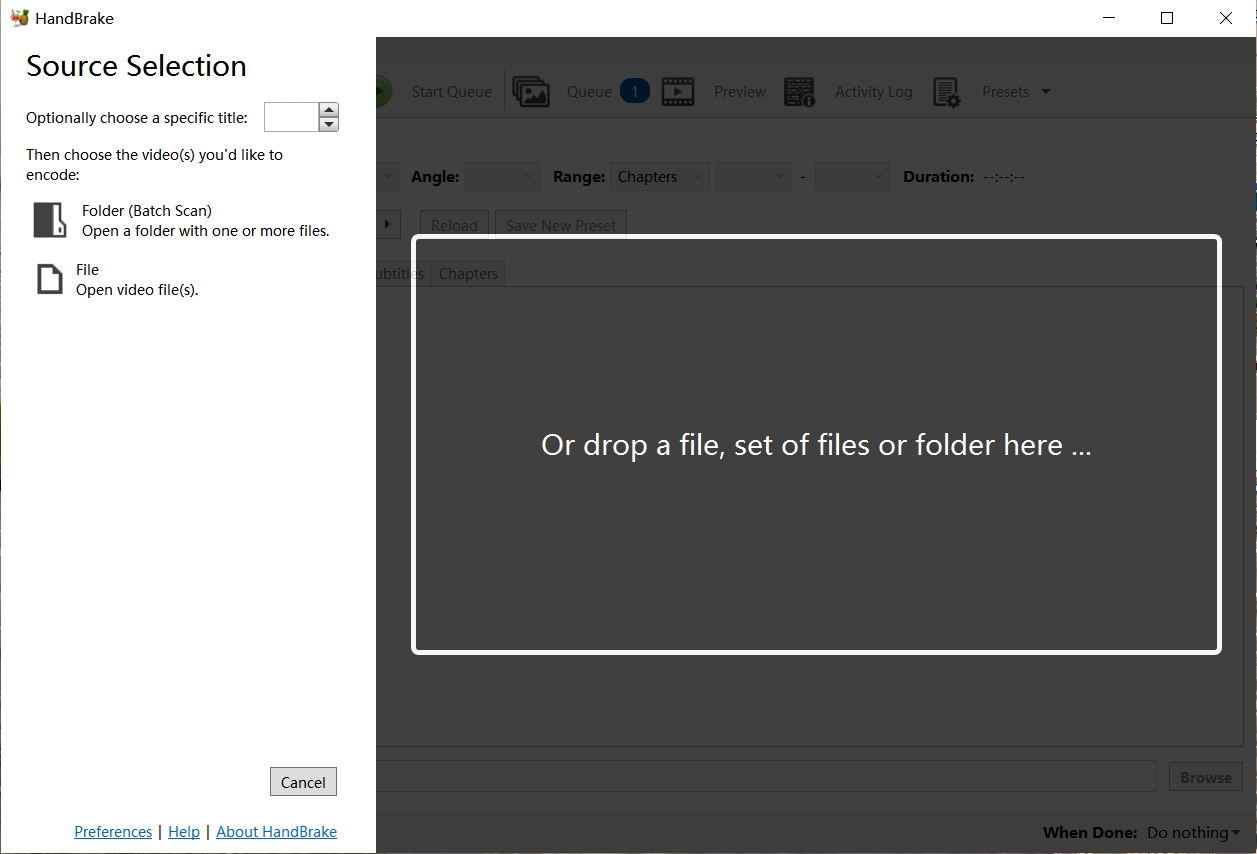
Step 1: Open the readable ISO in HandBrake and select the correct title and chapter range.
Step 2: Choose an MKV preset near the source resolution. Select H.264 for broad compatibility, H.265 for newer devices, or AV1 after checking decoder support.
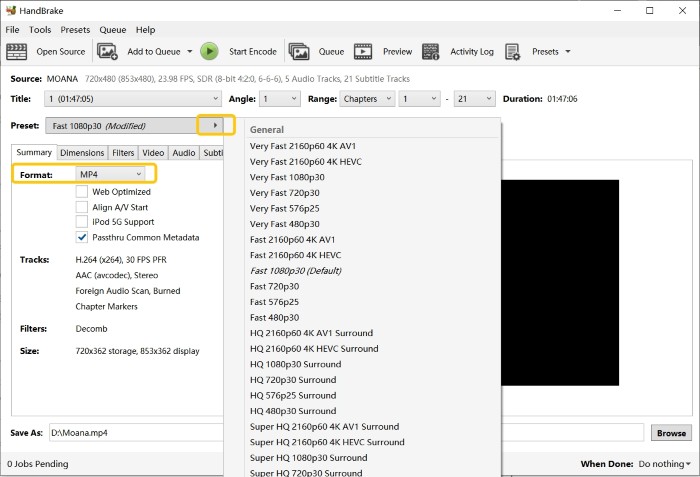
Step 3: Set the frame rate to match the source unless a specific target requires another value. Choose the required audio tracks and compatible passthrough options.
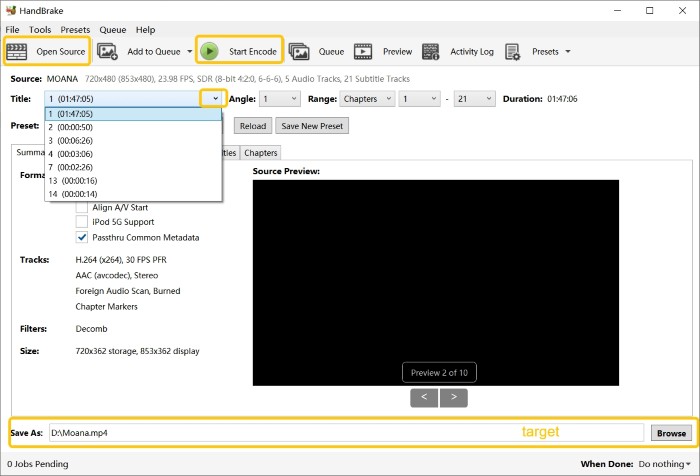
Step 4: Add PGS or VobSub subtitles as soft tracks when the player supports them. Use Foreign Audio Search only as a starting point and verify its choice manually.
Step 5: Click Start Encode and check the finished file.
Best for: Users who need a free compressed MKV from an ISO or disc backup that HandBrake can already read.
How to Batch Convert ISO Files to MKV and Keep the Right Tracks
Method 1: Use the DVDFab Task Queue
DVDFab DVD Ripper and Blu-ray Ripper place added jobs in a task queue and process them sequentially. Add each ISO as a separate source, select the correct Ripper module, and review the title, profile, audio, subtitles, output name, and destination before starting the queue.
- Add the first ISO and confirm its main title.
- Select MKV Passthrough or a compressed MKV profile.
- Review audio and subtitle tracks.
- Set a clear output name and folder.
- Add the task to the queue.
- Repeat the checks for every ISO.
- Open the task list and confirm the order.
- Start the queue.
Do not rely only on the longest-title rule. TV discs, bonus discs, and some authored movie discs can contain several titles with similar runtimes.
Method 2: Use the HandBrake Queue
HandBrake provides batch scanning and an encode queue for sources it can read. Open each ISO, choose its title, preset, audio, and subtitle settings, then select Add to Queue. This method is suitable for compressed output, but each disc image still requires a title and track check.
Keep the Correct Audio and Subtitle Tracks
Start with DVDFab's title, audio, and subtitle selectors. Keep the main language track, any required original surround track, and the forced subtitle track. Image-based VobSub and PGS subtitles can remain inside MKV when the intended player supports them. Converting these tracks to SRT requires OCR and a manual text check.
HandBrake can select the first or all matching subtitle languages, add Foreign Audio Search, and pass multiple PGS or VobSub tracks into MKV. The automatic scan can miss or select the wrong track, so test a scene with foreign-language dialogue before processing the rest of the queue.
- Check the main-title runtime and chapter count.
- Confirm audio language and channel layout.
- Remove unwanted commentary tracks.
- Verify forced subtitles.
- Check output names and free storage.
- Play one completed title before starting a large batch.
Other Tools to Convert ISO to MKV: FFmpeg and VLC
Convert an Unprotected DVD ISO with FFmpeg
FFmpeg's dvdvideo demuxer accepts DVD devices, ISO files, and DVD directory structures. The FFmpeg build must include GPL support, libdvdnav, and libdvdread. The demuxer contains no decryption code, and the title number should be verified because DVD-Video is not a simple linear container.
ffmpeg -f dvdvideo -title 1 -i input.iso -map 0 -c copy output.mkvReplace 1 with the verified DVD title number. This example applies only to a supported, unprotected DVD ISO; it is not a general Blu-ray ISO command.
Convert a Mounted Readable ISO with VLC
VLC 3.0.23 is primarily a media player, but its Convert/Save panel can create a custom output profile from a mounted readable DVD ISO. It offers less disc-title, subtitle, chapter, and queue control than a dedicated ripper or transcoder, so use it for a limited one-off task rather than a large media collection.
- Plays many local media formats.
- Provides a basic Convert/Save panel.
- Runs on Windows, macOS, and Linux.
- Previews a source before conversion.
- Limited disc-structure controls.
- No comparable task queue.
- Not suited to protected sources.
Tutorial: Convert a Mounted DVD ISO with VLC
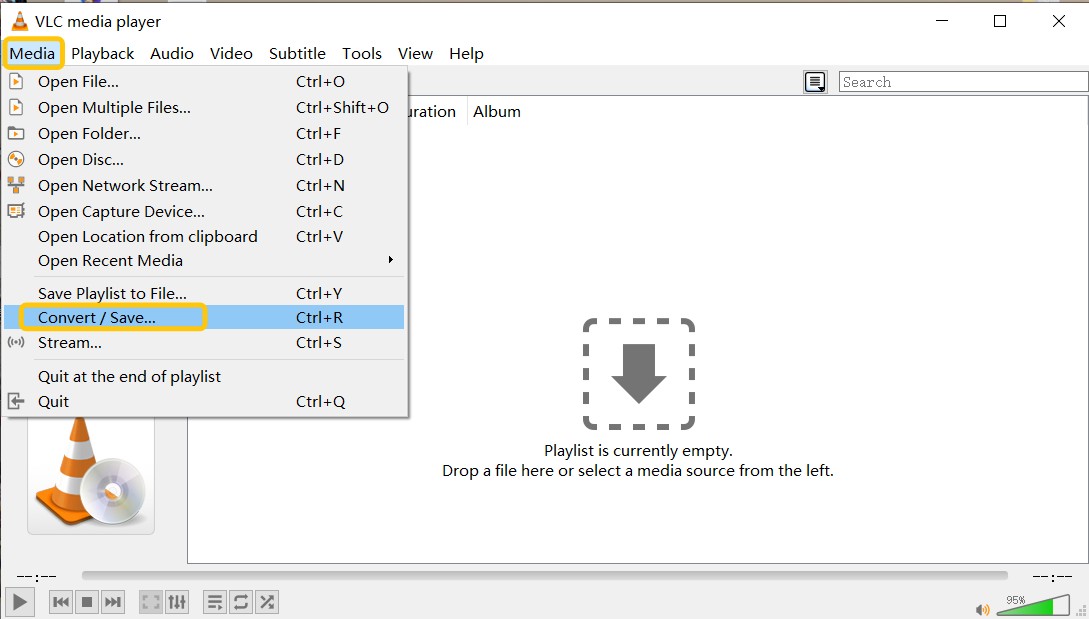
Step 1: Mount the readable ISO, open VLC, and choose Media > Convert/Save.
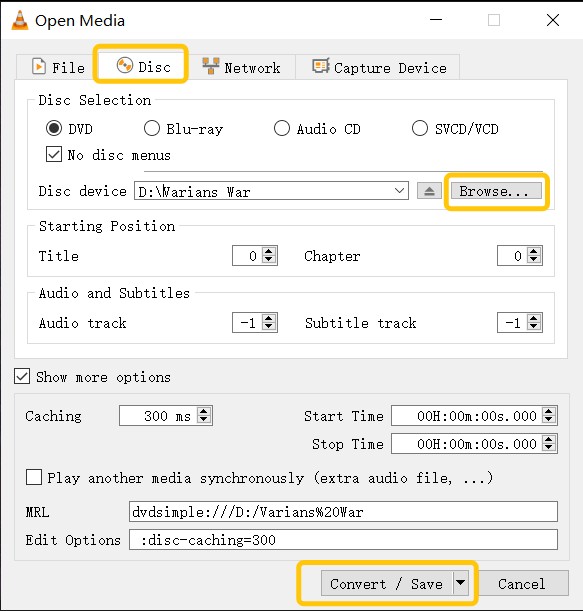
Step 2: Open the Disc tab, select DVD, and choose the mounted virtual disc device. Check the title when VLC exposes that option.
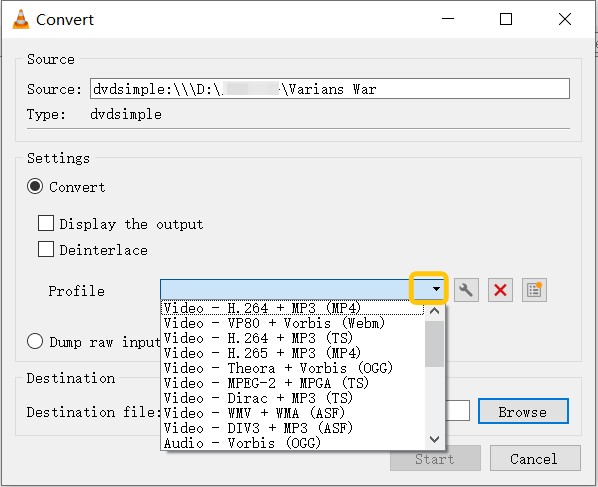
Step 3: Choose Convert, edit a profile, set MKV encapsulation, and select compatible video and audio codecs.
Step 4: Choose the destination, use the .mkv extension, start the conversion, and check the completed file.
Troubleshooting ISO-to-MKV Conversion
The ISO Will Not Open
- Likely causes: The image is incomplete, damaged, protected, mounted incorrectly, or unsupported by the selected application.
- Check: Add the ISO directly to DVDFab, use DVD Ripper for DVD structure and Blu-ray Ripper for Blu-ray structure, and confirm that a HandBrake source is already readable.
The Wrong Title Was Converted
- Likely cause: The application selected a bonus title, episode, short feature, or alternate program chain.
- Check: Compare runtime, chapter count, preview frames, and audio languages before export.
The MKV Is Almost as Large as the ISO
- Likely cause: MKV Passthrough or MakeMKV preserved the existing video stream.
- Next action: Keep the file for original-stream quality, or create a second H.264, H.265, or AV1 encode.
Frequently Asked Questions
Is DVDFab or MakeMKV more suitable for ISO to MKV?
DVDFab provides passthrough, compressed profiles, queue controls, and more output choices. MakeMKV is a focused option when the only requirement is an original-stream MKV.
Does converting ISO to MKV reduce file size?
A remux can remove menus, extras, and unwanted tracks, but it does not recompress the selected video. A larger reduction requires re-encoding with H.264, H.265, AV1, or another codec.
Can FFmpeg convert a Blu-ray ISO directly to MKV?
The documented dvdvideo demuxer applies to DVD-Video, not to a general Blu-ray ISO process. Blu-ray titles use different directory and playlist structures.
How do I convert a 3D ISO to MKV?
Load the 3D ISO in the matching DVDFab Ripper module, choose a compatible 3D MKV profile, review the video and audio settings, and start the conversion. Confirm that the target display and player support the selected 3D format.
Is it legal to convert an ISO to MKV?
Copyright and access-control rules vary by country and source type. Use media you own or have permission to copy, do not distribute exported files, and follow the rules that apply where you live.
Conclusion
ISO to MKV conversion works best when the application matches the source and the required output. DVDFab covers passthrough, compressed profiles, protected-source support claims, and queued tasks in one interface, while MakeMKV provides a focused remux path and HandBrake gives free control over encoding for readable sources. FFmpeg suits users who can verify DVD titles and build options, and VLC remains a basic fallback. Before processing an entire collection, export one title, confirm its runtime, audio, subtitles, chapters, and playback, then apply the verified settings to the remaining ISO files.

 2026 Tested ISO Converter Tools for Images, DVDs, and ISO FilesBy Wenny Yan - Aug 7, 2026
 How to Convert DVD to MKV Free and Lossless: 6 Tested Tools in 2026By Wenny Yan - Aug 6, 2026
 How to Edit a DVD with DVDFab DVD Ripper: Trim, Crop, Add Subtitles, and MoreBy Wenny Yan - Aug 5, 2026
 How to Rip a DVD to iTunes or the Apple TV App: 3 Tested MethodsBy Diana Smith - Jul 28, 2026