Can Wii Play DVDs? 2 Ways That Work in 2026

Summary: A stock Wii does not play DVD-Video discs, but two limited alternatives remain. This guide compares an SD-card file for compatible Photo Channel models with Homebrew disc playback on early Wii drives, including Wii Mini exclusions, format settings, and troubleshooting.
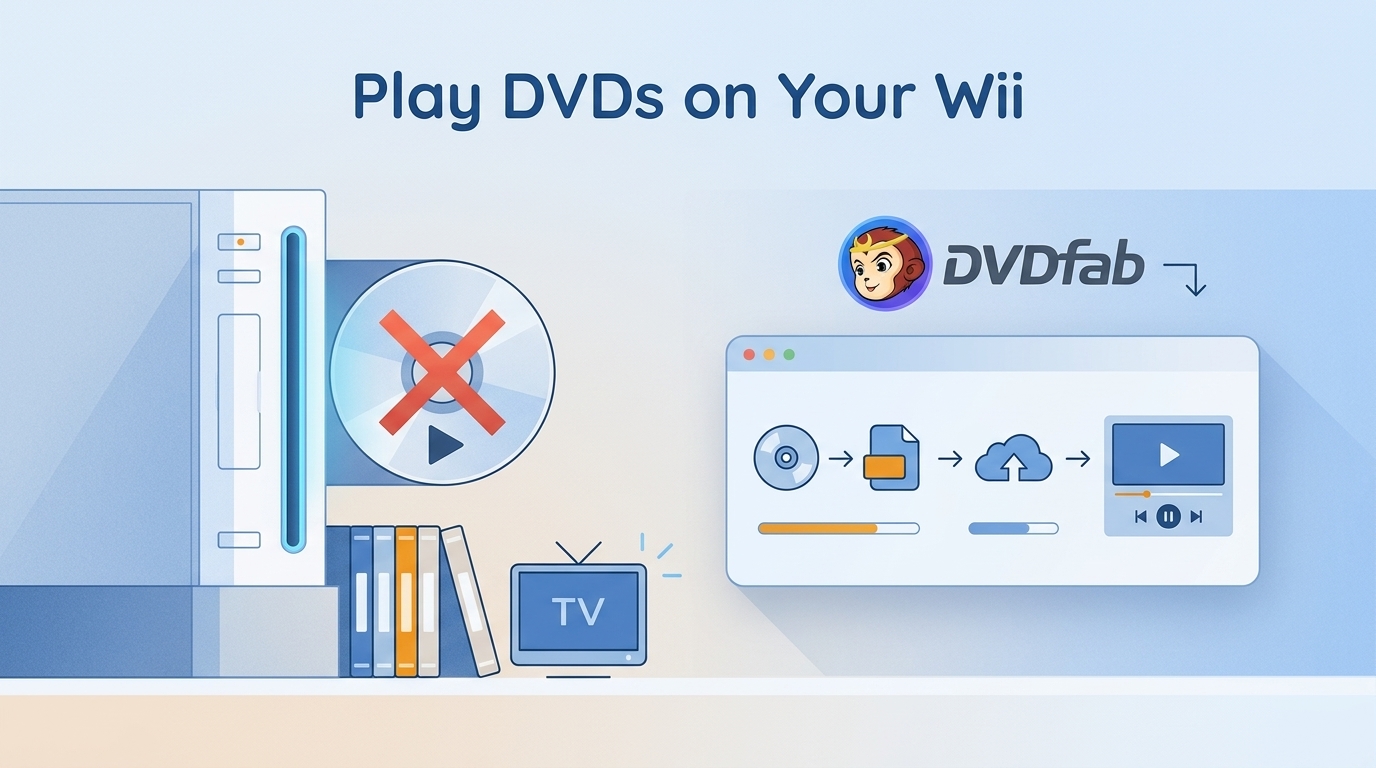
A stock Wii cannot play DVD-Video discs. To play DVDs on Wii, convert a disc to a Wii Photo Channel video for an SD-capable console, or use a Homebrew-based Wii DVD player on compatible early hardware. The Wii Mini cannot use the SD-card method.
I went back through both of them on hardware I still keep around. The choice comes down to the console model: an SD-card file avoids optical-drive limits, while direct disc playback depends on an early drive that can read DVD-Video.
Can Wii Play DVDs?
No stock Wii supports DVD-Video playback. Nintendo did not include the required playback software, and only some early Wii disc drives can physically read movie DVDs. Many later white consoles and black or red models cannot use the physical-disc method.
Nintendo's support position is summarized by Nintendo Support: inserting a movie DVD does not turn the console into a native Wii DVD player.
Two DVD Playback Options Compared
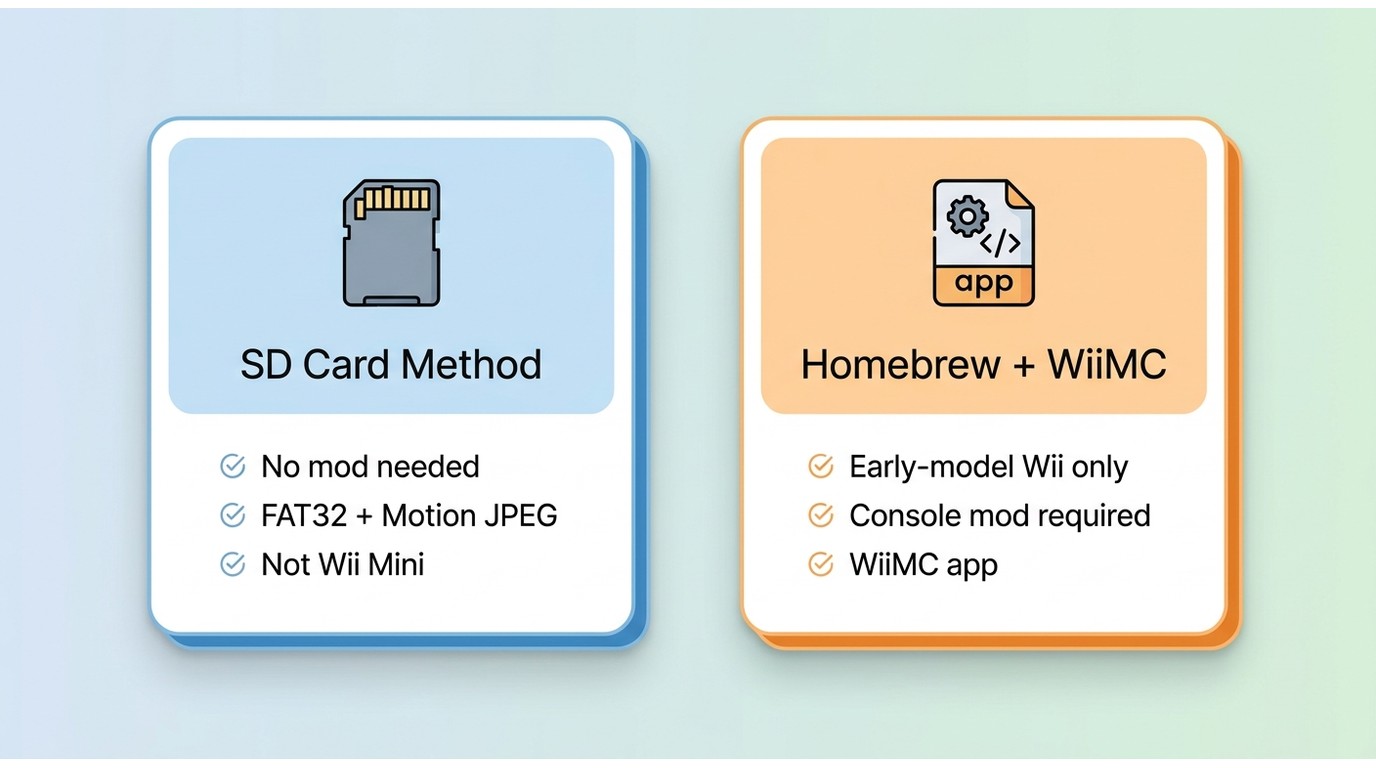
The SD-card method has the wider hardware reach, but it still requires a Wii with an SD card slot and a usable Photo Channel. Wii Mini is excluded because it has no SD card slot. Homebrew disc playback has a narrower hardware requirement.
| Comparison point | Convert to a Wii-ready file and play from SD card | Play the physical disc through Homebrew and WiiMC |
| Works on later Wii models | Only on models with an SD card slot and usable Photo Channel; not Wii Mini | Often no; requires a compatible early disc drive |
| Console modification required | No | Yes |
| Setup difficulty | Moderate conversion and format setup | Higher, with Homebrew installation and app setup |
| Physical disc menus | No | May work, but menu support varies |
| Playback reliability | More consistent after a compatible file is created | Varies by drive revision, disc, and WiiMC behavior |
| Disc-drive use | None during playback | Continuous during the movie |
| Best fit | Repeat viewing on an SD-capable Wii without modifying it | Compatible early Wii hardware when physical-disc playback matters |
My preference is the SD-card option when compatibility and repeat playback matter. Homebrew is a narrower choice for compatible early Wii models, and it is not a sensible starting point if you do not want to modify the console.
Method 1: Convert DVDs for Wii
Convert a DVD to Motion JPEG in an AVI or MOV container, then copy it to a FAT- or FAT32-formatted SD card. This method works only on a Wii with an SD card slot and a usable Photo Channel; Wii Mini is not compatible.
Wii Video and SD Card Requirements
Wii supported video formats are unusually specific: the Photo Channel expects Motion JPEG video in AVI or MOV at up to 848×480. A standard MP4 export does not become a compatible Wii Photo Channel video simply because it plays on a computer.
- Video codec: Motion JPEG (MJPEG)
- Container: AVI or MOV
- Resolution: Up to 848×480
- Storage: FAT- or FAT32-formatted SD card
- Console: A Wii with an SD card slot and a usable Photo Channel; excludes Wii Mini
When I convert discs for older hardware, I check the codec before the file extension. For DVD to SD card playback, matching Motion JPEG and the resolution limit matters more than choosing a familiar container name.
Convert a DVD to a Wii-Supported Format with DVDFab DVD Ripper
DVDFab DVD Ripper is a dedicated tool capable of converting DVDs into formats fully compatible with both the Wii and Wii U. With this tool, you can transform discs, including a new release, an old classic, a commercial DVD, or a homemade recording, into a format playable on the Wii or Wii U. Beyond the Wii, it also supports backups to universal formats like MP4 and MKV for viewing on other devices. The software is designed with a modern, intuitive interface, making the conversion process simple enough to complete in just a few clicks.
Step 1: Download and install DVDFab
Download and install this DVD ripper on your Windows or Mac, and then run the software to open its main interface via a double-click.
Free Download Windows 11/10/8.1/8/7
Free Download macOS 10.13 - 15.x
Step 2: Load your DVD source
Locate the “Ripper” module and load your DVD source. Insert your DVD into the optical drive if available. Alternatively, if you have the DVD file saved on your computer, you can drag and drop it directly into the application.
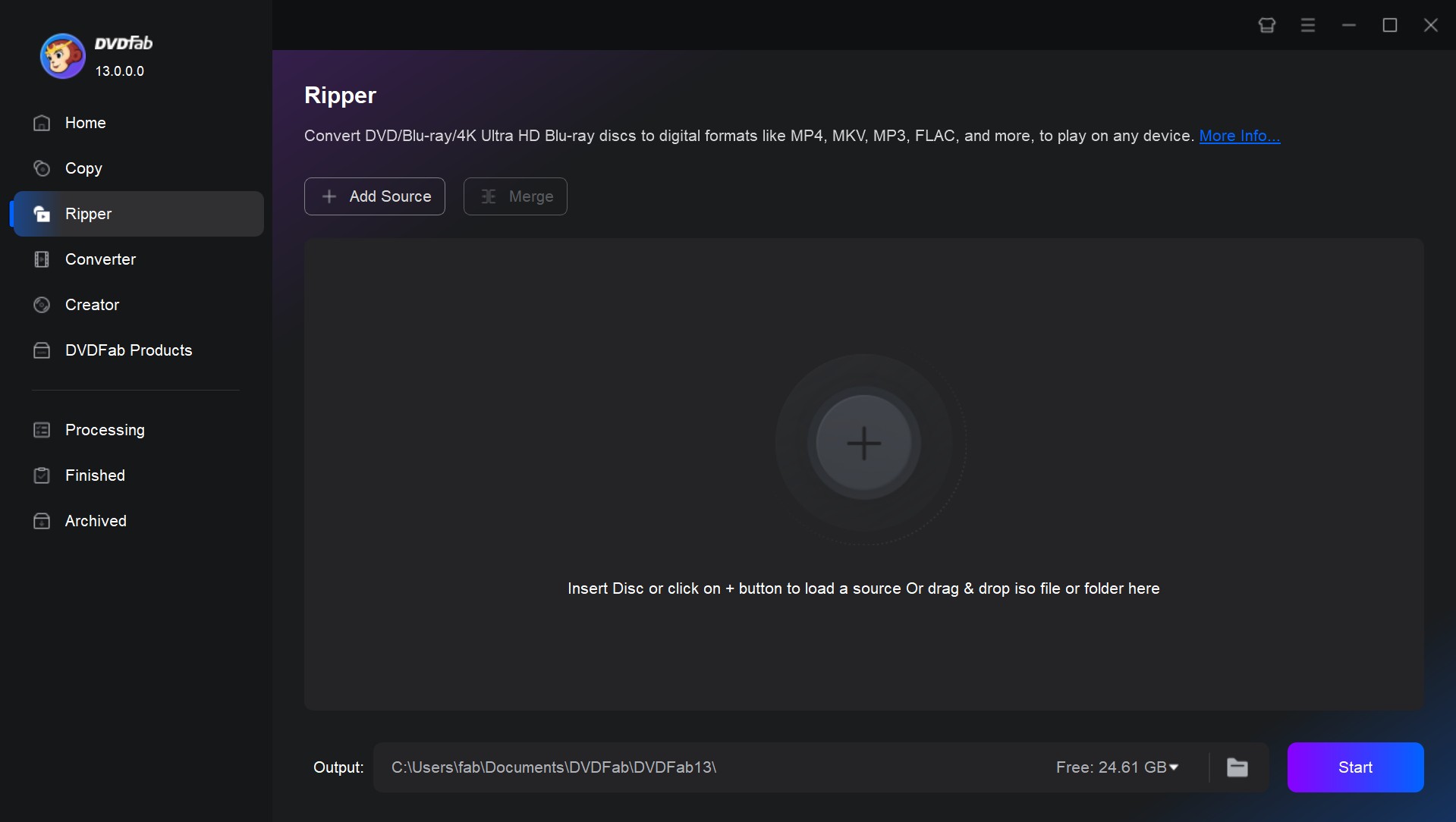
Step 3: Choose a Wii-supported format
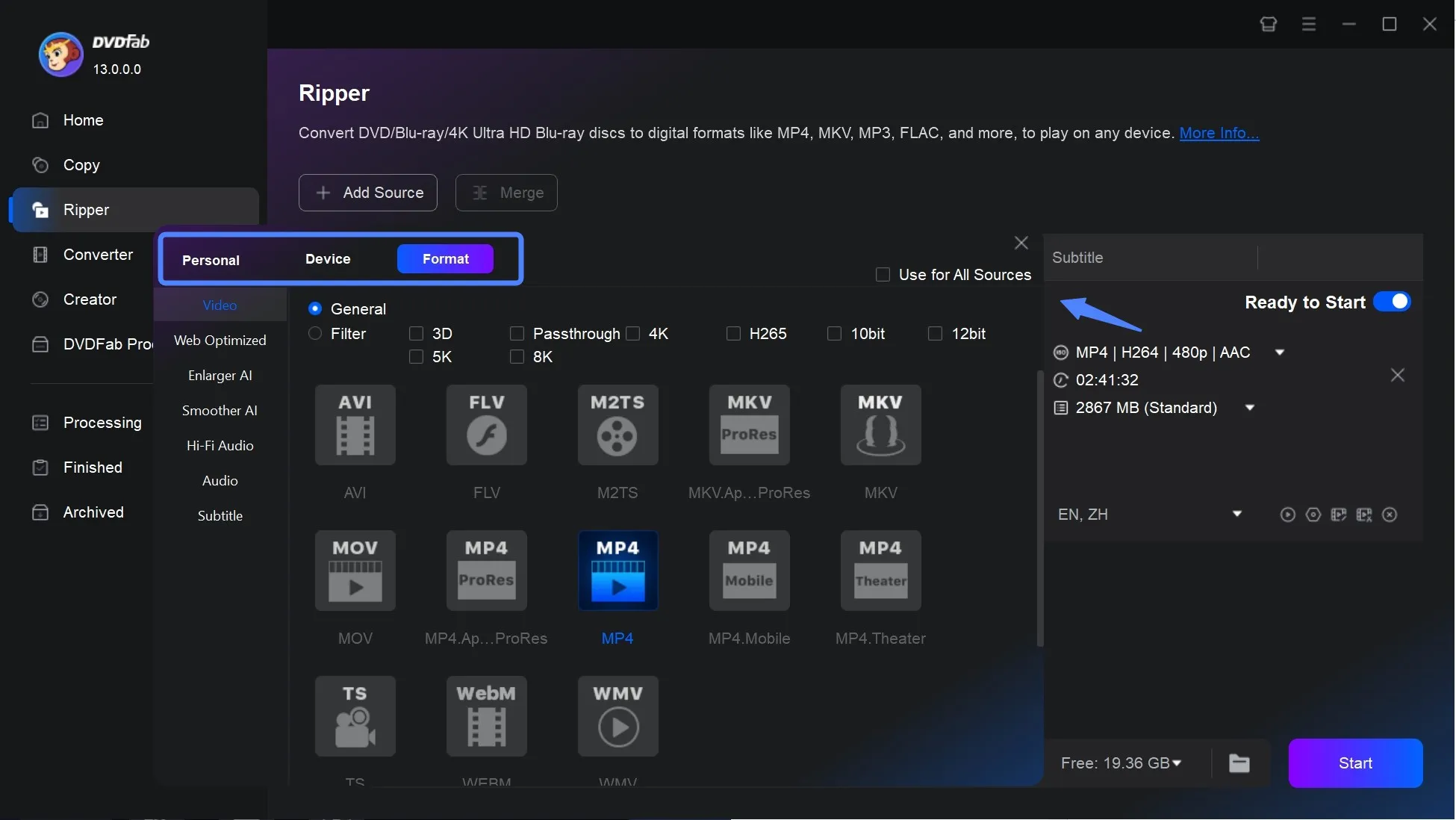
Once your DVD is loaded, click on "Choose Other Profile" to access the profile library. Then, go to "Format" and scroll to "Video" to pick a Wii-compatible format, such as AVI or MOV. If you're planning to watch your DVDs on different devices, check out the "Device" section and pick the device you prefer.
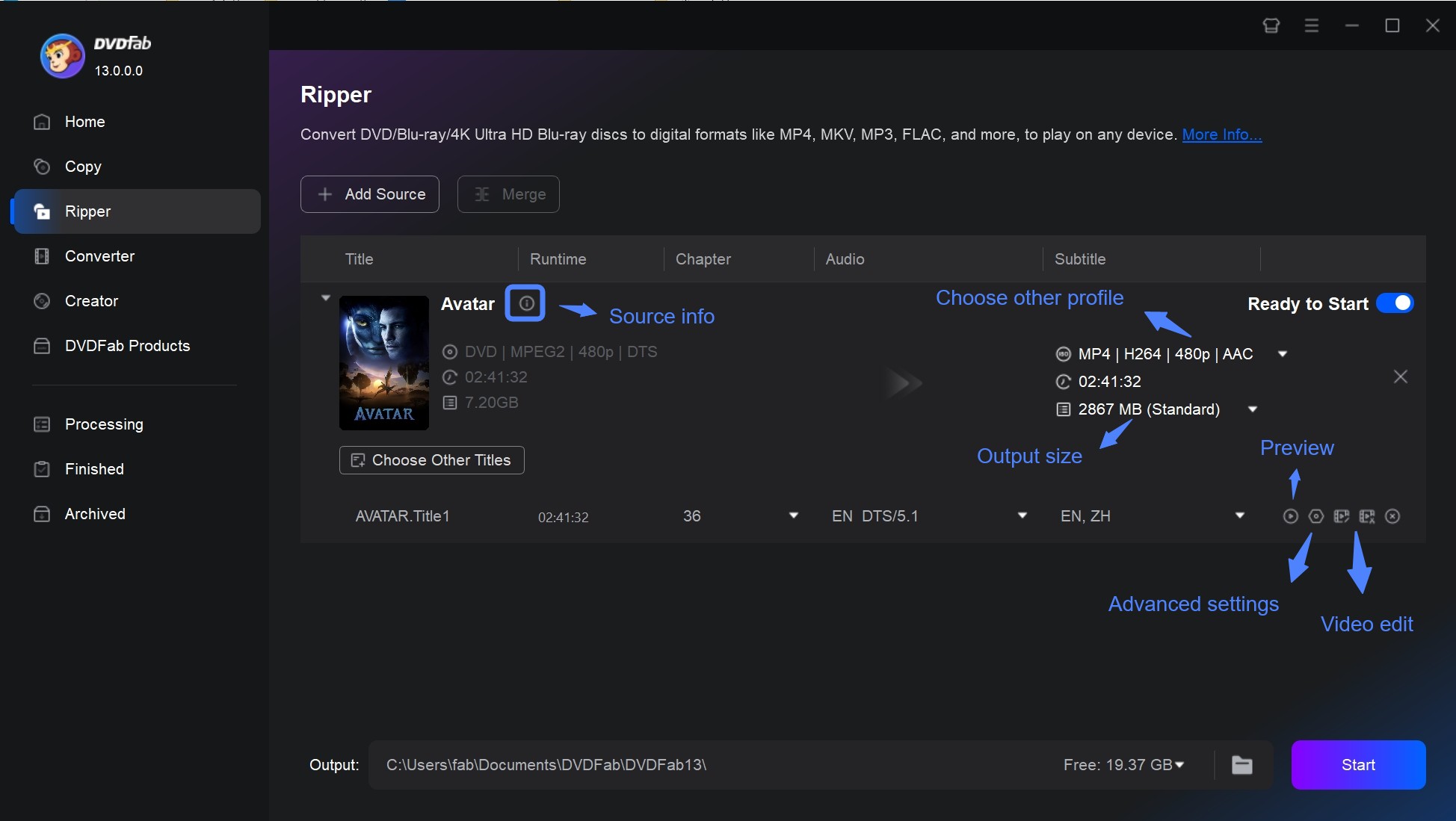
Return to the main interface to customize your output settings. Click on "Advanced Settings" to adjust parameters.
Here you can:
- Add text, images, or subtitles to your video.
- Rip the entire DVD or select specific chapters or audio tracks.
- Include or remove subtitles as desired.
Step 4: Start DVD conversion
Before starting the conversion, select your desired save location. Finally, click the "Start" button.
Step 5: Copy the Wii-ready DVD video to SD card
Copy the ripped DVD file in a Wii-supported format to your SD card. Then insert the card into your Wii console and open the Photo Channel. Select your video file, and now you can play the DVD video on your Wii.
Method 2: Play DVDs With Homebrew
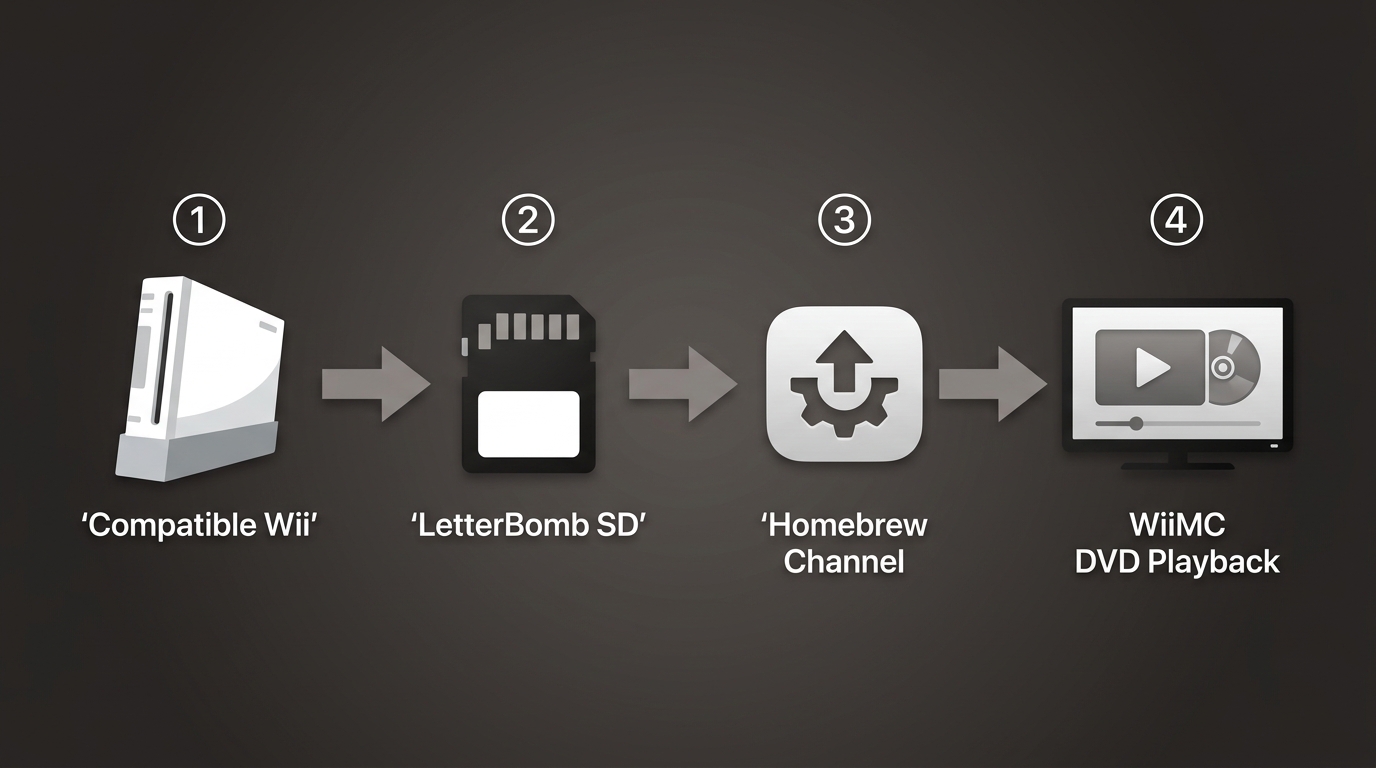
Homebrew Channel DVD playback works only when the Wii has an early disc-drive revision capable of reading DVD-Video. Software cannot add that physical capability to a later drive, so check Wii model compatibility before installing anything.
Check Your Wii Model First
Many later white consoles and black or red models use Wii disc drive revisions that cannot read movie DVDs. If the drive cannot recognize DVD-Video, stop here and use the SD-card method on an SD-capable Wii instead.
I've watched an older console load a disc menu without trouble and still refuse a full movie disc. That is why hardware comes first in this method: successful Homebrew installation does not prove the drive can sustain Wii DVD playback.
If a compatible drive struggles with known-readable media, power down the console and use a compatible DVD lens cleaner according to its instructions. Cleaning cannot make an incompatible drive revision read movie DVDs.
Set Up Homebrew and WiiMC
Current Homebrew setups commonly use an entry method such as LetterBomb or str2hax, followed by WiiMC for disc playback. WiiMC is no longer actively modern software, so disc and menu compatibility can vary even on a suitable early console.
- Confirm that the console is an early Wii with a DVD-Video-capable drive.
- Prepare an SD card and install the Homebrew Channel with a current method appropriate for the console's system version.
- Install WiiMC in the Homebrew applications folder, then launch it from the Homebrew Channel.
- Insert the movie DVD and select WiiMC's DVD playback option.
- If the disc does not load, check the drive revision first, followed by disc condition, WiiMC setup, and region compatibility.

MPlayer CE is a legacy fallback, not the default recommendation. If WiiMC cannot read a disc on compatible hardware, converting an authorized DVD to an SD-card file avoids repeated optical-drive use.
Frequently Asked Questions
Will playing DVDs wear out my Wii's disc drive?
Movie playback adds operating time to an aging optical drive, but mixed community reports do not show that failure is inevitable. A Wii-ready SD-card file avoids continuous drive operation and is the gentler choice for repeated viewing.
Why won't my Wii read a DVD after I install Homebrew?
The usual first check is hardware compatibility. Many later drive revisions cannot read DVD-Video even after Homebrew is installed. If the model is compatible, inspect the disc condition, WiiMC setup, and region compatibility.
Can a Wii U play DVD movies?
No. Wii U DVD playback is not supported natively, so inserting a DVD-Video disc will not play the movie. Playing a converted local file is a separate task and depends on a supported playback app and format.
Can a Wii play Blu-ray discs?
No. Wii hardware cannot read Blu-ray discs and lacks native Blu-ray decoding. For an authorized Blu-ray conversion on a computer, Blu-ray Ripper is a separate product; the resulting file still must match the Wii method and model used here. As a brief alternative outside the Wii, an optical drive paired with a supported Android DVD player app may suit a compatible Android device.
Conclusion
For most readers with an SD-capable console, a Wii-ready file is the more broadly compatible way to play DVDs on Wii. Homebrew physical-disc playback is reserved for compatible early Wii drives and users who accept setup work, variable menus, and greater optical-drive use.

 Free DVD Decoder for Windows XP and Windows 11: 3 Ways to Play DVDsBy Diana Smith - Sep 23, 2026
 How to Compress ISO Files: 4 Methods for Storage, Playback, and ArchivesBy Diana Smith - Sep 16, 2026
 How to Rip DVD to Facebook and Upload the Video in 2026By Diana Smith - Sep 15, 2026
![How to Rip DVDs for Plex: Guide to Formats, Tools, and Library Setup [2026]](https://images.dvdfab.cn/media/Screenshot_2026-09-08_at_18.53.34_j36v3l.png/public) How to Rip DVDs for Plex: Guide to Formats, Tools, and Library Setup [2026]By Diana Smith - Sep 8, 2026
How to Rip DVDs for Plex: Guide to Formats, Tools, and Library Setup [2026]By Diana Smith - Sep 8, 2026