Top 11 ISO Creators to Create ISO File on Windows & Mac [2026 Updated]

Summary: The best ISO creator depends on your specific needs. DVDFab DVD Copy is best for creating ISO files from DVD movies while keeping the original DVD structure. AnyBurn is better for free ISO creation from files and folders, while PowerISO is more suitable for advanced ISO editing and management. Other tools, such as ImgBurn, CDBurnerXP, Disk Utility, NTLite, may serve more specific ISO creation needs.
Table of Contents
An ISO file is a sector-by-sector image of a disc (CD/DVD/Blu-ray) or any folder. I often archive media and software this way because an ISO can be mounted as a virtual drive or burned back to a disc while preserving the original file system and structure. When I need to create or manage images fast and reliably, I reach for an ISO creator / ISO image creator.
What an ISO creator does for me:
- Create ISO files from optical discs or folders with lossless structure.
- Edit / extract / compress / burn ISO images when I need to tweak them.
- Preserve boot data and metadata for consistent restores and installs.
After testing several ISO creators, I found a few tools that consistently delivered the best results. Let's start with Top Picks for the best-fit tool by scenario, then skim the comparison table for features, and finally dive into the step-by-step tutorials for each software.

Before diving deeper into each ISO creator, I prepared a comparison table that summarizes the key differences. Instead of choosing one tool for every situation, compare the source type, supported output, platform, and best use case first.
| Software | Best For | Source Type | Output / Features | Conversion Speed | Platform |
| DVDFab DVD Copy | Protected DVD ISO backup and DVD folder output | Physical DVDs, DVD folders, ISO files | ISO, DVD folder, blank disc, six copy modes | Super fast (GPU Hardware Acceleration) | Windows, Mac |
| AnyBurn | Free ISO creation from files and folders | Files, folders, optical discs | Create, extract, convert, and burn image files | Usually fast for small files and folders | Windows |
| PowerISO | Advanced ISO editing and management | Files, folders, physical discs, image files | Create, edit, extract, mount, burn, convert, and manage image files | Moderate | Windows |
| DVDFab DVD Creator | Creating DVD ISO projects from videos | Video files | DVD disc, DVD folder, DVD ISO, menu templates | Super fast (GPU Hardware Acceleration) | Windows, Mac |
| Free ISO Creator | Legacy folder-to-ISO tasks | Local folders, non-protected data sources | Basic ISO 9660 image creation | Slow | Older Windows systems |
| ImgBurn | Creating ISO from physical discs | CD, DVD, Blu-ray discs | Disc image creation and burning | Moderate | Windows |
| CDBurnerXP | Free ISO creation and data disc burning | Files, folders, discs | Create ISO, burn ISO, create data discs | Moderate | Windows |
| Disk Utility | Native Mac disk image creation | Folders, disks, connected devices | DMG, CDR, disk images | Moderate | macOS |
| NTLite | Custom Windows installer ISO projects | Windows installation images | Bootable ISO, WIM, ESD, SWM, update and driver integration | Slow | Windows |
| ISODisk | Legacy CD/DVD ISO creation | CD/DVD discs | Create and mount ISO images | Moderate | Older Windows systems |
| ISO Workshop | Basic ISO creation and image management | Files, folders, image files, discs | Create, convert, extract, burn, and manage ISO files | Fast | Windows |
My Top Picks: 3 Best ISO Creators by Use Case
Best for DVD ISO Backup: DVDFab DVD Copy
DVDFab DVD Copy is my first recommendation when the source is a physical DVD, DVD folder, ISO file, including those with modern encryption or regional locks.. It can create ISO images while keeping the original DVD structure, and it also supports DVD folder output, blank disc copying, and multiple copy modes for different backup needs.
Best Free ISO Creator for Files and Folders: AnyBurn
AnyBurn is a better fit when you need a free and lightweight ISO creator for everyday files and folders. It is suitable for turning local files or folders into ISO images, extracting image files, and handling basic disc image tasks without using a heavy ISO editing suite.
Best for Advanced ISO Editing and Management: PowerISO
When I need more control over the image, PowerISO is the one I rely on. It can create, edit, extract, mount, burn, convert, and manage ISO and other image files, making it a stronger choice for bootable ISO projects and more complex image-file workflows.
How to Create ISO Files from DVD with DVDFab DVD Copy
- Supported OS: Windows 11/10/8.1/8/7 and macOS 10.13 - 15.x
- Why I picked it: I liked how DVDFab DVD Copy combines ease of use with professional-grade results. It reliably bypasses disc protections and creates high-quality backups.
DVDFab DVD Copy is designed to create ISO images from commercial DVDs or copy-protected discs. It can copy a DVD to a blank disc, ISO image, or VIDEO_TS folder with no quality loss, and it provides six copy modes for different backup needs: Full Disc, Main Movie, Customize, Split, Merge, and Clone/Burn. It supports many common DVD protections, such as CSS, APS, region codes, DADC, and 99-title structures, and is regularly updated to support new and complex DVD copy protections.
I tested DVDFab 13.0.6.2 (released on June 10, 2026) with a dual-layer DVD (8.5 GB) of a 2026 release film (2 hours 10 minutes), using Windows 11 with an Nvidia RTX 3070 GPU. After choosing Clone/Burn mode and outputting to ISO, the software finished the copy in just five minutes. The resulting image played smoothly on the virtual drive.
- Supports the newest released encrypted DVDs.
- Create ISO from DVD disc or Folder while maintaining quality.
- Losslessly copy DVD-9 to DVD-9 and DVD-5 to DVD-5.
- Compress DVD-9 to DVD-5 for playback on any standalone home player.
- Provide six copy modes to meet your diverse ISO creation needs.
- Support batch ISO creation at GPU-accelerated speed.
- Offer friendly Meta Info & .nfo File Generation.
- This software does not support the Linux operating system currently.
- After the 30-day trial, full functionality requires a paid license.
Step 1: Launch DVDFab DVD Copy and load the DVD source
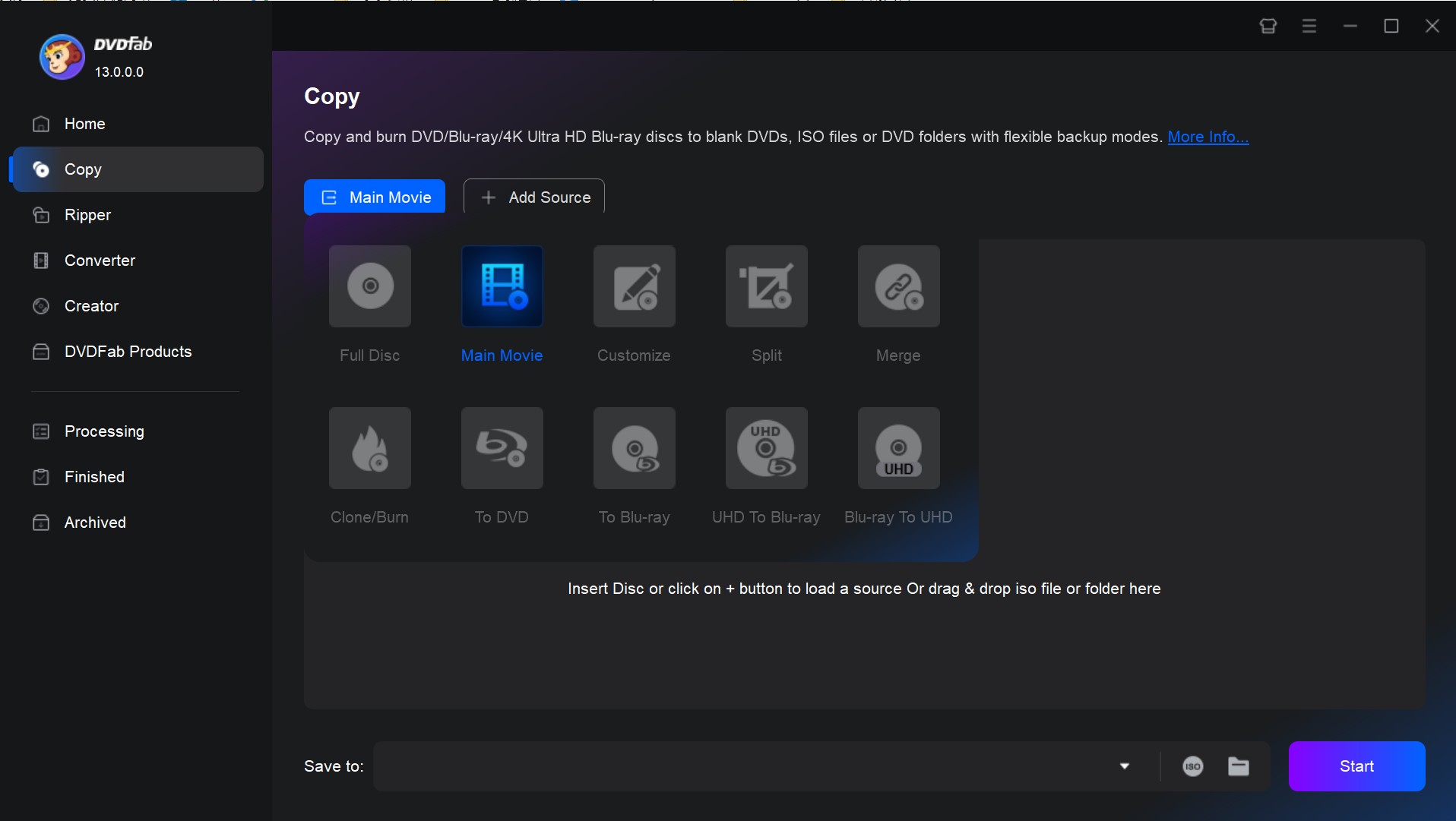
Launch the program and choose Copy from the main interface. Then, insert the DVD into your optical drive or use the Add button to locate it on your computer. If the source of the DVD is an ISO file or folder, you can drag and drop it into the main page.
Step 2: Select a Copy mode and customize the output
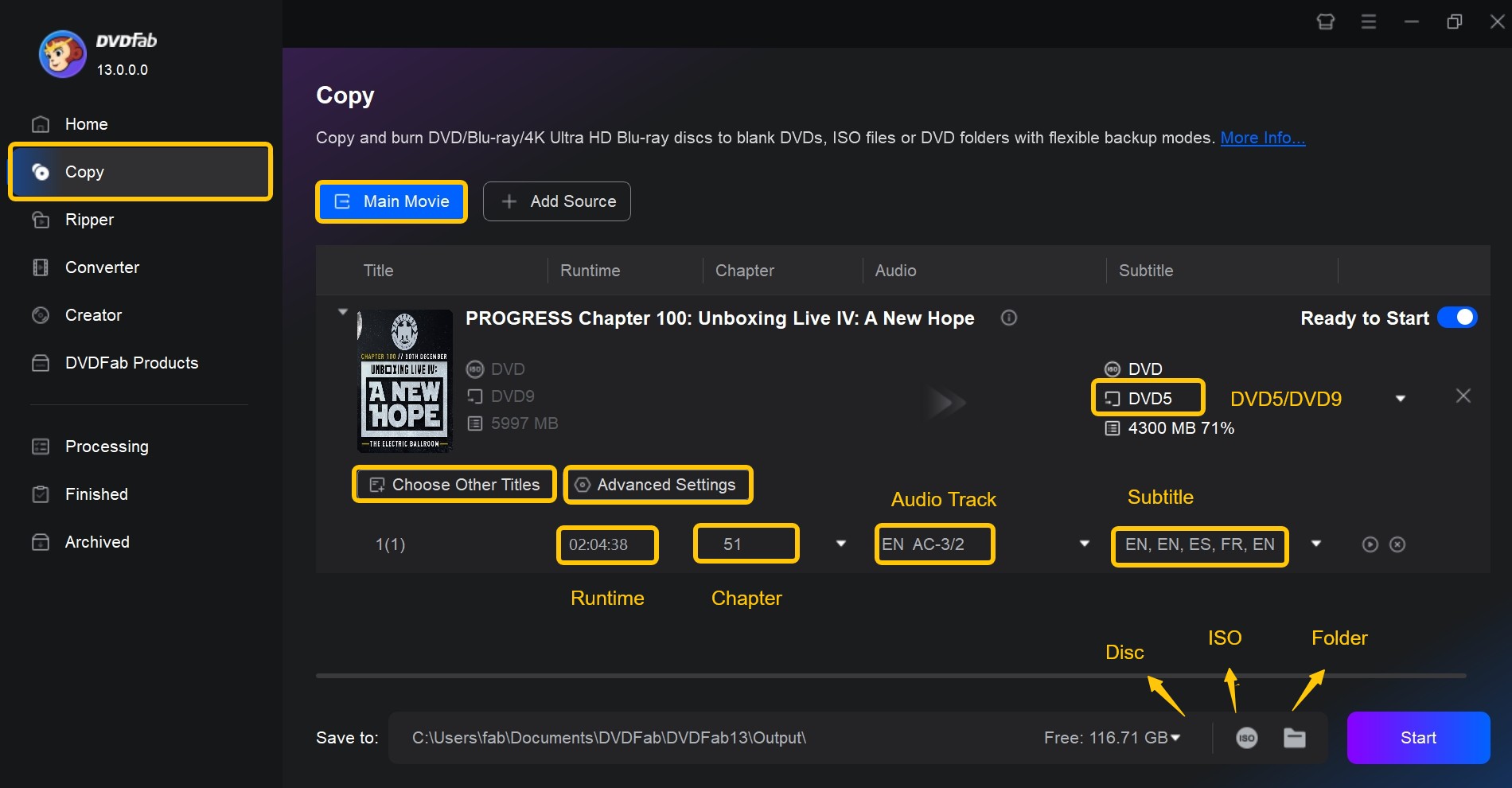
Go to the left pane and pick the desired copy mode. Here you can choose one from Full Disc, Main Movie, Clone/Burn, Merge, Split, and Customize.
Then choose the output DVD size (DVD-9 or DVD-5), set the volume label and change other copy options. Finally, select your output directory as ISO image file at the bottom of the window.
Step 3: Start to create ISO from DVD
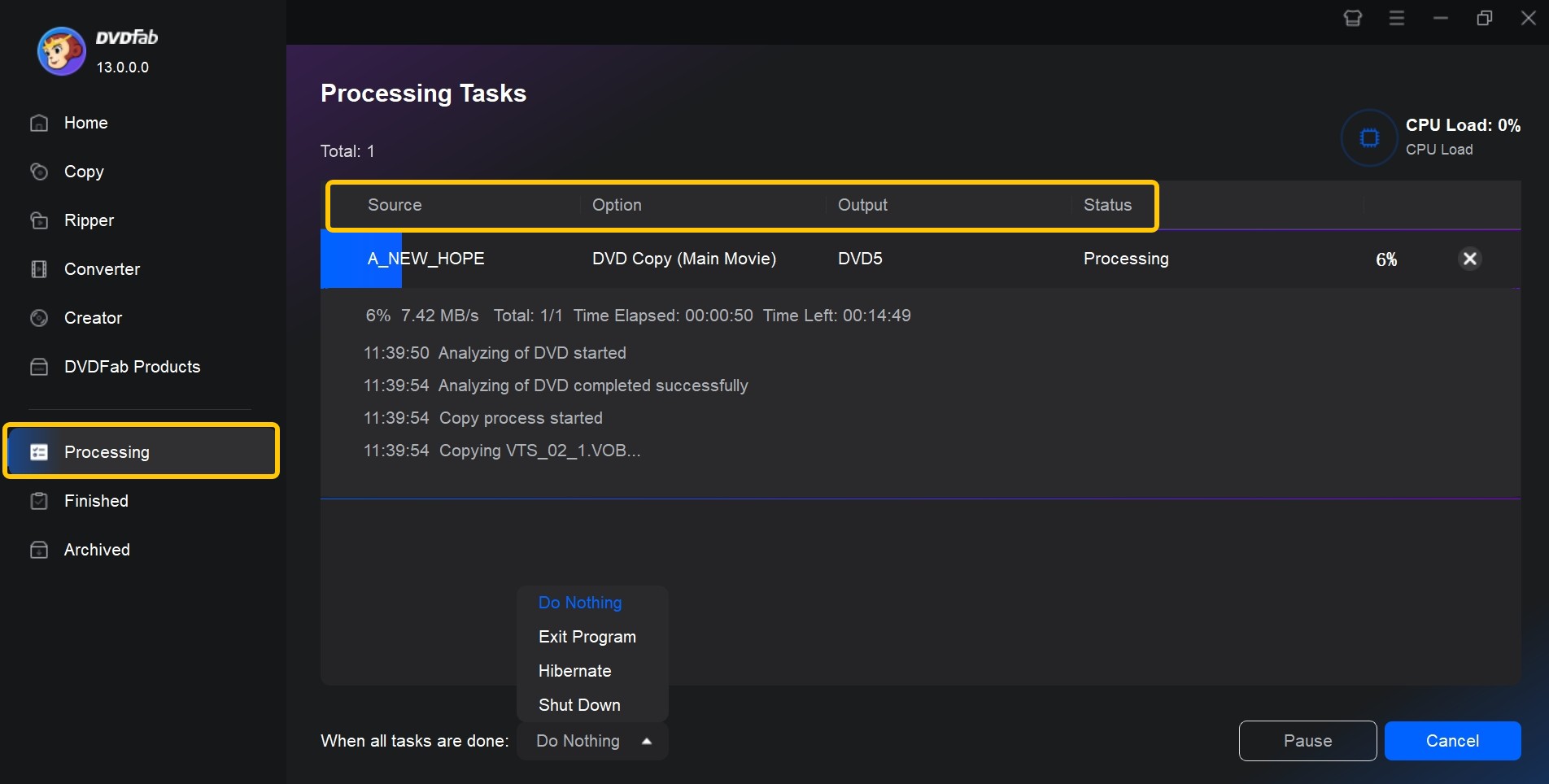
Click Start to begin. DVDFab DVD Copy processes the disc automatically, using hardware acceleration when available, and completes a high-quality ISO backup within minutes.
Video Tutorial on How to Create ISO Files from DVD with DVDFab DVD Copy
How to Create ISO from Files and Folders with AnyBurn
- Supported OS: Windows 11/10/8/7 and older Windows versions
- Why I picked it: AnyBurn is useful when you need a lightweight free ISO creator for files, folders, and basic disc image tasks.
AnyBurn is a compact ISO creator for users who want to create ISO images from local files, folders, or optical discs without installing a heavy image editing suite. It can also extract, convert, burn, and manage common disc image files, making it a practical option for everyday folder-to-ISO tasks.
In my testing, I used AnyBurn to create an ISO image from a mixed folder containing documents, installer files, and media files. The interface was straightforward: I only needed to choose the files, set the ISO name, and start the build process. It is not as advanced as PowerISO, but for simple file and folder ISO creation, the process is easier to follow.
- Creates ISO files from local files and folders.
- Supports basic disc image creation, extraction, conversion, and burning.
- Provides a lightweight interface for quick ISO creation.
- Works well for ordinary data backup and software package archiving.
- Not designed for protected DVD ISO backup.
- Lacks advanced ISO editing features compared with PowerISO.
- Not available for Mac users.
How to create ISO files from folders with AnyBurn:
Step 1: Install and Open AnyBurn
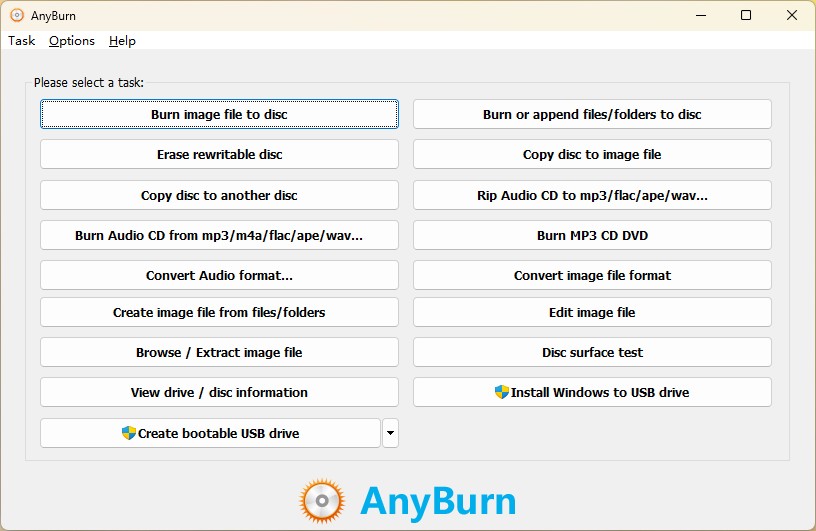
Install and open AnyBurn on your Windows computer. From the main interface, choose the option to create an image file from files or folders.
Step 2: Add Files or Folders
Click Add to import the files or folders you want to include in the ISO image. You can add multiple folders if you want to package them into one ISO file.
Step 3: Set the ISO Output Options
Choose ISO as the output image format, set the volume label, and select a destination path for the new ISO file.
Step 4: Create the ISO Image
Click Create Now to start building the ISO image. The required time depends on the folder size, file count, and storage speed.
How to Create an ISO Image File with PowerISO
- Supported OS: Windows 11/10/8/7 (32-bit and 64-bit)
- Why I picked it: PowerISO handles nearly every disc image format I use. Its support for BIN, NRG, and DAA formats makes image management consistent across projects.
PowerISO supports creating, editing, and burning disc images from files, folders and physical media including CD, DVD and Blu-ray. It handles a broad array of formats such as ISO, BIN, NRG and DAA and allows users to build bootable media, copy software installs and back up data with a comprehensive toolkit. This mix of versatility and format-coverage makes PowerISO suitable for advanced users and system administrators who require robust image and disc-workflow tools.
I used PowerISO v9.4 (released on May 15, 2026) on Windows 11 to copy a home-made DVD (approx 7.8 GB, 120-minute film release). The ISO image finished in roughly twenty minutes and mounted correctly in a virtual drive. GPU support remained low and the interface stayed responsive throughout.
- Beyond ISO, PowerISO supports a variety of disk image formats
- ISO files can be mounted as virtual disks using PowerISO
- Users can burn ISO files to CD, DVD, or Blu-ray discs directly
- Provides editing tools that allow users to add, delete or modify files in the image
- The free version has limitations on file sizes and some functionalities
- Occasional compatibility issues with specific file types or older systems
- Possible to install additional toolbars or software during the start-up process
Steps to Create ISO from Files or Folders
Step 1: Install PowerISO on your PC after downloading it from the official website.
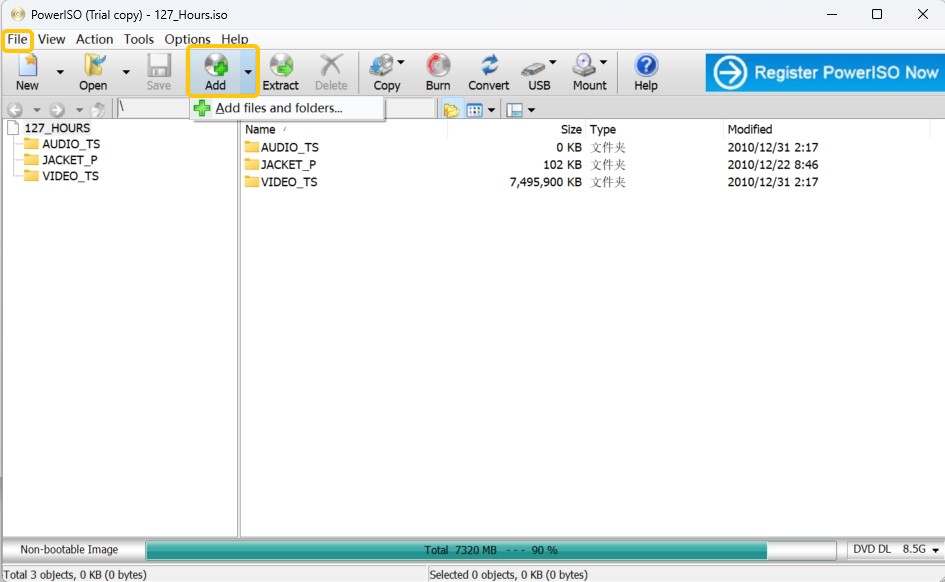
Step 2: Click the Add button on the toolbar or drag and drop files directly into the PowerISO window. You can arrange the files in the ISO image as desired.
Step 3: Click on "File" in the top menu and then select “Save As”. Then select the storage location and name your file, finally click "Save" to generate the ISO image.
Steps to Create ISO from CD/DVD
Step 1: Insert the CD or DVD that you want to use to make an ISO image into your optical drive.
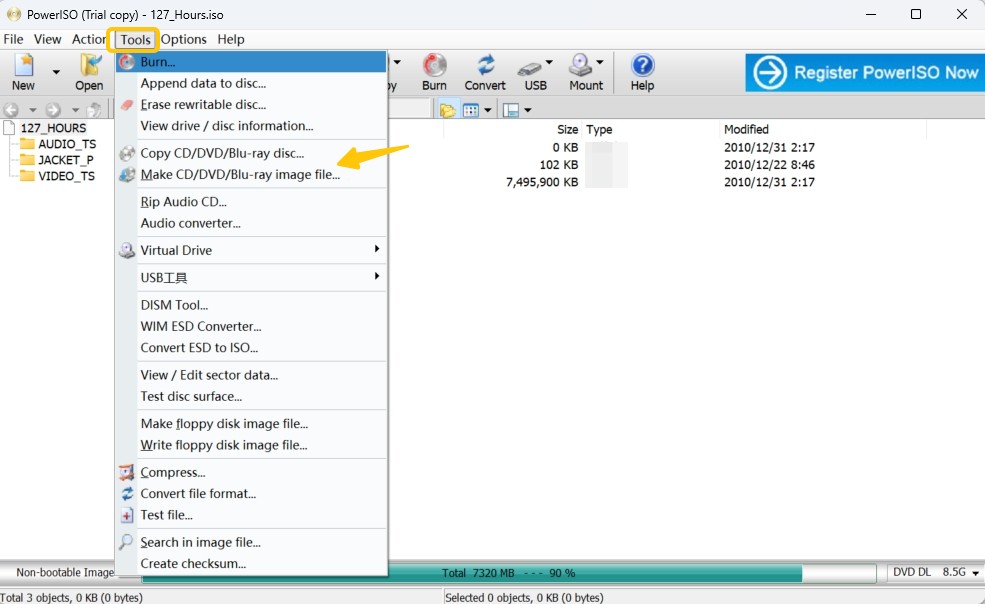
Step 2: Click on the Tools in the top menu bar and select Make CD/DVD/Blu-ray image file. Make sure the correct drive is selected in the drop-down menu.
Step 3: Select where to save the file and enter a filename for the ISO. Finally start to create the ISO image from the CD/DVD.
More Tools to Create ISO File on Windows and Mac
DVDFab DVD Creator - Create ISO File from Video
If you want to convert your video files into professional DVD ISO images, DVDFab DVD Creator is the ideal tool for you.
- Supported OS: Win11/10/8.1/8/7 and macOS 10.13 - 15.x
- Why I picked it: I liked the way it simplifies DVD creation through drag-and-drop control. The step is easy to follow even without prior authoring experience.
Besides creating an ISO file from a DVD disc or folder, DVDFab can also create a DVD ISO file from video files in various formats. Its DVD Creator module can create DVD discs, ISO files, or DVD folders from video files rather than from existing DVD discs. It supports many common video formats and provides menu templates, subtitle settings, and output customization for users who want to turn videos into a DVD ISO project. You can also edit videos and chapters with the built-in video editor.
- Create ISO files, DVD disc, or folder form 200+ popular video formats.
- Burn a large number of videos onto a single DVD.
- Include free built-in menu templates for various topics.
- Customize all the elements and widgets inside the menu templates.
- Preview video at any time during the ISO creation process.
- Customize audio track, subtitle, background image, output size, and more.
- 50x faster ISO creation speed based on the latest acceleration technology.
- Auto-synchronize all of the source video's meta data, such as the movie title, cast, and cover.
How to create ISO files from videos with DVDFab DVD Creator
Step 1: Launch DVDFab DVD Creator and load the source videos
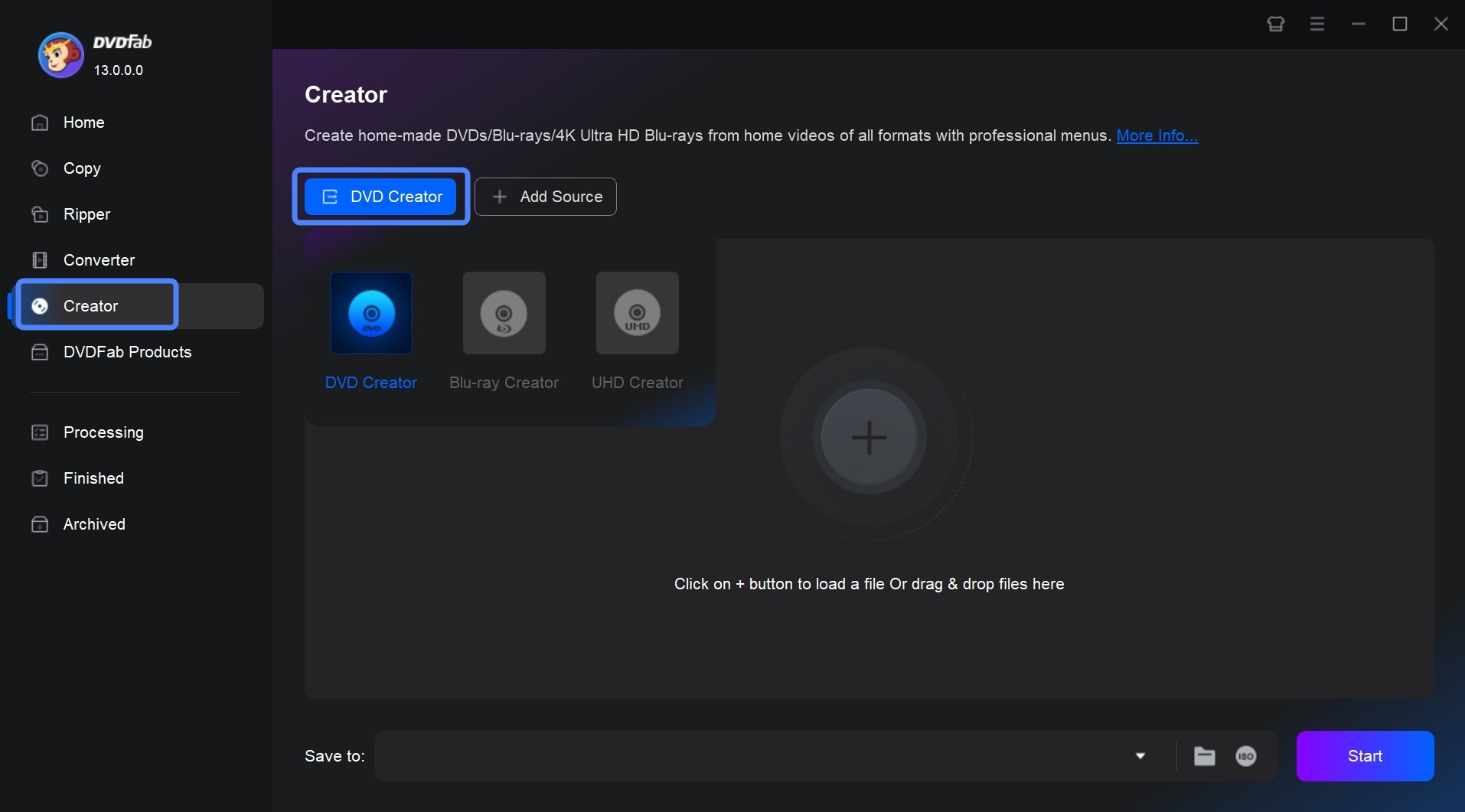
Download and then install DVDFab DVD Creator on your computer. Then select 'Creator' and then click 'DVD Creator'. Now, load your video with the Add button or by simply dragging and dropping the file onto the main page.
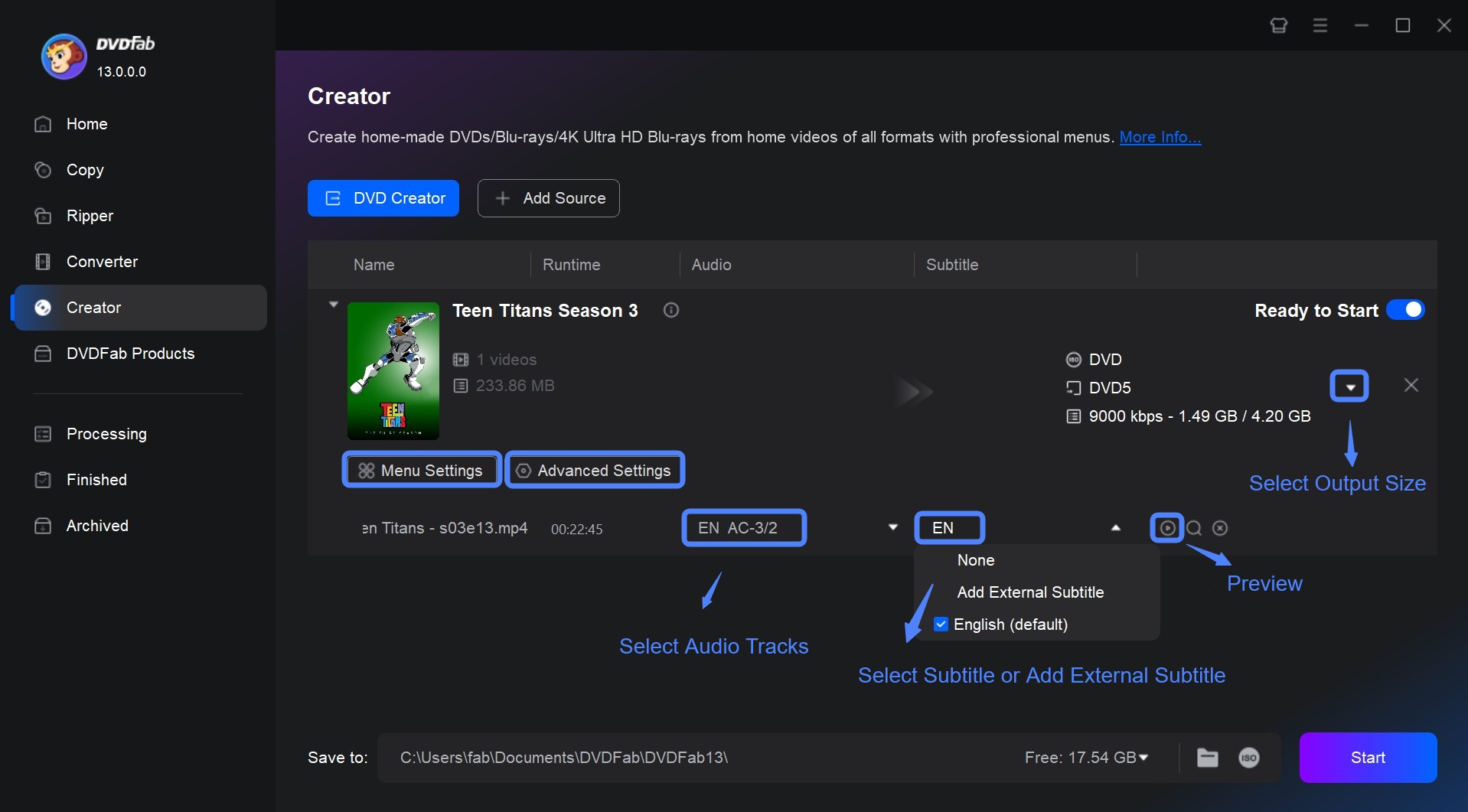
Step 2: Customize the video settings and the output of your videos.
Then customize the output ISO file via 'Advanced Settings' and 'Menu Settings'.
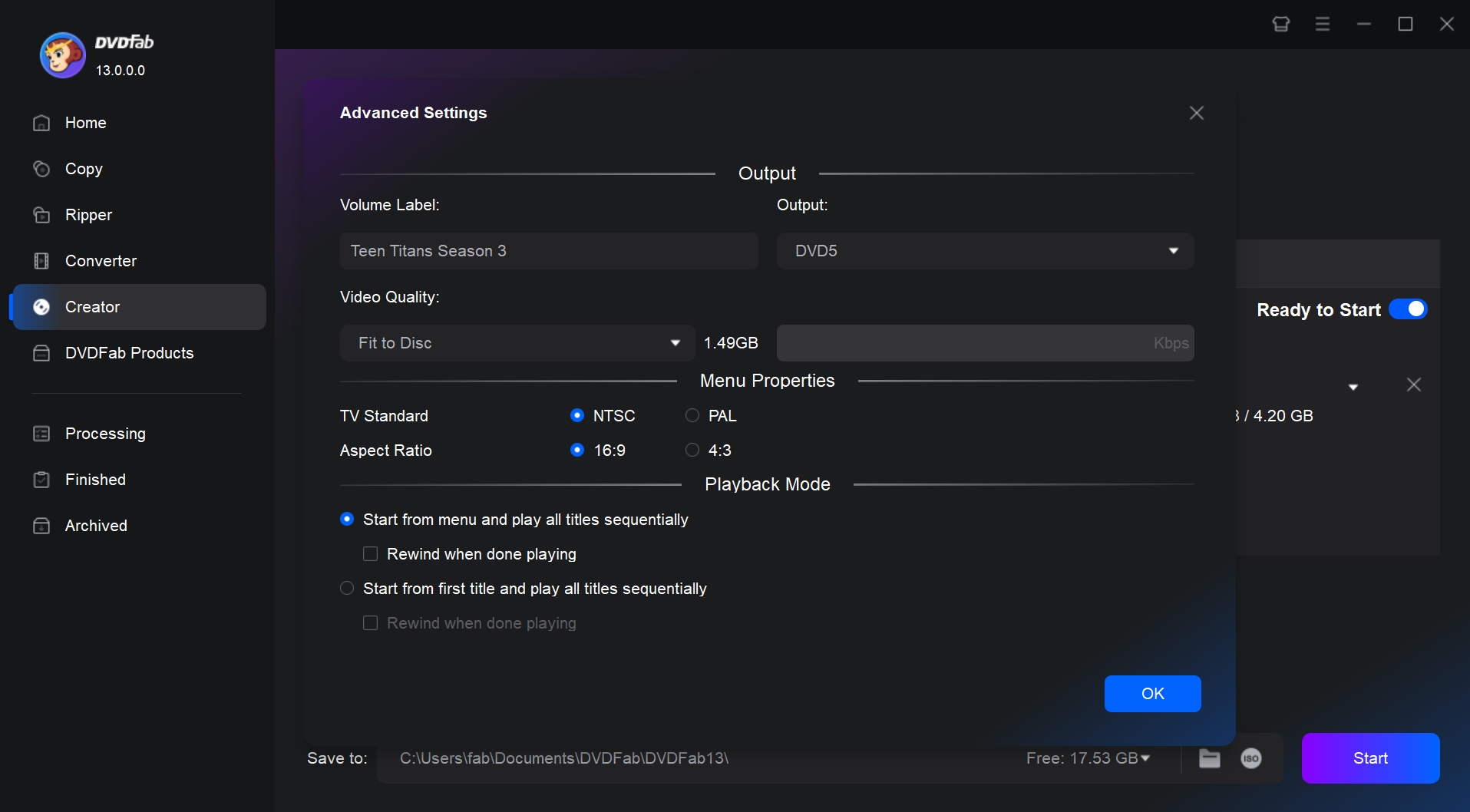
On the 'Advanced Settings' panel, you can set the volume label, output, and video quality. You can also choose Menu Properties and Playback Mode.
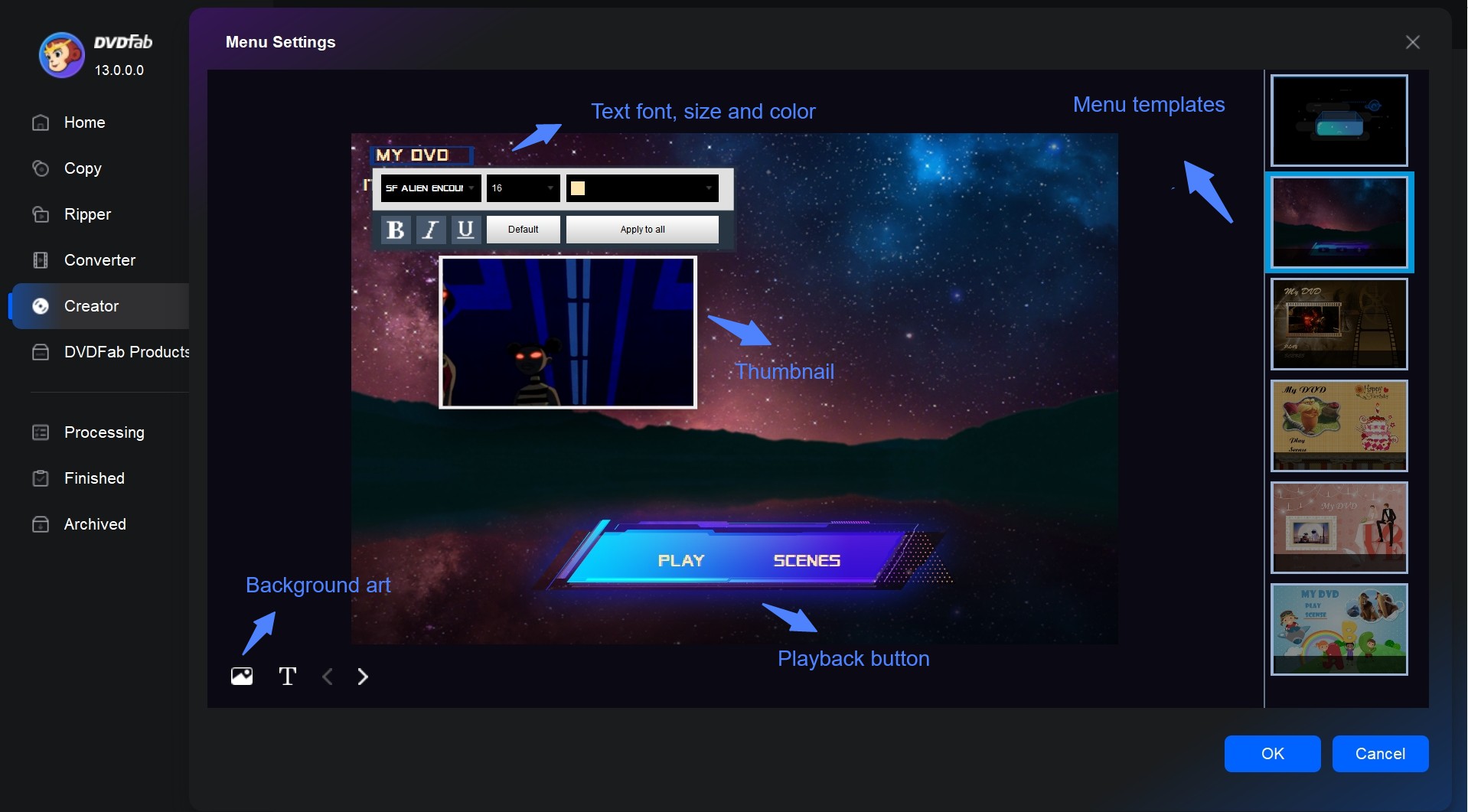
Step 3: Make your DVD menu and edit your video before conversion
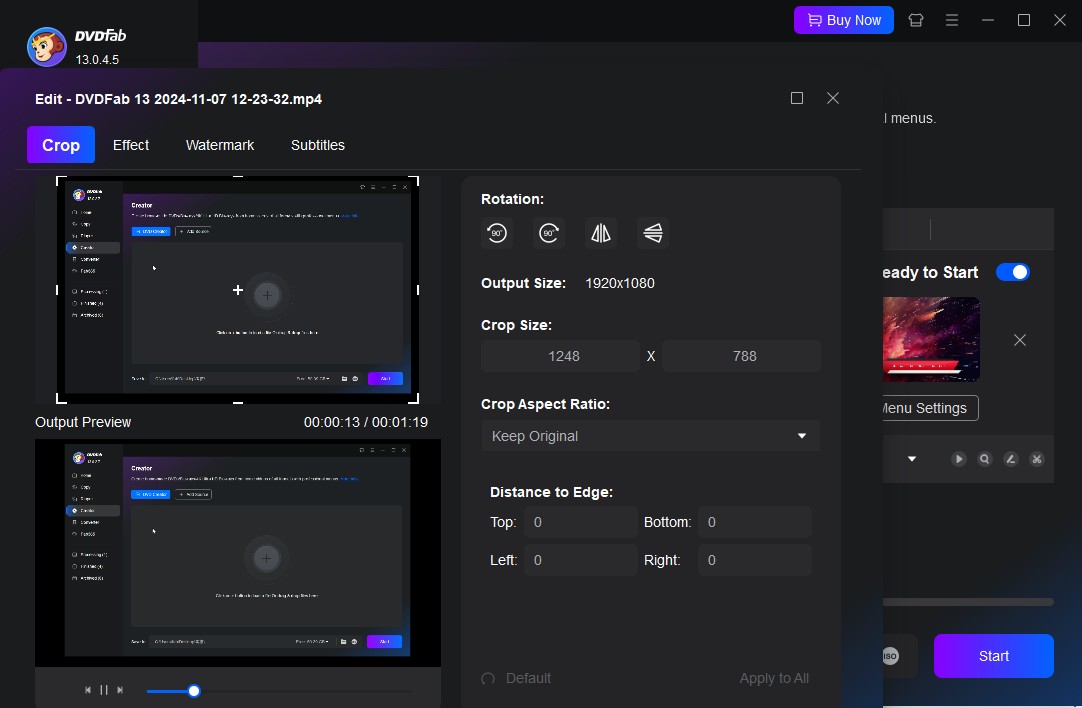
Click "Menu Setting" to access various menu templates including weddings, children, balloons, and other special occasions. It is also possible to upload your favorite images to this section to create the video background of your choice.
DVDFab DVD Creator provides a full suite of video editing tools right within the program—allowing me to trim scenes, enhance visuals, insert watermarks, and tailor subtitles, all in one place without relying on third-party editors.
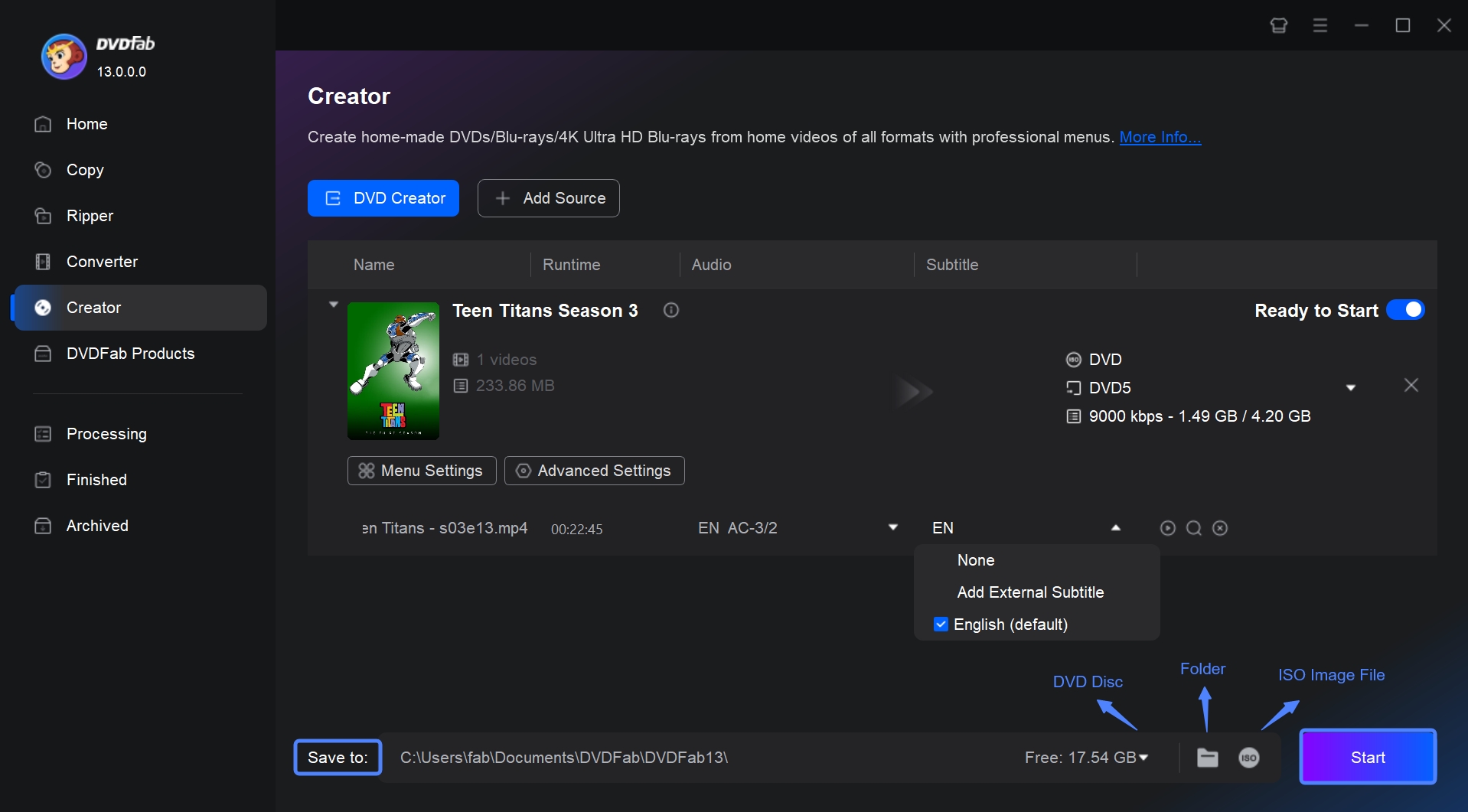
Step 4: Start creating ISO files fast
Give a name to your file and select the 'ISO' icon as the output destination. Finally, click the 'Start' button to start the ISO creation process.
Free ISO Creator - Create ISO from Folder/DVD with
- Supported OS: Windows XP, Windows Vista, Windows 7 (32 & 64 bits)
- Why I picked it: I liked its straightforward interface and how easily it turns folders into clean ISO files.
Free ISO Creator is a small Windows utility designed to build ISO 9660 images from folders or non-protected DVDs. It focuses on basic ISO creation rather than editing or conversion, which keeps the interface clean and easy to follow.
I tested the version 2011.7 using a photo-backup folder of about 8 GB on a Windows 7 PC with an Intel i5 CPU and a standard DVD drive. After setting the volume name and output path, the ISO was completed in fifteen minutes. This ISO maker remains stable, and accurate for basic data-archiving tasks. However, it is not the best modern choice for Windows 10/11 users, Mac users, ISO editing, ISO burning, mounting, or protected DVD backup.
- Free to use, with no ads or bundled components.
- Create standard ISO 9660 data images from a folder or CD/DVD-ROM.
- Produce ISO files compatible with Windows, Linux, and UNIX systems.
- Can not create ISO files from protected DVDs.
- Can not work on Windows 10/11 or macOS.
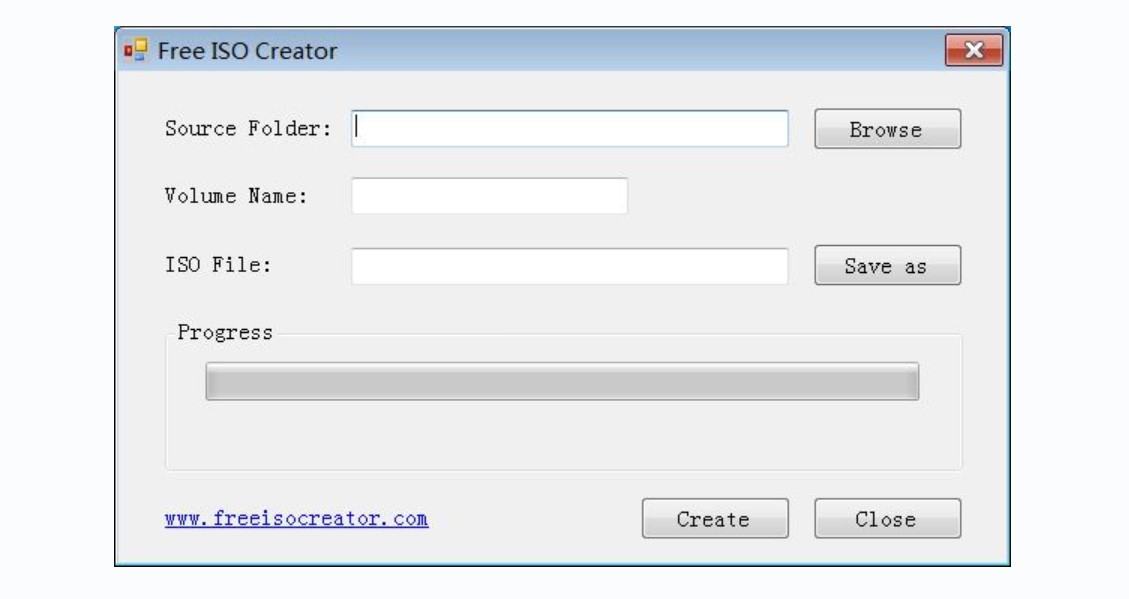
Steps to Create ISO Files using Free ISO Creator
Step 1: Open the program and select a folder or non-protected data disc as the source.
Step 2: Insert the label of the ISO file into the "Volume Name" section.
Step 3: Click the "Save as" button to set the destination path and the name of the ISO file.
Step 4: Click on the "Create" button to commence the ISO file creation process. As the generated files may be large, ensure your PC has enough free disk space.
ImgBurn - Create ISO from Physical Discs
- Supported OS: Windows
- Why I picked it: ImgBurn is a classic tool for users who want to create ISO images from non-protected physical CD, DVD, or Blu-ray discs.
ImgBurn is a legacy optical disc utility that can create image files from physical discs and burn image files back to disc, especially when the source is a non-protected CD, DVD, or Blu-ray disc.
In my test, ImgBurn was most useful when the task was simple: read a disc and save it as an image file. The interface is more technical than AnyBurn, but the dedicated “Create image file from disc” mode makes the process clear once you know which option to choose. Since ImgBurn has not been actively modernized for years, it is better treated as a legacy utility rather than a current all-purpose ISO creator.
- Creates ISO image files from non-protected physical discs.
- Burns ISO and other image files back to CD, DVD, or Blu-ray discs.
- Supports many classic disc image formats.
- Provides verification options for disc image workflows.
- Legacy tool with no recent major product updates.
- Not suitable for protected DVD ISO backup.
- Download source should be checked carefully before installation.
- Interface may feel less friendly for beginners.
How to create ISO files from discs with ImgBurn
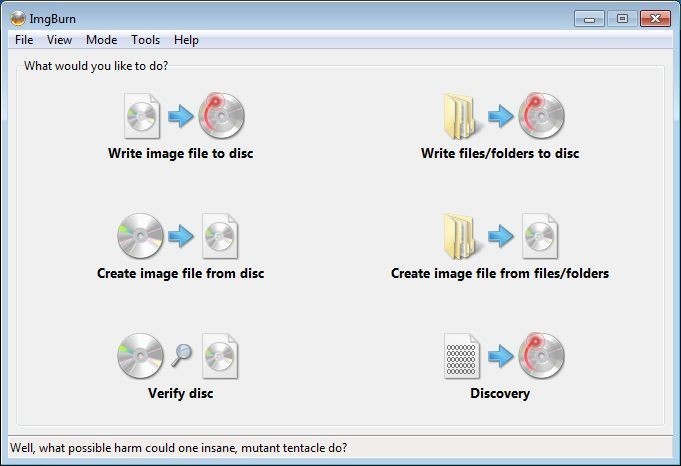
Step 1: Insert the CD, DVD, or Blu-ray disc into your optical drive and open ImgBurn.
Step 2: Choose “Create image file from disc” from the main interface.
Step 3: Select the correct source drive and choose where to save the ISO image file.
Step 4: Click the read button to start creating the ISO image. The speed mainly depends on the optical drive, disc condition, and source size.
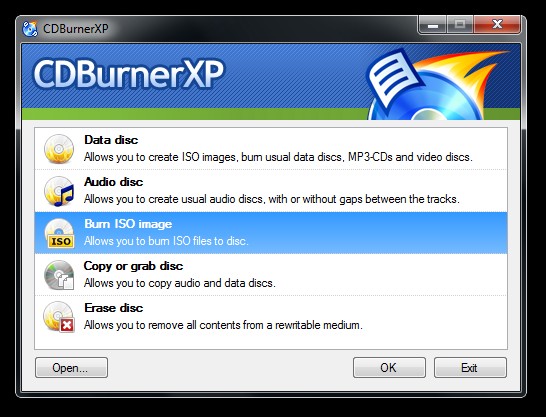
CDBurnerXP - Create ISO and Burn Data Discs on Windows
- Supported OS: Windows 2000/XP/2003 Server/Vista/2008 Server/7/8/2012 Server/10
- Why I picked it: CDBurnerXP is useful when you want a free ISO creator that also includes disc-burning features.
CDBurnerXP is a free Windows application for burning CDs, DVDs, Blu-ray discs, and HD-DVDs. It also includes the ability to burn and create ISO files, create bootable discs, verify data after burning, and convert BIN/NRG files to ISO. The official page lists CDBurnerXP ver. 4.5.8.
In my test, CDBurnerXP ver. 4.5.8 worked well for classic data discs and ISO creation. It is more useful when the task involves both creating ISO files and burning discs, rather than editing ISO files alone. The interface is practical, but users on newer Windows systems should check compatibility before installing it.
- Burns CDs, DVDs, Blu-ray discs, and HD-DVDs.
- Burns and creates ISO files.
- Supports data verification after burning.
- Can create bootable discs.
- Converts BIN/NRG files to ISO.
- Not designed for protected DVD copying.
- Operating system support should be checked on newer Windows versions.
- Less suitable for advanced ISO editing than PowerISO.
How to create ISO files with CDBurnerXP
Step 1: Open CDBurnerXP and choose a data disc or ISO-related project from the start screen.
Step 2: Add the files and folders you want to include in the ISO project. Arrange the folder structure if needed.
Step 3: Choose the option to save or create the compilation as an ISO file instead of burning it directly to a disc.
Step 4: Select the destination path and start the ISO creation process. If you are burning the ISO later, use data verification when available.
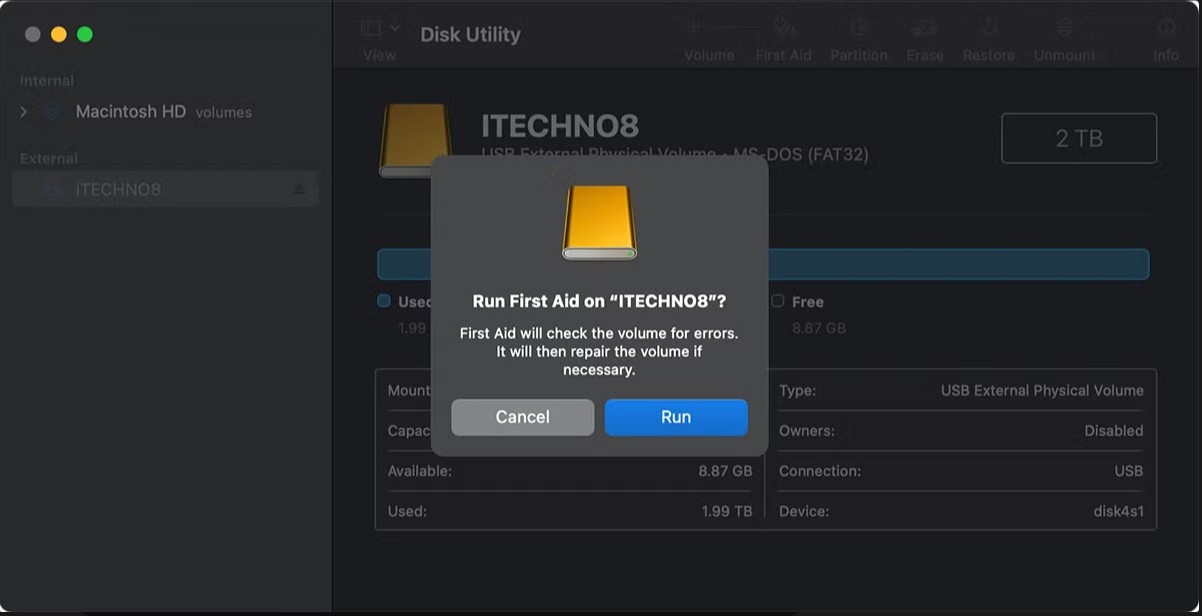
Disk Utility - Create Disk Images on Mac
- Supported OS: macOS
- Why I picked it: Disk Utility is the built-in Mac option for users who want to create disk images without installing third-party ISO creator software.
Disk Utility is the native macOS tool for creating disk images from folders, disks, volumes, and connected devices. It can create blank disk images, images from folders, and images from physical disks or devices. For CD/DVD-style images, Mac users can choose the DVD/CD master option, which commonly uses the .cdr extension.
In my workflow check, Disk Utility was convenient for making a disk image from a folder on Mac. It is not a typical Windows-style ISO creator, so users should pay attention to the output format. If a standard .iso file is required, the CDR or disk image output may need conversion depending on the target device or software.
- Creates disk images from folders, disks, volumes, and connected devices.
- Supports blank disk image creation for storage.
- Offers DVD/CD master, read-only, compressed, and other image options.
- Does not require third-party software on Mac.
- Often creates DMG or CDR-style disk images rather than direct Windows-style ISO output.
- Not suitable for protected DVD backup.
- Less suitable for advanced ISO editing or Windows bootable ISO customization.
How to create a disk image from a folder with Disk Utility
Step 1: Open Disk Utility on your Mac.
Step 2: Choose File > New Image > Image from Folder.
Step 3: Select the folder you want to turn into a disk image, then click Open.
Step 4: Enter a file name, choose the image format, and select where to save the disk image.
Step 5: Click Save and wait for Disk Utility to create the image. If a standard ISO is required, choose the closest DVD/CD master or compatible image option and convert the output when needed.
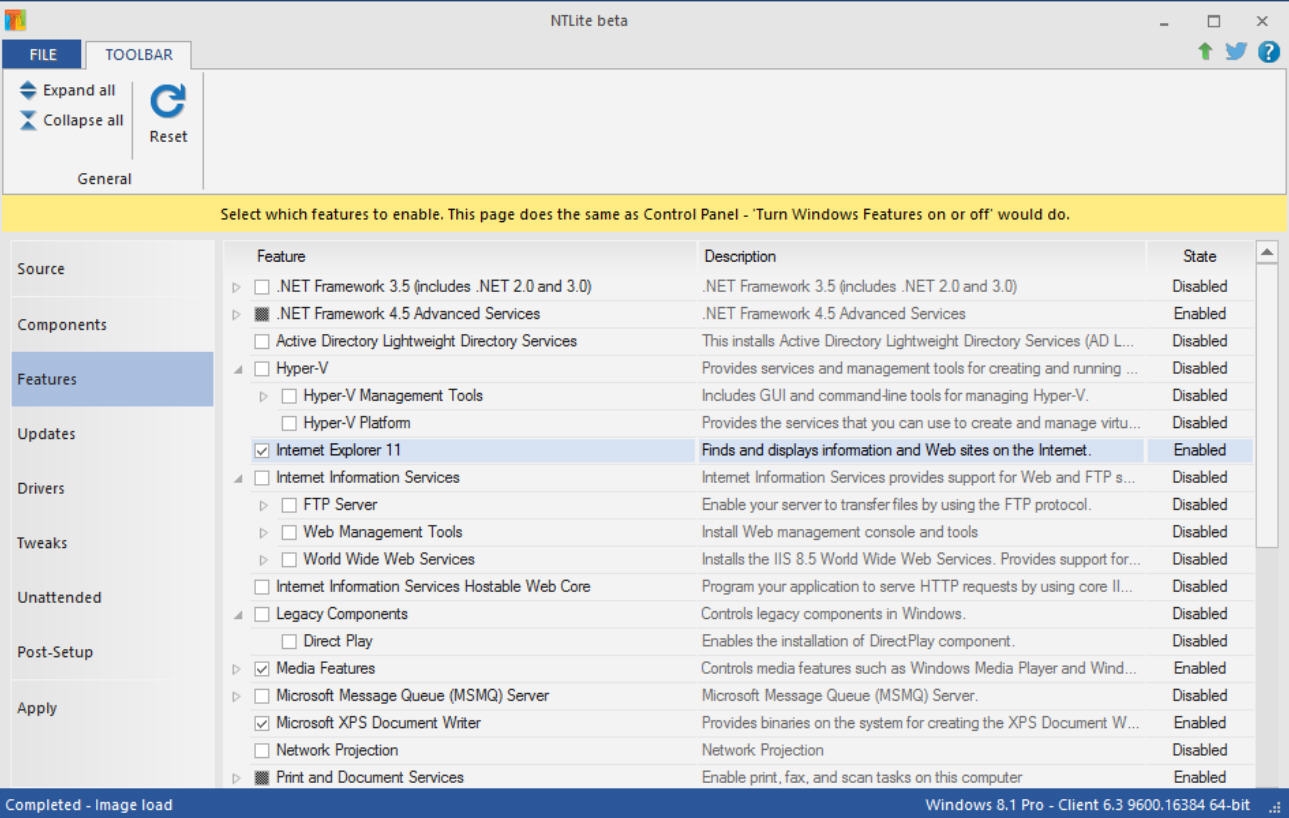
NTLite - Customize and Build Bootable Windows ISO Images
- Supported OS: Windows
- Why I picked it: NTLite is useful for users who need to customize Windows installation images and build bootable Windows ISO files.
NTLite is not a general-purpose ISO creator for everyday files, folders, or DVD backups. It is an advanced Windows image customization tool for editing Windows installation images, integrating updates and drivers, automating setup, removing components, and building bootable Windows ISO files. Its latest version is NTLite v2026.05.11090, released on May 31, 2026, with Create ISO improvements and boot-related fixes.
In my tests, NTLite was clearly different from ordinary ISO creator software. Instead of simply adding files to an ISO, it focuses on Windows image preparation. It is useful for IT users and advanced Windows users, but beginners should avoid removing components or changing setup options without testing the image first.
- Builds bootable Windows ISO files from prepared Windows images.
- Integrates updates, drivers, and setup options.
- Supports Windows image formats such as WIM, ESD, and SWM.
- Helps automate Windows setup and deployment workflows.
- Not suitable for simple folder-to-ISO or DVD-to-ISO tasks.
- Requires knowledge of Windows installation images.
- Removing components or changing setup settings can affect installation stability.
- Not available for Mac users.
How to build a bootable Windows ISO with NTLite
Step 1: Prepare a Windows installation image or folder and open NTLite on your Windows computer.
Step 2: Load the Windows image into NTLite and select the edition you want to customize.
Step 3: Add updates, drivers, unattended setup options, or other changes only if you understand their effect on the installation.
Step 4: Apply the changes and choose the Create ISO option to build a bootable Windows ISO file.
Step 5: Test the ISO in a virtual machine or test environment before using it for real installation or deployment.
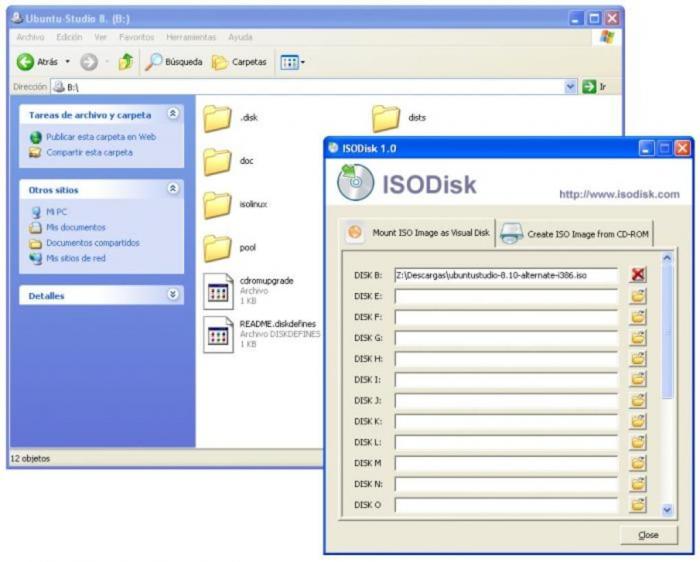
ISODisk - Create ISO File from CD/DVD
- Supported OS: Windows XP/2003/Vista
- Why I picked it: I liked how ISODisk offers mounting of multiple virtual drives along with fast ISO creation from DVD.
ISODisk is a free ISO creator software that allows users to create ISO files. It will help you to develop virtual CD/DVD drivers for about 20 drivers. The program also helps create, burn, and mount an ISO file. ISODisk can automatically create ISO from DVD-ROM/CD. Remarkably, the software lets direct access to ISO image files. When you map into a virtual disk, you can obtain the folder's contents in Windows Explorer.
- Create an CD or rip DVD to ISO file directly and easily.
- Mount ISO image files as if they are internal virtual CD/DVD device.
- Unable to create ISO files from protected CDs/DVDs.
- This tool only support ISO image format.
- Unable to create ISO files from local folders.
- Can not work on Windows 10/11 or Mac.
How to create ISO files from DVDs/CDs with ISODisk
Step 1: Insert the DVD/CD from which you want to create an ISO file into your computer's disc drive.
Step 2: Open ISODisk. You will be able to see several options at the top of the screen. Click on the one that says "Create ISO Image from CD-ROM".
Step 3: A new window will pop up asking you to select the drive that contains the DVD or CD you'd like to create an ISO file from. Click on the correct drive and then click "Next".
Step 4: Choose a location on your computer where you want the ISO file to be saved and name the file. Once you have done that, click on "Save".
Step 5: ISODisk will start creating the ISO file. You can see the progress in a bar at the bottom of the ISODisk window. When the process is complete, a message will pop up notifying you that the ISO image has been created. Click "OK" to exit this message box. The ISO file will be saved at the location you chose earlier.
ISO Workshop - Create ISO from Folder
- Supported OS: Windows 7/8/10/11
- Why I picked it: I valued its low-resource footprint and how it let me burn and manage disc images.
ISO Workshop is a free Windows utility designed for quick ISO creation, conversion, and burning, as well as full CD, DVD, and Blu-ray copying. This free ISO converter is clean and easy to navigate, letting users create standard or bootable ISOs, extract content, convert image formats, and duplicate discs without unnecessary steps.
- Create standard or bootable ISO with different file systems
- Burn ISO images or any other disc images to CD, DVD or BD
- Copy CD, DVD or Blu-ray Disc to ISO or BIN image
- Supports conversion of various disc images to ISO or BIN format
- Can not work on Mac or Linux system
- No advanced settings are provided
- Unable create ISO files from protected DVDs
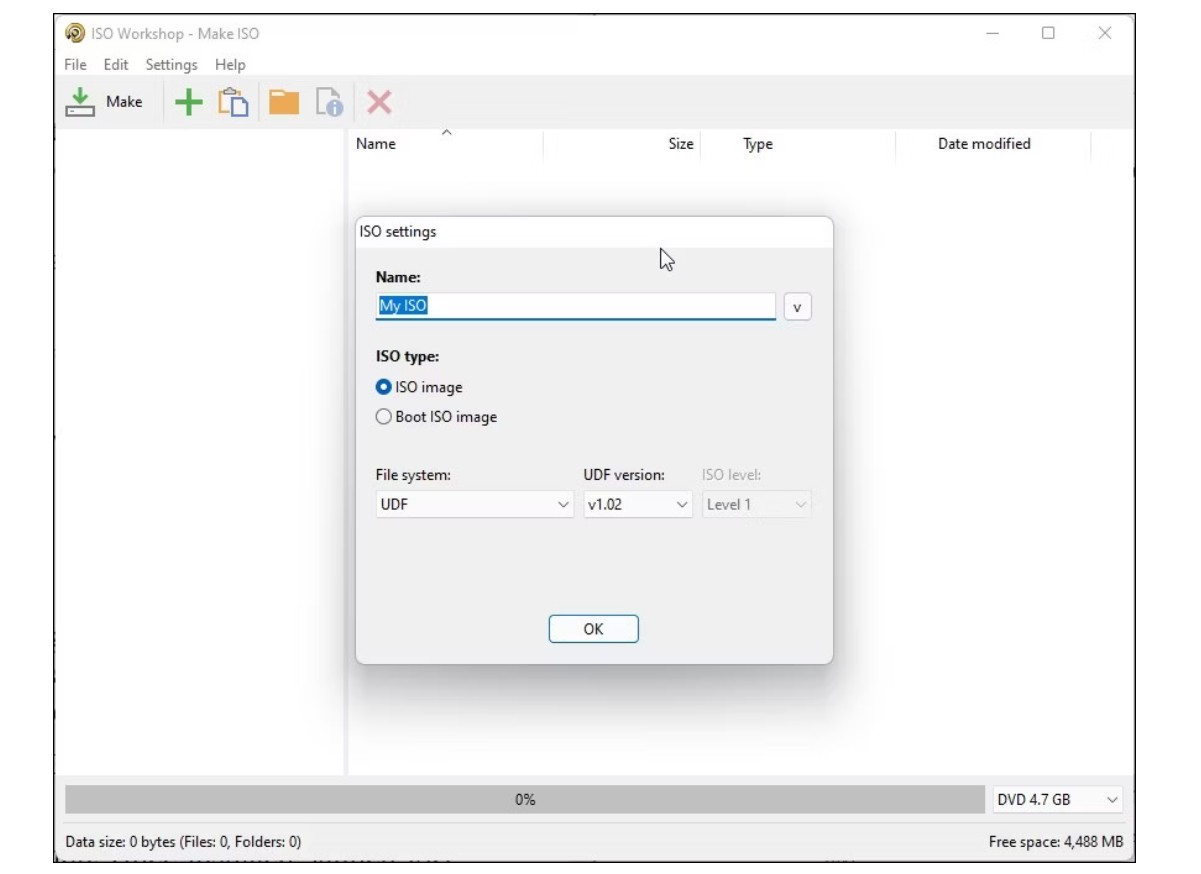
How to create ISO files from folders with ISO Workshop
Step 1: Open ISO Workshop, click on the "Make ISO" option available on the main interface of the application.
Step 2: Input a name for your new ISO image and then click "OK."
Step 3: Tap on the "+" (plus) symbol to select the files or folders you would like to include in the ISO file. In addition, you can add them by simply dragging and dropping the files directly onto the app.
Step 4: Click on the "Make" button, then enter a name for the file and click "Save." ISO Workshop will begin the process of creating the ISO image files. Wait until the process is complete.
FAQs
How to Create ISO files on Windows 10?
Microsoft recommends using the Windows Media Creation Tool to create an ISO image of your Windows 10 operating system. For Windows 10 users, it's free. Microsoft has it available for download. The Windows Media Creation Tool can facilitate you to create a bootable USB drive for Windows 10 or an ISO image of Windows 10 for your computer. Here are the using steps:
- Have the Windows Media Creation tool and run it.
- Click Next after selecting Create installation media (USB flash drive, DVD, or ISO) for another PC.
- Select the system architecture (64-bit, 32-bit, or both), language, and Windows edition. If you're still unsure, use the recommended options for this PC. Next to continue.
- Choose the ISO file; the Media Creation tool will begin creating the ISO image.
Note: Keep at least an 8GB USB stick to back up the ISO file.
How to create ISO from DVD on Windows 7?
To create an ISO of Windows 7, use ImgBurn or similar software to create an image file of the installation DVD or executable (.exe) file. Select the source, destination, and ISO format options, and then click the build button to create the ISO. The ISO file can then be used to create a Windows 7 installation DVD or bootable USB drive. A valid Windows 7 license key will be required to activate Windows after installation.
Is it possible to create a bootable USB from an ISO file?
The answer is yes. Now that optical disks are obsolete using a flash drive is one of the quickest methods to install applications, especially on a PC. So you create a bootable ISO from the folder to enjoy anywhere.
What is the difference between ISO creator, ISO burner, and ISO mounter?
An ISO creator builds an ISO file from files, folders, or discs. An ISO burner writes an ISO image to a disc. An ISO mounter opens an ISO as a virtual drive so you can browse or run its contents without burning it.
Conclusion
The best ISO creator depends on what you want to convert into an ISO file. I recommend DVDFab DVD Copy when your source is a protected DVD and you want to create an ISO image, DVD folder, or full DVD backup. Use AnyBurn when you need a free and lightweight way to create ISO from files or folders. Use PowerISO when you need advanced ISO editing, mounting, burning, conversion, or bootable image management.
For more specific needs, DVDFab DVD Creator can create DVD ISO projects from video files, ImgBurn and CDBurnerXP are useful for classic Windows disc workflows, Disk Utility is the built-in Mac disk image option, and NTLite is suitable for custom Windows installer ISO projects. Older tools such as Free ISO Creator and ISODisk can still be mentioned, but they are better treated as limited or legacy options.

![How to Remove DVD Copy Protection: 6 Software Options [2026]](https://images.dvdfab.cn/media/How_to_Remove_Copy_Protection_from_DVD_upluh5.png/public) How to Remove DVD Copy Protection: 6 Software Options [2026]By Diana Smith - Sep 10, 2026
How to Remove DVD Copy Protection: 6 Software Options [2026]By Diana Smith - Sep 10, 2026![How to Copy a DVD to Another DVD or Computer [2026]](https://images.dvdfab.cn/media/how-to-copy-dvd-HblP_v1600r.jpg/public) How to Copy a DVD to Another DVD or Computer [2026]By Diana Smith - Aug 25, 2026
How to Copy a DVD to Another DVD or Computer [2026]By Diana Smith - Aug 25, 2026![How to Burn ISO to DVD on Windows 11 and Mac [2026]](https://images.dvdfab.cn/media/Screenshot_2026-08-07_at_10.57.26_d3iqro.png/public) How to Burn ISO to DVD on Windows 11 and Mac [2026]By Diana Smith - Aug 7, 2026
How to Burn ISO to DVD on Windows 11 and Mac [2026]By Diana Smith - Aug 7, 2026![How to Rip DVD to ISO on Windows 11/10/8/7 and Mac? [2026 Update]](https://r3.dvdfab.cn/upload/resource/dvd-to-iso-ei38.jpeg) How to Rip DVD to ISO on Windows 11/10/8/7 and Mac? [2026 Update]By Wenny Yan - Jun 17, 2026
How to Rip DVD to ISO on Windows 11/10/8/7 and Mac? [2026 Update]By Wenny Yan - Jun 17, 2026