How to Copy DVD to Computer on Windows & Mac: Rip and Direct Copy

Summary: To copy a DVD to your computer, you need ripping software like DVDFab (for encrypted discs) or HandBrake (for homemade ones) to convert the video into standard digital formats like MP4 or MKV that can be saved to your PC hard drive. Simply insert the DVD, select an output format, and start the ripping process. Direct file copying without software is not recommended for movies, as it fails to handle copy protection and often result in unplayable files.
Table of Contents
Copying DVDs to your computer is a great way to keep your physical movie collection safe from scratches, loss, or the effects of age. Like many people in the Microsoft and Apple communities, you might have tried dragging and dropping video files directly to your desktop, only to find them unplayable due to strict encryption and complex file structures. To fix this, you need to convert the disc into a format that your laptop can actually read.
I find that most of us prefer ripping DVDs into digital formats like MKV or MP4 for easy storage and playback. Yet, some Reddit users in the DataHoarder community want to keep the original menus, trailers, and interactive features by saving them as ISO files instead. In this guide, I have tested reliable tools that cover both options to help you transfer homemade and commercial DVDs to computer.
Quick Answer: Best Ways to Copy DVD to Computer
Based on my real tests, here are the best ways to copy DVD to computer for different needs:
- Best for Speed & Quality: Use DVDFab DVD Ripper to rip commercial DVDs to computer as MP4/MKV in minutes with original quality.
- Best for Lossless Backup: Use MakeMKV if you want a perfect 1:1 uncompressed copy and have plenty of hard drive space.
- Best Free Tool: Use HandBrake if you are ripping non-encrypted home videos and don't mind slower processing speeds.
First, I compared the most popular ripping tools to copy and save DVD to computer based on actual functions, user reviews, and how well they handle copy protection. Whether you need a digital file for your laptop, a perfect 1:1 ISO backup, or just a simple transfer for home videos, check the table below for my top recommendations.
| Tools | OS | Input | Output | DVD Decryption | Best For | User Ratings |
| DVDFab DVD Ripper | Win & Mac | DVD disc, ISO, Folder | 1000+ video/Audio formats | ✔️(Advanced & New protection) | Ripping any copy-protected DVD to digital video |
4.6/5 (Trustpilot) |
| DVDFab DVD Copy | Win & Mac | DVD disc, ISO, Folder | DVD disc, ISO file, Folder | ✔️(Advanced & New protection) | Coping any protected DVD to 1:1 ISO or folder | 4.6/5 (Trustpilot) |
| HandBrake | Win, Mac & Linux | DVD disc, ISO, Folder | MP4, MKV, WebM | ❌ | Ripping homemade DVD only |
4.2/5 (Trustpilot) |
| MakeMKV | Win, Mac & Linux | DVD disc, Folder | MKV | ✔️(Only works for AACS and BD+) | Ripping DVD to MKV only |
4.5/5 (TechRadar) |
| Freemake | Windows | DVD disc, Folder | 20+ video formats | ✔️(Only works for basic RC) | Ripping some region-coded DVDs and don't mind watermark |
2.9/5 (Trustpilot) |
| Without Software | Win & Mac | DVD disc | Depends on file format on DVD | ❌ | Ripping homemade data DVDs for backup, not for playback | N/A |
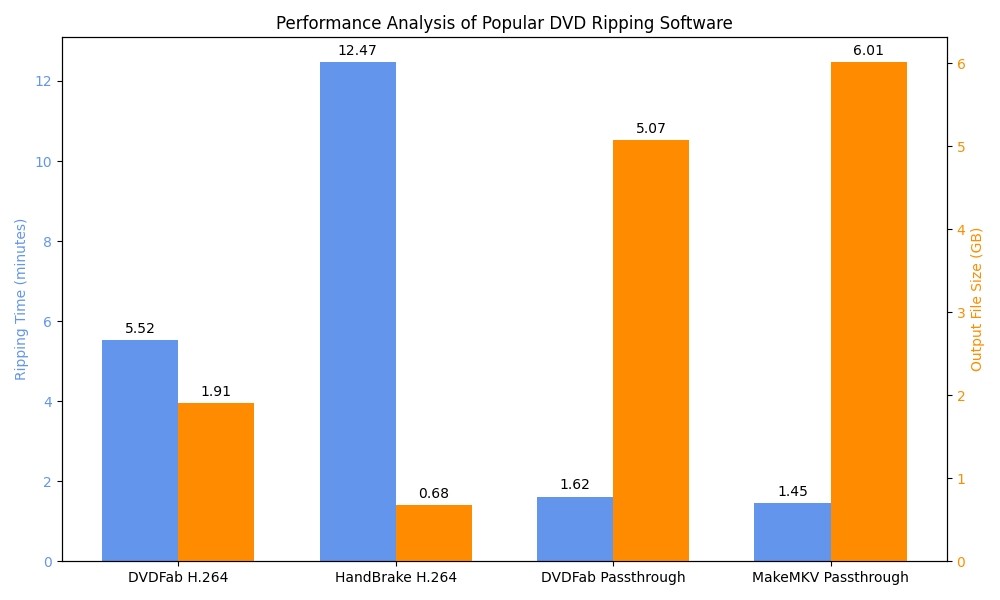
Then, I ran a controlled permanence test comparing my top 3 picks - DVDFab DVD Ripper, HandBrake, and MakeMKV. I used a standard Windows 10 system (NVIDIA RTX 4060 Ti 8GB, Intel Core i7-6700) to rip the movie 8 Mile (1h 50m, 6.13GB). The chart below displays the specific duration and file size results for each software.
Here is what the data tells us:
💡For Copy DVD to Computer in MP4: DVDFab DVD Ripper is the fastest tool, finishing the task in just 5 min 31s—more than twice as fast as HandBrake (12m 28s). It also maintained superior video quality (720x404), whereas HandBrake reduced the image size to 720x362.
💡For Copy DVD to Computer in Lossless MKV: Both DVDFab and MakeMKV are fast, taking about 1.5 minutes. However, DVDFab was more efficient, producing a file ~1GB smaller (5.07GB vs. 6.01GB) than MakeMKV while retaining the original quality.
Quick Video Tutorial: How to Copy DVDs to a PC, Laptop, or Mobile Device
In this video, I'll show you two of the best ways to copy a DVD to your computer: you can rip the DVD into digital formats like MP4/MKV using DVDFab DVD Ripper, or you can copy it as a lossless ISO file or a VIDEO_TS folder using DVDFab DVD Copy. Check out the short video tutorial if you prefer video over text.
How to Copy DVD to Computer with DVDFab DVD Ripper
- Supported OS: Windows 11/10/8.1/8/7, macOS 10.13+
- Supported Discs: Commercial (encrypted) DVDs, Homemade Discs, ISOs, Folders
- My experience using it: I ripped my DVD movie collection to MP4 files and transferred them on my Windows 10 PC. It saved a lot of space, and the video quality looked great.
DVDFab DVD Ripper is a reliable tool to rip DVDs to your computer as digital files on both Windows and Mac. It supports both homemade videos and commercial DVDs with advanced copy protections such as CSS, Region Codes, and new encryption schemes. This DVD ripping tool can convert DVD into standard digital files like MP4, MKV, AVI, WMV, and more, so you can watch them easily on your laptop, phone, tablet.
In my test, DVDFab compressed the full 6.13GB disc into a high-quality 1.91GB MP4 file in about 5 minutes, saving over 60% of my hard drive space. It also features a built-in video editor to cut or crop unwanted parts and automatically generates meta-information, making it convenient to organize my movie library with correct titles and cover art on my computer.
💡Pros:
- Support popular and new protections on commercial DVDs.
- Rip DVD to computer in 1000+ video and audio formats, like MP4, MKV, MP3, etc.
- Support 260+ preset devices like Android, iPhone, iPad, HTC, LG, Box, Sony, etc.
- Adjust advanced video, audio, and subtitles settings.
- Boast a versatile built-in video editor for your customization.
- Utilize GPU hardware acceleration for faster DVD ripping.
- Enable batch processing with one-click operations.
❌Cons:
- The lifetime-free version supports only MP4 and MKV formats.
Step 1. Download and Launch DVDFab DVD Ripper
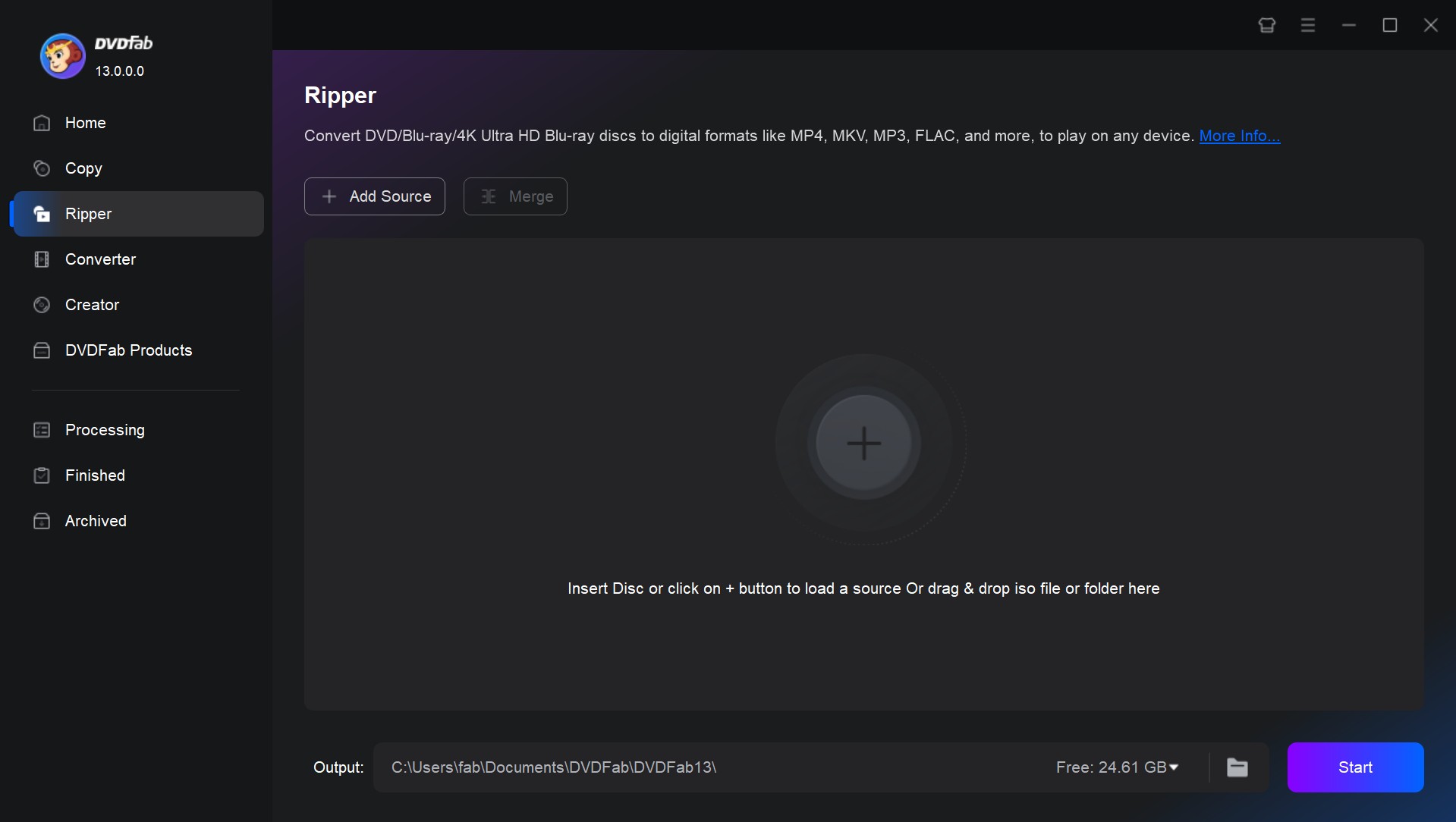
Firstly, download and open DVDFab 13 on your computer. Select the "Ripper" module and insert your DVD into your optical drive. If your source is an ISO image file or a folder, simply drag and drop it into the software.
Step 2. Choose Output Format as MP4 or MKV
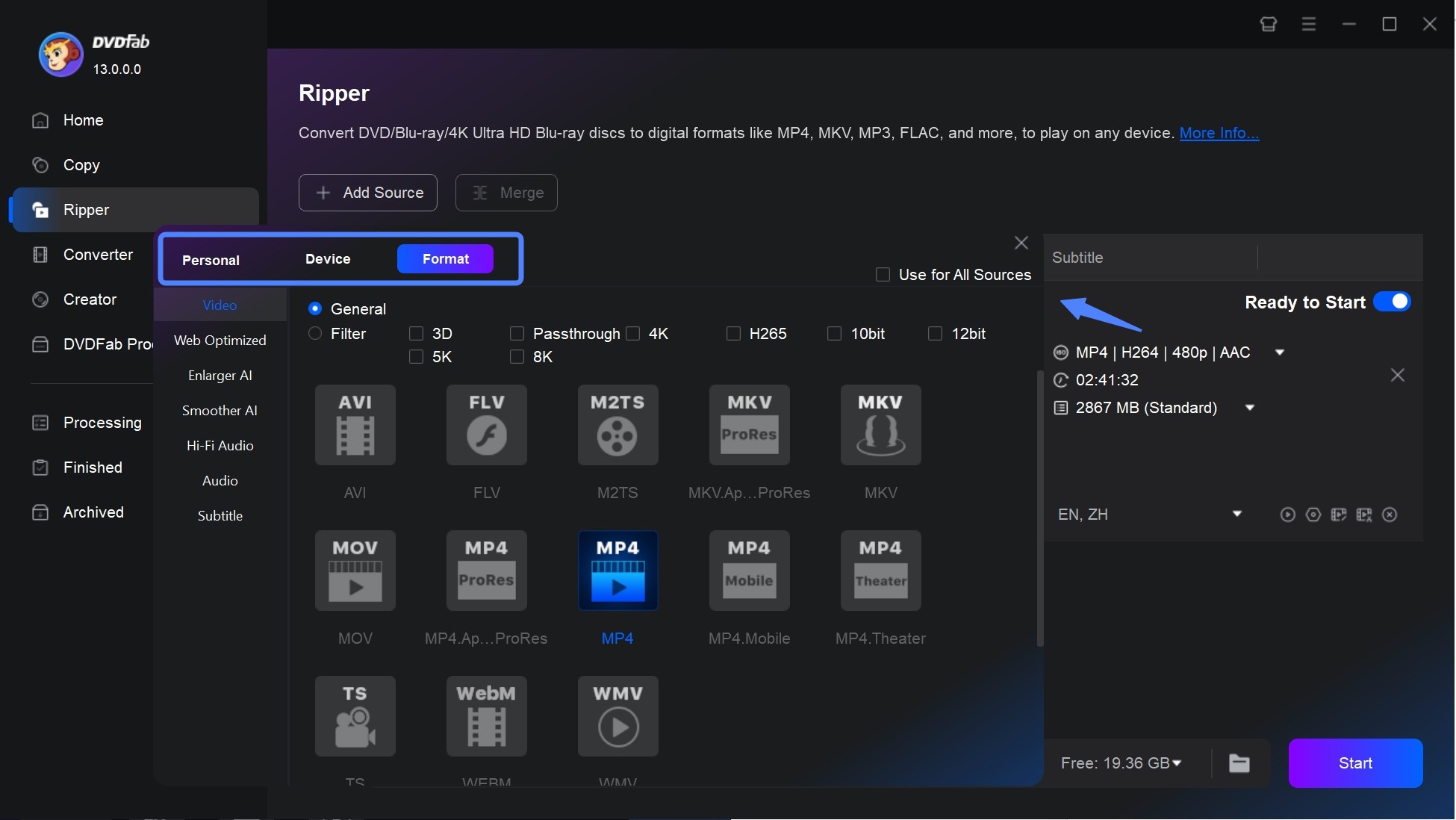
Once the DVD is loaded, you will see all the information about your file. Click the option of Choose Other Profile > Format > Video. DVDFab supports multiple formats, including MP4, MKV, WebM, and WMV. If needed, you can also extract audio by selecting the Audio tab to convert to formats such as AAC, AC3, FLAC, or MP3.
Step 3. Customize Video and Audio Settings (Optional)
Then go back to the main interface and you can set the options for titles, chapters, audio, and subtitles. You can also add external subtitles as you like.
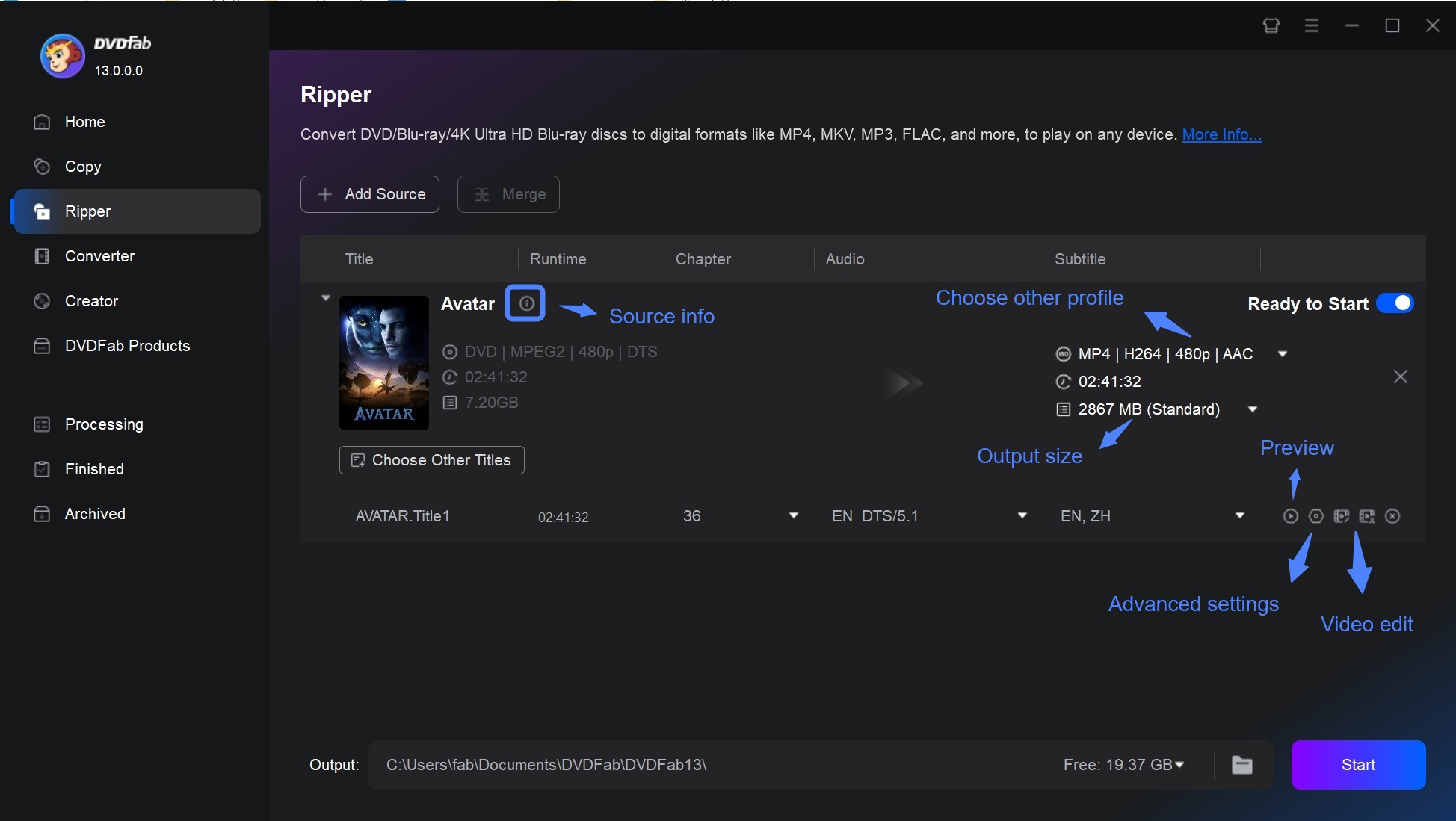
Advanced users can click "Advanced Settings" to adjust parameters like codec, bitrate, resolution, and frame rate. You can also use "Video Edit" to crop, trim, rotate, change playback speed, or modify brightness.
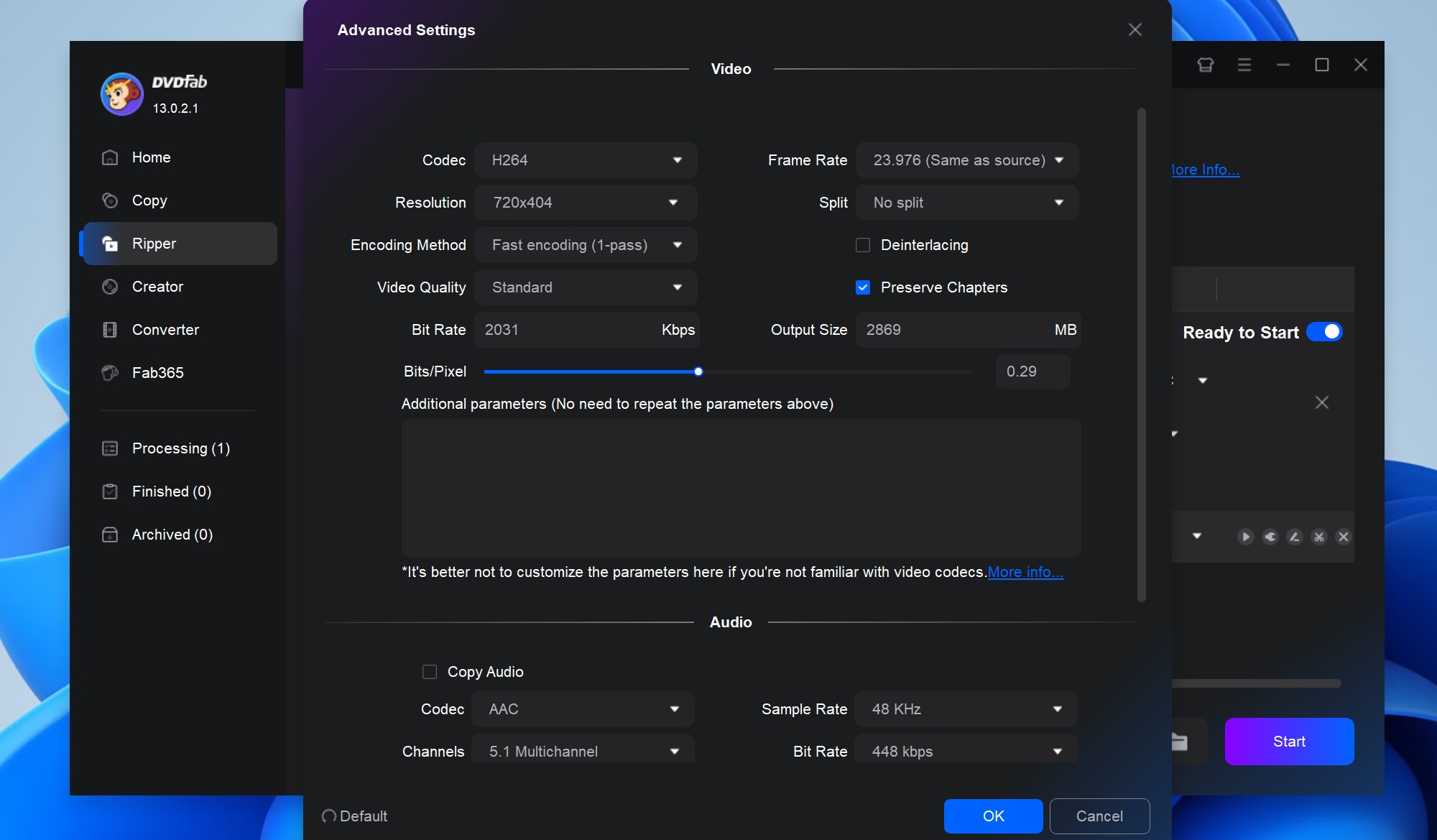
💡When copying a DVD to computer using DVDFab DVD Ripper, choosing the right format and settings is essential to balance quality, compatibility, and file size. Below are the recommended settings based on different needs.
| Use Case | Recommended_Format | Why |
| General playback (PC, phone, tablet, smart TV) | MP4 (H.264) | Highly compatible, good quality with small file size |
| High-quality backup | MKV (H.265/HEVC) | Smaller size than H.264 with better compression and quality |
| Preserving original DVD quality | MKV (MPEG-2 or H.264, No Compression) | Retains full DVD quality with original audio and subtitles |
| Streaming via Plex, Kodi | MP4 (H.264 or H.265) | Streams smoothly on most media servers |
| Fastest conversion speed | MP4 (H.264, Medium Quality) | Faster encoding with good playback support |
Step 4. Start to Rip and Save DVD to Computer
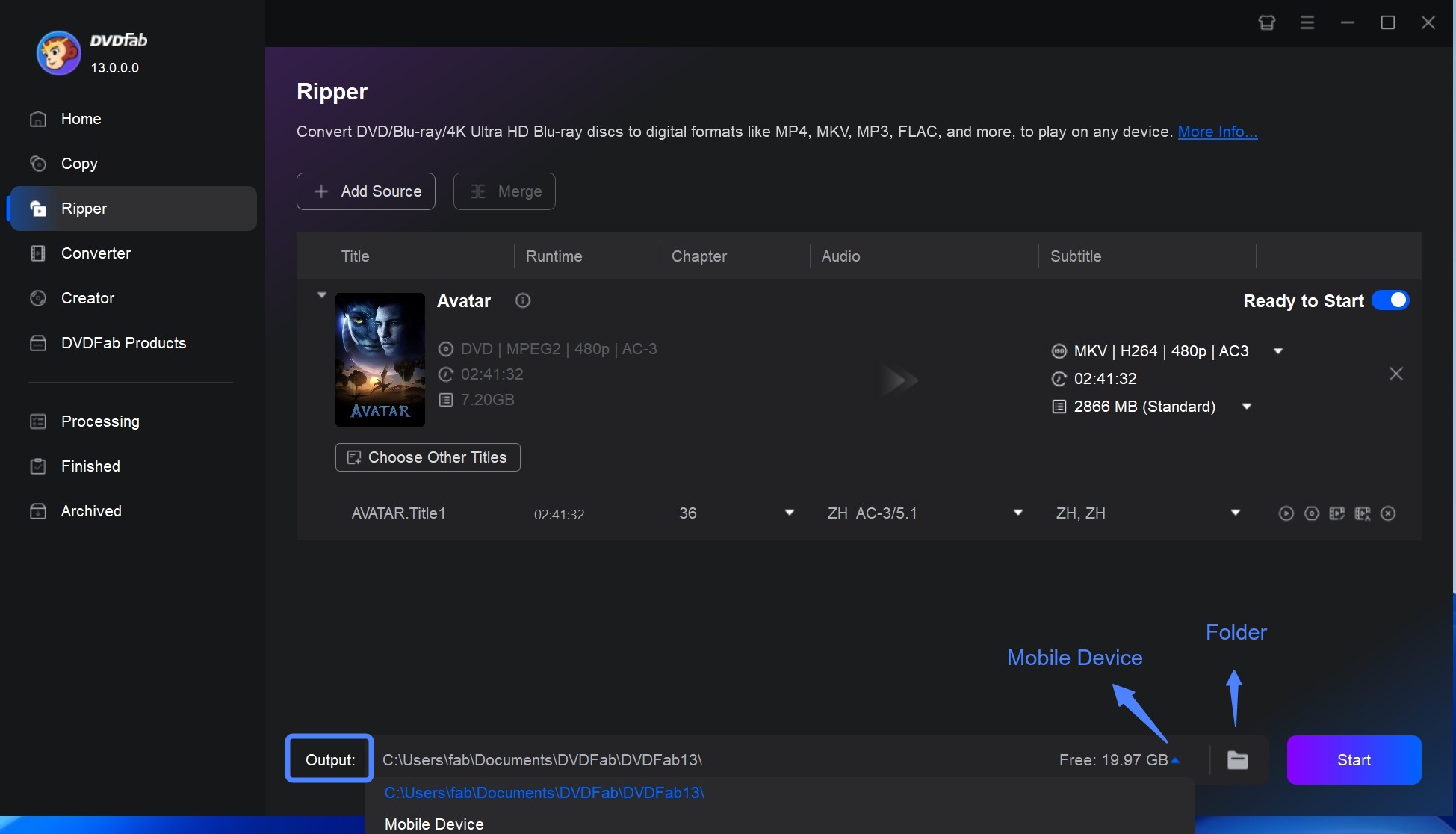
Click the Folder icon to set the output destination on your computer. Finally, click the Start button to copy DVD to hard drive at lightning-fast speed.
How to Copy DVD to computer with DVDFab DVD Copy
- Supported OS: Windows 11/10/8.1/8/7, macOS 10.13+
- Supported Discs: Commercial (encrypted) DVDs, Homemade Discs, ISOs, Folders
- My experience using it: I copied my Star Wars DVD to an ISO file and save it on my Windows 10 laptop; it kept all the menus and extras just like the original disc.
DVDFab DVD Copy is a reliable choice to copy DVDs to your computer as ISO images or folders without losing any quality. It provides 6 different copy modes to create a perfect digital copy of your physical disc, ensuring you preserve the original menus, chapters, and special features for future archiving. It supports almost all disc types and handles protections like CSS or region codes automatically. In my test, it copied a full DVD 9 movie to my computer in about ten minutes, offering a fast and stable experience.
DVDFab is a favorite for me and in the DataHoarder community on Reddit because it removes protections and creates a perfect clone in a single click. I can then use a player like VLC to navigate menus and watch trailers just like you are using the original physical disc.

💡Pros:
- Support CSS, APS, RC, and other common protection types.
- Copy or compress DVD to ISO image file, DVD 5/9, or Folder.
- Provide 6 copy modes to save DVD to computer.
- Download DVDs to a computer without quality loss.
- Copy DVD in batch at GPU-accelerated speed.
- Allow you to choose the audio tracks and subtitles for free.
- Copy multiple DVDs in batches.
❌Cons:
- The free version only supports the Main Movie and Full Disc copy modes.
Step 1. Start DVDFab DVD Copy and Load the DVD
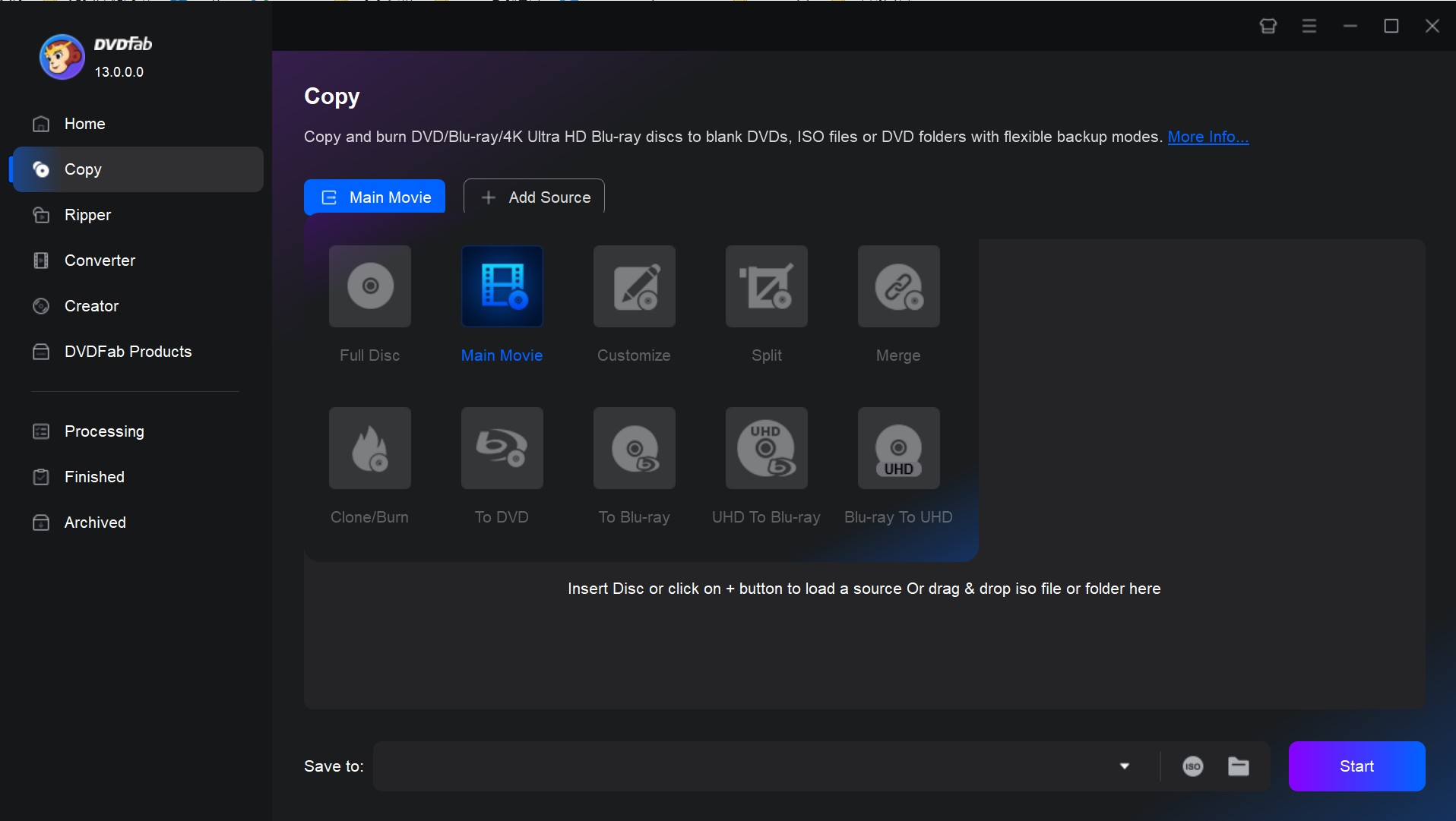
Get DVDFab DVD copy software launched on Windows or Mac. Select "Copy" module and choose "Main Movie" copy mode. Then insert a DVD disc to your optical drive and DVDFab will automatically load it to the main interface.
Step 2. Select the Copy Mode
Differences in the Six Copy Modes to Copy DVD Movie to Computer:
- Full Disc: Copy all content of the disc/ISO/folder source
- Main Movie: Only copy the main movie title of the disc/ISO/folder
- Customize: Copy any content you want from the disc/ISO/folder
- Split: Split one DVD-9 into two DVD-5
- Clone/Burn: clone DVD or BD in a 1:1 ratio with nothing lost
- Merge: Merge multiple DVDs or BDs into one DVD or BD (DVD and BD cannot be mixed)
Step 3. Configure the DVD Settings (Optional)
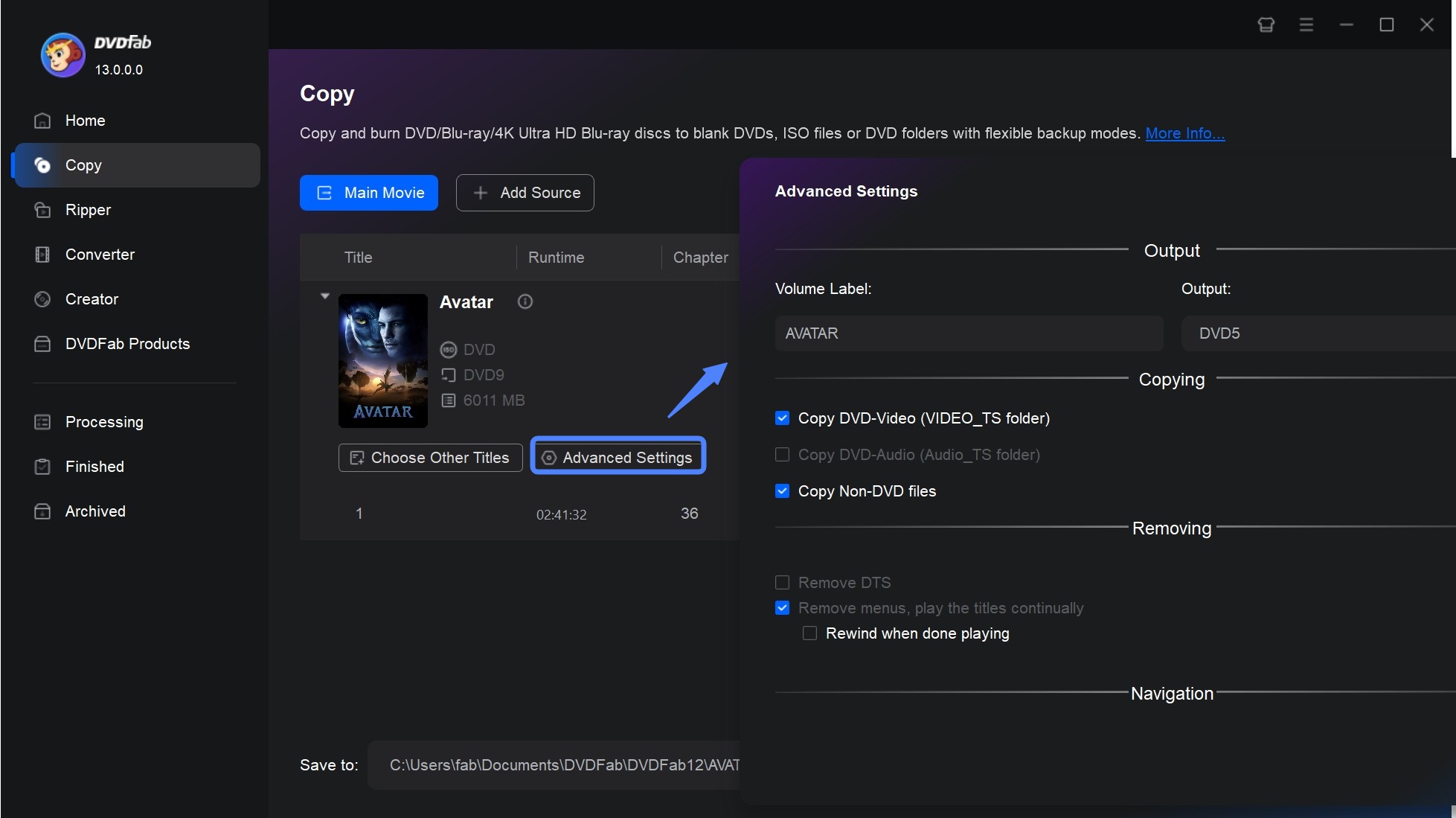
Click "Advanced Settings" to further customize your DVD video. Here you can see four main options, including Output, Copying, Removing, and Navigation. Under "Output", there are options like Volume Label, and Output (DVD 5/9).
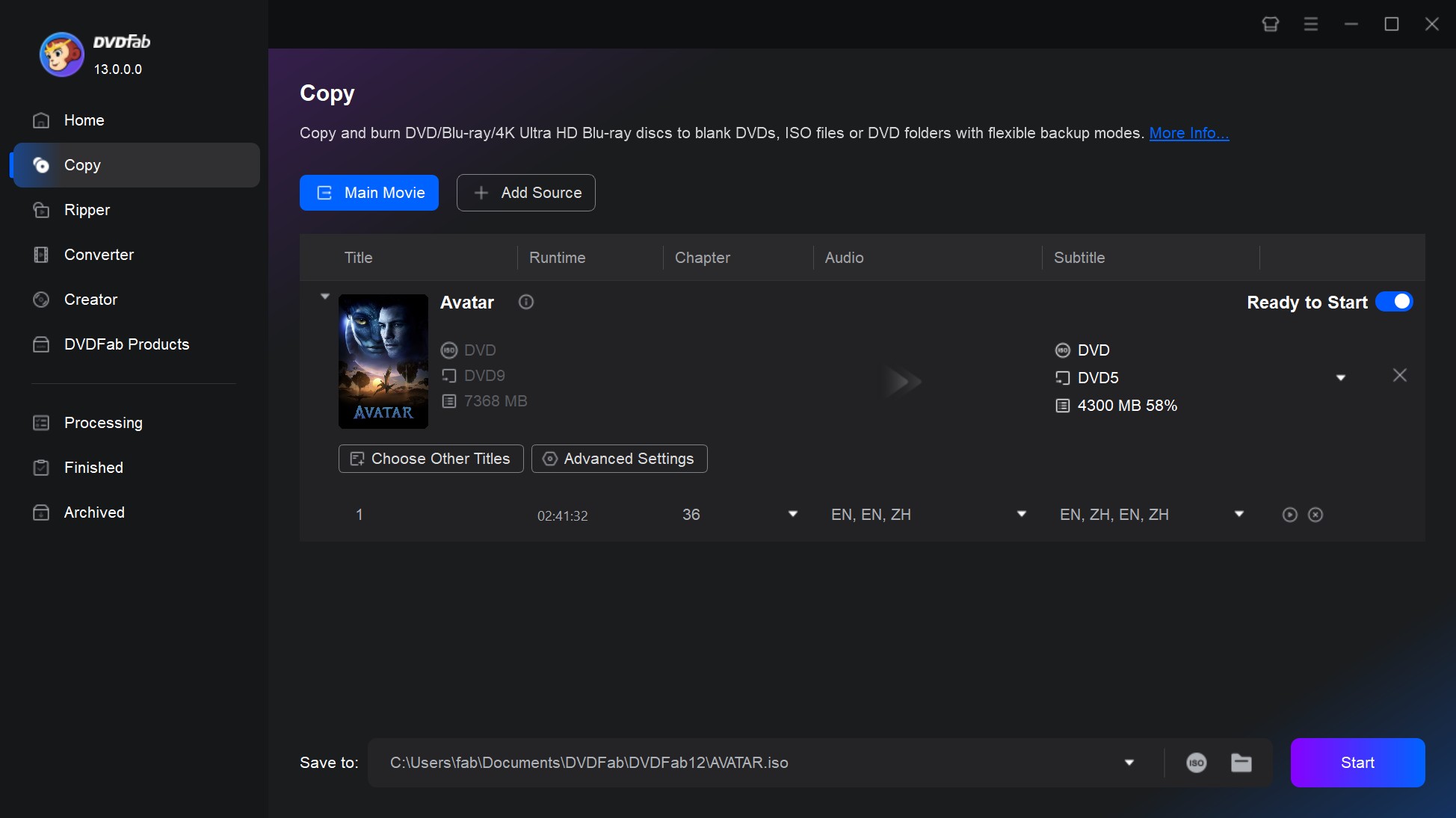
Next, select the titles, audio tracks, and subtitle you want to copy.
Step 4. Start to Copy DVD to 1:1 ISO and Save It on Your Computer
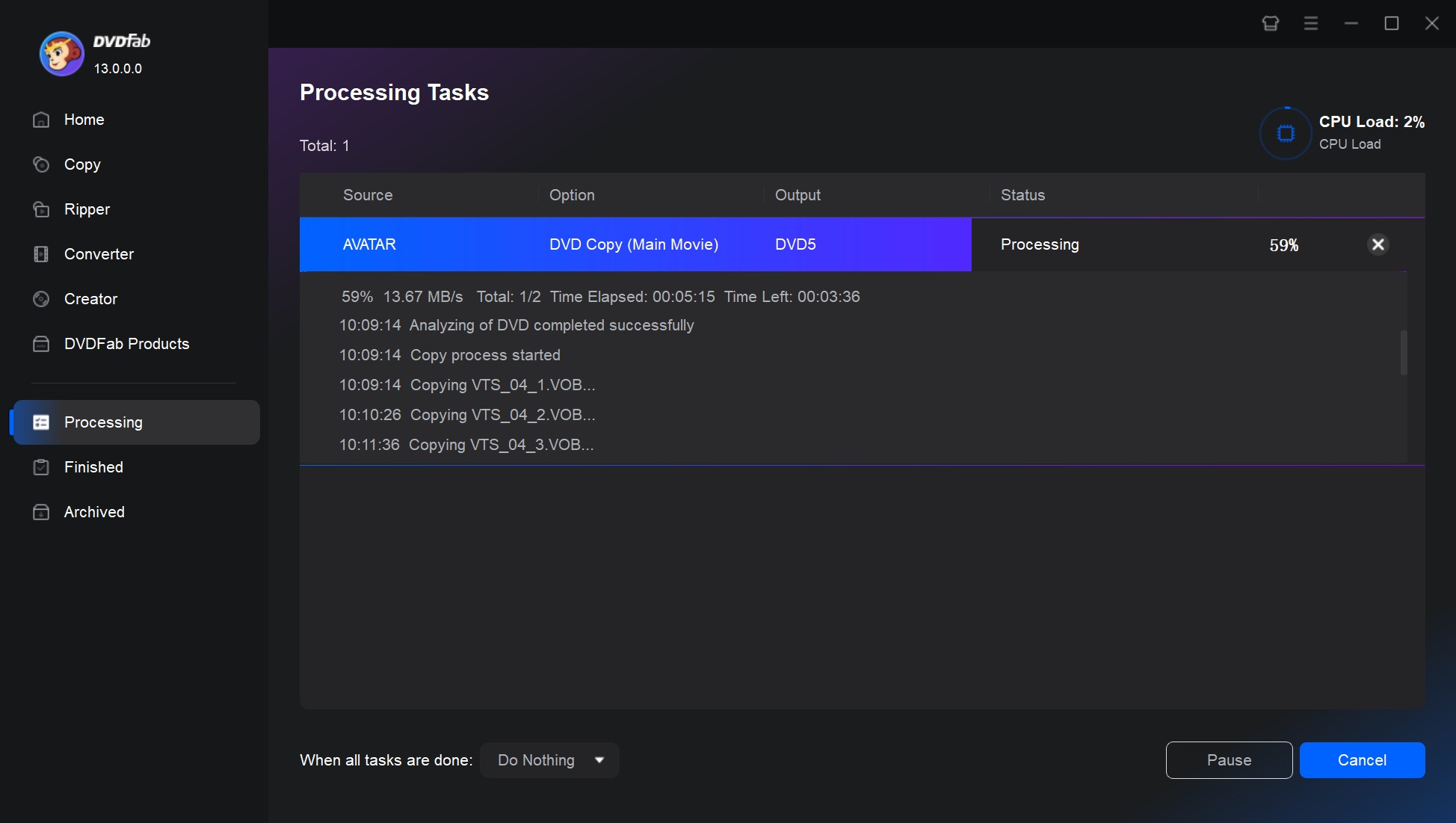
After all the settings are done, click the "ISO" or "Folder" icon to select an output directly. Finally, click the "Start" button and wait for DVDFab DVD Copy to copy and save DVD to your computer at top speed.
How to Copy DVD to Computer with HandBrake
- Supported OS: Windows 10/11, macOS 10.13+, Linux
- Supported Discs: Unprotected & Home-made DVDs only
- My experience using it: I used it to convert my old traveling DVD into an optimized MP4 file and transfer it to my laptop.
HandBrake is a popular free tool to copy unprotected DVDs to a computer in Windows, Mac, and Linux. It is an open-source video transcoder that is excellent for converting homemade discs into modern, space-saving formats like MP4, MKV, or WebM. However, it does not natively support commercial DVDs. While installing libdvdcss allows it to read older discs with basic CSS encryption, it still fails to recognize most modern copy-protected DVDs.
Performance is another drawback. In my test ripping the movie 8 Mile on the same Windows 10 PC, HandBrake was more than twice as slow as professional tools like DVDFab. The output video and audio quality were also reduced.
💡Pros:
- Serve as an open-source software that is completely free to use.
- Download both DVD and Blu-ray to computer.
- Offer various options for customization such as bitrate, frame rate, and audio tracks.
- Boast preset in the application for different devices and quality levels.
❌Cons:
- Cannot rip copy-protected DVDs alone.
- Only support 3 output formats.
- Cannot rip a DVD to your computer in the format of ISO or DVD folder.
- Maybe a bit complicated for beginners.
Steps to Download DVD to Computer with HandBrake
Step 1: Download and install HandBrake software from its official website. Upon completion, launch the program. Insert your DVD into your computer's DVD drive. Click on the 'Open Source' button on the HandBrake interface to load the DVD.
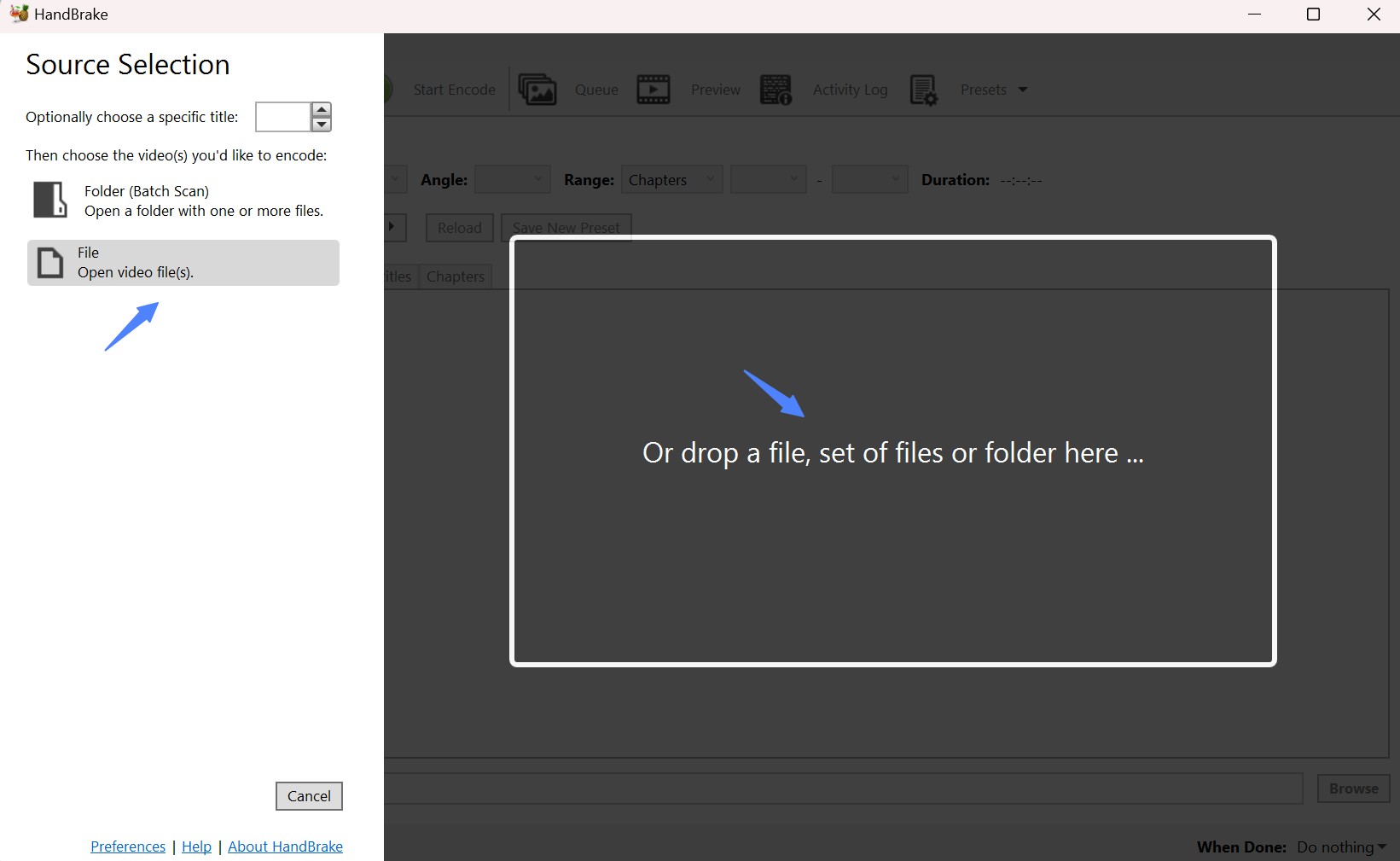
Step 2: After HandBrake scans the DVD, you will need to choose the title that you want to rip. By default, HandBrake selects the longest title, which usually contains the main content.
Step 3: Choose the destination to save the ripped DVD file on your computer by clicking on the 'Browse' button.
Step 4: Next, you will need to adjust settings like the format, quality, and codec. In the "Output Settings" section, choose "MP4" or "MKV" as the output format in the 'Format' drop-down list. For DVDs, H.264 is always the recommended codec. You can move the 'Quality' slider to adjust the video quality.
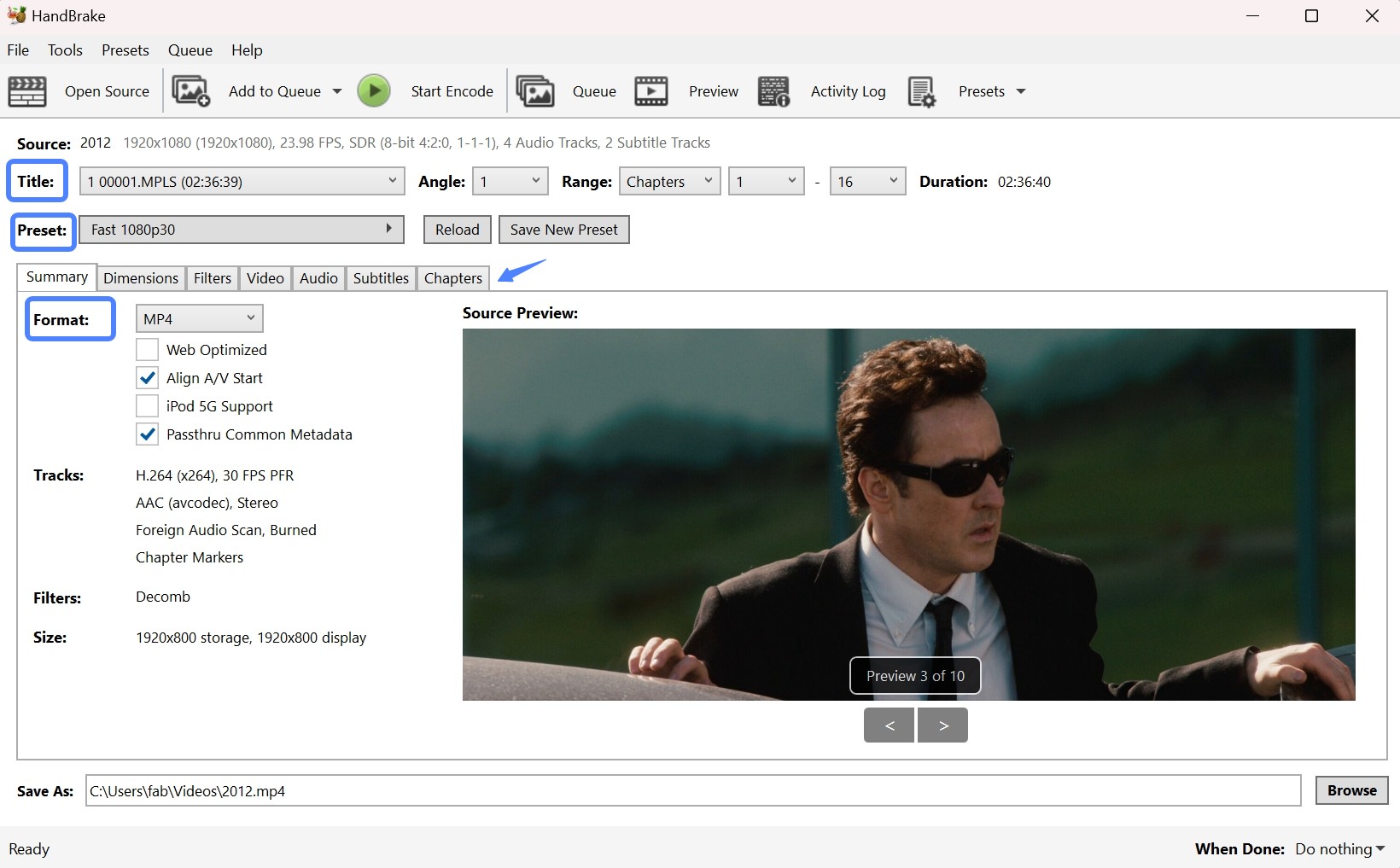
💡When copying a DVD to your computer with HandBrake and selecting MP4 as the output format, you'll see additional settings. Here's what each option does and how to choose the best settings:

- Web Optimized: Moves metadata to the file's start for faster streaming. Enable if streaming (e.g., Plex); otherwise, disable.
- Align A/V Start: Prevents audio-video sync issues. Enable if you notice sync problems; otherwise, disable it.
- iPod 5G Support: Optimizes for old iPod models. Disable unless using an iPod 5G.
- Passthru Metadata: Retains original metadata like title and artist. Enable for better media organization; otherwise, disable.
If you choose MKV as your output format, you can only choose Passthru Metadata as your additional setting or just disable it.

Step 5: In the "Audio" tab, you can select your preferred audio tracks and add subtitles if needed.
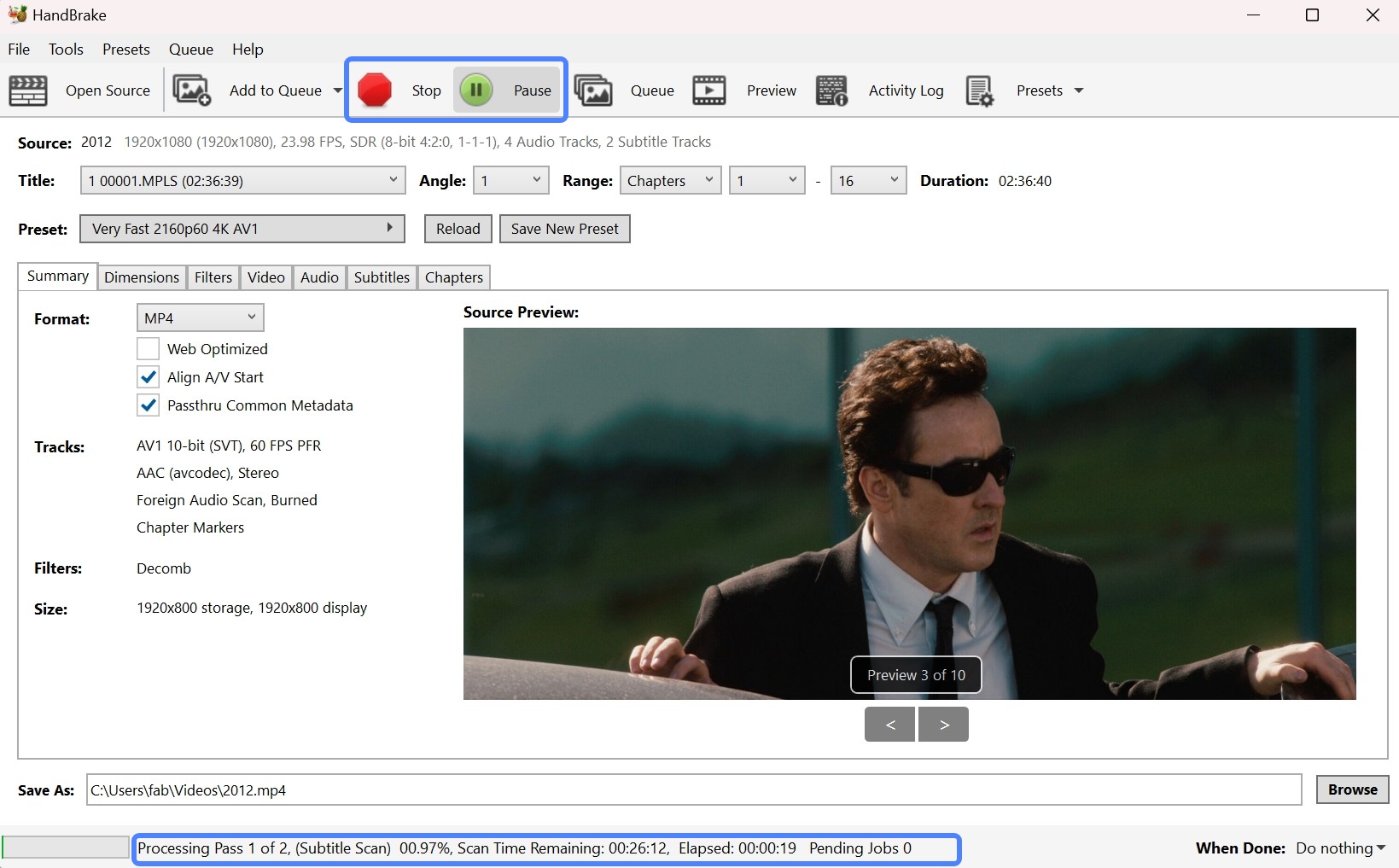
Step 6: Finally, click "Start Encode" to start the DVD ripping process. HandBrake will display the estimated time remaining. Once this process is complete, you'll have a digital copy of your DVD that can be easily stored and viewed on your computer.
How to Copy DVD to Computer with MakeMKV
- Supported OS: Windows XP/7/8/10/11, macOS 10.7+, Linux
- Supported Discs: Home-made DVDs and some DVDs protected by AACS
- My experience using it: I used it to copy DVD to my PC when I wanted to keep the original uncompressed video and audio.
MakeMKV is a straightforward tool to save DVD to a computer as a lossless MKV file in Windows, Mac, and Linux. It "remuxes" the data, meaning it transfers the exact video and audio streams from the disc to your drive without compressing them.
This tool preserves all meta-information, chapters, and audio tracks, making it ideal for digital archiving. In my lab test with the movie 8 Mile, MakeMKV was fast, finishing the backup in under 2 minutes. However, be prepared for large file sizes; the output file was 5.07GB, significantly larger than the compressed MP4s from other tools.
💡Pros:
- Can copy both DVDs and Blu-rays into MKV files.
- Provide excellent conversion quality.
- Preserves all the video and audio tracks, chapter information, and meta-information.
❌Cons:
- Only rip DVD to computer as MKV format.
- Does not provide any video editing tools.
- Does not compress files, leading to large output files.
- The official website is not stable.
Steps to Download DVD to Computer with MakeMKV
Step 1: Download MakeMKV from the official website, ensure its compatibility with your operating system (Windows, MacOS, or Linux), and follow the standard installation process.
Step 2: Insert the DVD you want to rip into the disk drive of your computer. MakeMKV will provide an option as "Open Disk". Click on it, and the software will scan and load all content present on your disk.
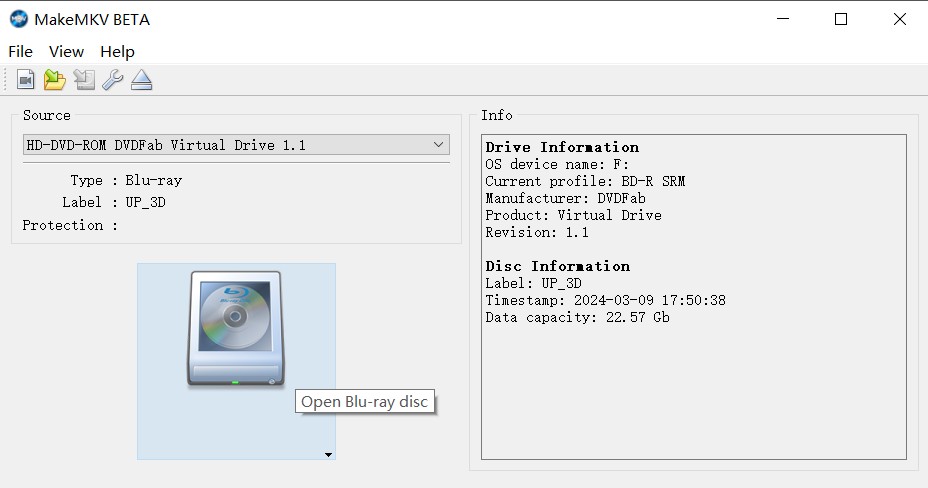
Step 3: Once your disk content is loaded, you can choose what parts you want to rip. Videos are broken down into chapters - just pick the ones you want or click "Select All" if you want everything.
Step 4: Navigate to the right-hand section of the interface where you can set your output folder. Make sure you choose a location with sufficient space.
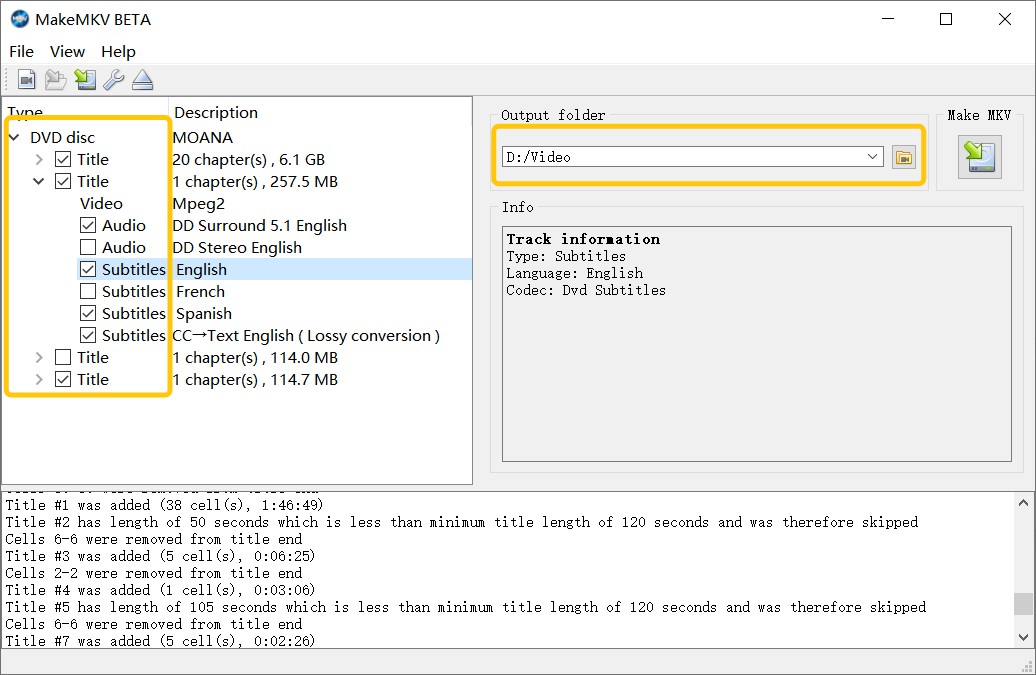
Step 5: After selecting the desired content and output location, click the "Make MKV" button to start copying the DVD to computer.
How to Copy DVD to Computer with Freemake Video Converter
- Supported OS: Windows 11/10/8/7
- Supported Discs: Unprotected & some Region-locked DVDs
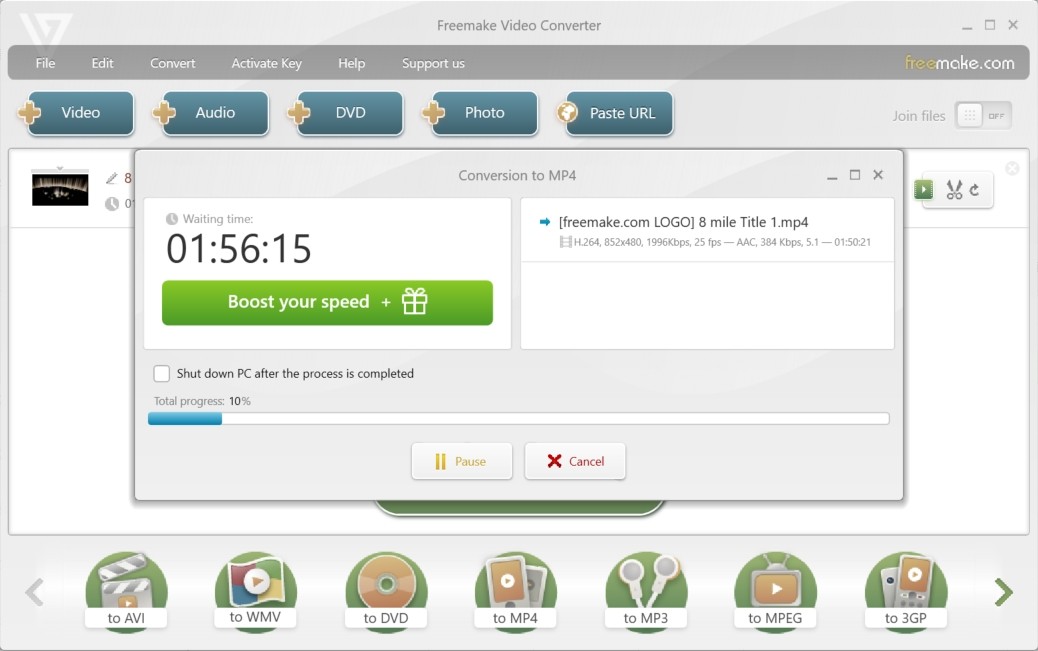
- My experience using it: I used it to transfer a workout DVD into an AVI file on my Windows laptop. But the output file is watermarked.
Freemake Video Converter is a basic tool to copy DVD to a computer for Windows users. It is designed for beginners who want a simple interface to convert discs into common formats like AVI, MP4, or WMV. You simply drag your files into the software and click a button to start.
It includes some handy editing features, allowing you to cut or join video clips before converting them. However, the free version has a major downside: it adds a branded watermark to the middle of your video. It is also slower than professional tools and often fails to copy newer commercial movies with strong encryption.
💡Pros:
- Save DVDs to PC in 20+ formats, like AVI, MP4, MKV, etc.
- Rip some region-locked DVD discs and folders.
- Support cutting and cropping video, and adding subtitles.
❌Cons:
- The free version may apply watermarks to the ripped videos.
- Cannot remove advanced DVD copy protections.
- Need to pay to unlock some premium features.
Steps to Rip and Save a DVD to Laptop using Freemake
Step 1: Once you download and install Freemake, simply execute it by double-clicking. It's compatible with Windows PC, including Windows 10, 8, 8.1, 7, and Vista.
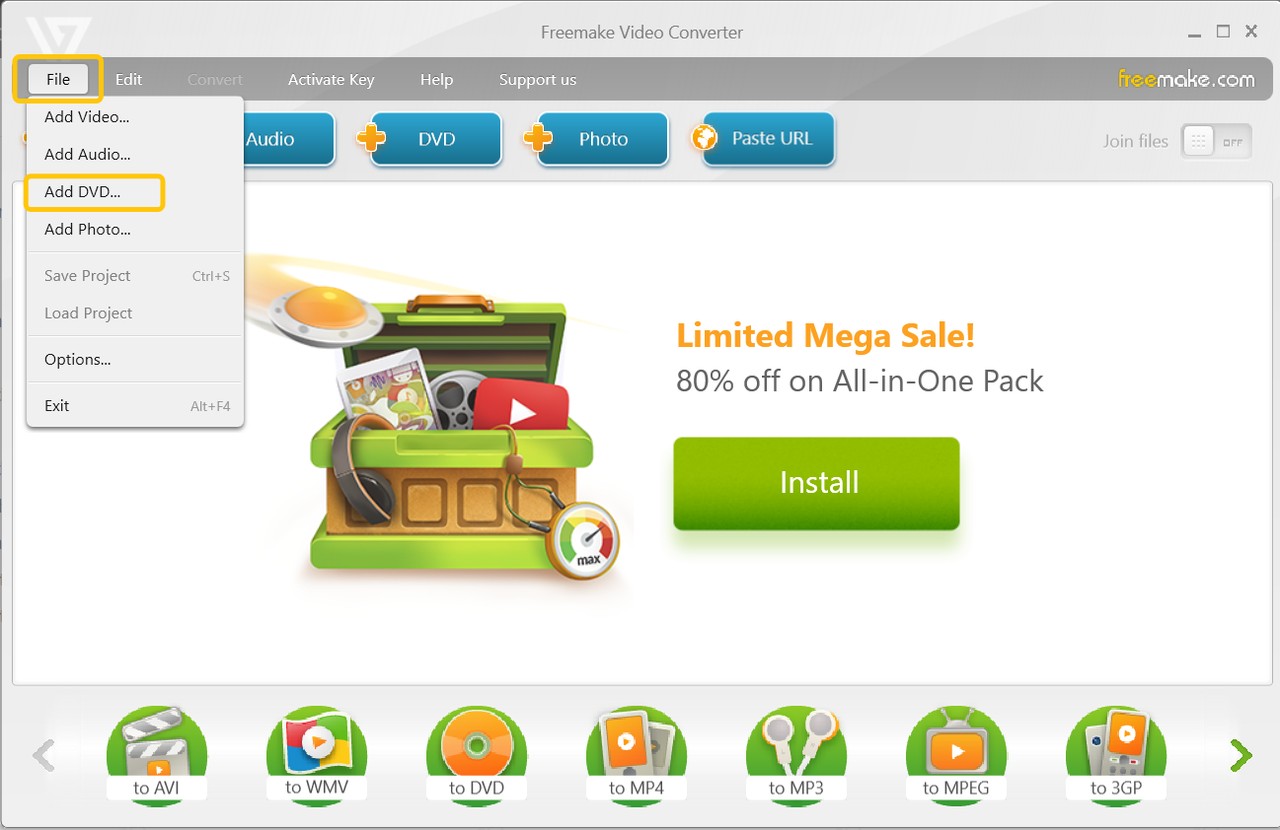
Step 2: Place the desired DVD into the CD/DVD drive of your computer to initiate the download process.
Step 3: Within the interface of the Freemake Video Converter, locate and click on the "+DVD" button, followed by selecting the VIDEO_TS folder from your disc. The program will inquire about the specific files you wish to include.
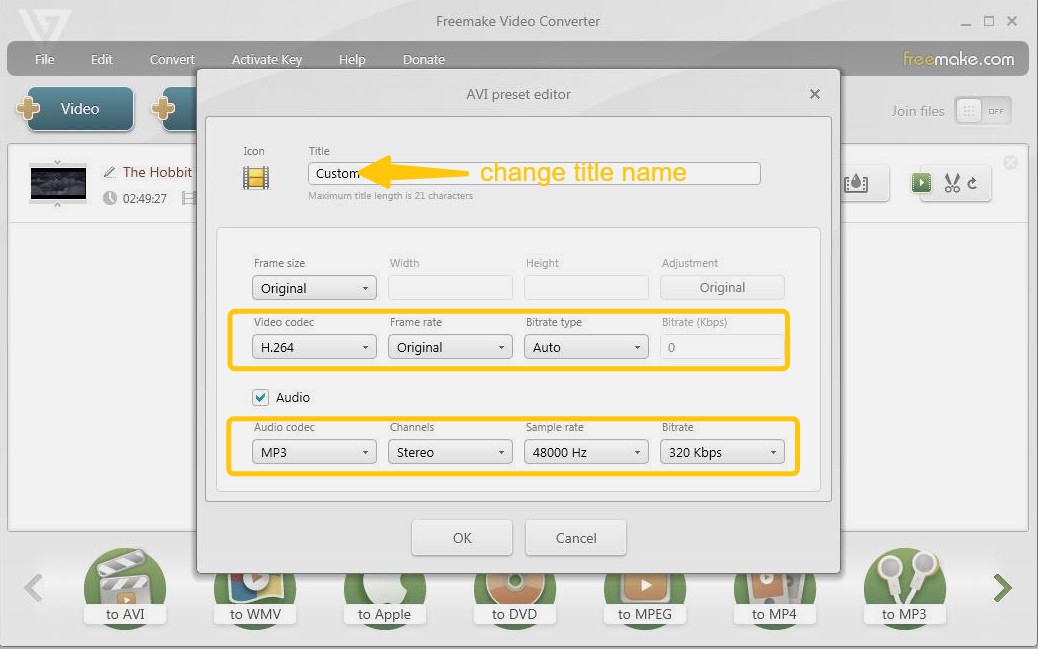
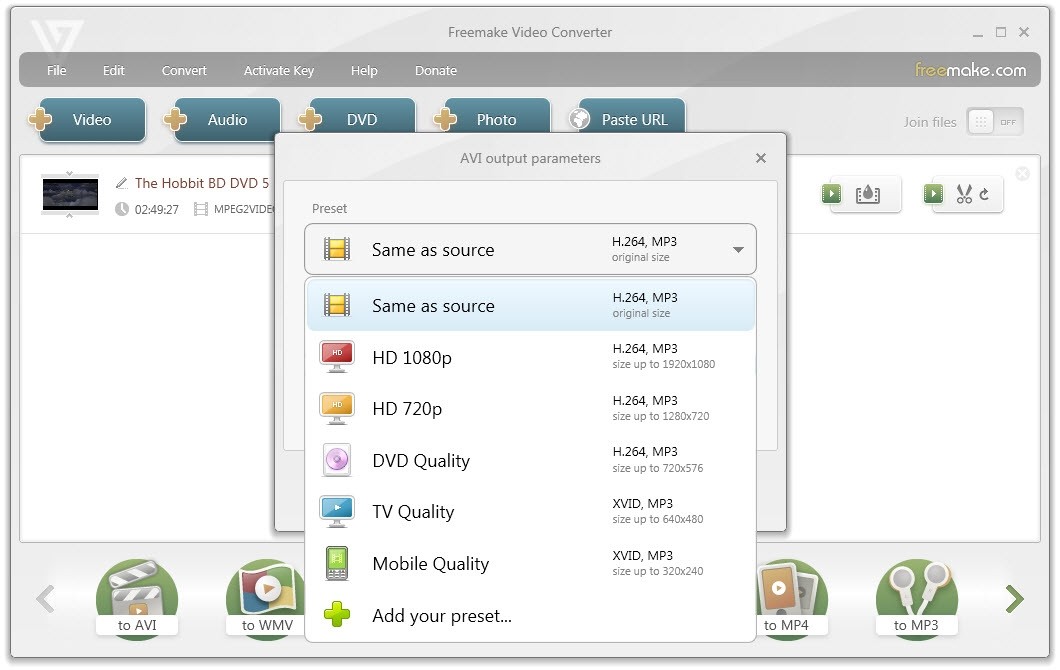
Step 4: If you intend to create a digital copy either on your computer or an external hard drive, proceed by picking an appropriate output format for your DVD video files.
How to Copy DVD to Computer Without Software
- Supported OS: Windows, macOS
- Supported Discs: Unprotected Data DVDs only (e.g., discs with photos or documents)
- My experience using it: I used it to move a folder of PDF backup files from a disc to my laptop.
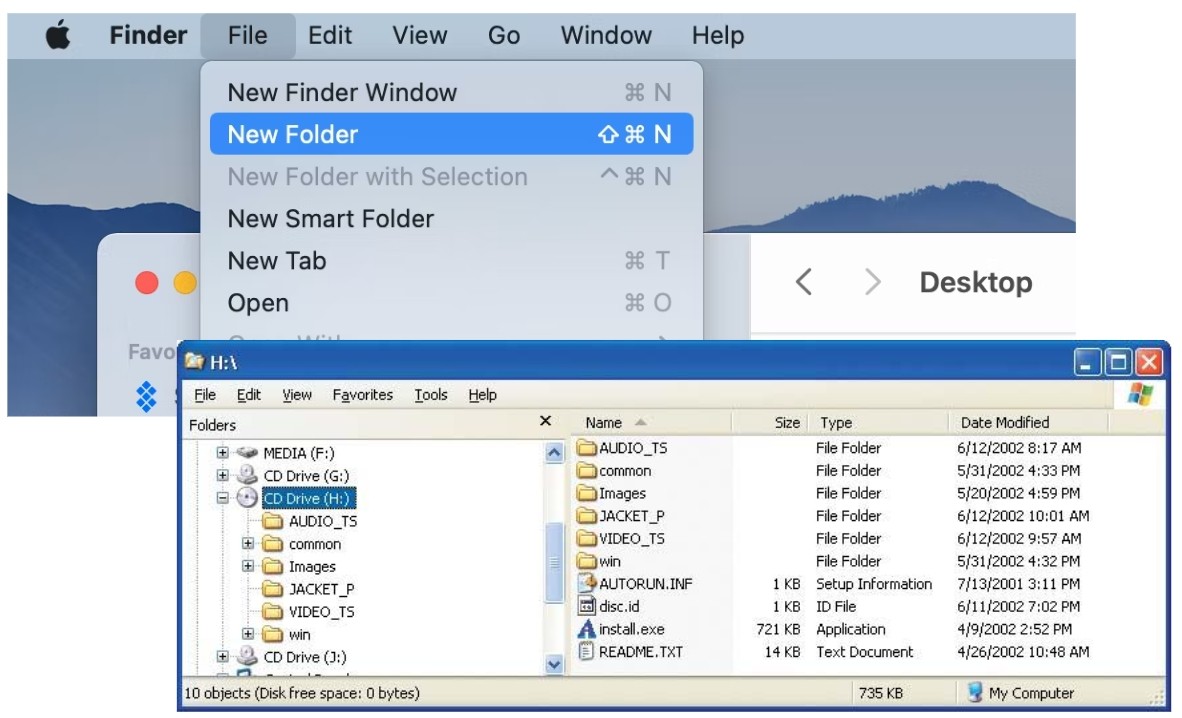
If you don't want to install third-party applications, you can copy unprotected DVDs to computer directly by using the built-in File Explorer (Windows) or Finder (Mac). However, simply copying a DVD to your computer without dedicated software won't work on DVDs with copy protection that blocks direct transfers, and their VIDEO_TS folders aren't playable as a normal video file
For home-made DVD, direct copying is still not recommended. DVD movies are split into multiple 1GB files (.VOB). If you just drag-and-drop the Video_TS folder to your laptop, you won't get a single watchable movie file. Instead, you get several fragmented clips that won't play continuously, and you will lose the original. To bypass encryption, convert formats, and compress files, you need third-party DVD ripping software like DVDFab DVD Ripper.
Steps to Copy DVD to Computer on Windows with File Explorer
Step 1: Insert the DVD into your computer's disc drive.
Step 2: Press Windows Key + E to open File Explorer.
Step 3: Click on This PC in the left sidebar.
Step 4: Right-click your DVD drive icon and select Open. (Do not double-click, or it might try to play the movie automatically).
Step 5: Find the folder named VIDEO_TS (for videos) or your specific data folder.
Step 6: Right-click the folder, select Copy, and then Paste it onto your desktop or desired hard drive location.
Steps to Copy DVD to Computer on Mac with Disk Utility
Step 1: Insert the DVD into your computer's DVD drive.
Step 2: Open File Explorer on a Windows computer or Finder on a Mac. Locate the DVD drive in the navigation pane and right-click on it.
Step 3: Right-click the DVD drive icon and select Copy from the context menu.
Step 4: Navigate to the folder on your computer where you want to save the copied files.
Step 5: Right-click inside the destination folder and click Paste to start copying the DVD content. Depending on the size of the DVD and your system speed, this process may take several minutes.
FAQs
Can I legally copy a DVD to my computer?
Laws vary by region. In many countries, making a personal backup of a disc you legally own is considered "fair use." However, in some countries, the DMCA technically restricts bypassing copy protection mechanisms. We recommend checking your local laws and ripping only for personal use.
Can Windows Media Player rip DVDs to computer?
No, Windows Media Player cannot rip DVDs. It is only designed to rip audio CDs to formats like MP3 or WMA. To copy video DVDs, you must use third-party software like DVDFab, as Windows does not include a built-in tool for backing up movie discs.
My computer doesn't have a disc drive, what should I do?
Since most modern laptops lack internal optical drives, you need to buy an external USB DVD drive. These are inexpensive (usually $20–$40) and plug directly into your computer's USB port. Once connected, your PC will recognize it immediately, allowing you to load discs for ripping or viewing.
How to rip and save DVD to computer with VLC?
VLC is a media player, but it includes a hidden "Convert" feature that can rip DVDs. However, VLC is often slow and may fail if the disc has strong copy protection.
- Step 1: Insert your DVD and open VLC Media Player.
- Step 2: Click Media in the top menu and select Convert / Save.
- Step 3: Click the Disc tab and make sure DVD is selected. Check the "No disc menus" box for better stability.
- Step 4: Click the Convert / Save button at the bottom.
- Step 5: In the Profile dropdown, choose Video - H.264 + MP3 (MP4).
- Step 6: Click Browse to choose where to save the file, name it, and click Start to begin ripping.
DVD-R vs. DVD+R: which is best for copying to computer?
Both formats work fine for backing up data. DVD+R is technically newer and offers slightly better error management, but for saving to a computer, the disc type doesn't matter—only the drive's ability to read it does.
Is it possible to copy a scratched DVD to my computer?
It is possible to copy a scratched DVD, but success may vary depending on the severity of the damage. You can try cleaning the disc or using software tools that incorporate error-recovery features. In some cases, using a different DVD drive or dedicated disc-recovery software may help recover the content, though results are not guaranteed.
How to copy a Blu-ray disc to my computer?
Copying a Blu-ray disc is a more complex process due to additional encryption and higher data capacity. Generally, you will need specialized software designed for Blu-ray ripping—such as DVDFab Blu-ray Ripper—to copy the disc content. Always ensure the copying process respects copyright restrictions and follows legal guidelines.
How to copy DVD movies with protection to computer?
When you copy DVDs to a computer, there may be DVD copy protections embedded in your DVD, folder, or ISO file. Luckily, DVDFab DVD Ripper are not only able to download DVDs to a computer, but also decrypt DVDs automatically. So, you can easily find which DVD copy protection is in your DVD file by clicking the option of 'Info' on the main interface of DVDFab.
You can also ask DVDFab HD Decrypter for help, which is a free version of DVDFab DVD Copy and DVD Ripper. It can remove nearly all DVD protections from DVDs or Blu-rays released one year ago.
Why can't I copy files from DVD to computer?
There could be several reasons why you are unable to copy files from a DVD to your computer:
- DVD write protection: Some DVDs come with copy protection that prevents users from copying their content.
- DVD format compatibility: If your computer's DVD drive is not compatible with the format of the DVD, it may not be able to recognize or read the contents of the disc.
- Scratched or damaged DVDs: If the DVD is scratched, dirty, or damaged, it may cause reading errors and prevent the files from being copied successfully.
- Software or hardware issues: Problems with your computer's DVD drive, incompatible software, or driver-related issues can also hinder the copying process.
In any case, troubleshooting steps could involve attempting to copy the files using different software, cleaning the DVD, trying a different DVD drive or computer, or in some cases, using specialized software that can bypass copy protection mechanisms.
How to rip DVD to computer on Windows 10?
To save a DVD to computer on Windows 10, you can use third-party DVD Ripper like DVDFab. Just check the above-mentions steps in Part 2.
Conclusion
Choosing the right method to copy DVD to computer depends entirely on your specific goals. My tests confirm that DVDFab is the superior choice for handling encrypted commercial discs quickly while maintaining high video quality. If you prioritize a free solution and do not mind slower processing speeds, HandBrake is a capable alternative for unencrypted homemade discs. For pure digital archiving without compression, MakeMKV delivers the best lossless results. Ultimately, avoid using simple file copying for movies, as it fails to bypass protections or preserve playback menus.

 10 Best DVD Rippers for Windows & macOS: 2026 TestedBy Diana Smith - Sep 2, 2026
![How to Rip Audio from DVD with 5 Best Free DVD Audio Extractors [2026]](https://images.dvdfab.cn/media/how_to_rip_audio_from_dvd_5r8iyw.png/public) How to Rip Audio from DVD with 5 Best Free DVD Audio Extractors [2026]By Diana Smith - Aug 31, 2026
How to Rip Audio from DVD with 5 Best Free DVD Audio Extractors [2026]By Diana Smith - Aug 31, 2026 Convert ISO to AVI Free in 2026: 4 Tools for Windows & MacBy Diana Smith - Aug 20, 2026
![How to Rip a DVD: 8 Tested Tools With Step-by-Step Guide [2026]](https://images.dvdfab.cn/media/how_to_rip_a_dvd_vlh4iu.png/public) How to Rip a DVD: 8 Tested Tools With Step-by-Step Guide [2026]By Wenny Yan - Aug 18, 2026
How to Rip a DVD: 8 Tested Tools With Step-by-Step Guide [2026]By Wenny Yan - Aug 18, 2026