
How to Remove DVD Copy Protection: 6 Software Options [2026]

Summary: To remove DVD copy protection, choose software based on the protection and the output you need. DVDFab DVD Ripper can process supported commercial DVDs directly to MP4, MKV, and other digital formats, while Passkey for DVD decrypts supported discs in the background for other software. MakeMKV is a free DVD-to-MKV remux option, and HandBrake or VLC can work with libdvdcss for basic CSS access.
Table of Contents
Digitizing a physical movie collection can become more complicated when a standard ripper cannot read a protected DVD correctly. You may insert a legally purchased disc only to find that the software cannot open it or produces unusable output. DVD copy protection is often the reason.
Whether I am backing up older discs before they deteriorate or transferring movies to a tablet or media server, the goal is to create a usable digital copy with as much of the source quality as possible. After testing current DVD protections and several ripping tools, I narrowed the options to free open-source methods and simpler paid software. This guide explains how to remove copy protection from DVDs where permitted and preserve high-quality video files on current Windows and macOS systems.


Dear readers:
The software and methods discussed here are intended for DVDs you own or are authorized to copy. Copyright and DRM-circumvention rules vary by country and region, so check the laws that apply where you live. Do not use these methods to distribute copyrighted material without permission.
Comparison of the Best DVD Copy Protection Removal Software
How I Picked These DVD Copy Protection Removal Tools
I focused on DVD decrypter software that reliably unlocks real discs, preserves picture and sound, and fits smoothly into everyday workflows.
📌Decryption reliability
The core test was whether a tool consistently unlocks real-world discs—including newer structures—without breaking playback. If a program faltered on common schemes or required repeated retries, it didn't make the cut. Success rate on tough titles was the deciding factor.
📌Preserving ability
Picks needed to keep original audio/video intact (or give precise control when re-encoding), maintain sync, and avoid glitches. Lossless paths (where possible) and clean transcodes with adjustable bitrate/codecs earned priority over flashy extras.
📌Practical use
I favored software that reduces friction—on-the-fly unlocking or near one-click workflows, stable performance on long jobs, and broad OS compatibility. Active maintenance and timely updates were also essential, since protection methods evolve and a stagnant tool quickly falls behind.
My Top 3 Picks
Before reviewing the best DVD copy protection removal software, check out the comparison table to learn about their decryption capabilities and additional features.
| Software | DVD Protection / Access Scope | Cinavia Removal | Output | OS | Main Limitation |
| DVDFab Passkey for DVD | CSS, RC/RCE, APS, UOPs, ARccOS, RipGuard, CPRM and the latest DVD protections | No | Decrypted disc access, ISO, DVD folder | Windows | Windows only |
| DVDFab DVD Ripper | CSS, RC/RCE, APS, UOPs, ARccOS, RipGuard, CPRM and the latest DVD protections | Yes, work with DVDFab DVD Cinavia Removal | MP4, MKV and other digital formats | Windows, macOS | Full functions require a paid license after the trial |
| HandBrake + libdvdcss | Basic CSS access through libdvdcss | No | MP4, MKV, WebM | Windows, macOS, Linux | HandBrake itself does not circumvent copy protection |
| MakeMKV | DVD reading and structure-protection handling | No | MKV | Windows, macOS, Linux | No video compression |
| VLC + libdvdcss | Basic CSS access where libdvdcss is available | No | Common video outputs | Windows, macOS, Linux | Limited handling of complex DVD structures |
| DVDSmith Movie Backup | Basic encrypted DVD backup | No | VIDEO_TS folder | Windows | Older tool with limited current protection coverage |
Based on those criteria mentioned above, here are the three I recommend most.
🏆TOP 1: DVDFab DVD Ripper
Most consistent at getting past common and newer protections (including Cinavia). It replaces the need for multiple programs by decrypting, ripping, and compressing your DVD into a high-quality MP4/MKV in a single, hardware-accelerated step. It is the most reliable one-stop choice when you value both your time and output quality.
🏆TOP 2: MakeMKV
This is the community favorite for bypassing copy protections without re-encoding. MakeMKV creates a 1:1 digital copy of the main title, preserving the exact original video and audio. It's ideal when fidelity matters more than file size, and serves as the crucial first step for users building a free archiving workflow.
🏆TOP 3: HandBrake + libdvdcss
While HandBrake can handle basic CSS with the external libdvdcss plugin, its real strength shines when paired with MakeMKV. Users take the massive, decrypted MKV file generated by MakeMKV and run it through HandBrake to utilize its precise encoding controls and device presets, squashing the video down to a smaller, highly optimized file size.
How to Remove Copy Protection from DVD with Professional Tools
Remove DVD Protection in the Background with DVDFab Passkey for DVD
🔓Types of DVD protection it can handle: CSS, region codes, UOPs, RCE, and some newer protections
💻Operating System: Windows
DVDFab Passkey for DVD is a driver designed for Windows that operates in real-time to decrypt protected DVD discs. It's capable of eliminating nearly all recognized DVD copy protections and geographic region codes swiftly, allowing unrestricted access and viewing of any DVD film without constraints.

- Removes supported major DVD protections while running in the background
- Allows saving decrypted content to ISO image files or DVD folders
- Works seamlessly with various media players, copiers, and converters
- Regularly updated to handle the latest encryption technologies

- Exclusively available for Windows operating systems (macOS and Linux are not supported)
Follow the steps below to decrypt DVD and copy it to hard disk or ISO Image file:
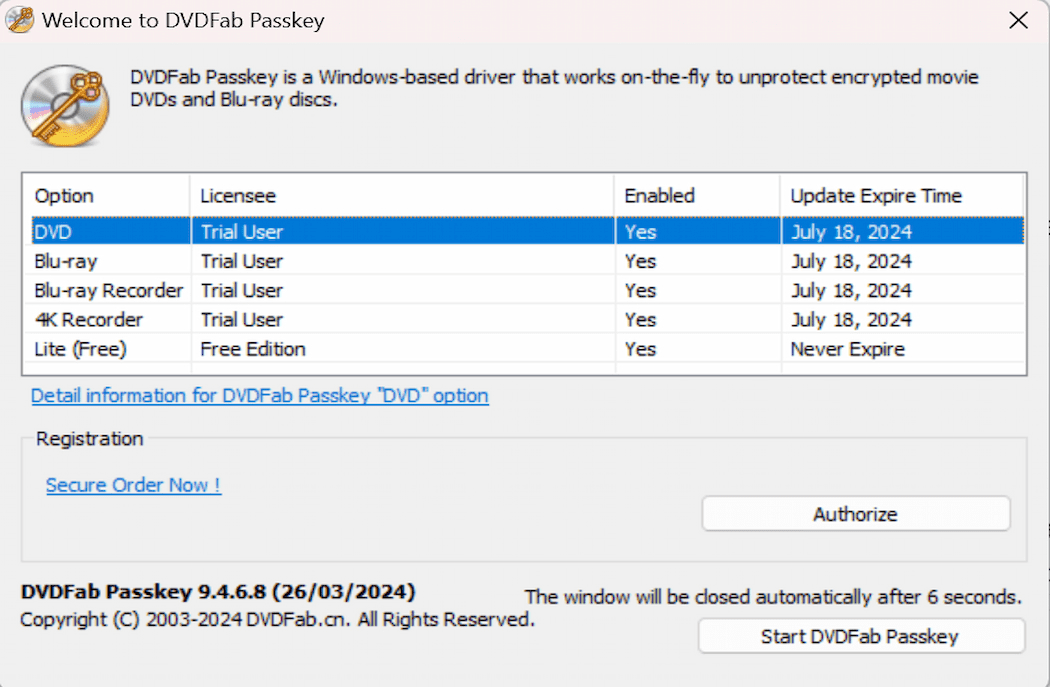
Run DVDFab Passkey 9.4.7.8, choose DVD from the welcome window, and click Start Passkey. The program minimizes to the system tray and detects a DVD inserted in the drive.
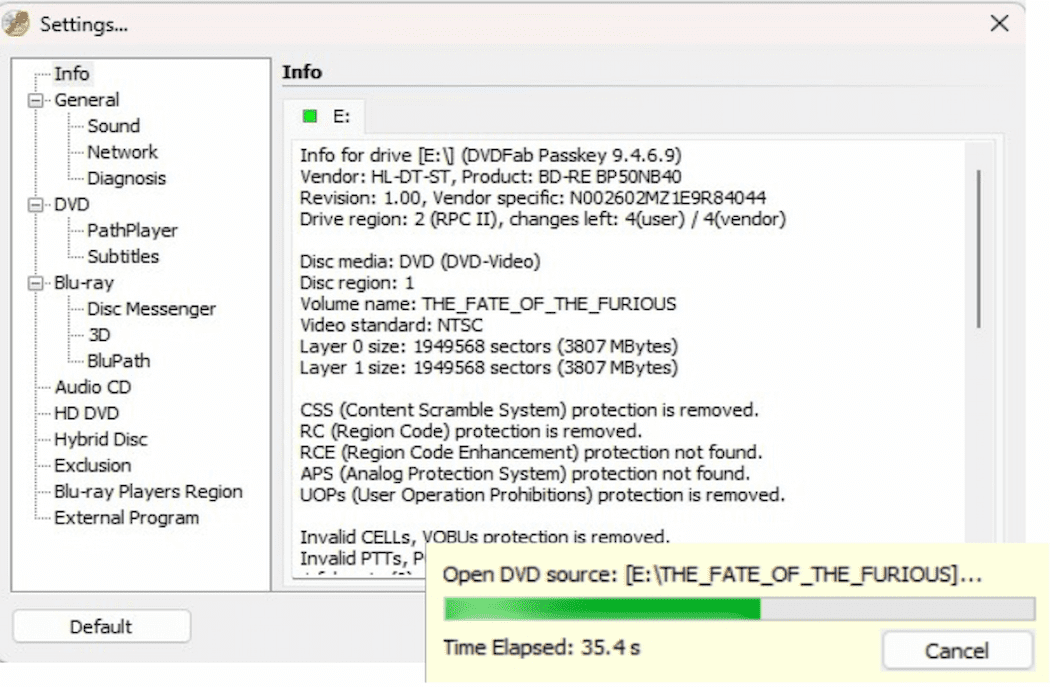
Insert the source DVD into the drive, and if there has been one in it, Passkey will immediately begin the decryption task. Only a few seconds later, all the protections and region code restrictions will be removed successfully. And you can get the detailed info regarding the source disc and status from the interface.
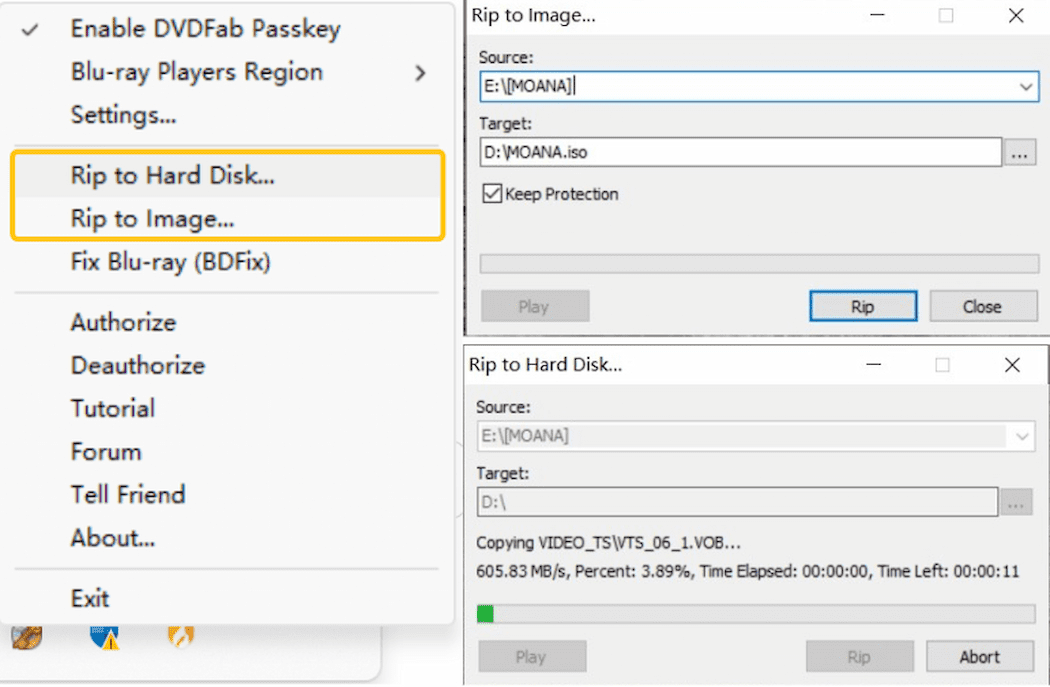
After decryption, you can play the DVD with any player. To back it up, right-click the DVDFab Passkey icon in the system tray and choose "Rip to Hard Disk" or "Rip to Image", then select your output target. You can also use other playback, copy, or ripper software to handle the decrypted content.
Rip and Convert Protected DVDs with DVDFab DVD Ripper
🔓Types of DVD protection it can handle: CSS, APS, RC/RCE, UOPs, Sony ARccOS, RipGuard, and new DVD protections
💻Operating System: Windows & Mac
DVDFab DVD Ripper is the comprehensive solution designed to remove common protections like CSS or region codes, and even the most advanced encryption, including Sony ARccOS and the formidable Disney X-Project DRM. Once decrypted, you can rip your DVDs to MP4, MKV, MP3, and many other formats without losing quality. And with its GPU Hardware Acceleration, you'll enjoy fast ripping speeds—up to 50x faster than standard tools.
- Removes almost all major DVD copy protections and stays updated
- Rip DVD to 1000+ video & audio formats and 260+ device-specific presets
- Leverages GPU hardware acceleration (NVIDIA CUDA, AMD, etc) with batch processing
- Features a built-in video editor for trimming, adding watermarks, and more
- Offers high-efficiency compression while maintaining high quality
- Requires a paid license after the 30-day trial period
Follow the video tutorial to remove DVD copy protection and convert your video to MP4:
Steps to remove copy protection from a DVD on Windows or Mac:
Free Download Windows 11/10/8.1/8/7
Free Download macOS 12 or newer
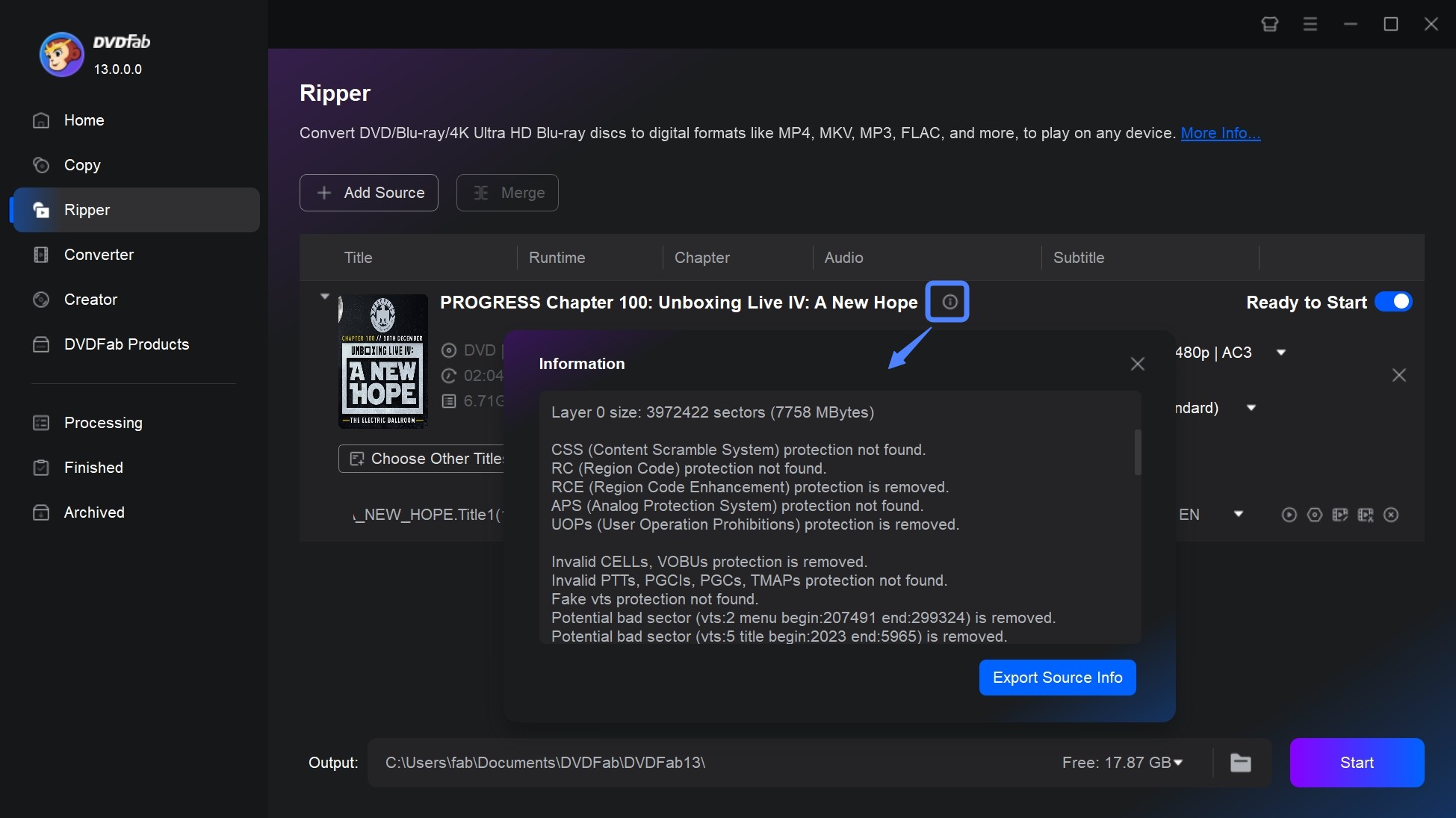
Open DVDFab software and click the Ripper module from the option bar. Insert the DVD into the optical drive, and DVDFab will automatically load it and begin the decryption task. After the DVD source is loaded, click the "Info" icon, and a small pop-up window will show you what copy protection has been detected and removed from your source DVD.
Go back to the main interface, click "Choose Other Profile" - "Format" and select to convert your DVD to MP4, MKV, AVI or many other video or audio formats. Then you can choose DVD titles you want to rip, select chapters, audio tracks, subtitles, set video and audio parameters via "Advanced Settings" and edit your video via "Video Edit".
💡If you're ripping for a specific device (e.g., iPhone, iPad, Android), select a preset for that device. For general use, MP4 is widely compatible, while MKV preserves higher quality.
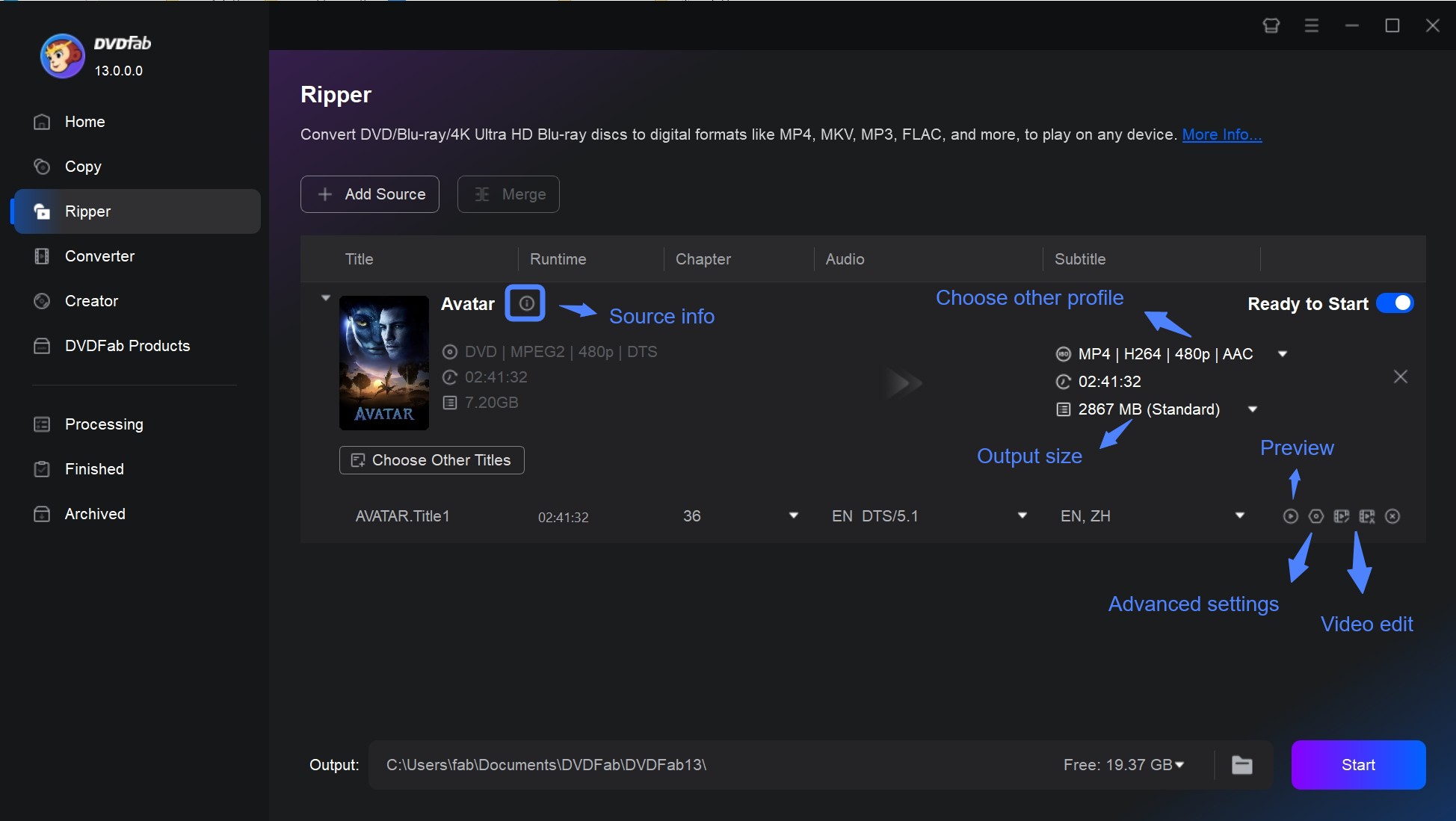
💡As for HD videos, select "High Quality" or manually adjust the bitrate (e.g., 2000–5000 kbps for 720p or 1080p). For standard definition, "Standard Quality" is usually sufficient.
Click "Save to" to select an output directory for your ripped DVD and click the "Start" button to begin the DVD ripping process. Finally, you will get a high-quality digital copy with no copy protection.
Free DVD Copy Protection Removal Software and Their Limits
Remove Basic CSS Protection with HandBrake and libdvdcss
🔓Types of DVD protection it can handle: Basic CSS through external libdvdcss; HandBrake itself does not circumvent copy protection
💻 Operating System: Windows, Mac, and Linux
HandBrake 1.11.2 is a free, open-source transcoder for converting readable video sources to MP4, MKV, or WebM. It does not defeat DVD copy protection by itself. On systems where libdvdcss 1.6.0 is installed, the external library may make basic CSS-encrypted DVD content accessible so HandBrake can encode the readable title. Complex structure protections such as ARccOS or RipGuard are outside this basic setup.
- No cost and open-source
- Transcodes readable DVD and Blu-ray sources to MP4, MKV, or WebM
- Allows users to queue multiple conversion tasks
- Includes presets for common resolutions and devices

- Unable to remove DVD copy protection by itself
- HandBrake re-encodes the video and does not provide video passthrough or a full-disc backup mode
Steps on how to remove CSS protection from DVDs with Handbrake and libdvdcss:
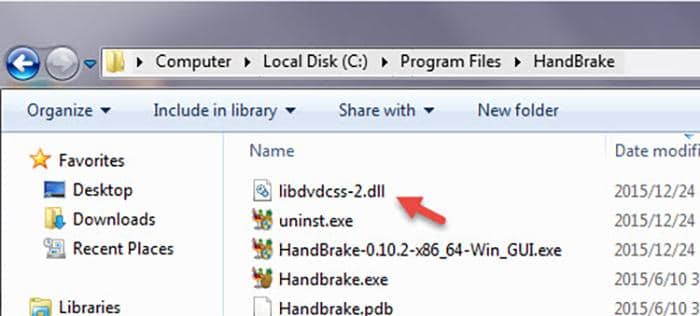
Download HandBrake from its official website. For libdvdcss, use VideoLAN's official libdvdcss project or follow this libdvdcss installation guide for HandBrake.
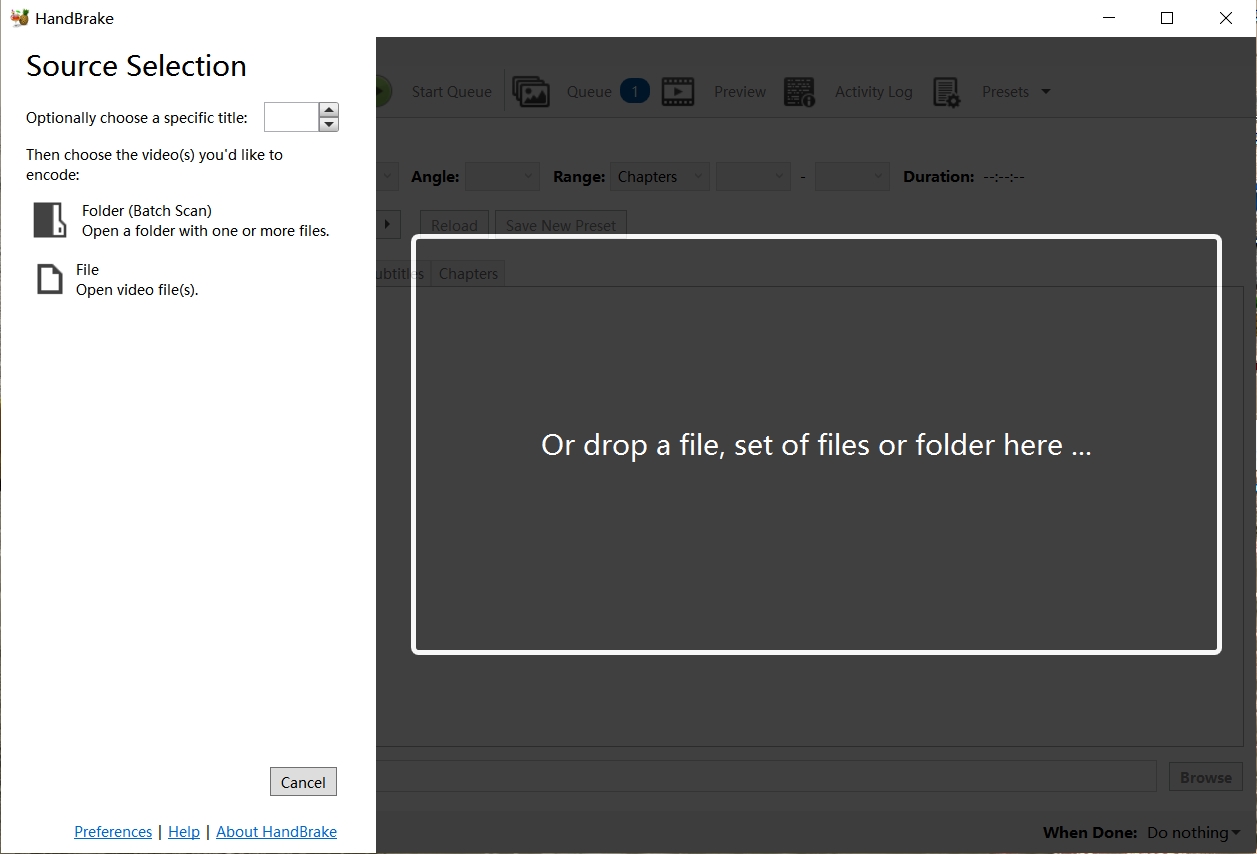
Launch HandBrake and load the DVD after inserting it into the optical drive. When libdvdcss can access the CSS-encrypted source, HandBrake can scan the readable DVD titles for transcoding.
Select the title you want to rip from the drop-down menu and choose an output format. Add each title to the queue when processing multiple titles, and set a destination directory for every queued task.
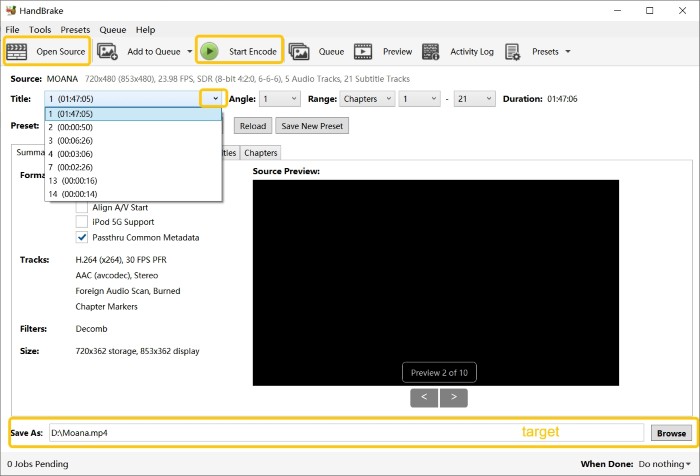
💡For a 480-line NTSC DVD, a 480p preset is a suitable starting point; for a 576-line PAL source, use a 576p preset. Check the source standard rather than choosing a preset only from your geographic location.
Click "Start Encode" to transcode the selected title. HandBrake performs the video encoding; any CSS access in this setup comes from libdvdcss rather than HandBrake itself.
Remove DVD Copy Protection with DVDSmith Movie Backup
🔓Types of DVD protection it can handle: CSS and Region Code
💻Operating System: Windows 10
DVDSmith Movie Backup 1.08 is an older free Windows utility for copying encrypted DVDs to a VIDEO_TS folder. It provides Full Disc and Main Movie modes and lets you select audio and subtitle streams.
- Backs up DVD content to a VIDEO_TS folder without video transcoding
- Offers Full Disc and Main Movie backup modes
- Lets users select audio and subtitle streams

- Cannot process some newer or more complex DRM protection structures
- Only compatible with the Windows operating system
Steps on How to Remove Copyright from DVDs with DVDSmith Movie Backup:
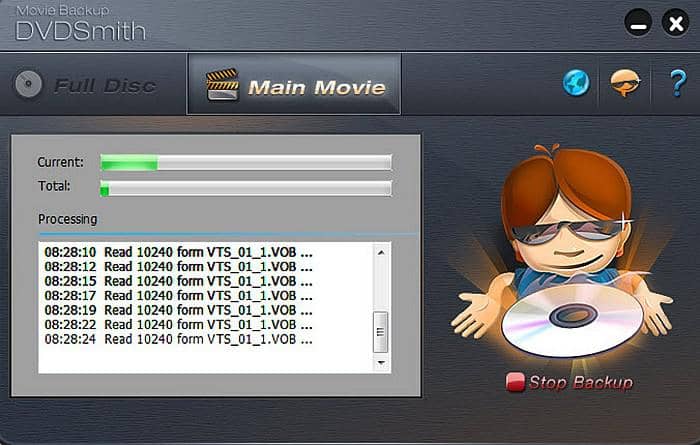
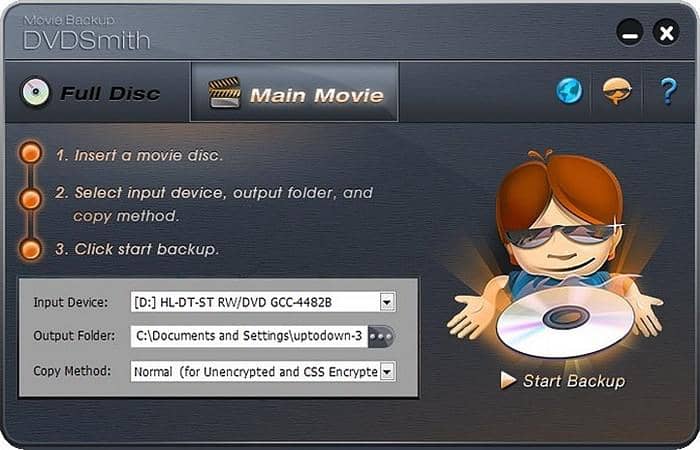
💡Regarding the copying speed, you could make it quicker by selecting different Copy Methods from Normal, Lowly Enhanced or Highly Enhanced. Here is some tips for you.
- If you want speed and simplicity, choose Normal Copy.
- If you want a balance between quality and speed, go with Lowly Enhanced.
- If you want the highest possible quality and don’t mind longer processing times, use Highly Enhanced.
For most users, Lowly Enhanced is a good choice because it balances quality without being overly time-consuming or creating excessively large files. However, if quality is your top priority, Highly Enhanced is the way to go.
Remove Copy Protection from DVD with VLC
🔓Types of DVD protection it can handle: Basic CSS where libdvdcss is available
💻 Operating Systems: Windows, Mac, GNU/Linux, Android, and other supported VLC platforms
VLC Media Player 3.0.23 can play DVDs and use Convert/Save to convert titles that it can access. For CSS-encrypted DVDs, VLC can work with the separate libdvdcss library where that library is available on the system. This setup is useful for basic CSS access, but VLC is not a dedicated tool for discs with complex structure protections.
- Supports a wide range of video and audio codecs and file formats
- Available on major desktop and mobile operating systems
- Can perform basic DVD playback and conversion when the disc is accessible

- Not designed for complex structure protections such as ARccOS or RipGuard
- libdvdcss availability depends on the platform and installation
- No dedicated disc-title analysis or advanced DVD-ripping controls
Steps to use VLC as DVD copy protection removal software:
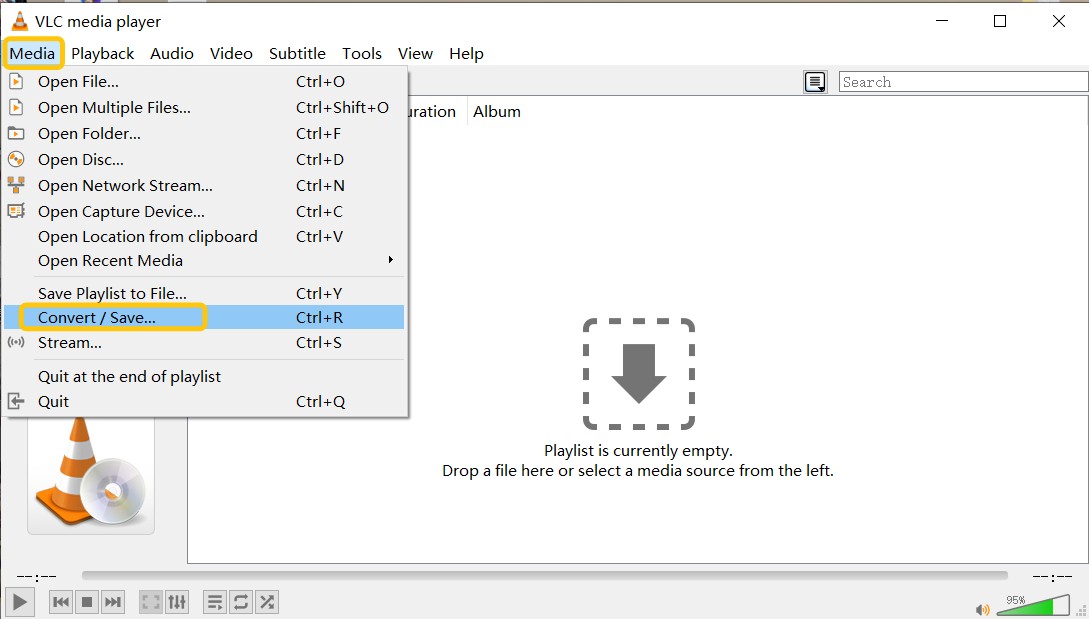
💡VLC includes a library called libdvdcss, which allows it to:
- Decrypt CSS-protected DVDs (the most common basic encryption).
- Play and even stream the content from encrypted DVDs.
- Extract or copy a portion of the DVD video using "Convert/Save" or "Record" functions.
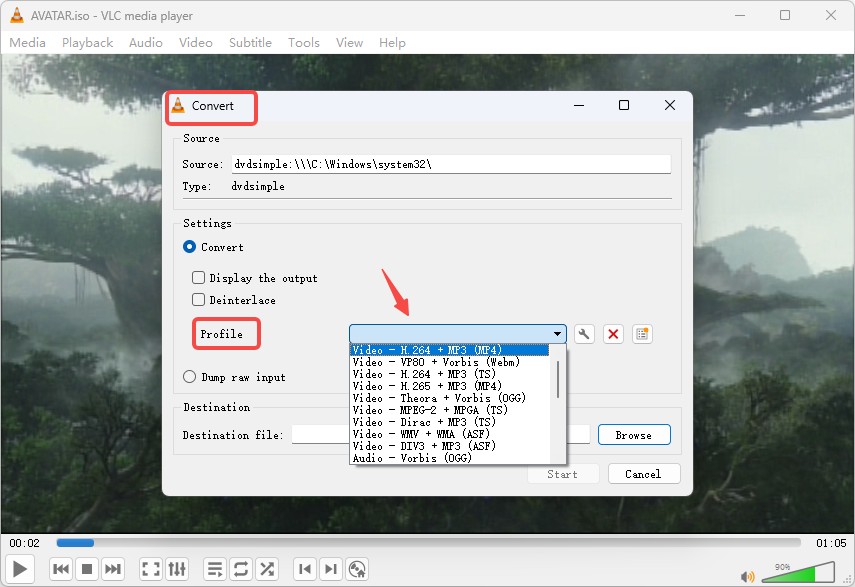
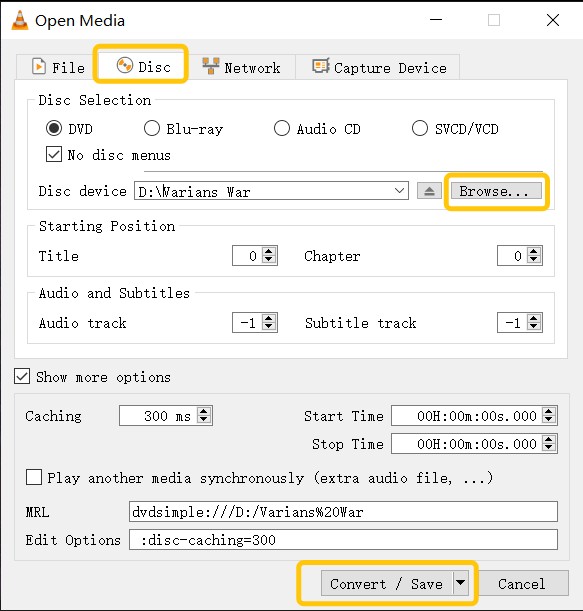
Select the DVD output format and profile. In the Open Disc window, browse to the DVD drive, click the drop-down menu next to Play, and choose Convert.
Remove Copy Protection from DVD with MakeMKV
🔓Types of DVD protection it can handle: DVD reading and structure-protection handling
💻 Operating Systems: Windows, Mac & Linux
MakeMKV 1.18.4 reads DVD titles and remuxes the selected video, audio, subtitle, and chapter streams into an MKV file without re-encoding the video. For DVDs, its conversion and streaming functionality is freeware and can be used without a time limit. It does not compress the video, so the resulting MKV can remain close to the size of the selected DVD streams.
- Preserves selected video, audio, subtitle, and chapter streams without video re-encoding
- Outputs directly to MKV
- Allows users to select specific audio tracks, subtitles, and titles
- DVD conversion and streaming functionality is freeware
- The resulting MKV files can remain close to the size of the selected DVD content
- Does not transcode the video or create device-optimized versions
Steps to use MakeMKV to remove DVD Copy Protection:
Download MakeMKV from the official website and launch it on your computer.
MakeMKV will normally detect the DVD automatically. If it does not, click the disc icon to load the DVD manually and wait while MakeMKV analyzes the available titles.
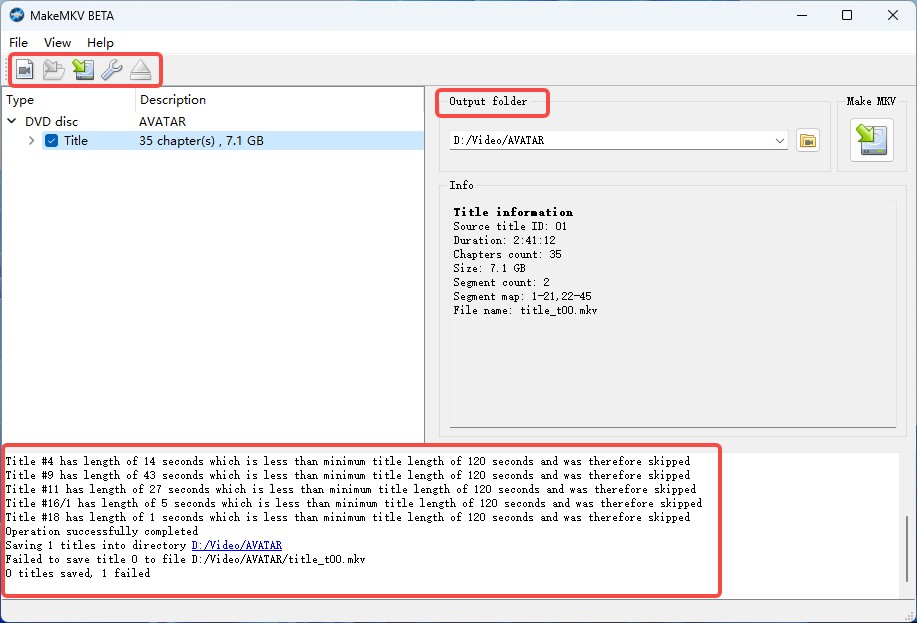
After analysis, MakeMKV displays the available titles, including the main feature and extras. Compare runtime and chapter count before selecting the movie, especially when several titles have similar lengths.
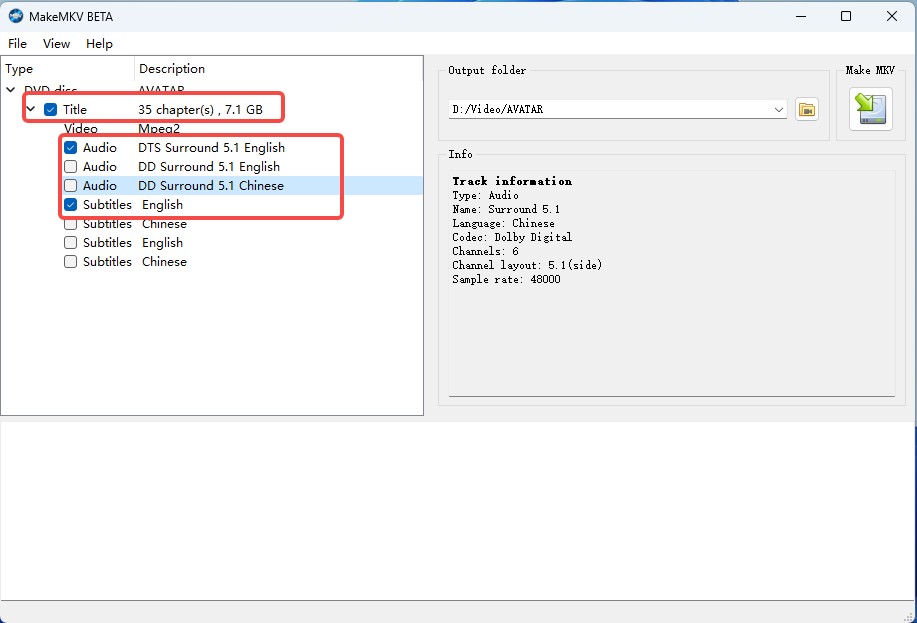
Under the selected title, expand the audio and subtitle sections and choose the language tracks you want. Uncheck tracks you do not need if you want to avoid carrying unnecessary streams into the MKV.
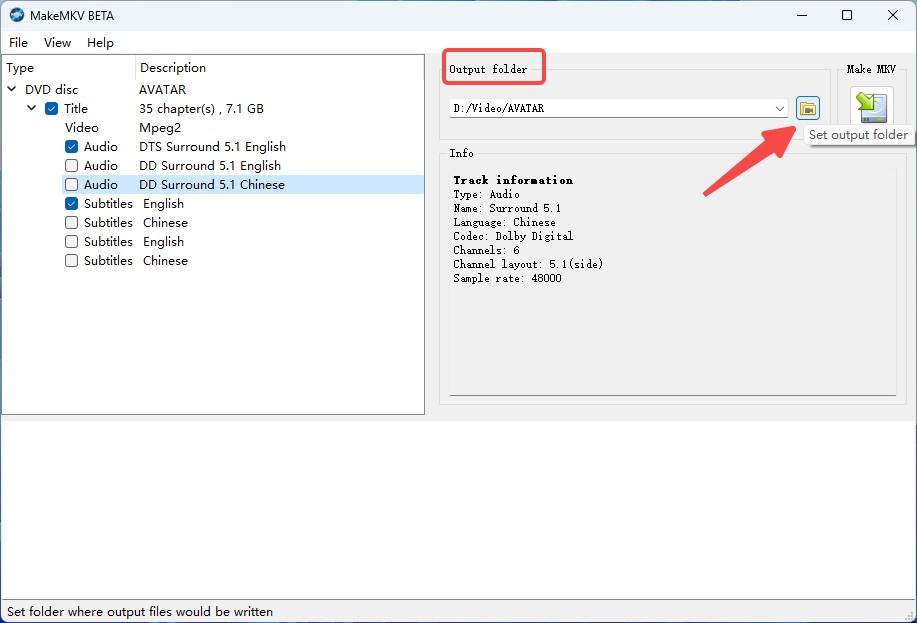
Set the output folder where you want the MKV file to be saved, then click Make MKV to start the process.
Common DVD Copy Protection Types You May Encounter
There are several ways content owners protect DVD-Video. With discs purchased from local stores, flea markets, or online marketplaces (e.g., eBay or Amazon), you might find they’re DRM-protected or region-locked, which limits where and how you can play or back them up.
Below are the DVD protection types and failure signals most likely to affect playback or backup. They can help you tell a protection-related problem from a damaged disc, a drive problem, or a title-selection error before you copy a DVD on Windows 10 or Mac.
1. Region Codes
A DVD region code is a playback control that ties a disc to specific geographic areas. If the disc and your player or drive use different DVD regions, playback or reading may fail before encoding even begins.
Discs without regional restrictions are called all-region or region 0 discs, and they can be played worldwide. Below is an overview of the main DVD region codes:
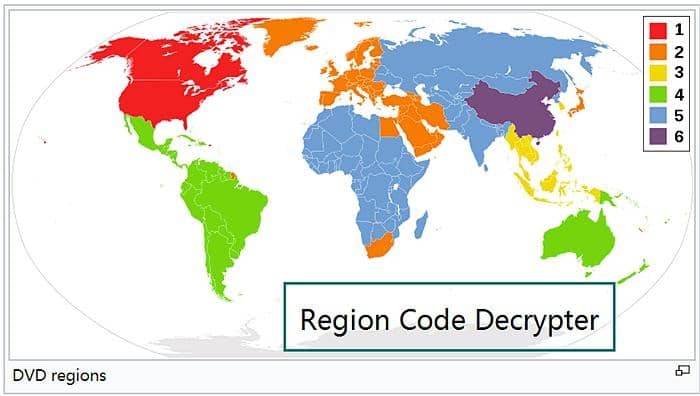
- Region 0/All-region: Informal term for unrestricted discs; they can play on any DVD player worldwide.
- Region 1: United States, Canada, U.S. territories, and Bermuda.
- Region Code 2: Western and Central Europe, the Middle East, Egypt, South Africa, Japan, and the United Kingdom (including overseas territories).
- Region Code 3: Southeast Asia, South Korea, Taiwan, and Hong Kong.
- Region Code 4: Australia, New Zealand, Mexico, Central and South America, and the Caribbean.
- Region Code 5: Russia, Eastern Europe, Africa, South and Central Asia, Mongolia, and North Korea.
- Region Code 6: Mainland China.
- Region Code 7: Reserved for special use (e.g., MPAA screeners, pre-releases).
- Region Code 8: This copyright is widely used for international venues like cruise ships, aircraft, etc.
It is worth noting that DVDs with different region codes usually correspond to different video format standards. If you encounter issues with screen format incompatibility when playing or backing up DVDs across regions, you can learn more about the differences between PAL vs NTSC to avoid format adaptation errors.
2. Region Code Enhanced (RCE)
Region Code Enhanced refers to a retroactive scheme to prevent playing DVD from one region in another region, which is also known as just “RCE” or “REA”.
3. Content Scramble System (CSS)
Content Scramble SystemWikipedia, or CSS, is an access-control scheme used on many commercial DVDs. CSS differs from structural protection: a disc can load successfully yet still show false titles or fail during reading. It is one part of the broader DVD DRM protection landscape, not a guarantee that every DVD behaves the same way.
4. User Operation Prohibition (UOP)
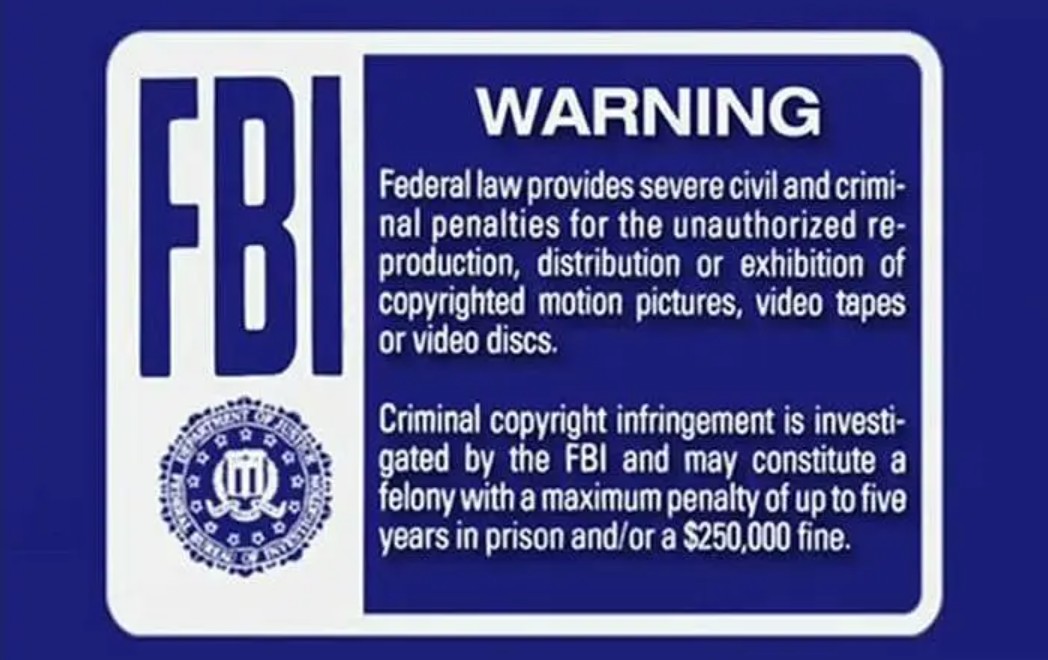
User Operation Prohibition, an abbreviation for UOP, refers to a digital rights management scheme applied on DVD video discs that prohibit viewers from performing a large majority of actions. If users are attempting to make changes to this kind of discs, it would present you with relevant copyright notices like FBI warnings.
5. Sony ARccOS
Sony ARccOS is a structural protection scheme associated with deliberately confusing sectors and title layouts. A tool may show many similar runtimes or select the wrong title, which is why an implausible title list is not automatically evidence of disc damage.
6. Analog Protection System (APS)
Analog Protection System, also named Copyguard, refers to a DVD copy prevention system which is originally developed by Macrovision. If users are trying to copy DVDs with APS protection, they would find out that the copied become garbled and unwatchable.
7. RipGuard and 99-Title Structures
RipGuard and similar 99-title structures can add fake or misleading titles to a DVD. If a free tool presents many nearly identical titles, compare runtimes and chapters before encoding. If the source remains unreadable, switch from a player or transcoder to a maintained compatible reader.
8. CPPM and Related Disc Formats
CPRM and CPPM are related content-protection systems used with recordable or pre-recorded media formats. They are not interchangeable with CSS, so software support depends on the specific disc type and the reader rather than the protection label alone.
9. Disc Errors Versus Protection Errors
Read errors can come from physical media, the optical drive, unsupported protection, or a misleading title structure. Clean the disc, retry it, and test another compatible drive when available. A repeatable error at the same point can indicate disc damage, while many false titles often point to a structural issue.
10. Cinavia Audio Watermark
Cinavia is an audio watermark embedded in the soundtrack of some commercial discs. When a player detects it, audio may mute or a warning may appear, including Cinavia Message Code 3. Unlike CSS or ARccOS, it affects the audio track rather than the DVD title structure.
Now you've seen 10 of the most common DVD copy protection schemes, which will help you choose the right removal method or software.
Frequently Asked Questions
1. How can I choose from the best DVD copy protection removal software?
If you are going to remove regular DVD copy protections like RC, RCE, UOP, you can go with Handbrake or DVDSmith to remove it for free. If you need an advanced tool that constantly updating to meet the new copy protection demand, you’d better choose a more powerful one like DVDFab Passkey for DVD. If you also wish to rip your DVDs to digital formats while removing advanced or latest copy protections, DVDFab DVD Ripper is your best choice.
2. How can I determine if a DVD has copy protection?
There are a few ways you can potentially determine if a DVD is copy protected:
- Check the packaging or disc labeling: Many DVDs will have information on their case or on the disc itself stating that they are protected by copyright laws or use some type of copy protection.
- Use software to check for protection: There are various DVD ripping or copying software programs (like DVDFab, HandBrake, MakeMKV) that can detect whether a DVD has copy protection when you try to rip or copy it.
- Attempt to copy it: If you attempt to make a direct copy of the DVD using standard computer tools and receive an error message partway through, this could indicate that there’s some form of copy protection in place.
3. What software can remove CD protection?
Exact Audio Copy and CloneCD are popular free tools that can be used to clone CDs as well as bypass certain protections.
- EAC is a free audio CD ripping software that bypasses basic copy protection and extracts high quality audio tracks. It has the advantage of ripping audio from scratched or damaged CDs without quality loss.
- CloneCD is a tool designed to create exact copies of CD, including those with complex copy protection. However, it is a paid software which allows users to test its functionality before purchasing it.
4. How to Remove Cinavia Protection from DVD?
To remove Cinavia, you need a dedicated program like DVDFab DVD Cinavia Removal. Now, with this Cinavia removal software, the backup discs are completely Cinavia-free and won’t be interrupted during the process of playback by any Cinavia error message on any Cinavia enabled DVD playback devices, such as the PS3 and certain home DVD players. After removing the audio track planted with Cinavia watermark, DVDFab will produce a comparatively lossless AC3 audio track in replacement.
5. How to Remove Copy Protections from Blu-ray?
DVDFab Passkey for Blu-ray is able to detect and remove almost all known Blu-ray copy protections, such as the newest 15th generation BD+ and 3D BD+, AACS MKB v. 26, AACS bus encryption, Region Code, BD-Live, and UOPs for Blu-ray. It can also work with other third-party software to copy, burn, and rip your Blu-ray disc. Moreover, similar to Passkey for DVD, it is also frequently updated to handle new Blu-ray copy protections.
Conclusion
The right DVD copy protection removal tool depends on what needs to happen after the disc is opened. DVDFab Passkey for DVD is useful when another application needs access to a decrypted disc, while DVDFab DVD Ripper is the more direct option when the goal is to convert a supported commercial DVD to MP4, MKV, or another digital format.
MakeMKV is a free DVD-remux option when you want to keep the original streams in MKV. HandBrake and VLC can work with libdvdcss for basic CSS access, but neither should be treated as a replacement for a dedicated disc-processing tool when the DVD uses more complex structure protection. Cinavia also requires separate handling because it is an audio watermark rather than ordinary disc-access encryption.

![How to Copy a DVD to Another DVD or Computer [2026]](https://images.dvdfab.cn/media/how-to-copy-dvd-HblP_v1600r.jpg/public) How to Copy a DVD to Another DVD or Computer [2026]By Diana Smith - Aug 25, 2026
How to Copy a DVD to Another DVD or Computer [2026]By Diana Smith - Aug 25, 2026![How to Burn ISO to DVD on Windows 11 and Mac [2026]](https://images.dvdfab.cn/media/Screenshot_2026-08-07_at_10.57.26_d3iqro.png/public) How to Burn ISO to DVD on Windows 11 and Mac [2026]By Diana Smith - Aug 7, 2026
How to Burn ISO to DVD on Windows 11 and Mac [2026]By Diana Smith - Aug 7, 2026![How to Rip DVD to ISO on Windows 11/10/8/7 and Mac? [2026 Update]](https://r3.dvdfab.cn/upload/resource/dvd-to-iso-ei38.jpeg) How to Rip DVD to ISO on Windows 11/10/8/7 and Mac? [2026 Update]By Wenny Yan - Jun 17, 2026
How to Rip DVD to ISO on Windows 11/10/8/7 and Mac? [2026 Update]By Wenny Yan - Jun 17, 2026![Top 11 ISO Creators to Create ISO File on Windows & Mac [2026 Updated]](https://r3.dvdfab.cn/upload/resource/create-iso-file-ytTu.jpeg) Top 11 ISO Creators to Create ISO File on Windows & Mac [2026 Updated]By Wenny Yan - Jun 16, 2026
Top 11 ISO Creators to Create ISO File on Windows & Mac [2026 Updated]By Wenny Yan - Jun 16, 2026