How to Convert WMV to DVD Free and Easily: Windows / Mac / Online

Summary: WMV files do not play natively on DVD players, and getting them onto a disc requires conversion, authoring, and burning steps that many tools only partially handle. Three approaches are tested here, covering setups from current Windows and Mac to legacy Vista and Windows 7. For most users, the full-authoring option completes all three steps in a single workflow. The online converter is a useful fallback when format conversion is all that is needed.
Table of Contents
Getting WMV files onto a DVD disc is a three-step process: convert the video to DVD-compatible format, author the disc structure, then burn it. Most tools handle all three steps in one workflow, but they differ significantly in platform support, output quality, and whether they work on current versions of Windows and macOS.
I tested three approaches to map out which one fits which situation: DVDFab DVD Creator for full control on Windows and Mac, Zamzar for a quick online format conversion, and Windows DVD Maker as a legacy option for older Windows systems. Here is what each one actually delivers.
Best Way to Convert WMV to DVD on Windows and Mac
- Suitable for: Windows 11/10/8.1/8/7 and macOS 10.13 and later
DVDFab DVD Creator is a dedicated DVD authoring tool that handles the full workflow from import to disc burn. It accepts WMV along with 200+ other video formats and outputs to physical DVD discs, ISO image files, or DVD folders. The built-in menu editor includes a library of templates and lets you adjust background images, text, and playback behavior before burning. Both Windows and Mac versions are available, with hardware acceleration enabled by default to reduce encoding time.
Key features:
- Accepts WMV, MP4, MKV, M2TS, TS, and 200+ additional input formats
- Outputs to DVD-5/9, DVD+R/RW, DVD-R/RW, DVD-R DL, DVD+R DL, ISO files, or DVD folders
- Customizable DVD menu templates with adjustable background, subtitles, and audio tracks
- Hardware-accelerated encoding for faster processing on supported GPUs
- Lets you preview the disc layout at any point before committing to the burn
- Syncs source video metadata (title, cast, and cover) automatically
Worth noting:
- The free trial adds a watermark to output; a paid license is required for clean burns
- Mac users need to download the separate macOS installer, as the Windows and Mac builds are packaged independently
Download and install DVDFab DVD Creator. Make sure to select the correct installer for your operating system. Windows and Mac builds are packaged separately.
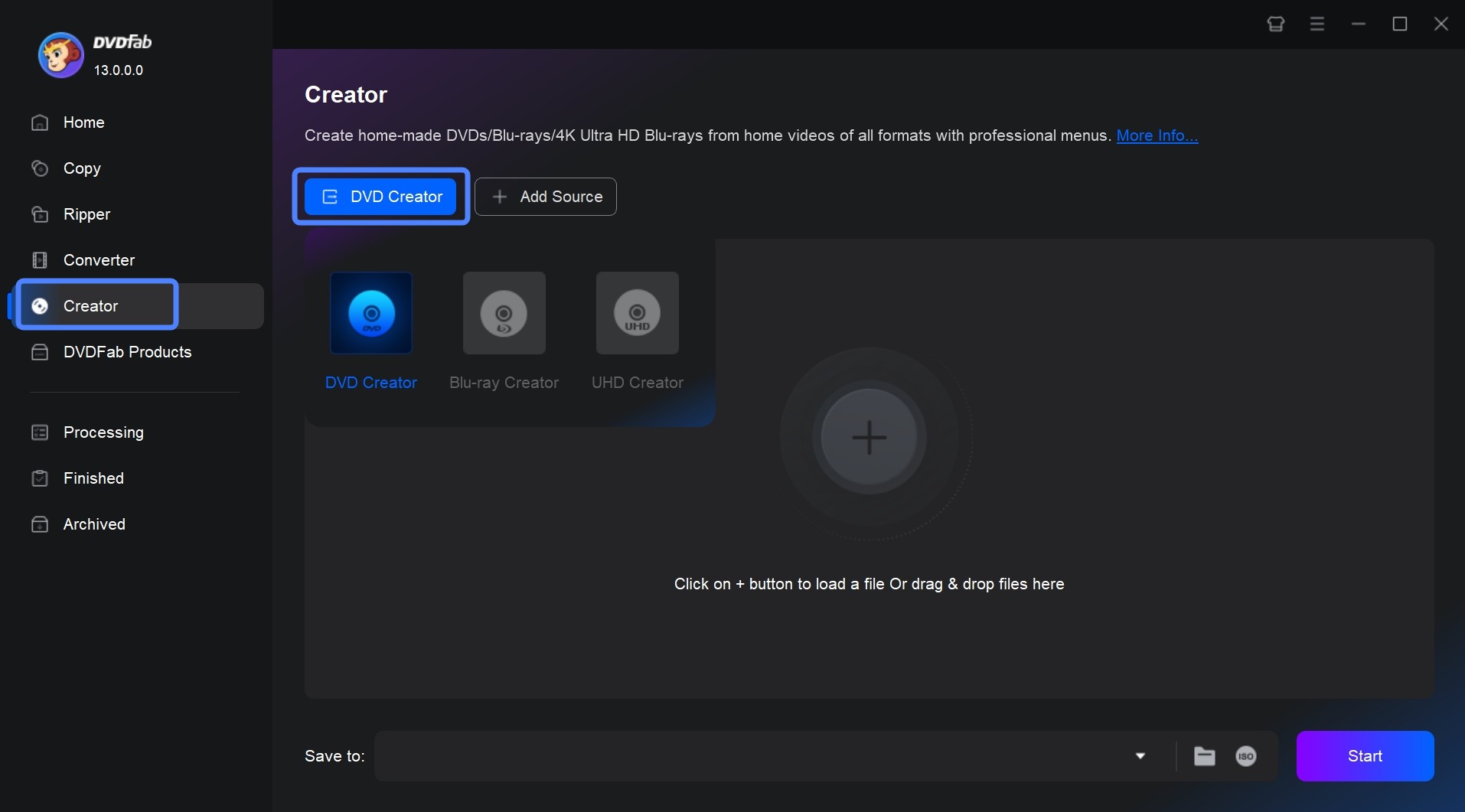
Step 1: Open DVDFab and Import Your WMV File
Launch DVDFab and select the Creator module, then choose DVD Creator. Click Add Source to browse for your WMV file, or drag it directly onto the main interface. Multiple files can be added if you want to burn more than one clip to the same disc.
Step 2: Adjust Output Settings and Configure the DVD Menu
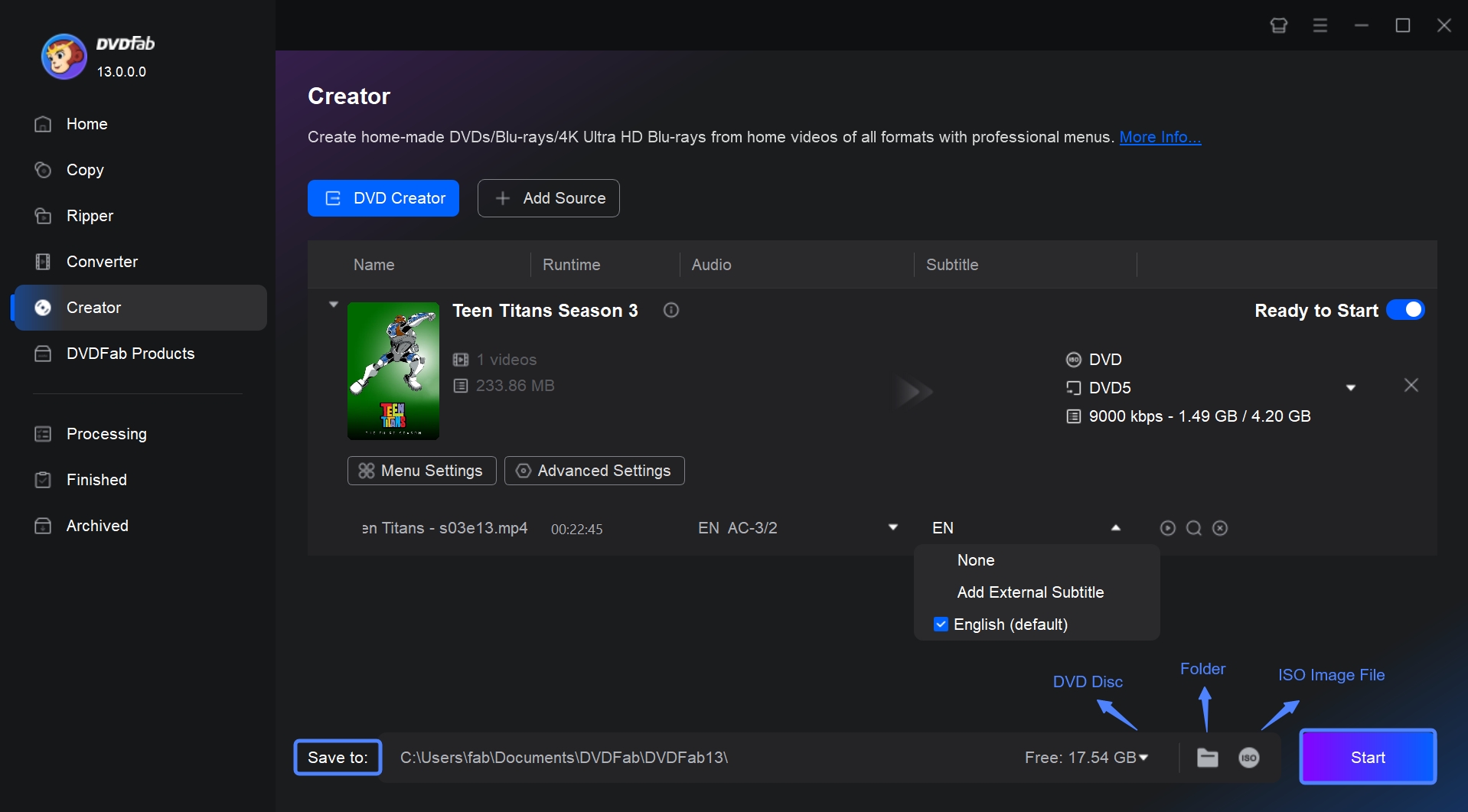
Once the file loads, the main interface shows the video details alongside the output options. From here you can select audio tracks and subtitles, or click Add external subtitles to attach a separate subtitle file.
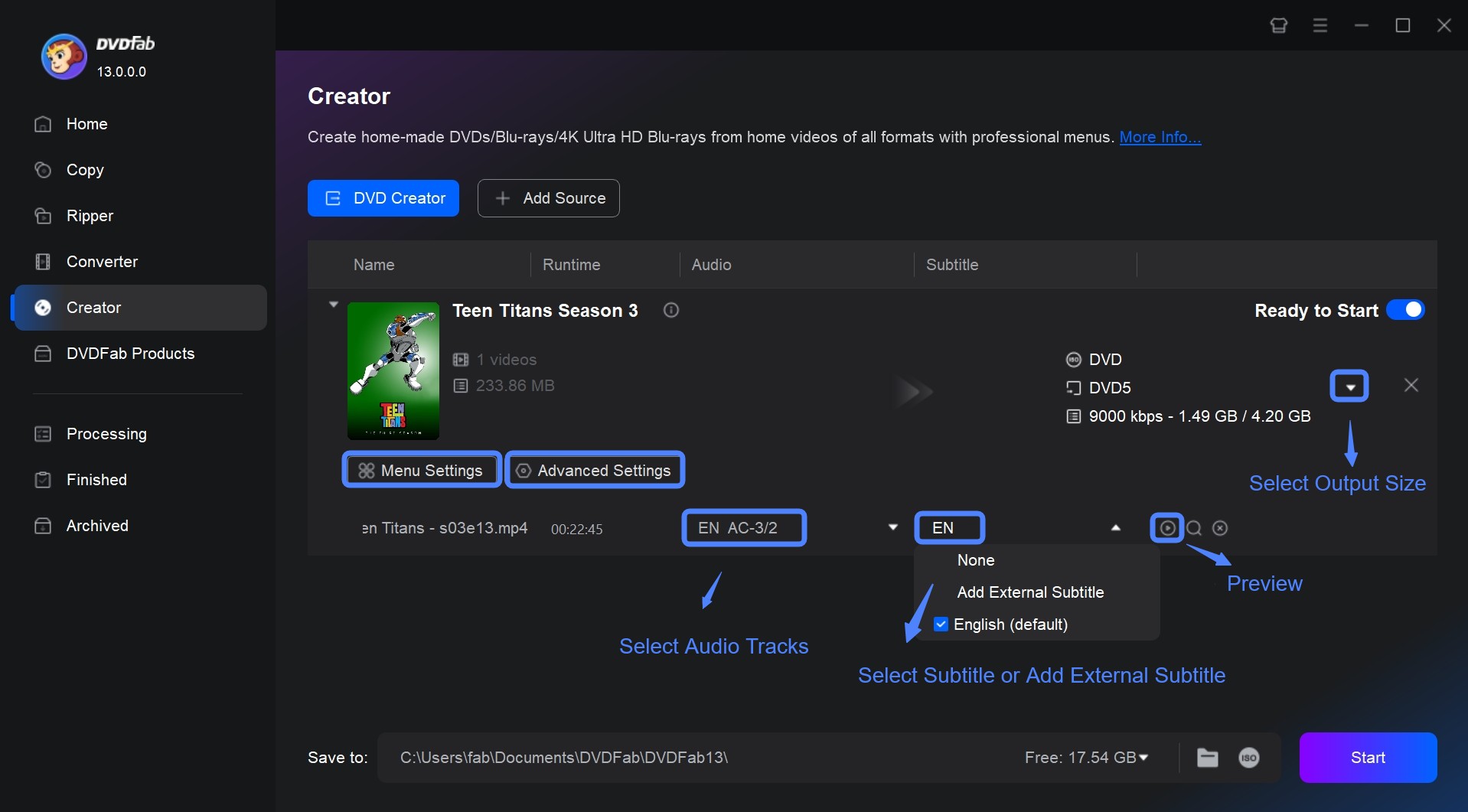
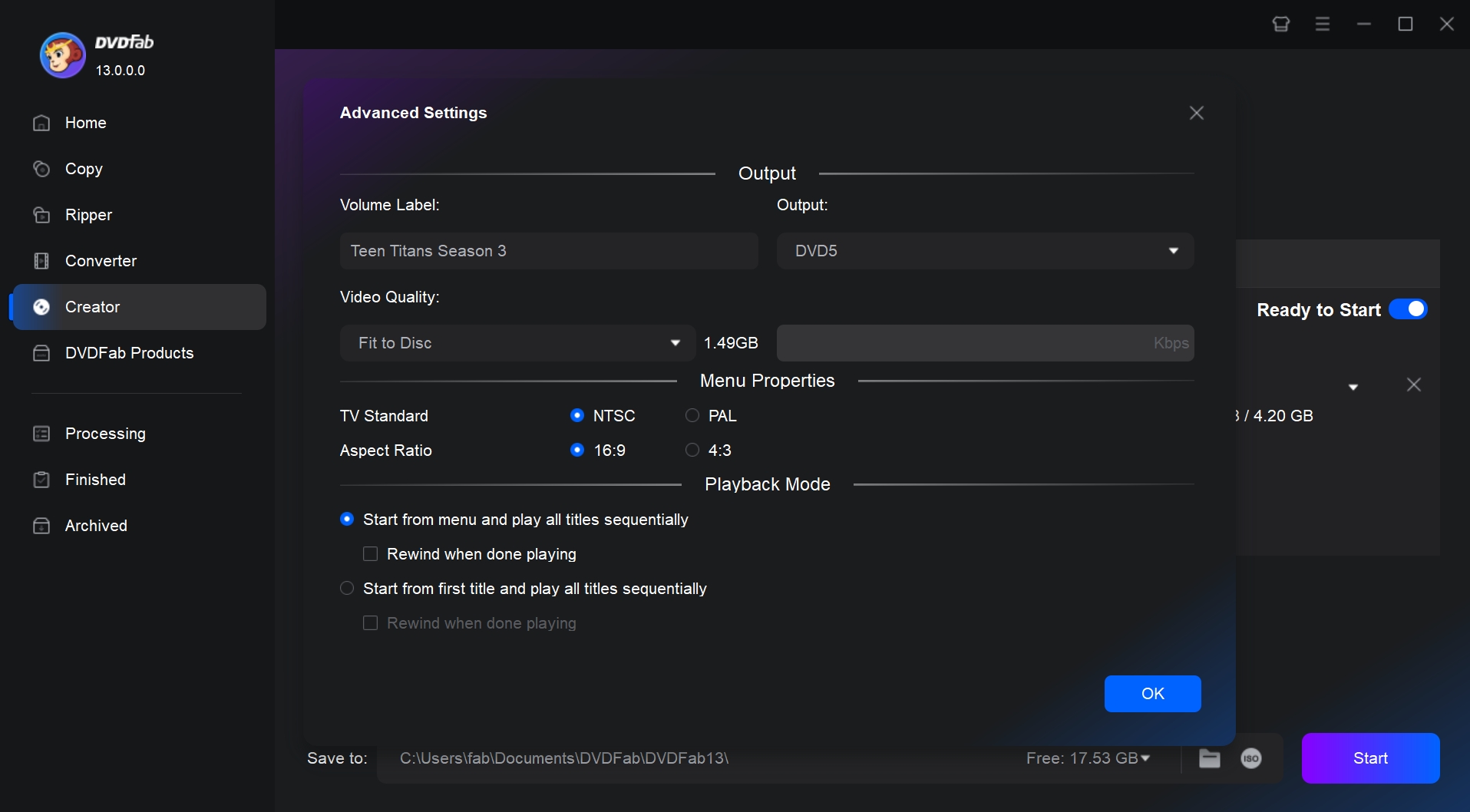
Click Advanced Setting to access the full output configuration:
- Volume Label: sets the disc name visible on your computer or player
- Output type: choose DVD5 (4.7 GB) or DVD9 (8.5 GB) depending on your disc
- Video Quality: use Fit to Disc to let the encoder set the bitrate automatically, or enter a custom value
- Menu Properties: set NTSC or PAL to match your region, and select 16:9 or 4:3 aspect ratio
- Playback Mode: choose whether the disc starts from the menu or plays the first title directly
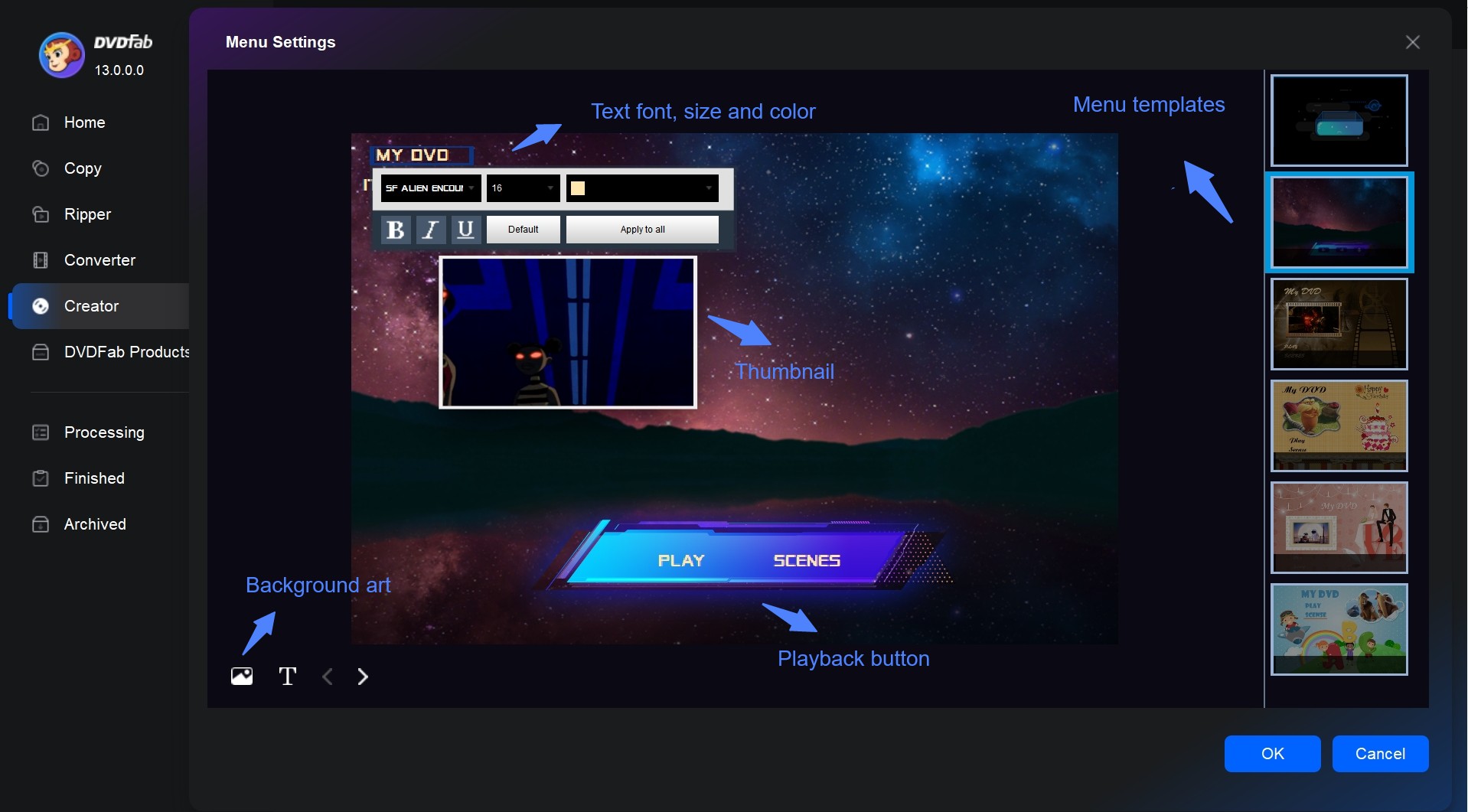
To build a custom menu, click Menu Settings. From there you can select a template, change fonts and colors, reposition elements, and replace the background image.
Step 3: Select Output Destination and Start Burning
At the bottom of the interface, choose where to send the output. Select your optical drive from the drop-down list to burn directly to a blank disc. Click the folder icon to save as a DVD folder on your hard drive, or the image icon to create an ISO file. Once the destination is set, click Start to begin the burn.
How to Convert WMV to DVD Format Online
- Suitable for: basic WMV-to-VOB format conversion on any platform with a browser
Zamzar is a browser-based file converter that can transform a WMV file into a DVD-compatible VOB format without requiring any software installation. It works on Windows, Mac, and Linux. One thing to be clear about upfront: Zamzar converts the file format only. It does not burn anything to a physical disc. Once the conversion finishes and you download the VOB file, you still need a separate DVD authoring tool to write it to a blank disc.
Key features:
- Runs entirely in a browser, no software download or installation needed
- Supports over 1,200 conversions across video, audio, image, and document formats
- Sends an email notification when the converted file is ready to download
- File uploads and converted files are automatically deleted after 24 hours on the free plan
Limitations:
- Free plan file size cap is 50 MB per file, which limits usable video length to a few minutes
- Does not burn to disc — a second tool is required to complete the DVD creation process
- No menu templates, chapter marks, or any other DVD authoring features
- Conversion speed depends on server load and your upload bandwidth
Steps to Convert WMV to DVD-Compatible Format with Zamzar
Step 1: Open Zamzar's website in your browser and click Add Files to upload your WMV file. You can also drag and drop the file onto the upload area.
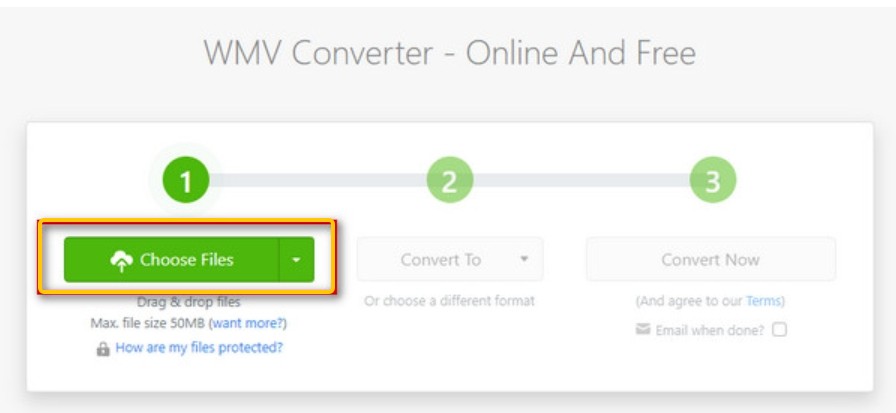
Step 2: Open the format dropdown and select DVD (VOB) as the target format.
Step 3: Click Convert Now. Processing time varies based on file size and current server load.
Step 4: When conversion is complete, click Download to save the VOB file. To burn it to a physical disc, open a DVD authoring tool such as DVDFab DVD Creator, import the VOB file, and follow the burn steps outlined in the first section of this guide.
How to Free Burn WMV to DVD with Windows DVD Maker
- Suitable for: Windows Vista and Windows 7 only
If you are on Windows 10, Windows 11, or macOS, skip this section: Windows DVD Maker is not included in those systems. For users still running Windows Vista or Windows 7, it remains a built-in option that handles basic WMV-to-DVD burning without any additional downloads. The tool covers menu creation, background music, and a handful of style options, but lacks the encoding controls and format flexibility found in dedicated software.
Key features:
- Pre-installed on eligible Windows Vista and Windows 7 editions, no download required
- Simple interface with menu style selection, button text editing, and background music support
- Compatible with common video formats including WMV, MP4, and MPG
Limitations:
- Not available on Windows 8, Windows 10, Windows 11, or any version of macOS
- Limited menu themes and no option to use custom background images
- No troubleshooting or error recovery when a burn fails
- Lacks advanced encoding controls such as bitrate adjustment or aspect ratio override
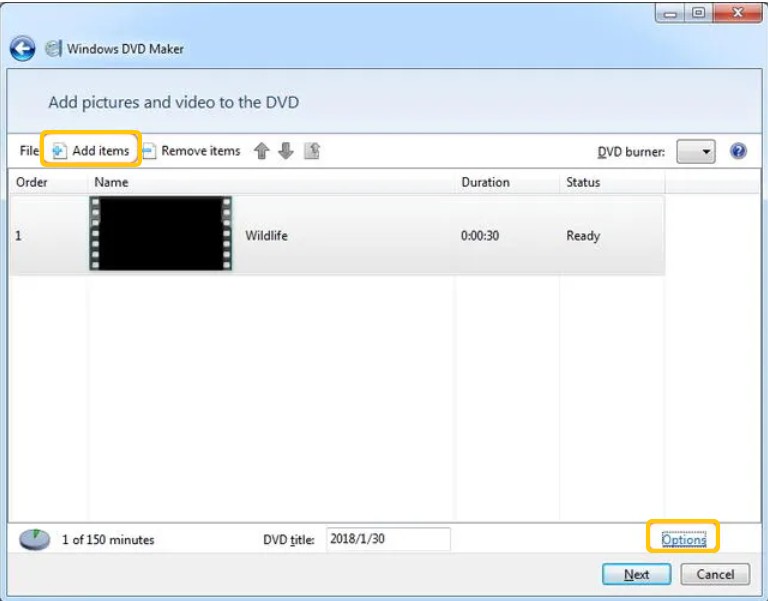
Step 1: Launch Windows DVD Maker and Add WMV Files
Click the Windows Start button, navigate to All Programs, and open Windows DVD Maker. Click Add items to import your WMV files into the project.
Step 2: Customize the DVD Menu
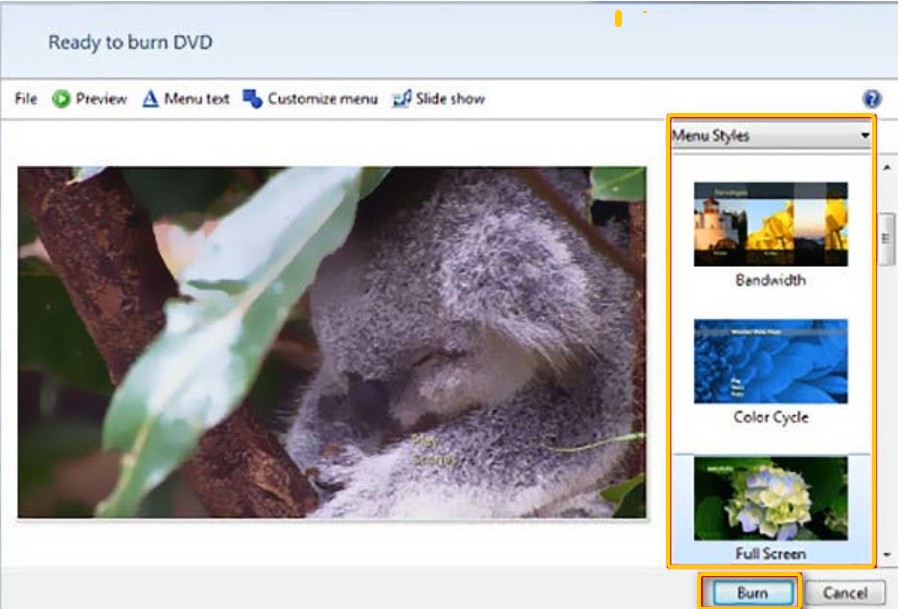
Click Next to enter the menu editor. Select a menu style, edit the disc title and button text, and configure playback settings such as burning speed and loop behavior.
Step 3: Burn the Disc
Insert a blank DVD and click Burn. A progress window shows the estimated time remaining. When the process is complete, the disc ejects automatically.
Frequently Asked Questions
Can I burn WMV to DVD for free on Windows 10 or Windows 11?
Windows 10 and Windows 11 do not include a built-in DVD authoring tool. Windows DVD Maker was discontinued after Windows 7 and is not available on newer systems. For free options on current Windows versions, DVDFab DVD Creator offers a free trial that lets you test the full workflow, though a watermark is added to output without a paid license. Third-party free tools such as Freemake Video Converter and WinX DVD Author also support WMV input on Windows 10 and 11.
What video formats does a DVD player actually support?
Standard DVD players read discs authored in the DVD-Video format, which uses MPEG-2 video encoded at 720x480 (NTSC) or 720x576 (PAL) and audio in AC3 or PCM. WMV is not a DVD-native format, so it must be converted before burning. Any of the methods in this guide handle that conversion automatically during the burn process.
How much video can fit on a single DVD?
A standard single-layer DVD (DVD-5) holds approximately 4.7 GB of data, which translates to roughly 60 minutes of high-quality video or up to 2 hours at reduced bitrate. A dual-layer disc (DVD-9) holds about 8.5 GB, extending that to approximately 4 hours at standard quality. DVDFab DVD Creator's Fit to Disc option adjusts the encoding bitrate automatically to fill the disc without exceeding its capacity.
Why won't my burned DVD play on my standalone DVD player?
The most common causes are a mismatched TV standard (burning NTSC content for a PAL player, or vice versa), not finalizing the disc after burning, or using a disc format the player does not support (DVD+R vs. DVD-R compatibility varies by player model). Check that your authoring software's region setting matches your player's standard, and confirm the disc was finalized or closed after the burn completed.
Will converting WMV to DVD reduce the video quality?
Some quality reduction is unavoidable. DVD-Video's maximum resolution is 720x480 (NTSC), so any WMV file recorded at HD resolution (720p, 1080p, or higher) will be downscaled. Encoding at the highest available bitrate for your disc type minimizes visible degradation, but the output will not match the original HD source. For archival purposes, keeping the original WMV file alongside the DVD burn is a reasonable practice.
Conclusion
The right method depends on what you need from the finished disc. DVDFab DVD Creator is the most capable option for users who want full control over the output. The free trial covers the full workflow, so you can verify the output before committing to a license.
If you only need to convert the WMV file to a DVD-compatible format and already have a separate burning tool, Zamzar handles that conversion step online. Keep in mind the 50 MB free-tier file limit before uploading. For users on Windows Vista or Windows 7 who prefer not to install additional software, Windows DVD Maker covers basic burning needs, within its format and platform constraints.

 How to Burn a DVD on Windows & Mac: 2026 Tested WaysBy Lucy Liu - Aug 4, 2026
 7 Best & Free DVD Menu Creators in 2026: How to Make a DVD Menu on Windows & MacBy Diana Smith - Jul 16, 2026
 How to Make DVDs on Mac and Windows with Easy Steps?By Wenny Yan - Jul 13, 2026
 How to Burn MP3 to DVD: Best Audio DVD Creators Compared (2026)By Wenny Yan - Jul 10, 2026